Thunes Integration Developer Guide

This section describes how to use this guide and where to find further information.

Audience and Purpose

This guide is written for merchants who want to offer Thunes services to customers. It describes tasks that a merchant must complete in order to process a payment. It is intended to help the merchant provide a seamless customer payment experience.

Customer Support

For support information about any service, visit the Support Center:

VISA Platform Connect: Specifications and Conditions for Resellers/Partners

The following are specifications and conditions that apply to a Reseller/Partner enabling its merchants through
Cybersource for
Visa Platform Connect
(“VPC”) processing
. Failure to meet any of the specifications and conditions below is subject to the liability provisions and indemnification obligations under Reseller/Partner’s contract with Visa/Cybersource.
  1. Before boarding merchants for payment processing on a VPC acquirer’s connection, Reseller/Partner and the VPC acquirer must have a contract or other legal agreement that permits Reseller/Partner to enable its merchants to process payments with the acquirer through the dedicated VPC connection and/or traditional connection with such VPC acquirer.
  2. Reseller/Partner is responsible for boarding and enabling its merchants in accordance with the terms of the contract or other legal agreement with the relevant VPC acquirer.
  3. Reseller/Partner acknowledges and agrees that all considerations and fees associated with chargebacks, interchange downgrades, settlement issues, funding delays, and other processing related activities are strictly between Reseller and the relevant VPC acquirer.
  4. Reseller/Partner acknowledges and agrees that the relevant VPC acquirer is responsible for payment processing issues, including but not limited to, transaction declines by network/issuer, decline rates, and interchange qualification, as may be agreed to or outlined in the contract or other legal agreement between Reseller/Partner and such VPC acquirer.
DISCLAIMER: NEITHER VISA NOR CYBERSOURCE WILL BE RESPONSIBLE OR LIABLE FOR ANY ERRORS OR OMISSIONS BY THE
Visa Platform Connect
ACQUIRER IN PROCESSING TRANSACTIONS. NEITHER VISA NOR CYBERSOURCE WILL BE RESPONSIBLE OR LIABLE FOR RESELLER/PARTNER BOARDING MERCHANTS OR ENABLING MERCHANT PROCESSING IN VIOLATION OF THE TERMS AND CONDITIONS IMPOSED BY THE RELEVANT
Visa Platform Connect
ACQUIRER.

Introduction to Thunes Integration

Thunes is a payment service provider (PSP) offered by
Cybersource
that enables you to process payments using regional payment methods throughout the world. You can choose which Thunes payment method to integrate to in order to offer your customers a market-specific payment option. The different payment methods also offer different ways to pay, such as buy now pay laters (BNPLs), credit card processing, and digital wallets.

Requirements

You must have a
Cybersource
merchant ID and a Thunes API key for each country in which you process transactions. Contact your
Cybersource
account manager for more information.
If you integrated with Thunes before January 2025, you must now include the
billTo_country
field in every authorization and sale request.

Alipay+ Transaction Requests

This section describes how to process Alipay+ payments, check the current status of a transaction, and refund payments using the
Simple Order API
.
Alipay+ is a digital wallet payment method offered by the Thunes payment service provider (PSP) that you can offer your customers through
Cybersource
.

Requirements

You must have a merchant ID and a Thunes API key for each country in which you process transactions. Contact your
Cybersource
account manager for more information.

Supported Countries and Currencies

This table lists the countries, digital wallet type, country codes, and currency codes that are supported by Alipay+.
Supported Countries and Currencies
Country
Digital Wallet
Country Code
Currency
Currency Code
China
  • Alipay
CN
Chinese yuan renminbi
CNY
Hong Kong (CN)
  • Alipay+
HK
Hong Kong dollar
HKD
Indonesia
  • Akulaku PayLater
  • Dana
ID
Indonesian rupiah
IDR
Korea, Republic of (South)
  • KakaoPay
KR
South Korean won
KRW
Malaysia
  • Boost
  • Touch'n'GO
MY
Malaysian ringgit
MYR
Philippines
  • Bank of Philippines
  • Gcash
PH
Philippine peso
PHP
Thailand
  • Rabbit Line Pay
  • TrueMoney
TH
Thai baht
THB

Shipping Policy

Goods can be shipped when the sale status is
SETTLED
.

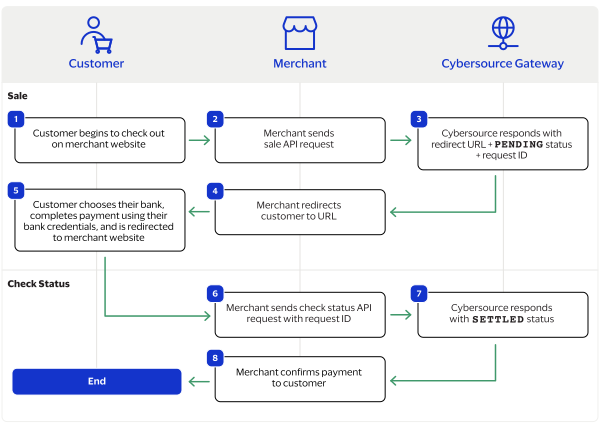
Processing an Alipay+ Payment Workflow

This workflow describes the sequence of events that comprises a successful Alipay+ payment.

Figure:

Alipay+ by Thunes Payment Workflow
  1. The customer begins to checkout on the merchant's website and chooses the Alipay+ payment method.
  2. The merchant sends a sale API request to
    Cybersource
    . For more information, see Process a Sale.
  3. Cybersource
    responds to the merchant with a
    PENDING
    status and a redirect URL.
  4. The merchant redirects the customer to the URL.
  5. The customer completes the checkout using Alipay+ and is redirected to the merchant website.
  6. The merchant sends a check status API request to
    Cybersource
    . For more information, see Check a Request Status.
  7. Cybersource
    responds to the merchant with a
    SETTLED
    status.
  8. The merchant displays a confirmation of the completed payment to the customer.

Transaction Statuses Workflow

This workflow shows the statuses that can occur at each stage of processing a sale and refund.

Figure:

Transaction Statuses Workflow
  1. When a customer begins to check out, you send a sale request to
    Cybersource
    and receive one of these possible statuses:
    • FAILED
      : The sale cannot be completed.
    • PENDING
      : The sale request is accepted but is not completed. Send the check status request to retrieve status updates.
  2. You send a check status request to
    Cybersource
    to verify the sale status and receive one of these statuses:
    • ABANDONED
      : The customer did not complete the payment using the redirect URL.
    • FAILED
      : The sale request failed. A failed request can be due to either a rejection or a technical error.
    • PENDING
      : The sale request is accepted but is not completed. Send the check status request as often as necessary to obtain the information that you need.
    • SETTLED
      : The sale request is settled for the requested amount. When the settled amount is deposited into the merchant's bank account, the status updates to
      FUNDED
      .
  3. If a customer returns a purchase, you send a refund request to
    Cybersource
    and receive one of these possible statuses:
    • FAILED
      : The refund request failed.
    • REFUNDED
      : The refund request is accepted but is not completed. Request the check status service to retrieve status updates.
  4. You send a check status request to
    Cybersource
    to verify the refund status and receive one of these statuses:
    • FAILED
      : The refund could not be completed.
    • REFUNDED
      : The settled amount is successfully refunded.

Process a Sale

Send a sale request to authorize and capture a payment in the same request. A successful sale response includes a redirect URL and a pending status. Redirect the customer to the URL to allow the customer to complete the checkout using Alipay+. When the customer completes the checkout, the customer is redirected to your merchant website based on the success URL you include in the
apSaleService_successURL
request field.

Supported Digital Wallets

This table lists the supported digital wallet types and the relevant digital wallet code, country code, and currency code for each country. When sending a sale request, set these fields to the specified values listed in the table:
Set to a value listed in the Digital Wallet Code column.
Set to a value listed in the Country Code column.
Set to a value listed in the Currency Code column.
Supported Digital Wallets
Country
Digital Wallet
Digital Wallet Code
Country Code
Currency Code
China
Alipay
ALO
CN
CNY
Hong Kong (CN)
Alipay+
ALP
HK
HKD
Indonesia
Akulaku PayLater
APL
ID
IDR
Indonesia
Dana
DNA
ID
IDR
Korea, Republic of (South)
KakaoPay
KPT
KR
KRW
Malaysia
Boost
BST
MY
MYR
Malaysia
Touch'n'GO
TNG
MY
MYR
Philippines
Bank of Philippines
BPI
PH
PHP
Philippines
Gcash
GCH
PH
PHP
Thailand
Rabbit Line Pay
RPL
TH
THB
Thailand
TrueMoney
TMY
TH
THB

Line Items

Line items can be included in a sale request. Line items correspond to the
item_#_
fields, starting with
item_0_
and increasing in numerical order.
For more information about how to properly format line items in your request, see Using Line Items.

Tax Amounts

You can include the tax amount for every type of purchased product in the
item_#_taxAmount
field when you request the sale service.

Calculating the Grand Total

Include the grand total in the request by using the
purchaseTotals_grandTotalAmount
field.
For information about how to calculate the grand total, see Calculating the Grand Total for Line Items.

Endpoints

Set the
apSaleService_run
field to
true
, and send the request to one of these endpoints:
Production:
https://ics2ws.ic3.com/commerce/1.x/transactionProcessor
Test:
https://ics2wstest.ic3.com/commerce/1.x/transactionProcessor

Response Statuses

Cybersource
responds to your sale request with one of these statuses in the
apSaleReply_status
field:
Sale Status
  • FAILED
    : The sale cannot be completed.
  • PENDING
    : The sale request is accepted but is not completed. Request the check status service every 60 minutes to retrieve status updates. See Check a Request Status.
The sale service also responds with a reason code in the
apSaleReply_reasonCode
field.
For more information about reason codes, see Reason Codes and Response Codes.
When you send a check status request to retrieve an updated sale status, these are the possible responses:
Check Status for a Sale
  • ABANDONED
    : The customer did not complete the payment using the redirect URL.
  • FAILED
    : The sale cannot be completed.
  • FUNDED
    : The settled amount is funded to the merchant bank account.
  • PENDING
    : The sale request is accepted but is not complete. Continue sending the check status request every 60 minutes.
  • SETTLED
    : The sale request is settled for the requested amount. You cannot receive a settled status until the customer has completed checking out.

Processing a Sale

Follow these steps to successfully process sale.
  1. Send a
    POST
    request to the
    https://ics2ws.ic3.com/commerce/1.x/transactionProcessor
    endpoint and include these required fields:
    Set to a value listed in the Digital Wallet Code column.
    Set to the URL to which the customer is redirected after successfully completing the Alipay+ payment.
    Add
    ?action=cancel
    to the end of the URL to help identify the response.
    Set to the URL to which the customer is redirected after successfully completing the Alipay+ payment.
    Add
    ?action=failure
    to the end of the URL to help identify the response.
    Set to the URL to which the customer is redirected after successfully completing the Alipay+ payment.
    Add
    ?action=success
    to the end of the URL to help identify the response.
    Set to
    true
    .
    Set to one of these possible values:
    • CN
      : China
    • HK
      : Hong Kong (CN)
    • ID
      : Indonesia
    • KR
      : Korea, Republic of (South)
    • MY
      : Malaysia
    • PH
      : Philippines
    • TH
      : Thailand
    Set to one of these possible values:
    • CNY
      : Chinese yuan renminbi
    • HKD
      : Hong Kong dollar
    • IDR
      : Indonesian rupiah
    • KRW
      : South Korean won
    • MYR
      : Malaysian ringgit
    • PHP
      : Philippine peso
    • THB
      : Thai baht
  2. You can include these optional fields in the request:
    Replace the
    #
    character with a sequential number starting from
    0
    .
    Replace the
    #
    character with a sequential number starting from
    0
    .
    Replace the
    #
    character with a sequential number starting from
    0
    .
    Replace the
    #
    character with a sequential number starting from
    0
    .
    Replace the
    #
    character with a sequential number starting from
    0
    .
    Replace the
    #
    character with a sequential number starting from
    0
    .
    If this field is present, the
    purchaseTotals_currency
    field is optional.
    Replace the
    #
    character with a sequential number starting from
    0
    .
    Replace the
    #
    character with a sequential number starting from
    0
    .
  3. Redirect the customer to the returned URL in the
    merchantURL
    response field.
    <merchantURL>
    https://payment.limonetikqualif.com/AlipayPlus/Order/PayPage/500877975585
    </merchantURL>
  4. When the customer completes the checkout using their Alipay+ credentials, the customer is redirected to the merchant website based on the URL that you included in the
    apSaleService_successURL
    field.
    The customer must select
    Return to Merchant
    at the end of check out in order for the sale to settle.
  5. Save the request ID in the
    requestID
    field from the sale response. Include the request ID in a check status request to confirm that the payment is complete.
    <requestID>
    6989535327666834103007
    </requestID>

Example: Processing a Sale

Request
<requestMessage xmlns="urn:schemas-cybersource-com:transaction-data-1.215"> <merchantID>test_merchant</merchantID> <merchantReferenceCode>refnum-1234</merchantReferenceCode> <billTo> <country>CN</country> </billTo> <purchaseTotals> <currency>CNY</currency> <grandTotalAmount>220.00</grandTotalAmount> </purchaseTotals> <apPaymentType>ALO</apPaymentType> <apSaleService run="true"> <cancelURL>https://www.test.com?action=cancel</cancelURL> <successURL>https://www.test.com?action=success</successURL> <failureURL>https://www.test.com?action=failure</failureURL> </apSaleService> </requestMessage>
Response to a Successful Request
<replyMessage xmlns:c="urn:schemas-cybersource-com:transaction-data-1.215"> <merchantReferenceCode>refnum-1234</merchantReferenceCode> <requestID>6953229557336619903008</requestID> <decision>ACCEPT</decision> <reasonCode>100</reasonCode> <requestToken>AxjnrwSTfCrhKA1WZ6GDANgZYiy6lag2k0Y0+SnkF2K8QJOD6vgaCwyaSZejFfqtQk3wq4SgNVmehgwA7Awz</requestToken> <purchaseTotals> <currency>CNY</currency> </purchaseTotals> <apSaleReply> <reasonCode>100</reasonCode> <paymentStatus>pending</paymentStatus> <responseCode>00001</responseCode> <merchantURL>https://payment.limonetikqualif.com/AlipayPlus/Order/PayPage/401484998592</merchantURL> <processorTransactionID>401484998592</processorTransactionID> <reconciliationID>XEKTVP6IQFOI</reconciliationID> <amount>220.00</amount> <processorResponse>00001</processorResponse> <dateTime>2023-11-29T19:14:15Z</dateTime> </apSaleReply> </replyMessage>

Check a Request Status

The check status service is a follow-on service used to retrieve a status update of a pending sale or refund.
When a pending status updates, a check status response includes the transaction's new status. Thunes sometimes needs to review a service request, which causes a transaction to initially respond with a pending status. The check status request requires you to include the request ID from the pending transaction response you are checking the status of. The request ID is located in the
requestID
response field.
Cybersource
recommends that you send a check status request hourly until the status updates from pending.

Endpoints

Set the
apCheckStatusService_run
field to
true
, and send the request to one of these endpoints:
Production:
https://ics2ws.ic3.com/commerce/1.x/transactionProcessor
Test:
https://ics2wstest.ic3.com/commerce/1.x/transactionProcessor

Response Statuses

Cybersource
responds to your check status request with one of these statuses in the
apCheckStatusReply_status
field:
Check Status Responses for a Sale
  • ABANDONED
    : The customer did not complete the payment using the redirect URL.
  • FAILED
    : The service request failed. A failed request can be due to either Alipay+ rejecting the transaction or a technical error.
  • FUNDED
    : The settled amount is funded to the merchant bank account.
  • PENDING
    : The service request is accepted but is not completed. Request the check status service to retrieve status updates.
  • SETTLED
    : The sale request is settled for the requested amount.
Check Status Responses for a Refund
  • FAILED
    : The service request failed. A failed request can be due to either Alipay+ rejecting the transaction or a technical error.
  • REFUNDED
    : The settled amount is successfully refunded.
The check status service also responds with a reason code in the
apCheckStatusReply_reasonCode
field.
For more information about reason codes, see Reason Codes and Response Codes.

Required Fields for Checking Status

Set to the request ID included in the service response.
Set to
true
.
Set to Alipay+.

Example: Checking a Request Status

Request
<requestMessage xmlns="urn:schemas-cybersource-com:transaction-data-1.215"> <merchantID>test_merchant</merchantID> <merchantReferenceCode>refnum-1234</merchantReferenceCode> <apPaymentType>ALO</apPaymentType> <apCheckStatusService run="true"> <checkStatusRequestID>6953229557336619903008</checkStatusRequestID> </apCheckStatusService> </requestMessage>
Response to a Successful Request
<replyMessage xmlns:c="urn:schemas-cybersource-com:transaction-data-1.215"> <merchantReferenceCode>refnum-1234</merchantReferenceCode> <requestID>6989529700616633303007</requestID> <decision>ACCEPT</decision> <reasonCode>100</reasonCode> <requestToken>AxjnrwSTeuc1xphoz7/fANgZYiy6laewnTZ9honkFw7xbfpC/oGdUMmkmXoxX6rUJN65zUbdKW/6eQAA/i7C</requestToken> <apCheckStatusReply> <reasonCode>100</reasonCode> <reconciliationID>XEKTVO0NMOX4</reconciliationID> <paymentStatus>pending</paymentStatus> <processorResponse>00001</processorResponse> <processorToken>348476012838</processorToken> </apCheckStatusReply> </replyMessage>

Refund a Payment

You can refund a completed payment for the full amount or a partial amount by sending a refund request. Alipay+ supports multiple refund requests when the total amount of all of the refund requests is less than the captured amount.
Requesting a refund requires the request ID from the sale response. The request ID is located in the
requestID
response field.

Endpoints

Set the
apRefundService_run
field to
true
, and send the request to one of these endpoints:
Production:
https://ics2ws.ic3.com/commerce/1.x/transactionProcessor
Test:
https://ics2wstest.ic3.com/commerce/1.x/transactionProcessor

Response Statuses

Cybersource
responds to your refund request with one of these statuses as the
apRefundReply_status
field value:
  • FAILED
    : The refund request failed.
  • REFUNDED
    : The refund request is accepted but is not completed. Request the check status service to retrieve status updates. For more information, see Check a Request Status.
The refund service also responds with a reason code as the
apRefundReply_reasonCode
field value.
For more information about reason codes, see Reason Codes and Response Codes.
When you send a check status request to retrieve an updated refund status, these are the possible responses:
  • FAILED
    : The refund request failed.
  • REFUNDED
    : The settled payment is successfully refunded.

Required Fields for Refunding a Payment

Set to
ALO
.
Set to the request ID included in the sale response.
Set to
true
.
Set to one of these possible values:
  • CNY
    : Chinese yuan renminbi
  • HKD
    : Hong Kong dollar
  • IDR
    : Indonesian rupiah
  • KRW
    : South Korean won
  • MYR
    : Malaysian ringgit
  • PHP
    : Philippine peso
  • THB
    : Thai baht

Example: Refunding a Payment

Request
<requestMessage xmlns="urn:schemas-cybersource-com:transaction-data-1.215"> <merchantID>test_merchant</merchantID> <merchantReferenceCode>refnum-1234</merchantReferenceCode> <purchaseTotals> <currency>CNY</currency> <grandTotalAmount>220.00</grandTotalAmount> </purchaseTotals> <apPaymentType>ALO</apPaymentType> <apRefundService run="true"> <refundRequestID>6953229557336619903008</refundRequestID> </apRefundService> </requestMessage>
Response to a Successful Request
<replyMessage xmlns:c="urn:schemas-cybersource-com:transaction-data-1.215"> <merchantReferenceCode>refnum-1234</merchantReferenceCode> <requestID>6953231301306139703011</requestID> <decision>ACCEPT</decision> <reasonCode>100</reasonCode> <requestToken>AxjnrwSTeO939L1XjnbjANgZYjWmdqbQhOJDNsojmiG+pv0h9XwMwIZNJMvRiy0P/Sbx3uHfMaEAQD4A8Q9I</requestToken> <purchaseTotals> <currency>CNY</currency> </purchaseTotals> <apRefundReply> <reasonCode>100</reasonCode> <transactionID>315778574151</transactionID> <status>REFUNDED</status> <processorResponse>00006</processorResponse> <amount>220.00</amount> <dateTime>2023-09-21T19:05:32Z</dateTime> <reconciliationID>XFZ3ZMPB8H36</reconciliationID> <returnRef>XFZ40MPBIPMM</returnRef> <paymentStatus>refunded</paymentStatus> <responseCode>00006</responseCode> </apRefundReply> </replyMessage>

Blik Transaction Requests

Blik is a payment method offered by the Thunes payment service provider (PSP) that you can offer your customers through
Cybersource
. You can process a payment by sending a sale API request message to
Cybersource
.
Cybersource
sends your request to Thunes. Thunes approves the transaction and sends the request to the processor for settlement. You can also send a follow-on refund and check status API requests.

Requirements

You must have a merchant ID and a Thunes API key for each country in which you process transactions. Contact your
Cybersource
account manager for more information.

Supported Country and Currency

This table lists the country, country code, and currency supported by Blik.
Supported Country and Currency
Country
Country Code
Currency
Currency Code
Poland
PL
Polish zloty
PLN

Shipping Policy

You can ship purchased goods when the sale status is
SETTLED
.

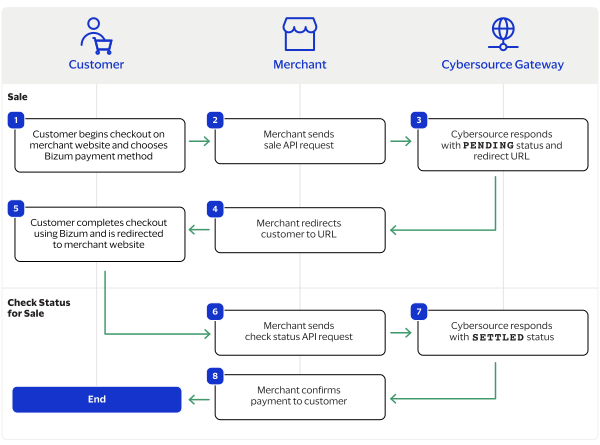
Blik by Thunes Payment Workflow

This workflow describes the sequence of events that comprises a successful Blik payment.

Figure:

Blik by Thunes Payment Workflow
  1. The customer begins to checkout on the merchant's website and chooses the Blik payment method.
  2. The merchant sends a sale API request to
    Cybersource
    . For more information, see Process a Sale.
  3. Cybersource
    responds to the merchant with a
    PENDING
    status and a redirect URL.
  4. The merchant redirects the customer to the URL.
  5. The customer completes the checkout using Blik and is redirected to the merchant website.
  6. The merchant sends a check status API request to
    Cybersource
    . For more information, see Check a Request Status.
  7. Cybersource
    responds to the merchant with a
    SETTLED
    status.
  8. The merchant displays a confirmation of the completed payment to the customer.

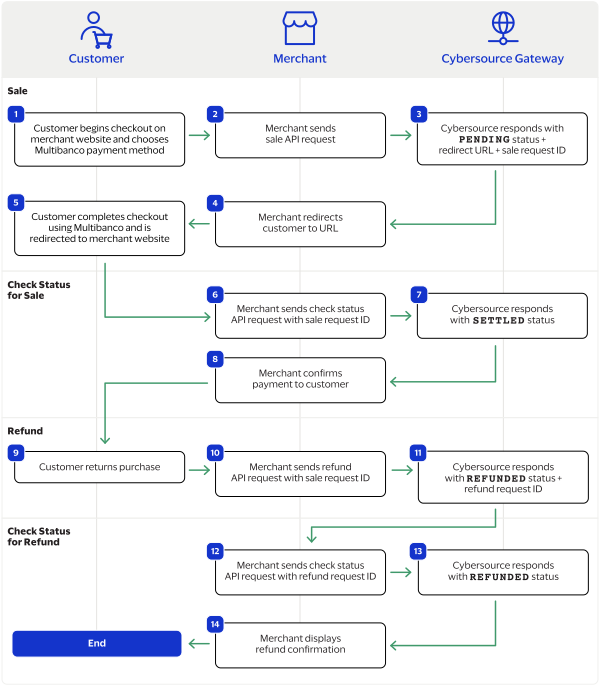
Transaction Statuses Workflow

This workflow shows the statuses that can occur at each stage of processing a sale and refund.

Figure:

Transaction Statuses Workflow
  1. When a customer begins to check out, you send a sale request to
    Cybersource
    and receive one of these possible statuses:
    • FAILED
      : The sale cannot be completed.
    • PENDING
      : The sale request is accepted but is not completed. Send the check status request to retrieve status updates.
  2. You send a check status request to
    Cybersource
    to verify the sale status and receive one of these statuses:
    • ABANDONED
      : The customer did not complete the payment using the redirect URL.
    • FAILED
      : The sale request failed. A failed request can be due to either a rejection or a technical error.
    • PENDING
      : The sale request is accepted but is not completed. Send the check status request as often as necessary to obtain the information that you need.
    • SETTLED
      : The sale request is settled for the requested amount. When the settled amount is deposited into the merchant's bank account, the status updates to
      FUNDED
      .
  3. If a customer returns a purchase, you send a refund request to
    Cybersource
    and receive one of these possible statuses:
    • FAILED
      : The refund request failed.
    • REFUNDED
      : The refund request is accepted but is not completed. Request the check status service to retrieve status updates.
  4. You send a check status request to
    Cybersource
    to verify the refund status and receive one of these statuses:
    • FAILED
      : The refund could not be completed.
    • REFUNDED
      : The settled amount is successfully refunded.

Process a Sale

Send a sale request to authorize and capture a payment in the same request. A successful sale response includes a redirect URL and a pending status. Redirect the customer to the URL to allow the customer to complete the checkout using Blik. When the customer completes the checkout, the customer is redirected to your merchant website based on the success URL you include in the
apSaleService_successURL
request field.

Line Items

Line items can be included in a sale request. Line items correspond to the
item_#_
fields, starting with
item_0_
and increasing in numerical order.
For more information about how to properly format line items in your request, see Using Line Items.

Tax Amounts

You can include the tax amount for every type of purchased product in the
item_#_taxAmount
field when you request the sale service.

Calculating the Grand Total

Include the grand total in the request by using the
purchaseTotals_grandTotalAmount
field.
For information about how to calculate the grand total, see Calculating the Grand Total for Line Items.

Endpoints

Set the
apSaleService_run
field to
true
, and send the request to one of these endpoints:
Production:
https://ics2ws.ic3.com/commerce/1.x/transactionProcessor
Test:
https://ics2wstest.ic3.com/commerce/1.x/transactionProcessor

Response Statuses

Cybersource
responds to your sale request with one of these statuses in the
apSaleReply_status
field:
Sale Status
  • FAILED
    : The sale cannot be completed.
  • PENDING
    : The sale request is accepted but is not completed. Request the check status service every 60 minutes to retrieve status updates. See Check a Request Status.
The sale service also responds with a reason code in the
apSaleReply_reasonCode
field.
For more information about reason codes, see Reason Codes and Response Codes.
When you send a check status request to retrieve an updated sale status, these are the possible responses:
Check Status for a Sale
  • ABANDONED
    : The customer did not complete the payment using the redirect URL.
  • FAILED
    : The sale cannot be completed.
  • FUNDED
    : The settled amount is funded to the merchant bank account.
  • PENDING
    : The sale request is accepted but is not complete. Continue sending the check status request every 60 minutes.
  • SETTLED
    : The sale request is settled for the requested amount. You cannot receive a settled status until the customer has completed checking out.

Processing a Sale

Follow these steps to successfully process sale.
  1. Send a
    POST
    request to the
    https://ics2ws.ic3.com/commerce/1.x/transactionProcessor
    endpoint and include these required fields:
    Set to
    BLK
    .
    Set to the URL to which the customer is redirected after successfully completing the Blik payment.
    Add
    ?action=cancel
    to the end of the URL to help identify the response.
    Set to the URL to which the customer is redirected after successfully completing the Blik payment.
    Add
    ?action=failure
    to the end of the URL to help identify the response.
    Set to the URL to which the customer is redirected after successfully completing the Blik payment.
    Add
    ?action=success
    to the end of the URL to help identify the response.
    Set to
    true
    .
    Set to
    PL
    .
    Set to
    PLN
    .
  2. You can include these optional fields in the request:
    Replace the
    #
    character with a sequential number starting from
    0
    .
    Replace the
    #
    character with a sequential number starting from
    0
    .
    Replace the
    #
    character with a sequential number starting from
    0
    .
    Replace the
    #
    character with a sequential number starting from
    0
    .
    Replace the
    #
    character with a sequential number starting from
    0
    .
    Replace the
    #
    character with a sequential number starting from
    0
    .
    If this field is present, the
    purchaseTotals_currency
    field is optional.
    Replace the
    #
    character with a sequential number starting from
    0
    .
    Replace the
    #
    character with a sequential number starting from
    0
    .
  3. Redirect the customer to the returned URL in the
    merchantURL
    response field.
    <merchantURL>
    https://payment.limonetikqualif.com/Blik/Order/PayPage/575205716566
    </merchantURL>
  4. When the customer completes the checkout using their Blik credentials, the customer is redirected to the merchant website based on the URL that you included in the
    apSaleService_successURL
    field.
  5. Save the request ID in the
    requestID
    field from the sale response. Include the request ID in a check status request to confirm that the payment is complete.
    <requestID>
    6989535327666834103007
    </requestID>

Example: Processing a Sale

Request
<requestMessage xmlns="urn:schemas-cybersource-com:transaction-data-1.215"> <merchantID>test_merchant</merchantID> <merchantReferenceCode>refnum-1234</merchantReferenceCode> <billTo> <country>PL</country> <email>
test@cybs.com
</email> </billTo> <purchaseTotals> <currency>PLN</currency> <grandTotalAmount>11.01</grandTotalAmount> </purchaseTotals> <apPaymentType>BLK</apPaymentType> <apSaleService run="true"> <cancelURL>https://www.yahoo.com?action=cancel</cancelURL> <successURL>https://www.google.com?action=success</successURL> <failureURL>https://www.cnn.com?action=failure</failureURL> </apSaleService> </requestMessage>
Response to a Successful Request
<replyMessage xmlns:c="urn:schemas-cybersource-com:transaction-data-1.215"> <merchantReferenceCode>test-merchant</merchantReferenceCode> <requestID>7152979603996115303012</requestID> <decision>ACCEPT</decision> <reasonCode>100</reasonCode> <requestToken>AxjnrwSTg8OIe7lqwXpkANgZYjWmrWtVkNGzFknvwXULhnsi4moEUMmkmXoxX6rUJODw4h7uWrBemQAA6R+7</requestToken> <purchaseTotals> <currency>PLN</currency> </purchaseTotals> <apSaleReply> <reasonCode>100</reasonCode> <paymentStatus>pending</paymentStatus> <responseCode>00001</responseCode> <merchantURL>https://payment.limonetikqualif.com/Blik/Order/PayPage/248976536313</merchantURL> <processorTransactionID>248976536313</processorTransactionID> <reconciliationID>XFZ55VUH4612</reconciliationID> <amount>11.01</amount> <processorResponse>00001</processorResponse> <dateTime>2024-05-09T23:39:21Z</dateTime> </apSaleReply> </replyMessage>

Check a Request Status

You can retrieve the status of a pending sale or refund by sending a check status request.
When a pending status updates, a check status response includes the transaction's new status. Thunes sometimes needs to review a service request, which causes a transaction to initially respond with a pending status. The check status request requires you to include the request ID from the pending transaction response you are checking the status of. The request ID is located in the
requestID
response field.
Cybersource
recommends that you send a check status request hourly until the status updates from pending.

Endpoints

Set the
apCheckStatusService_run
field to
true
, and send the request to one of these endpoints:
Production:
https://ics2ws.ic3.com/commerce/1.x/transactionProcessor
Test:
https://ics2wstest.ic3.com/commerce/1.x/transactionProcessor

Response Statuses

Cybersource
responds to your check status request with one of these statuses in the
apCheckStatusReply_status
field:
Check Status Responses for a Sale
  • ABANDONED
    : The customer did not complete the payment using the redirect URL.
  • FAILED
    : The service request failed. A failed request can be due to either Blik rejecting the transaction or a technical error.
  • FUNDED
    : The settled amount is funded to the merchant bank account.
  • PENDING
    : The service request is accepted but is not completed. Request the check status service to retrieve status updates.
  • SETTLED
    : The sale request is settled for the requested amount.
Check Status Responses for a Refund
  • FAILED
    : The service request failed. A failed request can be due to either Blik rejecting the transaction or a technical error.
  • REFUNDED
    : The settled amount is successfully refunded.
The check status service also responds with a reason code in the
apCheckStatusReply_reasonCode
field.
For more information about reason codes, see Reason Codes and Response Codes.

Required Fields for Checking Status

Set to the request ID included in the service response.
Set to
true
.
Set to Blik.

Example: Checking a Request Status

Request
<requestMessage xmlns="urn:schemas-cybersource-com:transaction-data-1.215"> <merchantID>test_merchant</merchantID> <merchantReferenceCode>refnum-1234</merchantReferenceCode> <apPaymentType>BLK</apPaymentType> <apCheckStatusService run="true"> <checkStatusRequestID>6953229557336619903008</checkStatusRequestID> </apCheckStatusService> </requestMessage>
Response to a Successful Request
<replyMessage xmlns:c="urn:schemas-cybersource-com:transaction-data-1.215"> <merchantReferenceCode>refnum-1234</merchantReferenceCode> <requestID>6989529700616633303007</requestID> <decision>ACCEPT</decision> <reasonCode>100</reasonCode> <requestToken>AxjnrwSTeuc1xphoz7/fANgZYiy6laewnTZ9honkFw7xbfpC/oGdUMmkmXoxX6rUJN65zUbdKW/6eQAA/i7C</requestToken> <apCheckStatusReply> <reasonCode>100</reasonCode> <reconciliationID>XEKTVO0NMOX4</reconciliationID> <paymentStatus>pending</paymentStatus> <processorResponse>00001</processorResponse> <processorToken>348476012838</processorToken> </apCheckStatusReply> </replyMessage>

Refund a Payment

You can refund a completed payment for the full amount or a partial amount by sending a refund request. Blik supports multiple refund requests when the total amount of all of the refund requests is less than the captured amount.
Requesting a refund requires the request ID from the sale response. The request ID is located in the
requestID
response field.

Endpoints

Set the
apRefundService_run
field to
true
, and send the request to one of these endpoints:
Production:
https://ics2ws.ic3.com/commerce/1.x/transactionProcessor
Test:
https://ics2wstest.ic3.com/commerce/1.x/transactionProcessor

Response Statuses

Cybersource
responds to your refund request with one of these statuses as the
apRefundReply_status
field value:
  • FAILED
    : The refund request failed.
  • REFUNDED
    : The refund request is accepted but is not completed. Request the check status service to retrieve status updates. For more information, see Check a Transaction Status.
The refund service also responds with a reason code as the
apRefundReply_reasonCode
field value.
For more information about reason codes, see Reason Codes and Response Codes.
When you send a check status request to retrieve an updated refund status, these are the possible responses:
  • FAILED
    : The refund request failed.
  • REFUNDED
    : The settled payment is successfully refunded.

Required Fields for Refunding a Payment

Example: Refunding a Payment

Request
<requestMessage xmlns="urn:schemas-cybersource-com:transaction-data-1.215"> <merchantID>test_merchant</merchantID> <merchantReferenceCode>refnum-1234</merchantReferenceCode> <purchaseTotals> <currency>PLN</currency> <grandTotalAmount>220.00</grandTotalAmount> </purchaseTotals> <apPaymentType>BLK</apPaymentType> <apRefundService run="true"> <refundRequestID>6953229557336619903008</refundRequestID> </apRefundService> </requestMessage>
Response to a Successful Request
<replyMessage xmlns:c="urn:schemas-cybersource-com:transaction-data-1.215"> <merchantReferenceCode>refnum-1234</merchantReferenceCode> <requestID>6953231301306139703011</requestID> <decision>ACCEPT</decision> <reasonCode>100</reasonCode> <requestToken>AxjnrwSTeO939L1XjnbjANgZYjWmdqbQhOJDNsojmiG+pv0h9XwMwIZNJMvRiy0P/Sbx3uHfMaEAQD4A8Q9I</requestToken> <purchaseTotals> <currency>PLN</currency> </purchaseTotals> <apRefundReply> <reasonCode>100</reasonCode> <transactionID>315778574151</transactionID> <status>REFUNDED</status> <processorResponse>00006</processorResponse> <amount>220.00</amount> <dateTime>2023-09-21T19:05:32Z</dateTime> <reconciliationID>XFZ3ZMPB8H36</reconciliationID> <returnRef>XFZ40MPBIPMM</returnRef> <paymentStatus>refunded</paymentStatus> <responseCode>00006</responseCode> </apRefundReply> </replyMessage>

GoPay Transaction Requests

GoPay is a payment method offered by the Thunes payment service provider (PSP) that you can offer your customers through
Cybersource
. You can process a payment by sending a sale API request message to
Cybersource
.
Cybersource
sends your request to Thunes. Thunes approves the transaction and sends the request to the processor for settlement. You can also send a refund and check status API request as follow-on services.

Requirements

You must have a merchant ID and a Thunes API key for each country in which you process transactions. Contact your
Cybersource
account manager for more information.

Supported Currency

This table lists the currency supported by GoPay.
Supported Currencies and Currency Codes
Currency
Currency Code
Indonesian rupiah
IDR

Shipping Policy

Goods can be shipped when the sale status is
SETTLED
.

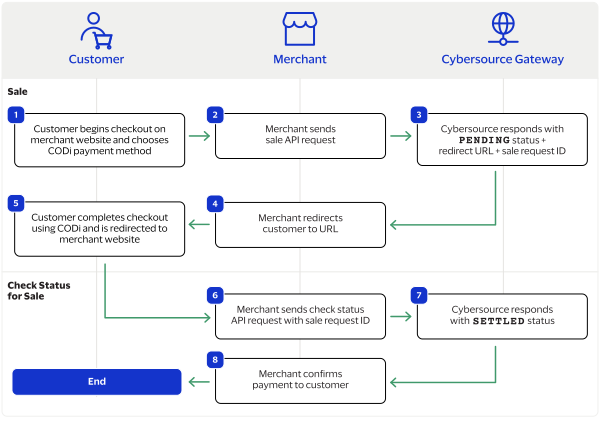
GoPay by Thunes Payment Workflow

This workflow describes the sequence of events that comprises a successful GoPay payment.

Figure:

GoPay by Thunes Payment Workflow
  1. The customer begins to checkout on the merchant's website and chooses the GoPay payment method.
  2. The merchant sends a sale API request to
    Cybersource
    . For more information, see Process a Sale.
  3. Cybersource
    responds to the merchant with a
    PENDING
    status and a redirect URL.
  4. The merchant redirects the customer to the URL.
  5. The customer completes the checkout using GoPay and is redirected to the merchant website.
  6. The merchant sends a check status API request to
    Cybersource
    . For more information, see Check a Request Status.
  7. Cybersource
    responds to the merchant with a
    SETTLED
    status.
  8. The merchant displays a confirmation of the completed payment to the customer.

Transaction Statuses Workflow

This workflow shows the statuses that can occur at each stage of processing a sale and refund.

Figure:

Transaction Statuses Workflow
  1. When a customer begins to check out, you send a sale request to
    Cybersource
    and receive one of these possible statuses:
    • FAILED
      : The sale cannot be completed.
    • PENDING
      : The sale request is accepted but is not completed. Send the check status request to retrieve status updates.
  2. You send a check status request to
    Cybersource
    to verify the sale status and receive one of these statuses:
    • ABANDONED
      : The customer did not complete the payment using the redirect URL.
    • FAILED
      : The sale request failed. A failed request can be due to either a rejection or a technical error.
    • PENDING
      : The sale request is accepted but is not completed. Send the check status request as often as necessary to obtain the information that you need.
    • SETTLED
      : The sale request is settled for the requested amount. When the settled amount is deposited into the merchant's bank account, the status updates to
      FUNDED
      .
  3. If a customer returns a purchase, you send a refund request to
    Cybersource
    and receive one of these possible statuses:
    • FAILED
      : The refund request failed.
    • REFUNDED
      : The refund request is accepted but is not completed. Request the check status service to retrieve status updates.
  4. You send a check status request to
    Cybersource
    to verify the refund status and receive one of these statuses:
    • FAILED
      : The refund could not be completed.
    • REFUNDED
      : The settled amount is successfully refunded.

Process a Sale

Send a sale request to authorize and capture a payment in the same request. A successful sale response includes a redirect URL and a pending status. Redirect the customer to the URL to allow the customer to complete the checkout using GoPay. When the customer completes the checkout, the customer is redirected to the merchant website using the success-URL provided in the sale request.

Line Items

Line items can be included in a sale request. Line items correspond to the
item_#_
fields, starting with
item_0_
and increasing in numerical order.
For more information about how to properly format line items in your request, see Using Line Items.

Tax Amounts

You can include the tax amount for every type of purchased product in the
item_#_taxAmount
field when you request the sale service.

Calculating the Grand Total

Include the grand total in the request by using the
purchaseTotals_grandTotalAmount
field.
For information about how to calculate the grand total, see Calculating the Grand Total for Line Items.

Endpoints

Set the
apSaleService_run
field to
true
, and send the request to one of these endpoints:
Production:
https://ics2ws.ic3.com/commerce/1.x/transactionProcessor
Test:
https://ics2wstest.ic3.com/commerce/1.x/transactionProcessor

Response Statuses

Cybersource
responds to your sale request with one of these statuses in the
apSaleReply_status
field:
Sale Status
  • FAILED
    : The sale cannot be completed.
  • PENDING
    : The sale request is accepted but is not completed. Request the check status service every 60 minutes to retrieve status updates. See Check a Request Status.
The sale service also responds with a reason code in the
apSaleReply_reasonCode
field.
For more information about reason codes, see Reason Codes and Response Codes.
When you send a check status request to retrieve an updated sale status, these are the possible responses:
Check Status for a Sale
  • ABANDONED
    : The customer did not complete the payment using the redirect URL.
  • FAILED
    : The sale cannot be completed.
  • FUNDED
    : The settled amount is funded to the merchant bank account.
  • PENDING
    : The sale request is accepted but is not complete. Continue sending the check status request every 60 minutes.
  • SETTLED
    : The sale request is settled for the requested amount. You cannot receive a settled status until the customer has completed checking out.

Processing a Sale

Follow these steps to successfully process sale.
  1. Send a
    POST
    request to the
    https://ics2ws.ic3.com/commerce/1.x/transactionProcessor
    endpoint and include these required fields:
    Set to
    GOP
    .
    Set to the URL to which the customer is redirected after successfully completing the GoPay payment.
    Add
    ?action=cancel
    to the end of the URL to help identify the response.
    Set to the URL to which the customer is redirected after successfully completing the GoPay payment.
    Add
    ?action=failure
    to the end of the URL to help identify the response.
    Set to the URL to which the customer is redirected after successfully completing the GoPay payment.
    Add
    ?action=success
    to the end of the URL to help identify the response.
    Set to
    true
    .
    Set to
    ID
    .
    Set to
    IDR
    .
  2. You can include these optional fields in the request:
    Set to
    ID
    .
    Replace the
    #
    character with a sequential number starting from
    0
    .
    Replace the
    #
    character with a sequential number starting from
    0
    .
    Replace the
    #
    character with a sequential number starting from
    0
    .
    Replace the
    #
    character with a sequential number starting from
    0
    .
    Replace the
    #
    character with a sequential number starting from
    0
    .
    Replace the
    #
    character with a sequential number starting from
    0
    .
    If this field is present, the
    purchaseTotals_currency
    field is optional.
    Replace the
    #
    character with a sequential number starting from
    0
    .
    Replace the
    #
    character with a sequential number starting from
    0
    .
  3. Redirect the customer to the returned URL in the
    merchantURL
    response field.
    <merchantURL>
    https://payment.limonetikqualif.com/Boku/Order/PayPage/512234773895
    </merchantURL>
  4. When the customer completes the checkout using their GoPay credentials, the customer is redirected to the merchant website based on the URL that you included in the
    apSaleService_successURL
    field.
  5. Save the request ID in the
    requestID
    field from the sale response. Include the request ID in a check status request to confirm that the payment is complete.
    <requestID>
    6989535327666834103007
    </requestID>

Example: Processing a Sale

Request
<requestMessage xmlns="urn:schemas-cybersource-com:transaction-data-1.215"> <merchantID>test_merchant</merchantID> <merchantReferenceCode>refnum-1234</merchantReferenceCode> <billTo> <country>ID</country> </billTo> <purchaseTotals> <currency>IDR</currency> <grandTotalAmount>220.00</grandTotalAmount> </purchaseTotals> <apPaymentType>GOP</apPaymentType> <apSaleService run="true"> <cancelURL>https://www.test.com?action=cancel</cancelURL> <successURL>https://www.test.com?action=success</successURL> <failureURL>https://www.test.com?action=failure</failureURL> </apSaleService> </requestMessage>
Response to a Successful Request
<requestMessage xmlns="urn:schemas-cybersource-com:transaction-data-1.215"> <merchantID>test-merchant</merchantID> <merchantReferenceCode>GoPay-Sale</merchantReferenceCode> <purchaseTotals> <currency>IDR</currency> <grandTotalAmount>11.00</grandTotalAmount> </purchaseTotals> <apPaymentType>GOP</apPaymentType> <apSaleService run="true"> <cancelURL>https://www.yahoo.com?action=cancel</cancelURL> <successURL>https://www.google.com?action=success</successURL> <failureURL>https://www.cnn.com?action=failure</failureURL> </apSaleService> </requestMessage>

Check a Request Status

The check status service is a follow-on service used to retrieve a status update of a pending sale or refund.
When a pending status updates, a check status response includes the transaction's new status. Thunes sometimes needs to review a service request, which causes a transaction to initially respond with a pending status. The check status request requires you to include the request ID from the pending transaction response you are checking the status of. The request ID is located in the
requestID
response field.
Cybersource
recommends that you send a check status request hourly until the status updates from pending.

Endpoints

Set the
apCheckStatusService_run
field to
true
, and send the request to one of these endpoints:
Production:
https://ics2ws.ic3.com/commerce/1.x/transactionProcessor
Test:
https://ics2wstest.ic3.com/commerce/1.x/transactionProcessor

Response Statuses

Cybersource
responds to your check status request with one of these statuses in the
apCheckStatusReply_status
field:
Check Status Responses for a Sale
  • ABANDONED
    : The customer did not complete the payment using the redirect URL.
  • FAILED
    : The service request failed. A failed request can be due to either GoPay rejecting the transaction or a technical error.
  • FUNDED
    : The settled amount is funded to the merchant bank account.
  • PENDING
    : The service request is accepted but is not completed. Request the check status service to retrieve status updates.
  • SETTLED
    : The sale request is settled for the requested amount.
Check Status Responses for a Refund
  • FAILED
    : The service request failed. A failed request can be due to either GoPay rejecting the transaction or a technical error.
  • REFUNDED
    : The settled amount is successfully refunded.
The check status service also responds with a reason code in the
apCheckStatusReply_reasonCode
field.
For more information about reason codes, see Reason Codes and Response Codes.

Required Fields for Checking Status

Set to the request ID included in the service response.
Set to
true
.
Set to
GOP
.

Example: Checking a Request Status

Request
<requestMessage xmlns="urn:schemas-cybersource-com:transaction-data-1.215"> <merchantID>test_merchant</merchantID> <merchantReferenceCode>refnum-1234</merchantReferenceCode> <apPaymentType>GOP</apPaymentType> <apCheckStatusService run="true"> <checkStatusRequestID>6953229557336619903008</checkStatusRequestID> </apCheckStatusService> </requestMessage>
Response to a Successful Request
<replyMessage xmlns:c="urn:schemas-cybersource-com:transaction-data-1.215"> <merchantReferenceCode>refnum-1234</merchantReferenceCode> <requestID>6989529700616633303007</requestID> <decision>ACCEPT</decision> <reasonCode>100</reasonCode> <requestToken>AxjnrwSTeuc1xphoz7/fANgZYiy6laewnTZ9honkFw7xbfpC/oGdUMmkmXoxX6rUJN65zUbdKW/6eQAA/i7C</requestToken> <apCheckStatusReply> <reasonCode>100</reasonCode> <reconciliationID>XEKTVO0NMOX4</reconciliationID> <paymentStatus>pending</paymentStatus> <processorResponse>00001</processorResponse> <processorToken>348476012838</processorToken> </apCheckStatusReply> </replyMessage>

Refund a Payment

You can refund a completed payment for the full amount or a partial amount by sending a refund request. GoPay supports multiple refund requests when the total amount of all of the refund requests is less than the captured amount.
Requesting a refund requires the request ID from the sale response. The request ID is located in the
requestID
response field.

Endpoints

Set the
apRefundService_run
field to
true
, and send the request to one of these endpoints:
Production:
https://ics2ws.ic3.com/commerce/1.x/transactionProcessor
Test:
https://ics2wstest.ic3.com/commerce/1.x/transactionProcessor

Response Statuses

Cybersource
responds to your refund request with one of these statuses as the
apRefundReply_status
field value:
  • FAILED
    : The refund request failed.
  • REFUNDED
    : The refund request is accepted but is not completed. Request the check status service to retrieve status updates. For more information, see Check a Request Status.
The refund service also responds with a reason code as the
apRefundReply_reasonCode
field value.
For more information about reason codes, see Reason Codes and Response Codes.
When you send a check status request to retrieve an updated refund status, these are the possible responses:
  • FAILED
    : The refund request failed.
  • REFUNDED
    : The settled payment is successfully refunded.

Required Fields for Refunding a Payment

Example: Refunding a Payment

Request
<requestMessage xmlns="urn:schemas-cybersource-com:transaction-data-1.215"> <merchantID>test_merchant</merchantID> <merchantReferenceCode>refnum-1234</merchantReferenceCode> <purchaseTotals> <currency>IDR</currency> <grandTotalAmount>220.00</grandTotalAmount> </purchaseTotals> <apPaymentType>GOP</apPaymentType> <apRefundService run="true"> <refundRequestID>6953229557336619903008</refundRequestID> </apRefundService> </requestMessage>
Response to a Successful Request
<replyMessage xmlns:c="urn:schemas-cybersource-com:transaction-data-1.215"> <merchantReferenceCode>refnum-1234</merchantReferenceCode> <requestID>6953231301306139703011</requestID> <decision>ACCEPT</decision> <reasonCode>100</reasonCode> <requestToken>AxjnrwSTeO939L1XjnbjANgZYjWmdqbQhOJDNsojmiG+pv0h9XwMwIZNJMvRiy0P/Sbx3uHfMaEAQD4A8Q9I</requestToken> <purchaseTotals> <currency>IDR</currency> </purchaseTotals> <apRefundReply> <reasonCode>100</reasonCode> <transactionID>315778574151</transactionID> <status>REFUNDED</status> <processorResponse>00006</processorResponse> <amount>220.00</amount> <dateTime>2023-09-21T19:05:32Z</dateTime> <reconciliationID>XFZ3ZMPB8H36</reconciliationID> <returnRef>XFZ40MPBIPMM</returnRef> <paymentStatus>refunded</paymentStatus> <responseCode>00006</responseCode> </apRefundReply> </replyMessage>

GrabPay Transaction Requests

GrabPay is a payment method offered by the Thunes payment service provider (PSP) that you can offer your customers through
Cybersource
. You can process a payment by sending a sale API request message to
Cybersource
.
Cybersource
sends your request to Thunes. Thunes approves the transaction and sends the request to the processor for settlement. You can also send a refund and check status API request as follow-on services.

Requirements

You must have a merchant ID and a Thunes API key for each country in which you process transactions. Contact your
Cybersource
account manager for more information.

Supported Currencies

This table lists the currencies supported by GrabPay.
Supported Currencies and Currency Codes
Currency
Currency Code
IDR
Indonesian rupiah
MYR
Malaysian ringgit
PHP
Philippine peso

Shipping Policy

Goods can be shipped when the sale status is
SETTLED
.

GrabPay by Thunes Payment Workflow

This workflow describes the sequence of events that comprises a successful GrabPay payment.

Figure:

GrabPay by Thunes Payment Workflow
  1. The customer begins to checkout on the merchant's website and chooses the GrabPay payment method.
  2. The merchant sends a sale API request to
    Cybersource
    . For more information, see Process a Sale.
  3. Cybersource
    responds to the merchant with a
    PENDING
    status and a redirect URL.
  4. The merchant redirects the customer to the URL.
  5. The customer completes the checkout using GrabPay and is redirected to the merchant website.
  6. The merchant sends a check status API request to
    Cybersource
    . For more information, see Check a Request Status.
  7. Cybersource
    responds to the merchant with a
    SETTLED
    status.
  8. The merchant displays a confirmation of the completed payment to the customer.

Transaction Statuses Workflow

This workflow shows the statuses that can occur at each stage of processing a sale and refund.

Figure:

Transaction Statuses Workflow
  1. When a customer begins to check out, you send a sale request to
    Cybersource
    and receive one of these possible statuses:
    • FAILED
      : The sale cannot be completed.
    • PENDING
      : The sale request is accepted but is not completed. Send the check status request to retrieve status updates.
  2. You send a check status request to
    Cybersource
    to verify the sale status and receive one of these statuses:
    • ABANDONED
      : The customer did not complete the payment using the redirect URL.
    • FAILED
      : The sale request failed. A failed request can be due to either a rejection or a technical error.
    • PENDING
      : The sale request is accepted but is not completed. Send the check status request as often as necessary to obtain the information that you need.
    • SETTLED
      : The sale request is settled for the requested amount. When the settled amount is deposited into the merchant's bank account, the status updates to
      FUNDED
      .
  3. If a customer returns a purchase, you send a refund request to
    Cybersource
    and receive one of these possible statuses:
    • FAILED
      : The refund request failed.
    • REFUNDED
      : The refund request is accepted but is not completed. Request the check status service to retrieve status updates.
  4. You send a check status request to
    Cybersource
    to verify the refund status and receive one of these statuses:
    • FAILED
      : The refund could not be completed.
    • REFUNDED
      : The settled amount is successfully refunded.

Process a Sale

Send a sale request to authorize and capture a payment in the same request. A successful sale response includes a redirect URL and a pending status. Redirect the customer to the URL to allow the customer to complete the checkout using GrabPay. When the customer completes the checkout, the customer is redirected to the merchant website using the success-URL provided in the sale request.

Line Items

Line items can be included in a sale request. Line items correspond to the
item_#_
fields, starting with
item_0_
and increasing in numerical order.
For more information about how to properly format line items in your request, see Using Line Items.

Tax Amounts

You can include the tax amount for every type of purchased product in the
item_#_taxAmount
field when you request the sale service.

Calculating the Grand Total

Include the grand total in the request by using the
purchaseTotals_grandTotalAmount
field.
For information about how to calculate the grand total, see Calculating the Grand Total for Line Items.

Endpoints

Set the
apSaleService_run
field to
true
, and send the request to one of these endpoints:
Production:
https://ics2ws.ic3.com/commerce/1.x/transactionProcessor
Test:
https://ics2wstest.ic3.com/commerce/1.x/transactionProcessor

Response Statuses

Cybersource
responds to your sale request with one of these statuses in the
apSaleReply_status
field:
Sale Status
  • FAILED
    : The sale cannot be completed.
  • PENDING
    : The sale request is accepted but is not completed. Request the check status service every 60 minutes to retrieve status updates. See Check a Request Status.
The sale service also responds with a reason code in the
apSaleReply_reasonCode
field.
For more information about reason codes, see Reason Codes and Response Codes.
When you send a check status request to retrieve an updated sale status, these are the possible responses:
Check Status for a Sale
  • ABANDONED
    : The customer did not complete the payment using the redirect URL.
  • FAILED
    : The sale cannot be completed.
  • FUNDED
    : The settled amount is funded to the merchant bank account.
  • PENDING
    : The sale request is accepted but is not complete. Continue sending the check status request every 60 minutes.
  • SETTLED
    : The sale request is settled for the requested amount. You cannot receive a settled status until the customer has completed checking out.

Processing a Sale

Follow these steps to successfully process sale.
  1. Send a
    POST
    request to the
    https://ics2ws.ic3.com/commerce/1.x/transactionProcessor
    endpoint and include these required fields:
    Set to
    GRP
    .
    Set to the URL to which the customer is redirected after successfully completing the GrabPay payment.
    Add
    ?action=cancel
    to the end of the URL to help identify the response.
    Set to the URL to which the customer is redirected after successfully completing the GrabPay payment.
    Add
    ?action=failure
    to the end of the URL to help identify the response.
    Set to the URL to which the customer is redirected after successfully completing the GrabPay payment.
    Add
    ?action=success
    to the end of the URL to help identify the response.
    Set to
    true
    .
    Set to
    SG
    .
    Set to
    SGD
    .
  2. You can include these optional fields in the request:
    Replace the
    #
    character with a sequential number starting from
    0
    .
    Replace the
    #
    character with a sequential number starting from
    0
    .
    Replace the
    #
    character with a sequential number starting from
    0
    .
    Replace the
    #
    character with a sequential number starting from
    0
    .
    Replace the
    #
    character with a sequential number starting from
    0
    .
    Replace the
    #
    character with a sequential number starting from
    0
    .
    If this field is present, the
    purchaseTotals_currency
    field is optional.
    Replace the
    #
    character with a sequential number starting from
    0
    .
    Replace the
    #
    character with a sequential number starting from
    0
    .
  3. Redirect the customer to the returned URL in the
    merchantURL
    response field.
    <merchantURL>
    https://payment.limonetikqualif.com/GrabPay/Order/PayPage/828490821359
    </merchantURL>
  4. When the customer completes the checkout using their GrabPay credentials, the customer is redirected to the merchant website based on the URL that you included in the
    apSaleService_successURL
    field.
  5. Save the request ID in the
    requestID
    field from the sale response. Include the request ID in a check status request to confirm that the payment is complete.
    <requestID>
    6989535327666834103007
    </requestID>

Example: Processing a Sale

Request
<requestMessage xmlns="urn:schemas-cybersource-com:transaction-data-1.215"> <merchantID>test_merchant</merchantID> <merchantReferenceCode>refnum-1234</merchantReferenceCode> <billTo> <country>ID</country> </billTo> <purchaseTotals> <currency>SGD</currency> <grandTotalAmount>220.00</grandTotalAmount> </purchaseTotals> <apPaymentType>GRP</apPaymentType> <apSaleService run="true"> <cancelURL>https://www.test.com?action=cancel</cancelURL> <successURL>https://www.test.com?action=success</successURL> <failureURL>https://www.test.com?action=failure</failureURL> </apSaleService> </requestMessage>
Response to a Successful Request
<requestMessage xmlns="urn:schemas-cybersource-com:transaction-data-1.215"> <merchantID>test-merchant</merchantID> <merchantReferenceCode>GrabPay-Sale</merchantReferenceCode> <purchaseTotals> <currency>SGD</currency> <grandTotalAmount>1.00</grandTotalAmount> </purchaseTotals> <apPaymentType>GRP</apPaymentType> <apSaleService run="true"> <cancelURL>https://www.yahoo.com?action=cancel</cancelURL> <successURL>https://www.google.com?action=success</successURL> <failureURL>https://www.cnn.com?action=failure</failureURL> </apSaleService> </requestMessage>

Check a Request Status

You can retrieve the status of a pending sale or refund by sending a check status request.
When a pending status updates, a check status response includes the transaction's new status. Thunes sometimes needs to review a service request, which causes a transaction to initially respond with a pending status. The check status request requires you to include the request ID from the pending transaction response you are checking the status of. The request ID is located in the
requestID
response field.
Cybersource
recommends that you send a check status request hourly until the status updates from pending.

Endpoints

Set the
apCheckStatusService_run
field to
true
, and send the request to one of these endpoints:
Production:
https://ics2ws.ic3.com/commerce/1.x/transactionProcessor
Test:
https://ics2wstest.ic3.com/commerce/1.x/transactionProcessor

Response Statuses

Cybersource
responds to your check status request with one of these statuses in the
apCheckStatusReply_status
field:
Check Status Responses for a Sale
  • ABANDONED
    : The customer did not complete the payment using the redirect URL.
  • FAILED
    : The service request failed. A failed request can be due to either GrabPay rejecting the transaction or a technical error.
  • FUNDED
    : The settled amount is funded to the merchant bank account.
  • PENDING
    : The service request is accepted but is not completed. Request the check status service to retrieve status updates.
  • SETTLED
    : The sale request is settled for the requested amount.
Check Status Responses for a Refund
  • FAILED
    : The service request failed. A failed request can be due to either GrabPay rejecting the transaction or a technical error.
  • REFUNDED
    : The settled amount is successfully refunded.
The check status service also responds with a reason code in the
apCheckStatusReply_reasonCode
field.
For more information about reason codes, see Reason Codes and Response Codes.

Required Fields for Checking Status

Set to the request ID included in the service response.
Set to
true
.
Set to GrabPay.

Example: Checking a Request Status

Request
<requestMessage xmlns="urn:schemas-cybersource-com:transaction-data-1.215"> <merchantID>test_merchant</merchantID> <merchantReferenceCode>refnum-1234</merchantReferenceCode> <apPaymentType>GRP</apPaymentType> <apCheckStatusService run="true"> <checkStatusRequestID>6953229557336619903008</checkStatusRequestID> </apCheckStatusService> </requestMessage>
Response to a Successful Request
<replyMessage xmlns:c="urn:schemas-cybersource-com:transaction-data-1.215"> <merchantReferenceCode>refnum-1234</merchantReferenceCode> <requestID>6989529700616633303007</requestID> <decision>ACCEPT</decision> <reasonCode>100</reasonCode> <requestToken>AxjnrwSTeuc1xphoz7/fANgZYiy6laewnTZ9honkFw7xbfpC/oGdUMmkmXoxX6rUJN65zUbdKW/6eQAA/i7C</requestToken> <apCheckStatusReply> <reasonCode>100</reasonCode> <reconciliationID>XEKTVO0NMOX4</reconciliationID> <paymentStatus>pending</paymentStatus> <processorResponse>00001</processorResponse> <processorToken>348476012838</processorToken> </apCheckStatusReply> </replyMessage>

Refund a Payment

You can refund a completed payment for the full amount or a partial amount by sending a refund request. GrabPay supports multiple refund requests when the total amount of all of the refund requests is less than the captured amount.
Requesting a refund requires the request ID from the sale response. The request ID is located in the
requestID
response field.

Endpoints

Set the
apRefundService_run
field to
true
, and send the request to one of these endpoints:
Production:
https://ics2ws.ic3.com/commerce/1.x/transactionProcessor
Test:
https://ics2wstest.ic3.com/commerce/1.x/transactionProcessor

Response Statuses

Cybersource
responds to your refund request with one of these statuses as the
apRefundReply_status
field value:
  • FAILED
    : The refund request failed.
  • REFUNDED
    : The refund request is accepted but is not completed. Request the check status service to retrieve status updates. For more information, see Check a Request Status.
The refund service also responds with a reason code as the
apRefundReply_reasonCode
field value.
For more information about reason codes, see Reason Codes and Response Codes.
When you send a check status request to retrieve an updated refund status, these are the possible responses:
  • FAILED
    : The refund request failed.
  • REFUNDED
    : The settled payment is successfully refunded.

Required Fields for Refunding a Payment

Set to
GRP
.
Set to the request ID included in the sale response.
Set to
true
.
Set to one of these possible values:
  • IDR
    : Indonesian rupiah
  • MYR
    : Malaysian ringgit
  • PHP
    : Philippine peso

Example: Refunding a Payment

Request
<requestMessage xmlns="urn:schemas-cybersource-com:transaction-data-1.215"> <merchantID>test_merchant</merchantID> <merchantReferenceCode>refnum-1234</merchantReferenceCode> <purchaseTotals> <currency>SGD</currency> <grandTotalAmount>220.00</grandTotalAmount> </purchaseTotals> <apPaymentType>GRP</apPaymentType> <apRefundService run="true"> <refundRequestID>6953229557336619903008</refundRequestID> </apRefundService> </requestMessage>
Response to a Successful Request
<replyMessage xmlns:c="urn:schemas-cybersource-com:transaction-data-1.215"> <merchantReferenceCode>refnum-1234</merchantReferenceCode> <requestID>6953231301306139703011</requestID> <decision>ACCEPT</decision> <reasonCode>100</reasonCode> <requestToken>AxjnrwSTeO939L1XjnbjANgZYjWmdqbQhOJDNsojmiG+pv0h9XwMwIZNJMvRiy0P/Sbx3uHfMaEAQD4A8Q9I</requestToken> <purchaseTotals> <currency>SGD</currency> </purchaseTotals> <apRefundReply> <reasonCode>100</reasonCode> <transactionID>315778574151</transactionID> <status>REFUNDED</status> <processorResponse>00006</processorResponse> <amount>220.00</amount> <dateTime>2023-09-21T19:05:32Z</dateTime> <reconciliationID>XFZ3ZMPB8H36</reconciliationID> <returnRef>XFZ40MPBIPMM</returnRef> <paymentStatus>refunded</paymentStatus> <responseCode>00006</responseCode> </apRefundReply> </replyMessage>

LINE Pay Transaction Requests

LINE Pay is a payment method offered by the Thunes payment service provider (PSP) that you can offer your customers through
Cybersource
. You can process a payment by sending a sale API request message to
Cybersource
.
Cybersource
sends your request to Thunes. Thunes approves the transaction and sends the request to the processor for settlement. You can also send a refund and check status API request as follow-on services.

Requirements

You must have a merchant ID and a Thunes API key for each country in which you process transactions. Contact your
Cybersource
account manager for more information.

Supported Currencies

This table lists the currencies supported by LINE Pay.
Supported Currencies and Currency Codes
Currency
Currency Code
IDR
Indonesian rupiah
MYR
Malaysian ringgit
PHP
Philippine peso

Shipping Policy

You can ship purchased goods when the sale status is
SETTLED
.

LINE Pay by Thunes Payment Workflow

This workflow describes the sequence of events that comprises a successful LINE Pay payment.

Figure:

LINE Pay Sale Workflow
  1. The customer begins to checkout on the merchant's website and chooses the LINE Pay payment method.
  2. The merchant sends a sale API request to
    Cybersource
    . For more information, see Process a Sale.
  3. Cybersource
    responds to the merchant with a
    PENDING
    status and a redirect URL.
  4. The merchant redirects the customer to the URL.
  5. The customer completes the checkout using LINE Pay and is redirected to the merchant website.
  6. The merchant sends a check status API request to
    Cybersource
    . For more information, see Check a Request Status.
  7. Cybersource
    responds to the merchant with a
    SETTLED
    status.
  8. The merchant displays a confirmation of the completed payment to the customer.

Transaction Statuses Workflow

Process a Sale

Send a sale request to authorize and capture a payment in the same request. A successful sale response includes a redirect URL and a pending status. Redirect the customer to the URL to allow the customer to complete the checkout using LINE Pay. When the customer completes the checkout, the customer is redirected to the merchant website using the success-URL provided in the sale request.

Line Items

Line items can be included in a sale request. Line items correspond to the
item_#_
fields, starting with
item_0_
and increasing in numerical order.
For more information about how to properly format line items in your request, see Using Line Items.

Tax Amounts

You can include the tax amount for every type of purchased product in the
item_#_taxAmount
field when you request the sale service.

Calculating the Grand Total

Include the grand total in the request by using the
purchaseTotals_grandTotalAmount
field.
For information about how to calculate the grand total, see Calculating the Grand Total for Line Items.

Endpoints

Set the
apSaleService_run
field to
true
, and send the request to one of these endpoints:
Production:
https://ics2ws.ic3.com/commerce/1.x/transactionProcessor
Test:
https://ics2wstest.ic3.com/commerce/1.x/transactionProcessor

Response Statuses

Cybersource
responds to your sale request with one of these statuses in the
apSaleReply_status
field:
Sale Status
The sale service also responds with a reason code in the
apSaleReply_reasonCode
field.
For more information about reason codes, see Reason Codes and Response Codes.
When you send a check status request to retrieve an updated sale status, these are the possible responses:
Check Status for a Sale
  • ABANDONED
    : The customer did not complete the payment using the redirect URL.
  • FAILED
    : The sale cannot be completed.
  • FUNDED
    : The settled amount is funded to the merchant bank account.
  • PENDING
    : The sale request is accepted but is not complete. Continue sending the check status request every 60 minutes.
  • SETTLED
    : The sale request is settled for the requested amount. You cannot receive a settled status until the customer has completed checking out.

Processing a Sale

Follow these steps to successfully process sale.
  1. Send a
    POST
    request to the
    https://ics2ws.ic3.com/commerce/1.x/transactionProcessor
    endpoint and include these required fields:
    Set to
    LLP
    .
    Set to the URL to which the customer is redirected after successfully completing the LINE Pay payment.
    Add
    ?action=cancel
    to the end of the URL to help identify the response.
    Set to the URL to which the customer is redirected after successfully completing the LINE Pay payment.
    Add
    ?action=failure
    to the end of the URL to help identify the response.
    Set to the URL to which the customer is redirected after successfully completing the LINE Pay payment.
    Add
    ?action=success
    to the end of the URL to help identify the response.
    Set to
    true
    .
    Set to
    JP
    .
    Set to
    JPY
    .
    Only whole number values are supported.
  2. You can include these optional fields in the request:
    Replace the
    #
    character with a sequential number starting from
    0
    .
    Replace the
    #
    character with a sequential number starting from
    0
    .
    Replace the
    #
    character with a sequential number starting from
    0
    .
    Replace the
    #
    character with a sequential number starting from
    0
    .
    Replace the
    #
    character with a sequential number starting from
    0
    .
    Replace the
    #
    character with a sequential number starting from
    0
    .
    If this field is present, the
    purchaseTotals_currency
    field is optional.
    Replace the
    #
    character with a sequential number starting from
    0
    .
    Replace the
    #
    character with a sequential number starting from
    0
    .
  3. Redirect the customer to the returned URL in the
    merchantURL
    response field.
    <merchantURL>
    https://payment.limonetikqualif.com/Boku/Order/PayPage/799459075410
    </merchantURL>
  4. When the customer completes the checkout using their LINE Pay credentials, the customer is redirected to the merchant website based on the URL that you included in the
    apSaleService_successURL
    field.
  5. Save the request ID in the
    requestID
    field from the sale response. Include the request ID in a check status request to confirm that the payment is complete.
    <requestID>
    6989535327666834103007
    </requestID>

Example: Processing a Sale

Request
<requestMessage xmlns="urn:schemas-cybersource-com:transaction-data-1.215"> <merchantID>test_merchant</merchantID> <merchantReferenceCode>refnum-1234</merchantReferenceCode> <billTo> <country>ID</country> </billTo> <purchaseTotals> <currency>JPY</currency> <grandTotalAmount>220</grandTotalAmount> </purchaseTotals> <apPaymentType>LLP</apPaymentType> <apSaleService run="true"> <cancelURL>https://www.test.com?action=cancel</cancelURL> <successURL>https://www.test.com?action=success</successURL> <failureURL>https://www.test.com?action=failure</failureURL> </apSaleService> </requestMessage>
Response to a Successful Request
<replyMessage xmlns:c="urn:schemas-cybersource-com:transaction-data-1.215"> <merchantReferenceCode>refnum-1234</merchantReferenceCode> <requestID>7193368815426226903007</requestID> <decision>ACCEPT</decision> <reasonCode>100</reasonCode> <requestToken>AxjnrwSThfQLyYdctFffANgZYjWmdmxLZzWUaYnvws5M/7EBLQUYZNJMvRiv1WoScL6BeTDrlor74AAA1RIK</requestToken> <purchaseTotals> <currency>JPY</currency> </purchaseTotals> <apSaleReply> <reasonCode>100</reasonCode> <paymentStatus>pending</paymentStatus> <responseCode>00001</responseCode> <merchantURL>https://payment.limonetikqualif.com/Boku/Order/PayPage/799459075410</merchantURL> <processorTransactionID>799459075410</processorTransactionID> <reconciliationID>XFZ3YXK3M2FL</reconciliationID> <amount>11</amount> <processorResponse>00001</processorResponse> <dateTime>2024-06-25T17:34:42Z</dateTime> </apSaleReply> </replyMessage>

Check a Request Status

You can retrieve the status of a pending sale or refund by sending a check status request.
When a pending status updates, a check status response includes the transaction's new status. Thunes sometimes needs to review a service request, which causes a transaction to initially respond with a pending status. The check status request requires you to include the request ID from the pending transaction response you are checking the status of. The request ID is located in the
requestID
response field.
Cybersource
recommends that you send a check status request hourly until the status updates from pending.

Endpoints

Set the
apCheckStatusService_run
field to
true
, and send the request to one of these endpoints:
Production:
https://ics2ws.ic3.com/commerce/1.x/transactionProcessor
Test:
https://ics2wstest.ic3.com/commerce/1.x/transactionProcessor

Response Statuses

Cybersource
responds to your check status request with one of these statuses in the
apCheckStatusReply_status
field:
Check Status Responses for a Sale
  • ABANDONED
    : The customer did not complete the payment using the redirect URL.
  • FAILED
    : The service request failed. A failed request can be due to either LINE Pay rejecting the transaction or a technical error.
  • FUNDED
    : The settled amount is funded to the merchant bank account.
  • PENDING
    : The service request is accepted but is not completed. Request the check status service to retrieve status updates.
  • SETTLED
    : The sale request is settled for the requested amount.
Check Status Responses for a Refund
  • FAILED
    : The service request failed. A failed request can be due to either LINE Pay rejecting the transaction or a technical error.
  • REFUNDED
    : The settled amount is successfully refunded.
The check status service also responds with a reason code in the
apCheckStatusReply_reasonCode
field.
For more information about reason codes, see Reason Codes and Response Codes.

Required Fields for Checking Status

Set to the request ID included in the service response.
Set to
true
.
Set to
LLP
.

Example: Checking a Request Status

Request
<requestMessage xmlns="urn:schemas-cybersource-com:transaction-data-1.215"> <merchantID>test_merchant</merchantID> <merchantReferenceCode>refnum-1234</merchantReferenceCode> <apPaymentType>LLP</apPaymentType> <apCheckStatusService run="true"> <checkStatusRequestID>6953229557336619903008</checkStatusRequestID> </apCheckStatusService> </requestMessage>
Response to a Successful Request
<replyMessage xmlns:c="urn:schemas-cybersource-com:transaction-data-1.215"> <merchantReferenceCode>refnum-1234</merchantReferenceCode> <requestID>6989529700616633303007</requestID> <decision>ACCEPT</decision> <reasonCode>100</reasonCode> <requestToken>AxjnrwSTeuc1xphoz7/fANgZYiy6laewnTZ9honkFw7xbfpC/oGdUMmkmXoxX6rUJN65zUbdKW/6eQAA/i7C</requestToken> <apCheckStatusReply> <reasonCode>100</reasonCode> <reconciliationID>XEKTVO0NMOX4</reconciliationID> <paymentStatus>pending</paymentStatus> <processorResponse>00001</processorResponse> <processorToken>348476012838</processorToken> </apCheckStatusReply> </replyMessage>

Refund a Payment

You can refund a completed payment for the full amount or a partial amount by sending a refund request. LINE Pay supports multiple refund requests when the total amount of all of the refund requests is less than the captured amount.
Requesting a refund requires the request ID from the sale response. The request ID is located in the
requestID
response field.

Endpoints

Set the
apRefundService_run
field to
true
, and send the request to one of these endpoints:
Production:
https://ics2ws.ic3.com/commerce/1.x/transactionProcessor
Test:
https://ics2wstest.ic3.com/commerce/1.x/transactionProcessor

Response Statuses

Cybersource
responds to your refund request with one of these statuses as the
apRefundReply_status
field value:
  • FAILED
    : The refund request failed.
  • REFUNDED
    : The refund request is accepted but is not completed. Request the check status service to retrieve status updates. For more information, see Check a Request Status.
The refund service also responds with a reason code as the
apRefundReply_reasonCode
field value.
For more information about reason codes, see Reason Codes and Response Codes.
When you send a check status request to retrieve an updated refund status, these are the possible responses:
  • FAILED
    : The refund request failed.
  • REFUNDED
    : The settled payment is successfully refunded.

Required Fields for Refunding a Payment

Set to
LLP
.
Set to the request ID included in the sale response.
Set to
true
.
Set to
JPY
.
Only whole number values are supported.

Example: Refunding a Payment

Request
<requestMessage xmlns="urn:schemas-cybersource-com:transaction-data-1.215"> <merchantID>test_merchant</merchantID> <merchantReferenceCode>refnum-1234</merchantReferenceCode> <purchaseTotals> <currency>JPY</currency> <grandTotalAmount>220</grandTotalAmount> </purchaseTotals> <apPaymentType>LLP</apPaymentType> <apRefundService run="true"> <refundRequestID>6953229557336619903008</refundRequestID> </apRefundService> </requestMessage>
Response to a Successful Request
<replyMessage xmlns:c="urn:schemas-cybersource-com:transaction-data-1.215"> <merchantReferenceCode>refnum-1234</merchantReferenceCode> <requestID>6953231301306139703011</requestID> <decision>ACCEPT</decision> <reasonCode>100</reasonCode> <requestToken>AxjnrwSTeO939L1XjnbjANgZYjWmdqbQhOJDNsojmiG+pv0h9XwMwIZNJMvRiy0P/Sbx3uHfMaEAQD4A8Q9I</requestToken> <purchaseTotals> <currency>JPY</currency> </purchaseTotals> <apRefundReply> <reasonCode>100</reasonCode> <transactionID>315778574151</transactionID> <status>REFUNDED</status> <processorResponse>00006</processorResponse> <amount>220</amount> <dateTime>2023-09-21T19:05:32Z</dateTime> <reconciliationID>XFZ3ZMPB8H36</reconciliationID> <returnRef>XFZ40MPBIPMM</returnRef> <paymentStatus>refunded</paymentStatus> <responseCode>00006</responseCode> </apRefundReply> </replyMessage>

MB Way Transaction Requests

MB Way is a payment method offered by the Thunes payment service provider (PSP) that you can offer your customers through
Cybersource
. You can process a payment by sending a sale API request message to
Cybersource
.
Cybersource
sends your request to Thunes. Thunes approves the transaction and sends the request to the processor for settlement. You can also send a refund and check status API request as follow-on requests.

Requirements

You must have a merchant ID and a Thunes API key for each country in which you process transactions. Contact your
Cybersource
account manager for more information.

Supported Country and Currency

This table lists the country, country code, and currency supported by MB Way.
Supported Country and Currency
Country
Country Code
Currency
Currency Code
Portugal
PT
Euro
EUR

Shipping Policy

Cross-border billing and shipping is supported for credit cards issued in Portugal.

MB Way by Thunes Sale Workflow

This workflow illustrates the process of a successful MB Way sale.

Figure:

MB Way by Thunes Sale Workflow
MB Way by Thunes Payment Workflow
  1. The customer begins to checkout on the merchant's website and chooses the MB Way payment method.
  2. The merchant sends a sale API request to
    Cybersource
    . For more information, see Process a Sale.
  3. Cybersource
    responds to the merchant with a
    PENDING
    status and a redirect URL.
  4. The merchant redirects the customer to the URL.
  5. The customer completes the checkout using MB Way and is redirected to the merchant site.
    The customer must complete the checkout within 4 minutes of being redirected to the MB Way URL.
  6. The merchant sends a check status API request to
    Cybersource
    . For more information, see Check a Request Status.
  7. Cybersource
    responds to the merchant with a
    SETTLED
    status.
  8. The merchant displays a confirmation of the completed payment to the customer.

Transaction Statuses Workflow

This workflow shows the statuses that can occur at each stage of processing a sale and refund.

Figure:

Transaction Statuses Workflow
  1. When a customer begins to check out, you send a sale request to
    Cybersource
    and receive one of these possible statuses:
    • FAILED
      : The sale cannot be completed.
    • PENDING
      : The sale request is accepted but is not completed. Send the check status request to retrieve status updates.
  2. You send a check status request to
    Cybersource
    to verify the sale status and receive one of these statuses:
    • ABANDONED
      : The customer did not complete the payment using the redirect URL.
    • FAILED
      : The sale request failed. A failed request can be due to either a rejection or a technical error.
    • PENDING
      : The sale request is accepted but is not completed. Send the check status request as often as necessary to obtain the information that you need.
    • SETTLED
      : The sale request is settled for the requested amount. When the settled amount is deposited into the merchant's bank account, the status updates to
      FUNDED
      .
  3. If a customer returns a purchase, you send a refund request to
    Cybersource
    and receive one of these possible statuses:
    • FAILED
      : The refund request failed.
    • REFUNDED
      : The refund request is accepted but is not completed. Request the check status service to retrieve status updates.
  4. You send a check status request to
    Cybersource
    to verify the refund status and receive one of these statuses:
    • FAILED
      : The refund could not be completed.
    • REFUNDED
      : The settled amount is successfully refunded.

Process a Sale

Send a sale request to authorize and capture a payment in the same request.
The redirect URL and a pending status indicate a successful request. Redirect the customer to the URL to allow the customer to complete the checkout using MB Way. When the customer completes the checkout, the customer is redirected to your merchant website based on the success URL you include in the
apSaleService_successURL
request field.
Cross-border billing and shipping is supported for credit cards issued in Portugal.
The customer must complete the checkout within 4 minutes of being redirected to the MB Way URL.

Transaction Restrictions

The maximum amount allowed for each transaction is 750€. Each customer account can send and receive a maximum of 2500€ each month. The maximum amount of transactions a customer is allowed to make each month is 50 and the customer's issuing bank reserves the right to adjust this amount.

Line Items

Line items can be included in a sale request. Line items correspond to the
item_#_
fields, starting with
item_0_
and increasing in numerical order.
For more information about how to properly format line items in your request, see Using Line Items.

Tax Amounts

You can include the tax amount for every type of purchased product in the
item_#_taxAmount
field when you request the sale service.

Calculating the Grand Total

Include the grand total in the request by using the
purchaseTotals_grandTotalAmount
field.
For information about how to calculate the grand total, see Calculating the Grand Total for Line Items.

Endpoints

Set the
apSaleService_run
field to
true
, and send the request to one of these endpoints:
Production:
https://ics2ws.ic3.com/commerce/1.x/transactionProcessor
Test:
https://ics2wstest.ic3.com/commerce/1.x/transactionProcessor

Response Statuses

Cybersource
responds to your sale request with one of these statuses in the
apSaleReply_status
field:
Sale Status
  • FAILED
    : The sale cannot be completed.
  • PENDING
    : The sale request is accepted but is not completed. Request the check status service every 60 minutes to retrieve status updates. See Check a Request Status.
The sale service also responds with a reason code in the
apSaleReply_reasonCode
field.
For more information about reason codes, see Reason Codes and Response Codes.
When you send a check status request to retrieve an updated sale status, these are the possible responses:
Check Status for a Sale
  • ABANDONED
    : The customer did not complete the payment using the redirect URL.
  • FAILED
    : The sale cannot be completed.
  • FUNDED
    : The settled amount is funded to the merchant bank account.
  • PENDING
    : The sale request is accepted but is not complete. Continue sending the check status request every 60 minutes.
  • SETTLED
    : The sale request is settled for the requested amount. You cannot receive a settled status until the customer has completed checking out.

Processing a Sale

Follow these steps to successfully process sale.
  1. Send a
    POST
    request to the
    https://ics2ws.ic3.com/commerce/1.x/transactionProcessor
    endpoint and include these required fields:
    Set to
    MBT
    .
    Set to the URL to which the customer is redirected after successfully completing the MB Way payment.
    Add
    ?action=cancel
    to the end of the URL to help identify the response.
    Set to the URL to which the customer is redirected after successfully completing the MB Way payment.
    Add
    ?action=failure
    to the end of the URL to help identify the response.
    Set to the URL to which the customer is redirected after successfully completing the MB Way payment.
    Add
    ?action=success
    to the end of the URL to help identify the response.
    Set to
    true
    .
    Set to
    PT
    .
    Set to
    EUR
    .
    Maximum amount allowed for each transaction is 750€.
    For additional restriction information, see the Transaction Restrictions section.
  2. You can include these optional fields in the request:
    All phone numbers are accepted for customers using Portugal-issued credit cards.
    Replace the
    #
    character with a sequential number starting from
    0
    .
    Replace the
    #
    character with a sequential number starting from
    0
    .
    Replace the
    #
    character with a sequential number starting from
    0
    .
    Replace the
    #
    character with a sequential number starting from
    0
    .
    Replace the
    #
    character with a sequential number starting from
    0
    .
    Replace the
    #
    character with a sequential number starting from
    0
    .
    If this field is present, the
    purchaseTotals_currency
    field is optional.
    Replace the
    #
    character with a sequential number starting from
    0
    .
    Replace the
    #
    character with a sequential number starting from
    0
    .
  3. Redirect the customer to the returned URL in the
    merchantURL
    response field.
    <merchantURL>https://payment.limonetikqualif.com/MBWay/Order/PayPage/810336813948</merchantURL>
  4. When the customer completes the checkout using their MB Way credentials, the customer is redirected to the merchant website based on the URL that you included in the
    apSaleService_successURL
    field.
  5. Save the request ID in the
    requestID
    field from the sale response. Include the request ID in a check status request to confirm that the payment is complete.
    <requestID>6989535327666834103007</requestID>

Example: Processing a Sale

Request
<requestMessage xmlns="urn:schemas-cybersource-com:transaction-data-1.215"> <merchantID>test_merchant</merchantID> <merchantReferenceCode>refnum-1234</merchantReferenceCode> <billTo> <country>PT</country> </billTo> <purchaseTotals> <currency>EUR</currency> <grandTotalAmount>220.00</grandTotalAmount> </purchaseTotals> <apPaymentType>MBT</apPaymentType> <apSaleService run="true"> <cancelURL>https://www.test.com?action=cancel</cancelURL> <successURL>https://www.test.com?action=success</successURL> <failureURL>https://www.test.com?action=failure</failureURL> </apSaleService> </requestMessage>
Response to a Successful Request
<replyMessage xmlns:c="urn:schemas-cybersource-com:transaction-data-1.215"> <merchantReferenceCode>refnum-1234</merchantReferenceCode> <requestID>7110555694866199303007</requestID> <decision>ACCEPT</decision> <reasonCode>100</reasonCode> <requestToken>AxjnrwSTgXbIeyRiqVNfANgZYjWmdmpRcVILmMnvv/C1A3pC/oH+MMmkmXoxX6rUJOBdsh7JGKpU18AAqCI/</requestToken> <purchaseTotals> <currency>EUR</currency> </purchaseTotals> <apSaleReply> <reasonCode>100</reasonCode> <paymentStatus>pending</paymentStatus> <responseCode>00001</responseCode> <merchantURL>https://payment.limonetikqualif.com/MBWay/Order/PayPage/379978098504</merchantURL> <processorTransactionID>379978098504</processorTransactionID> <reconciliationID>XFZ3YTQ8TA9F</reconciliationID> <amount>20.00</amount> <processorResponse>00001</processorResponse> <dateTime>2024-03-21T21:12:50Z</dateTime> </apSaleReply> </replyMessage>

Check a Request Status

You can retrieve the status of a pending sale or refund by sending a check status request.
When a pending status updates, a check status response includes the transaction's new status. Thunes sometimes needs to review a service request, which causes a transaction to initially respond with a pending status. The check status request requires you to include the request ID from the pending transaction response you are checking the status of. The request ID is located in the
requestID
response field.
Cybersource
recommends that you send a check status request hourly until the status updates from pending.

Endpoints

Set the
apCheckStatusService_run
field to
true
, and send the request to one of these endpoints:
Production:
https://ics2ws.ic3.com/commerce/1.x/transactionProcessor
Test:
https://ics2wstest.ic3.com/commerce/1.x/transactionProcessor

Response Statuses

Cybersource
responds to your check status request with one of these statuses in the
apCheckStatusReply_status
field:
Check Status Responses for a Sale
  • ABANDONED
    : The customer did not complete the payment using the redirect URL.
  • FAILED
    : The service request failed. A failed request can be due to either MB Way rejecting the transaction or a technical error.
  • FUNDED
    : The settled amount is funded to the merchant bank account.
  • PENDING
    : The service request is accepted but is not completed. Request the check status service to retrieve status updates.
  • SETTLED
    : The sale request is settled for the requested amount.
Check Status Responses for a Refund
  • FAILED
    : The service request failed. A failed request can be due to either MB Way rejecting the transaction or a technical error.
  • REFUNDED
    : The settled amount is successfully refunded.
The check status service also responds with a reason code in the
apCheckStatusReply_reasonCode
field.
For more information about reason codes, see Reason Codes and Response Codes.

Required Fields for Checking Status

Set to the request ID included in the service response.
Set to
true
.
Set to
MBT
.

Example: Checking a Request Status

Request
<requestMessage xmlns="urn:schemas-cybersource-com:transaction-data-1.215"> <merchantID>test_merchant</merchantID> <merchantReferenceCode>refnum-1234</merchantReferenceCode> <apPaymentType>MBT</apPaymentType> <apCheckStatusService run="true"> <checkStatusRequestID>6953229557336619903008</checkStatusRequestID> </apCheckStatusService> </requestMessage>
Response to a Successful Request
<replyMessage xmlns:c="urn:schemas-cybersource-com:transaction-data-1.215"> <merchantReferenceCode>refnum-1234</merchantReferenceCode> <requestID>6989529700616633303007</requestID> <decision>ACCEPT</decision> <reasonCode>100</reasonCode> <requestToken>AxjnrwSTeuc1xphoz7/fANgZYiy6laewnTZ9honkFw7xbfpC/oGdUMmkmXoxX6rUJN65zUbdKW/6eQAA/i7C</requestToken> <apCheckStatusReply> <reasonCode>100</reasonCode> <reconciliationID>XEKTVO0NMOX4</reconciliationID> <paymentStatus>pending</paymentStatus> <processorResponse>00001</processorResponse> <processorToken>348476012838</processorToken> </apCheckStatusReply> </replyMessage>

Refund a Payment

You can refund a completed payment for the full amount or a partial amount by sending a refund request. MB Way supports multiple refund requests when the total amount of all of the refund requests is less than the captured amount.
Requesting a refund requires the request ID from the sale response. The request ID is located in the
requestID
response field.

Refund Policy

You can issue a refund up to 60 days after the original purchase.

Transaction Restrictions

The maximum amount allowed for each transaction is 750€. Each customer account can send and receive a maximum of 2500€ each month. The maximum amount of transactions a customer is allowed to make each month is 50 and the customer's issuing bank reserves the right to adjust this amount.

Endpoints

Set the
apRefundService_run
field to
true
, and send the request to one of these endpoints:
Production:
https://ics2ws.ic3.com/commerce/1.x/transactionProcessor
Test:
https://ics2wstest.ic3.com/commerce/1.x/transactionProcessor

Response Statuses

Cybersource
responds to your refund request with one of these statuses as the
apRefundReply_status
field value:
  • FAILED
    : The refund request failed.
  • REFUNDED
    : The refund request is accepted but is not completed. Request the check status service to retrieve status updates. For more information, see Check a Request Status.
The refund service also responds with a reason code as the
apRefundReply_reasonCode
field value.
For more information about reason codes, see Reason Codes and Response Codes.
When you send a check status request to retrieve an updated refund status, these are the possible responses:
  • FAILED
    : The refund request failed.
  • REFUNDED
    : The settled payment is successfully refunded.

Required Fields for Refunding a Payment

Set to
MBT
.
Set to the request ID included in the sale response.
Set to
true
.
Set to
EUR
.
Maximum amount allowed for each transaction is 750€.
For additional restriction information, see the Transaction Restrictions section.

Example: Refunding a Payment

Request
<requestMessage xmlns="urn:schemas-cybersource-com:transaction-data-1.215"> <merchantID>test_merchant</merchantID> <merchantReferenceCode>refnum-1234</merchantReferenceCode> <purchaseTotals> <currency>EUR</currency> <grandTotalAmount>220.00</grandTotalAmount> </purchaseTotals> <apPaymentType>MBT</apPaymentType> <apRefundService run="true"> <refundRequestID>6953229557336619903008</refundRequestID> </apRefundService> </requestMessage>
Response to a Successful Request
<replyMessage xmlns:c="urn:schemas-cybersource-com:transaction-data-1.215"> <merchantReferenceCode>refnum-1234</merchantReferenceCode> <requestID>6953231301306139703011</requestID> <decision>ACCEPT</decision> <reasonCode>100</reasonCode> <requestToken>AxjnrwSTeO939L1XjnbjANgZYjWmdqbQhOJDNsojmiG+pv0h9XwMwIZNJMvRiy0P/Sbx3uHfMaEAQD4A8Q9I</requestToken> <purchaseTotals> <currency>EUR</currency> </purchaseTotals> <apRefundReply> <reasonCode>100</reasonCode> <transactionID>315778574151</transactionID> <status>REFUNDED</status> <processorResponse>00006</processorResponse> <amount>220.00</amount> <dateTime>2023-09-21T19:05:32Z</dateTime> <reconciliationID>XFZ3ZMPB8H36</reconciliationID> <returnRef>XFZ40MPBIPMM</returnRef> <paymentStatus>refunded</paymentStatus> <responseCode>00006</responseCode> </apRefundReply> </replyMessage>

Oney Transaction Requests

Oney is a Buy Now Pay Later (BNPL) payment method offered by the Thunes payment service provider (PSP) that you can offer your customers through
Cybersource
. With Oney, merchants can enable their customers to split their payments into three or four installments. These flexible payment options can help increase customer purchases and create customer retention.

Requirements

You must have a merchant ID and a Thunes API key for each country in which you process transactions. Contact your
Cybersource
account manager for more information.

Supported Countries and Currencies

This table lists the countries, country codes, and currencies supported by Oney.
Supported Countries and Currencies
Country
Country Code
Currency
Currency Code
Belgium
BE
Euro
EUR
France
FR
Euro
EUR
Italy
IT
Euro
EUR
Netherlands
NL
Euro
EUR
Portugal
PT
Euro
EUR
Spain
ES
Euro
EUR

Shipping Policy

Goods can be shipped when the authorization is status is
AUTHORIZED
.

Oney by Thunes Payment Workflow

This workflow describes the sequence of events that comprises a successful Oney payment.

Figure:

Oney by Thunes Payment Workflow
  1. The customer chooses the Oney payment method from among the available payment methods shown on the merchant's checkout page.
  2. The merchant sends the create a session API request to
    Cybersource
    . The session service creates a unique customer session. SeeCreate a Session .
  3. Cybersource
    responds with a
    PENDING
    status, a URL to redirect the customer, and a pre-approval token.
  4. The merchant sends the customer to the redirect URL page.
  5. The customer completes the checkout on the redirection page within 20 minutes.
  6. The merchant sends an authorization API request to
    Cybersource
    with the pre-approval token and any optional details. See Authorize a Payment.
  7. Cybersource
    responds to the merchant with one of these statuses:
    • AUTHORIZED
      : The payment is successfully authorized.
    • PENDING
      : Either the authorization is being audited by Oney or the customer has not completed the checkout using the redirection URL. The merchant should send a check status request to retrieve status updates. See Check a Transaction Status.
  8. The merchant sends a capture API request to
    Cybersource
    with the authorized amount, currency, and original authorization request ID. See Capture an Authorized Payment.
  9. Cybersource
    responds to the merchant with one of these statuses:
    • PENDING
      : The capture request is accepted but is not
      SETTLED
      . The merchant should send a check status request to retrieve status updates. See Check a Transaction Status.
    • SETTLED
      : The capture request is settled for the requested amount.

Oney by Thunes Authorization-Reversal Workflow

This workflow describes the sequence of events that comprises a successful Oney authorization-reversal.

Figure:

Oney by Thunes Authorization-Reversal Workflow
  1. The customer chooses the Oney payment method from among the available payment methods shown on the merchant's checkout page.
  2. The merchant sends the create a session API request to
    Cybersource
    . The session service creates a unique customer session. See Create a Session.
  3. Cybersource
    responds with
    PENDING
    status, a URL to redirect the customer, and a pre-approval token.
  4. The merchant sends the customer to the redirect URL page.
  5. The customer completes the checkout on the redirection page within 20 minutes.
  6. The merchant sends an authorization API request to
    Cybersource
    with the pre-approval token and any optional details. See Authorize a Payment.
  7. Cybersource
    responds to the merchant with one of these statuses:
    • AUTHORIZED
      : The payment is successfully authorized.
    • PENDING
      : Either the authorization is being audited by Oney or the customer has not completed the checkout using the redirection URL. The merchant should send a check status request to retrieve status updates. See Check a Transaction Status.
  8. The customer and merchant decide to cancel the payment, and the merchant sends an authorization-reversal API request to
    Cybersource
    . See Reverse an Authorized Payment.
  9. Cybersource
    responds with a successful
    AUTH-REVERSED
    status to the merchant.

Oney by Thunes Refund Workflow

This workflow describes the sequence of events that comprises a successful Oney refund.

Figure:

Oney by Thunes Refund Workflow
  1. The customer chooses the Oney payment method from among the available payment methods shown on the merchant's checkout page.
  2. The merchant sends the create a session API request to
    Cybersource
    . The session service creates a unique customer session. See Create a Session.
  3. Cybersource
    responds with
    PENDING
    status, a URL to redirect the customer, and a pre-approval token.
  4. The merchant sends the customer to the redirect URL page.
  5. The customer completes the checkout on the redirection page within 20 minutes.
  6. The merchant sends an authorization API request to
    Cybersource
    with the pre-approval token and any optional details. See Authorize a Payment.
  7. Cybersource
    responds to the merchant with one of these statuses:
    • AUTHORIZED
      : The payment is successfully authorized.
    • PENDING
      : Either the authorization is being audited by Oney or the customer has not completed the checkout using the redirection URL. The merchant should send a check status API request to retrieve status updates. See Check a Transaction Status.
  8. The merchant sends a capture API request to
    Cybersource
    with the authorized amount, currency, and original authorization request ID. See Capture an Authorized Payment.
  9. Cybersource
    responds to the merchant with a
    SETTLED
    status.
  10. The customer decides to return the purchase, and the merchant sends a refund API request to
    Cybersource
    . See Refund a Payment.
  11. Cybersource
    responds with a successful
    REFUNDED
    status to the merchant.

Create a Session

To create a session, you must include shipping fields in your request. The shipping field values are included in the invoice Oney sends to the customer.
When the session request is complete, the response message includes a pre-approval token from Oney. Use this pre-approval token when initializing the Oney authorization service. The session response message also includes a redirection URL that remains available for the customer up to 20 minutes after the session request.

Line Items

The session service requires you to include line items in your request. Line items correspond to the
item_#_
fields, starting with
item_0_
and increasing in numerical order. For more information on how to use line items, see Using Line Items.

Tax Amounts

Include the tax amount for every type of purchased product in the
item_#_taxAmount
field when you request the sessions service.

Calculating the Grand Total

Include the grand total in the request by using the
purchaseTotals_grandTotalAmount
field.
For information about how to calculate the grand total, see Calculating the Grand Total for Line Items.

Endpoints

Set the
apSessionsService_run
field to
true
, and send the request to one of these endpoints:
Production:
https://ics2ws.ic3.com/commerce/1.x/transactionProcessor
Test:
https://ics2wstest.ic3.com/commerce/1.x/transactionProcessor

Response Statuses

The session service responds with one of these statuses as the
apSessionReply_status
field value:
  • PENDING
    : The session is initiated and the customer may now checkout. Request the check status service to retrieve status updates. See Check a Transaction Status.
The session service also responds with a reason code as the
apSessionReply_reasonCode
field value.
For more information about reason codes, see the Reason Codes for the Simple Order API.

Creating a Session

Follow these steps to successfully create a session.
  1. Send a
    POST
    request to the
    https://ics2ws.ic3.com/commerce/1.x/transactionProcessor
    endpoint and include these required fields:
    apSessionsService_cancelURL
    Set to
    true
    .
    Replace the
    #
    character with a sequential number starting from
    0
    .
    Replace the
    #
    character with a sequential number starting from
    0
    .
    Replace the
    #
    character with a sequential number starting from
    0
    .
    Replace the
    #
    character with a sequential number starting from
    0
    .
    Replace the
    #
    character with a sequential number starting from
    0
    .
    Replace the
    #
    character with a sequential number starting from
    0
    .
    Replace the
    #
    character with a sequential number starting from
    0
    .
    Replace the
    #
    character with a sequential number starting from
    0
    .
    Set to
    EUR
    .
  2. Include any of these optional fields in the request:
    billTo_company
    billTo_gender
    billTo_language
    shipTo_company
    merchantDefinedData_mddField_#
  3. Redirect the customer to the returned URL in the
    merchantURL
    response field.
    <merchantURL>
    https://payment.limonetikqualif.com/CreditCard/Order/PayPage/652049669092
    </merchantURL>
  4. When the customer completes the checkout using their Oney credentials, the customer is redirected to the merchant site based on the URL that you included in the
    apSessionsService_successURL
    field.
  5. Save the returned pre-approval token contained in the
    apSessionReply_processorToken
    response field. Include the pre-approval token in the authorization request to link the authorization to the session.
    <processorToken>
    555316958762
    </processorToken>

Example: Create Session

Request
<requestMessage xmlns="urn:schemas-cybersource-com:transaction-data-1.211"> <merchantID>test_merchant</merchantID> <merchantReferenceCode>refnum-1234</merchantReferenceCode> <billTo> <firstName>John</firstName> <lastName>Smith</lastName> <street1>Happy</street1> <city>Paris</city> <postalCode>75001</postalCode> <country>FR</country> <phoneNumber>33623456789</phoneNumber> <email>test@thunes.com</email> </billTo> <shipTo> <firstName>John</firstName> <lastName>Smith</lastName> <street1>Happy</street1> <city>Paris</city> <postalCode>75001</postalCode> <country>FR</country> <phoneNumber>+33623456789</phoneNumber> </shipTo> <item id="0"> <unitPrice>20</unitPrice> <quantity>10</quantity> <productCode>4564</productCode> <productName>Mobile</productName> <productSKU>testI</productSKU> <taxAmount>20</taxAmount> <totalAmount>220</totalAmount> <productDescription>MOBILE</productDescription> </item> <purchaseTotals> <currency>EUR</currency> <grandTotalAmount>220</grandTotalAmount> </purchaseTotals> <apPaymentType>ONY</apPaymentType> <apSessionsService run="true"> <cancelURL>https://www.test.com</cancelURL> <successURL>https://www.test1.com</successURL> <failureURL>https://www.test2.com</failureURL> <sessionsType>N</sessionsType> <paymentMethod_name>oney</paymentMethod_name> </apSessionsService> </requestMessage>
Response to a Successful Request
<replyMessage xmlns:c="urn:schemas-cybersource-com:transaction-data-1.211"> <merchantReferenceCode>Postman-1695181509</merchantReferenceCode> <requestID>6951815092646388803009</requestID> <decision>ACCEPT</decision> <reasonCode>100</reasonCode> <requestToken>AxjnrwSTeNvQkneLRaXBANgZYjWmrWbQcsYrlgojmhl4070h9XwMvoZNJMvRiy0P/Sbxt6Ek7xaLS4IA/jY0</requestToken> <purchaseTotals> <currency>EUR</currency> </purchaseTotals> <apSessionsReply> <reasonCode>100</reasonCode> <responseCode>00001</responseCode> <merchantURL>https://payment.limonetikqualif.com/OneyInternational/order-aa/PayPage/555316958762?LmkData=dGhtPTN4</merchantURL> <processorToken>555316958762</processorToken> <amount>220.00</amount> <reconciliationID>XFZ55MP91E90</reconciliationID> <status>PENDING</status> <dateTime>2023-09-20T03:45:10Z</dateTime> </apSessionsReply> </replyMessage>

Authorize a Payment

The authorization service confirms a customer's account holds enough funds for the payment.
The authorization request requires the pre-approved token returned in the session response in the
apSessionReply_processorToken
field.
When a payment is authorized, it can be captured within 28 days.

Line Items

The authorization service requires you to include line items in your request. Line items correspond to the
item_#_
fields, starting with
item_0_
and increasing in numerical order. For more information, see Using Line Items.

Tax Amounts

Include the tax amount for every type of purchased product in the
item_#_taxAmount
field when you request the authorization service.

Calculating the Grand Total

Include the grand total in the request by using the
purchaseTotals_grandTotalAmount
field.
For information about how to calculate the grand total, see Calculating the Grand Total for Line Items.

Endpoints

Set the
apAuthService_run
field to
true
, and send the request to one of these endpoints:
Production:
https://ics2ws.ic3.com/commerce/1.x/transactionProcessor
Test:
https://ics2wstest.ic3.com/commerce/1.x/transactionProcessor

Response Statuses

The authorization service responds with one of these statuses as the
apAuthReply_status
field value:
  • AUTHORIZED
    : The payment is successfully authorized.
  • FAILED
    : The authorization request failed.
  • PENDING
    : The authorization request is accepted but is not authorized. Either the authorization is being audited by Oney or the customer has not completed the checkout using the redirection URL. The merchant should send a check status request to retrieve status updates. Request the check status service to retrieve status updates. See Check a Transaction Status.
The authorization service also responds with a reason code as the
apAuthReply_reasonCode
field value. For more information about reason codes, see the Reason Codes for the Simple Order API.

Required Fields for Processing an Authorization

apAuthService_failureURL
apAuthService_preapprovalToken
Set the field value to the token generated by Thunes in the session service.
apAuthService_reconciliationID
Set the field value to
true
.
apAuthService_successURL
Set the field value to
ONY
.
Replace the
#
character with a sequential number starting from
0
.
Replace the
#
character with a sequential number starting from
0
.
Replace the
#
character with a sequential number starting from
0
.
Replace the
#
character with a sequential number starting from
0
.
Replace the
#
character with a sequential number starting from
0
.
Replace the
#
character with a sequential number starting from
0
.
If this field is present, the
purchaseTotals_currency
field is optional.
Replace the
#
character with a sequential number starting from
0
.
Replace the
#
character with a sequential number starting from
0
.
paymentMethod_name
Set to
EUR
.
Set the field value to the value used for the
purchaseTotals_grandTotalAmount
field in the session service.

Optional Fields for Processing an Authorization

Choose from these optional fields to include additional information when authorizing a payment.
billTo_company
billTo_gender
billTo_language
Replace the
#
character with a sequential number starting from
0
.
Replace the
#
character with a sequential number starting from
0
.
merchantDefinedData_mddField_#
Replace the
#
character with a sequential number starting from
0
.
shipTo_company

Example: Processing an Authorization

Request
<requestMessage xmlns="urn:schemas-cybersource-com:transaction-data-1.213"> <merchantID>test_merchant</merchantID> <merchantReferenceCode>refnum-1234</merchantReferenceCode> <billTo> <firstName>capyturereq</firstName> <lastName>R</lastName> <street1>Montorgueil</street1> <city>paris</city> <postalCode>75001</postalCode> <country>FR</country> <phoneNumber>+33623456789</phoneNumber> <email>
test@cybs.com
</email> </billTo> <shipTo> <firstName>John</firstName> <lastName>Smith</lastName> <street1>Montorgueil</street1> <city>Paris</city> <postalCode>75001</postalCode> <country>FR</country> <phoneNumber>+33623456789</phoneNumber> </shipTo> <item id="0"> <unitPrice>20</unitPrice> <quantity>10</quantity> <productCode>4564</productCode> <productName>Mobile</productName> <productSKU>testI</productSKU> <taxAmount>20</taxAmount> <totalAmount>220</totalAmount> <productDescription>MOBILE</productDescription> </item> <purchaseTotals> <currency>EUR</currency> <grandTotalAmount>220</grandTotalAmount> </purchaseTotals> <apPaymentType>ONY</apPaymentType> <apAuthService run="true"> <cancelURL>https://www.test.com</cancelURL> <successURL>https://www.test1.com</successURL> <failureURL>https://www.test2.com</failureURL> <preapprovalToken>555316958762</preapprovalToken> </apAuthService> </requestMessage>
Response to a Successful Request
<replyMessage xmlns:c="urn:schemas-cybersource-com:transaction-data-1.213"> <merchantReferenceCode>ref1695322932</merchantReferenceCode> <requestID>6953229325326859903007</requestID> <decision>ACCEPT</decision> <reasonCode>100</reasonCode> <requestToken>AxjnrwSTeO9w75jQgCAfANgZYjWmjCbQhSaEywojmiG8+n0h9XwMwIZNJMvRiy0P/Sbx3uHfMaEAQD4A6xDV</requestToken> <purchaseTotals> <currency>EUR</currency> </purchaseTotals> <apAuthReply> <reasonCode>100</reasonCode> <status>AUTHORIZED</status> <processorResponse>00003</processorResponse> <amount>220.00</amount> <dateTime>2023-09-21T19:02:14Z</dateTime> <paymentStatus>authorized</paymentStatus> <responseCode>00003</responseCode> <authorizationCode>1000</authorizationCode> <reconciliationID>XFZ40MPBIPLX</reconciliationID> <processorTransactionID>315778574151</processorTransactionID> </apAuthReply> </replyMessage>

Reverse an Authorized Payment

The authorization-reversal request enables you to reverse a transaction's authorized amount. You may need to reverse an authorized payment when either you or the customer decide to cancel a payment. Requesting an authorization-reversal requires the
requestID
from the authorization response.

Calculating the Grand Total

Include the grand total in the request by using the
purchaseTotals_grandTotalAmount
field.
For information about how to calculate the grand total, see Calculating the Grand Total for Line Items.

Endpoints

Set the
apAuthReversalService_run
field to
true
, and send the request to one of these endpoints:
Production:
https://ics2ws.ic3.com/commerce/1.x/transactionProcessor
Test:
https://ics2wstest.ic3.com/commerce/1.x/transactionProcessor

Response Statuses

The authorization-reversal service responds with one of these statuses as the
apAuthReversalReply_status
field value:
  • AUTH_REVERSED
    : The authorization is successfully reversed.
  • FAILED
    : The authorization-reversal failed.
The authorization-reversal service also responds with a reason code as the
apAuthReversalreply_reasonCode
field value. For more information on reason codes, see the Reason Codes for the Simple Order API.

Required Fields for Reversing an Authorized Payment

Include these required fields to reverse an authorization.
Set the field value to the request ID included in the authorization response.
Set the field value to
true
.
Set the field value to
ONY
.
Set to
EUR
.

Simple Order API
Example: Reversing an Authorized Payment

Request
<requestMessage xmlns="urn:schemas-cybersource-com:transaction-data-1.213"> <merchantID>test_merchant</merchantID> <merchantReferenceCode>refnum-1234</merchantReferenceCode> <purchaseTotals> <currency>EUR</currency> <grandTotalAmount>220</grandTotalAmount> </purchaseTotals> <apPaymentType>ONY</apPaymentType> <apAuthReversalService run="true"> <authRequestID>6953229325326859903007</authRequestID> </apAuthReversalService> </requestMessage>
Response to a Successful Request
<replyMessage xmlns:c="urn:schemas-cybersource-com:transaction-data-1.213"> <merchantReferenceCode>ref1695323540</merchantReferenceCode> <requestID>6953235404876719203008</requestID> <decision>ACCEPT</decision> <reasonCode>100</reasonCode> <requestToken>AxjnrwSTeO+GiOpSQiLAANgZYjWmdmbQg1aUaGojmiHA8v0h9XwMwIZNJMvRiy0P/Sbx3v0EGI7a+MYAsACd</requestToken> <purchaseTotals> <currency>EUR</currency> </purchaseTotals> <apAuthReversalReply> <reasonCode>100</reasonCode> <status>AUTH_REVERSED</status> <processorResponse>00007</processorResponse> <amount>220.00</amount> <dateTime>2023-09-21T19:12:26Z</dateTime> <paymentStatus>auth_reversed</paymentStatus> <responseCode>00007</responseCode> <reconciliationID>XFZ3YMPAURFC</reconciliationID> </apAuthReversalReply> </replyMessage>

Capture an Authorized Payment

The capture request enables you to capture an authorized payment. You can either capture the entire amount in one request or request partial-capture amounts. Oney supports multiple partial-capture requests when the total amount of all captures is less than the authorized amount. Requesting a capture requires the
requestID
from the authorization response.
You can capture an authorized payment up to 28 days after the payment was authorized.

Calculating the Grand Total

Include the grand total in the request by using the
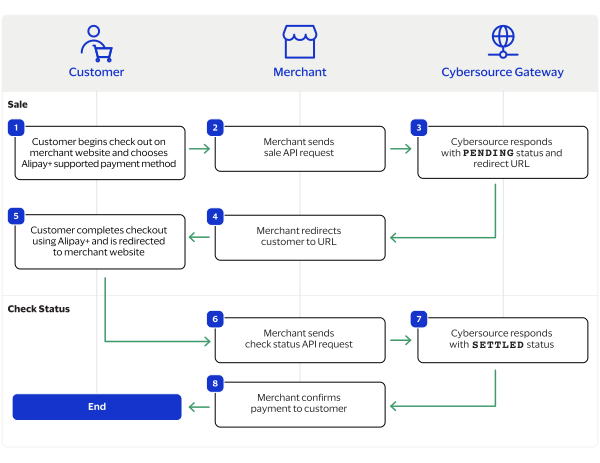
purchaseTotals_grandTotalAmount
field.
For information about how to calculate the grand total, see Calculating the Grand Total for Line Items.

Endpoints

Set the
apCaptureService_run
field to
true
, and send the request to one of these endpoints:
Production:
https://ics2ws.ic3.com/commerce/1.x/transactionProcessor
Test:
https://ics2wstest.ic3.com/commerce/1.x/transactionProcessor

Response Statuses

The capture service responds with one of these statuses as the
apCaptureReply_status
response field value:
  • FAILED
    : The capture request failed.
  • PENDING
    : The capture request is accepted but is not settled. Request the check status service to retrieve status updates. See Check a Transaction Status.
  • SETTLED
    : The capture request is settled for the requested amount.
The capture service also responds with a reason code as the
apCaptureReply_reasonCode
field value. For more information on reason codes, see the Reason Codes for the Simple Order API.

Required Fields for Capturing a Payment

Include these required fields to capture a payment.
Set the field value to the value of the request ID included in the authorization response.
Set the field value to
true
.
Set the field value to
ONY
.
Set to
EUR
.

Optional Fields for Capturing a Payment

Choose from these optional fields to include additional information when capturing a payment.

Example: Capturing a Payment

Request
<requestMessage xmlns="urn:schemas-cybersource-com:transaction-data-1.213"> <merchantID>test_merchant</merchantID> <merchantReferenceCode>refnum-1234</merchantReferenceCode> <purchaseTotals> <currency>EUR</currency> <grandTotalAmount>220</grandTotalAmount> </purchaseTotals> <apPaymentType>ONY</apPaymentType> <apCaptureService run="true"> <authRequestID>6953229325326859903007</authRequestID> </apCaptureService> </requestMessage>
Response to a Successful Request
<replyMessage xmlns:c="urn:schemas-cybersource-com:transaction-data-1.213"> <merchantReferenceCode>ref1695322956</merchantReferenceCode> <requestID>6953229557336619903008</requestID> <decision>ACCEPT</decision> <reasonCode>100</reasonCode> <requestToken>AxjnrwSTeO9xwpvL1GggANgZYjWmdqbQhOJDNsojmiG9Lz0h9XwMwIZNJMvRiy0P/Sbx3uHfMaEAQD4A8A9O</requestToken> <purchaseTotals> <currency>EUR</currency> </purchaseTotals> <apCaptureReply> <reasonCode>100</reasonCode> <status>SETTLED</status> <processorResponse>00004</processorResponse> <amount>220.00</amount> <dateTime>2023-09-21T19:02:39Z</dateTime> <reconciliationID>XFZ3ZMPB8H36</reconciliationID> <paymentStatus>settled</paymentStatus> <responseCode>00004</responseCode> </apCaptureReply> </replyMessage>

Refund a Payment

You can refund a completed payment for the full amount or a partial amount by sending a refund request. Oney supports multiple refund requests when the total amount of all of the refund requests is less than the captured amount.
Requesting a refund requires the request ID from the capture response. The request ID is located in the
requestID
response field.

Endpoints

Set the
apRefundService_run
field to
true
, and send the request to one of these endpoints:
Production:
https://ics2ws.ic3.com/commerce/1.x/transactionProcessor
Test:
https://ics2wstest.ic3.com/commerce/1.x/transactionProcessor

Response Statuses

Cybersource
responds to your refund request with one of these statuses as the
apRefundReply_status
field value:
  • FAILED
    : The refund request failed.
  • REFUNDED
    : The refund request is accepted but is not completed. Request the check status service to retrieve status updates. For more information, see Check a Transaction Status.
The refund service also responds with a reason code as the
apRefundReply_reasonCode
field value.
For more information about reason codes, see Reason Codes and Response Codes.
When you send a check status request to retrieve an updated refund status, these are the possible responses:
  • FAILED
    : The refund request failed.
  • REFUNDED
    : The captured payment is successfully refunded.

Required Fields for Refunding a Payment

Example: Refunding a Payment

Request
<requestMessage xmlns="urn:schemas-cybersource-com:transaction-data-1.215"> <merchantID>test_merchant</merchantID> <merchantReferenceCode>refnum-1234</merchantReferenceCode> <purchaseTotals> <currency>EUR</currency> <grandTotalAmount>220.00</grandTotalAmount> </purchaseTotals> <apPaymentType>ONY</apPaymentType> <apRefundService run="true"> <refundRequestID>6953229557336619903008</refundRequestID> </apRefundService> </requestMessage>
Response to a Successful Request
<replyMessage xmlns:c="urn:schemas-cybersource-com:transaction-data-1.215"> <merchantReferenceCode>refnum-1234</merchantReferenceCode> <requestID>6953231301306139703011</requestID> <decision>ACCEPT</decision> <reasonCode>100</reasonCode> <requestToken>AxjnrwSTeO939L1XjnbjANgZYjWmdqbQhOJDNsojmiG+pv0h9XwMwIZNJMvRiy0P/Sbx3uHfMaEAQD4A8Q9I</requestToken> <purchaseTotals> <currency>EUR</currency> </purchaseTotals> <apRefundReply> <reasonCode>100</reasonCode> <transactionID>315778574151</transactionID> <status>REFUNDED</status> <processorResponse>00006</processorResponse> <amount>220.00</amount> <dateTime>2023-09-21T19:05:32Z</dateTime> <reconciliationID>XFZ3ZMPB8H36</reconciliationID> <returnRef>XFZ40MPBIPMM</returnRef> <paymentStatus>refunded</paymentStatus> <responseCode>00006</responseCode> </apRefundReply> </replyMessage>

Check a Transaction Status

You can retrieve the current status of a pending authorization, reversal, capture, or refund by sending a check status request. The check status request requires the request ID from the corresponding transaction.
When a pending status updates, the check status request responds with the transaction's new status. Thunes sometimes needs to review a service request, which causes a transaction to initially respond with a pending status. The check status request requires you to include the request ID from the pending transaction response you are checking the status of. The request ID is located in the
requestID
response field.
Cybersource
recommends that you send a check status request hourly until the status updates from pending.

Endpoints

Set the
apCheckStatusService_run
field to
true
, and send the request to one of these endpoints:
Production:
https://ics2ws.ic3.com/commerce/1.x/transactionProcessor
Test:
https://ics2wstest.ic3.com/commerce/1.x/transactionProcessor

Response Statuses

Cybersource
responds to your check status request with one of these statuses in the
apCheckStatusReply_status
field:
Check Status Responses for a Session
  • ABANDONED
    : The customer did not complete the payment using the redirect URL.
  • COMPLETED
    : The customer completed the checkout process.
  • PENDING
    : The service request is accepted but is not completed. Request the check status service to retrieve status updates.
Check Status Responses for an Authorization
  • AUTHORIZED
    : The customer's payment is authorized.
  • FAILED
    : The service request failed. A failed request can be due to either Oney rejecting the transaction or a technical error.
  • PENDING
    : The service request is accepted but is not completed. Request the check status service to retrieve status updates.
Check Status Responses for a Capture
  • FAILED
    : The service request failed. A failed request can be due to either Oney rejecting the transaction or a technical error.
  • FUNDED
    : The settled amount is funded to the merchant bank account.
  • PENDING
    : The service request is accepted but is not completed. Request the check status service to retrieve status updates.
  • SETTLED
    : The capture request is settled for the requested amount.
Check Status Responses for an Authorization-Reversals
  • AUTH-REVERSED
    : The authorization is successfully reversed.
  • FAILED
    : The service request failed. A failed request can be due to either Oney rejecting the transaction or a technical error.
  • PENDING
    : The service request is accepted but is not completed. Request the check status service to retrieve status updates.
The check status service also responds with a reason code in the
apCheckStatusReply_reasonCode
field.
For more information about reason codes, see Reason Codes and Response Codes.

Required Fields for Checking a Transaction Status

Set to the request ID included in the service response.
Set to
true
.
Set to
ONY
.

Example: Checking a Transaction Status

Request
<requestMessage xmlns="urn:schemas-cybersource-com:transaction-data-1.215"> <merchantID>test_merchant</merchantID> <merchantReferenceCode>refnum-1234</merchantReferenceCode> <apPaymentType>ONY</apPaymentType> <apCheckStatusService run="true"> <checkStatusRequestID>6953229325326859903007</checkStatusRequestID> </apCheckStatusService> </requestMessage>
Response to a Successful Request
<replyMessage xmlns:c="urn:schemas-cybersource-com:transaction-data-1.215"> <merchantReferenceCode>refnum-1234</merchantReferenceCode> <requestID>6953229718266112403011</requestID> <decision>ACCEPT</decision> <reasonCode>100</reasonCode> <requestToken>AxjnrwSTeO9yVPkdEGZDANgZYjWmjCbQhSaEywojmiG9X70h9XwMwIZNJMvRiy0P/Sbx3uHfMaEAQD4A/A8Y</requestToken> <apCheckStatusReply> <reasonCode>100</reasonCode> <reconciliationID>XFZ40MPBIPLX</reconciliationID> <paymentStatus>authorized</paymentStatus> </apCheckStatusReply> </replyMessage>

PayNow QR Transaction Requests

PayNow QR is a payment method offered by the Thunes payment service provider (PSP) that you can offer your customers through
Cybersource
. You can process a payment by sending a sale API request message to
Cybersource
.
Cybersource
sends your request to Thunes. Thunes approves the transaction and sends the request to the processor for settlement. You can also send a refund and check status API request as follow-on requests.

Requirements

You must have a merchant ID and a Thunes API key for each country in which you process transactions. Contact your
Cybersource
account manager for more information.

Supported Country and Currency

This table lists the country and currency supported by PayNow QR.
Supported Country and Currency
Country
Country Code
Currency
Currency Code
Singapore
SG
Singapore Dollar
SGD

Shipping Policy

Goods can be shipped when the sale status is
SETTLED
.

PayNow QR by Thunes Payment Workflow

This workflow describes the sequence of events that comprises a successful PayNow QR payment.

Figure:

PayNow QR Sale Workflow
  1. The customer begins to checkout on the merchant's website and chooses the PayNow QR payment method.
  2. The merchant sends a sale API request to
    Cybersource
    . For more information, see Process a Sale.
  3. Cybersource
    responds to the merchant with the
    PENDING
    status, a redirect URL, and a request ID.
  4. The merchant redirects the customer to the URL.
  5. The customer completes the checkout using PayNow QR and is redirected to the merchant website.
  6. The merchant sends periodic check status API requests to
    Cybersource
    with the request ID. For more information, see Check a Request Status.
  7. Cybersource
    responds to the merchant with the
    SETTLED
    status when the payment is complete.
  8. The merchant displays a payment confirmation to the customer.

Transaction Statuses Workflow

This workflow shows the statuses that can occur at each stage of processing a sale and refund.

Figure:

Transaction Statuses Workflow
  1. When a customer begins to check out, you send a sale request to
    Cybersource
    and receive one of these possible statuses:
    • FAILED
      : The sale cannot be completed.
    • PENDING
      : The sale request is accepted but is not completed. Send the check status request to retrieve status updates.
  2. You send a check status request to
    Cybersource
    to verify the sale status and receive one of these statuses:
    • ABANDONED
      : The customer did not complete the payment using the redirect URL.
    • FAILED
      : The sale request failed. A failed request can be due to either a rejection or a technical error.
    • PENDING
      : The sale request is accepted but is not completed. Send the check status request as often as necessary to obtain the information that you need.
    • SETTLED
      : The sale request is settled for the requested amount. When the settled amount is deposited into the merchant's bank account, the status updates to
      FUNDED
      .
  3. If a customer returns a purchase, you send a refund request to
    Cybersource
    and receive one of these possible statuses:
    • FAILED
      : The refund request failed.
    • REFUNDED
      : The refund request is accepted but is not completed. Request the check status service to retrieve status updates.
  4. You send a check status request to
    Cybersource
    to verify the refund status and receive one of these statuses:
    • FAILED
      : The refund could not be completed.
    • REFUNDED
      : The settled amount is successfully refunded.

Process a Sale

Send a sale request to authorize and capture a payment in the same request. A successful sale response includes a redirect URL and a pending status. Redirect the customer to the URL to allow the customer to complete the checkout using PayNow QR. When the customer completes the checkout, the customer is redirected to the merchant website using the success-URL provided in the sale request.

Line Items

Line items can be included in a sale request. Line items correspond to the
item_#_
fields, starting with
item_0_
and increasing in numerical order.
For more information about how to properly format line items in your request, see Using Line Items.

Tax Amounts

You can include the tax amount for every type of purchased product in the
item_#_taxAmount
field when you request the sale service.

Calculating the Grand Total

Include the grand total in the request by using the
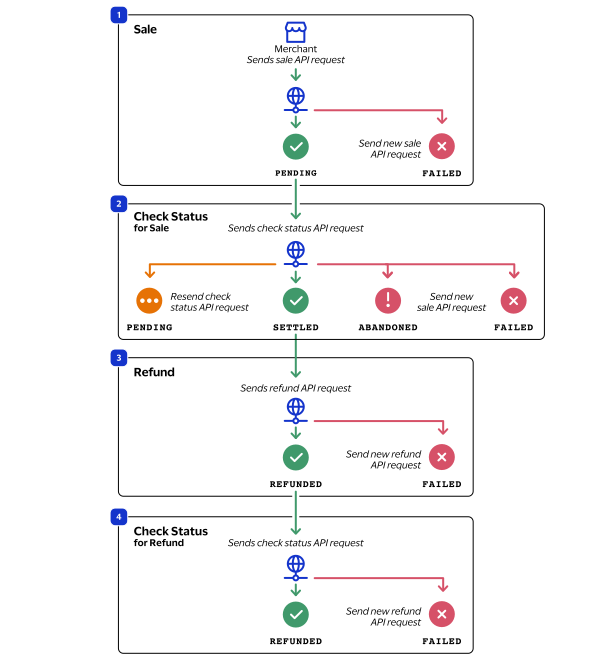
purchaseTotals_grandTotalAmount
field.
For information about how to calculate the grand total, see Calculating the Grand Total for Line Items.

Endpoints

Set the
apSaleService_run
field to
true
, and send the request to one of these endpoints:
Production:
https://ics2ws.ic3.com/commerce/1.x/transactionProcessor
Test:
https://ics2wstest.ic3.com/commerce/1.x/transactionProcessor

Response Statuses

Cybersource
responds to your sale request with one of these statuses in the
apSaleReply_status
field:
Sale Status
  • FAILED
    : The sale cannot be completed.
  • PENDING
    : The sale request is accepted but is not completed. Request the check status service every 60 minutes to retrieve status updates. See Process a Sale.
The sale service also responds with a reason code in the
apSaleReply_reasonCode
field.
For more information about reason codes, see Reason Codes and Response Codes.
When you send a check status request to retrieve an updated sale status, these are the possible responses:
Check Status for a Sale
  • ABANDONED
    : The customer did not complete the payment using the redirect URL.
  • FAILED
    : The sale cannot be completed.
  • FUNDED
    : The settled amount is funded to the merchant bank account.
  • PENDING
    : The sale request is accepted but is not complete. Continue sending the check status request every 60 minutes.
  • SETTLED
    : The sale request is settled for the requested amount. You cannot receive a settled status until the customer has completed checking out.

Processing a Sale

Follow these steps to successfully process sale.
  1. Send a
    POST
    request to the
    https://ics2ws.ic3.com/commerce/1.x/transactionProcessor
    endpoint and include these required fields:
    Set to
    PNQ
    .
    Set to the URL to which the customer is redirected after successfully completing the PayNow QR payment.
    Add
    ?action=cancel
    to the end of the URL to help identify the response.
    Set to the URL to which the customer is redirected after successfully completing the PayNow QR payment.
    Add
    ?action=failure
    to the end of the URL to help identify the response.
    Set to the URL to which the customer is redirected after successfully completing the PayNow QR payment.
    Add
    ?action=success
    to the end of the URL to help identify the response.
    Set to
    true
    .
    Set to
    SG
    .
    Set to
    SGD
    .
  2. You can include these optional fields in the request:
    Replace the
    #
    character with a sequential number starting from
    0
    .
    Replace the
    #
    character with a sequential number starting from
    0
    .
    Replace the
    #
    character with a sequential number starting from
    0
    .
    Replace the
    #
    character with a sequential number starting from
    0
    .
    Replace the
    #
    character with a sequential number starting from
    0
    .
    Replace the
    #
    character with a sequential number starting from
    0
    .
    If this field is present, the
    purchaseTotals_currency
    field is optional.
    Replace the
    #
    character with a sequential number starting from
    0
    .
    Replace the
    #
    character with a sequential number starting from
    0
    .
  3. Redirect the customer to the returned URL in the
    merchantURL
    response field.
    <merchantURL>
    https://payment.limonetik.com/Razer/Order/PayPage/400089787930
    </merchantURL>
  4. When the customer completes the checkout using their PayNow QR credentials, the customer is redirected to the merchant website based on the URL that you included in the
    apSaleService_successURL
    field.
  5. Save the request ID in the
    requestID
    field from the sale response. Include the request ID in a check status request to confirm that the payment is complete.
    <requestID>
    6989535327666834103007
    </requestID>

Example: Processing a Sale

Request
<requestMessage xmlns="urn:schemas-cybersource-com:transaction-data-1.215"> <merchantID>test_merchant</merchantID> <merchantReferenceCode>refnum-1234</merchantReferenceCode> <billTo> <country>SG</country> </billTo> <purchaseTotals> <currency>SGD</currency> <grandTotalAmount>220.00</grandTotalAmount> </purchaseTotals> <apPaymentType>PNQ</apPaymentType> <apSaleService run="true"> <cancelURL>https://www.test.com?action=cancel</cancelURL> <successURL>https://www.test.com?action=success</successURL> <failureURL>https://www.test.com?action=failure</failureURL> </apSaleService> </requestMessage>
Response to a Successful Request
<replyMessage xmlns:c="urn:schemas-cybersource-com:transaction-data-1.215"> <merchantReferenceCode>PromptPayQR-Sale</merchantReferenceCode> <requestID>7290906743056142304272</requestID> <decision>ACCEPT</decision> <reasonCode>100</reasonCode> <requestToken>AxjnrwSTiz2oHe4ZkgQQANgZYiy5ctlCjQqNa0n82V+f6d+B8iGFDJpJl6MYhzEaTiz2oHe4ZkgQQAAA6ACl</requestToken> <purchaseTotals> <currency>THB</currency> </purchaseTotals> <apSaleReply> <reasonCode>100</reasonCode> <paymentStatus>pending</paymentStatus> <responseCode>00001</responseCode> <merchantURL>https://payment.limonetik.com/Razer/Order/PayPage/240117733343</merchantURL> <processorTransactionID>240117733343</processorTransactionID> <reconciliationID>XEKKK2BFBQVZ</reconciliationID> <amount>1.00</amount> <processorResponse>00001</processorResponse> <dateTime>2024-10-16T14:57:55Z</dateTime> </apSaleReply> </replyMessage>

Check a Request Status

You can retrieve the status of a pending sale or refund by sending a check status request.
When a pending status updates, a check status response includes the transaction's new status. Thunes sometimes needs to review a service request, which causes a transaction to initially respond with a pending status. The check status request requires you to include the request ID from the pending transaction response you are checking the status of. The request ID is located in the
requestID
response field.
Cybersource
recommends that you send a check status request hourly until the status updates from pending.

Endpoints

Set the
apCheckStatusService_run
field to
true
, and send the request to one of these endpoints:
Production:
https://ics2ws.ic3.com/commerce/1.x/transactionProcessor
Test:
https://ics2wstest.ic3.com/commerce/1.x/transactionProcessor

Response Statuses

Cybersource
responds to your check status request with one of these statuses in the
apCheckStatusReply_status
field:
Check Status Responses for a Sale
  • ABANDONED
    : The customer did not complete the payment using the redirect URL.
  • FAILED
    : The service request failed. A failed request can be due to either PayNow QR rejecting the transaction or a technical error.
  • FUNDED
    : The settled amount is funded to the merchant bank account.
  • PENDING
    : The service request is accepted but is not completed. Request the check status service to retrieve status updates.
  • SETTLED
    : The sale request is settled for the requested amount.
Check Status Responses for a Refund
  • FAILED
    : The service request failed. A failed request can be due to either PayNow QR rejecting the transaction or a technical error.
  • REFUNDED
    : The settled amount is successfully refunded.
The check status service also responds with a reason code in the
apCheckStatusReply_reasonCode
field.
For more information about reason codes, see Reason Codes and Response Codes.

Required Fields for Checking Status

Set to the request ID included in the service response.
Set to
true
.
Set to
PNQ
.

Example: Checking a Request Status

Request
<requestMessage xmlns="urn:schemas-cybersource-com:transaction-data-1.215"> <merchantID>test_merchant</merchantID> <merchantReferenceCode>refnum-1234</merchantReferenceCode> <apPaymentType>PNQ</apPaymentType> <apCheckStatusService run="true"> <checkStatusRequestID>6953229557336619903008</checkStatusRequestID> </apCheckStatusService> </requestMessage>
Response to a Successful Request
<replyMessage xmlns:c="urn:schemas-cybersource-com:transaction-data-1.215"> <merchantReferenceCode>refnum-1234</merchantReferenceCode> <requestID>6989529700616633303007</requestID> <decision>ACCEPT</decision> <reasonCode>100</reasonCode> <requestToken>AxjnrwSTeuc1xphoz7/fANgZYiy6laewnTZ9honkFw7xbfpC/oGdUMmkmXoxX6rUJN65zUbdKW/6eQAA/i7C</requestToken> <apCheckStatusReply> <reasonCode>100</reasonCode> <reconciliationID>XEKTVO0NMOX4</reconciliationID> <paymentStatus>pending</paymentStatus> <processorResponse>00001</processorResponse> <processorToken>348476012838</processorToken> </apCheckStatusReply> </replyMessage>

Refund a Payment

You can refund a completed payment for the full amount or a partial amount by sending a refund request. PayNow QR supports multiple refund requests when the total amount of all of the refund requests is less than the captured amount.
Requesting a refund requires the request ID from the sale response. The request ID is located in the
requestID
response field.

Endpoints

Set the
apRefundService_run
field to
true
, and send the request to one of these endpoints:
Production:
https://ics2ws.ic3.com/commerce/1.x/transactionProcessor
Test:
https://ics2wstest.ic3.com/commerce/1.x/transactionProcessor

Response Statuses

Cybersource
responds to your refund request with one of these statuses as the
apRefundReply_status
field value:
  • FAILED
    : The refund request failed.
  • REFUNDED
    : The refund request is accepted but is not completed. Request the check status service to retrieve status updates. For more information, see Check a Request Status.
The refund service also responds with a reason code as the
apRefundReply_reasonCode
field value.
For more information about reason codes, see Reason Codes and Response Codes.
When you send a check status request to retrieve an updated refund status, these are the possible responses:
  • FAILED
    : The refund request failed.
  • REFUNDED
    : The settled payment is successfully refunded.

Required Fields for Refunding a Payment

Example: Refunding a Payment

Request
<requestMessage xmlns="urn:schemas-cybersource-com:transaction-data-1.215"> <merchantID>test_merchant</merchantID> <merchantReferenceCode>refnum-1234</merchantReferenceCode> <purchaseTotals> <currency>SGD</currency> <grandTotalAmount>220.00</grandTotalAmount> </purchaseTotals> <apPaymentType>PNQ</apPaymentType> <apRefundService run="true"> <refundRequestID>6953229557336619903008</refundRequestID> </apRefundService> </requestMessage>
Response to a Successful Request
<replyMessage xmlns:c="urn:schemas-cybersource-com:transaction-data-1.215"> <merchantReferenceCode>refnum-1234</merchantReferenceCode> <requestID>6953231301306139703011</requestID> <decision>ACCEPT</decision> <reasonCode>100</reasonCode> <requestToken>AxjnrwSTeO939L1XjnbjANgZYjWmdqbQhOJDNsojmiG+pv0h9XwMwIZNJMvRiy0P/Sbx3uHfMaEAQD4A8Q9I</requestToken> <purchaseTotals> <currency>SGD</currency> </purchaseTotals> <apRefundReply> <reasonCode>100</reasonCode> <transactionID>315778574151</transactionID> <status>REFUNDED</status> <processorResponse>00006</processorResponse> <amount>220.00</amount> <dateTime>2023-09-21T19:05:32Z</dateTime> <reconciliationID>XFZ3ZMPB8H36</reconciliationID> <returnRef>XFZ40MPBIPMM</returnRef> <paymentStatus>refunded</paymentStatus> <responseCode>00006</responseCode> </apRefundReply> </replyMessage>

PayPay Transaction Requests

PayPay is a payment method offered by the Thunes payment service provider (PSP) that you can offer your customers through
Cybersource
. You can process a payment by sending a sale API request message to
Cybersource
.
Cybersource
sends your request to Thunes. Thunes approves the transaction and sends the request to the processor for settlement. You can also send a refund and check status API request as follow-on services.

Requirements

You must have a merchant ID and a Thunes API key for each country in which you process transactions. Contact your
Cybersource
account manager for more information.

Supported Country and Currency

This table lists the country, country code, and currency supported by PayPay.
Supported Country and Currency
Country
Country Code
Currency
Currency Code
Japan
JP
Japanese yen
JPY

Shipping Policy

You can ship purchased goods when the sale status is
SETTLED
.

PayPay by Thunes Payment Workflow

This workflow describes the sequence of events that comprises a successful PayPay payment.

Figure:

PayPay Sale Workflow
  1. The customer begins to checkout on the merchant's website and chooses the PayPay payment method.
  2. The merchant sends a sale API request to
    Cybersource
    . For more information, see Process a Sale.
  3. Cybersource
    responds to the merchant with a
    PENDING
    status and a redirect URL.
  4. The merchant redirects the customer to the URL.
  5. The customer completes the checkout using PayPay and is redirected to the merchant website.
  6. The merchant sends a check status API request to
    Cybersource
    . For more information, see Check a Request Status.
  7. Cybersource
    responds to the merchant with a
    SETTLED
    status.
  8. The merchant displays a confirmation of the completed payment to the customer.

Transaction Statuses Workflow

Process a Sale

Send a sale request to authorize and capture a payment in the same request. A successful sale response includes a redirect URL and a pending status. Redirect the customer to the URL to allow the customer to complete the checkout using PayPay. When the customer completes the checkout, the customer is redirected to the merchant website using the success-URL provided in the sale request.

Line Items

Line items can be included in a sale request. Line items correspond to the
item_#_
fields, starting with
item_0_
and increasing in numerical order.
For more information about how to properly format line items in your request, see Using Line Items.

Tax Amounts

You can include the tax amount for every type of purchased product in the
item_#_taxAmount
field when you request the sale service.

Calculating the Grand Total

Include the grand total in the request by using the
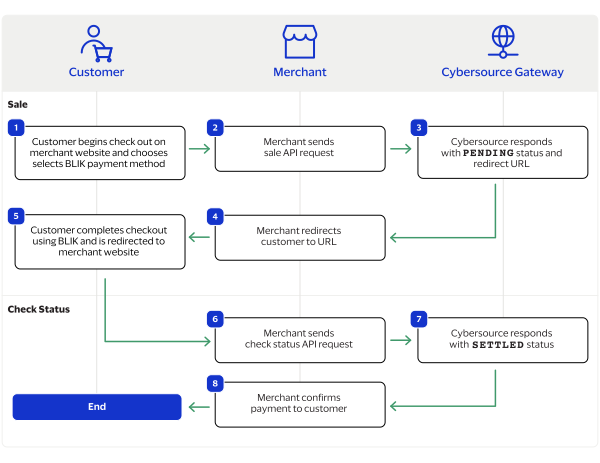
purchaseTotals_grandTotalAmount
field.
For information about how to calculate the grand total, see Calculating the Grand Total for Line Items.

Endpoints

Set the
apSaleService_run
field to
true
, and send the request to one of these endpoints:
Production:
https://ics2ws.ic3.com/commerce/1.x/transactionProcessor
Test:
https://ics2wstest.ic3.com/commerce/1.x/transactionProcessor

Response Statuses

Cybersource
responds to your sale request with one of these statuses in the
apSaleReply_status
field:
Sale Status
  • FAILED
    : The sale cannot be completed.
  • PENDING
    : The sale request is accepted but is not completed. Request the check status service every 60 minutes to retrieve status updates. See Check a Request Status.
The sale service also responds with a reason code in the
apSaleReply_reasonCode
field.
For more information about reason codes, see Reason Codes and Response Codes.
When you send a check status request to retrieve an updated sale status, these are the possible responses:
Check Status for a Sale
  • ABANDONED
    : The customer did not complete the payment using the redirect URL.
  • FAILED
    : The sale cannot be completed.
  • FUNDED
    : The settled amount is funded to the merchant bank account.
  • PENDING
    : The sale request is accepted but is not complete. Continue sending the check status request every 60 minutes.
  • SETTLED
    : The sale request is settled for the requested amount. You cannot receive a settled status until the customer has completed checking out.

Processing a Sale

Follow these steps to successfully process sale.
  1. Send a
    POST
    request to the
    https://ics2ws.ic3.com/commerce/1.x/transactionProcessor
    endpoint and include these required fields:
    Set to
    PPI
    .
    Set to the URL to which the customer is redirected after successfully completing the PayPay payment.
    Add
    ?action=cancel
    to the end of the URL to help identify the response.
    Set to the URL to which the customer is redirected after successfully completing the PayPay payment.
    Add
    ?action=failure
    to the end of the URL to help identify the response.
    Set to the URL to which the customer is redirected after successfully completing the PayPay payment.
    Add
    ?action=success
    to the end of the URL to help identify the response.
    Set to
    true
    .
    Set to
    JP
    .
    Set to
    JPY
    .
    Only whole number values are supported.
  2. You can include these optional fields in the request:
    Replace the
    #
    character with a sequential number starting from
    0
    .
    Replace the
    #
    character with a sequential number starting from
    0
    .
    Replace the
    #
    character with a sequential number starting from
    0
    .
    Replace the
    #
    character with a sequential number starting from
    0
    .
    Replace the
    #
    character with a sequential number starting from
    0
    .
    Replace the
    #
    character with a sequential number starting from
    0
    .
    If this field is present, the
    purchaseTotals_currency
    field is optional.
    Replace the
    #
    character with a sequential number starting from
    0
    .
    Replace the
    #
    character with a sequential number starting from
    0
    .
  3. Redirect the customer to the returned URL in the
    merchantURL
    response field.
    <merchantURL>
    https://payment.limonetikqualif.com/Boku/Order/PayPage/799459075410
    </merchantURL>
  4. When the customer completes the checkout using their PayPay credentials, the customer is redirected to the merchant website based on the URL that you included in the
    apSaleService_successURL
    field.
  5. Save the request ID in the
    requestID
    field from the sale response. Include the request ID in a check status request to confirm that the payment is complete.
    <requestID>
    6989535327666834103007
    </requestID>

Example: Processing a Sale

Request
<requestMessage xmlns="urn:schemas-cybersource-com:transaction-data-1.215"> <merchantID>test_merchant</merchantID> <merchantReferenceCode>refnum-1234</merchantReferenceCode> <billTo> <country>JP</country> </billTo> <purchaseTotals> <currency>JPY</currency> <grandTotalAmount>220</grandTotalAmount> </purchaseTotals> <apPaymentType>PPI</apPaymentType> <apSaleService run="true"> <cancelURL>https://www.test.com?action=cancel</cancelURL> <successURL>https://www.test.com?action=success</successURL> <failureURL>https://www.test.com?action=failure</failureURL> </apSaleService> </requestMessage>
Response to a Successful Request
<replyMessage xmlns:c="urn:schemas-cybersource-com:transaction-data-1.215"> <merchantReferenceCode>refnum-1234</merchantReferenceCode> <requestID>7193368815426226903007</requestID> <decision>ACCEPT</decision> <reasonCode>100</reasonCode> <requestToken>AxjnrwSThfQLyYdctFffANgZYjWmdmxLZzWUaYnvws5M/7EBLQUYZNJMvRiv1WoScL6BeTDrlor74AAA1RIK</requestToken> <purchaseTotals> <currency>JPY</currency> </purchaseTotals> <apSaleReply> <reasonCode>100</reasonCode> <paymentStatus>pending</paymentStatus> <responseCode>00001</responseCode> <merchantURL>https://payment.limonetikqualif.com/Boku/Order/PayPage/799459075410</merchantURL> <processorTransactionID>799459075410</processorTransactionID> <reconciliationID>XFZ3YXK3M2FL</reconciliationID> <amount>11</amount> <processorResponse>00001</processorResponse> <dateTime>2024-06-25T17:34:42Z</dateTime> </apSaleReply> </replyMessage>

Check a Request Status

You can retrieve the status of a pending sale or refund by sending a check status request.
When a pending status updates, a check status response includes the transaction's new status. Thunes sometimes needs to review a service request, which causes a transaction to initially respond with a pending status. The check status request requires you to include the request ID from the pending transaction response you are checking the status of. The request ID is located in the
requestID
response field.
Cybersource
recommends that you send a check status request hourly until the status updates from pending.

Endpoints

Set the
apCheckStatusService_run
field to
true
, and send the request to one of these endpoints:
Production:
https://ics2ws.ic3.com/commerce/1.x/transactionProcessor
Test:
https://ics2wstest.ic3.com/commerce/1.x/transactionProcessor

Response Statuses

Cybersource
responds to your check status request with one of these statuses in the
apCheckStatusReply_status
field:
Check Status Responses for a Sale
  • ABANDONED
    : The customer did not complete the payment using the redirect URL.
  • FAILED
    : The service request failed. A failed request can be due to either PayPay rejecting the transaction or a technical error.
  • FUNDED
    : The settled amount is funded to the merchant bank account.
  • PENDING
    : The service request is accepted but is not completed. Request the check status service to retrieve status updates.
  • SETTLED
    : The sale request is settled for the requested amount.
Check Status Responses for a Refund
  • FAILED
    : The service request failed. A failed request can be due to either PayPay rejecting the transaction or a technical error.
  • REFUNDED
    : The settled amount is successfully refunded.
The check status service also responds with a reason code in the
apCheckStatusReply_reasonCode
field.
For more information about reason codes, see Reason Codes and Response Codes.

Required Fields for Checking Status

Set to the request ID included in the service response.
Set to
true
.
Set to
PPI
.

Example: Checking a Request Status

Request
<requestMessage xmlns="urn:schemas-cybersource-com:transaction-data-1.215"> <merchantID>test_merchant</merchantID> <merchantReferenceCode>refnum-1234</merchantReferenceCode> <apPaymentType>PPI</apPaymentType> <apCheckStatusService run="true"> <checkStatusRequestID>6953229557336619903008</checkStatusRequestID> </apCheckStatusService> </requestMessage>
Response to a Successful Request
<replyMessage xmlns:c="urn:schemas-cybersource-com:transaction-data-1.215"> <merchantReferenceCode>refnum-1234</merchantReferenceCode> <requestID>6989529700616633303007</requestID> <decision>ACCEPT</decision> <reasonCode>100</reasonCode> <requestToken>AxjnrwSTeuc1xphoz7/fANgZYiy6laewnTZ9honkFw7xbfpC/oGdUMmkmXoxX6rUJN65zUbdKW/6eQAA/i7C</requestToken> <apCheckStatusReply> <reasonCode>100</reasonCode> <reconciliationID>XEKTVO0NMOX4</reconciliationID> <paymentStatus>pending</paymentStatus> <processorResponse>00001</processorResponse> <processorToken>348476012838</processorToken> </apCheckStatusReply> </replyMessage>

Refund a Payment

You can refund a completed payment for the full amount or a partial amount by sending a refund request. PayPay supports multiple refund requests when the total amount of all of the refund requests is less than the captured amount.
Requesting a refund requires the request ID from the sale response. The request ID is located in the
requestID
response field.

Endpoints

Set the
apRefundService_run
field to
true
, and send the request to one of these endpoints:
Production:
https://ics2ws.ic3.com/commerce/1.x/transactionProcessor
Test:
https://ics2wstest.ic3.com/commerce/1.x/transactionProcessor

Response Statuses

Cybersource
responds to your refund request with one of these statuses as the
apRefundReply_status
field value:
  • FAILED
    : The refund request failed.
  • REFUNDED
    : The refund request is accepted but is not completed. Request the check status service to retrieve status updates. For more information, see Check a Request Status.
The refund service also responds with a reason code as the
apRefundReply_reasonCode
field value.
For more information about reason codes, see Reason Codes and Response Codes.
When you send a check status request to retrieve an updated refund status, these are the possible responses:
  • FAILED
    : The refund request failed.
  • REFUNDED
    : The settled payment is successfully refunded.

Required Fields for Refunding a Payment

Set to
PPI
.
Set to the request ID included in the sale response.
Set to
true
.
Set to
JPY
.
Only whole number values are supported. Values with decimals are invalid.

Example: Refunding a Payment

Request
<requestMessage xmlns="urn:schemas-cybersource-com:transaction-data-1.215"> <merchantID>test_merchant</merchantID> <merchantReferenceCode>refnum-1234</merchantReferenceCode> <purchaseTotals> <currency>JPY</currency> <grandTotalAmount>220</grandTotalAmount> </purchaseTotals> <apPaymentType>PPI</apPaymentType> <apRefundService run="true"> <refundRequestID>6953229557336619903008</refundRequestID> </apRefundService> </requestMessage>
Response to a Successful Request
<replyMessage xmlns:c="urn:schemas-cybersource-com:transaction-data-1.215"> <merchantReferenceCode>refnum-1234</merchantReferenceCode> <requestID>6953231301306139703011</requestID> <decision>ACCEPT</decision> <reasonCode>100</reasonCode> <requestToken>AxjnrwSTeO939L1XjnbjANgZYjWmdqbQhOJDNsojmiG+pv0h9XwMwIZNJMvRiy0P/Sbx3uHfMaEAQD4A8Q9I</requestToken> <purchaseTotals> <currency>JPY</currency> </purchaseTotals> <apRefundReply> <reasonCode>100</reasonCode> <transactionID>315778574151</transactionID> <status>REFUNDED</status> <processorResponse>00006</processorResponse> <amount>220</amount> <dateTime>2023-09-21T19:05:32Z</dateTime> <reconciliationID>XFZ3ZMPB8H36</reconciliationID> <returnRef>XFZ40MPBIPMM</returnRef> <paymentStatus>refunded</paymentStatus> <responseCode>00006</responseCode> </apRefundReply> </replyMessage>

Przelewy24 Transaction Requests

Przelewy24 (P24) is a payment method offered by the Thunes payment service provider (PSP) that you can offer your customers through
Cybersource
. You can process a payment by sending a sale API request message to
Cybersource
.
Cybersource
sends your request to Thunes. Thunes approves the transaction and sends the request to the processor for settlement. You can also send a refund and check status API request as follow-on requests.

Requirements

You must have a merchant ID and a Thunes API key for each country in which you process transactions. Contact your
Cybersource
account manager for more information.

Supported Country and Currency

This table lists the country, country code, and currency supported by P24.
Supported Country and Currency
Country
Country Code
Currency Code
Poland
PL
PLN

Shipping Policy

You can ship purchased goods when the sale status is
SETTLED
.

P24 by Thunes Payment Workflow

This workflow describes the sequence of events that comprises a successful P24 payment.

Figure:

P24 by Thunes Payment Workflow
  1. The customer begins to checkout on the merchant's website and chooses the P24 payment method.
  2. The merchant sends a sale API request to
    Cybersource
    . For more information, see Process a Sale.
  3. Cybersource
    responds to the merchant with a
    PENDING
    status and a redirect URL.
  4. The merchant redirects the customer to the URL.
  5. The customer completes the checkout using P24 and is redirected to the merchant website.
  6. The merchant sends a check status API request to
    Cybersource
    . For more information, see Check a Request Status.
  7. Cybersource
    responds to the merchant with a
    SETTLED
    status.
  8. The merchant displays a confirmation of the completed payment to the customer.

Transaction Statuses Workflow

This workflow shows the statuses that can occur at each stage of processing a sale and refund.

Figure:

Transaction Statuses Workflow
  1. When a customer begins to check out, you send a sale request to
    Cybersource
    and receive one of these possible statuses:
    • FAILED
      : The sale cannot be completed.
    • PENDING
      : The sale request is accepted but is not completed. Send the check status request to retrieve status updates.
  2. You send a check status request to
    Cybersource
    to verify the sale status and receive one of these statuses:
    • ABANDONED
      : The customer did not complete the payment using the redirect URL.
    • FAILED
      : The sale request failed. A failed request can be due to either a rejection or a technical error.
    • PENDING
      : The sale request is accepted but is not completed. Send the check status request as often as necessary to obtain the information that you need.
    • SETTLED
      : The sale request is settled for the requested amount. When the settled amount is deposited into the merchant's bank account, the status updates to
      FUNDED
      .
  3. If a customer returns a purchase, you send a refund request to
    Cybersource
    and receive one of these possible statuses:
    • FAILED
      : The refund request failed.
    • REFUNDED
      : The refund request is accepted but is not completed. Request the check status service to retrieve status updates.
  4. You send a check status request to
    Cybersource
    to verify the refund status and receive one of these statuses:
    • FAILED
      : The refund could not be completed.
    • REFUNDED
      : The settled amount is successfully refunded.

Process a Sale

Send a sale request to authorize and capture a payment in the same request. A successful sale response includes a redirect URL and a pending status. Redirect the customer to the URL to allow the customer to complete the checkout using P24. When the customer completes the checkout, the customer is redirected to the merchant website using the success-URL provided in the sale request.

Line Items

Line items can be included in a sale request. Line items correspond to the
item_#_
fields, starting with
item_0_
and increasing in numerical order.
For more information about how to properly format line items in your request, see Using Line Items.

Tax Amounts

You can include the tax amount for every type of purchased product in the
item_#_taxAmount
field when you request the sale service.

Calculating the Grand Total

Include the grand total in the request by using the
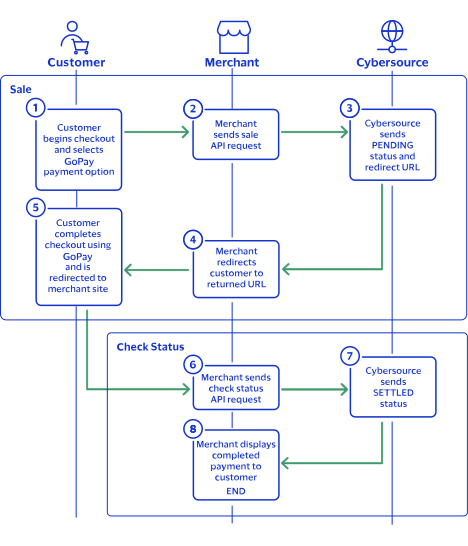
purchaseTotals_grandTotalAmount
field.
For information about how to calculate the grand total, see Calculating the Grand Total for Line Items.

Endpoints

Set the
apSaleService_run
field to
true
, and send the request to one of these endpoints:
Production:
https://ics2ws.ic3.com/commerce/1.x/transactionProcessor
Test:
https://ics2wstest.ic3.com/commerce/1.x/transactionProcessor

Response Statuses

Cybersource
responds to your sale request with one of these statuses in the
apSaleReply_status
field:
Sale Status
  • FAILED
    : The sale cannot be completed.
  • PENDING
    : The sale request is accepted but is not completed. Request the check status service every 60 minutes to retrieve status updates. See Check a Request Status.
The sale service also responds with a reason code in the
apSaleReply_reasonCode
field.
For more information about reason codes, see Reason Codes and Response Codes.
When you send a check status request to retrieve an updated sale status, these are the possible responses:
Check Status for a Sale
  • ABANDONED
    : The customer did not complete the payment using the redirect URL.
  • FAILED
    : The sale cannot be completed.
  • FUNDED
    : The settled amount is funded to the merchant bank account.
  • PENDING
    : The sale request is accepted but is not complete. Continue sending the check status request every 60 minutes.
  • SETTLED
    : The sale request is settled for the requested amount. You cannot receive a settled status until the customer has completed checking out.

Processing a Sale

Follow these steps to successfully process sale.
You must include all of the listed required fields in your sale request to guarantee the redirect URL will display properly to the customer.
  1. Send a
    POST
    request to the
    https://ics2ws.ic3.com/commerce/1.x/transactionProcessor
    endpoint and include these required fields:
    Set to
    PTT
    .
    Set to the URL to which the customer is redirected after successfully completing the P24 payment.
    Add
    ?action=cancel
    to the end of the URL to help identify the response.
    Set to the URL to which the customer is redirected after successfully completing the P24 payment.
    Add
    ?action=failure
    to the end of the URL to help identify the response.
    Set to the URL to which the customer is redirected after successfully completing the P24 payment.
    Add
    ?action=success
    to the end of the URL to help identify the response.
    Set to
    true
    .
    Set to
    PL
    .
    Set to
    PLN
    .
  2. You can include these optional fields in the request:
    Replace the
    #
    character with a sequential number starting from
    0
    .
    Replace the
    #
    character with a sequential number starting from
    0
    .
    Replace the
    #
    character with a sequential number starting from
    0
    .
    Replace the
    #
    character with a sequential number starting from
    0
    .
    Replace the
    #
    character with a sequential number starting from
    0
    .
    Replace the
    #
    character with a sequential number starting from
    0
    .
    If this field is present, the
    purchaseTotals_currency
    field is optional.
    Replace the
    #
    character with a sequential number starting from
    0
    .
    Replace the
    #
    character with a sequential number starting from
    0
    .
  3. Redirect the customer to the returned URL in the
    merchantURL
    response field.
    <merchantURL>
    https://payment.limonetikqualif.com/P24/Order/PayPage/646168685386
    </merchantURL>
  4. When the customer completes the checkout using their Prz24 credentials, the customer is redirected to the merchant website based on the URL that you included in the
    apSaleService_successURL
    field.
  5. Save the request ID in the
    requestID
    field from the sale response. Include the request ID in a check status request to confirm that the payment is complete.
    <requestID>
    6989535327666834103007
    </requestID>

Example: Processing a Sale

Request
<requestMessage xmlns="urn:schemas-cybersource-com:transaction-data-1.215"> <merchantID>test_merchant</merchantID> <merchantReferenceCode>refnum-1234</merchantReferenceCode> <billTo> <country>PL</country> </billTo> <purchaseTotals> <currency>PLN</currency> <grandTotalAmount>220</grandTotalAmount> </purchaseTotals> <apPaymentType>PTT</apPaymentType> <apSaleService run="true"> <cancelURL>https://www.test.com?action=cancel</cancelURL> <successURL>https://www.test.com?action=success</successURL> <failureURL>https://www.test.com?action=failure</failureURL> </apSaleService> </requestMessage>
Response to a Successful Request
<replyMessage xmlns:c="urn:schemas-cybersource-com:transaction-data-1.215"> <merchantReferenceCode>refnum-1234</merchantReferenceCode> <requestID>7193368815426226903007</requestID> <decision>ACCEPT</decision> <reasonCode>100</reasonCode> <requestToken>AxjnrwSThfQLyYdctFffANgZYjWmdmxLZzWUaYnvws5M/7EBLQUYZNJMvRiv1WoScL6BeTDrlor74AAA1RIK</requestToken> <purchaseTotals> <currency>JPY</currency> </purchaseTotals> <apSaleReply> <reasonCode>100</reasonCode> <paymentStatus>pending</paymentStatus> <responseCode>00001</responseCode> <merchantURL>https://payment.limonetikqualif.com/Boku/Order/PayPage/799459075410</merchantURL> <processorTransactionID>799459075410</processorTransactionID> <reconciliationID>XFZ3YXK3M2FL</reconciliationID> <amount>11</amount> <processorResponse>00001</processorResponse> <dateTime>2024-06-25T17:34:42Z</dateTime> </apSaleReply> </replyMessage>

Check a Request Status

You can retrieve the status of a pending sale or refund by sending a check status request.
When a pending status updates, a check status response includes the transaction's new status. Thunes sometimes needs to review a service request, which causes a transaction to initially respond with a pending status. The check status request requires you to include the request ID from the pending transaction response you are checking the status of. The request ID is located in the
requestID
response field.
Cybersource
recommends that you send a check status request hourly until the status updates from pending.

Endpoints

Set the
apCheckStatusService_run
field to
true
, and send the request to one of these endpoints:
Production:
https://ics2ws.ic3.com/commerce/1.x/transactionProcessor
Test:
https://ics2wstest.ic3.com/commerce/1.x/transactionProcessor

Response Statuses

Cybersource
responds to your check status request with one of these statuses in the
apCheckStatusReply_status
field:
Check Status Responses for a Sale
  • ABANDONED
    : The customer did not complete the payment using the redirect URL.
  • FAILED
    : The service request failed. A failed request can be due to either P24 rejecting the transaction or a technical error.
  • FUNDED
    : The settled amount is funded to the merchant bank account.
  • PENDING
    : The service request is accepted but is not completed. Request the check status service to retrieve status updates.
  • SETTLED
    : The sale request is settled for the requested amount.
Check Status Responses for a Refund
  • FAILED
    : The service request failed. A failed request can be due to either P24 rejecting the transaction or a technical error.
  • REFUNDED
    : The settled amount is successfully refunded.
The check status service also responds with a reason code in the
apCheckStatusReply_reasonCode
field.
For more information about reason codes, see Reason Codes and Response Codes.

Required Fields for Checking Status

Set to the request ID included in the service response.
Set to
true
.
Set to
PTT
.

Example: Checking a Request Status

Request
<requestMessage xmlns="urn:schemas-cybersource-com:transaction-data-1.215"> <merchantID>test_merchant</merchantID> <merchantReferenceCode>refnum-1234</merchantReferenceCode> <apPaymentType>PTT</apPaymentType> <apCheckStatusService run="true"> <checkStatusRequestID>6953229557336619903008</checkStatusRequestID> </apCheckStatusService> </requestMessage>
Response to a Successful Request
<replyMessage xmlns:c="urn:schemas-cybersource-com:transaction-data-1.215"> <merchantReferenceCode>refnum-1234</merchantReferenceCode> <requestID>6989529700616633303007</requestID> <decision>ACCEPT</decision> <reasonCode>100</reasonCode> <requestToken>AxjnrwSTeuc1xphoz7/fANgZYiy6laewnTZ9honkFw7xbfpC/oGdUMmkmXoxX6rUJN65zUbdKW/6eQAA/i7C</requestToken> <apCheckStatusReply> <reasonCode>100</reasonCode> <reconciliationID>XEKTVO0NMOX4</reconciliationID> <paymentStatus>pending</paymentStatus> <processorResponse>00001</processorResponse> <processorToken>348476012838</processorToken> </apCheckStatusReply> </replyMessage>

Refund a Payment

You can refund a completed payment for the full amount or a partial amount by sending a refund request. P24 supports multiple refund requests when the total amount of all of the refund requests is less than the captured amount.
Requesting a refund requires the request ID from the sale response. The request ID is located in the
requestID
response field.

Endpoints

Set the
apRefundService_run
field to
true
, and send the request to one of these endpoints:
Production:
https://ics2ws.ic3.com/commerce/1.x/transactionProcessor
Test:
https://ics2wstest.ic3.com/commerce/1.x/transactionProcessor

Response Statuses

Cybersource
responds to your refund request with one of these statuses as the
apRefundReply_status
field value:
  • FAILED
    : The refund request failed.
  • REFUNDED
    : The refund request is accepted but is not completed. Request the check status service to retrieve status updates. For more information, see Check a Request Status.
The refund service also responds with a reason code as the
apRefundReply_reasonCode
field value.
For more information about reason codes, see Reason Codes and Response Codes.
When you send a check status request to retrieve an updated refund status, these are the possible responses:
  • FAILED
    : The refund request failed.
  • REFUNDED
    : The settled payment is successfully refunded.

Required Fields for Refunding a Payment

Example: Refunding a Payment

Request
<requestMessage xmlns="urn:schemas-cybersource-com:transaction-data-1.215"> <merchantID>test_merchant</merchantID> <merchantReferenceCode>refnum-1234</merchantReferenceCode> <purchaseTotals> <currency>PLN</currency> <grandTotalAmount>220.00</grandTotalAmount> </purchaseTotals> <apPaymentType>PTT</apPaymentType> <apRefundService run="true"> <refundRequestID>6953229557336619903008</refundRequestID> </apRefundService> </requestMessage>
Response to a Successful Request
<replyMessage xmlns:c="urn:schemas-cybersource-com:transaction-data-1.215"> <merchantReferenceCode>refnum-1234</merchantReferenceCode> <requestID>6953231301306139703011</requestID> <decision>ACCEPT</decision> <reasonCode>100</reasonCode> <requestToken>AxjnrwSTeO939L1XjnbjANgZYjWmdqbQhOJDNsojmiG+pv0h9XwMwIZNJMvRiy0P/Sbx3uHfMaEAQD4A8Q9I</requestToken> <purchaseTotals> <currency>PLN</currency> </purchaseTotals> <apRefundReply> <reasonCode>100</reasonCode> <transactionID>315778574151</transactionID> <status>REFUNDED</status> <processorResponse>00006</processorResponse> <amount>220.00</amount> <dateTime>2023-09-21T19:05:32Z</dateTime> <reconciliationID>XFZ3ZMPB8H36</reconciliationID> <returnRef>XFZ40MPBIPMM</returnRef> <paymentStatus>refunded</paymentStatus> <responseCode>00006</responseCode> </apRefundReply> </replyMessage>

PromptPay Transaction Requests

PromptPay is a payment method offered by the Thunes payment service provider (PSP) that you can offer your customers through
Cybersource
. You can process a payment by sending a sale API request to
Cybersource
.
Cybersource
sends your request to Thunes. Thunes approves the transaction and sends the request to the processor for settlement. You can also send a check status API request to retrieve status updates of the processing sale. PromptPay does not support refunds. To issue a refund to the customer, you must provide an alternative method of reimbursement, such as cash or in-store credit.

Requirements

You must have a merchant ID and a Thunes API key for each country in which you process transactions. Contact your
Cybersource
account manager for more information.

Supported Country and Currency

This table lists the country and currency supported by PromptPay.
Supported Currencies and Currency Codes
Country
Country Code
Currency
Currency Code
Thailand
TH
Thai Baht
THB

Shipping Policy

Goods can be shipped when the sale status is
SETTLED
.

Testing Information

PromptPay does not support a test endpoint. Send all test transactions to the production endpoint.

PromptPay by Thunes Payment Workflow

This workflow describes the sequence of events that comprises a successful PromptPay payment.

Figure:

Payment Workflow
  1. The customer begins to checkout on the merchant's website and chooses the PromptPay payment method.
  2. The merchant sends a sale API request to
    Cybersource
    . For more information, see Process a Sale.
  3. Cybersource
    responds to the merchant with a
    PENDING
    status and a redirect URL.
  4. The merchant displays a QR code to the customer that redirects the customer to a PromptPay checkout page.
  5. The customer completes the checkout using PromptPay and is redirected to the merchant website.
  6. The merchant sends a check status API request to
    Cybersource
    . For more information, see Check a Request Status.
  7. Cybersource
    responds to the merchant with a
    SETTLED
    status.
  8. The merchant displays a confirmation of the completed payment to the customer.

Transaction Statuses Workflow

This workflow describes the sequence of possible statuses you can receive when processing a sale.
  1. The merchant sends a sale API request to
    Cybersource
    and receives one of these possible statuses:
    • FAILED
      : The sale cannot be completed.
    • PENDING
      : The sale request is accepted but is not completed. Request the check status service to retrieve status updates.
  2. The merchant sends a check status API request to
    Cybersource
    to verify the status of the sale and receives one of these statuses:
    • ABANDONED
      : The customer did not complete the payment using the redirect URL.
    • FAILED
      : The service request failed. A failed request can be due to either a rejected transaction or a technical error.
    • PENDING
      : The sale request is accepted but is not completed. Request the check status service again after 60 minutes to retrieve a status update.
    • SETTLED
      : The sale request is settled for the requested amount. When the settled amount is deposited into the merchant's bank account, the status updates to
      FUNDED
      .

Process a Sale

Send a sale request to authorize and capture a payment in the same request. A successful sale response includes a redirect URL and a pending status. Redirect the customer to the URL to allow the customer to complete the checkout using PromptPay. When the customer completes the checkout, the customer is redirected to the merchant website using the success-URL provided in the sale request.

Line Items

Line items can be included in a sale request. Line items correspond to the
item_#_
fields, starting with
item_0_
and increasing in numerical order.
For more information about how to properly format line items in your request, see Using Line Items.

Tax Amounts

You can include the tax amount for every type of purchased product in the
item_#_taxAmount
field when you request the sale service.

Calculating the Grand Total

Include the grand total in the request by using the
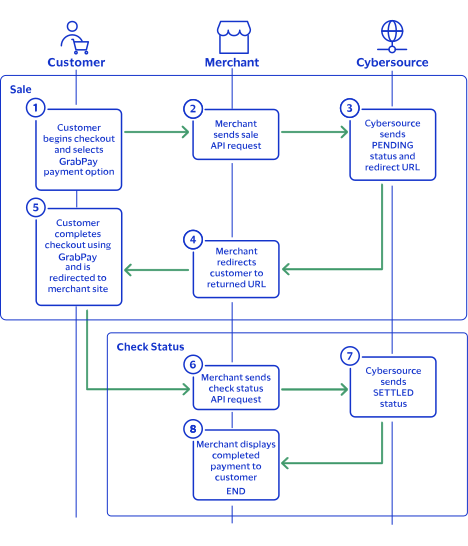
purchaseTotals_grandTotalAmount
field.
For information about how to calculate the grand total, see Calculating the Grand Total for Line Items.

Endpoints

Set the
apSaleService_run
field to
true
, and send the request to one of these endpoints:
Production:
https://ics2ws.ic3.com/commerce/1.x/transactionProcessor
Test:
https://ics2wstest.ic3.com/commerce/1.x/transactionProcessor
PromptPay does not support a test endpoint. Send all test transactions to the production endpoint.

Response Statuses

Cybersource
responds to your sale request with one of these statuses in the
apSaleReply_status
field:
Sale Status
  • FAILED
    : The sale cannot be completed.
  • PENDING
    : The sale request is accepted but is not completed. Request the check status service every 60 minutes to retrieve status updates. See Check a Request Status.
The sale service also responds with a reason code in the
apSaleReply_reasonCode
field.
For more information about reason codes, see Reason Codes and Response Codes.
When you send a check status request to retrieve an updated sale status, these are the possible responses:
Check Status for a Sale
  • ABANDONED
    : The customer did not complete the payment using the redirect URL.
  • FAILED
    : The sale cannot be completed.
  • FUNDED
    : The settled amount is funded to the merchant bank account.
  • PENDING
    : The sale request is accepted but is not complete. Continue sending the check status request every 60 minutes.
  • SETTLED
    : The sale request is settled for the requested amount. You cannot receive a settled status until the customer has completed checking out.

Processing a Sale

Follow these steps to successfully process sale.
You must include all of the listed required fields in your sale request to guarantee the redirect URL will display properly to the customer.
  1. Send a
    POST
    request to the
    https://ics2ws.ic3.com/commerce/1.x/transactionProcessor
    endpoint and include these required fields:
    Set to
    PPQ
    .
    Set to the URL to which the customer is redirected after successfully completing the PromptPay payment.
    Add
    ?action=cancel
    to the end of the URL to help identify the response.
    Set to the URL to which the customer is redirected after successfully completing the PromptPay payment.
    Add
    ?action=failure
    to the end of the URL to help identify the response.
    Set to the URL to which the customer is redirected after successfully completing the PromptPay payment.
    Add
    ?action=success
    to the end of the URL to help identify the response.
    Set to
    true
    .
    Set to
    TH
    .
    Set to
    THB
    .
  2. You can include these optional fields in the request:
    Replace the
    #
    character with a sequential number starting from
    0
    .
    Replace the
    #
    character with a sequential number starting from
    0
    .
    Replace the
    #
    character with a sequential number starting from
    0
    .
    Replace the
    #
    character with a sequential number starting from
    0
    .
    Replace the
    #
    character with a sequential number starting from
    0
    .
    Replace the
    #
    character with a sequential number starting from
    0
    .
    If this field is present, the
    purchaseTotals_currency
    field is optional.
    Replace the
    #
    character with a sequential number starting from
    0
    .
    Replace the
    #
    character with a sequential number starting from
    0
    .
  3. Redirect the customer to the returned URL in the
    merchantURL
    response field.
    <merchantURL>
    https://payment.limonetikqualif.com/P24/Order/PayPage/646168685386
    </merchantURL>
  4. When the customer completes the checkout using their P24 credentials, the customer is redirected to the merchant website based on the URL that you included in the
    apSaleService_successURL
    field.
  5. Save the request ID in the
    requestID
    field from the sale response. Include the request ID in a check status request to confirm that the payment is complete.
    <requestID>
    6989535327666834103007
    </requestID>

Example: Processing a Sale

Request
<requestMessage xmlns="urn:schemas-cybersource-com:transaction-data-1.215"> <merchantID>test_merchant</merchantID> <merchantReferenceCode>refnum-1234</merchantReferenceCode> <billTo> <country>TH</country> </billTo> <purchaseTotals> <currency>THB</currency> <grandTotalAmount>220.00</grandTotalAmount> </purchaseTotals> <apPaymentType>PPQ</apPaymentType> <apSaleService run="true"> <cancelURL>https://www.test.com?action=cancel</cancelURL> <successURL>https://www.test.com?action=success</successURL> <failureURL>https://www.test.com?action=failure</failureURL> </apSaleService> </requestMessage>
Response to a Successful Request
<replyMessage xmlns:c="urn:schemas-cybersource-com:transaction-data-1.215"> <merchantReferenceCode>PromptPayQR-Sale</merchantReferenceCode> <requestID>7290906743056142304272</requestID> <decision>ACCEPT</decision> <reasonCode>100</reasonCode> <requestToken>AxjnrwSTiz2oHe4ZkgQQANgZYiy5ctlCjQqNa0n82V+f6d+B8iGFDJpJl6MYhzEaTiz2oHe4ZkgQQAAA6ACl</requestToken> <purchaseTotals> <currency>THB</currency> </purchaseTotals> <apSaleReply> <reasonCode>100</reasonCode> <paymentStatus>pending</paymentStatus> <responseCode>00001</responseCode> <merchantURL>https://payment.limonetik.com/Razer/Order/PayPage/240117733343</merchantURL> <processorTransactionID>240117733343</processorTransactionID> <reconciliationID>XEKKK2BFBQVZ</reconciliationID> <amount>1.00</amount> <processorResponse>00001</processorResponse> <dateTime>2024-10-16T14:57:55Z</dateTime> </apSaleReply> </replyMessage>

Check a Request Status

You can retrieve the status of a pending sale or refund by sending a check status request.
The check status service is a follow-on service used to retrieve status updates of a pending sale.
When a pending status updates, a check status response includes the transaction's new status. Thunes sometimes needs to review a service request, which causes a transaction to initially respond with a pending status. The check status request requires you to include the request ID from the pending transaction response you are checking the status of. The request ID is located in the
requestID
response field.
Cybersource
recommends that you send a check status request hourly until the status updates from pending.

Endpoints

Set the
apCheckStatusService_run
field to
true
, and send the request to one of these endpoints:
Production:
https://ics2ws.ic3.com/commerce/1.x/transactionProcessor
Test:
https://ics2wstest.ic3.com/commerce/1.x/transactionProcessor
PromptPay does not support a test endpoint. Send all test transactions to the production endpoint.

Response Statuses

Cybersource
responds to your check status request with one of these statuses in the
apCheckStatusReply_status
field:
Check Status Responses for a Sale
  • ABANDONED
    : The customer did not complete the payment using the redirect URL.
  • FAILED
    : The service request failed. A failed request can be due to either PromptPay rejecting the transaction or a technical error.
  • FUNDED
    : The settled amount is funded to the merchant bank account.
  • PENDING
    : The service request is accepted but is not completed. Request the check status service to retrieve status updates.
  • SETTLED
    : The sale request is settled for the requested amount.
Check Status Responses for a Refund
  • FAILED
    : The service request failed. A failed request can be due to either PromptPay rejecting the transaction or a technical error.
  • REFUNDED
    : The settled amount is successfully refunded.
The check status service also responds with a reason code in the
apCheckStatusReply_reasonCode
field.
For more information about reason codes, see Reason Codes and Response Codes.

Required Fields for Checking Status

Set to the request ID included in the service response.
Set to
true
.
Set to
PPQ
.

Example: Checking a Request Status

Request
<requestMessage xmlns="urn:schemas-cybersource-com:transaction-data-1.215"> <merchantID>test_merchant</merchantID> <merchantReferenceCode>refnum-1234</merchantReferenceCode> <apPaymentType>PPQ</apPaymentType> <apCheckStatusService run="true"> <checkStatusRequestID>6953229557336619903008</checkStatusRequestID> </apCheckStatusService> </requestMessage>
Response to a Successful Request
<replyMessage xmlns:c="urn:schemas-cybersource-com:transaction-data-1.215"> <merchantReferenceCode>refnum-1234</merchantReferenceCode> <requestID>6989529700616633303007</requestID> <decision>ACCEPT</decision> <reasonCode>100</reasonCode> <requestToken>AxjnrwSTeuc1xphoz7/fANgZYiy6laewnTZ9honkFw7xbfpC/oGdUMmkmXoxX6rUJN65zUbdKW/6eQAA/i7C</requestToken> <apCheckStatusReply> <reasonCode>100</reasonCode> <reconciliationID>XEKTVO0NMOX4</reconciliationID> <paymentStatus>pending</paymentStatus> <processorResponse>00001</processorResponse> <processorToken>348476012838</processorToken> </apCheckStatusReply> </replyMessage>

ShopeePay Transaction Requests

ShopeePay is a payment method offered by the Thunes payment service provider (PSP) that you can offer your customers through
Cybersource
. You can process a payment by sending a sale API request message to
Cybersource
.
Cybersource
sends your request to Thunes. Thunes approves the transaction and sends the request to the processor for settlement. You can also send a refund and check status API request as follow-on services.

Requirements

You must have a merchant ID and a Thunes API key for each country in which you process transactions. Contact your
Cybersource
account manager for more information.

Supported Currencies

This table lists the currencies supported by ShopeePay.
Supported Currencies and Currency Codes
Currency
Currency Code
IDR
Indonesian rupiah
MYR
Malaysian ringgit
PHP
Philippine peso

Shipping Policy

You can ship purchased goods when the sale status is
SETTLED
.

ShopeePay by Thunes Payment Workflow

This workflow describes the sequence of events that comprises a successful ShopeePay payment.

Figure:

ShopeePay by Thunes Payment Workflow
  1. The customer begins to checkout on the merchant's website and chooses the ShopeePay payment method.
  2. The merchant sends a sale API request to
    Cybersource
    . For more information, see Process a Sale.
  3. Cybersource
    responds to the merchant with a
    PENDING
    status and a redirect URL.
  4. The merchant redirects the customer to the URL.
  5. The customer completes the checkout using ShopeePay and is redirected to the merchant website.
  6. The merchant sends a check status API request to
    Cybersource
    . For more information, see Check a Request Status.
  7. Cybersource
    responds to the merchant with a
    SETTLED
    status.
  8. The merchant displays a confirmation of the completed payment to the customer.

Transaction Statuses Workflow

This workflow shows the statuses that can occur at each stage of processing a sale and refund.

Figure:

Transaction Statuses Workflow
  1. When a customer begins to check out, you send a sale request to
    Cybersource
    and receive one of these possible statuses:
    • FAILED
      : The sale cannot be completed.
    • PENDING
      : The sale request is accepted but is not completed. Send the check status request to retrieve status updates.
  2. You send a check status request to
    Cybersource
    to verify the sale status and receive one of these statuses:
    • ABANDONED
      : The customer did not complete the payment using the redirect URL.
    • FAILED
      : The sale request failed. A failed request can be due to either a rejection or a technical error.
    • PENDING
      : The sale request is accepted but is not completed. Send the check status request as often as necessary to obtain the information that you need.
    • SETTLED
      : The sale request is settled for the requested amount. When the settled amount is deposited into the merchant's bank account, the status updates to
      FUNDED
      .
  3. If a customer returns a purchase, you send a refund request to
    Cybersource
    and receive one of these possible statuses:
    • FAILED
      : The refund request failed.
    • REFUNDED
      : The refund request is accepted but is not completed. Request the check status service to retrieve status updates.
  4. You send a check status request to
    Cybersource
    to verify the refund status and receive one of these statuses:
    • FAILED
      : The refund could not be completed.
    • REFUNDED
      : The settled amount is successfully refunded.

Process a Sale

Send a sale request to authorize and capture a payment in the same request. A successful sale response includes a redirect URL and a pending status. Redirect the customer to the URL to allow the customer to complete the checkout using ShopeePay. When the customer completes the checkout, the customer is redirected to the merchant website using the success-URL provided in the sale request.

Line Items

Line items can be included in a sale request. Line items correspond to the
item_#_
fields, starting with
item_0_
and increasing in numerical order.
For more information about how to properly format line items in your request, see Using Line Items.

Tax Amounts

You can include the tax amount for every type of purchased product in the
item_#_taxAmount
field when you request the sale service.

Calculating the Grand Total

Include the grand total in the request by using the
purchaseTotals_grandTotalAmount
field.
For information about how to calculate the grand total, see Calculating the Grand Total for Line Items.

Response Statuses

Cybersource
responds to your sale request with one of these statuses in the
apSaleReply_status
field:
Sale Status
The sale service also responds with a reason code in the
apSaleReply_reasonCode
field.
For more information about reason codes, see Reason Codes and Response Codes.
When you send a check status request to retrieve an updated sale status, these are the possible responses:
Check Status for a Sale
  • ABANDONED
    : The customer did not complete the payment using the redirect URL.
  • FAILED
    : The sale cannot be completed.
  • FUNDED
    : The settled amount is funded to the merchant bank account.
  • PENDING
    : The sale request is accepted but is not complete. Continue sending the check status request every 60 minutes.
  • SETTLED
    : The sale request is settled for the requested amount. You cannot receive a settled status until the customer has completed checking out.

Processing a Sale

Follow these steps to successfully process sale.
You must include all of the listed required fields in your sale request to guarantee the redirect URL will display properly to the customer.
  1. Send a
    POST
    request to the
    https://ics2ws.ic3.com/commerce/1.x/transactionProcessor
    endpoint and include these required fields:
    Set to
    SHP
    .
    Set to the URL to which the customer is redirected after successfully completing the ShopeePay payment.
    Add
    ?action=cancel
    to the end of the URL to help identify the response.
    Set to the URL to which the customer is redirected after successfully completing the ShopeePay payment.
    Add
    ?action=failure
    to the end of the URL to help identify the response.
    Set to the URL to which the customer is redirected after successfully completing the ShopeePay payment.
    Add
    ?action=success
    to the end of the URL to help identify the response.
    Set to
    true
    .
    Set to one of these possible values:
    • IDR
      : Indonesian rupiah
    • MYR
      : Malaysian ringgit
    • PHP
      : Philippine peso
  2. You can include these optional fields in the request:
    Replace the
    #
    character with a sequential number starting from
    0
    .
    Replace the
    #
    character with a sequential number starting from
    0
    .
    Replace the
    #
    character with a sequential number starting from
    0
    .
    Replace the
    #
    character with a sequential number starting from
    0
    .
    Replace the
    #
    character with a sequential number starting from
    0
    .
    Replace the
    #
    character with a sequential number starting from
    0
    .
    If this field is present, the
    purchaseTotals_currency
    field is optional.
    Replace the
    #
    character with a sequential number starting from
    0
    .
    Replace the
    #
    character with a sequential number starting from
    0
    .
  3. Redirect the customer to the returned URL in the
    merchantURL
    response field.
    <merchantURL>
    https://payment.limonetikqualif.com/Razer/Order/PayPage/782373220980
    </merchantURL>
  4. When the customer completes the checkout using their ShopeePay credentials, the customer is redirected to the merchant website based on the URL that you included in the
    apSaleService_successURL
    field.
  5. Save the request ID in the
    requestID
    field from the sale response. Include the request ID in a check status request to confirm that the payment is complete.
    <requestID>
    6989535327666834103007
    </requestID>

Example: Processing a Sale

Request
<requestMessage xmlns="urn:schemas-cybersource-com:transaction-data-1.215"> <merchantID>test-merchant</merchantID> <merchantReferenceCode>ShopeePay-Sale</merchantReferenceCode> <billTo> <lastName>Tester</lastName> <country>ID</country> <phoneNumber>+33785495587</phoneNumber> <email>john.doe@thunes.com</email> </billTo> <purchaseTotals> <currency>IDR</currency> <grandTotalAmount>5.00</grandTotalAmount> </purchaseTotals> <apPaymentType>SHP</apPaymentType> <apSaleService run="true"> <cancelURL>https://www.google.com?action=cancel</cancelURL> <successURL>https://www.google.com?action=success</successURL> <failureURL>https://www.google.com?action=failure</failureURL> </apSaleService> </requestMessage>
Response to a Successful Request
<replyMessage xmlns:c="urn:schemas-cybersource-com:transaction-data-1.215"> <merchantReferenceCode>ShopeePay-Sale</merchantReferenceCode> <requestID>6953229557336619903008</requestID> <decision>ACCEPT</decision> <reasonCode>100</reasonCode> <requestToken>AxjnrwSTiKtC14abfyOqANgZYjWmrVgwstJ0+cnvxCztDrlCfohFwyaSZejFfqtQk4irQteGm38jqgAAyxyD</requestToken> <purchaseTotals> <currency>MYR</currency> </purchaseTotals> <apSaleReply> <reasonCode>100</reasonCode> <paymentStatus>pending</paymentStatus> <responseCode>00001</responseCode> <merchantURL>https://payment.limonetikqualif.com/Razer/Order/PayPage/782373220980</merchantURL> <processorTransactionID>782373220980</processorTransactionID> <reconciliationID>XFZ5500Y4NON</reconciliationID> <amount>5.00</amount> <processorResponse>00001</processorResponse> <dateTime>2024-08-22T17:07:14Z</dateTime> </apSaleReply> </replyMessage>

Check a Request Status

You can retrieve the status of a pending sale or refund by sending a check status request.
When a pending status updates, a check status response includes the transaction's new status. Thunes sometimes needs to review a service request, which causes a transaction to initially respond with a pending status. The check status request requires you to include the request ID from the pending transaction response you are checking the status of. The request ID is located in the
requestID
response field.
Cybersource
recommends that you send a check status request hourly until the status updates from pending.

Response Statuses

Cybersource
responds to your check status request with one of these statuses in the
apCheckStatusReply_status
field:
Check Status Responses for a Sale
  • ABANDONED
    : The customer did not complete the payment using the redirect URL.
  • FAILED
    : The service request failed. A failed request can be due to either ShopeePay rejecting the transaction or a technical error.
  • FUNDED
    : The settled amount is funded to the merchant bank account.
  • PENDING
    : The service request is accepted but is not completed. Request the check status service to retrieve status updates.
  • SETTLED
    : The sale request is settled for the requested amount.
Check Status Responses for a Refund
  • FAILED
    : The service request failed. A failed request can be due to either ShopeePay rejecting the transaction or a technical error.
  • REFUNDED
    : The settled amount is successfully refunded.
The check status service also responds with a reason code in the
apCheckStatusReply_reasonCode
field.
For more information about reason codes, see Reason Codes and Response Codes.

Required Fields for Checking Status

Set to the request ID included in the service response.
Set to
true
.
Set to
SHP
.

Example: Checking a Request Status

Request
<requestMessage xmlns="urn:schemas-cybersource-com:transaction-data-1.215"> <merchantID>test_merchant</merchantID> <merchantReferenceCode>refnum-1234</merchantReferenceCode> <apPaymentType>SHP</apPaymentType> <apCheckStatusService run="true"> <checkStatusRequestID>6953229557336619903008</checkStatusRequestID> </apCheckStatusService> </requestMessage>
Response to a Successful Request
<replyMessage xmlns:c="urn:schemas-cybersource-com:transaction-data-1.215"> <merchantReferenceCode>refnum-1234</merchantReferenceCode> <requestID>6989529700616633303007</requestID> <decision>ACCEPT</decision> <reasonCode>100</reasonCode> <requestToken>AxjnrwSTeuc1xphoz7/fANgZYiy6laewnTZ9honkFw7xbfpC/oGdUMmkmXoxX6rUJN65zUbdKW/6eQAA/i7C</requestToken> <apCheckStatusReply> <reasonCode>100</reasonCode> <reconciliationID>XEKTVO0NMOX4</reconciliationID> <paymentStatus>pending</paymentStatus> <processorResponse>00001</processorResponse> <processorToken>348476012838</processorToken> </apCheckStatusReply> </replyMessage>

Refund a Payment

You can refund a completed payment for the full amount or a partial amount by sending a refund request. ShopeePay supports multiple refund requests when the total amount of all of the refund requests is less than the captured amount.
Requesting a refund requires the request ID from the sale response. The request ID is located in the
requestID
response field.

Endpoints

Set the
apRefundService_run
field to
true
, and send the request to one of these endpoints:
Production:
https://ics2ws.ic3.com/commerce/1.x/transactionProcessor
Test:
https://ics2wstest.ic3.com/commerce/1.x/transactionProcessor

Response Statuses

Cybersource
responds to your refund request with one of these statuses as the
apRefundReply_status
field value:
  • FAILED
    : The refund request failed.
  • REFUNDED
    : The refund request is accepted but is not completed. Request the check status service to retrieve status updates. For more information, see Refund a Payment.
The refund service also responds with a reason code as the
apRefundReply_reasonCode
field value.
For more information about reason codes, see Reason Codes and Response Codes.
When you send a check status request to retrieve an updated refund status, these are the possible responses:
  • FAILED
    : The refund request failed.
  • REFUNDED
    : The settled payment is successfully refunded.

Required Fields for Refunding a Payment

Example: Refunding a Payment

Request
<requestMessage xmlns="urn:schemas-cybersource-com:transaction-data-1.215"> <merchantID>test_merchant</merchantID> <merchantReferenceCode>refnum-1234</merchantReferenceCode> <purchaseTotals> <currency>IDR</currency> <grandTotalAmount>220.00</grandTotalAmount> </purchaseTotals> <apPaymentType>SHP</apPaymentType> <apRefundService run="true"> <refundRequestID>6953229557336619903008</refundRequestID> </apRefundService> </requestMessage>
Response to a Successful Request
<replyMessage xmlns:c="urn:schemas-cybersource-com:transaction-data-1.215"> <merchantReferenceCode>refnum-1234</merchantReferenceCode> <requestID>6953231301306139703011</requestID> <decision>ACCEPT</decision> <reasonCode>100</reasonCode> <requestToken>AxjnrwSTeO939L1XjnbjANgZYjWmdqbQhOJDNsojmiG+pv0h9XwMwIZNJMvRiy0P/Sbx3uHfMaEAQD4A8Q9I</requestToken> <purchaseTotals> <currency>IDR</currency> </purchaseTotals> <apRefundReply> <reasonCode>100</reasonCode> <transactionID>315778574151</transactionID> <status>REFUNDED</status> <processorResponse>00006</processorResponse> <amount>220.00</amount> <dateTime>2023-09-21T19:05:32Z</dateTime> <reconciliationID>XFZ3ZMPB8H36</reconciliationID> <returnRef>XFZ40MPBIPMM</returnRef> <paymentStatus>refunded</paymentStatus> <responseCode>00006</responseCode> </apRefundReply> </replyMessage>

Token Transaction Requests

Token is a payment method offered by the Thunes payment service provider (PSP) that you can offer your customers through
Cybersource
. You can process a payment by sending a sale API request to
Cybersource
.
Cybersource
sends your request to Thunes. Thunes approves the transaction and sends the request to the processor for settlement. You can also send a check status API request to retrieve status updates of the processing sale. Token does not support refunds. To issue a refund to the customer, you must provide an alternative method of reimbursement, such as cash or in-store credit.

Requirements

You must have a merchant ID and a Thunes API key for each country in which you process transactions. Contact your
Cybersource
account manager for more information.

Supported Currencies

This table lists the currencies supported by Token.
Supported Currencies and Currency Codes
Currency
Currency Code
IDR
Indonesian rupiah
MYR
Malaysian ringgit
PHP
Philippine peso

Shipping Policy

You can ship purchased goods when the sale status is
SETTLED
.

Token by Thunes Payment Workflow

This workflow describes the sequence of events that comprises a successful Token payment.

Figure:

Token by Thunes Payment Workflow
  1. The customer begins to checkout on the merchant's website and chooses the Token payment method.
  2. The merchant sends a sale API request to
    Cybersource
    . For more information, see Process a Sale.
  3. Cybersource
    responds to the merchant with the
    PENDING
    status, a redirect URL, and a request ID.
  4. The merchant redirects the customer to the URL.
  5. The customer completes the checkout using Token and is redirected to the merchant website.
  6. The merchant sends periodic check status API requests to
    Cybersource
    with the request ID. For more information, see Check a Request Status.
  7. Cybersource
    responds to the merchant with the
    SETTLED
    status when the payment is complete.
  8. The merchant displays a payment confirmation to the customer.

Transaction Statuses Workflow

This workflow describes the sequence of possible statuses you can receive when processing a Token transaction.
  1. The merchant sends a sale API request to
    Cybersource
    and receives one of these possible statuses:
    • FAILED
      : The sale cannot be completed.
    • PENDING
      : The sale request is accepted but is not completed. Request the check status service to retrieve status updates.
  2. The merchant sends a check status API request to
    Cybersource
    to verify the status of the sale and receives one of these statuses:
    • ABANDONED
      : The customer did not complete the payment using the redirect URL.
    • FAILED
      : The service request failed. A failed request can be due to either Token rejecting the transaction or a technical error.
    • PENDING
      : The sale request is accepted but is not completed. Request the check status service again after 60 minutes to retrieve a status update.
    • SETTLED
      : The sale request is settled for the requested amount. When the settled amount is deposited into the merchant's bank account, the status updates to
      FUNDED
      .

Process a Sale

Send a sale request to authorize and capture a payment in the same request. A successful sale response includes a redirect URL and a pending status. Redirect the customer to the URL to allow the customer to complete the checkout using Token. When the customer completes the checkout, the customer is redirected to the merchant website using the success-URL provided in the sale request.

Line Items

Line items can be included in a sale request. Line items correspond to the
item_#_
fields, starting with
item_0_
and increasing in numerical order.
For more information about how to properly format line items in your request, see Using Line Items.

Tax Amounts

You can include the tax amount for every type of purchased product in the
item_#_taxAmount
field when you request the sale service.

Calculating the Grand Total

Include the grand total in the request by using the
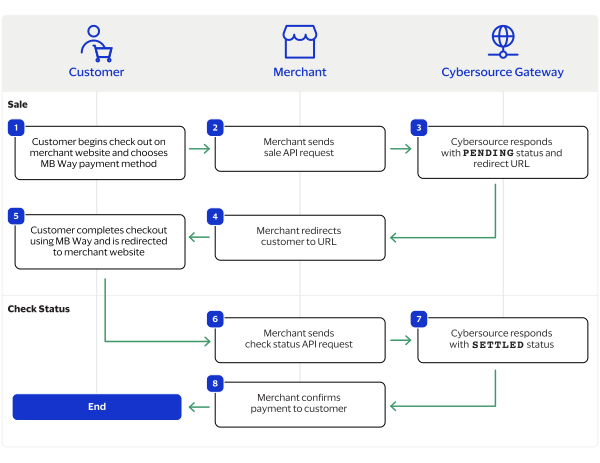
purchaseTotals_grandTotalAmount
field.
For information about how to calculate the grand total, see Calculating the Grand Total for Line Items.

Endpoints

Set the
apSaleService_run
field to
true
, and send the request to one of these endpoints:
Production:
https://ics2ws.ic3.com/commerce/1.x/transactionProcessor
Test:
https://ics2wstest.ic3.com/commerce/1.x/transactionProcessor

Response Statuses

Cybersource
responds to your sale request with one of these statuses in the
apSaleReply_status
field:
Sale Status
  • FAILED
    : The sale cannot be completed.
  • PENDING
    : The sale request is accepted but is not completed. Request the check status service every 60 minutes to retrieve status updates. See Check a Request Status.
The sale service also responds with a reason code in the
apSaleReply_reasonCode
field.
For more information about reason codes, see Reason Codes and Response Codes.
When you send a check status request to retrieve an updated sale status, these are the possible responses:
Check Status for a Sale
  • ABANDONED
    : The customer did not complete the payment using the redirect URL.
  • FAILED
    : The sale cannot be completed.
  • FUNDED
    : The settled amount is funded to the merchant bank account.
  • PENDING
    : The sale request is accepted but is not complete. Continue sending the check status request every 60 minutes.
  • SETTLED
    : The sale request is settled for the requested amount. You cannot receive a settled status until the customer has completed checking out.

Processing a Sale

Follow these steps to successfully process sale.
  1. Send a
    POST
    request to the
    https://ics2ws.ic3.com/commerce/1.x/transactionProcessor
    endpoint and include these required fields:
    Set to
    TKN
    .
    Set to the URL to which the customer is redirected after successfully completing the Token payment.
    Add
    ?action=cancel
    to the end of the URL to help identify the response.
    Set to the URL to which the customer is redirected after successfully completing the Token payment.
    Add
    ?action=failure
    to the end of the URL to help identify the response.
    Set to the URL to which the customer is redirected after successfully completing the Token payment.
    Add
    ?action=success
    to the end of the URL to help identify the response.
    Set to
    true
    .
    Set to
    EUR
    .
  2. You can include these optional fields in the request:
    Replace the
    #
    character with a sequential number starting from
    0
    .
    Replace the
    #
    character with a sequential number starting from
    0
    .
    Replace the
    #
    character with a sequential number starting from
    0
    .
    Replace the
    #
    character with a sequential number starting from
    0
    .
    Replace the
    #
    character with a sequential number starting from
    0
    .
    Replace the
    #
    character with a sequential number starting from
    0
    .
    If this field is present, the
    purchaseTotals_currency
    field is optional.
    Replace the
    #
    character with a sequential number starting from
    0
    .
    Replace the
    #
    character with a sequential number starting from
    0
    .
  3. Redirect the customer to the returned URL in the
    merchantURL
    response field.
    <merchantURL>
    https://payment.limonetikqualif.com/Token/Order/PayPage/274357577298
    </merchantURL>
  4. When the customer completes the checkout using their Token credentials, the customer is redirected to the merchant website based on the URL that you included in the
    apSaleService_successURL
    field.
  5. Save the request ID in the
    requestID
    field from the sale response. Include the request ID in a check status request to confirm that the payment is complete.
    <requestID>
    6989535327666834103007
    </requestID>

Example: Processing a Sale

Request
<requestMessage xmlns="urn:schemas-cybersource-com:transaction-data-1.215"> <merchantID>test_merchant</merchantID> <merchantReferenceCode>refnum-1234</merchantReferenceCode> <billTo> <country>ID</country> </billTo> <purchaseTotals> <currency>EUR</currency> <grandTotalAmount>220.00</grandTotalAmount> </purchaseTotals> <apPaymentType>TKN</apPaymentType> <apSaleService run="true"> <cancelURL>https://www.test.com?action=cancel</cancelURL> <successURL>https://www.test.com?action=success</successURL> <failureURL>https://www.test.com?action=failure</failureURL> </apSaleService> </requestMessage>
Response to a Successful Request
<replyMessage xmlns:c="urn:schemas-cybersource-com:transaction-data-1.215"> <merchantReferenceCode>Truelayer-Sale</merchantReferenceCode> <requestID>7322431103876640403008</requestID> <decision>ACCEPT</decision> <reasonCode>100</reasonCode> <requestToken>AxjnrwSTjPMlJRK2me5AANgZYjWmjBnQptW1OCnvxo0fAXpC4mIc0MmkmXoxX6rUJOM8yUlEraZ7kAAAGhXe</requestToken> <purchaseTotals> <currency>EUR</currency> </purchaseTotals> <apSaleReply> <reasonCode>100</reasonCode> <paymentStatus>pending</paymentStatus> <responseCode>00001</responseCode> <merchantURL>https://payment.limonetikqualif.com/Token/Order/PayPage/274357577298</merchantURL> <processorTransactionID>274357577298</processorTransactionID> <reconciliationID>XFZ403PS56SA</reconciliationID> <amount>11.00</amount> <processorResponse>00001</processorResponse> <dateTime>2024-11-22T02:38:31Z</dateTime> </apSaleReply> </replyMessage>

Check a Request Status

You can retrieve the status of a pending sale or refund by sending a check status request.
The check status service is a follow-on service used to retrieve status updates of a pending sale.
When a pending status updates, a check status response includes the transaction's new status. Thunes sometimes needs to review a service request, which causes a transaction to initially respond with a pending status. The check status request requires you to include the request ID from the pending transaction response you are checking the status of. The request ID is located in the
requestID
response field.
Cybersource
recommends that you send a check status request hourly until the status updates from pending.

Endpoints

Set the
apCheckStatusService_run
field to
true
, and send the request to one of these endpoints:
Production:
https://ics2ws.ic3.com/commerce/1.x/transactionProcessor
Test:
https://ics2wstest.ic3.com/commerce/1.x/transactionProcessor

Response Statuses

Cybersource
responds to your check status request with one of these statuses in the
apCheckStatusReply_status
field:
Check Status Responses for a Sale
  • ABANDONED
    : The customer did not complete the payment using the redirect URL.
  • FAILED
    : The service request failed. A failed request can be due to either Token rejecting the transaction or a technical error.
  • FUNDED
    : The settled amount is funded to the merchant bank account.
  • PENDING
    : The service request is accepted but is not completed. Request the check status service to retrieve status updates.
  • SETTLED
    : The sale request is settled for the requested amount.
Check Status Responses for a Refund
  • FAILED
    : The service request failed. A failed request can be due to either Token rejecting the transaction or a technical error.
  • REFUNDED
    : The settled amount is successfully refunded.
The check status service also responds with a reason code in the
apCheckStatusReply_reasonCode
field.
For more information about reason codes, see Reason Codes and Response Codes.

Required Fields for Checking Status

Set to the request ID included in the service response.
Set to
true
.
Set to
TKN
.

Example: Checking a Request Status

Request
<requestMessage xmlns="urn:schemas-cybersource-com:transaction-data-1.215"> <merchantID>test_merchant</merchantID> <merchantReferenceCode>refnum-1234</merchantReferenceCode> <apPaymentType>TKN</apPaymentType> <apCheckStatusService run="true"> <checkStatusRequestID>6953229557336619903008</checkStatusRequestID> </apCheckStatusService> </requestMessage>
Response to a Successful Request
<replyMessage xmlns:c="urn:schemas-cybersource-com:transaction-data-1.215"> <merchantReferenceCode>refnum-1234</merchantReferenceCode> <requestID>6989529700616633303007</requestID> <decision>ACCEPT</decision> <reasonCode>100</reasonCode> <requestToken>AxjnrwSTeuc1xphoz7/fANgZYiy6laewnTZ9honkFw7xbfpC/oGdUMmkmXoxX6rUJN65zUbdKW/6eQAA/i7C</requestToken> <apCheckStatusReply> <reasonCode>100</reasonCode> <reconciliationID>XEKTVO0NMOX4</reconciliationID> <paymentStatus>pending</paymentStatus> <processorResponse>00001</processorResponse> <processorToken>348476012838</processorToken> </apCheckStatusReply> </replyMessage>

TrueLayer Transaction Requests

TrueLayer is a payment method offered by the Thunes payment service provider (PSP) that you can offer your customers through
Cybersource
. You can process a payment by sending a sale API request to
Cybersource
.
Cybersource
sends your request to Thunes. Thunes approves the transaction and sends the request to the processor for settlement. You can also send a check status API request to retrieve status updates of the processing sale. TrueLayer does not support refunds. To issue a refund to the customer, you must provide an alternative method of reimbursement, such as cash or in-store credit.

Requirements

You must have a merchant ID and a Thunes API key for each country in which you process transactions. Contact your
Cybersource
account manager for more information.

Shipping Policy

Goods can be shipped when the sale status is
SETTLED
.

TrueLayer by Thunes Payment Workflow

This workflow describes the sequence of events that comprises a successful TrueLayer payment.

Figure:

TrueLayer by Thunes Payment Workflow
  1. The customer begins to checkout on the merchant's website and chooses the TrueLayer payment method.
  2. The merchant sends a sale API request to
    Cybersource
    . For more information, see Process a Sale.
  3. Cybersource
    responds to the merchant with the
    PENDING
    status, a redirect URL, and a request ID.
  4. The merchant redirects the customer to the URL.
  5. The customer completes the checkout using TrueLayer and is redirected to the merchant website.
  6. The merchant sends periodic check status API requests to
    Cybersource
    with the request ID. For more information, see Check a Request Status.
  7. Cybersource
    responds to the merchant with the
    SETTLED
    status when the payment is complete.
  8. The merchant displays a payment confirmation to the customer.

Transaction Statuses Workflow

This workflow describes the sequence of possible statuses you can receive when processing a sale.
  1. The merchant sends a sale API request to
    Cybersource
    and receives one of these possible statuses:
    • FAILED
      : The sale cannot be completed.
    • PENDING
      : The sale request is accepted but is not completed. Request the check status service to retrieve status updates.
  2. The merchant sends a check status API request to
    Cybersource
    to verify the status of the sale and receives one of these statuses:
    • ABANDONED
      : The customer did not complete the payment using the redirect URL.
    • FAILED
      : The service request failed. A failed request can be due to either a rejected transaction or a technical error.
    • PENDING
      : The sale request is accepted but is not completed. Request the check status service again after 60 minutes to retrieve a status update.
    • SETTLED
      : The sale request is settled for the requested amount. When the settled amount is deposited into the merchant's bank account, the status updates to
      FUNDED
      .

Process a Sale

Send a sale request to authorize and capture a payment in the same request. A successful sale response includes a redirect URL and a pending status. Redirect the customer to the URL to allow the customer to complete the checkout using TrueLayer. When the customer completes the checkout, the customer is redirected to the merchant website using the success-URL provided in the sale request.

Line Items

Line items can be included in a sale request. Line items correspond to the
item_#_
fields, starting with
item_0_
and increasing in numerical order.
For more information about how to properly format line items in your request, see Using Line Items.

Tax Amounts

You can include the tax amount for every type of purchased product in the
item_#_taxAmount
field when you request the sale service.

Calculating the Grand Total

Include the grand total in the request by using the
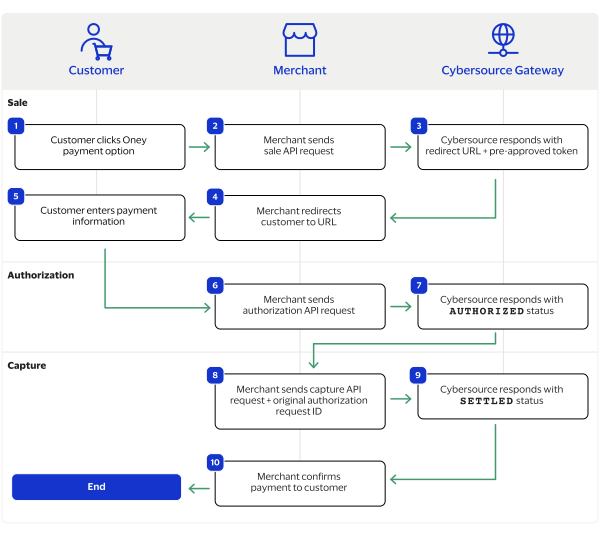
purchaseTotals_grandTotalAmount
field.
For information about how to calculate the grand total, see Calculating the Grand Total for Line Items.

Endpoints

Set the
apSaleService_run
field to
true
, and send the request to one of these endpoints:
Production:
https://ics2ws.ic3.com/commerce/1.x/transactionProcessor
Test:
https://ics2wstest.ic3.com/commerce/1.x/transactionProcessor

Response Statuses

Cybersource
responds to your sale request with one of these statuses in the
apSaleReply_status
field:
Sale Status
  • FAILED
    : The sale cannot be completed.
  • PENDING
    : The sale request is accepted but is not completed. Request the check status service every 60 minutes to retrieve status updates. See Check a Request Status.
The sale service also responds with a reason code in the
apSaleReply_reasonCode
field.
For more information about reason codes, see Reason Codes and Response Codes.
When you send a check status request to retrieve an updated sale status, these are the possible responses:
Check Status for a Sale
  • ABANDONED
    : The customer did not complete the payment using the redirect URL.
  • FAILED
    : The sale cannot be completed.
  • FUNDED
    : The settled amount is funded to the merchant bank account.
  • PENDING
    : The sale request is accepted but is not complete. Continue sending the check status request every 60 minutes.
  • SETTLED
    : The sale request is settled for the requested amount. You cannot receive a settled status until the customer has completed checking out.

Processing a Sale

Follow these steps to successfully process sale.
  1. Send a
    POST
    request to the
    https://ics2ws.ic3.com/commerce/1.x/transactionProcessor
    endpoint and include these required fields:
    Set to
    TLR
    .
    Set to the URL to which the customer is redirected after successfully completing the TrueLayer payment.
    Add
    ?action=cancel
    to the end of the URL to help identify the response.
    Set to the URL to which the customer is redirected after successfully completing the TrueLayer payment.
    Add
    ?action=failure
    to the end of the URL to help identify the response.
    Set to the URL to which the customer is redirected after successfully completing the TrueLayer payment.
    Add
    ?action=success
    to the end of the URL to help identify the response.
    Set to
    true
    .
    Set to
    FR
    .
    Set to
    EUR
    .
  2. You can include these optional fields in the request:
    Replace the
    #
    character with a sequential number starting from
    0
    .
    Replace the
    #
    character with a sequential number starting from
    0
    .
    Replace the
    #
    character with a sequential number starting from
    0
    .
    Replace the
    #
    character with a sequential number starting from
    0
    .
    Replace the
    #
    character with a sequential number starting from
    0
    .
    Replace the
    #
    character with a sequential number starting from
    0
    .
    If this field is present, the
    purchaseTotals_currency
    field is optional.
    Replace the
    #
    character with a sequential number starting from
    0
    .
    Replace the
    #
    character with a sequential number starting from
    0
    .
  3. Redirect the customer to the returned URL in the
    merchantURL
    response field.
    <merchantURL>
    https://payment.limonetikqualif.com/TrueLayer/Order/PayPage/474357154062
    </merchantURL>
  4. When the customer completes the checkout using their TrueLayer credentials, the customer is redirected to the merchant website based on the URL that you included in the
    apSaleService_successURL
    field.
  5. Save the request ID in the
    requestID
    field from the sale response. Include the request ID in a check status request to confirm that the payment is complete.
    <requestID>
    6989535327666834103007
    </requestID>

Example: Processing a Sale

Request
<requestMessage xmlns="urn:schemas-cybersource-com:transaction-data-1.215"> <merchantID>test_merchant</merchantID> <merchantReferenceCode>refnum-1234</merchantReferenceCode> <billTo> <country>FR</country> </billTo> <purchaseTotals> <currency>EUR</currency> <grandTotalAmount>220.00</grandTotalAmount> </purchaseTotals> <apPaymentType>TLR</apPaymentType> <apSaleService run="true"> <cancelURL>https://www.test.com?action=cancel</cancelURL> <successURL>https://www.test.com?action=success</successURL> <failureURL>https://www.test.com?action=failure</failureURL> </apSaleService> </requestMessage>
Response to a Successful Request
<replyMessage xmlns:c="urn:schemas-cybersource-com:transaction-data-1.215"> <merchantReferenceCode>Truelayer-Sale</merchantReferenceCode> <requestID>7322413354786454803011</requestID> <decision>ACCEPT</decision> <reasonCode>100</reasonCode> <requestToken>AxjnrwSTjPLmFl6fAJJDANgZYjWmjBnQptW1Nknvxo0OA3pC4mIc0MmkmXoxX6rUJOM8uYWXp8AkkMAAvwcZ</requestToken> <purchaseTotals> <currency>EUR</currency> </purchaseTotals> <apSaleReply> <reasonCode>100</reasonCode> <paymentStatus>pending</paymentStatus> <responseCode>00001</responseCode> <merchantURL>https://payment.limonetikqualif.com/TrueLayer/Order/PayPage/474357154062</merchantURL> <processorTransactionID>474357154062</processorTransactionID> <reconciliationID>XFZ403PS56S2</reconciliationID> <amount>11.00</amount> <processorResponse>00001</processorResponse> <dateTime>2024-11-22T02:08:57Z</dateTime> </apSaleReply> </replyMessage>

Check a Request Status

You can retrieve the status of a pending sale or refund by sending a check status request.
The check status service is a follow-on service used to retrieve status updates of a pending sale.
When a pending status updates, a check status response includes the transaction's new status. Thunes sometimes needs to review a service request, which causes a transaction to initially respond with a pending status. The check status request requires you to include the request ID from the pending transaction response you are checking the status of. The request ID is located in the
requestID
response field.
Cybersource
recommends that you send a check status request hourly until the status updates from pending.

Endpoints

Set the
apCheckStatusService_run
field to
true
, and send the request to one of these endpoints:
Production:
https://ics2ws.ic3.com/commerce/1.x/transactionProcessor
Test:
https://ics2wstest.ic3.com/commerce/1.x/transactionProcessor

Response Statuses

Cybersource
responds to your check status request with one of these statuses in the
apCheckStatusReply_status
field:
Check Status Responses for a Sale
  • ABANDONED
    : The customer did not complete the payment using the redirect URL.
  • FAILED
    : The service request failed. A failed request can be due to either TrueLayer rejecting the transaction or a technical error.
  • FUNDED
    : The settled amount is funded to the merchant bank account.
  • PENDING
    : The service request is accepted but is not completed. Request the check status service to retrieve status updates.
  • SETTLED
    : The sale request is settled for the requested amount.
Check Status Responses for a Refund
  • FAILED
    : The service request failed. A failed request can be due to either TrueLayer rejecting the transaction or a technical error.
  • REFUNDED
    : The settled amount is successfully refunded.
The check status service also responds with a reason code in the
apCheckStatusReply_reasonCode
field.
For more information about reason codes, see Reason Codes and Response Codes.

Required Fields for Checking Status

Set to the request ID included in the service response.
Set to
true
.
Set to
TLR
.

Example: Checking a Request Status

Request
<requestMessage xmlns="urn:schemas-cybersource-com:transaction-data-1.215"> <merchantID>test_merchant</merchantID> <merchantReferenceCode>refnum-1234</merchantReferenceCode> <apPaymentType>TLR</apPaymentType> <apCheckStatusService run="true"> <checkStatusRequestID>6953229557336619903008</checkStatusRequestID> </apCheckStatusService> </requestMessage>
Response to a Successful Request
<replyMessage xmlns:c="urn:schemas-cybersource-com:transaction-data-1.215"> <merchantReferenceCode>refnum-1234</merchantReferenceCode> <requestID>6989529700616633303007</requestID> <decision>ACCEPT</decision> <reasonCode>100</reasonCode> <requestToken>AxjnrwSTeuc1xphoz7/fANgZYiy6laewnTZ9honkFw7xbfpC/oGdUMmkmXoxX6rUJN65zUbdKW/6eQAA/i7C</requestToken> <apCheckStatusReply> <reasonCode>100</reasonCode> <reconciliationID>XEKTVO0NMOX4</reconciliationID> <paymentStatus>pending</paymentStatus> <processorResponse>00001</processorResponse> <processorToken>348476012838</processorToken> </apCheckStatusReply> </replyMessage>

Trustly Transaction Requests

Trustly is a payment method offered by the Thunes payment service provider (PSP) that you can offer your customers through
Cybersource
. You can process a payment by sending a sale API request message to
Cybersource
.
Cybersource
sends your request to Thunes. Thunes approves the transaction and sends the request to the processor for settlement. You can also send a refund and check status API request as follow-on requests.

Requirements

You must have a merchant ID and a Thunes API key for each country in which you process transactions. Contact your
Cybersource
account manager for more information.

Supported Countries and Currencies

This table lists the countries and their corresponding country codes that are supported by Trustly.
Supported Countries and Country Codes
Country
Country Code
Austria
AT
Czech Republic
CZ
Denmark
DK
Estonia
EE
Finland
FI
Germany
DE
Latvia
LV
Lithuania
LT
Netherlands
NL
Norway
NO
Poland
PL
Spain
ES
Sweden
SE
United Kingdom
GB
This table lists the currencies and their corresponding currency codes that are supported by Trustly. Additional currencies are accepted by Trustly, and when included in an API request, the accepted currencies are converted into one of the listed supported currencies.
Supported Currencies and Currency Codes
Currency
Currency Code
Bulgarian lev
BGN
Croatian kuna
HRK
Czech koruna
CZK
Danish krone
DKK
Euro
EUR
Forint
HUF
Romanian leu
RON
Norwegian krone
NOK
Polish zloty
PLN
British pound sterling
GBP
Swedish krona
SEK

Shipping Policy

Goods can be shipped when the sale status is
SETTLED
.

Trustly by Thunes Payment Workflow

This workflow describes the sequence of events that comprises a successful Trustly payment.

Figure:

Trustly by Thunes Payment Workflow
MB Way by Thunes Payment Workflow
  1. The customer begins to checkout on the merchant's website and chooses the Trustly payment method.
  2. The merchant sends a sale API request to
    Cybersource
    . For more information, see Process a Sale.
  3. Cybersource
    responds to the merchant with a
    PENDING
    status and a redirect URL.
  4. The merchant redirects the customer to the URL.
  5. The customer completes the checkout using Trustly and is redirected to the merchant website.
  6. The merchant sends a check status API request to
    Cybersource
    . For more information, see Check a Request Status.
  7. Cybersource
    responds to the merchant with a
    SETTLED
    status.
  8. The merchant displays a confirmation of the completed payment to the customer.

Transaction Statuses Workflow

Process a Sale

Send a sale request to authorize and capture a payment in the same request. A successful sale response includes a redirect URL and a pending status. Redirect the customer to the URL to allow the customer to complete the checkout using Trustly. When the customer completes the checkout, the customer is redirected to the merchant website using the success-URL provided in the sale request.

Line Items

Line items can be included in a sale request. Line items correspond to the
item_#_
fields, starting with
item_0_
and increasing in numerical order.
For more information about how to properly format line items in your request, see Using Line Items.

Tax Amounts

You can include the tax amount for every type of purchased product in the
item_#_taxAmount
field when you request the sale service.

Calculating the Grand Total

Include the grand total in the request by using the
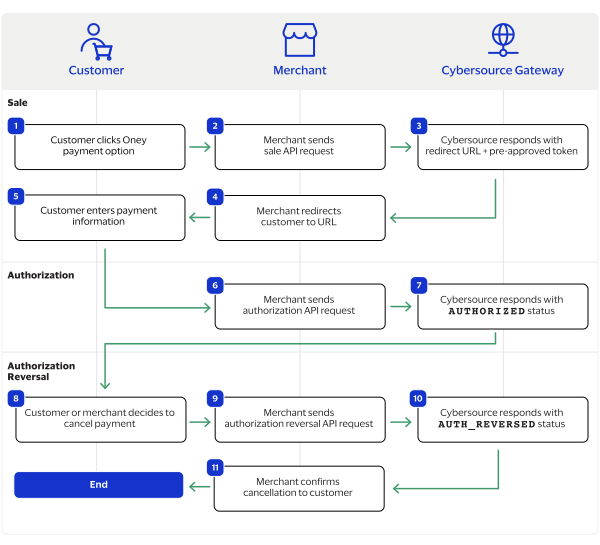
purchaseTotals_grandTotalAmount
field.
For information about how to calculate the grand total, see Calculating the Grand Total for Line Items.

Endpoints

Set the
apSaleService_run
field to
true
, and send the request to one of these endpoints:
Production:
https://ics2ws.ic3.com/commerce/1.x/transactionProcessor
Test:
https://ics2wstest.ic3.com/commerce/1.x/transactionProcessor

Response Statuses

Cybersource
responds to your sale request with one of these statuses in the
apSaleReply_status
field:
Sale Status
  • FAILED
    : The sale cannot be completed.
  • PENDING
    : The sale request is accepted but is not completed. Request the check status service every 60 minutes to retrieve status updates. See Check a Request Status.
The sale service also responds with a reason code in the
apSaleReply_reasonCode
field.
For more information about reason codes, see Reason Codes and Response Codes.
When you send a check status request to retrieve an updated sale status, these are the possible responses:
Check Status for a Sale
  • ABANDONED
    : The customer did not complete the payment using the redirect URL.
  • FAILED
    : The sale cannot be completed.
  • FUNDED
    : The settled amount is funded to the merchant bank account.
  • PENDING
    : The sale request is accepted but is not complete. Continue sending the check status request every 60 minutes.
  • SETTLED
    : The sale request is settled for the requested amount. You cannot receive a settled status until the customer has completed checking out.

Processing a Sale

Follow these steps to successfully process sale.
You must include all of the listed required fields in your sale request to guarantee the redirect URL will display properly to the customer.
  1. Send a
    POST
    request to the
    https://ics2ws.ic3.com/commerce/1.x/transactionProcessor
    endpoint and include these required fields:
    Set to
    TRL
    .
    Set to the URL to which the customer is redirected after successfully completing the Trustly payment.
    Add
    ?action=cancel
    to the end of the URL to help identify the response.
    Set to the URL to which the customer is redirected after successfully completing the Trustly payment.
    Add
    ?action=failure
    to the end of the URL to help identify the response.
    Set to the URL to which the customer is redirected after successfully completing the Trustly payment.
    Add
    ?action=success
    to the end of the URL to help identify the response.
    Set to
    true
    .
    Set to one of these values:
    • AT
    • CZ
    • DK
    • EE
    • FI
    • DE
    • LV
    • LT
    • NL
    • NO
    • PL
    • ES
    • SE
    • GB
    Set to one of these values:
    • BGN
    • HRK
    • CZK
    • DKK
    • EUR
    • HUF
    • RON
    • NOK
    • PLN
    • GBP
    • SEK
  2. You can include these optional fields in the request:
    Replace the
    #
    character with a sequential number starting from
    0
    .
    Replace the
    #
    character with a sequential number starting from
    0
    .
    Replace the
    #
    character with a sequential number starting from
    0
    .
    Replace the
    #
    character with a sequential number starting from
    0
    .
    Replace the
    #
    character with a sequential number starting from
    0
    .
    Replace the
    #
    character with a sequential number starting from
    0
    .
    If this field is present, the
    purchaseTotals_currency
    field is optional.
    Replace the
    #
    character with a sequential number starting from
    0
    .
    Replace the
    #
    character with a sequential number starting from
    0
    .
  3. Redirect the customer to the returned URL in the
    merchantURL
    response field.
    <merchantURL>
    https://payment.limonetikqualif.com/ComputopTrustly/Order/PayPage/548606385014
    </merchantURL>
  4. When the customer completes the checkout using their Trustly credentials, the customer is redirected to the merchant website based on the URL that you included in the
    apSaleService_successURL
    field.
  5. Save the request ID in the
    requestID
    field from the sale response. Include the request ID in a check status request to confirm that the payment is complete.
    <requestID>
    6989535327666834103007
    </requestID>

Example: Processing a Sale

Request
<requestMessage xmlns="urn:schemas-cybersource-com:transaction-data-1.215"> <merchantID>test_merchant</merchantID> <merchantReferenceCode>refnum-1234</merchantReferenceCode> <billTo> <firstName>John</firstName> <lastName>Smith</lastName> <country>AT</country> <phoneNumber>+33785495587</phoneNumber> </billTo> <purchaseTotals> <currency>EUR</currency> <grandTotalAmount>11.00</grandTotalAmount> </purchaseTotals> <apPaymentType>TRL</apPaymentType> <apSaleService run="true"> <cancelURL>https://www.test.com?action=cancel</cancelURL> <successURL>https://www.test.com?action=success</successURL> <failureURL>https://www.test.com?action=failure</failureURL> </apSaleService> </requestMessage>
Response to a Successful Request
<replyMessage xmlns:c="urn:schemas-cybersource-com:transaction-data-1.215"> <merchantReferenceCode>refnum-1234</merchantReferenceCode> <requestID>7134816345846432304010</requestID> <decision>ACCEPT</decision> <reasonCode>100</reasonCode> <requestToken>AxjnrwSTgsd3oKuTLouKANgZYjWmdqsybOLTZsnvwPQSQ/pC4mIBsMmkmXoxX6rUJOCx3egq5Mui4oAAOQi8</requestToken> <purchaseTotals> <currency>EUR</currency> </purchaseTotals> <apSaleReply> <reasonCode>100</reasonCode> <paymentStatus>pending</paymentStatus> <responseCode>00001</responseCode> <merchantURL>https://payment.limonetikqualif.com/ComputopTrustly/Order/PayPage/548606385014</merchantURL> <processorTransactionID>548606385014</processorTransactionID> <reconciliationID>XFZ3ZV268Z66</reconciliationID> <amount>11.00</amount> <processorResponse>00001</processorResponse> <dateTime>2024-04-18T23:07:15Z</dateTime> </apSaleReply> </replyMessage>

Check a Request Status

You can retrieve the status of a pending sale or refund by sending a check status request.
When a pending status updates, a check status response includes the transaction's new status. Thunes sometimes needs to review a service request, which causes a transaction to initially respond with a pending status. The check status request requires you to include the request ID from the pending transaction response you are checking the status of. The request ID is located in the
requestID
response field.
Cybersource
recommends that you send a check status request hourly until the status updates from pending.

Endpoints

Set the
apCheckStatusService_run
field to
true
, and send the request to one of these endpoints:
Production:
https://ics2ws.ic3.com/commerce/1.x/transactionProcessor
Test:
https://ics2wstest.ic3.com/commerce/1.x/transactionProcessor

Response Statuses

Cybersource
responds to your check status request with one of these statuses in the
apCheckStatusReply_status
field:
Check Status Responses for a Sale
  • ABANDONED
    : The customer did not complete the payment using the redirect URL.
  • FAILED
    : The service request failed. A failed request can be due to either Trustly rejecting the transaction or a technical error.
  • FUNDED
    : The settled amount is funded to the merchant bank account.
  • PENDING
    : The service request is accepted but is not completed. Request the check status service to retrieve status updates.
  • SETTLED
    : The sale request is settled for the requested amount.
Check Status Responses for a Refund
  • FAILED
    : The service request failed. A failed request can be due to either Trustly rejecting the transaction or a technical error.
  • REFUNDED
    : The settled amount is successfully refunded.
The check status service also responds with a reason code in the
apCheckStatusReply_reasonCode
field.
For more information about reason codes, see Reason Codes and Response Codes.

Required Fields for Checking Status

Set to the request ID included in the service response.
Set to
true
.
Set to
TRL
.

Example: Checking a Request Status

Request
<requestMessage xmlns="urn:schemas-cybersource-com:transaction-data-1.215"> <merchantID>test_merchant</merchantID> <merchantReferenceCode>refnum-1234</merchantReferenceCode> <apPaymentType>TRL</apPaymentType> <apCheckStatusService run="true"> <checkStatusRequestID>6953229557336619903008</checkStatusRequestID> </apCheckStatusService> </requestMessage>
Response to a Successful Request
<replyMessage xmlns:c="urn:schemas-cybersource-com:transaction-data-1.215"> <merchantReferenceCode>refnum-1234</merchantReferenceCode> <requestID>6989529700616633303007</requestID> <decision>ACCEPT</decision> <reasonCode>100</reasonCode> <requestToken>AxjnrwSTeuc1xphoz7/fANgZYiy6laewnTZ9honkFw7xbfpC/oGdUMmkmXoxX6rUJN65zUbdKW/6eQAA/i7C</requestToken> <apCheckStatusReply> <reasonCode>100</reasonCode> <reconciliationID>XEKTVO0NMOX4</reconciliationID> <paymentStatus>pending</paymentStatus> <processorResponse>00001</processorResponse> <processorToken>348476012838</processorToken> </apCheckStatusReply> </replyMessage>

Refund a Payment

You can refund a completed payment for the full amount or a partial amount by sending a refund request. Trustly supports multiple refund requests when the total amount of all of the refund requests is less than the captured amount.
Requesting a refund requires the request ID from the sale response. The request ID is located in the
requestID
response field.

Endpoints

Set the
apRefundService_run
field to
true
, and send the request to one of these endpoints:
Production:
https://ics2ws.ic3.com/commerce/1.x/transactionProcessor
Test:
https://ics2wstest.ic3.com/commerce/1.x/transactionProcessor

Response Statuses

Cybersource
responds to your refund request with one of these statuses as the
apRefundReply_status
field value:
  • FAILED
    : The refund request failed.
  • REFUNDED
    : The refund request is accepted but is not completed. Request the check status service to retrieve status updates. For more information, see Check a Request Status.
The refund service also responds with a reason code as the
apRefundReply_reasonCode
field value.
For more information about reason codes, see Reason Codes and Response Codes.
When you send a check status request to retrieve an updated refund status, these are the possible responses:
  • FAILED
    : The refund request failed.
  • REFUNDED
    : The settled payment is successfully refunded.

Required Fields for Refunding a Payment

Example: Refunding a Payment

Request
<requestMessage xmlns="urn:schemas-cybersource-com:transaction-data-1.215"> <merchantID>test_merchant</merchantID> <merchantReferenceCode>refnum-1234</merchantReferenceCode> <purchaseTotals> <currency>EUR</currency> <grandTotalAmount>220.00</grandTotalAmount> </purchaseTotals> <apPaymentType>TRL</apPaymentType> <apRefundService run="true"> <refundRequestID>6953229557336619903008</refundRequestID> </apRefundService> </requestMessage>
Response to a Successful Request
<replyMessage xmlns:c="urn:schemas-cybersource-com:transaction-data-1.215"> <merchantReferenceCode>refnum-1234</merchantReferenceCode> <requestID>6953231301306139703011</requestID> <decision>ACCEPT</decision> <reasonCode>100</reasonCode> <requestToken>AxjnrwSTeO939L1XjnbjANgZYjWmdqbQhOJDNsojmiG+pv0h9XwMwIZNJMvRiy0P/Sbx3uHfMaEAQD4A8Q9I</requestToken> <purchaseTotals> <currency>EUR</currency> </purchaseTotals> <apRefundReply> <reasonCode>100</reasonCode> <transactionID>315778574151</transactionID> <status>REFUNDED</status> <processorResponse>00006</processorResponse> <amount>220.00</amount> <dateTime>2023-09-21T19:05:32Z</dateTime> <reconciliationID>XFZ3ZMPB8H36</reconciliationID> <returnRef>XFZ40MPBIPMM</returnRef> <paymentStatus>refunded</paymentStatus> <responseCode>00006</responseCode> </apRefundReply> </replyMessage>

Turkey Card Processing Transaction Requests

Turkey card processing is a payment method offered by the Thunes payment service provider (PSP) that you can offer your customers through
Cybersource
. To process a payment, send a sale API request message to
Cybersource
.
Cybersource
sends the request to Thunes. Thunes approves the transaction and sends the request to the processor for settlement. You can also send a refund and check status API request as follow-on requests.

Requirements

You must have a merchant ID and a Thunes API key for each country in which you process transactions. Contact your
Cybersource
account manager for more information.

Supported Country and Currency

This table lists the country, country code, and currency supported by Turkey credit card processing.
Supported Country and Currency
Country
Country Code
Currency Code
Supported Card Types
Turkey
TR
TRY
  • Mastercard
  • Troy
  • Visa

Shipping Policy

You can ship purchased goods when the sale status is
SETTLED
.

Turkey Card Processing by Thunes Payment Workflow

This workflow illustrates the process of a Turkey local card payment.

Figure:

Turkey credit card processing by Thunes Payment Workflow
Turkey card by Thunes Payment Workflow
  1. The customer begins to checkout on the merchant's website and chooses to pay with their credit or debit card.
  2. The merchant sends a sale API request to
    Cybersource
    . For more information, see Process a Sale.
  3. Cybersource
    responds to the merchant with a
    PENDING
    status and a redirect URL.
  4. The merchant redirects the customer to the URL.
  5. The customer completes the checkout using their credit or debit card and is redirected to the merchant website.
  6. The merchant sends a check status API request to
    Cybersource
    . For more information, see Check a Request Status.
  7. Cybersource
    responds to the merchant with a
    SETTLED
    status.
  8. The merchant displays a confirmation of the completed payment to the customer.

Transaction Statuses Workflow

This workflow shows the statuses that can occur at each stage of processing a sale and refund.

Figure:

Transaction Statuses Workflow
  1. When a customer begins to check out, you send a sale request to
    Cybersource
    and receive one of these possible statuses:
    • FAILED
      : The sale cannot be completed.
    • PENDING
      : The sale request is accepted but is not completed. Send the check status request to retrieve status updates.
  2. You send a check status request to
    Cybersource
    to verify the sale status and receive one of these statuses:
    • ABANDONED
      : The customer did not complete the payment using the redirect URL.
    • FAILED
      : The sale request failed. A failed request can be due to either a rejection or a technical error.
    • PENDING
      : The sale request is accepted but is not completed. Send the check status request as often as necessary to obtain the information that you need.
    • SETTLED
      : The sale request is settled for the requested amount. When the settled amount is deposited into the merchant's bank account, the status updates to
      FUNDED
      .
  3. If a customer returns a purchase, you send a refund request to
    Cybersource
    and receive one of these possible statuses:
    • FAILED
      : The refund request failed.
    • REFUNDED
      : The refund request is accepted but is not completed. Request the check status service to retrieve status updates.
  4. You send a check status request to
    Cybersource
    to verify the refund status and receive one of these statuses:
    • FAILED
      : The refund could not be completed.
    • REFUNDED
      : The settled amount is successfully refunded.

Process a Sale

Send a sale request to authorize and capture a payment in the same request. A successful sale response includes a redirect URL and a pending status. Redirect the customer to the URL to allow the customer to complete the checkout using Turkey credit card processing. When the customer completes the checkout, the customer is redirected to the merchant website using the success-URL provided in the sale request.

Line Items

Line items can be included in a sale request. Line items correspond to the
item_#_
fields, starting with
item_0_
and increasing in numerical order.
For more information about how to properly format line items in your request, see Using Line Items.

Tax Amounts

You can include the tax amount for every type of purchased product in the
item_#_taxAmount
field when you request the sale service.

Calculating the Grand Total

Include the grand total in the request by using the
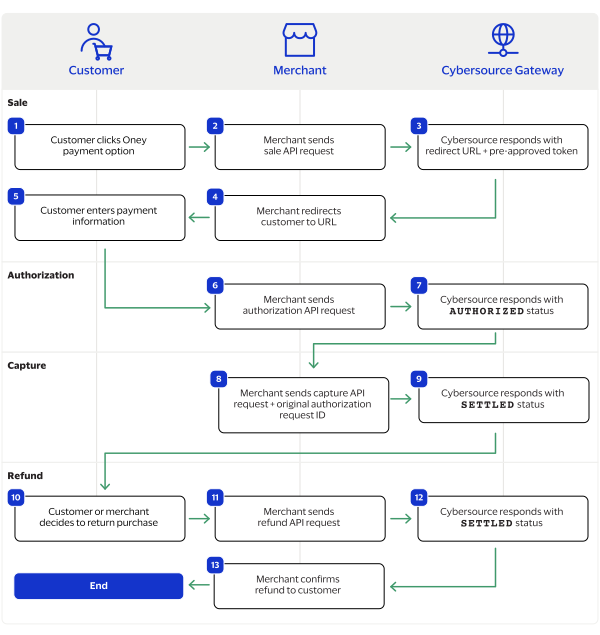
purchaseTotals_grandTotalAmount
field.
For information about how to calculate the grand total, see Calculating the Grand Total for Line Items.

Endpoints

Set the
apSaleService_run
field to
true
, and send the request to one of these endpoints:
Production:
https://ics2ws.ic3.com/commerce/1.x/transactionProcessor
Test:
https://ics2wstest.ic3.com/commerce/1.x/transactionProcessor

Response Statuses

Cybersource
responds to your sale request with one of these statuses in the
apSaleReply_status
field:
Sale Status
  • FAILED
    : The sale cannot be completed.
  • PENDING
    : The sale request is accepted but is not completed. Request the check status service every 60 minutes to retrieve status updates. See Process a Sale.
The sale service also responds with a reason code in the
apSaleReply_reasonCode
field.
For more information about reason codes, see Reason Codes and Response Codes.
When you send a check status request to retrieve an updated sale status, these are the possible responses:
Check Status for a Sale
  • ABANDONED
    : The customer did not complete the payment using the redirect URL.
  • FAILED
    : The sale cannot be completed.
  • FUNDED
    : The settled amount is funded to the merchant bank account.
  • PENDING
    : The sale request is accepted but is not complete. Continue sending the check status request every 60 minutes.
  • SETTLED
    : The sale request is settled for the requested amount. You cannot receive a settled status until the customer has completed checking out.

Processing a Sale

Follow these steps to successfully process sale.
  1. Send a
    POST
    request to the
    https://ics2ws.ic3.com/commerce/1.x/transactionProcessor
    endpoint and include these required fields:
    Set to
    PRC
    .
    Set to the URL to which the customer is redirected after successfully completing the Turkey credit card processing payment.
    Add
    ?action=cancel
    to the end of the URL to help identify the response.
    Set to the URL to which the customer is redirected after successfully completing the Turkey credit card processing payment.
    Add
    ?action=failure
    to the end of the URL to help identify the response.
    Set to the URL to which the customer is redirected after successfully completing the Turkey credit card processing payment.
    Add
    ?action=success
    to the end of the URL to help identify the response.
    Set to
    true
    .
    Set to
    TR
    .
    Set to
    TRY
    .
  2. You can include these optional fields in the request:
    Set to
    TR
    .
    Replace the
    #
    character with a sequential number starting from
    0
    .
    Replace the
    #
    character with a sequential number starting from
    0
    .
    Replace the
    #
    character with a sequential number starting from
    0
    .
    Replace the
    #
    character with a sequential number starting from
    0
    .
    Replace the
    #
    character with a sequential number starting from
    0
    .
    Replace the
    #
    character with a sequential number starting from
    0
    .
    If this field is present, the
    purchaseTotals_currency
    field is optional.
    Replace the
    #
    character with a sequential number starting from
    0
    .
    Replace the
    #
    character with a sequential number starting from
    0
    .
  3. Redirect the customer to the returned URL in the
    merchantURL
    response field.
    <merchantURL>
    https://payment.limonetikqualif.com/CreditCard/Order/PayPage/652049669092
    </merchantURL>
  4. When the customer completes the checkout using their card credentials, the customer is redirected to the merchant website based on the URL that you included in the
    apSaleService_successURL
    field.
  5. Save the request ID in the
    requestID
    field from the sale response. Include the request ID in a check status request to confirm that the payment is complete.
    <requestID>
    6989535327666834103007
    </requestID>

Example: Processing a Sale

Request
<requestMessage xmlns="urn:schemas-cybersource-com:transaction-data-1.215"> <merchantID>test_merchant</merchantID> <merchantReferenceCode>refnum-1234</merchantReferenceCode> <billTo> <country>TR</country> </billTo> <purchaseTotals> <currency>TRY</currency> <grandTotalAmount>220.00</grandTotalAmount> </purchaseTotals> <apPaymentType>PRC</apPaymentType> <apSaleService run="true"> <cancelURL>https://www.test.com?action=cancel</cancelURL> <successURL>https://www.test.com?action=success</successURL> <failureURL>https://www.test.com?action=failure</failureURL> </apSaleService> </requestMessage>
Response to a Successful Request
<replyMessage xmlns:c="urn:schemas-cybersource-com:transaction-data-1.215"> <merchantReferenceCode>refnum1234</merchantReferenceCode> <requestID>6953229557336619903008</requestID> <decision>ACCEPT</decision> <reasonCode>100</reasonCode> <requestToken>AxjnrwSTeudJxF4hKdrfANgZYiy6kGdZtUbTBmnkFw732npC/oGdUMmkmXoxX6rUJN650nEXiEp2t8AAviK1</requestToken> <purchaseTotals> <currency>TRY</currency> </purchaseTotals> <apSaleReply> <reasonCode>100</reasonCode> <paymentStatus>pending</paymentStatus> <responseCode>00001</responseCode> <merchantURL>https://payment.limonetikqualif.com/CreditCard/Order/PayPage/652049669092</merchantURL> <processorTransactionID>652049669092</processorTransactionID> <reconciliationID>XEKTANYZQZ03</reconciliationID> <amount>20.00</amount> <processorResponse>00001</processorResponse> <dateTime>2023-11-02T19:32:14Z</dateTime> </apSaleReply> </replyMessage>

Check a Request Status

You can retrieve the status of a pending sale or refund by sending a check status request.
When a pending status updates, a check status response includes the transaction's new status. Thunes sometimes needs to review a service request, which causes a transaction to initially respond with a pending status. The check status request requires you to include the request ID from the pending transaction response you are checking the status of. The request ID is located in the
requestID
response field.
Cybersource
recommends that you send a check status request hourly until the status updates from pending.

Endpoints

Set the
apCheckStatusService_run
field to
true
, and send the request to one of these endpoints:
Production:
https://ics2ws.ic3.com/commerce/1.x/transactionProcessor
Test:
https://ics2wstest.ic3.com/commerce/1.x/transactionProcessor

Response Statuses

Cybersource
responds to your check status request with one of these statuses in the
apCheckStatusReply_status
field:
Check Status Responses for a Sale
  • ABANDONED
    : The customer did not complete the payment using the redirect URL.
  • FAILED
    : The service request failed. A failed request can be due to either Turkey credit card processing rejecting the transaction or a technical error.
  • FUNDED
    : The settled amount is funded to the merchant bank account.
  • PENDING
    : The service request is accepted but is not completed. Request the check status service to retrieve status updates.
  • SETTLED
    : The sale request is settled for the requested amount.
Check Status Responses for a Refund
  • FAILED
    : The service request failed. A failed request can be due to either Turkey credit card processing rejecting the transaction or a technical error.
  • REFUNDED
    : The settled amount is successfully refunded.
The check status service also responds with a reason code in the
apCheckStatusReply_reasonCode
field.
For more information about reason codes, see Reason Codes and Response Codes.

Required Fields for Checking Status

Set to the request ID included in the service response.
Set to
true
.
Set to
PRC
.

Example: Checking a Request Status

Request
<requestMessage xmlns="urn:schemas-cybersource-com:transaction-data-1.215"> <merchantID>test_merchant</merchantID> <merchantReferenceCode>refnum-1234</merchantReferenceCode> <apPaymentType>PRC</apPaymentType> <apCheckStatusService run="true"> <checkStatusRequestID>6953229557336619903008</checkStatusRequestID> </apCheckStatusService> </requestMessage>
Response to a Successful Request
<replyMessage xmlns:c="urn:schemas-cybersource-com:transaction-data-1.215"> <merchantReferenceCode>refnum-1234</merchantReferenceCode> <requestID>6989529700616633303007</requestID> <decision>ACCEPT</decision> <reasonCode>100</reasonCode> <requestToken>AxjnrwSTeuc1xphoz7/fANgZYiy6laewnTZ9honkFw7xbfpC/oGdUMmkmXoxX6rUJN65zUbdKW/6eQAA/i7C</requestToken> <apCheckStatusReply> <reasonCode>100</reasonCode> <reconciliationID>XEKTVO0NMOX4</reconciliationID> <paymentStatus>pending</paymentStatus> <processorResponse>00001</processorResponse> <processorToken>348476012838</processorToken> </apCheckStatusReply> </replyMessage>

Refund a Payment

You can refund a completed payment for the full amount or a partial amount by sending a refund request. Turkey card processing supports multiple refund requests when the total amount of all of the refund requests is less than the captured amount.
Requesting a refund requires the request ID from the sale response. The request ID is located in the
requestID
response field.

Endpoints

Set the
apRefundService_run
field to
true
, and send the request to one of these endpoints:
Production:
https://ics2ws.ic3.com/commerce/1.x/transactionProcessor
Test:
https://ics2wstest.ic3.com/commerce/1.x/transactionProcessor

Response Statuses

Cybersource
responds to your refund request with one of these statuses as the
apRefundReply_status
field value:
  • FAILED
    : The refund request failed.
  • REFUNDED
    : The refund request is accepted but is not completed. Request the check status service to retrieve status updates. For more information, see Check a Request Status.
The refund service also responds with a reason code as the
apRefundReply_reasonCode
field value.
For more information about reason codes, see Reason Codes and Response Codes.
When you send a check status request to retrieve an updated refund status, these are the possible responses:
  • FAILED
    : The refund request failed.
  • REFUNDED
    : The settled payment is successfully refunded.

Required Fields for Refunding a Payment

Example: Refunding a Payment

Request
<requestMessage xmlns="urn:schemas-cybersource-com:transaction-data-1.215"> <merchantID>test_merchant</merchantID> <merchantReferenceCode>refnum-1234</merchantReferenceCode> <purchaseTotals> <currency>TRY</currency> <grandTotalAmount>220.00</grandTotalAmount> </purchaseTotals> <apPaymentType>PRC</apPaymentType> <apRefundService run="true"> <refundRequestID>6953229557336619903008</refundRequestID> </apRefundService> </requestMessage>
Response to a Successful Request
<replyMessage xmlns:c="urn:schemas-cybersource-com:transaction-data-1.215"> <merchantReferenceCode>refnum-1234</merchantReferenceCode> <requestID>6953231301306139703011</requestID> <decision>ACCEPT</decision> <reasonCode>100</reasonCode> <requestToken>AxjnrwSTeO939L1XjnbjANgZYjWmdqbQhOJDNsojmiG+pv0h9XwMwIZNJMvRiy0P/Sbx3uHfMaEAQD4A8Q9I</requestToken> <purchaseTotals> <currency>TRY</currency> </purchaseTotals> <apRefundReply> <reasonCode>100</reasonCode> <transactionID>315778574151</transactionID> <status>REFUNDED</status> <processorResponse>00006</processorResponse> <amount>220.00</amount> <dateTime>2023-09-21T19:05:32Z</dateTime> <reconciliationID>XFZ3ZMPB8H36</reconciliationID> <returnRef>XFZ40MPBIPMM</returnRef> <paymentStatus>refunded</paymentStatus> <responseCode>00006</responseCode> </apRefundReply> </replyMessage>

Twint Transaction Requests

Twint is a payment method offered by the Thunes payment service provider (PSP) that you can offer your customers through
Cybersource
. You can process a payment by sending a sale API request message to
Cybersource
.
Cybersource
sends your request to Thunes. Thunes approves the transaction and sends the request to the processor for settlement. You can also send a refund and check status API request as follow-on requests.

Requirements

You must have a merchant ID and a Thunes API key for each country in which you process transactions. Contact your
Cybersource
account manager for more information.

Supported Country and Currency

This table lists the country, country code, and currency supported by Twint.
Supported Country and Currency
Country
Country Code
Currency Code
Switzerland
CH
CHF

Shipping Policy

Goods can be shipped when the sale status is
SETTLED
.

Twint by Thunes Payment Workflow

This workflow describes the sequence of events that comprises a successful Twint payment.

Figure:

Twint by Thunes Payment Workflow
MB Way by Thunes Payment Workflow
  1. The customer begins to checkout on the merchant's website and chooses the Twint payment method.
  2. The merchant sends a sale API request to
    Cybersource
    . For more information, see Process a Sale.
  3. Cybersource
    responds to the merchant with a
    PENDING
    status and a redirect URL.
  4. The merchant redirects the customer to the URL.
  5. The customer completes the checkout using Twint and is redirected to the merchant website.
  6. The merchant sends a check status API request to
    Cybersource
    . For more information, see Check a Request Status.
  7. Cybersource
    responds to the merchant with a
    SETTLED
    status.
  8. The merchant displays a confirmation of the completed payment to the customer.

Transaction Statuses Workflow

This workflow shows the statuses that can occur at each stage of processing a sale and refund.

Figure:

Transaction Statuses Workflow
  1. When a customer begins to check out, you send a sale request to
    Cybersource
    and receive one of these possible statuses:
    • FAILED
      : The sale cannot be completed.
    • PENDING
      : The sale request is accepted but is not completed. Send the check status request to retrieve status updates.
  2. You send a check status request to
    Cybersource
    to verify the sale status and receive one of these statuses:
    • ABANDONED
      : The customer did not complete the payment using the redirect URL.
    • FAILED
      : The sale request failed. A failed request can be due to either a rejection or a technical error.
    • PENDING
      : The sale request is accepted but is not completed. Send the check status request as often as necessary to obtain the information that you need.
    • SETTLED
      : The sale request is settled for the requested amount. When the settled amount is deposited into the merchant's bank account, the status updates to
      FUNDED
      .
  3. If a customer returns a purchase, you send a refund request to
    Cybersource
    and receive one of these possible statuses:
    • FAILED
      : The refund request failed.
    • REFUNDED
      : The refund request is accepted but is not completed. Request the check status service to retrieve status updates.
  4. You send a check status request to
    Cybersource
    to verify the refund status and receive one of these statuses:
    • FAILED
      : The refund could not be completed.
    • REFUNDED
      : The settled amount is successfully refunded.

Process a Sale

Send a sale request to authorize and capture a payment in the same request. A successful sale response includes a redirect URL and a pending status. Redirect the customer to the URL to allow the customer to complete the checkout using Twint. When the customer completes the checkout, the customer is redirected to the merchant website using the success-URL provided in the sale request.

Line Items

Line items can be included in a sale request. Line items correspond to the
item_#_
fields, starting with
item_0_
and increasing in numerical order.
For more information about how to properly format line items in your request, see Using Line Items.

Tax Amounts

You can include the tax amount for every type of purchased product in the
item_#_taxAmount
field when you request the sale service.

Calculating the Grand Total

Include the grand total in the request by using the
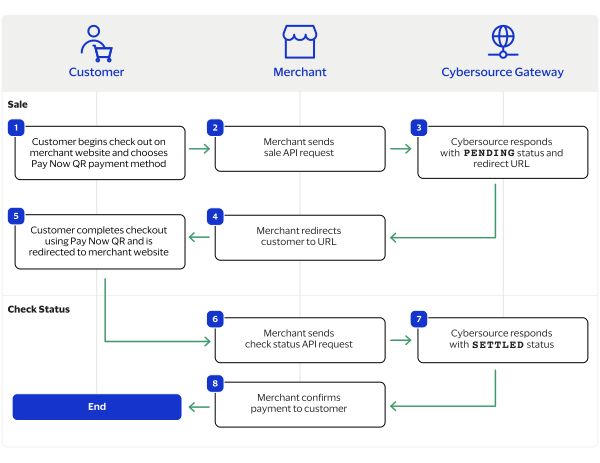
purchaseTotals_grandTotalAmount
field.
For information about how to calculate the grand total, see Calculating the Grand Total for Line Items.

Endpoints

Set the
apSaleService_run
field to
true
, and send the request to one of these endpoints:
Production:
https://ics2ws.ic3.com/commerce/1.x/transactionProcessor
Test:
https://ics2wstest.ic3.com/commerce/1.x/transactionProcessor

Response Statuses

Cybersource
responds to your sale request with one of these statuses in the
apSaleReply_status
field:
Sale Status
  • FAILED
    : The sale cannot be completed.
  • PENDING
    : The sale request is accepted but is not completed. Request the check status service every 60 minutes to retrieve status updates. See Check a Request Status.
The sale service also responds with a reason code in the
apSaleReply_reasonCode
field.
For more information about reason codes, see Reason Codes and Response Codes.
When you send a check status request to retrieve an updated sale status, these are the possible responses:
Check Status for a Sale
  • ABANDONED
    : The customer did not complete the payment using the redirect URL.
  • FAILED
    : The sale cannot be completed.
  • FUNDED
    : The settled amount is funded to the merchant bank account.
  • PENDING
    : The sale request is accepted but is not complete. Continue sending the check status request every 60 minutes.
  • SETTLED
    : The sale request is settled for the requested amount. You cannot receive a settled status until the customer has completed checking out.

Processing a Sale

Follow these steps to successfully process sale.
  1. Send a
    POST
    request to the
    https://ics2ws.ic3.com/commerce/1.x/transactionProcessor
    endpoint and include these required fields:
    Set to
    TWN
    .
    Set to the URL to which the customer is redirected after successfully completing the Twint payment.
    Add
    ?action=cancel
    to the end of the URL to help identify the response.
    Set to the URL to which the customer is redirected after successfully completing the Twint payment.
    Add
    ?action=failure
    to the end of the URL to help identify the response.
    Set to the URL to which the customer is redirected after successfully completing the Twint payment.
    Add
    ?action=success
    to the end of the URL to help identify the response.
    Set to
    true
    .
    Set to
    FR
    .
    Set to
    CHF
    .
  2. You can include these optional fields in the request:
    Replace the
    #
    character with a sequential number starting from
    0
    .
    Replace the
    #
    character with a sequential number starting from
    0
    .
    Replace the
    #
    character with a sequential number starting from
    0
    .
    Replace the
    #
    character with a sequential number starting from
    0
    .
    Replace the
    #
    character with a sequential number starting from
    0
    .
    Replace the
    #
    character with a sequential number starting from
    0
    .
    If this field is present, the
    purchaseTotals_currency
    field is optional.
    Replace the
    #
    character with a sequential number starting from
    0
    .
    Replace the
    #
    character with a sequential number starting from
    0
    .
  3. Redirect the customer to the returned URL in the
    merchantURL
    response field.
    <merchantURL>
    https://payment.limonetikqualif.com/Six/Order/PayPage/181364489025
    </merchantURL>
  4. When the customer completes the checkout using their Twint credentials, the customer is redirected to the merchant website based on the URL that you included in the
    apSaleService_successURL
    field.
  5. Save the request ID in the
    requestID
    field from the sale response. Include the request ID in a check status request to confirm that the payment is complete.
    <requestID>
    6989535327666834103007
    </requestID>

Example: Processing a Sale

Request
<requestMessage xmlns="urn:schemas-cybersource-com:transaction-data-1.215"> <merchantID>test_merchant</merchantID> <merchantReferenceCode>refnum-1234</merchantReferenceCode> <billTo> <country>CH</country> </billTo> <purchaseTotals> <currency>CHF</currency> <grandTotalAmount>220.00</grandTotalAmount> </purchaseTotals> <apPaymentType>TWN</apPaymentType> <apSaleService run="true"> <cancelURL>https://www.test.com?action=cancel</cancelURL> <successURL>https://www.test.com?action=success</successURL> <failureURL>https://www.test.com?action=failure</failureURL> </apSaleService> </requestMessage>
Response to a Successful Request
<replyMessage xmlns:c="urn:schemas-cybersource-com:transaction-data-1.215"> <merchantReferenceCode>Twint-Sale</merchantReferenceCode> <requestID>7169953435096261804012</requestID> <decision>ACCEPT</decision> <reasonCode>100</reasonCode> <requestToken>AxjnrwSThK8XpS28dz/sANgZYjWmdqvDnVrLmWnvwgfANF6B8iBtDJpJl6MV+q1CThK8XpS28dz/sAAA1RS5</requestToken> <purchaseTotals> <currency>CHF</currency> </purchaseTotals> <apSaleReply> <reasonCode>100</reasonCode> <paymentStatus>pending</paymentStatus> <responseCode>00001</responseCode> <merchantURL>https://payment.limonetikqualif.com/Six/Order/PayPage/181364489025</merchantURL> <processorTransactionID>181364489025</processorTransactionID> <reconciliationID>XFZ3ZWCNVY9K</reconciliationID> <amount>1.00</amount> <processorResponse>00001</processorResponse> <dateTime>2024-05-29T15:09:04Z</dateTime> </apSaleReply> </replyMessage>

Check a Request Status

You can retrieve the status of a pending sale or refund by sending a check status request.
When a pending status updates, a check status response includes the transaction's new status. Thunes sometimes needs to review a service request, which causes a transaction to initially respond with a pending status. The check status request requires you to include the request ID from the pending transaction response you are checking the status of. The request ID is located in the
requestID
response field.
Cybersource
recommends that you send a check status request hourly until the status updates from pending.

Endpoints

Set the
apCheckStatusService_run
field to
true
, and send the request to one of these endpoints:
Production:
https://ics2ws.ic3.com/commerce/1.x/transactionProcessor
Test:
https://ics2wstest.ic3.com/commerce/1.x/transactionProcessor

Response Statuses

Cybersource
responds to your check status request with one of these statuses in the
apCheckStatusReply_status
field:
Check Status Responses for a Sale
  • ABANDONED
    : The customer did not complete the payment using the redirect URL.
  • FAILED
    : The service request failed. A failed request can be due to either Twint rejecting the transaction or a technical error.
  • FUNDED
    : The settled amount is funded to the merchant bank account.
  • PENDING
    : The service request is accepted but is not completed. Request the check status service to retrieve status updates.
  • SETTLED
    : The sale request is settled for the requested amount.
Check Status Responses for a Refund
  • FAILED
    : The service request failed. A failed request can be due to either Twint rejecting the transaction or a technical error.
  • REFUNDED
    : The settled amount is successfully refunded.
The check status service also responds with a reason code in the
apCheckStatusReply_reasonCode
field.
For more information about reason codes, see Reason Codes and Response Codes.

Required Fields for Checking Status

Set to the request ID included in the service response.
Set to
true
.
Set to
TWN
.

Example: Checking a Request Status

Request
<requestMessage xmlns="urn:schemas-cybersource-com:transaction-data-1.215"> <merchantID>test_merchant</merchantID> <merchantReferenceCode>refnum-1234</merchantReferenceCode> <apPaymentType>TWN</apPaymentType> <apCheckStatusService run="true"> <checkStatusRequestID>6953229557336619903008</checkStatusRequestID> </apCheckStatusService> </requestMessage>
Response to a Successful Request
<replyMessage xmlns:c="urn:schemas-cybersource-com:transaction-data-1.215"> <merchantReferenceCode>refnum-1234</merchantReferenceCode> <requestID>6989529700616633303007</requestID> <decision>ACCEPT</decision> <reasonCode>100</reasonCode> <requestToken>AxjnrwSTeuc1xphoz7/fANgZYiy6laewnTZ9honkFw7xbfpC/oGdUMmkmXoxX6rUJN65zUbdKW/6eQAA/i7C</requestToken> <apCheckStatusReply> <reasonCode>100</reasonCode> <reconciliationID>XEKTVO0NMOX4</reconciliationID> <paymentStatus>pending</paymentStatus> <processorResponse>00001</processorResponse> <processorToken>348476012838</processorToken> </apCheckStatusReply> </replyMessage>

Refund a Payment

You can refund a completed payment for the full amount or a partial amount by sending a refund request. Twint supports multiple refund requests when the total amount of all of the refund requests is less than the captured amount.
Requesting a refund requires the request ID from the sale response. The request ID is located in the
requestID
response field.

Endpoints

Set the
apRefundService_run
field to
true
, and send the request to one of these endpoints:
Production:
https://ics2ws.ic3.com/commerce/1.x/transactionProcessor
Test:
https://ics2wstest.ic3.com/commerce/1.x/transactionProcessor

Response Statuses

Cybersource
responds to your refund request with one of these statuses as the
apRefundReply_status
field value:
  • FAILED
    : The refund request failed.
  • REFUNDED
    : The refund request is accepted but is not completed. Request the check status service to retrieve status updates. For more information, see Check a Transaction Status.
The refund service also responds with a reason code as the
apRefundReply_reasonCode
field value.
For more information about reason codes, see Reason Codes and Response Codes.
When you send a check status request to retrieve an updated refund status, these are the possible responses:
  • FAILED
    : The refund request failed.
  • REFUNDED
    : The settled payment is successfully refunded.

Required Fields for Refunding a Payment

Example: Refunding a Payment

Request
<requestMessage xmlns="urn:schemas-cybersource-com:transaction-data-1.215"> <merchantID>test_merchant</merchantID> <merchantReferenceCode>refnum-1234</merchantReferenceCode> <purchaseTotals> <currency>CHF</currency> <grandTotalAmount>220.00</grandTotalAmount> </purchaseTotals> <apPaymentType>TWN</apPaymentType> <apRefundService run="true"> <refundRequestID>6953229557336619903008</refundRequestID> </apRefundService> </requestMessage>
Response to a Successful Request
<replyMessage xmlns:c="urn:schemas-cybersource-com:transaction-data-1.215"> <merchantReferenceCode>refnum-1234</merchantReferenceCode> <requestID>6953231301306139703011</requestID> <decision>ACCEPT</decision> <reasonCode>100</reasonCode> <requestToken>AxjnrwSTeO939L1XjnbjANgZYjWmdqbQhOJDNsojmiG+pv0h9XwMwIZNJMvRiy0P/Sbx3uHfMaEAQD4A8Q9I</requestToken> <purchaseTotals> <currency>CHF</currency> </purchaseTotals> <apRefundReply> <reasonCode>100</reasonCode> <transactionID>315778574151</transactionID> <status>REFUNDED</status> <processorResponse>00006</processorResponse> <amount>220.00</amount> <dateTime>2023-09-21T19:05:32Z</dateTime> <reconciliationID>XFZ3ZMPB8H36</reconciliationID> <returnRef>XFZ40MPBIPMM</returnRef> <paymentStatus>refunded</paymentStatus> <responseCode>00006</responseCode> </apRefundReply> </replyMessage>

Reference Information

This section contains helpful information that you can use when processing transactions.

Using Line Items

This section describes how to format line items in your API requests.
Some Thunes API requests require line items or allow you include line items in addition to the required request information. Line items are used to include information about the goods that customers purchase, such as product name, quantity, and price.
Line items correspond to the
item_#_
fields, starting with
item_0_
and increasing in numerical order.

Figure:

Required Fields for Line Items
These fields are required for each line item included in your request:

Figure:

Optional Fields for Line Items
These fields are optional for each line item included in your request:
Including Line Items
This example shows three valid line items in the proper syntax.

Figure:

Line Items within a API Request Message
<item id="0"> <unitPrice>100.00</unitPrice> <totalAmount>115.00</totalAmount> </item> <item id="1"> <unitPrice>75.00</unitPrice> <quantity>2</quantity> <productCode>654321</productCode> <productName>Pants</productName> <productSKU>test2</productSKU> <taxAmount>25.00</taxAmount> <totalAmount>175.00</totalAmount> <productDescription>Green</productDescription> </item> <item id="2"> <unitPrice>25.00</unitPrice> <quantity>2</quantity> <productCode>987654</productCode> <productName>Dress</productName> <productSKU>test3</productSKU> <taxAmount>3.50</taxAmount> <totalAmount>53.50</totalAmount> <productDescription>Red</productDescription> </item>

Calculating the Grand Total for Line Items

Most Thunes payment methods require the grand total amount of a purchase to be in the request. Include the grand total in the
purchaseTotals_grandTotalAmount
request field.
To calculate the grand total amount for multiple line items, use this formula:
Sum of (unit price x quantity) for all items + sum of (item-level tax amount) for all items
Here is the same formula with the respective API fields:
Sum of (
item_#_unitPrice
x
item_#_quantity
) for all items + sum of (
item_#_ taxAmount
) for all items
Grand Total Amount
This example shows the proper syntax and calculation of a grand total amount within an API request.

Figure:

Including the Grand Total Amount in an API Request Message
<item id="0"> <unitPrice>100.00</unitPrice> <quantity>1</quantity> <productCode>123456</productCode> <productName>Shirt</productName> <productSKU>test1</productSKU> <taxAmount>15.00</taxAmount> <totalAmount>115.00</totalAmount> <productDescription>Red</productDescription> </item> <item id="1"> <unitPrice>75.00</unitPrice> <quantity>2</quantity> <productCode>654321</productCode> <productName>Pants</productName> <productSKU>test2</productSKU> <taxAmount>25.00</taxAmount> <totalAmount>175.00</totalAmount> <productDescription>Green</productDescription> </item> <purchaseTotals> <grandTotalAmount>290</grandTotalAmount> </purchaseTotals>

Reason Codes and Response Codes

Response fields and reason codes can be added at any time.
Cybersource
recommends these best practices to ensure you keep up-to-date with the latest possible responses:
  • Parse the response data according to the field names instead of the field order in the response message. For more information about parsing response fields, see the documentation for your client.
  • Your error handler must be able to process new reason codes without problems.
  • Your error handler must use the
    decision
    field to determine the result if it receives a reason code that it does not recognize.
This table lists the possible reason codes that are returned by the
Simple Order API
in the
reasonCode
field. For a list of all of the possible reason codes and descriptions, see the .
Reason Codes
Reason Code
Processor Response Code
Description
100
  • 00000—status: completed.
  • 00001—status: pending.
  • 00002—status: abandoned.
  • 00003—status: authorized.
  • 00004—status: settled.
  • 00006—status: refunded.
  • 00008—status: reversed.
  • 00009—status: cancelled.
  • 00010—status: accepted.
  • 00011—status: chargeback.
  • 00012—status: settle_initiated.
  • 00013—status: settle_accepted.
  • 00014—status: refund_initiated.
  • 00015—status: active.
  • 00016—status: revoked.
  • 00017—status: expired.
  • 00020—status: refund_rejected.
The transaction was successful.
101
The request is missing one or more required fields. Examine the response fields
missingField_0
through
missingField_N
to identify which fields are missing. Resend the request with all the required fields.
102
  • 10000—status: failed.
One or more fields in the request contain invalid data. Examine the response fields
invalidField_0
through
invalidField_N
to identify which fields are invalid. Resend the request with valid data.
150
  • 20000—status: failed.
  • 20001—status: failed.
  • 20002—status: failed.
  • 30000—status: failed.
  • 30100—status: failed.
A system error caused the request to fail. You must design your transaction management system to include a way to correctly handle system errors. Depending on which payment processor is handling the transaction, the error might indicate a valid
Cybersource
system error, or it might indicate a processor rejection because of invalid data. For either reason,
Cybersource
recommends you to not design your system to keep resending a transaction when a system error occurs. See the documentation for the
Cybersource
client (SDK) that you are using for important information about how to handle system errors and retries.
Other possible reasons for a failed status:
  • The signature was not included in the HTTP header.
  • The signature in the HTTP header has expired or it is not a valid signature.
151
The request was received but a server timeout occurred. This error does not include timeouts that occur between the client and the server. To avoid duplicating the transaction, do not resend the request until you have reviewed the transaction status in the
Business Center
. See the documentation for your
Cybersource
client for information about handling retries in the case of system errors.
152
The request was received, but a service did not finish processing in time. To avoid duplicating the transaction, do not resend the request until you have reviewed the transaction status in the
Business Center
. See the documentation for your
Cybersource
client for information about handling retries in the case of system errors.
153
Your account is not enabled for the OCT service. Contact your
Cybersource
account manager to have your account enabled for this service.
202
The payment method is expired. You might also receive this value if the expiration date that you provided does not match the date that the issuing bank has on file. Request a different form of payment.
203
  • 30000—status: failed.
  • 30100—status: failed.
  • 30200—status: failed.
  • 30400—status: failed.
  • 30500—status: failed.
The payment method was declined. No other information was provided by the issuing bank. Request a different form of payment.
204
  • 30350—status: failed.
The account does not contain sufficient funds. Request a different form of payment.
223
  • 30600—status: failed.
  • 30700—status: failed.
The processor declined the transaction due to tax errors or government compliance errors.
233
  • 30600—status: failed.
  • 30700—status: failed.
The processor declined the payment method. For more information about the decline, search for the transaction in the
Business Center
and view the transaction details. Request a different form of payment.

Generating Reports In the
Business Center

You can generate various types of reports for your financial and reconciliation data. For more information about how to automate your reports, see the
Reporting Developer Guide
. For more information about how to use your
Business Center
account to generate reports, see the
Reporting User Guide
.
The
Reporting User Guide
contains these relevant topics:
  • How and When Reports Are Generated
  • Downloading Available Reports
  • Subscribing to Standard Reports

Additional Resources

For additional information about how to use the
Business Center
and manage reports, see these helpful resources.
Business Center
Navigation
For an overview of the various resources available in the
Business Center
, see this YouTube video:
Getting Started with the
Business Center
For a step-by-step demonstration of how to navigate in the
Business Center
, see this YouTube video:
Managing Report Subscriptions
For an overview of how to manage report subscriptions in the Downloadable Reports section in the
Business Center
, see this YouTube video:
Downloading Reports
For an overview of how to download available reports in the Reports section of the
Business Center
, see this YouTube video:

iDEAL Transaction Requests

iDEAL is a payment method offered by the Thunes payment service provider (PSP) that you can offer your customers through
Cybersource
. With iDEAL you can process payments, refund payments, and retrieve the status of a pending payment or refund.
This section describes how to process iDEAL transactions using the
Simple Order API
.

Requirement

You must receive a Thunes merchant ID before you can begin processing payments. Contact your
Cybersource
account manager for more information.

Supported Country and Currency

This table lists the country and currency that is supported by iDEAL.
Supported Country and Currency
Supported Country
Country Code
Supported Currency
Currency Code
Netherlands
NL
Euro
EUR

Shipping Policy

You can ship purchased goods when the sale status is
SETTLED
.

iDEAL by Thunes Transaction Workflow

This workflow describes the sequence of events that comprises a successful iDEAL payment and refund.

Figure:

iDEAL by Thunes Transaction Workflow
  1. The customer begins to checkout on your website and chooses the iDEAL payment method.
  2. You send a sale API request to
    Cybersource
    . For more information, see Process a Sale.
  3. Cybersource
    responds to you with a
    PENDING
    status, iDEAL redirect URL, and sale request ID.
  4. You redirect the customer to the iDEAL URL.
  5. The customer completes the checkout using iDEAL and is redirected to your website.
  6. You send a check status API request to
    Cybersource
    . For more information, see Check a Transaction Status.
  7. Cybersource
    responds to you with a
    SETTLED
    status.
  8. You confirm the payment to the customer.
  9. The customer returns the purchase.
  10. You send a refund API request to
    Cybersource
    with the sale request ID. For more information, see Refund a Payment.
  11. Cybersource
    responds to you with a
    REFUNDED
    status and refund request ID.
  12. You send a check status request to
    Cybersource
    to verify the refund status.
  13. Cybersource
    respond to you with a
    REFUNDED
    status.
  14. You confirm the refund to the customer.

Transaction Statuses Workflow

This workflow shows the statuses that can occur at each stage of processing a sale and refund.

Figure:

Transaction Statuses Workflow
  1. When a customer begins to check out, you send a sale request to
    Cybersource
    and receive one of these possible statuses:
    • FAILED
      : The sale cannot be completed.
    • PENDING
      : The sale request is accepted but is not completed. Send the check status request to retrieve status updates.
  2. You send a check status request to
    Cybersource
    to verify the sale status and receive one of these statuses:
    • ABANDONED
      : The customer did not complete the payment using the redirect URL.
    • FAILED
      : The sale request failed. A failed request can be due to either a rejection or a technical error.
    • PENDING
      : The sale request is accepted but is not completed. Send the check status request as often as necessary to obtain the information that you need.
    • SETTLED
      : The sale request is settled for the requested amount. When the settled amount is deposited into the merchant's bank account, the status updates to
      FUNDED
      .
  3. If a customer returns a purchase, you send a refund request to
    Cybersource
    and receive one of these possible statuses:
    • FAILED
      : The refund request failed.
    • REFUNDED
      : The refund request is accepted but is not completed. Request the check status service to retrieve status updates.
  4. You send a check status request to
    Cybersource
    to verify the refund status and receive one of these statuses:
    • FAILED
      : The refund could not be completed.
    • REFUNDED
      : The settled amount is successfully refunded.

Process a Sale

This section describes how to send a sale request to process a payment.
A sale request authorizes and captures a payment in the same request. A successful sale response includes an iDEAL redirect URL and a
PENDING
status. Redirect the customer to the iDEAL URL to allow the customer to complete the checkout using their iDEAL account. When the customer completes the checkout, the customer is redirected to your website.
When you receive a successful response, save the sale request ID in the
requestID
response field to perform a follow-on check status request or refund request.

Calculating the Grand Total

Include the grand total in the request by using the
purchaseTotals_grandTotalAmount
field.
For information about how to calculate the grand total, see Calculating the Grand Total for Line Items.

Endpoints

Set the
apSaleService_run
field to
true
, and send the request to one of these endpoints:
Production:
https://ics2ws.ic3.com/commerce/1.x/transactionProcessor
Test:
https://ics2wstest.ic3.com/commerce/1.x/transactionProcessor

Processing a Sale

Follow these steps to successfully process sale.
  1. Send a
    POST
    request to the
    https://ics2ws.ic3.com/commerce/1.x/transactionProcessor
    endpoint and include these required fields:
    Set to
    IDE
    .
    Set to the URL to which the customer is redirected after the payment is cancelled.
    Add
    ?action=cancel
    to the end of the URL to help identify the response.
    Set to the URL to which the customer is redirected after the payment fails to complete.
    Add
    ?action=failure
    to the end of the URL to help identify the response.
    Set to the URL to which the customer is redirected after successfully completing the payment.
    Add
    ?action=success
    to the end of the URL to help identify the response.
    Set to
    true
    .
    Set to
    NL
    .
    Set to
    EUR
    .
  2. You can include these optional fields in the request:
    Replace the
    #
    character with a sequential number starting from
    0
    .
    Replace the
    #
    character with a sequential number starting from
    0
    .
    Replace the
    #
    character with a sequential number starting from
    0
    .
    Replace the
    #
    character with a sequential number starting from
    0
    .
    Replace the
    #
    character with a sequential number starting from
    0
    .
    Replace the
    #
    character with a sequential number starting from
    0
    .
    If this field is present, the
    purchaseTotals_currency
    field is optional.
    Replace the
    #
    character with a sequential number starting from
    0
    .
    Replace the
    #
    character with a sequential number starting from
    0
    .
  3. Redirect the customer to the returned URL in the
    merchantURL
    response field.
    <merchantURL>https://payment.limonetikqualif.com/PPRO/Order/PayPage/973340962485</merchantURL>
  4. When the customer completes the checkout using their iDEAL credentials, the customer is redirected to the merchant website based on the URL that you included in the
    apSaleService_successURL
    request field.
  5. Save the request ID in the
    requestID
    field from the sale response. Include the request ID in a check status request to confirm that the payment is complete.
    <requestID>7478635704886789703607</requestID>

Example: Processing a Sale

Request
<requestMessage xmlns="urn:schemas-cybersource-com:transaction-data-1.211"> <merchantID>test-merchant</merchantID> <merchantReferenceCode>iDeal-Sale</merchantReferenceCode> <billTo> <firstName>John</firstName> <lastName>Smith</lastName> <country>NL</country> <email>test@email.com</email> </billTo> <purchaseTotals> <currency>EUR</currency> <grandTotalAmount>1000.00</grandTotalAmount> </purchaseTotals> <apPaymentType>IDE</apPaymentType> <apSaleService run="true"> <cancelURL>https://www.testcancel.com?action=cancel</cancelURL> <successURL>https://www.testsuccess.com?action=success</successURL> <failureURL>https://www.testfailure.com?action=failure</failureURL> </apSaleService> </requestMessage>
Response to a Successful Request
<replyMessage xmlns:c="urn:schemas-cybersource-com:transaction-data-1.211"> <merchantReferenceCode>iDeal-Sale</merchantReferenceCode> <requestID>7478635704886789703607</requestID> <decision>ACCEPT</decision> <reasonCode>100</reasonCode> <requestToken>AxjnrwSTlWrrXhWaLIe3ANgZYiy6kGDXhyoLKQnkH8hAAHpEcNQKCsMmkmXoxhlhfpOVauteFZosh7cACGUQ</requestToken> <purchaseTotals> <currency>EUR</currency> </purchaseTotals> <apSaleReply> <reasonCode>100</reasonCode> <paymentStatus>pending</paymentStatus> <responseCode>00001</responseCode> <merchantURL>https://payment.limonetikqualif.com/PPRO/Order/PayPage/973340962485</merchantURL> <processorTransactionID>973340962485</processorTransactionID> <reconciliationID>XEKTAAWCJA2H</reconciliationID> <amount>1000.00</amount> <processorResponse>00001</processorResponse> <dateTime>2025-05-21T21:39:31Z</dateTime> </apSaleReply> </replyMessage>

Response Statuses for Processing a Sale

Cybersource
responds to your sale request with one of these statuses in the
field:
  • FAILED
    : The sale cannot be completed.
  • PENDING
    : The sale request is accepted but is not completed. Send a check status request as often as necessary to obtain the information that you need. For more information, see Check a Transaction Status.

Check a Transaction Status

This section describes how to retrieve the current status of a sale or refund. Send a check status request to know if a pending sale is settled, or to verify that a refund request is refunded. Use the check status request as often as necessary to obtain the information that you need.
The check status request requires the request ID from the sale or refund response. The request ID is in the
requestID
response field.

Endpoints

Set the
apCheckStatusService_run
field to
true
, and send the request to one of these endpoints:
Production:
https://ics2ws.ic3.com/commerce/1.x/transactionProcessor
Test:
https://ics2wstest.ic3.com/commerce/1.x/transactionProcessor

Required Fields for Checking a Status

Set to the request ID included in the sale or refund response.
Set to
true
.
Set to
IDE
.

Example: Checking a Status

Request
<requestMessage xmlns="urn:schemas-cybersource-com:transaction-data-1.211"> <merchantID>test-merchant</merchantID> <merchantReferenceCode>iDeal-Check-Status</merchantReferenceCode> <apPaymentType>IDE</apPaymentType> <apCheckStatusService run="true"> <checkStatusRequestID>7478635704886789703607</checkStatusRequestID> </apCheckStatusService> </requestMessage>
Response to a Successful Request
<replyMessage xmlns:c="urn:schemas-cybersource-com:transaction-data-1.211"> <merchantReferenceCode>iDeal-Check-Status</merchantReferenceCode> <requestID>7478637029136838303611</requestID> <decision>ACCEPT</decision> <reasonCode>100</reasonCode> <requestToken>AxjnrwSTlWrwEnuX6h97ANgZYiy69aDXczI1BonkH8hJanpEcNQKCsMmkmXoxhlhfpOVauteFZosh7cACGUQ</requestToken> <apCheckStatusReply> <reasonCode>100</reasonCode> <reconciliationID>XEKWVAW9LFP4</reconciliationID> <paymentStatus>settled</paymentStatus> <processorResponse>00004</processorResponse> <processorToken>973340962485</processorToken> </apCheckStatusReply> </replyMessage>

Response Statuses for Checking a Status

Cybersource
responds to your check status request with one of these statuses in the
field:
Check Status Responses for a Sale
  • ABANDONED
    : The customer did not complete the payment using the redirect URL.
  • FAILED
    : The service request failed. A failed request can be due to either iDEAL rejecting the transaction or a technical error.
  • FUNDED
    : The settled amount is funded to the merchant bank account.
  • PENDING
    : The service request is accepted but is not completed. Request the check status service to retrieve status updates.
  • SETTLED
    : The sale request is settled for the requested amount.
Check Status Responses for a Refund
  • FAILED
    : The service request failed. A failed request can be due to either iDEAL rejecting the transaction or a technical error.
  • REFUNDED
    : The settled amount is successfully refunded.

Refund a Payment

This section describes how to refund a payment. You can refund a settled payment for the full amount or a partial amount by sending a refund request. Multiple partial refund requests are also supported, and the total amount of all of the refund requests must be less than the settled amount.
Requesting a refund requires the sale request ID from the sale response. The sale request ID is in the
requestID
response field.

Endpoints

Set the
apRefundService_run
field to
true
, and send the request to one of these endpoints:
Production:
https://ics2ws.ic3.com/commerce/1.x/transactionProcessor
Test:
https://ics2wstest.ic3.com/commerce/1.x/transactionProcessor

Required Fields for Refunding a Payment

Example: Refunding a Payment

Request
<requestMessage xmlns="urn:schemas-cybersource-com:transaction-data-1.211"> <merchantID>test-merchant</merchantID> <merchantReferenceCode>iDeal-Refund</merchantReferenceCode> <purchaseTotals> <currency>EUR</currency> <grandTotalAmount>100000.00</grandTotalAmount> </purchaseTotals> <apPaymentType>IDE</apPaymentType> <apRefundService run="true"> <refundRequestID>7478635704886789703607</refundRequestID> </apRefundService> </requestMessage>
Response to a Successful Request
<replyMessage xmlns:c="urn:schemas-cybersource-com:transaction-data-1.211"> <merchantReferenceCode>iDeal-Refund</merchantReferenceCode> <requestID>7478637798796676103609</requestID> <decision>ACCEPT</decision> <reasonCode>100</reasonCode> <requestToken>AxjnrwSTlWryznv9JP25ANgZYiy6kGDXhyoLKQnkH8hOI/pCvoUFYZNJMvRjDLC/Scq1da8KzRZD24AAxzUC</requestToken> <purchaseTotals> <currency>EUR</currency> </purchaseTotals> <apRefundReply> <reasonCode>100</reasonCode> <transactionID>973340962485</transactionID> <status>REFUNDED</status> <processorResponse>00006</processorResponse> <amount>10.00</amount> <dateTime>2025-05-21T21:43:01Z</dateTime> <reconciliationID>XEKTAAWCJA2H</reconciliationID> <returnRef>KL9RNANN5WZ7</returnRef> <paymentStatus>refunded</paymentStatus> <responseCode>00006</responseCode> </apRefundReply> </replyMessage>

Response Statuses for Refund a Payment

Cybersource
responds to your refund request with one of these statuses in the
field:
  • FAILED
    : The refund request failed.
  • REFUNDED
    : The refund request is accepted but is not completed. Send a check status request to verify that the status is refunded. For more information, see Check a Transaction Status.

MercadoPago Transaction Requests

MercadoPago is a payment method offered by the Thunes payment service provider (PSP) that you can offer your customers through
Cybersource
. With MercadoPago you can process payments, refund payments, and retrieve the status of a pending payment or refund.
This section describes how to process MercadoPago transactions using the
Simple Order API
.

Requirement

You must receive a Thunes merchant ID before you can begin processing payments. Contact your
Cybersource
account manager for more information.

Supported Countries and Currencies

This table lists the countries and currencies that are supported by MercadoPago.
Supported Countries and Currencies
Supported Countries
Country Codes
Supported Currencies
Currency Codes
Argentina
AR
Argentine peso
ARS
Brazil
BR
Brazilian real
BRL
Chile
CL
Chilean peso
CLP
Mexico
MX
Mexican peso
MXN

Shipping Policy

You can ship purchased goods when the sale status is
SETTLED
.

MercadoPago by Thunes Transaction Workflow

This workflow describes the sequence of events that comprises a successful MercadoPago payment and refund.

Figure:

MercadoPago by Thunes Transaction Workflow
  1. The customer begins to checkout on your website and chooses the MercadoPago payment method.
  2. You send a sale API request to
    Cybersource
    . For more information, see Process a Sale.
  3. Cybersource
    responds to you with a
    PENDING
    status, MercadoPago redirect URL, and sale request ID.
  4. You redirect the customer to the MercadoPago URL.
  5. The customer completes the checkout using MercadoPago and is redirected to your website.
  6. You send a check status API request to
    Cybersource
    . For more information, see Check a Transaction Status.
  7. Cybersource
    responds to you with a
    SETTLED
    status.
  8. You confirm the payment to the customer.
  9. The customer returns the purchase.
  10. You send a refund API request to
    Cybersource
    with the sale request ID. For more information, see Refund a Payment.
  11. Cybersource
    responds to you with a
    REFUNDED
    status and refund request ID.
  12. You send a check status request to
    Cybersource
    to verify the refund status.
  13. Cybersource
    respond to you with a
    REFUNDED
    status.
  14. You confirm the refund to the customer.

Transaction Statuses Workflow

This workflow shows the statuses that can occur at each stage of processing a sale and refund.

Figure:

Transaction Statuses Workflow
  1. When a customer begins to check out, you send a sale request to
    Cybersource
    and receive one of these possible statuses:
    • FAILED
      : The sale cannot be completed.
    • PENDING
      : The sale request is accepted but is not completed. Send the check status request to retrieve status updates.
  2. You send a check status request to
    Cybersource
    to verify the sale status and receive one of these statuses:
    • ABANDONED
      : The customer did not complete the payment using the redirect URL.
    • FAILED
      : The sale request failed. A failed request can be due to either a rejection or a technical error.
    • PENDING
      : The sale request is accepted but is not completed. Send the check status request as often as necessary to obtain the information that you need.
    • SETTLED
      : The sale request is settled for the requested amount. When the settled amount is deposited into the merchant's bank account, the status updates to
      FUNDED
      .
  3. If a customer returns a purchase, you send a refund request to
    Cybersource
    and receive one of these possible statuses:
    • FAILED
      : The refund request failed.
    • REFUNDED
      : The refund request is accepted but is not completed. Request the check status service to retrieve status updates.
  4. You send a check status request to
    Cybersource
    to verify the refund status and receive one of these statuses:
    • FAILED
      : The refund could not be completed.
    • REFUNDED
      : The settled amount is successfully refunded.

Process a Sale

This section describes how to send a sale request to process a payment.
A sale request authorizes and captures a payment in the same request. A successful sale response includes an MercadoPago redirect URL and a
PENDING
status. Redirect the customer to the MercadoPago URL to allow the customer to complete the checkout using their MercadoPago account. When the customer completes the checkout, the customer is redirected to your website.
When you receive a successful response, save the sale request ID in the
requestID
response field to perform a follow-on check status request or refund request.

Calculating the Grand Total

Include the grand total in the request by using the
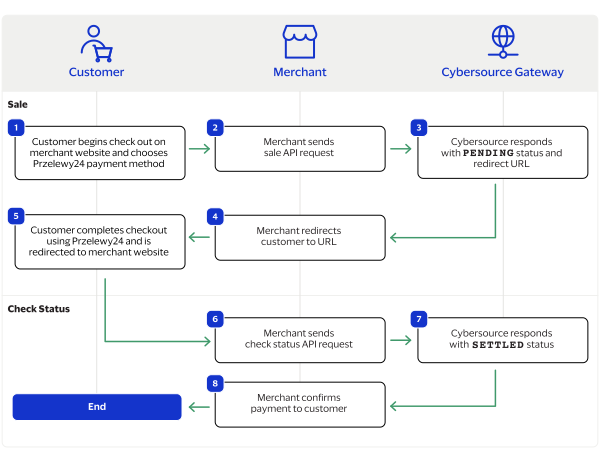
purchaseTotals_grandTotalAmount
field.
For information about how to calculate the grand total, see Calculating the Grand Total for Line Items.

Endpoints

Set the
apSaleService_run
field to
true
, and send the request to one of these endpoints:
Production:
https://ics2ws.ic3.com/commerce/1.x/transactionProcessor
Test:
https://ics2wstest.ic3.com/commerce/1.x/transactionProcessor

Processing a Sale

Follow these steps to successfully process sale.
  1. Send a
    POST
    request to the
    https://ics2ws.ic3.com/commerce/1.x/transactionProcessor
    endpoint and include these required fields:
    Set to
    MCP
    .
    Set to the URL to which the customer is redirected after the payment is cancelled.
    Add
    ?action=cancel
    to the end of the URL to help identify the response.
    Set to the URL to which the customer is redirected after the payment fails to complete.
    Add
    ?action=failure
    to the end of the URL to help identify the response.
    Set to the URL to which the customer is redirected after successfully completing the payment.
    Add
    ?action=success
    to the end of the URL to help identify the response.
    Set to
    true
    .
    Set to one of these possible values:
    • AR
      : Argentina
    • BR
      : Brazil
    • CL
      : Chile
    • MX
      : Mexico
    Set to one of these possible values:
    • ARS
      : Argentine peso
    • BRL
      : Brazilian real
    • CLP
      : Chilean peso
    • MXN
      : Mexican peso
  2. You can include these optional fields in the request:
    Replace the
    #
    character with a sequential number starting from
    0
    .
    Replace the
    #
    character with a sequential number starting from
    0
    .
    Replace the
    #
    character with a sequential number starting from
    0
    .
    Replace the
    #
    character with a sequential number starting from
    0
    .
    Replace the
    #
    character with a sequential number starting from
    0
    .
    Replace the
    #
    character with a sequential number starting from
    0
    .
    If this field is present, the
    purchaseTotals_currency
    field is optional.
    Replace the
    #
    character with a sequential number starting from
    0
    .
    Replace the
    #
    character with a sequential number starting from
    0
    .
  3. Redirect the customer to the returned URL in the
    merchantURL
    response field.
    <merchantURL>https://payment.limonetikqualif.com/ebanx/Order/PayPage/188249158656</merchantURL>
  4. When the customer completes the checkout using their MercadoPago credentials, the customer is redirected to the merchant website based on the URL that you included in the
    apSaleService_successURL
    request field.
  5. Save the request ID in the
    requestID
    field from the sale response. Include the request ID in a check status request to confirm that the payment is complete.
    <requestID>7478672555806859803611</requestID>

Example: Processing a Sale

Request
<requestMessage xmlns="urn:schemas-cybersource-com:transaction-data-1.211"> <merchantID>altpay_mid1</merchantID> <merchantReferenceCode>MercadoPago-Sale</merchantReferenceCode> <billTo> <firstName>John</firstName> <lastName>Smith</lastName> <country>BR</country> <email>test@email.com</email> </billTo> <purchaseTotals> <currency>BRL</currency> <grandTotalAmount>1.00</grandTotalAmount> </purchaseTotals> <apPaymentType>MCP</apPaymentType> <apSaleService run="true"> <cancelURL>https://www.testcancel.com?action=cancel</cancelURL> <successURL>https://www.testsuccess.com?action=success</successURL> <failureURL>https://www.testfailure.com?action=failure</failureURL> </apSaleService> </requestMessage>
Response to a Successful Request
<replyMessage xmlns:c="urn:schemas-cybersource-com:transaction-data-1.211"> <merchantReferenceCode>MercadoPago-Sale</merchantReferenceCode> <requestID>7478672555806859803611</requestID> <decision>ACCEPT</decision> <reasonCode>100</reasonCode> <requestToken>AxjnrwSTlWtuSc0KmTvbANgZYiy6kGDXhyoLOmnkH8lRiXtB8igrDJpJl6MYhzDKTlWtuSc0KmTvbAAA/hNz</requestToken> <purchaseTotals> <currency>BRL</currency> </purchaseTotals> <apSaleReply> <reasonCode>100</reasonCode> <paymentStatus>pending</paymentStatus> <responseCode>00001</responseCode> <merchantURL>https://payment.limonetikqualif.com/ebanx/Order/PayPage/188249158656</merchantURL> <processorTransactionID>188249158656</processorTransactionID> <reconciliationID>XEKTAAWCJA3S</reconciliationID> <amount>1.00</amount> <processorResponse>00001</processorResponse> <dateTime>2025-05-21T22:40:56Z</dateTime> </apSaleReply> </replyMessage>

Response Statuses for Processing a Sale

Cybersource
responds to your sale request with one of these statuses in the
field:
  • FAILED
    : The sale cannot be completed.
  • PENDING
    : The sale request is accepted but is not completed. Send a check status request as often as necessary to obtain the information you need. For more information, see Check a Transaction Status.

Check a Transaction Status

This section describes how to retrieve the current status of a sale or refund. Send a check status request to know if a pending sale is settled, or to verify that a refund request is refunded. Use the check status request as often as necessary to obtain the information that you need.
The check status request requires the request ID from the sale or refund response. The request ID is in the
requestID
response field.

Endpoints

Set the
apCheckStatusService_run
field to
true
, and send the request to one of these endpoints:
Production:
https://ics2ws.ic3.com/commerce/1.x/transactionProcessor
Test:
https://ics2wstest.ic3.com/commerce/1.x/transactionProcessor

Required Fields for Checking a Status

Set to the request ID included in the sale or refund response.
Set to
true
.
Set to
.

Example: Checking a Status

Request
<requestMessage xmlns="urn:schemas-cybersource-com:transaction-data-1.211"> <merchantID>test-merchant</merchantID> <merchantReferenceCode>iDeal-Check-Status</merchantReferenceCode> <apPaymentType>MCP</apPaymentType> <apCheckStatusService run="true"> <checkStatusRequestID>7478635704886789703607</checkStatusRequestID> </apCheckStatusService> </requestMessage>
Response to a Successful Request
<replyMessage xmlns:c="urn:schemas-cybersource-com:transaction-data-1.211"> <merchantReferenceCode>MercadoPago-Check-Status</merchantReferenceCode> <requestID>7478674135396762303612</requestID> <decision>ACCEPT</decision> <reasonCode>100</reasonCode> <requestToken>AxjnrwSTlWtz5m35oLx8ANgZYiy6kGDXhyoLOqnkH8lazftB8igrDJpJl6MYhzDKTlWtuSc0KmTvbAAA/xHx</requestToken> <apCheckStatusReply> <reasonCode>100</reasonCode> <reconciliationID>XEKTAAWCJA3U</reconciliationID> <paymentStatus>settled</paymentStatus> <processorResponse>00004</processorResponse> <processorToken>188249158656</processorToken> </apCheckStatusReply> </replyMessage>

Response Statuses for Checking a Status

Cybersource
responds to your check status request with one of these statuses in the
field:
Check Status Responses for a Sale
  • ABANDONED
    : The customer did not complete the payment using the redirect URL.
  • FAILED
    : The service request failed. A failed request can be due to either MercadoPago rejecting the transaction or a technical error.
  • FUNDED
    : The settled amount is funded to the merchant bank account.
  • PENDING
    : The service request is accepted but is not completed. Request the check status service to retrieve status updates.
  • SETTLED
    : The sale request is settled for the requested amount.
Check Status Responses for a Refund
  • FAILED
    : The service request failed. A failed request can be due to either MercadoPago rejecting the transaction or a technical error.
  • REFUNDED
    : The settled amount is successfully refunded.

Refund a Payment

This section describes how to refund a payment. You can refund a settled payment for the full amount or a partial amount by sending a refund request. Multiple partial refund requests are also supported, and the total amount of all of the refund requests must be less than the settled amount.
Requesting a refund requires the sale request ID from the sale response. The sale request ID is in the
requestID
response field.

Endpoints

Set the
apRefundService_run
field to
true
, and send the request to one of these endpoints:
Production:
https://ics2ws.ic3.com/commerce/1.x/transactionProcessor
Test:
https://ics2wstest.ic3.com/commerce/1.x/transactionProcessor

Required Fields for Refunding a Payment

Example: Refunding a Payment

Request
<requestMessage xmlns="urn:schemas-cybersource-com:transaction-data-1.211"> <merchantID>test-merchant</merchantID> <merchantReferenceCode>iDeal-Refund</merchantReferenceCode> <purchaseTotals> <currency>EUR</currency> <grandTotalAmount>100000.00</grandTotalAmount> </purchaseTotals> <apPaymentType>MCP</apPaymentType> <apRefundService run="true"> <refundRequestID>7478635704886789703607</refundRequestID> </apRefundService> </requestMessage>
Response to a Successful Request
<replyMessage xmlns:c="urn:schemas-cybersource-com:transaction-data-1.211"> <merchantReferenceCode>iDeal-Refund</merchantReferenceCode> <requestID>7478675120196865103607</requestID> <decision>ACCEPT</decision> <reasonCode>100</reasonCode> <requestToken>AxjnrwSTlWt3Zhmd7hb3ANgZYiy6kGDXhyoLOmnkH8lhGftB8igrDJpJl6MYhzDKTlWtuSc0KmTvbAAA3hLz</requestToken> <purchaseTotals> <currency>BRL</currency> </purchaseTotals> <apRefundReply> <reasonCode>100</reasonCode> <transactionID>188249158656</transactionID> <status>REFUNDED</status> <processorResponse>00006</processorResponse> <amount>1.00</amount> <dateTime>2025-05-21T22:45:13Z</dateTime> <reconciliationID>XEKTAAWCJA3S</reconciliationID> <returnRef>XEKTVAW9IXM3</returnRef> <paymentStatus>refunded</paymentStatus> <responseCode>00006</responseCode> </apRefundReply> </replyMessage>

Response Statuses for Refunding a Payment

Cybersource
responds to your refund request with one of these statuses in the
field:
  • FAILED
    : The refund request failed.
  • REFUNDED
    : The refund request is accepted but is not completed. Send a check status request to verify that the status is refunded. For more information, see Check a Transaction Status.

Pluxee Transaction Requests

Pluxee, previously known as
Sodexo
, is a payment method offered by the Thunes payment service provider (PSP) that you can offer your customers through
Cybersource
. With Pluxee you can process payments, refund payments, and retrieve the status of a pending payment or refund.
This section describes how to process Pluxee transactions using the
Simple Order API
.

Requirement

You must receive a Thunes merchant ID before you can begin processing payments. Contact your
Cybersource
account manager for more information.

Supported Country and Currency

This table lists the country and currency that is supported by Pluxee.
Supported Country and Currency
Supported Country
Country Code
Supported Currency
Currency Code
France
FR
Euro
EUR

Shipping Policy

You can ship purchased goods when the sale status is
SETTLED
.

Pluxee by Thunes Transaction Workflow

This workflow describes the sequence of events that comprises a successful Pluxee payment and refund.

Figure:

Pluxee by Thunes Transaction Workflow
  1. The customer begins to checkout on your website and chooses the Pluxee payment method.
  2. You send a sale API request to
    Cybersource
    . For more information, see Process a Sale.
  3. Cybersource
    responds to you with a
    PENDING
    status, Pluxee redirect URL, and sale request ID.
  4. You redirect the customer to the Pluxee URL.
  5. The customer completes the checkout using Pluxee and is redirected to your website.
  6. You send a check status API request to
    Cybersource
    . For more information, see Check a Transaction Status.
  7. Cybersource
    responds to you with a
    SETTLED
    status.
  8. You confirm the payment to the customer.
  9. The customer returns the purchase.
  10. You send a refund API request to
    Cybersource
    with the sale request ID. For more information, see Refund a Payment.
  11. Cybersource
    responds to you with a
    REFUNDED
    status and refund request ID.
  12. You send a check status request to
    Cybersource
    to verify the refund status.
  13. Cybersource
    respond to you with a
    REFUNDED
    status.
  14. You confirm the refund to the customer.

Transaction Statuses Workflow

This workflow shows the statuses that can occur at each stage of processing a sale and refund.

Figure:

Transaction Statuses Workflow
  1. When a customer begins to check out, you send a sale request to
    Cybersource
    and receive one of these possible statuses:
    • FAILED
      : The sale cannot be completed.
    • PENDING
      : The sale request is accepted but is not completed. Send the check status request to retrieve status updates.
  2. You send a check status request to
    Cybersource
    to verify the sale status and receive one of these statuses:
    • ABANDONED
      : The customer did not complete the payment using the redirect URL.
    • FAILED
      : The sale request failed. A failed request can be due to either a rejection or a technical error.
    • PENDING
      : The sale request is accepted but is not completed. Send the check status request as often as necessary to obtain the information that you need.
    • SETTLED
      : The sale request is settled for the requested amount. When the settled amount is deposited into the merchant's bank account, the status updates to
      FUNDED
      .
  3. If a customer returns a purchase, you send a refund request to
    Cybersource
    and receive one of these possible statuses:
    • FAILED
      : The refund request failed.
    • REFUNDED
      : The refund request is accepted but is not completed. Request the check status service to retrieve status updates.
  4. You send a check status request to
    Cybersource
    to verify the refund status and receive one of these statuses:
    • FAILED
      : The refund could not be completed.
    • REFUNDED
      : The settled amount is successfully refunded.

Process a Sale

This section describes how to send a sale request to process a payment.
A sale request authorizes and captures a payment in the same request. A successful sale response includes an Pluxee redirect URL and a
PENDING
status. Redirect the customer to the Pluxee URL to allow the customer to complete the checkout using their Pluxee account. When the customer completes the checkout, the customer is redirected to your website.
When you receive a successful response, save the sale request ID in the
requestID
response field to perform a follow-on check status request or refund request.

Calculating the Grand Total

Include the grand total in the request by using the
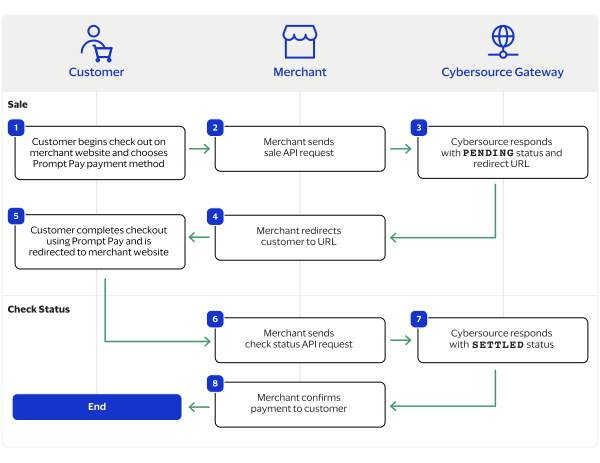
purchaseTotals_grandTotalAmount
field.
For information about how to calculate the grand total, see Calculating the Grand Total for Line Items.

Endpoints

Set the
apSaleService_run
field to
true
, and send the request to one of these endpoints:
Production:
https://ics2ws.ic3.com/commerce/1.x/transactionProcessor
Test:
https://ics2wstest.ic3.com/commerce/1.x/transactionProcessor

Processing a Sale

Follow these steps to successfully process sale.
  1. Send a
    POST
    request to the
    https://ics2ws.ic3.com/commerce/1.x/transactionProcessor
    endpoint and include these required fields:
    Set to
    SDX
    .
    Set to the URL to which the customer is redirected after the payment is cancelled.
    Add
    ?action=cancel
    to the end of the URL to help identify the response.
    Set to the URL to which the customer is redirected after the payment fails to complete.
    Add
    ?action=failure
    to the end of the URL to help identify the response.
    Set to the URL to which the customer is redirected after successfully completing the payment.
    Add
    ?action=success
    to the end of the URL to help identify the response.
    Set to
    true
    .
    Set to
    FR
    .
    Set to
    EUR
    .
  2. You can include these optional fields in the request:
    Replace the
    #
    character with a sequential number starting from
    0
    .
    Replace the
    #
    character with a sequential number starting from
    0
    .
    Replace the
    #
    character with a sequential number starting from
    0
    .
    Replace the
    #
    character with a sequential number starting from
    0
    .
    Replace the
    #
    character with a sequential number starting from
    0
    .
    Replace the
    #
    character with a sequential number starting from
    0
    .
    If this field is present, the
    purchaseTotals_currency
    field is optional.
    Replace the
    #
    character with a sequential number starting from
    0
    .
    Replace the
    #
    character with a sequential number starting from
    0
    .
  3. Redirect the customer to the returned URL in the
    merchantURL
    response field.
    <merchantURL>https://payment.limonetikqualif.com/PluxeeFrance/Order/PayPage/240479242042</merchantURL>
  4. When the customer completes the checkout using their Pluxee credentials, the customer is redirected to the merchant website based on the URL that you included in the
    apSaleService_successURL
    request field.
  5. Save the request ID in the
    requestID
    field from the sale response. Include the request ID in a check status request to confirm that the payment is complete.
    <requestID>7478646017836912903612</requestID>

Example: Processing a Sale

Request
<requestMessage xmlns="urn:schemas-cybersource-com:transaction-data-1.211"> <merchantID>test-merchant</merchantID> <merchantReferenceCode>Sodexo-Sale</merchantReferenceCode> <billTo> <firstName>John</firstName> <lastName>Smith</lastName> <country>FR</country> <email>test@email.com</email> </billTo> <purchaseTotals> <currency>EUR</currency> <grandTotalAmount>20.00</grandTotalAmount> </purchaseTotals> <apPaymentType>SDX</apPaymentType> <apSaleService run="true"> <cancelURL>https://www.testcancel.com?action=cancel</cancelURL> <successURL>https://www.testsuccess.com?action=success</successURL> <failureURL>https://www.testfailure.com?action=failure</failureURL> </apSaleService> </requestMessage>
Response to a Successful Request
<replyMessage xmlns:c="urn:schemas-cybersource-com:transaction-data-1.211"> <merchantReferenceCode>Sodexo-Sale</merchantReferenceCode> <requestID>7478646017836912903612</requestID> <decision>ACCEPT</decision> <reasonCode>100</reasonCode> <requestToken>AxjnrwSTlWsQAahq2oW8ANgZYiy6laDXcybEyCnkH8iBavpB8igrDJpJl6MV+q1CTlWsQAahq2oW8AAA+wY0</requestToken> <purchaseTotals> <currency>EUR</currency> </purchaseTotals> <apSaleReply> <reasonCode>100</reasonCode> <paymentStatus>pending</paymentStatus> <responseCode>00001</responseCode> <merchantURL>https://payment.limonetikqualif.com/PluxeeFrance/Order/PayPage/240479242042</merchantURL> <processorTransactionID>240479242042</processorTransactionID> <reconciliationID>XEKTVAW9IXLA</reconciliationID> <amount>1.00</amount> <processorResponse>00001</processorResponse> <dateTime>2025-05-21T21:56:42Z</dateTime> </apSaleReply> </replyMessage>

Response Statuses for Processing a Sale

Cybersource
responds to your sale request with one of these statuses in the
field:
  • FAILED
    : The sale cannot be completed.
  • PENDING
    : The sale request is accepted but is not completed. Send a check status request as often as necessary to obtain the information that you need. For more information, see Check a Transaction Status.

Check a Transaction Status

This section describes how to retrieve the current status of a sale or refund. Send a check status request to know if a pending sale is settled, or to verify that a refund request is refunded. Use the check status request as often as necessary to obtain the information that you need.
The check status request requires the request ID from the sale or refund response. The request ID is in the
requestID
response field.

Endpoints

Set the
apCheckStatusService_run
field to
true
, and send the request to one of these endpoints:
Production:
https://ics2ws.ic3.com/commerce/1.x/transactionProcessor
Test:
https://ics2wstest.ic3.com/commerce/1.x/transactionProcessor

Required Fields for Checking a Status

Set to the request ID included in the sale or refund response.
Set to
true
.
Set to
SDX
.

Example: Checking a Status

Request
<requestMessage xmlns="urn:schemas-cybersource-com:transaction-data-1.211"> <merchantID>test-merchant</merchantID> <merchantReferenceCode>Check-Status</merchantReferenceCode> <apPaymentType>SDX</apPaymentType> <apCheckStatusService run="true"> <checkStatusRequestID>7454180061226575403608</checkStatusRequestID> </apCheckStatusService> </requestMessage>
Response to a Successful Request
<replyMessage xmlns:c="urn:schemas-cybersource-com:transaction-data-1.211"> <merchantReferenceCode>Check-Status</merchantReferenceCode> <requestID>7478648352266035003607</requestID> <decision>ACCEPT</decision> <reasonCode>100</reasonCode> <requestToken>AxjnrwSTlWsYTM8NbgDXANgZYiy69aDXczI1CgnkH8iPGXpB8igrDJpJl6MV+q1CTlWsQAahq2oW8AAARAaW</requestToken> <apCheckStatusReply> <reasonCode>100</reasonCode> <reconciliationID>XEKWVAW9LFPP</reconciliationID> <paymentStatus>settled</paymentStatus> <processorResponse>00004</processorResponse> <processorToken>240479242042</processorToken> </apCheckStatusReply> </replyMessage>

Response Statuses for Checking a Status

Cybersource
responds to your check status request with one of these statuses in the
field:
Check Status Responses for a Sale
  • ABANDONED
    : The customer did not complete the payment using the redirect URL.
  • FAILED
    : The service request failed. A failed request can be due to either Pluxee rejecting the transaction or a technical error.
  • FUNDED
    : The settled amount is funded to the merchant bank account.
  • PENDING
    : The service request is accepted but is not completed. Request the check status service to retrieve status updates.
  • SETTLED
    : The sale request is settled for the requested amount.
Check Status Responses for a Refund
  • FAILED
    : The service request failed. A failed request can be due to either Pluxee rejecting the transaction or a technical error.
  • REFUNDED
    : The settled amount is successfully refunded.

Refund a Payment

This section describes how to refund a payment. You can refund a settled payment for the full amount or a partial amount by sending a refund request. Multiple partial refund requests are also supported, and the total amount of all of the refund requests must be less than the settled amount.
Requesting a refund requires the sale request ID from the sale response. The sale request ID is in the
requestID
response field.

Endpoints

Set the
apRefundService_run
field to
true
, and send the request to one of these endpoints:
Production:
https://ics2ws.ic3.com/commerce/1.x/transactionProcessor
Test:
https://ics2wstest.ic3.com/commerce/1.x/transactionProcessor

Required Fields for Refunding a Payment

Example: Refunding a Payment

Request
<requestMessage xmlns="urn:schemas-cybersource-com:transaction-data-1.211"> <merchantID>test-merchant</merchantID> <merchantReferenceCode>Sodexo-Refund</merchantReferenceCode> <purchaseTotals> <currency>EUR</currency> <grandTotalAmount>1.00</grandTotalAmount> </purchaseTotals> <apPaymentType>SDX</apPaymentType> <apRefundService run="true"> <refundRequestID>7478646017836912903612</refundRequestID> </apRefundService> </requestMessage>
Response to a Successful Request
<replyMessage xmlns:c="urn:schemas-cybersource-com:transaction-data-1.211"> <merchantReferenceCode>Sodexo-Refund</merchantReferenceCode> <requestID>7478650030276118403607</requestID> <decision>ACCEPT</decision> <reasonCode>100</reasonCode> <requestToken>AxjnrwSTlWseQvM4YVoXANgZYiy6laDXcybEyOnkH8igU/pB8igrDJpJl6MV+q1CTlWsc4uTIhXocAAA9Qt+</requestToken> <purchaseTotals> <currency>EUR</currency> </purchaseTotals> <apRefundReply> <reasonCode>100</reasonCode> <transactionID>509584430475</transactionID> <status>REFUNDED</status> <processorResponse>00006</processorResponse> <amount>1.00</amount> <dateTime>2025-05-21T22:03:24Z</dateTime> <reconciliationID>XEKTVAW9IXLG</reconciliationID> <returnRef>JXNXQANMIF3V</returnRef> <paymentStatus>refunded</paymentStatus> <responseCode>00006</responseCode> </apRefundReply> </replyMessage>

Response Statuses for Refunding a Payment

Cybersource
responds to your refund request with one of these statuses in the
field:
  • FAILED
    : The refund request failed.
  • REFUNDED
    : The refund request is accepted but is not completed. Send a check status request to verify that the status is refunded. For more information, see Check a Transaction Status.

GroupUp Transaction Requests

GroupUp is a payment method offered by the Thunes payment service provider (PSP) that you can offer your customers through
Cybersource
. With GroupUp you can process payments, refund payments, and retrieve the status of a pending payment or refund.
This section describes how to process GroupUp transactions using the
Simple Order API
.

Requirement

You must receive a Thunes merchant ID before you can begin processing payments. Contact your
Cybersource
account manager for more information.

Supported Country and Currency

This table lists the country and currency that is supported by GroupUp.
Supported Country and Currency
Supported Country
Country Code
Supported Currency
Currency Code
France
FR
Euro
EUR

Shipping Policy

You can ship purchased goods when the sale status is
SETTLED
.

GroupUp by Thunes Transaction Workflow

This workflow describes the sequence of events that comprises a successful GroupUp payment and refund.

Figure:

GroupUp by Thunes Transaction Workflow
  1. The customer begins to checkout on your website and chooses the GroupUp payment method.
  2. You send a sale API request to
    Cybersource
    . For more information, see Process a Sale.
  3. Cybersource
    responds to you with a
    PENDING
    status, GroupUp redirect URL, and sale request ID.
  4. You redirect the customer to the GroupUp URL.
  5. The customer completes the checkout using GroupUp and is redirected to your website.
  6. You send a check status API request to
    Cybersource
    . For more information, see Check a Transaction Status.
  7. Cybersource
    responds to you with a
    SETTLED
    status.
  8. You confirm the payment to the customer.
  9. The customer returns the purchase.
  10. You send a refund API request to
    Cybersource
    with the sale request ID. For more information, see Refund a Payment.
  11. Cybersource
    responds to you with a
    REFUNDED
    status and refund request ID.
  12. You send a check status request to
    Cybersource
    to verify the refund status.
  13. Cybersource
    respond to you with a
    REFUNDED
    status.
  14. You confirm the refund to the customer.

Transaction Statuses Workflow

This workflow shows the statuses that can occur at each stage of processing a sale and refund.

Figure:

Transaction Statuses Workflow
  1. When a customer begins to check out, you send a sale request to
    Cybersource
    and receive one of these possible statuses:
    • FAILED
      : The sale cannot be completed.
    • PENDING
      : The sale request is accepted but is not completed. Send the check status request to retrieve status updates.
  2. You send a check status request to
    Cybersource
    to verify the sale status and receive one of these statuses:
    • ABANDONED
      : The customer did not complete the payment using the redirect URL.
    • FAILED
      : The sale request failed. A failed request can be due to either a rejection or a technical error.
    • PENDING
      : The sale request is accepted but is not completed. Send the check status request as often as necessary to obtain the information that you need.
    • SETTLED
      : The sale request is settled for the requested amount. When the settled amount is deposited into the merchant's bank account, the status updates to
      FUNDED
      .
  3. If a customer returns a purchase, you send a refund request to
    Cybersource
    and receive one of these possible statuses:
    • FAILED
      : The refund request failed.
    • REFUNDED
      : The refund request is accepted but is not completed. Request the check status service to retrieve status updates.
  4. You send a check status request to
    Cybersource
    to verify the refund status and receive one of these statuses:
    • FAILED
      : The refund could not be completed.
    • REFUNDED
      : The settled amount is successfully refunded.

Process a Sale

This section describes how to send a sale request to process a payment.
A sale request authorizes and captures a payment in the same request. A successful sale response includes an GroupUp redirect URL and a
PENDING
status. Redirect the customer to the GroupUp URL to allow the customer to complete the checkout using their GroupUp account. When the customer completes the checkout, the customer is redirected to your website.
When you receive a successful response, save the sale request ID in the
requestID
response field to perform a follow-on check status request or refund request.

Calculating the Grand Total

Include the grand total in the request by using the
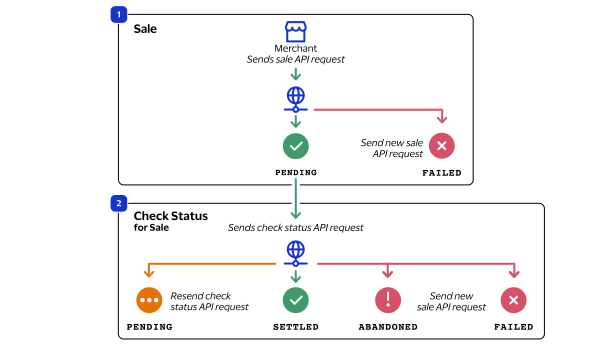
purchaseTotals_grandTotalAmount
field.
For information about how to calculate the grand total, see Calculating the Grand Total for Line Items.

Endpoints

Set the
apSaleService_run
field to
true
, and send the request to one of these endpoints:
Production:
https://ics2ws.ic3.com/commerce/1.x/transactionProcessor
Test:
https://ics2wstest.ic3.com/commerce/1.x/transactionProcessor

Processing a Sale

Follow these steps to successfully process sale.
  1. Send a
    POST
    request to the
    https://ics2ws.ic3.com/commerce/1.x/transactionProcessor
    endpoint and include these required fields:
    Set to
    GRU
    .
    Set to the URL to which the customer is redirected after the payment is cancelled.
    Add
    ?action=cancel
    to the end of the URL to help identify the response.
    Set to the URL to which the customer is redirected after the payment fails to complete.
    Add
    ?action=failure
    to the end of the URL to help identify the response.
    Set to the URL to which the customer is redirected after successfully completing the payment.
    Add
    ?action=success
    to the end of the URL to help identify the response.
    Set to
    true
    .
    Set to
    FR
    .
    Set to
    EUR
    .
  2. You can include these optional fields in the request:
    Replace the
    #
    character with a sequential number starting from
    0
    .
    Replace the
    #
    character with a sequential number starting from
    0
    .
    Replace the
    #
    character with a sequential number starting from
    0
    .
    Replace the
    #
    character with a sequential number starting from
    0
    .
    Replace the
    #
    character with a sequential number starting from
    0
    .
    Replace the
    #
    character with a sequential number starting from
    0
    .
    If this field is present, the
    purchaseTotals_currency
    field is optional.
    Replace the
    #
    character with a sequential number starting from
    0
    .
    Replace the
    #
    character with a sequential number starting from
    0
    .
  3. Redirect the customer to the returned URL in the
    merchantURL
    response field.
    <merchantURL>https://payment.limonetikqualif.com/PPRO/Order/PayPage/973340962485</merchantURL>
  4. When the customer completes the checkout using their GroupUp credentials, the customer is redirected to the merchant website based on the URL that you included in the
    apSaleService_successURL
    request field.
  5. Save the request ID in the
    requestID
    field from the sale response. Include the request ID in a check status request to confirm that the payment is complete.
    <requestID>7478635704886789703607</requestID>

Example: Processing a Sale

Request
<requestMessage xmlns="urn:schemas-cybersource-com:transaction-data-1.211"> <merchantID>test-merchant</merchantID> <merchantReferenceCode>GroupUp-Sale</merchantReferenceCode> <billTo> <firstName>John</firstName> <lastName>Smith</lastName> <country>FR</country> <email>test@email.com</email> </billTo> <purchaseTotals> <currency>EUR</currency> <grandTotalAmount>1.00</grandTotalAmount> </purchaseTotals> <apPaymentType>GRU</apPaymentType> <apSaleService run="true"> <cancelURL>https://www.testcancel.com?action=cancel</cancelURL> <successURL>https://www.testsuccess.com?action=success</successURL> <failureURL>https://www.testfailure.com?action=failure</failureURL> </apSaleService> </requestMessage>
Response to a Successful Request
<replyMessage xmlns:c="urn:schemas-cybersource-com:transaction-data-1.211"> <merchantReferenceCode>GroupUp-Sale</merchantReferenceCode> <requestID>7478654417056302503607</requestID> <decision>ACCEPT</decision> <reasonCode>100</reasonCode> <requestToken>AxjnrwSTlWst2LQS9ha3ANgZYiy6kGDXhyoLOEnkH8jDjvpB8igrDJpJl6MV+q1CTlWst2LQS9ha3AAA/QSs</requestToken> <purchaseTotals> <currency>EUR</currency> </purchaseTotals> <apSaleReply> <reasonCode>100</reasonCode> <paymentStatus>pending</paymentStatus> <responseCode>00001</responseCode> <merchantURL>https://payment.limonetikqualif.com/Conecs/Order/PayPage/315026269915</merchantURL> <processorTransactionID>315026269915</processorTransactionID> <reconciliationID>XEKTAAWCJA3B</reconciliationID> <amount>1.00</amount> <processorResponse>00001</processorResponse> <dateTime>2025-05-21T22:10:42Z</dateTime> </apSaleReply> </replyMessage>

Response Statuses for Processing a Sale

Cybersource
responds to your sale request with one of these statuses in the
field:
  • FAILED
    : The sale cannot be completed.
  • PENDING
    : The sale request is accepted but is not completed. Send a check status request as often as necessary to obtain the information that you need. For more information, see Check a Transaction Status.

Check a Transaction Status

This section describes how to retrieve the current status of a sale or refund. Send a check status request to know if a pending sale is settled, or to verify that a refund request is refunded. Use the check status request as often as necessary to obtain the information that you need.
The check status request requires the request ID from the sale or refund response. The request ID is in the
requestID
response field.

Endpoints

Set the
apCheckStatusService_run
field to
true
, and send the request to one of these endpoints:
Production:
https://ics2ws.ic3.com/commerce/1.x/transactionProcessor
Test:
https://ics2wstest.ic3.com/commerce/1.x/transactionProcessor

Required Fields for Checking a Status

Set to the request ID included in the sale or refund response.
Set to
true
.
Set to
.

Example: Checking a Status

Request
<requestMessage xmlns="urn:schemas-cybersource-com:transaction-data-1.211"> <merchantID>test-merchant</merchantID> <merchantReferenceCode>Check-Status</merchantReferenceCode> <apPaymentType>GRU</apPaymentType> <apCheckStatusService run="true"> <checkStatusRequestID>7065580941106170303007</checkStatusRequestID> </apCheckStatusService> </requestMessage>
Response to a Successful Request
<replyMessage xmlns:c="urn:schemas-cybersource-com:transaction-data-1.211"> <merchantReferenceCode>GroupUp-Check-Status</merchantReferenceCode> <requestID>7478656805616347303608</requestID> <decision>ACCEPT</decision> <reasonCode>100</reasonCode> <requestToken>AxjnrwSTlWs2VRYL9M64ANgZYiy6c+DXczIzmunkH8jXMXpB8igrDJpJl6MV+q1CTlWst2LQS9ha3AAAzwQW</requestToken> <apCheckStatusReply> <reasonCode>100</reasonCode> <reconciliationID>XEKSOAW9LF9W</reconciliationID> <paymentStatus>settled</paymentStatus> <processorResponse>00004</processorResponse> <processorToken>315026269915</processorToken> </apCheckStatusReply> </replyMessage>

Response Statuses for Checking a Status

Cybersource
responds to your check status request with one of these statuses in the
field:
Check Status Responses for a Sale
  • ABANDONED
    : The customer did not complete the payment using the redirect URL.
  • FAILED
    : The service request failed. A failed request can be due to either GroupUp rejecting the transaction or a technical error.
  • FUNDED
    : The settled amount is funded to the merchant bank account.
  • PENDING
    : The service request is accepted but is not completed. Request the check status service to retrieve status updates.
  • SETTLED
    : The sale request is settled for the requested amount.
Check Status Responses for a Refund
  • FAILED
    : The service request failed. A failed request can be due to either GroupUp rejecting the transaction or a technical error.
  • REFUNDED
    : The settled amount is successfully refunded.

Refund a Payment

This section describes how to refund a payment. You can refund a settled payment for the full amount or a partial amount by sending a refund request. Multiple partial refund requests are also supported, and the total amount of all of the refund requests must be less than the settled amount.
Requesting a refund requires the sale request ID from the sale response. The sale request ID is in the
requestID
response field.

Endpoints

Set the
apRefundService_run
field to
true
, and send the request to one of these endpoints:
Production:
https://ics2ws.ic3.com/commerce/1.x/transactionProcessor
Test:
https://ics2wstest.ic3.com/commerce/1.x/transactionProcessor

Required Fields for Refunding a Payment

Example: Refunding a Payment

Request
<requestMessage xmlns="urn:schemas-cybersource-com:transaction-data-1.211"> <merchantID>test-merchant</merchantID> <merchantReferenceCode>TurkeyCard-Refund</merchantReferenceCode> <purchaseTotals> <currency>EUR</currency> <grandTotalAmount>1.00</grandTotalAmount> </purchaseTotals> <apPaymentType>GRU</apPaymentType> <apRefundService run="true"> <refundRequestID>7114798749656985804012</refundRequestID> </apRefundService> </requestMessage>
Response to a Successful Request
<replyMessage xmlns:c="urn:schemas-cybersource-com:transaction-data-1.211"> <merchantReferenceCode>GroupUp-Refund</merchantReferenceCode> <requestID>7478661164806433303612</requestID> <decision>ACCEPT</decision> <reasonCode>100</reasonCode> <requestToken>AxjnrwSTlWtF0b8Uimw8ANgZYiy69aDXczI1C0nkH8j4LfpB8igrDJpJl6MV+q1CTlWtBOkdxspJ4AAA1xLg</requestToken> <purchaseTotals> <currency>EUR</currency> </purchaseTotals> <apRefundReply> <reasonCode>100</reasonCode> <transactionID>692450562690</transactionID> <status>REFUNDED</status> <processorResponse>00006</processorResponse> <amount>1.00</amount> <dateTime>2025-05-21T22:21:57Z</dateTime> <reconciliationID>XEKWVAW9LFPZ</reconciliationID> <returnRef>KL9RNANN5WZB</returnRef> <paymentStatus>refunded</paymentStatus> <responseCode>00006</responseCode> </apRefundReply> </replyMessage>

Response Statuses for Refunding a Payment

Cybersource
responds to your refund request with one of these statuses in the
field:
  • FAILED
    : The refund request failed.
  • REFUNDED
    : The refund request is accepted but is not completed. Send a check status request to verify that the status is refunded. For more information, see Check a Transaction Status.

Bancontact Transaction Requests

Bancontact is a payment method offered by the Thunes payment service provider (PSP) that you can offer your customers through
Cybersource
. With Bancontact you can process payments, refund payments, and retrieve the status of a pending payment or refund.
This section describes how to process Bancontact transactions using the
Simple Order API
.

Requirement

You must receive a Thunes merchant ID before you can begin processing payments. Contact your
Cybersource
account manager for more information.

Supported Country and Currency

This table lists the country and currency that is supported by Bancontact.
Supported Country and Currency
Supported Country
Country Code
Supported Currency
Currency Code
Belgium
BE
Euro
EUR

Shipping Policy

You can ship purchased goods when the sale status is
SETTLED
.

Bancontact by Thunes Transaction Workflow

This workflow describes the sequence of events that comprises a successful Bancontact payment and refund.

Figure:

Bancontact by Thunes Transaction Workflow
  1. The customer begins to checkout on your website and chooses the Bancontact payment method.
  2. You send a sale API request to
    Cybersource
    . For more information, see Process a Sale.
  3. Cybersource
    responds to you with a
    PENDING
    status, Bancontact redirect URL, and sale request ID.
  4. You redirect the customer to the Bancontact URL.
  5. The customer completes the checkout using Bancontact and is redirected to your website.
  6. You send a check status API request to
    Cybersource
    . For more information, see Check a Transaction Status.
  7. Cybersource
    responds to you with a
    SETTLED
    status.
  8. You confirm the payment to the customer.
  9. The customer returns the purchase.
  10. You send a refund API request to
    Cybersource
    with the sale request ID. For more information, see Refund a Payment.
  11. Cybersource
    responds to you with a
    REFUNDED
    status and refund request ID.
  12. You send a check status request to
    Cybersource
    to verify the refund status.
  13. Cybersource
    respond to you with a
    REFUNDED
    status.
  14. You confirm the refund to the customer.

Transaction Statuses Workflow

This workflow shows the statuses that can occur at each stage of processing a sale and refund.

Figure:

Transaction Statuses Workflow
  1. When a customer begins to check out, you send a sale request to
    Cybersource
    and receive one of these possible statuses:
    • FAILED
      : The sale cannot be completed.
    • PENDING
      : The sale request is accepted but is not completed. Send the check status request to retrieve status updates.
  2. You send a check status request to
    Cybersource
    to verify the sale status and receive one of these statuses:
    • ABANDONED
      : The customer did not complete the payment using the redirect URL.
    • FAILED
      : The sale request failed. A failed request can be due to either a rejection or a technical error.
    • PENDING
      : The sale request is accepted but is not completed. Send the check status request as often as necessary to obtain the information that you need.
    • SETTLED
      : The sale request is settled for the requested amount. When the settled amount is deposited into the merchant's bank account, the status updates to
      FUNDED
      .
  3. If a customer returns a purchase, you send a refund request to
    Cybersource
    and receive one of these possible statuses:
    • FAILED
      : The refund request failed.
    • REFUNDED
      : The refund request is accepted but is not completed. Request the check status service to retrieve status updates.
  4. You send a check status request to
    Cybersource
    to verify the refund status and receive one of these statuses:
    • FAILED
      : The refund could not be completed.
    • REFUNDED
      : The settled amount is successfully refunded.

Process a Sale

This section describes how to send a sale request to process a payment.
A sale request authorizes and captures a payment in the same request. A successful sale response includes an Bancontact redirect URL and a
PENDING
status. Redirect the customer to the Bancontact URL to allow the customer to complete the checkout using their Bancontact account. When the customer completes the checkout, the customer is redirected to your website.
When you receive a successful response, save the sale request ID in the
requestID
response field to perform a follow-on check status request or refund request.

Calculating the Grand Total

Include the grand total in the request by using the
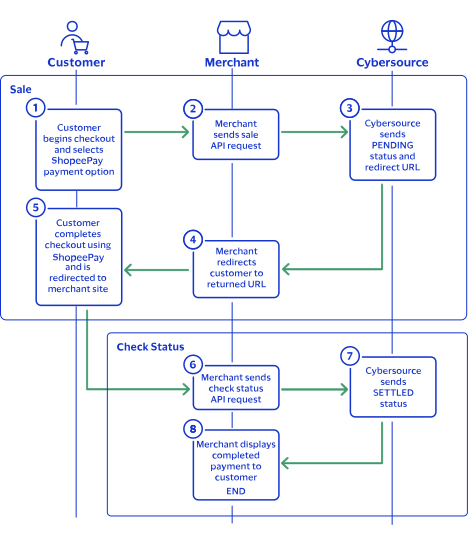
purchaseTotals_grandTotalAmount
field.
For information about how to calculate the grand total, see Calculating the Grand Total for Line Items.

Endpoints

Set the
apSaleService_run
field to
true
, and send the request to one of these endpoints:
Production:
https://ics2ws.ic3.com/commerce/1.x/transactionProcessor
Test:
https://ics2wstest.ic3.com/commerce/1.x/transactionProcessor

Processing a Sale

Follow these steps to successfully process sale.
  1. Send a
    POST
    request to the
    https://ics2ws.ic3.com/commerce/1.x/transactionProcessor
    endpoint and include these required fields:
    Set to
    BNC
    .
    Set to the URL to which the customer is redirected after the payment is cancelled.
    Add
    ?action=cancel
    to the end of the URL to help identify the response.
    Set to the URL to which the customer is redirected after the payment fails to complete.
    Add
    ?action=failure
    to the end of the URL to help identify the response.
    Set to the URL to which the customer is redirected after successfully completing the payment.
    Add
    ?action=success
    to the end of the URL to help identify the response.
    Set to
    true
    .
    Set to
    BE
    .
    Set to
    EUR
    .
  2. You can include these optional fields in the request:
    Replace the
    #
    character with a sequential number starting from
    0
    .
    Replace the
    #
    character with a sequential number starting from
    0
    .
    Replace the
    #
    character with a sequential number starting from
    0
    .
    Replace the
    #
    character with a sequential number starting from
    0
    .
    Replace the
    #
    character with a sequential number starting from
    0
    .
    Replace the
    #
    character with a sequential number starting from
    0
    .
    If this field is present, the
    purchaseTotals_currency
    field is optional.
    Replace the
    #
    character with a sequential number starting from
    0
    .
    Replace the
    #
    character with a sequential number starting from
    0
    .
  3. Redirect the customer to the returned URL in the
    merchantURL
    response field.
    <merchantURL>https://payment.limonetikqualif.com/PPRO/Order/PayPage/973340962485</merchantURL>
  4. When the customer completes the checkout using their Bancontact credentials, the customer is redirected to the merchant website based on the URL that you included in the
    apSaleService_successURL
    request field.
  5. Save the request ID in the
    requestID
    field from the sale response. Include the request ID in a check status request to confirm that the payment is complete.
    <requestID>7478635704886789703607</requestID>

Example: Processing a Sale

Request
<requestMessage xmlns="urn:schemas-cybersource-com:transaction-data-1.215"> <merchantID>test-merchant</merchantID> <merchantReferenceCode>Bancontact-Sale</merchantReferenceCode> <billTo> <firstName>John</firstName> <lastName>Smith</lastName> <country>BE</country> <email>test@email.com</email> </billTo> <purchaseTotals> <currency>EUR</currency> <grandTotalAmount>1.00</grandTotalAmount> </purchaseTotals> <apPaymentType>BNC</apPaymentType> <apSaleService run="true"> <cancelURL>https://www.testcancel.com?action=cancel</cancelURL> <successURL>https://www.testsuccess.com?action=success</successURL> <failureURL>https://www.testfailure.com?action=failure</failureURL> </apSaleService> </requestMessage>
Response to a Successful Request
<replyMessage xmlns:c="urn:schemas-cybersource-com:transaction-data-1.215"> <merchantReferenceCode>Bancontact-Sale</merchantReferenceCode> <requestID>7479267993226972203607</requestID> <decision>ACCEPT</decision> <reasonCode>100</reasonCode> <requestToken>AxjnrwSTlXOxtPrSX4pXANgZYjWmdmDXZ15FqCnvy2YxbXpB8igtDJpJl6MYhzFqTlXOxtPrSX4pXAAAkhez</requestToken> <purchaseTotals> <currency>EUR</currency> </purchaseTotals> <apSaleReply> <reasonCode>100</reasonCode> <paymentStatus>pending</paymentStatus> <responseCode>00001</responseCode> <merchantURL>https://payment.limonetikqualif.com/PPRO/Order/PayPage/210101503502</merchantURL> <processorTransactionID>210101503502</processorTransactionID> <reconciliationID>XFZ3YAW3WHZA</reconciliationID> <amount>1.00</amount> <processorResponse>00001</processorResponse> <dateTime>2025-05-22T15:13:20Z</dateTime> </apSaleReply> </replyMessage>

Response Statuses for Processing a Sale

Cybersource
responds to your sale request with one of these statuses in the
field:
  • FAILED
    : The sale cannot be completed.
  • PENDING
    : The sale request is accepted but is not completed. Send a check status request as often as necessary to obtain the information that you need. For more information, see Check a Transaction Status.

Check a Transaction Status

This section describes how to retrieve the current status of a sale or refund. Send a check status request to know if a pending sale is settled, or to verify that a refund request is refunded. Use the check status request as often as necessary to obtain the information that you need.
The check status request requires the request ID from the sale or refund response. The request ID is in the
requestID
response field.

Endpoints

Set the
apCheckStatusService_run
field to
true
, and send the request to one of these endpoints:
Production:
https://ics2ws.ic3.com/commerce/1.x/transactionProcessor
Test:
https://ics2wstest.ic3.com/commerce/1.x/transactionProcessor

Required Fields for Checking a Status

Set to the request ID included in the sale or refund response.
Set to
true
.
Set to
.

Example: Checking a Status

Request
<requestMessage xmlns="urn:schemas-cybersource-com:transaction-data-1.211"> <merchantID>test-merchant</merchantID> <merchantReferenceCode>Check-Status</merchantReferenceCode> <apPaymentType>BNC</apPaymentType> <apCheckStatusService run="true"> <checkStatusRequestID>7454180061226575403608</checkStatusRequestID> </apCheckStatusService> </requestMessage>
Response to a Successful Request
<replyMessage xmlns:c="urn:schemas-cybersource-com:transaction-data-1.215"> <merchantReferenceCode>Bancontact-Check-Status</merchantReferenceCode> <requestID>7479269396986852003609</requestID> <decision>ACCEPT</decision> <reasonCode>100</reasonCode> <requestToken>AxjnrwSTlXO2sbEjW88ZANgZYjWmdqDYmzGlqWnvy2Y1mvpB8igtDJpJl6MYhzFqTlXOxtPrSX4pXAAA0hgx</requestToken> <apCheckStatusReply> <reasonCode>100</reasonCode> <reconciliationID>XFZ3ZAXML4ZK</reconciliationID> <paymentStatus>settled</paymentStatus> <processorResponse>00004</processorResponse> <processorToken>210101503502</processorToken> </apCheckStatusReply> </replyMessage>

Response Statuses for Checking a Status

Cybersource
responds to your check status request with one of these statuses in the
field:
Check Status Responses for a Sale
  • ABANDONED
    : The customer did not complete the payment using the redirect URL.
  • FAILED
    : The service request failed. A failed request can be due to either Bancontact rejecting the transaction or a technical error.
  • FUNDED
    : The settled amount is funded to the merchant bank account.
  • PENDING
    : The service request is accepted but is not completed. Request the check status service to retrieve status updates.
  • SETTLED
    : The sale request is settled for the requested amount.
Check Status Responses for a Refund
  • FAILED
    : The service request failed. A failed request can be due to either Bancontact rejecting the transaction or a technical error.
  • REFUNDED
    : The settled amount is successfully refunded.

Refund a Payment

This section describes how to refund a payment. You can refund a settled payment for the full amount or a partial amount by sending a refund request. Multiple partial refund requests are also supported, and the total amount of all of the refund requests must be less than the settled amount.
Requesting a refund requires the sale request ID from the sale response. The sale request ID is in the
requestID
response field.

Endpoints

Set the
apRefundService_run
field to
true
, and send the request to one of these endpoints:
Production:
https://ics2ws.ic3.com/commerce/1.x/transactionProcessor
Test:
https://ics2wstest.ic3.com/commerce/1.x/transactionProcessor

Required Fields for Refunding a Payment

Example: Refunding a Payment

Request
<requestMessage xmlns="urn:schemas-cybersource-com:transaction-data-1.211"> <merchantID>test-merchant</merchantID> <merchantReferenceCode>Sodexo-Refund</merchantReferenceCode> <purchaseTotals> <currency>EUR</currency> <grandTotalAmount>1.00</grandTotalAmount> </purchaseTotals> <apPaymentType>BNC</apPaymentType> <apRefundService run="true"> <refundRequestID>7454180061226575403608</refundRequestID> </apRefundService> </requestMessage>
Response to a Successful Request
<replyMessage xmlns:c="urn:schemas-cybersource-com:transaction-data-1.215"> <merchantReferenceCode>Bancontact-Refund</merchantReferenceCode> <requestID>7479270326816914803612</requestID> <decision>ACCEPT</decision> <reasonCode>100</reasonCode> <requestToken>AxjnrwSTlXO5/14R9AucANgZYjWmdmDXZ15FqCnvy2Y3sHpB8igtDJpJl6MYhzFqTlXOxtPrSX4pXAAA0hgx</requestToken> <purchaseTotals> <currency>EUR</currency> </purchaseTotals> <apRefundReply> <reasonCode>100</reasonCode> <transactionID>210101503502</transactionID> <status>REFUNDED</status> <processorResponse>00006</processorResponse> <amount>1.00</amount> <dateTime>2025-05-22T15:17:14Z</dateTime> <reconciliationID>XFZ3YAW3WHZA</reconciliationID> <returnRef>XFZ3ZAXML4ZM</returnRef> <paymentStatus>refunded</paymentStatus> <responseCode>00006</responseCode> </apRefundReply> </replyMessage>

Response Statuses for Refunding a Payment

Cybersource
responds to your refund request with one of these statuses in the
field:
  • FAILED
    : The refund request failed.
  • REFUNDED
    : The refund request is accepted but is not completed. Send a check status request to verify that the status is refunded. For more information, see Check a Transaction Status.

ANCV Connect Transaction Requests

ANCV Connect is a payment method offered by the Thunes payment service provider (PSP) that you can offer your customers through
Cybersource
. With ANCV Connect you can process payments, refund payments, and retrieve the status of a pending payment or refund.
This section describes how to process ANCV Connect transactions using the
Simple Order API
.

Requirement

You must receive a Thunes merchant ID before you can begin processing payments. Contact your
Cybersource
account manager for more information.

Supported Country and Currency

This table lists the country and currency that is supported by ANCV Connect.
Supported Country and Currency
Supported Country
Country Code
Supported Currency
Currency Code
France
FR
Euro
EUR

Shipping Policy

You can ship purchased goods when the sale status is
SETTLED
.

ANCV Connect by Thunes Transaction Workflow

This workflow describes the sequence of events that comprises a successful ANCV Connect payment and refund.

Figure:

ANCV Connect Transaction Workflow
  1. The customer begins to checkout on your website and chooses the ANCV Connect payment method.
  2. You send a sale API request to
    Cybersource
    . For more information, see Process a Sale.
  3. Cybersource
    responds to you with a
    PENDING
    status, ANCV Connect redirect URL, and sale request ID.
  4. You redirect the customer to the ANCV Connect URL.
  5. The customer completes the checkout using ANCV Connect and is redirected to your website.
  6. You send a check status API request to
    Cybersource
    . For more information, see Check a Status.
  7. Cybersource
    responds to you with a
    SETTLED
    status.
  8. You confirm the payment to the customer.

Transaction Statuses Workflow

This workflow shows the statuses that can occur at each stage of processing a sale and refund.

Figure:

Transaction Statuses Workflow
  1. When a customer begins to check out, you send a sale request to
    Cybersource
    and receive one of these possible statuses:
    • FAILED
      : The sale cannot be completed.
    • PENDING
      : The sale request is accepted but is not completed. Send the check status request to retrieve status updates.
  2. You send a check status request to
    Cybersource
    to verify the sale status and receive one of these statuses:
    • ABANDONED
      : The customer did not complete the payment using the redirect URL.
    • FAILED
      : The sale request failed. A failed request can be due to either a rejection or a technical error.
    • PENDING
      : The sale request is accepted but is not completed. Send the check status request as often as necessary to obtain the information that you need.
    • SETTLED
      : The sale request is settled for the requested amount. When the settled amount is deposited into the merchant's bank account, the status updates to
      FUNDED
      .
  3. If a customer returns a purchase, you send a refund request to
    Cybersource
    and receive one of these possible statuses:
    • FAILED
      : The refund request failed.
    • REFUNDED
      : The refund request is accepted but is not completed. Request the check status service to retrieve status updates.
  4. You send a check status request to
    Cybersource
    to verify the refund status and receive one of these statuses:
    • FAILED
      : The refund could not be completed.
    • REFUNDED
      : The settled amount is successfully refunded.

Process a Sale

This section describes how to send a sale request to process a payment.
A sale request authorizes and captures a payment in the same request. A successful sale response includes an ANCV Connect redirect URL and a
PENDING
status. Redirect the customer to the ANCV Connect URL to allow the customer to complete the checkout using their ANCV Connect account. When the customer completes the checkout, the customer is redirected to your website.
When you receive a successful response, save the sale request ID in the
requestID
response field to perform a follow-on check status request or refund request.

Calculating the Grand Total

Include the grand total in the request by using the
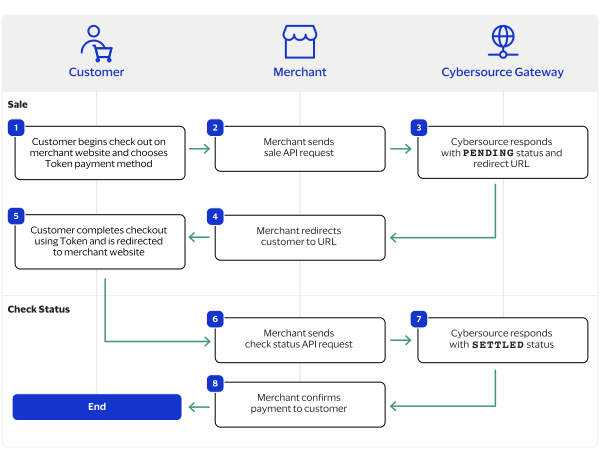
purchaseTotals_grandTotalAmount
field.
For information about how to calculate the grand total, see Calculating the Grand Total for Line Items.

Endpoints

Set the
apSaleService_run
field to
true
, and send the request to one of these endpoints:
Production:
https://ics2ws.ic3.com/commerce/1.x/transactionProcessor
Test:
https://ics2wstest.ic3.com/commerce/1.x/transactionProcessor

Processing a Sale

Follow these steps to successfully process sale.
  1. Send a
    POST
    request to the
    https://ics2ws.ic3.com/commerce/1.x/transactionProcessor
    endpoint and include these required fields:
    Set to
    ANC
    .
    Set to the URL to which the customer is redirected after the payment is cancelled.
    Add
    ?action=cancel
    to the end of the URL to help identify the response.
    Set to the URL to which the customer is redirected after the payment fails to complete.
    Add
    ?action=failure
    to the end of the URL to help identify the response.
    Set to the URL to which the customer is redirected after successfully completing the payment.
    Add
    ?action=success
    to the end of the URL to help identify the response.
    Set to
    true
    .
    Set to
    FR
    .
    Set to
    EUR
    .
  2. You can include these optional fields in the request:
    Replace the
    #
    character with a sequential number starting from
    0
    .
    Replace the
    #
    character with a sequential number starting from
    0
    .
    Replace the
    #
    character with a sequential number starting from
    0
    .
    Replace the
    #
    character with a sequential number starting from
    0
    .
    Replace the
    #
    character with a sequential number starting from
    0
    .
    Replace the
    #
    character with a sequential number starting from
    0
    .
    If this field is present, the
    purchaseTotals_currency
    field is optional.
    Replace the
    #
    character with a sequential number starting from
    0
    .
    Replace the
    #
    character with a sequential number starting from
    0
    .
  3. Redirect the customer to the returned URL in the
    merchantURL
    response field.
    <successURL>https://www.testsuccess.com?action=success</successURL>
  4. When the customer completes the checkout using their ANCV Connect credentials, the customer is redirected to the merchant website based on the URL that you included in the
    apSaleService_successURL
    request field.
  5. Save the request ID in the
    requestID
    field from the sale response. Include the request ID in a check status request to confirm that the payment is complete.
    <requestID>
    7478635704886789703607
    </requestID>

Example: Processing a Sale

Request
<requestMessage xmlns="urn:schemas-cybersource-com:transaction-data-1.186"> <merchantID>thunes_cert</merchantID> <merchantReferenceCode>refnum1234</merchantReferenceCode> <invoiceHeader> <merchantDescriptor>Online Store</merchantDescriptor> </invoiceHeader> <billTo> <firstName>Badri</firstName> <lastName>R</lastName> <street1>Bangalore</street1> <city>CHENNAI</city> <state>AR</state> <postalCode>75001</postalCode> <country>FR</country> <phoneNumber>+33623456789</phoneNumber> <email>test@thunes.com</email> </billTo> <shipTo> <firstName>Badrinarayanan</firstName> <lastName>Raj</lastName> <street1>KR</street1> <city>Bangalore</city> <state>AR</state> <postalCode>75001</postalCode> <country>FR</country> <phoneNumber>+33623456789</phoneNumber> </shipTo> <purchaseTotals> <currency>EUR</currency> <grandTotalAmount>20.00</grandTotalAmount> </purchaseTotals> <apPaymentType>ANC</apPaymentType> <apSaleService run="true"> <cancelURL>https://www.redirect.url.html?action=cancel</cancelURL> <successURL>https://www.redirect.url.html?action=success</successURL> <failureURL>https://www.redirect.url.html?action=failure</failureURL> </apSaleService> </requestMessage>
Response to a Successful Request

Response Statuses for Processing a Sale

Cybersource
responds to your sale request with one of these statuses in the
field:
  • FAILED
    : The sale cannot be completed.
  • PENDING
    : The sale request is accepted but is not completed. Send a check status request as often as necessary to obtain the information that you need. For more information, see Check a Status.

Check a Status

This section describes how to retrieve the current status of a sale or refund. Send a check status request to know if a pending sale is settled, or to verify that a refund request is refunded. Use the check status request as often as necessary to obtain the information that you need.
The check status request requires the request ID from the sale or refund response. The request ID is in the
requestID
response field.

Endpoints

Set the
apCheckStatusService_run
field to
true
, and send the request to one of these endpoints:
Production:
https://ics2ws.ic3.com/commerce/1.x/transactionProcessor
Test:
https://ics2wstest.ic3.com/commerce/1.x/transactionProcessor

Required Fields for Checking a Status

Set to the request ID included in the sale or refund response.
Set to
true
.
Set to
ACV
.

Example: Checking a Status

Request
<requestMessage xmlns="urn:schemas-cybersource-com:transaction-data-1.211"> <merchantID>thunes_cert</merchantID> <merchantReferenceCode>ancv-check-status</merchantReferenceCode> <apPaymentType>ANC</apPaymentType> <apCheckStatusService run="true"> <checkStatusRequestID>7548962692147006033215</checkStatusRequestID> </apCheckStatusService> </requestMessage>
Response to a Successful Request

Response Statuses for Checking a Status

Cybersource
responds to your check status request with one of these statuses in the
field:
Check Status Responses for a Sale
  • ABANDONED
    : The customer did not complete the payment using the redirect URL.
  • FAILED
    : The service request failed. A failed request can be due to either ANCV Connect rejecting the transaction or a technical error.
  • FUNDED
    : The settled amount is funded to the merchant bank account.
  • PENDING
    : The service request is accepted but is not completed. Request the check status service to retrieve status updates.
  • SETTLED
    : The sale request is settled for the requested amount.
Check Status Responses for a Refund
  • FAILED
    : The service request failed. A failed request can be due to either ANCV Connect rejecting the transaction or a technical error.
  • REFUNDED
    : The settled amount is successfully refunded.

Refund a Payment

This section describes how to refund a payment. You can refund a settled payment for the full amount or a partial amount by sending a refund request. Multiple partial refund requests are also supported, and the total amount of all of the refund requests must be less than the settled amount.
Requesting a refund requires the sale request ID from the sale response. The sale request ID is in the
requestID
response field.

Endpoints

Set the
apRefundService_run
field to
true
, and send the request to one of these endpoints:
Production:
https://ics2ws.ic3.com/commerce/1.x/transactionProcessor
Test:
https://ics2wstest.ic3.com/commerce/1.x/transactionProcessor

Required Fields for Refunding a Payment

Example: Refunding a Payment

Request
<requestMessage xmlns="urn:schemas-cybersource-com:transaction-data-1.186"> <merchantID>thunes_cert</merchantID> <merchantReferenceCode>refnum1234</merchantReferenceCode> <purchaseTotals> <currency>EUR</currency> <grandTotalAmount>20.00</grandTotalAmount> </purchaseTotals> <apPaymentType>ANC</apPaymentType> <apRefundService run="true"> <refundRequestID>7478635704886789703607</refundRequestID> </apRefundService> </requestMessage>
Response to a Successful Request
<replyMessage xmlns:c="urn:schemas-cybersource-com:transaction-data-1.211"> <merchantReferenceCode>Masterpass-Refund</merchantReferenceCode> <requestID>7478637798796676103609</requestID> <decision>ACCEPT</decision> <reasonCode>100</reasonCode> <requestToken>AxjnrwSTlWryznv9JP25ANgZYiy6kGDXhyoLKQnkH8hOI/pCvoUFYZNJMvRjDLC/Scq1da8KzRZD24AAxzUC</requestToken> <purchaseTotals> <currency>EUR</currency> </purchaseTotals> <apRefundReply> <reasonCode>100</reasonCode> <transactionID>973340962485</transactionID> <status>REFUNDED</status> <processorResponse>00006</processorResponse> <amount>10.00</amount> <dateTime>2025-05-21T21:43:01Z</dateTime> <reconciliationID>XEKTAAWCJA2H</reconciliationID> <returnRef>KL9RNANN5WZ7</returnRef> <paymentStatus>refunded</paymentStatus> <responseCode>00006</responseCode> </apRefundReply> </replyMessage>

Response Statuses for Refunding a Payment

Cybersource
responds to your refund request with one of these statuses in the
field:
  • FAILED
    : The refund cannot be completed.
  • PENDING
    : The refund request is accepted but is not completed. Send a check status request as often as necessary to obtain the information that you need. For more information, see Check a Status.

Bizum Transaction Requests

Bizum is a payment method offered by the Thunes payment service provider (PSP) that you can offer your customers through
Cybersource
. You can process a payment by sending a sale API request message to
Cybersource
.
Cybersource
sends your request to Thunes. Thunes approves the transaction and sends the request to the processor for settlement. You can also send a follow-on refund and check status API requests.

Requirements

You must have a merchant ID and a Thunes API key for each country in which you process transactions. Contact your
Cybersource
account manager for more information.

Supported Country and Currency

This table lists the country, country code, and currency supported by Bizum.
Supported Country and Currency
Country
Country Code
Currency
Currency Code
Spain
ES
Euro
EUR

Shipping Policy

You can ship purchased goods when the sale status is
SETTLED
.

Bizum by Thunes Payment Workflow

This workflow describes the sequence of events that comprises a successful Bizum payment.

Figure:

Bizum by Thunes Payment Workflow
  1. The customer begins to checkout on the merchant's website and chooses the Bizum payment method.
  2. The merchant sends a sale API request to
    Cybersource
    . For more information, see Process a Sale.
  3. Cybersource
    responds to the merchant with a
    PENDING
    status and a redirect URL.
  4. The merchant redirects the customer to the URL.
  5. The customer completes the checkout using Bizum and is redirected to the merchant website.
  6. The merchant sends a check status API request to
    Cybersource
    . For more information, see Check a Request Status.
  7. Cybersource
    responds to the merchant with a
    SETTLED
    status.
  8. The merchant displays a confirmation of the completed payment to the customer.

Transaction Statuses Workflow

This workflow shows the statuses that can occur at each stage of processing a sale and refund.

Figure:

Transaction Statuses Workflow
  1. When a customer begins to check out, you send a sale request to
    Cybersource
    and receive one of these possible statuses:
    • FAILED
      : The sale cannot be completed.
    • PENDING
      : The sale request is accepted but is not completed. Send the check status request to retrieve status updates.
  2. You send a check status request to
    Cybersource
    to verify the sale status and receive one of these statuses:
    • ABANDONED
      : The customer did not complete the payment using the redirect URL.
    • FAILED
      : The sale request failed. A failed request can be due to either a rejection or a technical error.
    • PENDING
      : The sale request is accepted but is not completed. Send the check status request as often as necessary to obtain the information that you need.
    • SETTLED
      : The sale request is settled for the requested amount. When the settled amount is deposited into the merchant's bank account, the status updates to
      FUNDED
      .
  3. If a customer returns a purchase, you send a refund request to
    Cybersource
    and receive one of these possible statuses:
    • FAILED
      : The refund request failed.
    • REFUNDED
      : The refund request is accepted but is not completed. Request the check status service to retrieve status updates.
  4. You send a check status request to
    Cybersource
    to verify the refund status and receive one of these statuses:
    • FAILED
      : The refund could not be completed.
    • REFUNDED
      : The settled amount is successfully refunded.

Process a Sale

Send a sale request to authorize and capture a payment in the same request. A successful sale response includes a redirect URL and a pending status. Redirect the customer to the URL to allow the customer to complete the checkout using Bizum. When the customer completes the checkout, the customer is redirected to your merchant website based on the success URL you include in the
apSaleService_successURL
request field.

Line Items

Line items can be included in a sale request. Line items correspond to the
item_#_
fields, starting with
item_0_
and increasing in numerical order.
For more information about how to properly format line items in your request, see Using Line Items.

Tax Amounts

You can include the tax amount for every type of purchased product in the
item_#_taxAmount
field when you request the sale service.

Calculating the Grand Total

Include the grand total in the request by using the
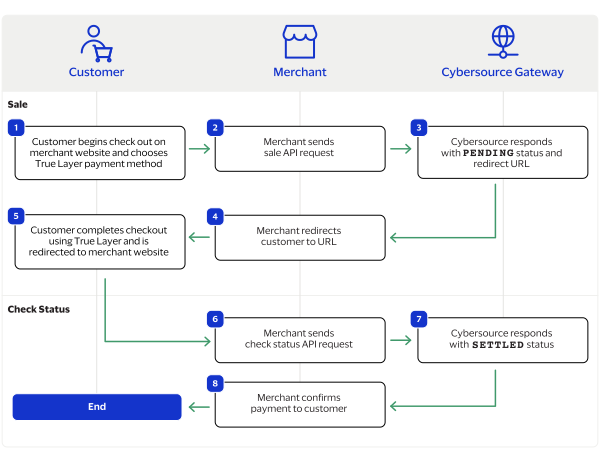
purchaseTotals_grandTotalAmount
field.
For information about how to calculate the grand total, see Calculating the Grand Total for Line Items.

Endpoints

Set the
apSaleService_run
field to
true
, and send the request to one of these endpoints:
Production:
https://ics2ws.ic3.com/commerce/1.x/transactionProcessor
Test:
https://ics2wstest.ic3.com/commerce/1.x/transactionProcessor

Response Statuses

Cybersource
responds to your sale request with one of these statuses in the
apSaleReply_status
field:
Sale Status
  • FAILED
    : The sale cannot be completed.
  • PENDING
    : The sale request is accepted but is not completed. Request the check status service every 60 minutes to retrieve status updates. See Check a Request Status.
The sale service also responds with a reason code in the
apSaleReply_reasonCode
field.
For more information about reason codes, see Reason Codes and Response Codes.
When you send a check status request to retrieve an updated sale status, these are the possible responses:
Check Status for a Sale
  • ABANDONED
    : The customer did not complete the payment using the redirect URL.
  • FAILED
    : The sale cannot be completed.
  • FUNDED
    : The settled amount is funded to the merchant bank account.
  • PENDING
    : The sale request is accepted but is not complete. Continue sending the check status request every 60 minutes.
  • SETTLED
    : The sale request is settled for the requested amount. You cannot receive a settled status until the customer has completed checking out.

Processing a Sale

Follow these steps to successfully process sale.
  1. Send a
    POST
    request to the
    https://ics2ws.ic3.com/commerce/1.x/transactionProcessor
    endpoint and include these required fields:
    Set to
    BIZUM
    .
    Set to the URL to which the customer is redirected after successfully completing the Bizum payment.
    Add
    ?action=cancel
    to the end of the URL to help identify the response.
    Set to the URL to which the customer is redirected after successfully completing the Bizum payment.
    Add
    ?action=failure
    to the end of the URL to help identify the response.
    Set to the URL to which the customer is redirected after successfully completing the Bizum payment.
    Add
    ?action=success
    to the end of the URL to help identify the response.
    Set to
    true
    .
    Set to
    PL
    .
    Set to
    EUR
    .
  2. You can include these optional fields in the request:
    Replace the
    #
    character with a sequential number starting from
    0
    .
    Replace the
    #
    character with a sequential number starting from
    0
    .
    Replace the
    #
    character with a sequential number starting from
    0
    .
    Replace the
    #
    character with a sequential number starting from
    0
    .
    Replace the
    #
    character with a sequential number starting from
    0
    .
    Replace the
    #
    character with a sequential number starting from
    0
    .
    If this field is present, the
    purchaseTotals_currency
    field is optional.
    Replace the
    #
    character with a sequential number starting from
    0
    .
    Replace the
    #
    character with a sequential number starting from
    0
    .
  3. Redirect the customer to the returned URL in the
    merchantURL
    response field.
    <merchantURL>https://Bizum.limonetikqualif.com/PayPage/126255418330</merchantURL>
  4. When the customer completes the checkout using their Bizum credentials, the customer is redirected to the merchant website based on the URL that you included in the
    apSaleService_successURL
    field.
  5. Save the request ID in the
    requestID
    field from the sale response. Include the request ID in a check status request to confirm that the payment is complete.
    <requestID>7652220570346107104604</requestID>

Example: Processing a Sale

Request
<requestMessage xmlns="urn:schemas-cybersource-com:transaction-data-1.211">             <merchantID>nrphotography</merchantID>             <merchantReferenceCode>Bizum-Sale</merchantReferenceCode>             <billTo>                 <firstName>Test</firstName>                 <lastName>Testerson</lastName>                 <country>ES</country>             </billTo>             <purchaseTotals>                 <currency>EUR</currency>                 <grandTotalAmount>10.00</grandTotalAmount>             </purchaseTotals>             <apPaymentType>BIZ</apPaymentType>             <apSaleService run="true">                 <cancelURL>https://www.testcancel.com?action=cancel</cancelURL>                 <successURL>https://www.testsuccess.com?action=success</successURL>                 <failureURL>https://www.testfailure.com?action=failure</failureURL>             </apSaleService> </requestMessage>
Response to a Successful Request
<soap:Body>         <c:replyMessage xmlns:c="urn:schemas-cybersource-com:transaction-data-1.211">             <c:merchantReferenceCode>Bizum-Sale</c:merchantReferenceCode>             <c:requestID>7652220570346107104604</c:requestID>             <c:decision>ACCEPT</c:decision>             <c:reasonCode>100</c:reasonCode>             <c:requestToken>AxjnrwSTntPksYcQwu1cANgZYjWmjCTSjsrDKCnv09vVbnpCvoU3oZNJMvRjDLC/Sc9p8ljDiGF2rgAA+Qqg</c:requestToken>             <c:purchaseTotals>                 <c:currency>EUR</c:currency>             </c:purchaseTotals>             <c:apSaleReply>                 <c:reasonCode>100</c:reasonCode>                 <c:paymentStatus>pending</c:paymentStatus>                 <c:responseCode>00001</c:responseCode>                 <c:merchantURL>https://Bizum.limonetikqualif.com/PayPage/126255418330</c:merchantURL>                 <c:processorTransactionID>126255418330</c:processorTransactionID>                 <c:reconciliationID>XFZ40IRG2X2A</c:reconciliationID>                 <c:amount>10.00</c:amount>                 <c:processorResponse>00001</c:processorResponse>                 <c:dateTime>2025-12-08T19:27:37Z</c:dateTime>             </c:apSaleReply> </c:replyMessage>

Check a Request Status

You can retrieve the status of a pending sale or refund by sending a check status request.
When a pending status updates, a check status response includes the transaction's new status. Thunes sometimes needs to review a service request, which causes a transaction to initially respond with a pending status. The check status request requires you to include the request ID from the pending transaction response you are checking the status of. The request ID is located in the
requestID
response field.
Cybersource
recommends that you send a check status request hourly until the status updates from pending.

Endpoints

Set the
apCheckStatusService_run
field to
true
, and send the request to one of these endpoints:
Production:
https://ics2ws.ic3.com/commerce/1.x/transactionProcessor
Test:
https://ics2wstest.ic3.com/commerce/1.x/transactionProcessor

Response Statuses

Cybersource
responds to your check status request with one of these statuses in the
apCheckStatusReply_status
field:
Check Status Responses for a Sale
  • ABANDONED
    : The customer did not complete the payment using the redirect URL.
  • FAILED
    : The service request failed. A failed request can be due to either Bizum rejecting the transaction or a technical error.
  • FUNDED
    : The settled amount is funded to the merchant bank account.
  • PENDING
    : The service request is accepted but is not completed. Request the check status service to retrieve status updates.
  • SETTLED
    : The sale request is settled for the requested amount.
Check Status Responses for a Refund
  • FAILED
    : The service request failed. A failed request can be due to either Bizum rejecting the transaction or a technical error.
  • REFUNDED
    : The settled amount is successfully refunded.
The check status service also responds with a reason code in the
apCheckStatusReply_reasonCode
field.
For more information about reason codes, see Reason Codes and Response Codes.

Required Fields for Checking Status

Set to the request ID included in the service response.
Set to
true
.
Set to
BIZUM
.

Example: Checking a Request Status

Request
<requestMessage xmlns="urn:schemas-cybersource-com:transaction-data-1.211">             <merchantID>nrphotography</merchantID>             <merchantReferenceCode>Bizum-Check-Status</merchantReferenceCode>             <apPaymentType>BIZ</apPaymentType>             <apCheckStatusService run=   "true">                 <checkStatusRequestID>7652220570346107104604</checkStatusRequestID>             </apCheckStatusService> </requestMessage>
Response to a Successful Request
<c:replyMessage xmlns:c="urn:schemas-cybersource-com:transaction-data-1.211">             <c:merchantReferenceCode>Bizum-Check-Status</c:merchantReferenceCode>             <c:requestID>7652221868726963804605</c:requestID>             <c:decision>ACCEPT</c:decision>             <c:reasonCode>100</c:reasonCode>             <c:requestToken>AxjnrwSTntPpTmXqghm9ANgZYjWmjCTSjsrDKEnv09vXxvpCvoU3oZNJMvRjDLC/Sc9p8ljDiGF2rgAAHwrM</c:requestToken>             <c:apCheckStatusReply>                 <c:reasonCode>100</c:reasonCode>                 <c:reconciliationID>XFZ40IRG2X2B</c:reconciliationID>                 <c:paymentStatus>pending</c:paymentStatus>                 <c:processorResponse>00001</c:processorResponse>                 <c:processorToken>126255418330</c:processorToken>             </c:apCheckStatusReply> </c:replyMessage>

Refund a Payment

You can refund a completed payment for the full amount or a partial amount by sending a refund request. Bizum supports multiple refund requests when the total amount of all of the refund requests is less than the captured amount.
Requesting a refund requires the request ID from the sale response. The request ID is located in the
requestID
response field.

Endpoints

Set the
apRefundService_run
field to
true
, and send the request to one of these endpoints:
Production:
https://ics2ws.ic3.com/commerce/1.x/transactionProcessor
Test:
https://ics2wstest.ic3.com/commerce/1.x/transactionProcessor

Response Statuses

Cybersource
responds to your refund request with one of these statuses as the
apRefundReply_status
field value:
  • FAILED
    : The refund request failed.
  • REFUNDED
    : The refund request is accepted but is not completed. Request the check status service to retrieve status updates. For more information, see Check a Transaction Status.
The refund service also responds with a reason code as the
apRefundReply_reasonCode
field value.
For more information about reason codes, see Reason Codes and Response Codes.
When you send a check status request to retrieve an updated refund status, these are the possible responses:
  • FAILED
    : The refund request failed.
  • REFUNDED
    : The settled payment is successfully refunded.

Required Fields for Refunding a Payment

Example: Refunding a Payment

Request
<requestMessage xmlns="urn:schemas-cybersource-com:transaction-data-1.211">             <merchantID>nrphotography</merchantID>             <merchantReferenceCode>Bizum-Refund</merchantReferenceCode>             <purchaseTotals>                 <currency>EUR</currency>                 <grandTotalAmount>10.00</grandTotalAmount>             </purchaseTotals>             <apPaymentType>BIZ</apPaymentType>             <apRefundService run="true">                 <refundRequestID>7652220570346107104604</refundRequestID>             </apRefundService> </requestMessage>
Response to a Successful Request
<c:replyMessage xmlns:c="urn:schemas-cybersource-com:transaction-data-1.211">             <c:merchantReferenceCode>Bizum-Refund</c:merchantReferenceCode>             <c:requestID>7478637798796676103609</c:requestID>             <c:decision>ACCEPT</c:decision>             <c:reasonCode>100</c:reasonCode>             <c:requestToken>AxjnrwSTlWryznv9JP25ANgZYiy6kGDXhyoLKQnkH8hOI/pCvoUFYZNJMvRjDLC/Scq1da8KzRZD24AAxzUC</c:requestToken>             <c:purchaseTotals>                 <c:currency>EUR</c:currency>             </c:purchaseTotals>             <c:apRefundReply>                 <c:reasonCode>100</c:reasonCode>                 <c:transactionID>973340962485</c:transactionID>                 <c:status>REFUNDED</c:status>                 <c:processorResponse>00006</c:processorResponse>                 <c:amount>10.00</c:amount>                 <c:dateTime>2025-12-08T21:43:01Z</c:dateTime>                 <c:reconciliationID>XEKTAAWCJA2H</c:reconciliationID>                 <c:returnRef>KL9RNANN5WZ7</c:returnRef>                 <c:paymentStatus>refunded</c:paymentStatus>                 <c:responseCode>00006</c:responseCode>             </c:apRefundReply> </c:replyMessage>

CODi Transaction Requests

CODi is a bank transfer payment method offered by the Thunes payment service provider (PSP) that you can offer your customers through
Cybersource
. You can process a payment by sending a sale API request to
Cybersource
.
Cybersource
sends your request to Thunes. Thunes approves the transaction and sends the request to the processor for settlement. You can also send a check status API request to retrieve status updates of the processing sale. CODi does not support refunds. To issue a refund to the customer, you must provide an alternative method of reimbursement, such as cash or in-store credit.
This section describes how to process CODi transactions using the
Simple Order API
.

Requirement

You must receive a Thunes merchant ID before you can begin processing payments. Contact your
Cybersource
account manager for more information.

Supported Country and Currency

This table lists the country and currency that is supported by CODi.
Supported Country and Currency
Supported Country
Country Code
Supported Currency
Currency Code
Mexico
MX
Mexican peso
MXN

Shipping Policy

You can ship purchased goods when the sale status is
SETTLED
.

CODi by Thunes Transaction Workflow

This workflow describes the sequence of events that comprises a successful CODi payment and refund.

Figure:

CODi Transaction Workflow
  1. The customer begins to checkout on your website and chooses the CODi payment method.
  2. You send a sale API request to
    Cybersource
    . For more information, see Process a Sale.
  3. Cybersource
    responds to you with a
    PENDING
    status, CODi redirect URL, and sale request ID.
  4. You redirect the customer to the CODi URL.
  5. The customer completes the checkout using CODi and is redirected to your website.
  6. You send a check status API request to
    Cybersource
    . For more information, see Check a Status.
  7. Cybersource
    responds to you with a
    SETTLED
    status.
  8. You confirm the payment to the customer.

Transaction Statuses Workflow

This workflow describes the sequence of possible statuses you can receive when processing a sale.
  1. The merchant sends a sale API request to
    Cybersource
    and receives one of these possible statuses:
    • FAILED
      : The sale cannot be completed.
    • PENDING
      : The sale request is accepted but is not completed. Request the check status service to retrieve status updates.
  2. The merchant sends a check status API request to
    Cybersource
    to verify the status of the sale and receives one of these statuses:
    • ABANDONED
      : The customer did not complete the payment using the redirect URL.
    • FAILED
      : The service request failed. A failed request can be due to either a rejected transaction or a technical error.
    • PENDING
      : The sale request is accepted but is not completed. Request the check status service again after 60 minutes to retrieve a status update.
    • SETTLED
      : The sale request is settled for the requested amount. When the settled amount is deposited into the merchant's bank account, the status updates to
      FUNDED
      .

Process a Sale

This section describes how to send a sale request to process a payment.
A sale request authorizes and captures a payment in the same request. A successful sale response includes an CODi redirect URL and a
PENDING
status. Redirect the customer to the CODi URL to allow the customer to complete the checkout using their CODi account. When the customer completes the checkout, the customer is redirected to your website.
When you receive a successful response, save the sale request ID in the
requestID
response field to perform a follow-on check status request.

Endpoints

Set the
apSaleService_run
field to
true
, and send the request to one of these endpoints:
Production:
https://ics2ws.ic3.com/commerce/1.x/transactionProcessor
Test:
https://ics2wstest.ic3.com/commerce/1.x/transactionProcessor

Processing a Sale

Follow these steps to successfully process sale.
  1. Send a
    POST
    request to the
    https://ics2ws.ic3.com/commerce/1.x/transactionProcessor
    endpoint and include these required fields:
    Set to
    COI
    .
    Set to the URL to which the customer is redirected after the payment is cancelled.
    Add
    ?action=cancel
    to the end of the URL to help identify the response.
    Set to the URL to which the customer is redirected after the payment fails to complete.
    Add
    ?action=failure
    to the end of the URL to help identify the response.
    Set to the URL to which the customer is redirected after successfully completing the payment.
    Add
    ?action=success
    to the end of the URL to help identify the response.
    Set to
    true
    .
    Set to
    MX
    .
    Set to
    MXN
    .
  2. You can include these optional fields in the request:
    Replace the
    #
    character with a sequential number starting from
    0
    .
    Replace the
    #
    character with a sequential number starting from
    0
    .
    Replace the
    #
    character with a sequential number starting from
    0
    .
    Replace the
    #
    character with a sequential number starting from
    0
    .
    Replace the
    #
    character with a sequential number starting from
    0
    .
    Replace the
    #
    character with a sequential number starting from
    0
    .
    If this field is present, the
    purchaseTotals_currency
    field is optional.
    Replace the
    #
    character with a sequential number starting from
    0
    .
    Replace the
    #
    character with a sequential number starting from
    0
    .
  3. Redirect the customer to the returned URL in the
    merchantURL
    response field.
    <merchantURL></merchantURL>
  4. When the customer completes the checkout using their CODi credentials, the customer is redirected to the merchant website based on the URL that you included in the
    apSaleService_successURL
    request field.
  5. Save the request ID in the
    requestID
    field from the sale response. Include the request ID in a check status request to confirm that the payment is complete.
    <requestID></requestID>

Example: Processing a Sale

Request
<requestMessage xmlns="urn:schemas-cybersource-com:transaction-data-1.211"> <merchantID>altpay_test</merchantID> <merchantReferenceCode>codi-Sale</merchantReferenceCode> <billTo> <firstName>Test</firstName> <lastName>Testerson</lastName> <country>MX</country> <email>test@email.com</email> </billTo> <purchaseTotals> <currency>MXN</currency> <grandTotalAmount>20.00</grandTotalAmount> </purchaseTotals> <apPaymentType>COI</apPaymentType> <apSaleService run="true"> <cancelURL>https://www.testcancel.com?action=cancel</cancelURL> <successURL>https://www.testsuccess.com?action=success</successURL> <failureURL>https://www.testfailure.com?action=failure</failureURL> </apSaleService> </requestMessage>
Response to a Successful Request
<replyMessage xmlns="urn:schemas-cybersource-com:transaction-data-1.211"> <merchantReferenceCode>codi-Sale</merchantReferenceCode> <requestID>7502721821026418103612</requestID> <decision>ACCEPT</decision> <reasonCode>100</reasonCode> <requestToken>AxjnrwSTlrkucRmDhxU8ANgZYiy69aFZpN5rCynkIGzFOzyC/oKGMMmkmXoxX6rUJOWuS5xGYOHFTwAA+Thq</requestToken> <purchaseTotals> <currency>MXN</currency> </purchaseTotals> <apSaleReply> <reasonCode>100</reasonCode> <paymentStatus>pending</paymentStatus> <responseCode>00001</responseCode> <merchantURL>https://payment.limonetikqualif.com/STP/Order/PayPage/685831861588</merchantURL> <processorTransactionID>685831861588</processorTransactionID> <reconciliationID>XEKWVBYR7M0Y</reconciliationID> <amount>20.00</amount> <processorResponse>00001</processorResponse> <dateTime>2025-06-18T18:43:03Z</dateTime> </apSaleReply> </replyMessage>

Response Statuses for Processing a Sale

Cybersource
responds to your sale request with one of these statuses in the
field:
  • FAILED
    : The sale cannot be completed.
  • PENDING
    : The sale request is accepted but is not completed. Send a check status request as often as necessary to obtain the information that you need. For more information, see Check a Status.

Check a Status

This section describes how to retrieve the current status of a sale. Send a check status request to know if a pending sale is settled. Use the check status request as often as necessary to obtain the information that you need.
The check status request requires the request ID from the sale response. The request ID is in the
requestID
response field.

Endpoints

Set the
apCheckStatusService_run
field to
true
, and send the request to one of these endpoints:
Production:
https://ics2ws.ic3.com/commerce/1.x/transactionProcessor
Test:
https://ics2wstest.ic3.com/commerce/1.x/transactionProcessor

Required Fields for Checking a Status

Set to the request ID included in the sale or refund response.
Set to
true
.
Set to
COI
.

Example: Checking a Status

Request
<requestMessage xmlns="urn:schemas-cybersource-com:transaction-data-1.211"> <merchantID>altpay_test</merchantID> <merchantReferenceCode>Check-Status</merchantReferenceCode> <apPaymentType>COI</apPaymentType> <apCheckStatusService run="true"> <checkStatusRequestID>7502719131426345503612</checkStatusRequestID> </apCheckStatusService> </requestMessage>
Response to a Successful Request
<replyMessage xmlns="urn:schemas-cybersource-com:transaction-data-1.211"> <merchantReferenceCode>Check-Status</merchantReferenceCode> <requestID>7502720670596253703610</requestID> <decision>ACCEPT</decision> <reasonCode>100</reasonCode> <requestToken>AxjnrwSTlrkqWsoePV26ANgZYiy6laFZoxa1GUnkIGzCuTyC/oKGMMmkmXoxX6rUJOWuSTi7DKcy3wAAzitR</requestToken> <apCheckStatusReply> <reasonCode>100</reasonCode> <reconciliationID>XEKTVBYQEVQJ</reconciliationID> <paymentStatus>pending</paymentStatus> <processorResponse>00001</processorResponse> <processorToken>396139740982</processorToken> </apCheckStatusReply> </replyMessage>

Response Statuses for Checking a Status

Cybersource
responds to your check status request with one of these statuses in the
field:
Check Status Responses for a Sale
  • ABANDONED
    : The customer did not complete the payment using the redirect URL.
  • FAILED
    : The service request failed. A failed request can be due to either CODi rejecting the transaction or a technical error.
  • FUNDED
    : The settled amount is funded to the merchant bank account.
  • PENDING
    : The service request is accepted but is not completed. Request the check status service to retrieve status updates.
  • SETTLED
    : The sale request is settled for the requested amount.

MobilePay Transaction Requests

MobilePay is an e-wallet payment method offered by the Thunes payment service provider (PSP) that you can offer your customers through
Cybersource
. With MobilePay you can process payments, refund payments, and retrieve the status of a pending payment or refund.
This section describes how to process MobilePay transactions using the
Simple Order API
.

Requirement

You must receive a Thunes merchant ID before you can begin processing payments. Contact your
Cybersource
account manager for more information.

Supported Country and Currency

This table lists the country and currency that is supported by MobilePay.
Supported Country and Currency
Supported Country
Country Code
Supported Currency
Currency Code
Denmark
DK
Danish krone
DKK

Shipping Policy

You can ship purchased goods when the sale status is
SETTLED
.

MobilePay by Thunes Transaction Workflow

This workflow describes the sequence of events that comprises a successful MobilePay payment and refund.

Figure:

MobilePay by Thunes Transaction Workflow
  1. The customer begins to checkout on your website and chooses the MobilePay payment method.
  2. You send a sale API request to
    Cybersource
    . For more information, see Process a Sale.
  3. Cybersource
    responds to you with a
    PENDING
    status, MobilePay redirect URL, and sale request ID.
  4. You redirect the customer to the MobilePay URL.
  5. The customer completes the checkout using MobilePay and is redirected to your website.
  6. You send a check status API request to
    Cybersource
    . For more information, see Check a Status.
  7. Cybersource
    responds to you with a
    SETTLED
    status.
  8. You confirm the payment to the customer.
  9. The customer returns the purchase.
  10. You send a refund API request to
    Cybersource
    with the sale request ID. For more information, see Refund a Payment.
  11. Cybersource
    responds to you with a
    REFUNDED
    status and refund request ID.
  12. You send a check status request to
    Cybersource
    to verify the refund status.
  13. Cybersource
    respond to you with a
    REFUNDED
    status.
  14. You confirm the refund to the customer.

Transaction Statuses Workflow

This workflow shows the statuses that can occur at each stage of processing a sale and refund.

Figure:

Transaction Statuses Workflow
  1. When a customer begins to check out, you send a sale request to
    Cybersource
    and receive one of these possible statuses:
    • FAILED
      : The sale cannot be completed.
    • PENDING
      : The sale request is accepted but is not completed. Send the check status request to retrieve status updates.
  2. You send a check status request to
    Cybersource
    to verify the sale status and receive one of these statuses:
    • ABANDONED
      : The customer did not complete the payment using the redirect URL.
    • FAILED
      : The sale request failed. A failed request can be due to either a rejection or a technical error.
    • PENDING
      : The sale request is accepted but is not completed. Send the check status request as often as necessary to obtain the information that you need.
    • SETTLED
      : The sale request is settled for the requested amount. When the settled amount is deposited into the merchant's bank account, the status updates to
      FUNDED
      .
  3. If a customer returns a purchase, you send a refund request to
    Cybersource
    and receive one of these possible statuses:
    • FAILED
      : The refund request failed.
    • REFUNDED
      : The refund request is accepted but is not completed. Request the check status service to retrieve status updates.
  4. You send a check status request to
    Cybersource
    to verify the refund status and receive one of these statuses:
    • FAILED
      : The refund could not be completed.
    • REFUNDED
      : The settled amount is successfully refunded.

Process a Sale

This section describes how to send a sale request to process a payment.
A sale request authorizes and captures a payment in the same request. A successful sale response includes an MobilePay redirect URL and a
PENDING
status. Redirect the customer to the MobilePay URL to allow the customer to complete the checkout using their MobilePay account. When the customer completes the checkout, the customer is redirected to your website.
When you receive a successful response, save the sale request ID in the
requestID
response field to perform a follow-on check status request or refund request.

Calculating the Grand Total

Include the grand total in the request by using the
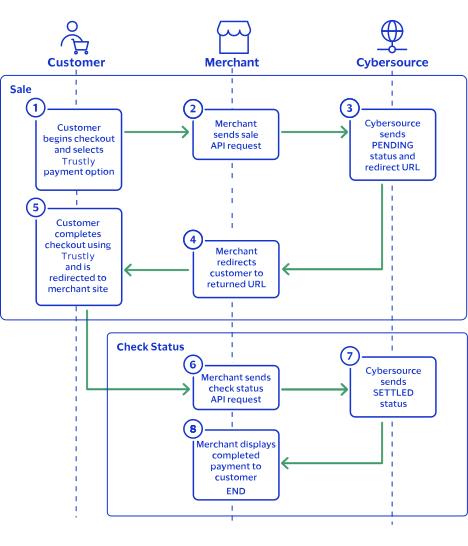
purchaseTotals_grandTotalAmount
field.
For information about how to calculate the grand total, see Calculating the Grand Total for Line Items.

Endpoints

Set the
apSaleService_run
field to
true
, and send the request to one of these endpoints:
Production:
https://ics2ws.ic3.com/commerce/1.x/transactionProcessor
Test:
https://ics2wstest.ic3.com/commerce/1.x/transactionProcessor

Processing a Sale

Follow these steps to successfully process sale.
  1. Send a
    POST
    request to the
    https://ics2ws.ic3.com/commerce/1.x/transactionProcessor
    endpoint and include these required fields:
    Set to
    MOP
    .
    Set to the URL to which the customer is redirected after the payment is cancelled.
    Add
    ?action=cancel
    to the end of the URL to help identify the response.
    Set to the URL to which the customer is redirected after the payment fails to complete.
    Add
    ?action=failure
    to the end of the URL to help identify the response.
    Set to the URL to which the customer is redirected after successfully completing the payment.
    Add
    ?action=success
    to the end of the URL to help identify the response.
    Set to
    true
    .
    Set to
    DK
    .
    Set to
    DKK
    .
  2. You can include these optional fields in the request:
    Replace the
    #
    character with a sequential number starting from
    0
    .
    Replace the
    #
    character with a sequential number starting from
    0
    .
    Replace the
    #
    character with a sequential number starting from
    0
    .
    Replace the
    #
    character with a sequential number starting from
    0
    .
    Replace the
    #
    character with a sequential number starting from
    0
    .
    Replace the
    #
    character with a sequential number starting from
    0
    .
    If this field is present, the
    purchaseTotals_currency
    field is optional.
    Replace the
    #
    character with a sequential number starting from
    0
    .
    Replace the
    #
    character with a sequential number starting from
    0
    .
  3. Redirect the customer to the returned URL in the
    merchantURL
    response field.
    <successURL>https://www.testsuccess.com?action=success</successURL>
  4. When the customer completes the checkout using their MobilePay credentials, the customer is redirected to the merchant website based on the URL that you included in the
    apSaleService_successURL
    request field.
  5. Save the request ID in the
    requestID
    field from the sale response. Include the request ID in a check status request to confirm that the payment is complete.
    <requestID>7478635704886789703607</requestID>

Example: Processing a Sale

Request
<requestMessage xmlns="urn:schemas-cybersource-com:transaction-data-1.211"> <merchantID>nrphotography</merchantID> <merchantReferenceCode>MobilePay-Sale</merchantReferenceCode> <billTo> <firstName>Test</firstName> <lastName>Testerson</lastName> <country>DK</country> <email>test@email.com</email> </billTo> <purchaseTotals> <currency>DKK</currency> <grandTotalAmount>43.00</grandTotalAmount> </purchaseTotals> <apPaymentType>MOP</apPaymentType> <apSaleService run="true"> <cancelURL>https://www.testcancel.com?action=cancel</cancelURL> <successURL>https://www.testsuccess.com?action=success</successURL> <failureURL>https://www.testfailure.com?action=failure</failureURL> </apSaleService> </requestMessage>
Response to a Successful Request
<replyMessage xmlns="urn:schemas-cybersource-com:transaction-data-1.211"> <merchantReferenceCode>MobilePay-Sale</merchantReferenceCode> <requestID>7521575278326169004604</requestID> <decision>ACCEPT</decision> <reasonCode>100</reasonCode> <requestToken>AxjnrwSTl77TYJ+3LOo8ANgZYjWmrWHRby3EeCnvzQMy1RoDYZiiPDJpJl6MYZYX6Tl77TYJ+3LOo8AA5iaI</requestToken> <purchaseTotals> <currency>DKK</currency> </purchaseTotals> <apSaleReply> <reasonCode>100</reasonCode> <paymentStatus>pending</paymentStatus> <responseCode>00001</responseCode> <merchantURL>https://lmk.limonetikqualif.com/mobilepay/PayPage/650645092585</merchantURL> <processorTransactionID>650645092585</processorTransactionID> <reconciliationID>XFZ55CQ7K8GA</reconciliationID> <amount>43.00</amount> <processorResponse>00001</processorResponse> <dateTime>2025-07-10T14:25:29Z</dateTime> </apSaleReply> </replyMessage>

Response Statuses for Processing a Sale

Cybersource
responds to your sale request with one of these statuses in the
field:
  • FAILED
    : The sale cannot be completed.
  • PENDING
    : The sale request is accepted but is not completed. Send a check status request as often as necessary to obtain the information that you need. For more information, see Check a Status.

Check a Status

This section describes how to retrieve the current status of a sale or refund. Send a check status request to know if a pending sale is settled, or to verify that a refund request is refunded. Use the check status request as often as necessary to obtain the information that you need.
The check status request requires the request ID from the sale or refund response. The request ID is in the
requestID
response field.

Endpoints

Set the
apCheckStatusService_run
field to
true
, and send the request to one of these endpoints:
Production:
https://ics2ws.ic3.com/commerce/1.x/transactionProcessor
Test:
https://ics2wstest.ic3.com/commerce/1.x/transactionProcessor

Required Fields for Checking a Status

Set to the request ID included in the sale or refund response.
Set to
true
.
Set to
MOP
.

Example: Checking a Status

Request
<requestMessage xmlns="urn:schemas-cybersource-com:transaction-data-1.211"> <merchantID>nrphotography</merchantID> <merchantReferenceCode>Check-Status</merchantReferenceCode> <apPaymentType>MOP</apPaymentType> <apCheckStatusService run="true"> <checkStatusRequestID>7520730687846156704605</checkStatusRequestID> </apCheckStatusService> </requestMessage>
Response to a Successful Request
<replyMessage xmlns="urn:schemas-cybersource-com:transaction-data-1.211"> <merchantReferenceCode>Check-Status</merchantReferenceCode> <requestID>7520733091706238904606</requestID> <decision>ACCEPT</decision> <reasonCode>100</reasonCode> <requestToken>AxjnrwSTl7MjVFrrp6keANgZYjWmdqHRr1pdRknvzPgX7ZoDYZiiNDJpJl6MYZYX6Tl7Mayg6hXZtdAA7jiI</requestToken> <apCheckStatusReply> <reasonCode>100</reasonCode> <reconciliationID>XFZ3ZCQWVKT2</reconciliationID> <paymentStatus>settled</paymentStatus> <processorResponse>00004</processorResponse> <processorToken>384920815203</processorToken> </apCheckStatusReply> </replyMessage>

Response Statuses for Checking a Status

Cybersource
responds to your check status request with one of these statuses in the
field:
Check Status Responses for a Sale
  • ABANDONED
    : The customer did not complete the payment using the redirect URL.
  • FAILED
    : The service request failed. A failed request can be due to either MobilePay rejecting the transaction or a technical error.
  • FUNDED
    : The settled amount is funded to the merchant bank account.
  • PENDING
    : The service request is accepted but is not completed. Request the check status service to retrieve status updates.
  • SETTLED
    : The sale request is settled for the requested amount.
Check Status Responses for a Refund
  • FAILED
    : The service request failed. A failed request can be due to either MobilePay rejecting the transaction or a technical error.
  • REFUNDED
    : The settled amount is successfully refunded.

Refund a Payment

This section describes how to refund a payment. You can refund a settled payment for the full amount or a partial amount by sending a refund request. Multiple partial refund requests are also supported, and the total amount of all of the refund requests must be less than the settled amount.
Requesting a refund requires the sale request ID from the sale response. The sale request ID is in the
requestID
response field.

Endpoints

Set the
apRefundService_run
field to
true
, and send the request to one of these endpoints:
Production:
https://ics2ws.ic3.com/commerce/1.x/transactionProcessor
Test:
https://ics2wstest.ic3.com/commerce/1.x/transactionProcessor

Required Fields for Refunding a Payment

Example: Refunding a Payment

Request
<requestMessage xmlns="urn:schemas-cybersource-com:transaction-data-1.211"> <merchantID>nrphotography</merchantID> <merchantReferenceCode>MobilePay-Refund</merchantReferenceCode> <purchaseTotals> <currency>DKK</currency> <grandTotalAmount>43.00</grandTotalAmount> </purchaseTotals> <apPaymentType>MOP</apPaymentType> <apRefundService run="true"> <refundRequestID>7520730687846156704605</refundRequestID> </apRefundService> </requestMessage>
Response to a Successful Request
<replyMessage xmlns="urn:schemas-cybersource-com:transaction-data-1.211"> <merchantReferenceCode>MobilePay-Refund</merchantReferenceCode> <requestID>7520733601546193504601</requestID> <decision>ACCEPT</decision> <reasonCode>100</reasonCode> <requestToken>AxjnrwSTl7MlJA1JColZANgZYjWmjCHRr1pUGynvzPgZOxoDYZiiNDJpJl6MYZYX6Tl7Mayg6hXZtdAA7jiI</requestToken> <purchaseTotals> <currency>DKK</currency> </purchaseTotals> <apRefundReply> <reasonCode>100</reasonCode> <transactionID>384920815203</transactionID> <status>REFUNDED</status> <processorResponse>00006</processorResponse> <amount>43.00</amount> <dateTime>2025-07-09T15:02:44Z</dateTime> <reconciliationID>XFZ40CQWVJAY</reconciliationID> <returnRef>CFXPACDEZAZS</returnRef> <paymentStatus>refunded</paymentStatus> <responseCode>00006</responseCode> </apRefundReply> </replyMessage>

Response Statuses for Refunding a Payment

Cybersource
responds to your refund request with one of these statuses in the
field:
  • FAILED
    : The refund request failed.
  • REFUNDED
    : The refund request is accepted but is not completed. Send a check status request to verify that the status is refunded. For more information, see Check a Status.

Multibanco Transaction Requests

Multibanco is a payment method offered by the Thunes payment service provider (PSP) that you can offer your customers through
Cybersource
. With Multibanco you can process payments, refund payments, and retrieve the status of a pending payment or refund.
This section describes how to process Multibanco transactions using the
Simple Order API
.

Requirement

You must receive a Thunes merchant ID before you can begin processing payments. Contact your
Cybersource
account manager for more information.

Supported Country and Currency

This table lists the country and currency that is supported by Multibanco.
Supported Country and Currency
Supported Country
Country Code
Supported Currency
Currency Code
Portugal
PT
Euro
EUR

Shipping Policy

You can ship purchased goods when the sale status is
SETTLED
.

Multibanco by Thunes Transaction Workflow

This workflow describes the sequence of events that comprises a successful Multibanco payment and refund.

Figure:

Multibanco Transaction Workflow
  1. The customer begins to checkout on your website and chooses the Multibanco payment method.
  2. You send a sale API request to
    Cybersource
    . For more information, see Process a Sale.
  3. Cybersource
    responds to you with a
    PENDING
    status, Multibanco redirect URL, and sale request ID.
  4. You redirect the customer to the Multibanco URL.
  5. The customer completes the checkout using Multibanco and is redirected to your website.
  6. You send a check status API request to
    Cybersource
    . For more information, see Check a Status.
  7. Cybersource
    responds to you with a
    SETTLED
    status.
  8. You confirm the payment to the customer.
  9. The customer returns the purchase.
  10. You send a refund API request to
    Cybersource
    with the sale request ID. For more information, see Refund a Payment.
  11. Cybersource
    responds to you with a
    REFUNDED
    status and refund request ID.
  12. You send a check status request to
    Cybersource
    to verify the refund status.
  13. Cybersource
    respond to you with a
    REFUNDED
    status.
  14. You confirm the refund to the customer.

Transaction Statuses Workflow

This workflow shows the statuses that can occur at each stage of processing a sale and refund.

Figure:

Transaction Statuses Workflow
  1. When a customer begins to check out, you send a sale request to
    Cybersource
    and receive one of these possible statuses:
    • FAILED
      : The sale cannot be completed.
    • PENDING
      : The sale request is accepted but is not completed. Send the check status request to retrieve status updates.
  2. You send a check status request to
    Cybersource
    to verify the sale status and receive one of these statuses:
    • ABANDONED
      : The customer did not complete the payment using the redirect URL.
    • FAILED
      : The sale request failed. A failed request can be due to either a rejection or a technical error.
    • PENDING
      : The sale request is accepted but is not completed. Send the check status request as often as necessary to obtain the information that you need.
    • SETTLED
      : The sale request is settled for the requested amount. When the settled amount is deposited into the merchant's bank account, the status updates to
      FUNDED
      .
  3. If a customer returns a purchase, you send a refund request to
    Cybersource
    and receive one of these possible statuses:
    • FAILED
      : The refund request failed.
    • REFUNDED
      : The refund request is accepted but is not completed. Request the check status service to retrieve status updates.
  4. You send a check status request to
    Cybersource
    to verify the refund status and receive one of these statuses:
    • FAILED
      : The refund could not be completed.
    • REFUNDED
      : The settled amount is successfully refunded.

Process a Sale

This section describes how to send a sale request to process a payment.
A sale request authorizes and captures a payment in the same request. A successful sale response includes an Multibanco redirect URL and a
PENDING
status. Redirect the customer to the Multibanco URL to allow the customer to complete the checkout using their Multibanco account. When the customer completes the checkout, the customer is redirected to your website.
When you receive a successful response, save the sale request ID in the
requestID
response field to perform a follow-on check status request or refund request.

Calculating the Grand Total

Include the grand total in the request by using the
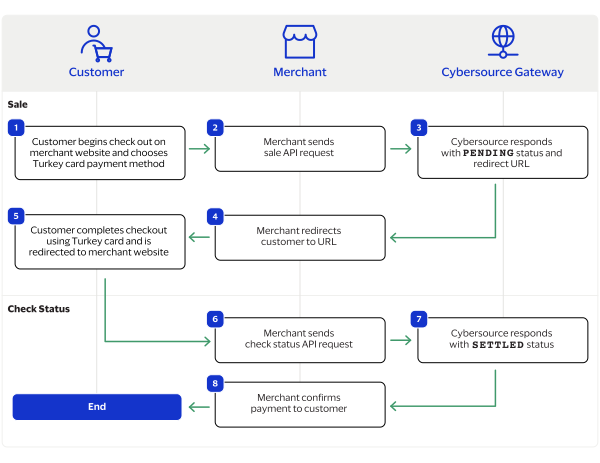
purchaseTotals_grandTotalAmount
field.
For information about how to calculate the grand total, see Calculating the Grand Total for Line Items.

Endpoints

Set the
apSaleService_run
field to
true
, and send the request to one of these endpoints:
Production:
https://ics2ws.ic3.com/commerce/1.x/transactionProcessor
Test:
https://ics2wstest.ic3.com/commerce/1.x/transactionProcessor

Processing a Sale

Follow these steps to successfully process sale.
  1. Send a
    POST
    request to the
    https://ics2ws.ic3.com/commerce/1.x/transactionProcessor
    endpoint and include these required fields:
    Set to
    MBB
    .
    Set to the URL to which the customer is redirected after the payment is cancelled.
    Add
    ?action=cancel
    to the end of the URL to help identify the response.
    Set to the URL to which the customer is redirected after the payment fails to complete.
    Add
    ?action=failure
    to the end of the URL to help identify the response.
    Set to the URL to which the customer is redirected after successfully completing the payment.
    Add
    ?action=success
    to the end of the URL to help identify the response.
    Set to
    true
    .
    Set to
    PT
    .
    Set to
    EUR
    .
  2. You can include these optional fields in the request:
    Replace the
    #
    character with a sequential number starting from
    0
    .
    Replace the
    #
    character with a sequential number starting from
    0
    .
    Replace the
    #
    character with a sequential number starting from
    0
    .
    Replace the
    #
    character with a sequential number starting from
    0
    .
    Replace the
    #
    character with a sequential number starting from
    0
    .
    Replace the
    #
    character with a sequential number starting from
    0
    .
    If this field is present, the
    purchaseTotals_currency
    field is optional.
    Replace the
    #
    character with a sequential number starting from
    0
    .
    Replace the
    #
    character with a sequential number starting from
    0
    .
  3. Redirect the customer to the returned URL in the
    merchantURL
    response field.
    <successURL>https://www.testsuccess.com?action=success</successURL>
  4. When the customer completes the checkout using their Multibanco credentials, the customer is redirected to the merchant website based on the URL that you included in the
    apSaleService_successURL
    request field.
  5. Save the request ID in the
    requestID
    field from the sale response. Include the request ID in a check status request to confirm that the payment is complete.
    <requestID>
    7478635704886789703607
    </requestID>

Example: Processing a Sale

Request
<requestMessage xmlns="urn:schemas-cybersource-com:transaction-data-1.211"> <merchantID>nrphotography</merchantID> <merchantReferenceCode>Sale</merchantReferenceCode> <billTo> <firstName>Test</firstName> <lastName>Testerson</lastName> <country>PT</country> <email>test@email.com</email> </billTo> <purchaseTotals> <currency>EUR</currency> <grandTotalAmount>1000.00</grandTotalAmount> </purchaseTotals> <apPaymentType>MBB</apPaymentType> <apSaleService run="true"> <cancelURL>https://www.testcancel.com?action=cancel</cancelURL> <successURL>https://www.testsuccess.com?action=success</successURL> <failureURL>https://www.testfailure.com?action=failure</failureURL> </apSaleService> </requestMessage>
Response to a Successful Request
<replyMessage xmlns="urn:schemas-cybersource-com:transaction-data-1.211"> <merchantReferenceCode>Sale</merchantReferenceCode> <requestID>7533031967496396004603</requestID> <decision>ACCEPT</decision> <reasonCode>100</reasonCode> <requestToken>AxjnrwSTmF3Rtrlcntz7ANgZYjWmdmJGZNGddmnvzZ9/ynpEcNQKKkMmkmXoxhlhfpOYXdG2uVye3PsAoEWX</requestToken> <purchaseTotals> <currency>EUR</currency> </purchaseTotals> <apSaleReply> <reasonCode>100</reasonCode> <paymentStatus>pending</paymentStatus> <responseCode>00001</responseCode> <merchantURL>https://payment.limonetikqualif.com/IfThenPay/Order/PayPage/452092022335</merchantURL> <processorTransactionID>452092022335</processorTransactionID> <reconciliationID>XFZ3YDF243W3</reconciliationID> <amount>1000.00</amount> <processorResponse>00001</processorResponse> <dateTime>2025-07-23T20:39:58Z</dateTime> </apSaleReply> </replyMessage>

Response Statuses for Processing a Sale

Cybersource
responds to your sale request with one of these statuses in the
field:
  • FAILED
    : The sale cannot be completed.
  • PENDING
    : The sale request is accepted but is not completed. Send a check status request as often as necessary to obtain the information that you need. For more information, see Check a Status.

Check a Status

This section describes how to retrieve the current status of a sale or refund. Send a check status request to know if a pending sale is settled, or to verify that a refund request is refunded. Use the check status request as often as necessary to obtain the information that you need.
The check status request requires the request ID from the sale or refund response. The request ID is in the
requestID
response field.

Endpoints

Set the
apCheckStatusService_run
field to
true
, and send the request to one of these endpoints:
Production:
https://ics2ws.ic3.com/commerce/1.x/transactionProcessor
Test:
https://ics2wstest.ic3.com/commerce/1.x/transactionProcessor

Required Fields for Checking a Status

Set to the request ID included in the sale or refund response.
Set to
true
.
Set to
MBB
.

Example: Checking a Status

Request
<requestMessage xmlns="urn:schemas-cybersource-com:transaction-data-1.211"> <merchantID>nrphotography</merchantID> <merchantReferenceCode>Check-Status</merchantReferenceCode> <apPaymentType>MBB</apPaymentType> <apCheckStatusService run="true"> <checkStatusRequestID>7533031967496396004603</checkStatusRequestID> </apCheckStatusService> </requestMessage>
Response to a Successful Request
<replyMessage xmlns="urn:schemas-cybersource-com:transaction-data-1.211"> <merchantReferenceCode>Check-Status</merchantReferenceCode> <requestID>7533032927866382704601</requestID> <decision>ACCEPT</decision> <reasonCode>100</reasonCode> <requestToken>AxjnrwSTmF3VICzsh9/ZANgZYjWmdqJGZQos2knvzZ+BF/pEcNQKKkMmkmXoxhlhfpOYXdG2uVye3PsAJUWc</requestToken> <apCheckStatusReply> <reasonCode>100</reasonCode> <reconciliationID>XFZ3ZDF2BEMR</reconciliationID> <paymentStatus>settled</paymentStatus> <processorResponse>00001</processorResponse> <processorToken>452092022335</processorToken> </apCheckStatusReply> </replyMessage>

Response Statuses for Checking a Status

Cybersource
responds to your check status request with one of these statuses in the
field:
Check Status Responses for a Sale
  • ABANDONED
    : The customer did not complete the payment using the redirect URL.
  • FAILED
    : The service request failed. A failed request can be due to either Multibanco rejecting the transaction or a technical error.
  • FUNDED
    : The settled amount is funded to the merchant bank account.
  • PENDING
    : The service request is accepted but is not completed. Request the check status service to retrieve status updates.
  • SETTLED
    : The sale request is settled for the requested amount.
Check Status Responses for a Refund
  • FAILED
    : The service request failed. A failed request can be due to either Multibanco rejecting the transaction or a technical error.
  • REFUNDED
    : The settled amount is successfully refunded.

Refund a Payment

This section describes how to refund a payment. You can refund a settled payment for the full amount or a partial amount by sending a refund request. Multiple partial refund requests are also supported, and the total amount of all of the refund requests must be less than the settled amount.
Requesting a refund requires the sale request ID from the sale response. The sale request ID is in the
requestID
response field.

Endpoints

Set the
apRefundService_run
field to
true
, and send the request to one of these endpoints:
Production:
https://ics2ws.ic3.com/commerce/1.x/transactionProcessor
Test:
https://ics2wstest.ic3.com/commerce/1.x/transactionProcessor

Required Fields for Refunding a Payment

Example: Refunding a Payment

Request
<requestMessage xmlns="urn:schemas-cybersource-com:transaction-data-1.211"> <merchantID>nrphotography</merchantID> <merchantReferenceCode>Refund</merchantReferenceCode> <purchaseTotals> <currency>EUR</currency> <grandTotalAmount>10.00</grandTotalAmount> </purchaseTotals> <apPaymentType>MBB</apPaymentType> <apRefundService run="true"> <refundRequestID>7478635704886789703607</refundRequestID> </apRefundService> </requestMessage>
Response to a Successful Request
<replyMessage xmlns="urn:schemas-cybersource-com:transaction-data-1.211"> <merchantReferenceCode>Refund</merchantReferenceCode> <requestID>7478637798796676103609</requestID> <decision>ACCEPT</decision> <reasonCode>100</reasonCode> <requestToken>AxjnrwSTlWryznv9JP25ANgZYiy6kGDXhyoLKQnkH8hOI/pCvoUFYZNJMvRjDLC/Scq1da8KzRZD24AAxzUC</requestToken> <purchaseTotals> <currency>EUR</currency> </purchaseTotals> <apRefundReply> <reasonCode>100</reasonCode> <transactionID>973340962485</transactionID> <status>REFUNDED</status> <processorResponse>00006</processorResponse> <amount>10.00</amount> <dateTime>2025-05-21T21:43:01Z</dateTime> <reconciliationID>XEKTAAWCJA2H</reconciliationID> <returnRef>KL9RNANN5WZ7</returnRef> <paymentStatus>refunded</paymentStatus> <responseCode>00006</responseCode> </apRefundReply> </replyMessage>

Response Statuses for Refunding a Payment

Cybersource
responds to your refund request with one of these statuses in the
field:
  • FAILED
    : The refund request failed.
  • REFUNDED
    : The refund request is accepted but is not completed. Send a check status request to verify that the status is refunded. For more information, see Check a Status.

SPEI Transaction Requests

SPEI is a bank transfer payment method offered by the Thunes payment service provider (PSP) that you can offer your customers through
Cybersource
. With SPEI you can process payments, refund payments, and retrieve the status of a pending payment or refund.
This section describes how to process SPEI transactions using the
Simple Order API
.

Requirement

You must receive a Thunes merchant ID before you can begin processing payments. Contact your
Cybersource
account manager for more information.

Supported Country and Currency

This table lists the country and currency that is supported by SPEI.
Supported Country and Currency
Supported Country
Country Code
Supported Currency
Currency Code
Mexico
MX
Mexican peso
MXN

Shipping Policy

You can ship purchased goods when the sale status is
SETTLED
.

SPEI by Thunes Transaction Workflow

This workflow describes the sequence of events that comprises a successful SPEI payment and refund.

Figure:

SPEI Transaction Workflow
  1. The customer begins to checkout on your website and chooses the SPEI payment method.
  2. You send a sale API request to
    Cybersource
    . For more information, see Process a Sale.
  3. Cybersource
    responds to you with a
    PENDING
    status, SPEI redirect URL, and sale request ID.
  4. You redirect the customer to the SPEI URL.
  5. The customer completes the checkout using SPEI and is redirected to your website.
  6. You send a check status API request to
    Cybersource
    . For more information, see Check a Status.
  7. Cybersource
    responds to you with a
    SETTLED
    status.
  8. You confirm the payment to the customer.
  9. The customer returns the purchase.
  10. You send a refund API request to
    Cybersource
    with the sale request ID. For more information, see Refund a Payment.
  11. Cybersource
    responds to you with a
    REFUNDED
    status and refund request ID.
  12. You send a check status request to
    Cybersource
    to verify the refund status.
  13. Cybersource
    respond to you with a
    REFUNDED
    status.
  14. You confirm the refund to the customer.

Transaction Statuses Workflow

This workflow shows the statuses that can occur at each stage of processing a sale and refund.

Figure:

Transaction Statuses Workflow
  1. When a customer begins to check out, you send a sale request to
    Cybersource
    and receive one of these possible statuses:
    • FAILED
      : The sale cannot be completed.
    • PENDING
      : The sale request is accepted but is not completed. Send the check status request to retrieve status updates.
  2. You send a check status request to
    Cybersource
    to verify the sale status and receive one of these statuses:
    • ABANDONED
      : The customer did not complete the payment using the redirect URL.
    • FAILED
      : The sale request failed. A failed request can be due to either a rejection or a technical error.
    • PENDING
      : The sale request is accepted but is not completed. Send the check status request as often as necessary to obtain the information that you need.
    • SETTLED
      : The sale request is settled for the requested amount. When the settled amount is deposited into the merchant's bank account, the status updates to
      FUNDED
      .
  3. If a customer returns a purchase, you send a refund request to
    Cybersource
    and receive one of these possible statuses:
    • FAILED
      : The refund request failed.
    • REFUNDED
      : The refund request is accepted but is not completed. Request the check status service to retrieve status updates.
  4. You send a check status request to
    Cybersource
    to verify the refund status and receive one of these statuses:
    • FAILED
      : The refund could not be completed.
    • REFUNDED
      : The settled amount is successfully refunded.

Process a Sale

This section describes how to send a sale request to process a payment.
A sale request authorizes and captures a payment in the same request. A successful sale response includes an SPEI redirect URL and a
PENDING
status. Redirect the customer to the SPEI URL to allow the customer to complete the checkout using their SPEI account. When the customer completes the checkout, the customer is redirected to your website.
When you receive a successful response, save the sale request ID in the
requestID
response field to perform a follow-on check status request or refund request.

Calculating the Grand Total

Include the grand total in the request by using the
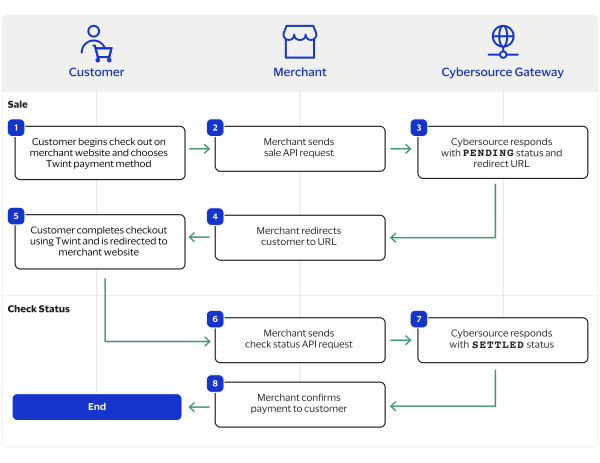
purchaseTotals_grandTotalAmount
field.
For information about how to calculate the grand total, see Calculating the Grand Total for Line Items.

Endpoints

Set the
apSaleService_run
field to
true
, and send the request to one of these endpoints:
Production:
https://ics2ws.ic3.com/commerce/1.x/transactionProcessor
Test:
https://ics2wstest.ic3.com/commerce/1.x/transactionProcessor

Processing a Sale

Follow these steps to successfully process sale.
  1. Send a
    POST
    request to the
    https://ics2ws.ic3.com/commerce/1.x/transactionProcessor
    endpoint and include these required fields:
    Set to
    SPE
    .
    Set to the URL to which the customer is redirected after the payment is cancelled.
    Add
    ?action=cancel
    to the end of the URL to help identify the response.
    Set to the URL to which the customer is redirected after the payment fails to complete.
    Add
    ?action=failure
    to the end of the URL to help identify the response.
    Set to the URL to which the customer is redirected after successfully completing the payment.
    Add
    ?action=success
    to the end of the URL to help identify the response.
    Set to
    true
    .
    Set to
    MX
    .
    Set to
    MXN
    .
  2. You can include these optional fields in the request:
    Replace the
    #
    character with a sequential number starting from
    0
    .
    Replace the
    #
    character with a sequential number starting from
    0
    .
    Replace the
    #
    character with a sequential number starting from
    0
    .
    Replace the
    #
    character with a sequential number starting from
    0
    .
    Replace the
    #
    character with a sequential number starting from
    0
    .
    Replace the
    #
    character with a sequential number starting from
    0
    .
    If this field is present, the
    purchaseTotals_currency
    field is optional.
    Replace the
    #
    character with a sequential number starting from
    0
    .
    Replace the
    #
    character with a sequential number starting from
    0
    .
  3. Redirect the customer to the returned URL in the
    merchantURL
    response field.
    <merchantURL></merchantURL>
  4. When the customer completes the checkout using their SPEI credentials, the customer is redirected to the merchant website based on the URL that you included in the
    apSaleService_successURL
    request field.
  5. Save the request ID in the
    requestID
    field from the sale response. Include the request ID in a check status request to confirm that the payment is complete.
    <requestID></requestID>

Example: Processing a Sale

Request
<requestMessage xmlns="urn:schemas-cybersource-com:transaction-data-1.211"> <merchantID>altpay_test</merchantID> <merchantReferenceCode>SPEI-Sale</merchantReferenceCode> <billTo> <firstName>Test</firstName> <lastName>Testerson</lastName> <country>MX</country> <email>test@email.com</email> </billTo> <purchaseTotals> <currency>MXN</currency> <grandTotalAmount>1.00</grandTotalAmount> </purchaseTotals> <apPaymentType>SPE</apPaymentType> <apSaleService run="true"> <cancelURL>https://www.testcancel.com?action=cancel</cancelURL> <successURL>https://www.testsuccess.com?action=success</successURL> <failureURL>https://www.testfailure.com?action=failure</failureURL> </apSaleService> </requestMessage>
Response to a Successful Request
<replyMessage xmlns="urn:schemas-cybersource-com:transaction-data-1.211"> <merchantReferenceCode>SPEI-Sale</merchantReferenceCode> <requestID>7502727791586461403610</requestID> <decision>ACCEPT</decision> <reasonCode>100</reasonCode> <requestToken>AxjnrwSTlrlDp0raBMnaANgZYiy6c+FZpOHEaqnkIGzV/zyB8ihjDJpJl6MV+q1CTlrlDp0raBMnaAAA4BzN</requestToken> <purchaseTotals> <currency>MXN</currency> </purchaseTotals> <apSaleReply> <reasonCode>100</reasonCode> <paymentStatus>pending</paymentStatus> <responseCode>00001</responseCode> <merchantURL>https://payment.limonetikqualif.com/STP/Order/PayPage/722187736614</merchantURL> <processorTransactionID>722187736614</processorTransactionID> <reconciliationID>XEKSOBYR88FU</reconciliationID> <amount>1.00</amount> <processorResponse>00001</processorResponse> <dateTime>2025-06-18T18:53:00Z</dateTime> </apSaleReply> </replyMessage>

Response Statuses for Processing a Sale

Cybersource
responds to your sale request with one of these statuses in the
field:
  • FAILED
    : The sale cannot be completed.
  • PENDING
    : The sale request is accepted but is not completed. Send a check status request as often as necessary to obtain the information that you need. For more information, see Check a Status.

Check a Status

This section describes how to retrieve the current status of a sale or refund. Send a check status request to know if a pending sale is settled, or to verify that a refund request is refunded. Use the check status request as often as necessary to obtain the information that you need.
The check status request requires the request ID from the sale or refund response. The request ID is in the
requestID
response field.

Endpoints

Set the
apCheckStatusService_run
field to
true
, and send the request to one of these endpoints:
Production:
https://ics2ws.ic3.com/commerce/1.x/transactionProcessor
Test:
https://ics2wstest.ic3.com/commerce/1.x/transactionProcessor

Required Fields for Checking a Status

Set to the request ID included in the sale or refund response.
Set to
true
.
Set to
SPE
.

Example: Checking a Status

Request
<requestMessage xmlns="urn:schemas-cybersource-com:transaction-data-1.211"> <merchantID>altpay_test</merchantID> <merchantReferenceCode>Check-Status</merchantReferenceCode> <apPaymentType>SPE</apPaymentType> <apCheckStatusService run="true"> <checkStatusRequestID>7502727791586461403610</checkStatusRequestID> </apCheckStatusService> </requestMessage>
Response to a Successful Request
<replyMessage xmlns="urn:schemas-cybersource-com:transaction-data-1.211"> <merchantReferenceCode>Check-Status</merchantReferenceCode> <requestID>7502728175586468203610</requestID> <decision>ACCEPT</decision> <reasonCode>100</reasonCode> <requestToken>AxjnrwSTlrlFBInSBIxaANgZYiy69aFZpN5rKOnkIGzWqjyB8ihjDJpJl6MV+q1CTlrlDp0raBMnaAAA4hrR</requestToken> <apCheckStatusReply> <reasonCode>100</reasonCode> <reconciliationID>XEKWVBYR7M2G</reconciliationID> <paymentStatus>pending</paymentStatus> <processorResponse>00001</processorResponse> <processorToken>722187736614</processorToken> </apCheckStatusReply> </replyMessage>

Response Statuses for Checking a Status

Cybersource
responds to your check status request with one of these statuses in the
field:
Check Status Responses for a Sale
  • ABANDONED
    : The customer did not complete the payment using the redirect URL.
  • FAILED
    : The service request failed. A failed request can be due to either SPEI rejecting the transaction or a technical error.
  • FUNDED
    : The settled amount is funded to the merchant bank account.
  • PENDING
    : The service request is accepted but is not completed. Request the check status service to retrieve status updates.
  • SETTLED
    : The sale request is settled for the requested amount.
Check Status Responses for a Refund
  • FAILED
    : The service request failed. A failed request can be due to either SPEI rejecting the transaction or a technical error.
  • REFUNDED
    : The settled amount is successfully refunded.

Refund a Payment

This section describes how to refund a payment. You can refund a settled payment for the full amount or a partial amount by sending a refund request. Multiple partial refund requests are also supported, and the total amount of all of the refund requests must be less than the settled amount.
Requesting a refund requires the sale request ID from the sale response. The sale request ID is in the
requestID
response field.

Endpoints

Set the
apRefundService_run
field to
true
, and send the request to one of these endpoints:
Production:
https://ics2ws.ic3.com/commerce/1.x/transactionProcessor
Test:
https://ics2wstest.ic3.com/commerce/1.x/transactionProcessor

Required Fields for Refunding a Payment

Example: Refunding a Payment

Request
<requestMessage xmlns="urn:schemas-cybersource-com:transaction-data-1.211"> <merchantID>altpay_test</merchantID> <merchantReferenceCode>Refund</merchantReferenceCode> <purchaseTotals> <currency>MXN</currency> <grandTotalAmount>1.00</grandTotalAmount> </purchaseTotals> <apPaymentType>SPE</apPaymentType> <apRefundService run="true"> <refundRequestID>7114798749656985804012</refundRequestID> </apRefundService> </requestMessage>
Response to a Successful Request
<replyMessage xmlns="urn:schemas-cybersource-com:transaction-data-1.211"> <merchantReferenceCode>Refund</merchantReferenceCode> <requestID>7520733601546193504601</requestID> <decision>ACCEPT</decision> <reasonCode>100</reasonCode> <requestToken>AxjnrwSTl7MlJA1JColZANgZYjWmjCHRr1pUGynvzPgZOxoDYZiiNDJpJl6MYZYX6Tl7Mayg6hXZtdAA7jiI</c:requestToken> <purchaseTotals> <currency>MXN</currency> </purchaseTotals> <apRefundReply> <reasonCode>100</reasonCode> <transactionID>384920815111</transactionID> <status>REFUNDED</status> <processorResponse>00006</processorResponse> <amount>1.00</amount> <dateTime>2025-07-09T15:02:44Z</dateTime> <reconciliationID>XFZ40CQWVJAY</reconciliationID> <returnRef>CFXPACDEZATY</returnRef> <paymentStatus>refunded</paymentStatus> <responseCode>00006</responseCode> </apRefundReply> </replyMessage>

Response Statuses for Refunding a Payment

Cybersource
responds to your refund request with one of these statuses in the
field:
  • FAILED
    : The refund request failed.
  • REFUNDED
    : The refund request is accepted but is not completed. Send a check status request to verify that the status is refunded. For more information, see Check a Status.

Touch 'n Go Transaction Requests

Touch 'n Go is an e-wallet payment method offered by the Thunes payment service provider (PSP) that you can offer your customers through
Cybersource
.You can process a payment by sending a sale API request to
Cybersource
.
Cybersource
sends your request to Thunes. Thunes approves the transaction and sends the request to the processor for settlement. You can also send a check status API request to retrieve status updates of the processing sale. Touch 'n Go does not support refunds. To issue a refund to the customer, you must provide an alternative method of reimbursement, such as cash or in-store credit.
This section describes how to process Touch 'n Go transactions using the
Simple Order API
.

Requirement

You must receive a Thunes merchant ID before you can begin processing payments. Contact your
Cybersource
account manager for more information.

Supported Country and Currency

This table lists the country and currency that is supported by Touch 'n Go.
Supported Country and Currency
Supported Country
Country Code
Supported Currency
Currency Code
Malaysia
MY
Malaysian ringgit
MYR

Shipping Policy

You can ship purchased goods when the sale status is
SETTLED
.

Testing Information

Touch 'n Go does not support a test endpoint. Send all test transactions to the production endpoint.

Touch 'n Go by Thunes Transaction Workflow

This workflow describes the sequence of events that comprises a successful Touch 'n Go payment and refund.

Figure:

Touch 'n Go Transaction Workflow
  1. The customer begins to checkout on your website and chooses the Touch 'n Go payment method.
  2. You send a sale API request to
    Cybersource
    . For more information, see Process a Sale.
  3. Cybersource
    responds to you with a
    PENDING
    status, Touch 'n Go redirect URL, and sale request ID.
  4. You redirect the customer to the Touch 'n Go URL.
  5. The customer completes the checkout using Touch 'n Go and is redirected to your website.
  6. You send a check status API request to
    Cybersource
    . For more information, see Check a Status.
  7. Cybersource
    responds to you with a
    SETTLED
    status.
  8. You confirm the payment to the customer.

Transaction Statuses Workflow

This workflow describes the sequence of possible statuses you can receive when processing a sale.
  1. The merchant sends a sale API request to
    Cybersource
    and receives one of these possible statuses:
    • FAILED
      : The sale cannot be completed.
    • PENDING
      : The sale request is accepted but is not completed. Request the check status service to retrieve status updates.
  2. The merchant sends a check status API request to
    Cybersource
    to verify the status of the sale and receives one of these statuses:
    • ABANDONED
      : The customer did not complete the payment using the redirect URL.
    • FAILED
      : The service request failed. A failed request can be due to either a rejected transaction or a technical error.
    • PENDING
      : The sale request is accepted but is not completed. Request the check status service again after 60 minutes to retrieve a status update.
    • SETTLED
      : The sale request is settled for the requested amount. When the settled amount is deposited into the merchant's bank account, the status updates to
      FUNDED
      .

Process a Sale

This section describes how to send a sale request to process a payment.
A sale request authorizes and captures a payment in the same request. A successful sale response includes an Touch 'n Go redirect URL and a
PENDING
status. Redirect the customer to the Touch 'n Go URL to allow the customer to complete the checkout using their Touch 'n Go account. When the customer completes the checkout, the customer is redirected to your website.
When you receive a successful response, save the sale request ID in the
requestID
response field to perform a follow-on check status request or refund request.

Calculating the Grand Total

Include the grand total in the request by using the
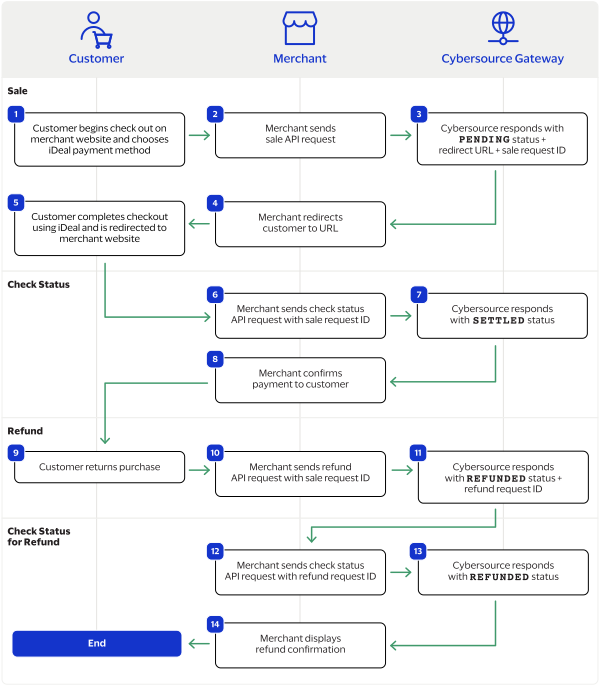
purchaseTotals_grandTotalAmount
field.
For information about how to calculate the grand total, see Calculating the Grand Total for Line Items.

Endpoints

Set the
apSaleService_run
field to
true
, and send the request to one of these endpoints:
Production:
https://ics2ws.ic3.com/commerce/1.x/transactionProcessor
Test:
https://ics2wstest.ic3.com/commerce/1.x/transactionProcessor

Testing Information

Touch 'n Go does not support a test endpoint. Send all test transactions to the production endpoint.

Processing a Sale

Follow these steps to successfully process sale.
  1. Send a
    POST
    request to the
    https://ics2ws.ic3.com/commerce/1.x/transactionProcessor
    endpoint and include these required fields:
    Set to
    TND
    .
    Set to the URL to which the customer is redirected after the payment is cancelled.
    Add
    ?action=cancel
    to the end of the URL to help identify the response.
    Set to the URL to which the customer is redirected after the payment fails to complete.
    Add
    ?action=failure
    to the end of the URL to help identify the response.
    Set to the URL to which the customer is redirected after successfully completing the payment.
    Add
    ?action=success
    to the end of the URL to help identify the response.
    Set to
    true
    .
    Set to
    MY
    .
    Set to
    MYR
    .
  2. You can include these optional fields in the request:
    Replace the
    #
    character with a sequential number starting from
    0
    .
    Replace the
    #
    character with a sequential number starting from
    0
    .
    Replace the
    #
    character with a sequential number starting from
    0
    .
    Replace the
    #
    character with a sequential number starting from
    0
    .
    Replace the
    #
    character with a sequential number starting from
    0
    .
    Replace the
    #
    character with a sequential number starting from
    0
    .
    If this field is present, the
    purchaseTotals_currency
    field is optional.
    Replace the
    #
    character with a sequential number starting from
    0
    .
    Replace the
    #
    character with a sequential number starting from
    0
    .
  3. Redirect the customer to the returned URL in the
    merchantURL
    response field.
    <merchantURL></merchantURL>
  4. When the customer completes the checkout using their Touch 'n Go credentials, the customer is redirected to the merchant website based on the URL that you included in the
    apSaleService_successURL
    request field.
  5. Save the request ID in the
    requestID
    field from the sale response. Include the request ID in a check status request to confirm that the payment is complete.
    <requestID></requestID>

Example: Processing a Sale

Request
<requestMessage xmlns="urn:schemas-cybersource-com:transaction-data-1.211"> <merchantID>altpay_mid2</merchantID> <merchantReferenceCode>Sale</merchantReferenceCode> <billTo> <firstName>Test</firstName> <lastName>Testerson</lastName> <country>MY</country> <email>test@email.com</email> </billTo> <purchaseTotals> <currency>MYR</currency> <grandTotalAmount>1.00</grandTotalAmount> </purchaseTotals> <apPaymentType>TND</apPaymentType> <apSaleService run="true"> <cancelURL>https://www.testcancel.com?action=cancel</cancelURL> <successURL>https://www.testsuccess.com?action=success</successURL> <failureURL>https://www.testfailure.com?action=failure</failureURL> </apSaleService> </requestMessage>
Response to a Successful Request
<replyMessage xmlns="urn:schemas-cybersource-com:transaction-data-1.211"> <merchantReferenceCode>Sale</merchantReferenceCode> <requestID>7533018272376391304066</requestID> <decision>ACCEPT</decision> <reasonCode>100</reasonCode> <requestToken>AxjnrwSTmF2hDxXBlYOCANgZYiy606GxmSmcyOn+bmZ6xrlB8iipDJpJl6MYhzEaTmF2hDxXBlYOCAAAHAMM</requestToken> <purchaseTotals> <currency>MYR</currency> </purchaseTotals> <apSaleReply> <reasonCode>100</reasonCode> <paymentStatus>pending</paymentStatus> <responseCode>00001</responseCode> <merchantURL>https://payment.limonetik.com/Razer/Order/PayPage/641145429770</merchantURL> <processorTransactionID>641145429770</processorTransactionID> <reconciliationID>XEKVNC1LJ3LG</reconciliationID> <amount>1.00</amount> <processorResponse>00001</processorResponse> <dateTime>2025-07-23T20:17:08Z</dateTime> </apSaleReply> </replyMessage>

Response Statuses for Processing a Sale

Cybersource
responds to your sale request with one of these statuses in the
field:
  • FAILED
    : The sale cannot be completed.
  • PENDING
    : The sale request is accepted but is not completed. Send a check status request as often as necessary to obtain the information that you need. For more information, see Check a Status.

Check a Status

This section describes how to retrieve the current status of a sale. Send a check status request to know if a pending sale is settled. Use the check status request as often as necessary to obtain the information that you need.
The check status request requires the request ID from the sale response. The request ID is in the
requestID
response field.

Endpoints

Set the
apCheckStatusService_run
field to
true
, and send the request to one of these endpoints:
Production:
https://ics2ws.ic3.com/commerce/1.x/transactionProcessor
Test:
https://ics2wstest.ic3.com/commerce/1.x/transactionProcessor

Required Fields for Checking a Status

Set to the request ID included in the sale or refund response.
Set to
true
.
Set to
TND
.

Example: Checking a Status

Request
<requestMessage xmlns="urn:schemas-cybersource-com:transaction-data-1.211"> <merchantID>altpay_mid2</merchantID> <merchantReferenceCode>Check-Status</merchantReferenceCode> <apPaymentType>TND</apPaymentType> <apCheckStatusService run="true"> <checkStatusRequestID>7533018272376391304066</checkStatusRequestID> </apCheckStatusService> </requestMessage>
Response to a Successful Request
<replyMessage xmlns="urn:schemas-cybersource-com:transaction-data-1.211"> <merchantReferenceCode>Check-Status</merchantReferenceCode> <requestID>7533019145636997504717</requestID> <decision>ACCEPT</decision> <reasonCode>100</reasonCode> <requestToken>AxjnrwSTmF2kKU+V0B7NANgZYi1LLOHMmSmFdin+bmc4hTlB8iipDJpJl6MYhzEaTmF2hDxXBlYOCAAAHAMM</requestToken> <apCheckStatusReply> <reasonCode>100</reasonCode> <reconciliationID>XETY3CLLJ0W1</reconciliationID> <paymentStatus>settled</paymentStatus> <processorResponse>00001</processorResponse> <processorToken>641145429770</processorToken> </apCheckStatusReply> </replyMessage>

Response Statuses for Checking a Status

Cybersource
responds to your check status request with one of these statuses in the
field:
Check Status Responses for a Sale
  • ABANDONED
    : The customer did not complete the payment using the redirect URL.
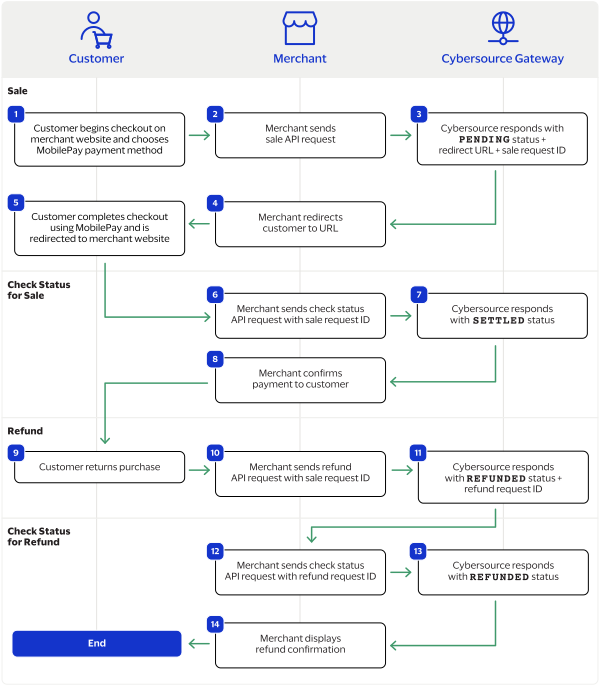
  • FAILED
    : The service request failed. A failed request can be due to either Touch 'n Go rejecting the transaction or a technical error.
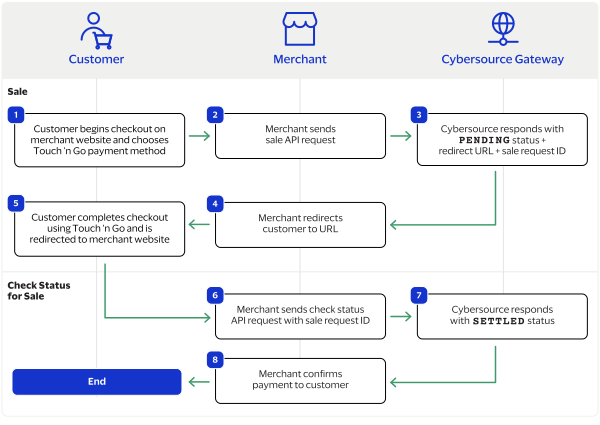
  • FUNDED
    : The settled amount is funded to the merchant bank account.
  • PENDING
    : The service request is accepted but is not completed. Request the check status service to retrieve status updates.
  • SETTLED
    : The sale request is settled for the requested amount.