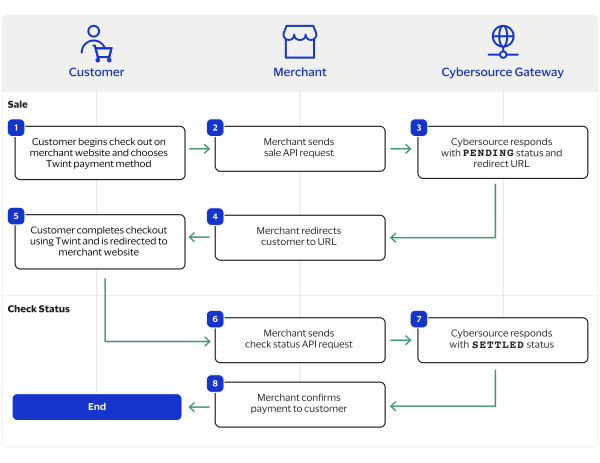
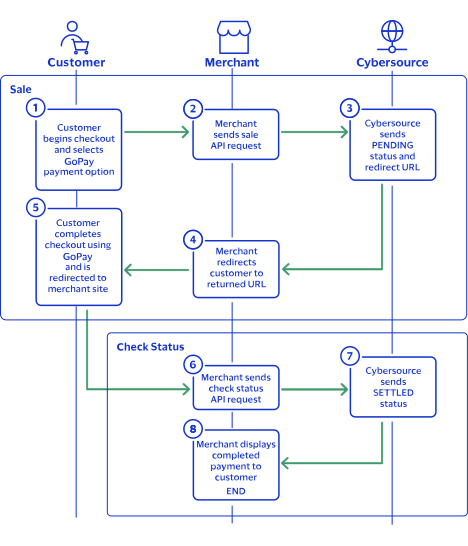
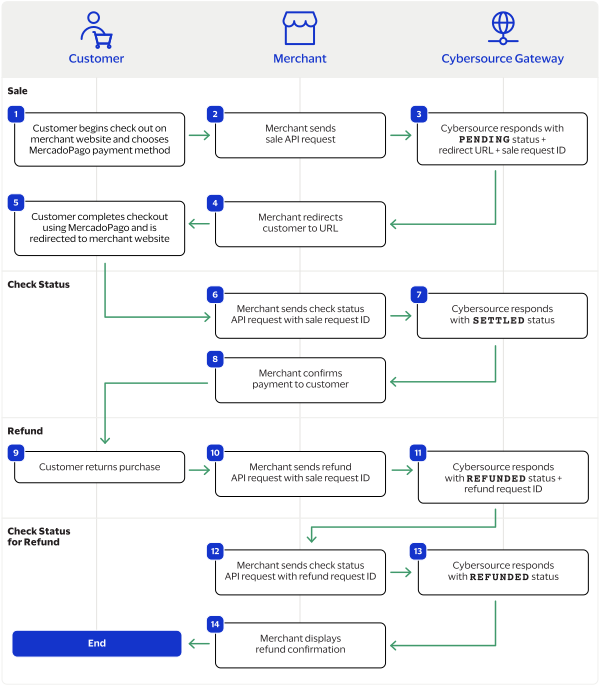
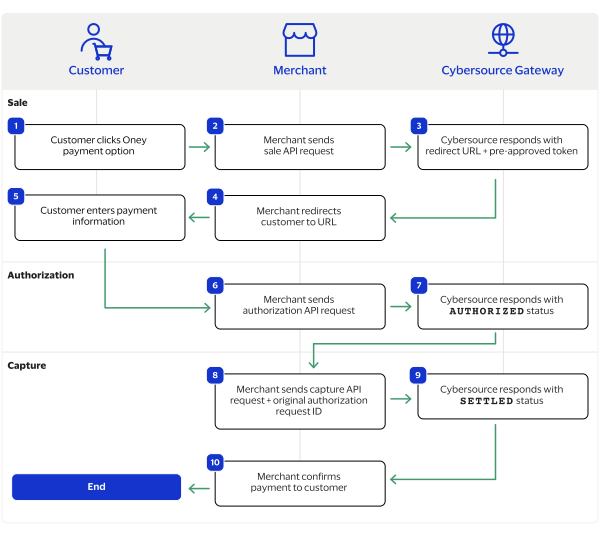
This section describes how to use this guide and where to find further
information.
Audience and Purpose
This guide is written for merchants who want to offer Thunes services to customers. It
describes tasks that a merchant must complete in order to process a payment. It is intended
to help the merchant provide a seamless customer payment experience.
Customer Support
For support information about any service, visit the Support Center:
Added workflow graphics for services supported by the
Simple Order
API.
VISA Platform Connect: Specifications and Conditions for
Resellers/Partners
The following are specifications and conditions that apply to a Reseller/Partner enabling
its merchants through
Cybersource for
Visa Platform Connect
(“VPC”)
processing
. Failure to meet any of the specifications and conditions below is
subject to the liability provisions and indemnification obligations under
Reseller/Partner’s contract with Visa/Cybersource.
Before boarding merchants for payment processing on a VPC acquirer’s connection,
Reseller/Partner and the VPC acquirer must have a contract or other legal agreement
that permits Reseller/Partner to enable its merchants to process payments with the
acquirer through the dedicated VPC connection and/or traditional connection with
such VPC acquirer.
Reseller/Partner is responsible for boarding and enabling its merchants in
accordance with the terms of the contract or other legal agreement with the relevant
VPC acquirer.
Reseller/Partner acknowledges and agrees that all considerations and fees associated
with chargebacks, interchange downgrades, settlement issues, funding delays, and
other processing related activities are strictly between Reseller and the relevant
VPC acquirer.
Reseller/Partner acknowledges and agrees that the relevant VPC acquirer is
responsible for payment processing issues, including but not limited to, transaction
declines by network/issuer, decline rates, and interchange qualification, as may be
agreed to or outlined in the contract or other legal agreement between
Reseller/Partner and such VPC acquirer.
DISCLAIMER: NEITHER VISA NOR CYBERSOURCE WILL BE RESPONSIBLE OR LIABLE FOR ANY ERRORS OR
OMISSIONS BY THE
Visa Platform Connect
ACQUIRER IN PROCESSING TRANSACTIONS. NEITHER VISA
NOR CYBERSOURCE WILL BE RESPONSIBLE OR LIABLE FOR RESELLER/PARTNER BOARDING MERCHANTS OR
ENABLING MERCHANT PROCESSING IN VIOLATION OF THE TERMS AND CONDITIONS IMPOSED BY THE
RELEVANT
Visa Platform Connect
ACQUIRER.
Introduction to Thunes Integration
Thunes is a payment service provider (PSP) offered by
Cybersource
that
enables you to process payments using regional payment methods throughout the world. You
can choose which Thunes payment method to integrate to in order to offer your customers
a market-specific payment option. The different payment methods also offer different
ways to pay, such as buy now pay laters (BNPLs), credit card processing, and digital
wallets.
Requirements
You must have a
Cybersource
merchant ID and a Thunes API key for each
country in which you process transactions. Contact your
Cybersource
account manager for more information.
Getting Started with REST
To begin processing payments through
Cybersource
, you must first set
up your payment processing system to be REST compliant.
Cybersource
uses the REST architecture for developing web services. REST enables communication
between a client and server using HTTP protocols.
If you have not set up secure communications between your client and server using
either a
Bizum is a payment method offered by the Thunes payment service provider (PSP) that you
can offer your customers through
Cybersource
. You can process a payment
by sending a sale API request message to
Cybersource
.
Cybersource
sends your request to Thunes. Thunes approves the transaction and
sends the request to the processor for settlement. You can also send a follow-on refund
and check status API requests.
Requirements
You must have a merchant ID and a Thunes API key for each country in which you
process transactions. Contact your
Cybersource
account manager for
more information.
Supported Country and Currency
This table lists the country, country code, and currency supported by Bizum.
Supported Country and Currency
Country
Country Code
Currency
Currency Code
Spain
ES
Euro
EUR
Shipping Policy
You can ship purchased goods when the sale status is
SETTLED
.
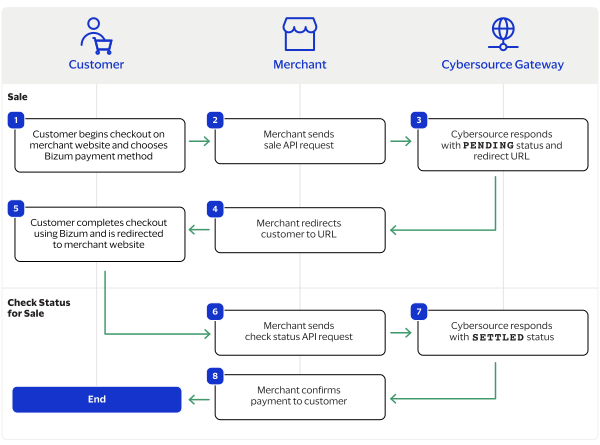
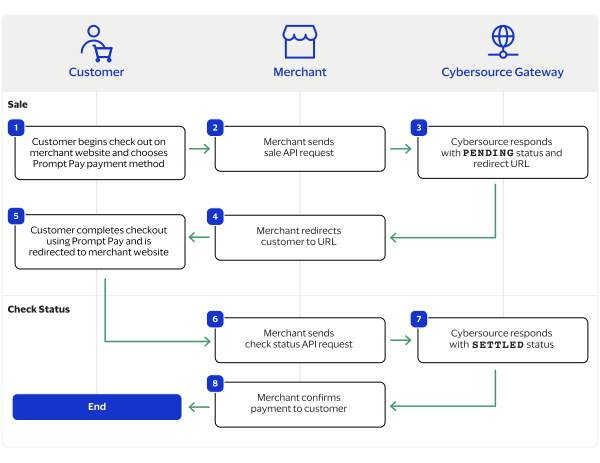
Bizum by Thunes Payment Workflow
This workflow describes the sequence of events that comprises a successful Bizum
payment.
Figure:
Bizum by Thunes Payment Workflow
The customer begins to checkout on the merchant's website and chooses the Bizum
payment method.
The merchant displays a confirmation of the completed payment to the
customer.
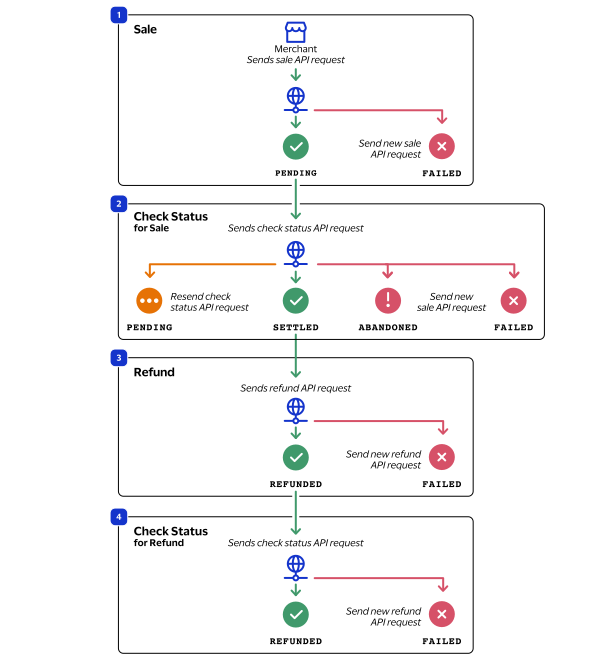
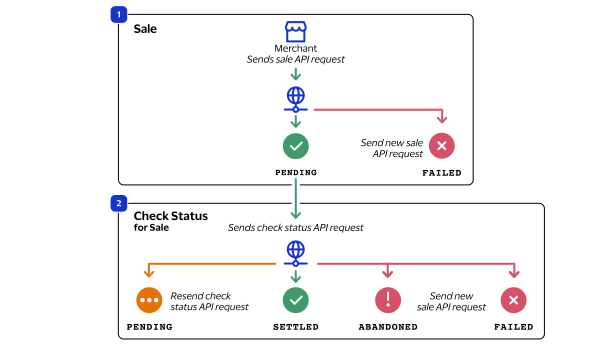
Transaction Statuses Workflow
This workflow shows the statuses that can occur at each stage of processing a sale
and refund.
Figure:
Transaction Statuses Workflow
When a customer begins to check out, you send a sale request to
Cybersource
and receive one of these possible statuses:
FAILED
: The sale cannot be completed.
PENDING
: The sale request is accepted but is not
completed. Send the check status request to retrieve status updates.
You send a check status request to
Cybersource
to verify the sale
status and receive one of these statuses:
ABANDONED
: The customer did not complete the payment
using the redirect URL.
FAILED
: The sale request failed. A failed request can
be due to either a rejection or a technical error.
PENDING
: The sale request is accepted but is not
completed. Send the check status request as often as necessary to obtain
the information that you need.
SETTLED
: The sale request is settled for the requested
amount. When the settled amount is deposited into the merchant's bank
account, the status updates to
FUNDED
.
If a customer returns a purchase, you send a refund request to
Cybersource
and receive one of these possible statuses:
FAILED
: The refund request failed.
REFUNDED
: The refund request is accepted but is not
completed. Request the check status service to retrieve status updates.
You send a check status request to
Cybersource
to verify the refund
status and receive one of these statuses:
FAILED
: The refund could not be completed.
REFUNDED
: The settled amount is successfully
refunded.
Process a Sale
Send a sale request to authorize and capture a payment in the same request. A successful
sale response includes a redirect URL and a pending status. Redirect the customer to the
URL to allow the customer to complete the checkout using Bizum. When the customer
completes the checkout, the customer is redirected to your merchant website based on the
success URL you include in the
merchantInformation.successUrl
request field.
Line Items
Line items are included in a request in the
lineItem[]
array.
For more information about how to properly format line items in your request, see
Using Line Items.
Tax Amounts
You can include the tax amount for every type of purchased product
in the
orderInformation.lineItems[].taxAmount
field when you request the
sale service.
Calculating the Grand Total
Include the grand total in the request by using the
orderInformation.amountDetails.totalAmount
field.
Endpoints
Production:
POST
https://api.cybersource.com
/pts/v2/payments
Test:
POST
https://apitest.cybersource.com
/pts/v2/payments
Response Statuses
Cybersource
responds to your sale request with one of these statuses in the
status
field:
Sale Status
FAILED
: The sale cannot be completed.
PENDING
: The sale request is accepted but is not completed.
Request the check status service every 60 minutes to retrieve
status updates. See Check a Request Status.
When you send a check status request to retrieve an updated sale status, these are
the possible responses:
Check Status for a Sale
ABANDONED
: The customer did not complete the payment using the
redirect URL.
FAILED
: The sale cannot be completed.
FUNDED
: The settled amount is funded to the merchant bank
account.
PENDING
: The sale request is accepted but is not complete.
Continue sending the check status request every 60 minutes.
SETTLED
: The sale request is settled for the requested amount.
You cannot receive a settled status until the customer has completed checking
out.
Processing a Sale
Follow these steps to successfully process sale.
Send a
POST
request to the
https://api.cybersource.com
/pts/v2/payments
endpoint and include these required
fields:
clientReferenceInformation.code
merchantInformation.cancelUrl
merchantInformation.failureUrl
merchantInformation.successUrl
orderInformation.amountDetails.currency
orderInformation.amountDetails.totalAmount
orderInformation.billTo.country
orderInformation.billTo.email
orderInformation.billTo.firstName
orderInformation.billTo.lastName
paymentInformation.paymentType.method.name
Set to
BIZUM
.
paymentInformation.paymentType.name
Set to
bankTransfer
.
processingInformation.actionlist
Set to
AP_SALE
.
You can include these optional fields in the request:
When the customer completes the checkout using their Bizum
credentials, the customer is redirected to the merchant website based on the URL
that you included in the
merchantInformation.successUrl
field.
Save the request ID in the
id
field
from the sale response. Include the request ID in a check status request to
confirm that the payment is complete.
You can retrieve the status of a pending sale or refund by sending a check status request.
When a pending status updates, a check status response includes the transaction's
new status. Thunes sometimes needs to review a service request, which causes a
transaction to initially respond with a pending status. The check status request
requires you to include the request ID from the pending transaction response you are checking the
status of. The request ID is located in the
id
response field.
Cybersource
recommends that you send a check status request
hourly until the status updates from pending.
Endpoints
Production:
POST
https://api.cybersource.com
/pts/v2/refresh-payment-status/
{id}
Test:
POST
https://apitest.cybersource.com
/pts/v2/refresh-payment-status/
{id}
Set the
{id}
to the request ID of the API service you are retrieving.
Response Statuses
Cybersource
responds to your check status request with one of
these statuses in the
status
field:
Check Status Responses for a Sale
ABANDONED
: The customer did not complete the
payment using the redirect URL.
FAILED
: The service request failed. A failed
request can be due to either Bizum rejecting
the transaction or a technical error.
FUNDED
: The settled amount is funded to the
merchant bank account.
PENDING
: The service request is accepted but is not
completed. Request the check status service to retrieve status
updates.
SETTLED
: The sale request is settled for the
requested amount.
Check Status Responses for a Refund
FAILED
: The service request failed. A failed
request can be due to either Bizum rejecting
the transaction or a technical error.
You can refund a completed payment for the full amount or a partial amount by sending a refund request. Bizum supports multiple
refund requests when the total amount of all of the refund requests is less than the captured amount.
Requesting a refund requires the request ID from the sale
response. The request ID is located in the
id
response
field.
Endpoints
Production:
POST
https://api.cybersource.com
/pts/v2/payments/
{id}
/refunds
Test:
POST
https://apitest.cybersource.com
/pts/v2/payments/
{id}
/refunds
The
{id}
is the request ID
contained in the original transaction request.
Response Statuses
Cybersource
responds to your refund request with one of these statuses as the
status
field value:
FAILED
: The refund request failed.
REFUNDED
: The refund request is accepted but is not completed.
Request the check status service to retrieve status updates. For more
information, see Check a Transaction Status.
When you send a check status request to retrieve an updated refund status, these are
the possible responses:
Blik is a payment method offered by the Thunes payment service provider (PSP) that you
can offer your customers through
Cybersource
. You can process a payment
by sending a sale API request message to
Cybersource
.
Cybersource
sends your request to Thunes. Thunes approves the transaction and
sends the request to the processor for settlement. You can also send a follow-on refund
and check status API requests.
Requirements
You must have a merchant ID and a Thunes API key for each country in which you
process transactions. Contact your
Cybersource
account manager for
more information.
Supported Country and Currency
This table lists the country, country code, and currency supported by Blik.
Supported Country and Currency
Country
Country Code
Currency
Currency Code
Poland
PL
Polish zloty
PLN
Shipping Policy
You can ship purchased goods when the sale status is
SETTLED
.
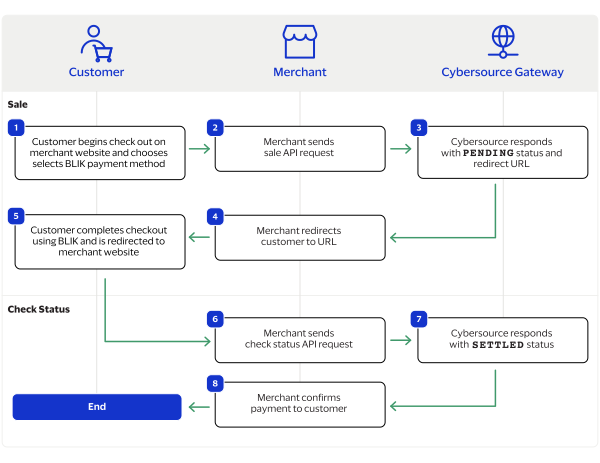
Blik by Thunes Payment Workflow
This workflow describes the sequence of events that comprises a successful Blik
payment.
Figure:
Blik by Thunes Payment Workflow
The customer begins to checkout on the merchant's website and chooses the Blik
payment method.
The merchant displays a confirmation of the completed payment to the
customer.
Transaction Statuses Workflow
This workflow shows the statuses that can occur at each stage of processing a sale
and refund.
Figure:
Transaction Statuses Workflow
When a customer begins to check out, you send a sale request to
Cybersource
and receive one of these possible statuses:
FAILED
: The sale cannot be completed.
PENDING
: The sale request is accepted but is not
completed. Send the check status request to retrieve status updates.
You send a check status request to
Cybersource
to verify the sale
status and receive one of these statuses:
ABANDONED
: The customer did not complete the payment
using the redirect URL.
FAILED
: The sale request failed. A failed request can
be due to either a rejection or a technical error.
PENDING
: The sale request is accepted but is not
completed. Send the check status request as often as necessary to obtain
the information that you need.
SETTLED
: The sale request is settled for the requested
amount. When the settled amount is deposited into the merchant's bank
account, the status updates to
FUNDED
.
If a customer returns a purchase, you send a refund request to
Cybersource
and receive one of these possible statuses:
FAILED
: The refund request failed.
REFUNDED
: The refund request is accepted but is not
completed. Request the check status service to retrieve status updates.
You send a check status request to
Cybersource
to verify the refund
status and receive one of these statuses:
FAILED
: The refund could not be completed.
REFUNDED
: The settled amount is successfully
refunded.
Process a Sale
Send a sale request to authorize and capture a payment in the same request. A successful
sale response includes a redirect URL and a pending status. Redirect the customer to the
URL to allow the customer to complete the checkout using Blik. When the customer
completes the checkout, the customer is redirected to your merchant website based on the
success URL you include in the
merchantInformation.successUrl
request field.
Line Items
Line items are included in a request in the
lineItem[]
array.
For more information about how to properly format line items in your request, see
Using Line Items.
Tax Amounts
You can include the tax amount for every type of purchased product
in the
orderInformation.lineItems[].taxAmount
field when you request the
sale service.
Calculating the Grand Total
Include the grand total in the request by using the
orderInformation.amountDetails.totalAmount
field.
Endpoints
Production:
POST
https://api.cybersource.com
/pts/v2/payments
Test:
POST
https://apitest.cybersource.com
/pts/v2/payments
Response Statuses
Cybersource
responds to your sale request with one of these statuses in the
status
field:
Sale Status
FAILED
: The sale cannot be completed.
PENDING
: The sale request is accepted but is not completed.
Request the check status service every 60 minutes to retrieve
status updates. See Check a Request Status.
When you send a check status request to retrieve an updated sale status, these are
the possible responses:
Check Status for a Sale
ABANDONED
: The customer did not complete the payment using the
redirect URL.
FAILED
: The sale cannot be completed.
FUNDED
: The settled amount is funded to the merchant bank
account.
PENDING
: The sale request is accepted but is not complete.
Continue sending the check status request every 60 minutes.
SETTLED
: The sale request is settled for the requested amount.
You cannot receive a settled status until the customer has completed checking
out.
Processing a Sale
Follow these steps to successfully process sale.
Send a
POST
request to the
https://api.cybersource.com
/pts/v2/payments
endpoint and include these required
fields:
clientReferenceInformation.code
merchantInformation.cancelUrl
merchantInformation.failureUrl
merchantInformation.successUrl
orderInformation.amountDetails.currency
orderInformation.amountDetails.totalAmount
orderInformation.billTo.country
orderInformation.billTo.email
orderInformation.billTo.firstName
orderInformation.billTo.lastName
paymentInformation.paymentType.method.name
Set to
BLIK
.
paymentInformation.paymentType.name
Set to
bankTransfer
.
processingInformation.actionlist
Set to
AP_SALE
.
You can include these optional fields in the request:
When the customer completes the checkout using their Blik
credentials, the customer is redirected to the merchant website based on the URL
that you included in the
merchantInformation.successUrl
field.
Save the request ID in the
id
field
from the sale response. Include the request ID in a check status request to
confirm that the payment is complete.
You can retrieve the status of a pending sale or refund by sending a check status request.
When a pending status updates, a check status response includes the transaction's
new status. Thunes sometimes needs to review a service request, which causes a
transaction to initially respond with a pending status. The check status request
requires you to include the request ID from the pending transaction response you are checking the
status of. The request ID is located in the
id
response field.
Cybersource
recommends that you send a check status request
hourly until the status updates from pending.
Endpoints
Production:
POST
https://api.cybersource.com
/pts/v2/refresh-payment-status/
{id}
Test:
POST
https://apitest.cybersource.com
/pts/v2/refresh-payment-status/
{id}
Set the
{id}
to the request ID of the API service you are retrieving.
Response Statuses
Cybersource
responds to your check status request with one of
these statuses in the
status
field:
Check Status Responses for a Sale
ABANDONED
: The customer did not complete the
payment using the redirect URL.
FAILED
: The service request failed. A failed
request can be due to either Blik rejecting
the transaction or a technical error.
FUNDED
: The settled amount is funded to the
merchant bank account.
PENDING
: The service request is accepted but is not
completed. Request the check status service to retrieve status
updates.
SETTLED
: The sale request is settled for the
requested amount.
Check Status Responses for a Refund
FAILED
: The service request failed. A failed
request can be due to either Blik rejecting
the transaction or a technical error.
You can refund a completed payment for the full amount or a partial amount by sending a refund request. Blik supports multiple
refund requests when the total amount of all of the refund requests is less than the captured amount.
Requesting a refund requires the request ID from the sale
response. The request ID is located in the
id
response
field.
Endpoints
Production:
POST
https://api.cybersource.com
/pts/v2/payments/
{id}
/refunds
Test:
POST
https://apitest.cybersource.com
/pts/v2/payments/
{id}
/refunds
The
{id}
is the request ID
contained in the original transaction request.
Response Statuses
Cybersource
responds to your refund request with one of these statuses as the
status
field value:
FAILED
: The refund request failed.
REFUNDED
: The refund request is accepted but is not completed.
Request the check status service to retrieve status updates. For more
information, see Check a Transaction Status.
When you send a check status request to retrieve an updated refund status, these are
the possible responses:
GrabPay
is a payment method offered by the Thunes payment service provider (PSP) that you can
offer your customers through
Cybersource
. You can process a payment by
sending a sale API request message to
Cybersource
.
Cybersource
sends your request to Thunes. Thunes approves the transaction and
sends the request to the processor for settlement. You can also send a refund and check
status API request as follow-on services.
Requirements
You must have a merchant ID and a Thunes API key for each country in which you
process transactions. Contact your
Cybersource
account manager for
more information.
Supported Currencies
This table lists the currencies supported by GrabPay.
Supported Currencies and Currency Codes
Currency
Currency Code
IDR
Indonesian rupiah
MYR
Malaysian ringgit
PHP
Philippine peso
Shipping Policy
Goods can be shipped when the sale status is
SETTLED
.
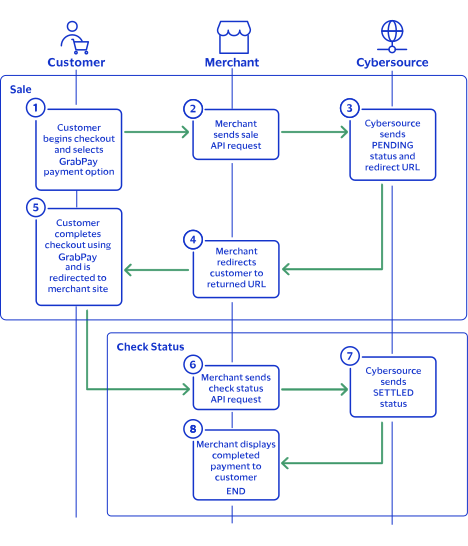
GrabPay by Thunes Payment Workflow
This workflow describes the sequence of events that comprises a successful GrabPay
payment.
Figure:
GrabPay by Thunes Payment Workflow
The customer begins to checkout on the merchant's website and chooses the
GrabPay payment method.
The merchant displays a confirmation of the completed payment to the
customer.
Transaction Statuses Workflow
This workflow shows the statuses that can occur at each stage of processing a sale
and refund.
Figure:
Transaction Statuses Workflow
When a customer begins to check out, you send a sale request to
Cybersource
and receive one of these possible statuses:
FAILED
: The sale cannot be completed.
PENDING
: The sale request is accepted but is not
completed. Send the check status request to retrieve status updates.
You send a check status request to
Cybersource
to verify the sale
status and receive one of these statuses:
ABANDONED
: The customer did not complete the payment
using the redirect URL.
FAILED
: The sale request failed. A failed request can
be due to either a rejection or a technical error.
PENDING
: The sale request is accepted but is not
completed. Send the check status request as often as necessary to obtain
the information that you need.
SETTLED
: The sale request is settled for the requested
amount. When the settled amount is deposited into the merchant's bank
account, the status updates to
FUNDED
.
If a customer returns a purchase, you send a refund request to
Cybersource
and receive one of these possible statuses:
FAILED
: The refund request failed.
REFUNDED
: The refund request is accepted but is not
completed. Request the check status service to retrieve status updates.
You send a check status request to
Cybersource
to verify the refund
status and receive one of these statuses:
FAILED
: The refund could not be completed.
REFUNDED
: The settled amount is successfully
refunded.
Process a Sale
Send a sale request to authorize and capture a payment in the same request. A successful
sale response includes a redirect URL and a pending status. Redirect the customer to the
URL to allow the customer to complete the checkout using GrabPay.
When the customer completes the checkout, the customer is redirected to the merchant
website using the success-URL provided in the sale request.
Line Items
Line items are included in a request in the
lineItem[]
array.
For more information about how to properly format line items in your request, see
Using Line Items.
Tax Amounts
You can include the tax amount for every type of purchased product
in the
orderInformation.lineItems[].taxAmount
field when you request the
sale service.
Calculating the Grand Total
Include the grand total in the request by using the
orderInformation.amountDetails.totalAmount
field.
Endpoints
Production:
POST
https://api.cybersource.com
/pts/v2/payments
Test:
POST
https://apitest.cybersource.com
/pts/v2/payments
Response Statuses
Cybersource
responds to your sale request with one of these statuses in the
status
field:
Sale Status
FAILED
: The sale cannot be completed.
PENDING
: The sale request is accepted but is not completed.
Request the check status service every 60 minutes to retrieve
status updates. See Check a Request Status.
When you send a check status request to retrieve an updated sale status, these are
the possible responses:
Check Status for a Sale
ABANDONED
: The customer did not complete the payment using the
redirect URL.
FAILED
: The sale cannot be completed.
FUNDED
: The settled amount is funded to the merchant bank
account.
PENDING
: The sale request is accepted but is not complete.
Continue sending the check status request every 60 minutes.
SETTLED
: The sale request is settled for the requested amount.
You cannot receive a settled status until the customer has completed checking
out.
Processing a Sale
Follow these steps to successfully process sale.
Send a
POST
request to the
https://api.cybersource.com
/pts/v2/payments
endpoint and include these required
fields:
billTo.country
clientReferenceInformation.code
merchantInformation.cancelUrl
merchantInformation.failureUrl
merchantInformation.successUrl
orderInformation.amountDetails.currency
orderInformation.amountDetails.totalAmount
orderInformation.billTo.address1
orderInformation.billTo.administrativeArea
orderInformation.billTo.country
orderInformation.billTo.email
orderInformation.billTo.firstName
orderInformation.billTo.lastName
orderInformation.billTo.locality
orderInformation.billTo.phoneNumber
orderInformation.billTo.postalCode
orderInformation.lineItems.productCode
orderInformation.lineItems.productName
orderInformation.lineItems.productSKU
orderInformation.lineItems.quantity
orderInformation.lineItems.totalAmount
orderInformation.lineItems.unitPrice
orderInformation.shipTo.address1
orderInformation.shipTo.country
orderInformation.shipTo.email
orderInformation.shipTo.firstName
orderInformation.shipTo.lastName
orderInformation.shipTo.locality
orderInformation.shipTo.phoneNumber
paymentInformation.paymentType.method.name
Set to GRABPAY.
paymentInformation.paymentType.name
processingInformation.actionList
You can include these optional fields in the request:
When the customer completes the checkout using their GrabPay
credentials, the customer is redirected to the merchant website based on the URL
that you included in the
merchantInformation.successUrl
field.
Save the request ID in the
id
field
from the sale response. Include the request ID in a check status request to
confirm that the payment is complete.
You can retrieve the status of a pending sale or refund by sending a check status request.
When a pending status updates, a check status response includes the transaction's
new status. Thunes sometimes needs to review a service request, which causes a
transaction to initially respond with a pending status. The check status request
requires you to include the request ID from the pending transaction response you are checking the
status of. The request ID is located in the
id
response field.
Cybersource
recommends that you send a check status request
hourly until the status updates from pending.
Endpoints
Production:
POST
https://api.cybersource.com
/pts/v2/refresh-payment-status/
{id}
Test:
POST
https://apitest.cybersource.com
/pts/v2/refresh-payment-status/
{id}
Set the
{id}
to the request ID of the API service you are retrieving.
Response Statuses
Cybersource
responds to your check status request with one of
these statuses in the
status
field:
Check Status Responses for a Sale
ABANDONED
: The customer did not complete the
payment using the redirect URL.
FAILED
: The service request failed. A failed
request can be due to either GrabPay rejecting the transaction or a
technical error.
FUNDED
: The settled amount is funded to the
merchant bank account.
PENDING
: The service request is accepted but is not
completed. Request the check status service to retrieve status
updates.
SETTLED
: The sale request is settled for the
requested amount.
Check Status Responses for a Refund
FAILED
: The service request failed. A failed
request can be due to either GrabPay rejecting the transaction or a
technical error.
You can refund a completed payment for the full amount or a partial amount by sending a refund request. GrabPay supports multiple
refund requests when the total amount of all of the refund requests is less than the captured amount.
Requesting a refund requires the request ID from the sale
response. The request ID is located in the
id
response
field.
Endpoints
Production:
POST
https://api.cybersource.com
/pts/v2/payments/
{id}
/refunds
Test:
POST
https://apitest.cybersource.com
/pts/v2/payments/
{id}
/refunds
The
{id}
is the request ID
contained in the original transaction request.
Response Statuses
Cybersource
responds to your refund request with one of these statuses as the
status
field value:
FAILED
: The refund request failed.
REFUNDED
: The refund request is accepted but is not completed.
Request the check status service to retrieve status updates. For more
information, see Check a Request Status.
When you send a check status request to retrieve an updated refund status, these are
the possible responses:
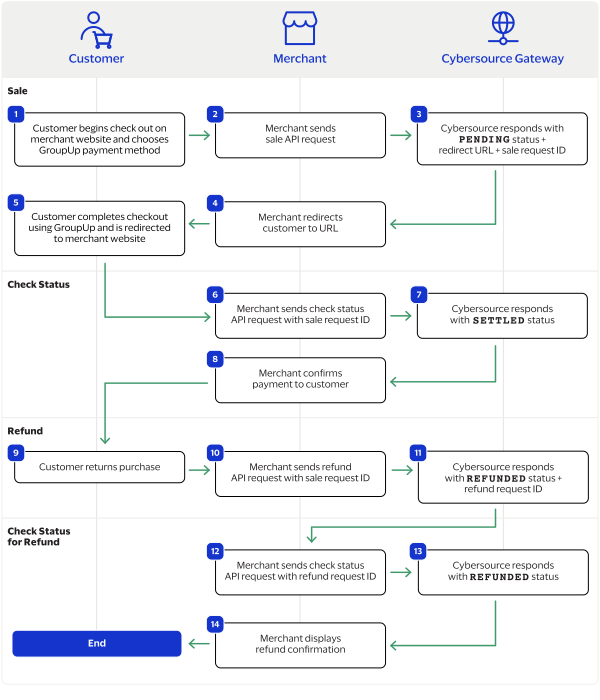
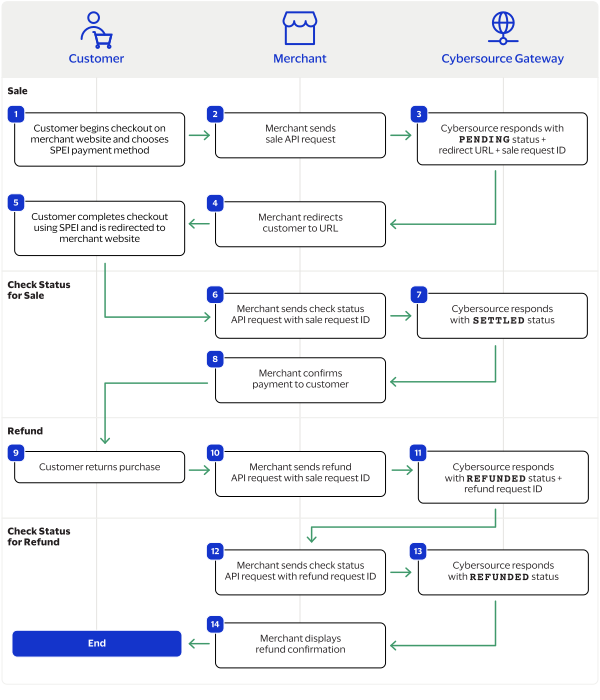
with the sale
request ID. For more information, see Refund a Payment.
Cybersource
responds to you with a
REFUNDED
status and refund request ID.
You send a check status request to
Cybersource
to verify the
refund status.
Cybersource
respond to you with a
REFUNDED
status.
You confirm the refund to the customer.
Transaction Statuses Workflow
This workflow shows the statuses that can occur at each stage of processing a sale
and refund.
Figure:
Transaction Statuses Workflow
When a customer begins to check out, you send a sale request to
Cybersource
and receive one of these possible statuses:
FAILED
: The sale cannot be completed.
PENDING
: The sale request is accepted but is not
completed. Send the check status request to retrieve status updates.
You send a check status request to
Cybersource
to verify the sale
status and receive one of these statuses:
ABANDONED
: The customer did not complete the payment
using the redirect URL.
FAILED
: The sale request failed. A failed request can
be due to either a rejection or a technical error.
PENDING
: The sale request is accepted but is not
completed. Send the check status request as often as necessary to obtain
the information that you need.
SETTLED
: The sale request is settled for the requested
amount. When the settled amount is deposited into the merchant's bank
account, the status updates to
FUNDED
.
If a customer returns a purchase, you send a refund request to
Cybersource
and receive one of these possible statuses:
FAILED
: The refund request failed.
REFUNDED
: The refund request is accepted but is not
completed. Request the check status service to retrieve status updates.
You send a check status request to
Cybersource
to verify the refund
status and receive one of these statuses:
FAILED
: The refund could not be completed.
REFUNDED
: The settled amount is successfully
refunded.
Process a Sale
This section describes how to send a sale request to process a payment.
A sale request authorizes and captures a payment in the same request. A successful sale
response includes an GroupUp redirect URL and a
PENDING
status.
Redirect the customer to the GroupUp URL to allow the customer to complete the checkout
using their GroupUp account. When the customer completes the checkout, the customer is
redirected to your website.
When you receive a successful response, save the sale request ID in the
id
response
field to perform a follow-on check status request or refund request.
Calculating the Grand Total
Include the grand total in the request by using the
orderInformation.amountDetails.totalAmount
field.
Endpoints
Production:
POST
https://api.cybersource.com
/pts/v2/payments
Test:
POST
https://apitest.cybersource.com
/pts/v2/payments
Processing a Sale
Follow these steps to successfully process sale.
Send a
POST
request to the endpoint
and include these required fields:
clientReferenceInformation.code
merchantInformation.cancelUrl
merchantInformation.failureUrl
merchantInformation.successUrl
orderInformation.amountDetails.currency
Set to
EUR
.
orderInformation.amountDetails.totalAmount
orderInformation.billTo.country
orderInformation.billTo.email
orderInformation.billTo.firstName
orderInformation.billTo.lastName
paymentInformation.paymentType.method.name
Set to
GROUPUP
.
paymentInformation.paymentType.name
processingInformation.actionList
Set to
AP_SALE
.
You can include these optional fields in the request:
When the customer completes the checkout using their GroupUp
credentials, the customer is redirected to the merchant website based on the URL
that you included in the
merchantInformation.successUrl
request field.
Save the request ID in the
id
field from the
sale response. Include the request ID in a check status request to confirm that
the payment is complete.
responds to your sale request with one of these statuses
in the
status
field:
FAILED
: The sale cannot be completed.
PENDING
: The sale request is accepted but is not completed.
Send a check status request as often as necessary to obtain the information that you need.
For more information, see Check a Transaction Status.
Check a Transaction Status
This section describes how to retrieve the current status of a sale or refund. Send a
check status request to know if a pending sale is settled, or to verify that a refund
request is refunded. Use the check status request as often as necessary to obtain the
information that you need.
The check status request requires the request ID from the sale or refund response. The
request ID is in the
id
response field.
Endpoints
Production:
POST
https://api.cybersource.com
/pts/v2/refresh-payment-status/
{id}
Test:
POST
https://apitest.cybersource.com
/pts/v2/refresh-payment-status/
{id}
Set the
{id}
to the request ID of the API service you are retrieving.
responds to your check status request with one of these
statuses in the
status
field:
Check Status Responses for a Sale
ABANDONED
: The customer did not complete the
payment using the redirect URL.
FAILED
: The service request failed. A failed
request can be due to either GroupUp rejecting the transaction or a
technical error.
FUNDED
: The settled amount is funded to the
merchant bank account.
PENDING
: The service request is accepted but is not
completed. Request the check status service to retrieve status
updates.
SETTLED
: The sale request is settled for the
requested amount.
Check Status Responses for a Refund
FAILED
: The service request failed. A failed
request can be due to either GroupUp rejecting the transaction or a
technical error.
REFUNDED
: The settled amount is successfully
refunded.
Refund a Payment
This section describes how to refund a payment. You can refund a settled payment for the
full amount or a partial amount by sending a refund request. Multiple partial refund
requests are also supported, and the total amount of all of the refund requests must be
less than the settled amount.
Requesting a refund requires the sale request ID from the sale response. The sale request
ID is in the
id
response field.
Endpoints
Production:
POST
https://api.cybersource.com
/pts/v2/payments/
{id}
/refunds
Test:
POST
https://apitest.cybersource.com
/pts/v2/payments/
{id}
/refunds
The
{id}
is the request ID
contained in the original transaction request.
responds to your refund request with one of these
statuses in the
status
field:
FAILED
: The refund request failed.
REFUNDED
: The refund request is accepted but is not completed.
Send a check status request to verify that the status is refunded. For more
information, see Check a Transaction Status.
iDEAL Transaction Requests
iDEAL is a payment method offered by the Thunes payment service provider (PSP) that you
can offer your customers through
Cybersource
. With iDEAL you can process
payments, refund payments, and retrieve the status of a pending payment or refund.
This section describes how to process iDEAL transactions using the
REST API
.
Requirement
You must receive a Thunes merchant ID before you can begin processing payments.
Contact your
Cybersource
account manager for more information.
Supported Country and Currency
This table lists the country and currency that is supported by iDEAL.
Supported Country and Currency
Supported Country
Country Code
Supported Currency
Currency Code
Netherlands
NL
Euro
EUR
Shipping Policy
You can ship purchased goods when the sale status is
SETTLED
.
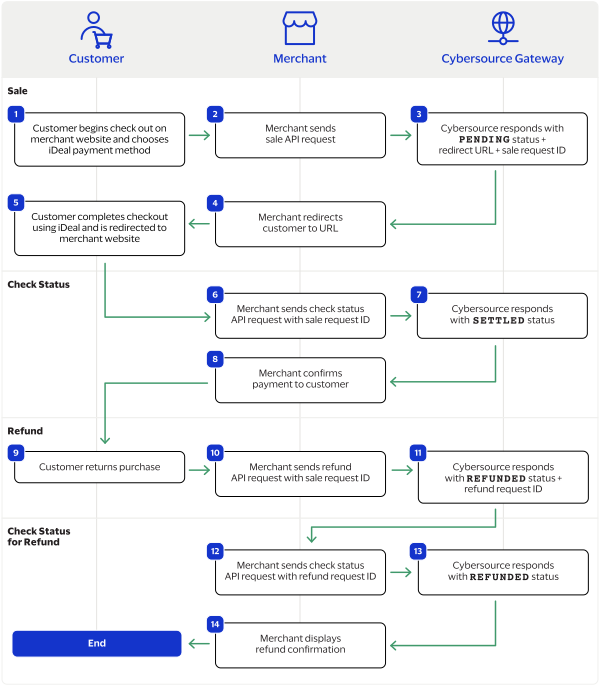
iDEAL by Thunes Transaction Workflow
This workflow describes the sequence of events that comprises a successful iDEAL payment
and refund.
Figure:
iDEAL by Thunes Transaction Workflow
The customer begins to checkout on your website and chooses the iDEAL payment
method.
with the sale
request ID. For more information, see Refund a Payment.
Cybersource
responds to you with a
REFUNDED
status and refund request ID.
You send a check status request to
Cybersource
to verify the
refund status.
Cybersource
respond to you with a
REFUNDED
status.
You confirm the refund to the customer.
Transaction Statuses Workflow
This workflow shows the statuses that can occur at each stage of processing a sale
and refund.
Figure:
Transaction Statuses Workflow
When a customer begins to check out, you send a sale request to
Cybersource
and receive one of these possible statuses:
FAILED
: The sale cannot be completed.
PENDING
: The sale request is accepted but is not
completed. Send the check status request to retrieve status updates.
You send a check status request to
Cybersource
to verify the sale
status and receive one of these statuses:
ABANDONED
: The customer did not complete the payment
using the redirect URL.
FAILED
: The sale request failed. A failed request can
be due to either a rejection or a technical error.
PENDING
: The sale request is accepted but is not
completed. Send the check status request as often as necessary to obtain
the information that you need.
SETTLED
: The sale request is settled for the requested
amount. When the settled amount is deposited into the merchant's bank
account, the status updates to
FUNDED
.
If a customer returns a purchase, you send a refund request to
Cybersource
and receive one of these possible statuses:
FAILED
: The refund request failed.
REFUNDED
: The refund request is accepted but is not
completed. Request the check status service to retrieve status updates.
You send a check status request to
Cybersource
to verify the refund
status and receive one of these statuses:
FAILED
: The refund could not be completed.
REFUNDED
: The settled amount is successfully
refunded.
Process a Sale
This section describes how to send a sale request to process a payment.
A sale request authorizes and captures a payment in the same request. A successful sale
response includes an iDEAL redirect URL and a
PENDING
status. Redirect
the customer to the iDEAL URL to allow the customer to complete the checkout using their
iDEAL account. When the customer completes the checkout, the customer is redirected to
your website.
When you receive a successful response, save the sale request ID in the
id
response
field to perform a follow-on check status request or refund request.
Calculating the Grand Total
Include the grand total in the request by using the
orderInformation.amountDetails.totalAmount
field.
Endpoints
Production:
POST
https://api.cybersource.com
/pts/v2/payments
Test:
POST
https://apitest.cybersource.com
/pts/v2/payments
Processing a Sale
Follow these steps to successfully process sale.
Send a
POST
request to the
https://apitest.cybersource.com
/pts/v2/payments
endpoint and include these required
fields:
clientReferenceInformation.code
merchantInformation.cancelUrl
merchantInformation.failureUrl
merchantInformation.successUrl
orderInformation.amountDetails.currency
Set to
EUR
.
orderInformation.amountDetails.totalAmount
orderInformation.billTo.address1
orderInformation.billTo.country
orderInformation.billTo.email
orderInformation.billTo.firstName
orderInformation.billTo.lastName
orderInformation.billTo.phoneNumber
paymentInformation.paymentType.method.name
Set to
IDEALT
.
paymentInformation.paymentType.name
Set to
bankTransfer
.
processingInformation.actionList
Set to
AP_SALE
.
You can include these optional fields in the request:
When the customer completes the checkout using their iDEAL
credentials, the customer is redirected to the merchant website based on the URL
that you included in the
merchantInformation.successUrl
request field.
Save the request ID in the
id
field from the
sale response. Include the request ID in a check status request to confirm that
the payment is complete.
responds to your sale request with one of these statuses
in the
status
field:
FAILED
: The sale cannot be completed.
PENDING
: The sale request is accepted but is not completed. Send a check status request as often as necessary to obtain the information that you need.
For more information, see Check a Transaction Status.
Check a Transaction Status
This section describes how to retrieve the current status of a sale or refund. Send a
check status request to know if a pending sale is settled, or to verify that a refund
request is refunded. Use the check status request as often as necessary to obtain the
information that you need.
The check status request requires the request ID from the sale or refund response. The
request ID is in the
id
response field.
Endpoints
Production:
POST
https://api.cybersource.com
/pts/v2/refresh-payment-status/
{id}
Test:
POST
https://apitest.cybersource.com
/pts/v2/refresh-payment-status/
{id}
Set the
{id}
to the request ID of the API service you are retrieving.
responds to your check status request with one of these
statuses in the
status
field:
Check Status Responses for a Sale
ABANDONED
: The customer did not complete the
payment using the redirect URL.
FAILED
: The service request failed. A failed
request can be due to either iDEAL rejecting the transaction or a
technical error.
FUNDED
: The settled amount is funded to the
merchant bank account.
PENDING
: The service request is accepted but is not
completed. Request the check status service to retrieve status
updates.
SETTLED
: The sale request is settled for the
requested amount.
Check Status Responses for a Refund
FAILED
: The service request failed. A failed
request can be due to either iDEAL rejecting the transaction or a
technical error.
REFUNDED
: The settled amount is successfully
refunded.
Refund a Payment
This section describes how to refund a payment. You can refund a settled payment for the
full amount or a partial amount by sending a refund request. Multiple partial refund
requests are also supported, and the total amount of all of the refund requests must be
less than the settled amount.
Requesting a refund requires the sale request ID from the sale response. The sale request
ID is in the
id
response field.
Endpoints
Production:
POST
https://api.cybersource.com
/pts/v2/payments/
{id}
/refunds
Test:
POST
https://apitest.cybersource.com
/pts/v2/payments/
{id}
/refunds
The
{id}
is the request ID
contained in the original transaction request.
responds to your refund request with one of these
statuses in the
status
field:
FAILED
: The refund request failed.
REFUNDED
: The refund request is accepted but is not completed.
Send a check status request to verify that the status is refunded. For more
information, see Check a Transaction Status.
MobilePay Transaction Requests
MobilePay is an e-wallet payment method offered by the Thunes payment service provider
(PSP) that you can offer your customers through
Cybersource
. With
MobilePay you can process payments, refund payments, and retrieve the status of a
pending payment or refund.
This section describes how to process MobilePay transactions using the
REST API
.
Requirement
You must receive a Thunes merchant ID before you can begin processing payments.
Contact your
Cybersource
account manager for more information.
Supported Country and Currency
This table lists the country and currency that is supported by MobilePay.
Supported Country and Currency
Supported Country
Country Code
Supported Currency
Currency Code
Denmark
DK
Danish krone
DKK
Shipping Policy
You can ship purchased goods when the sale status is
SETTLED
.
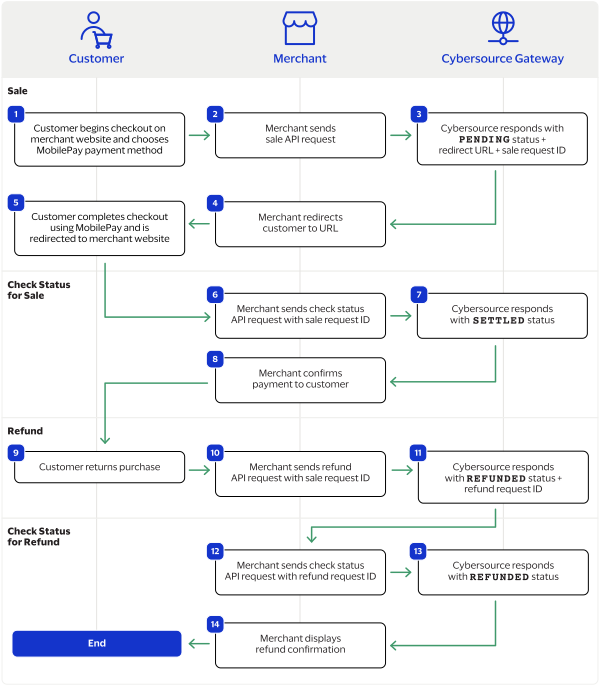
MobilePay by Thunes Transaction Workflow
This workflow describes the sequence of events that comprises a successful
MobilePay payment and refund.
Figure:
MobilePay by Thunes Transaction Workflow
The customer begins to checkout on your website and chooses the MobilePay
payment method.
with the sale
request ID. For more information, see Refund a Payment.
Cybersource
responds to you with a
REFUNDED
status and refund request ID.
You send a check status request to
Cybersource
to verify the
refund status.
Cybersource
respond to you with a
REFUNDED
status.
You confirm the refund to the customer.
Transaction Statuses Workflow
This workflow shows the statuses that can occur at each stage of processing a sale
and refund.
Figure:
Transaction Statuses Workflow
When a customer begins to check out, you send a sale request to
Cybersource
and receive one of these possible statuses:
FAILED
: The sale cannot be completed.
PENDING
: The sale request is accepted but is not
completed. Send the check status request to retrieve status updates.
You send a check status request to
Cybersource
to verify the sale
status and receive one of these statuses:
ABANDONED
: The customer did not complete the payment
using the redirect URL.
FAILED
: The sale request failed. A failed request can
be due to either a rejection or a technical error.
PENDING
: The sale request is accepted but is not
completed. Send the check status request as often as necessary to obtain
the information that you need.
SETTLED
: The sale request is settled for the requested
amount. When the settled amount is deposited into the merchant's bank
account, the status updates to
FUNDED
.
If a customer returns a purchase, you send a refund request to
Cybersource
and receive one of these possible statuses:
FAILED
: The refund request failed.
REFUNDED
: The refund request is accepted but is not
completed. Request the check status service to retrieve status updates.
You send a check status request to
Cybersource
to verify the refund
status and receive one of these statuses:
FAILED
: The refund could not be completed.
REFUNDED
: The settled amount is successfully
refunded.
Process a Sale
This section describes how to send a sale request to process a payment.
A sale request authorizes and captures a payment in the same request. A successful sale
response includes an MobilePay redirect URL and a
PENDING
status.
Redirect the customer to the MobilePay URL to allow the customer to complete the
checkout using their MobilePay account. When the customer completes the checkout, the
customer is redirected to your website.
When you receive a successful response, save the sale request ID in the
id
response
field to perform a follow-on check status request or refund request.
Calculating the Grand Total
Include the grand total in the request by using the
orderInformation.amountDetails.totalAmount
field.
Endpoints
Production:
POST
https://api.cybersource.com
/pts/v2/payments
Test:
POST
https://apitest.cybersource.com
/pts/v2/payments
Processing a Sale
Follow these steps to successfully process sale.
Send a
POST
request to the
https://apitest.cybersource.com
/pts/v2/payments
endpoint and include these required
fields:
clientReferenceInformation.code
merchantInformation.cancelUrl
merchantInformation.failureUrl
merchantInformation.successUrl
orderInformation.amountDetails.currency
Set to
DKK
.
orderInformation.amountDetails.totalAmount
orderInformation.billTo.country
orderInformation.billTo.email
orderInformation.billTo.firstName
orderInformation.billTo.lastName
paymentInformation.paymentType.method.name
Set to
MOBILEPAY
.
paymentInformation.paymentType.name
Set to
eWallet
.
processingInformation.actionList
Set to
AP_SALE
.
You can include these optional fields in the request:
When the customer completes the checkout using their MobilePay
credentials, the customer is redirected to the merchant website based on the URL
that you included in the
merchantInformation.successUrl
request field.
Save the request ID in the
id
field from the
sale response. Include the request ID in a check status request to confirm that
the payment is complete.
responds to your sale request with one of these statuses
in the
status
field:
FAILED
: The sale cannot be completed.
PENDING
: The sale request is accepted but is not completed.
Send a check status request as often as necessary to obtain the information that
you need. For more information, see Check a Status.
Check a Status
This section describes how to retrieve the current status of a sale or refund. Send a
check status request to know if a pending sale is settled, or to verify that a refund
request is refunded. Use the check status request as often as necessary to obtain the
information that you need.
The check status request requires the request ID from the sale or refund response. The
request ID is in the
id
response field.
Endpoints
Production:
POST
https://api.cybersource.com
/pts/v2/refresh-payment-status/
{id}
Test:
POST
https://apitest.cybersource.com
/pts/v2/refresh-payment-status/
{id}
Set the
{id}
to the request ID of the API service you are retrieving.
responds to your check status request with one of these
statuses in the
status
field:
Check Status Responses for a Sale
ABANDONED
: The customer did not complete the
payment using the redirect URL.
FAILED
: The service request failed. A failed
request can be due to either MobilePay rejecting the transaction or
a technical error.
FUNDED
: The settled amount is funded to the
merchant bank account.
PENDING
: The service request is accepted but is not
completed. Request the check status service to retrieve status
updates.
SETTLED
: The sale request is settled for the
requested amount.
Check Status Responses for a Refund
FAILED
: The service request failed. A failed
request can be due to either MobilePay rejecting the transaction or
a technical error.
REFUNDED
: The settled amount is successfully
refunded.
Refund a Payment
This section describes how to refund a payment. You can refund a settled payment for the
full amount or a partial amount by sending a refund request. Multiple partial refund
requests are also supported, and the total amount of all of the refund requests must be
less than the settled amount.
Requesting a refund requires the sale request ID from the sale response. The sale request
ID is in the
id
response field.
Endpoints
Production:
POST
https://api.cybersource.com
/pts/v2/payments/
{id}
/refunds
Test:
POST
https://apitest.cybersource.com
/pts/v2/payments/
{id}
/refunds
The
{id}
is the request ID
contained in the original transaction request.
responds to your refund request with one of these
statuses in the
status
field:
FAILED
: The refund request failed.
REFUNDED
: The refund request is accepted but is not completed.
Send a check status request to verify that the status is refunded. For more
information, see Check a Status.
Multibanco Transaction Requests
Multibanco is a payment method offered by the Thunes payment service provider (PSP) that you
can offer your customers through
Cybersource
. With Multibanco you can
process payments, refund payments, and retrieve the status of a pending payment or
refund.
This section describes how to process Multibanco transactions using the
REST API
.
Requirement
You must receive a Thunes merchant ID before you can begin processing payments.
Contact your
Cybersource
account manager for more information.
Supported Country and Currency
This table lists the country and currency that is supported by Multibanco.
Supported Country and Currency
Supported Country
Country Code
Supported Currency
Currency Code
Portugal
PT
Euro
EUR
Shipping Policy
You can ship purchased goods when the sale status is
SETTLED
.
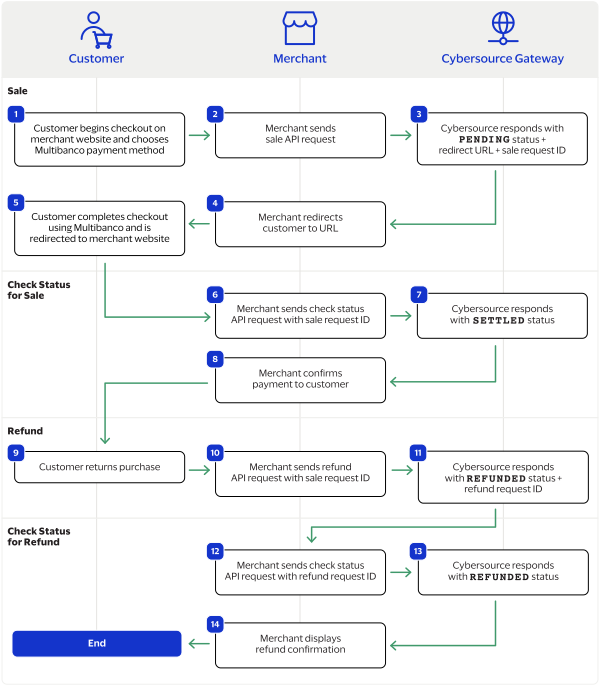
Multibanco by Thunes Transaction Workflow
This workflow describes the sequence of events that comprises a successful Multibanco
payment and refund.
Figure:
Multibanco Transaction Workflow
The customer begins to checkout on your website and chooses the Multibanco
payment method.
with the sale
request ID. For more information, see Refund a Payment.
Cybersource
responds to you with a
REFUNDED
status and refund request ID.
You send a check status request to
Cybersource
to verify the
refund status.
Cybersource
respond to you with a
REFUNDED
status.
You confirm the refund to the customer.
Transaction Statuses Workflow
This workflow shows the statuses that can occur at each stage of processing a sale
and refund.
Figure:
Transaction Statuses Workflow
When a customer begins to check out, you send a sale request to
Cybersource
and receive one of these possible statuses:
FAILED
: The sale cannot be completed.
PENDING
: The sale request is accepted but is not
completed. Send the check status request to retrieve status updates.
You send a check status request to
Cybersource
to verify the sale
status and receive one of these statuses:
ABANDONED
: The customer did not complete the payment
using the redirect URL.
FAILED
: The sale request failed. A failed request can
be due to either a rejection or a technical error.
PENDING
: The sale request is accepted but is not
completed. Send the check status request as often as necessary to obtain
the information that you need.
SETTLED
: The sale request is settled for the requested
amount. When the settled amount is deposited into the merchant's bank
account, the status updates to
FUNDED
.
If a customer returns a purchase, you send a refund request to
Cybersource
and receive one of these possible statuses:
FAILED
: The refund request failed.
REFUNDED
: The refund request is accepted but is not
completed. Request the check status service to retrieve status updates.
You send a check status request to
Cybersource
to verify the refund
status and receive one of these statuses:
FAILED
: The refund could not be completed.
REFUNDED
: The settled amount is successfully
refunded.
Process a Sale
This section describes how to send a sale request to process a payment.
A sale request authorizes and captures a payment in the same request. A successful sale
response includes an Multibanco redirect URL and a
PENDING
status.
Redirect the customer to the Multibanco URL to allow the customer to complete the
checkout using their Multibanco account. When the customer completes the checkout, the
customer is redirected to your website.
When you receive a successful response, save the sale request ID in the
id
response
field to perform a follow-on check status request or refund request.
Calculating the Grand Total
Include the grand total in the request by using the
orderInformation.amountDetails.totalAmount
field.
Endpoints
Production:
POST
https://api.cybersource.com
/pts/v2/payments
Test:
POST
https://apitest.cybersource.com
/pts/v2/payments
Processing a Sale
Follow these steps to successfully process sale.
Send a
POST
request to the
https://apitest.cybersource.com
/pts/v2/payments
endpoint and include these required
fields:
clientReferenceInformation.code
merchantInformation.cancelUrl
merchantInformation.failureUrl
merchantInformation.successUrl
orderInformation.amountDetails.currency
Set to
EUR
.
orderInformation.amountDetails.totalAmount
orderInformation.billTo.address1
orderInformation.billTo.country
orderInformation.billTo.email
orderInformation.billTo.firstName
orderInformation.billTo.lastName
orderInformation.billTo.phoneNumber
paymentInformation.paymentType.method.name
Set to
MULTIBANCO
.
paymentInformation.paymentType.name
Set to
bankTransfer
.
processingInformation.actionList
Set to
AP_SALE
.
You can include these optional fields in the request:
When the customer completes the checkout using their Multibanco
credentials, the customer is redirected to the merchant website based on the URL
that you included in the
merchantInformation.successUrl
request field.
Save the request ID in the
id
field from the
sale response. Include the request ID in a check status request to confirm that
the payment is complete.
responds to your sale request with one of these statuses
in the
status
field:
FAILED
: The sale cannot be completed.
PENDING
: The sale request is accepted but is not completed.
Send a check status request as often as necessary to obtain the information that
you need. For more information, see Check a Status.
Check a Status
This section describes how to retrieve the current status of a sale or refund. Send a
check status request to know if a pending sale is settled, or to verify that a refund
request is refunded. Use the check status request as often as necessary to obtain the
information that you need.
The check status request requires the request ID from the sale or refund response. The
request ID is in the
id
response field.
Endpoints
Production:
POST
https://api.cybersource.com
/pts/v2/refresh-payment-status/
{id}
Test:
POST
https://apitest.cybersource.com
/pts/v2/refresh-payment-status/
{id}
Set the
{id}
to the request ID of the API service you are retrieving.
responds to your check status request with one of these
statuses in the
status
field:
Check Status Responses for a Sale
ABANDONED
: The customer did not complete the
payment using the redirect URL.
FAILED
: The service request failed. A failed
request can be due to either Multibanco rejecting the transaction or
a technical error.
FUNDED
: The settled amount is funded to the
merchant bank account.
PENDING
: The service request is accepted but is not
completed. Request the check status service to retrieve status
updates.
SETTLED
: The sale request is settled for the
requested amount.
Check Status Responses for a Refund
FAILED
: The service request failed. A failed
request can be due to either Multibanco rejecting the transaction or
a technical error.
REFUNDED
: The settled amount is successfully
refunded.
Refund a Payment
This section describes how to refund a payment. You can refund a settled payment for the
full amount or a partial amount by sending a refund request. Multiple partial refund
requests are also supported, and the total amount of all of the refund requests must be
less than the settled amount.
Requesting a refund requires the sale request ID from the sale response. The sale request
ID is in the
id
response field.
Endpoints
Production:
POST
https://api.cybersource.com
/pts/v2/payments/
{id}
/refunds
Test:
POST
https://apitest.cybersource.com
/pts/v2/payments/
{id}
/refunds
The
{id}
is the request ID
contained in the original transaction request.
responds to your refund request with one of these
statuses in the
status
field:
FAILED
: The refund request failed.
REFUNDED
: The refund request is accepted but is not completed.
Send a check status request to verify that the status is refunded. For more
information, see Check a Status.
Pluxee Transaction Requests
Pluxee, previously known as
Sodexo
, is a payment method offered by the Thunes
payment service provider (PSP) that you can offer your customers through
Cybersource
. With Pluxee you can process payments, refund payments, and
retrieve the status of a pending payment or refund.
This section describes how to process Pluxee transactions using the
REST API
.
Requirement
You must receive a Thunes merchant ID before you can begin processing payments.
Contact your
Cybersource
account manager for more information.
Supported Country and Currency
This table lists the country and currency that is supported by Pluxee.
Supported Country and Currency
Supported Country
Country Code
Supported Currency
Currency Code
France
FR
Euro
EUR
Shipping Policy
You can ship purchased goods when the sale status is
SETTLED
.
Pluxee by Thunes Transaction Workflow
This workflow describes the sequence of events that comprises a successful Pluxee
payment and refund.
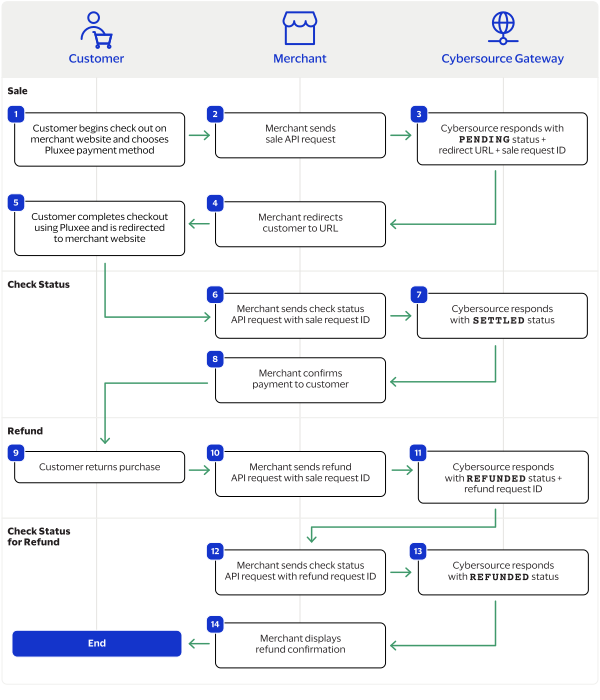
Figure:
Pluxee by Thunes Transaction Workflow
The customer begins to checkout on your website and chooses the Pluxee payment
method.
with the sale
request ID. For more information, see Refund a Payment.
Cybersource
responds to you with a
REFUNDED
status and refund request ID.
You send a check status request to
Cybersource
to verify the
refund status.
Cybersource
respond to you with a
REFUNDED
status.
You confirm the refund to the customer.
Transaction Statuses Workflow
This workflow shows the statuses that can occur at each stage of processing a sale
and refund.
Figure:
Transaction Statuses Workflow
When a customer begins to check out, you send a sale request to
Cybersource
and receive one of these possible statuses:
FAILED
: The sale cannot be completed.
PENDING
: The sale request is accepted but is not
completed. Send the check status request to retrieve status updates.
You send a check status request to
Cybersource
to verify the sale
status and receive one of these statuses:
ABANDONED
: The customer did not complete the payment
using the redirect URL.
FAILED
: The sale request failed. A failed request can
be due to either a rejection or a technical error.
PENDING
: The sale request is accepted but is not
completed. Send the check status request as often as necessary to obtain
the information that you need.
SETTLED
: The sale request is settled for the requested
amount. When the settled amount is deposited into the merchant's bank
account, the status updates to
FUNDED
.
If a customer returns a purchase, you send a refund request to
Cybersource
and receive one of these possible statuses:
FAILED
: The refund request failed.
REFUNDED
: The refund request is accepted but is not
completed. Request the check status service to retrieve status updates.
You send a check status request to
Cybersource
to verify the refund
status and receive one of these statuses:
FAILED
: The refund could not be completed.
REFUNDED
: The settled amount is successfully
refunded.
Process a Sale
This section describes how to send a sale request to process a payment.
A sale request authorizes and captures a payment in the same request. A successful sale
response includes an Pluxee redirect URL and a
PENDING
status. Redirect
the customer to the Pluxee URL to allow the customer to complete the checkout using
their Pluxee account. When the customer completes the checkout, the customer is
redirected to your website.
When you receive a successful response, save the sale request ID in the
id
response
field to perform a follow-on check status request or refund request.
Calculating the Grand Total
Include the grand total in the request by using the
orderInformation.amountDetails.totalAmount
field.
Endpoints
Production:
POST
https://api.cybersource.com
/pts/v2/payments
Test:
POST
https://apitest.cybersource.com
/pts/v2/payments
Processing a Sale
Follow these steps to successfully process sale.
Send a
POST
request to the
https://apitest.cybersource.com
/pts/v2/payments
endpoint and include these required
fields:
clientReferenceInformation.code
merchantInformation.cancelUrl
merchantInformation.failureUrl
merchantInformation.successUrl
orderInformation.amountDetails.currency
Set to
EUR
.
orderInformation.amountDetails.totalAmount
orderInformation.billTo.country
orderInformation.billTo.email
orderInformation.billTo.firstName
orderInformation.billTo.lastName
paymentInformation.paymentType.method.name
Set to
SODEXO
.
paymentInformation.paymentType.name
Set to
Voucher
.
processingInformation.actionList
Set to
AP_SALE
.
You can include these optional fields in the request:
When the customer completes the checkout using their Pluxee
credentials, the customer is redirected to the merchant website based on the URL
that you included in the
merchantInformation.successUrl
request field.
Save the request ID in the
id
field from the
sale response. Include the request ID in a check status request to confirm that
the payment is complete.
responds to your sale request with one of these statuses
in the
status
field:
FAILED
: The sale cannot be completed.
PENDING
: The sale request is accepted but is not completed.
Send a check status request as often as necessary to obtain the information that you need.
For more information, see Check a Transaction Status.
Check a Transaction Status
This section describes how to retrieve the current status of a sale or refund. Send a
check status request to know if a pending sale is settled, or to verify that a refund
request is refunded. Use the check status request as often as necessary to obtain the
information that you need.
The check status request requires the request ID from the sale or refund response. The
request ID is in the
id
response field.
Endpoints
Production:
POST
https://api.cybersource.com
/pts/v2/refresh-payment-status/
{id}
Test:
POST
https://apitest.cybersource.com
/pts/v2/refresh-payment-status/
{id}
Set the
{id}
to the request ID of the API service you are retrieving.
responds to your check status request with one of these
statuses in the
status
field:
Check Status Responses for a Sale
ABANDONED
: The customer did not complete the
payment using the redirect URL.
FAILED
: The service request failed. A failed
request can be due to either Pluxee rejecting the transaction or a
technical error.
FUNDED
: The settled amount is funded to the
merchant bank account.
PENDING
: The service request is accepted but is not
completed. Request the check status service to retrieve status
updates.
SETTLED
: The sale request is settled for the
requested amount.
Check Status Responses for a Refund
FAILED
: The service request failed. A failed
request can be due to either Pluxee rejecting the transaction or a
technical error.
REFUNDED
: The settled amount is successfully
refunded.
Refund a Payment
This section describes how to refund a payment. You can refund a settled payment for the
full amount or a partial amount by sending a refund request. Multiple partial refund
requests are also supported, and the total amount of all of the refund requests must be
less than the settled amount.
Requesting a refund requires the sale request ID from the sale response. The sale request
ID is in the
id
response field.
Endpoints
Production:
POST
https://api.cybersource.com
/pts/v2/payments/
{id}
/refunds
Test:
POST
https://apitest.cybersource.com
/pts/v2/payments/
{id}
/refunds
The
{id}
is the request ID
contained in the original transaction request.
responds to your refund request with one of these
statuses in the
status
field:
FAILED
: The refund request failed.
REFUNDED
: The refund request is accepted but is not completed.
Send a check status request to verify that the status is refunded. For more
information, see Check a Transaction Status.
Przelewy24 Transaction Requests
Przelewy24 (P24) is a payment method offered by the Thunes payment service provider (PSP)
that you can offer your customers through
Cybersource
. You can process a
payment by sending a sale API request message to
Cybersource
.
Cybersource
sends your request to Thunes. Thunes approves the transaction and
sends the request to the processor for settlement. You can also send a refund and check
status API request as follow-on requests.
Requirements
You must have a merchant ID and a Thunes API key for each country in which you
process transactions. Contact your
Cybersource
account manager for
more information.
Supported Country and Currency
This table lists the country, country code, and currency supported by P24.
Supported Country and Currency
Country
Country Code
Currency Code
Poland
PL
PLN
Shipping Policy
You can ship purchased goods when the sale status is
SETTLED
.
P24 by Thunes Payment Workflow
This workflow describes the sequence of events that comprises a successful P24
payment.
Figure:
P24 by Thunes Payment Workflow
The customer begins to checkout on the merchant's website and chooses the P24
payment method.
The merchant displays a confirmation of the completed payment to the
customer.
Transaction Statuses Workflow
This workflow shows the statuses that can occur at each stage of processing a sale
and refund.
Figure:
Transaction Statuses Workflow
When a customer begins to check out, you send a sale request to
Cybersource
and receive one of these possible statuses:
FAILED
: The sale cannot be completed.
PENDING
: The sale request is accepted but is not
completed. Send the check status request to retrieve status updates.
You send a check status request to
Cybersource
to verify the sale
status and receive one of these statuses:
ABANDONED
: The customer did not complete the payment
using the redirect URL.
FAILED
: The sale request failed. A failed request can
be due to either a rejection or a technical error.
PENDING
: The sale request is accepted but is not
completed. Send the check status request as often as necessary to obtain
the information that you need.
SETTLED
: The sale request is settled for the requested
amount. When the settled amount is deposited into the merchant's bank
account, the status updates to
FUNDED
.
If a customer returns a purchase, you send a refund request to
Cybersource
and receive one of these possible statuses:
FAILED
: The refund request failed.
REFUNDED
: The refund request is accepted but is not
completed. Request the check status service to retrieve status updates.
You send a check status request to
Cybersource
to verify the refund
status and receive one of these statuses:
FAILED
: The refund could not be completed.
REFUNDED
: The settled amount is successfully
refunded.
Process a Sale
Send a sale request to authorize and capture a payment in the same request. A successful
sale response includes a redirect URL and a pending status. Redirect the customer to the
URL to allow the customer to complete the checkout using P24.
When the customer completes the checkout, the customer is redirected to the merchant
website using the success-URL provided in the sale request.
Line Items
Line items are included in a request in the
lineItem[]
array.
For more information about how to properly format line items in your request, see
Using Line Items.
Tax Amounts
You can include the tax amount for every type of purchased product
in the
orderInformation.lineItems[].taxAmount
field when you request the
sale service.
Calculating the Grand Total
Include the grand total in the request by using the
orderInformation.amountDetails.totalAmount
field.
Endpoints
Production:
POST
https://api.cybersource.com
/pts/v2/payments
Test:
POST
https://apitest.cybersource.com
/pts/v2/payments
Response Statuses
Cybersource
responds to your sale request with one of these statuses in the
status
field:
Sale Status
FAILED
: The sale cannot be completed.
PENDING
: The sale request is accepted but is not completed.
Request the check status service every 60 minutes to retrieve
status updates. See Check a Request Status.
When you send a check status request to retrieve an updated sale status, these are
the possible responses:
Check Status for a Sale
ABANDONED
: The customer did not complete the payment using the
redirect URL.
FAILED
: The sale cannot be completed.
FUNDED
: The settled amount is funded to the merchant bank
account.
PENDING
: The sale request is accepted but is not complete.
Continue sending the check status request every 60 minutes.
SETTLED
: The sale request is settled for the requested amount.
You cannot receive a settled status until the customer has completed checking
out.
Processing a Sale
Follow these steps to successfully process sale.
IMPORTANT
You must include all of the listed required
fields in your sale request to guarantee the redirect URL will display properly to
the customer.
When the customer completes the checkout using their Prz24
credentials, the customer is redirected to the merchant website based on the URL
that you included in the
merchantInformation.successUrl
field.
Save the request ID in the
id
field
from the sale response. Include the request ID in a check status request to
confirm that the payment is complete.
You can retrieve the status of a pending sale or refund by sending a check status request.
When a pending status updates, a check status response includes the transaction's
new status. Thunes sometimes needs to review a service request, which causes a
transaction to initially respond with a pending status. The check status request
requires you to include the request ID from the pending transaction response you are checking the
status of. The request ID is located in the
id
response field.
Cybersource
recommends that you send a check status request
hourly until the status updates from pending.
Endpoints
Production:
POST
https://api.cybersource.com
/pts/v2/refresh-payment-status/
{id}
Test:
POST
https://apitest.cybersource.com
/pts/v2/refresh-payment-status/
{id}
Set the
{id}
to the request ID of the API service you are retrieving.
Response Statuses
Cybersource
responds to your check status request with one of
these statuses in the
status
field:
Check Status Responses for a Sale
ABANDONED
: The customer did not complete the
payment using the redirect URL.
FAILED
: The service request failed. A failed
request can be due to either P24 rejecting
the transaction or a technical error.
FUNDED
: The settled amount is funded to the
merchant bank account.
PENDING
: The service request is accepted but is not
completed. Request the check status service to retrieve status
updates.
SETTLED
: The sale request is settled for the
requested amount.
Check Status Responses for a Refund
FAILED
: The service request failed. A failed
request can be due to either P24 rejecting
the transaction or a technical error.
You can refund a completed payment for the full amount or a partial amount by sending a refund request. P24 supports multiple
refund requests when the total amount of all of the refund requests is less than the captured amount.
Requesting a
refund requires the request ID from the sale response. The request ID is located in the
response field.
Endpoints
Production:
POST
https://api.cybersource.com
/pts/v2/payments/
{id}
/refunds
Test:
POST
https://apitest.cybersource.com
/pts/v2/payments/
{id}
/refunds
The
{id}
is the request ID
contained in the original transaction request.
Response Statuses
Cybersource
responds to your refund request with one of these statuses as the
status
field value:
FAILED
: The refund request failed.
REFUNDED
: The refund request is accepted but is not completed.
Request the check status service to retrieve status updates. For more
information, see Check a Request Status.
When you send a check status request to retrieve an updated refund status, these are
the possible responses:
ShopeePay is a payment method
offered by the Thunes payment service provider (PSP) that you can offer your customers
through
Cybersource
. You can process a payment by sending a sale API
request message to
Cybersource
.
Cybersource
sends your
request to Thunes. Thunes approves the transaction and sends the request to the
processor for settlement. You can also send a refund and check status API request as
follow-on services.
Requirements
You must have a merchant ID and a Thunes API key for each country in which you
process transactions. Contact your
Cybersource
account manager for
more information.
Supported Currencies
This table lists the currencies supported by ShopeePay.
Supported Currencies and Currency Codes
Currency
Currency Code
IDR
Indonesian rupiah
MYR
Malaysian ringgit
PHP
Philippine peso
Shipping Policy
You can ship purchased goods when the sale status is
SETTLED
.
ShopeePay by Thunes Payment Workflow
This workflow describes the sequence of events that comprises a successful ShopeePay
payment.
Figure:
ShopeePay by Thunes Payment Workflow
The customer begins to checkout on the merchant's website and chooses the
ShopeePay payment method.
The merchant displays a confirmation of the completed payment to the
customer.
Transaction Statuses Workflow
This workflow shows the statuses that can occur at each stage of processing a sale
and refund.
Figure:
Transaction Statuses Workflow
When a customer begins to check out, you send a sale request to
Cybersource
and receive one of these possible statuses:
FAILED
: The sale cannot be completed.
PENDING
: The sale request is accepted but is not
completed. Send the check status request to retrieve status updates.
You send a check status request to
Cybersource
to verify the sale
status and receive one of these statuses:
ABANDONED
: The customer did not complete the payment
using the redirect URL.
FAILED
: The sale request failed. A failed request can
be due to either a rejection or a technical error.
PENDING
: The sale request is accepted but is not
completed. Send the check status request as often as necessary to obtain
the information that you need.
SETTLED
: The sale request is settled for the requested
amount. When the settled amount is deposited into the merchant's bank
account, the status updates to
FUNDED
.
If a customer returns a purchase, you send a refund request to
Cybersource
and receive one of these possible statuses:
FAILED
: The refund request failed.
REFUNDED
: The refund request is accepted but is not
completed. Request the check status service to retrieve status updates.
You send a check status request to
Cybersource
to verify the refund
status and receive one of these statuses:
FAILED
: The refund could not be completed.
REFUNDED
: The settled amount is successfully
refunded.
Process a Sale
Send a sale request to authorize and capture a payment in the same request. A successful
sale response includes a redirect URL and a pending status. Redirect the customer to the
URL to allow the customer to complete the checkout using ShopeePay.
When the customer completes the checkout, the customer is redirected to the merchant
website using the success-URL provided in the sale request.
Line Items
Line items are included in a request in the
lineItem[]
array.
For more information about how to properly format line items in your request, see
Using Line Items.
Tax Amounts
You can include the tax amount for every type of purchased product
in the
orderInformation.lineItems[].taxAmount
field when you request the
sale service.
Calculating the Grand Total
Include the grand total in the request by using the
orderInformation.amountDetails.totalAmount
field.
Response Statuses
Cybersource
responds to your sale request with one of these statuses in the
When the customer completes the checkout using their ShopeePay
credentials, the customer is redirected to the merchant website based on the URL
that you included in the
merchantInformation.successUrl
field.
Save the request ID in the
id
field
from the sale response. Include the request ID in a check status request to
confirm that the payment is complete.
You can retrieve the status of a pending sale or refund by sending a check status request.
When a pending status updates, a check status response includes the transaction's
new status. Thunes sometimes needs to review a service request, which causes a
transaction to initially respond with a pending status. The check status request
requires you to include the request ID from the pending transaction response you are checking the
status of. The request ID is located in the
id
response field.
Cybersource
recommends that you send a check status request
hourly until the status updates from pending.
Response Statuses
Cybersource
responds to your check status request with one of
these statuses in the
status
field:
Check Status Responses for a Sale
ABANDONED
: The customer did not complete the
payment using the redirect URL.
FAILED
: The service request failed. A failed
request can be due to either ShopeePay rejecting
the transaction or a technical error.
FUNDED
: The settled amount is funded to the
merchant bank account.
PENDING
: The service request is accepted but is not
completed. Request the check status service to retrieve status
updates.
SETTLED
: The sale request is settled for the
requested amount.
Check Status Responses for a Refund
FAILED
: The service request failed. A failed
request can be due to either ShopeePay rejecting
the transaction or a technical error.
You can refund a completed payment for the full amount or a partial amount by sending a refund request. ShopeePay supports multiple
refund requests when the total amount of all of the refund requests is less than the captured amount.
Requesting a refund requires the request ID from the sale
response. The request ID is located in the
id
response
field.
Endpoints
Production:
POST
https://api.cybersource.com
/pts/v2/payments/
{id}
/refunds
Test:
POST
https://apitest.cybersource.com
/pts/v2/payments/
{id}
/refunds
The
{id}
is the request ID
contained in the original transaction request.
Response Statuses
Cybersource
responds to your refund request with one of these statuses as the
status
field value:
FAILED
: The refund request failed.
REFUNDED
: The refund request is accepted but is not completed.
Request the check status service to retrieve status updates. For more
information, see Refund a Payment.
When you send a check status request to retrieve an updated refund status, these are
the possible responses:
Turkey card processing is a payment method offered by the Thunes payment service provider
(PSP) that you can offer your customers through
Cybersource
. To process
a payment, send a sale API request message to
Cybersource
.
Cybersource
sends the request to Thunes. Thunes approves the transaction and
sends the request to the processor for settlement. You can also send a refund and check
status API request as follow-on requests.
Requirements
You must have a merchant ID and a Thunes API key for each country in which you
process transactions. Contact your
Cybersource
account manager for
more information.
Supported Country and Currency
This table lists the country, country code, and currency supported by Turkey credit
card processing.
Supported Country and Currency
Country
Country Code
Currency Code
Supported Card Types
Turkey
TR
TRY
Mastercard
Troy
Visa
Shipping Policy
You can ship purchased goods when the sale status is
SETTLED
.
Turkey Card Processing by Thunes Payment Workflow
This workflow illustrates the process of a Turkey local card payment.
Figure:
Turkey credit card processing by Thunes Payment Workflow
The customer begins to checkout on the merchant's website and chooses to pay
with their credit or debit card.
The merchant displays a confirmation of the completed payment to the
customer.
Transaction Statuses Workflow
This workflow shows the statuses that can occur at each stage of processing a sale
and refund.
Figure:
Transaction Statuses Workflow
When a customer begins to check out, you send a sale request to
Cybersource
and receive one of these possible statuses:
FAILED
: The sale cannot be completed.
PENDING
: The sale request is accepted but is not
completed. Send the check status request to retrieve status updates.
You send a check status request to
Cybersource
to verify the sale
status and receive one of these statuses:
ABANDONED
: The customer did not complete the payment
using the redirect URL.
FAILED
: The sale request failed. A failed request can
be due to either a rejection or a technical error.
PENDING
: The sale request is accepted but is not
completed. Send the check status request as often as necessary to obtain
the information that you need.
SETTLED
: The sale request is settled for the requested
amount. When the settled amount is deposited into the merchant's bank
account, the status updates to
FUNDED
.
If a customer returns a purchase, you send a refund request to
Cybersource
and receive one of these possible statuses:
FAILED
: The refund request failed.
REFUNDED
: The refund request is accepted but is not
completed. Request the check status service to retrieve status updates.
You send a check status request to
Cybersource
to verify the refund
status and receive one of these statuses:
FAILED
: The refund could not be completed.
REFUNDED
: The settled amount is successfully
refunded.
Process a Sale
Send a sale request to authorize and capture a payment in the same request. A successful
sale response includes a redirect URL and a pending status. Redirect the customer to the
URL to allow the customer to complete the checkout using Turkey credit card processing.
When the customer completes the checkout, the customer is redirected to the merchant
website using the success-URL provided in the sale request.
Line Items
Line items are included in a request in the
lineItem[]
array.
Tax Amounts
You can include the tax amount for every type of purchased product
in the
orderInformation.lineItems[].taxAmount
field when you request the
sale service.
Calculating the Grand Total
Include the grand total in the request by using the
orderInformation.amountDetails.totalAmount
field.
Endpoints
Production:
POST
https://api.cybersource.com
/pts/v2/payments
Test:
POST
https://apitest.cybersource.com
/pts/v2/payments
Response Statuses
Cybersource
responds to your sale request with one of these statuses in the
status
field:
Sale Status
FAILED
: The sale cannot be completed.
PENDING
: The sale request is accepted but is not completed.
Request the check status service every 60 minutes to retrieve
status updates. See Process a Sale.
When you send a check status request to retrieve an updated sale status, these are
the possible responses:
Check Status for a Sale
ABANDONED
: The customer did not complete the payment using the
redirect URL.
FAILED
: The sale cannot be completed.
FUNDED
: The settled amount is funded to the merchant bank
account.
PENDING
: The sale request is accepted but is not complete.
Continue sending the check status request every 60 minutes.
SETTLED
: The sale request is settled for the requested amount.
You cannot receive a settled status until the customer has completed checking
out.
When the customer completes the checkout using their card
credentials, the customer is redirected to the merchant website based on the URL
that you included in the
merchantInformation.successUrl
field.
Save the request ID in the
id
field from the
sale response. Include the request ID in a check status request to confirm that
the payment is complete.
You can retrieve the status of a pending sale or refund by sending a check status request.
When a pending status updates, a check status response includes the transaction's
new status. Thunes sometimes needs to review a service request, which causes a
transaction to initially respond with a pending status. The check status request
requires you to include the request ID from the pending transaction response you are checking the
status of. The request ID is located in the
id
response field.
Cybersource
recommends that you send a check status request
hourly until the status updates from pending.
Endpoints
Production:
POST
https://api.cybersource.com
/pts/v2/refresh-payment-status/
{id}
Test:
POST
https://apitest.cybersource.com
/pts/v2/refresh-payment-status/
{id}
Set the
{id}
to the request ID of the API service you are retrieving.
Response Statuses
Cybersource
responds to your check status request with one of
these statuses in the
status
field:
Check Status Responses for a Sale
ABANDONED
: The customer did not complete the
payment using the redirect URL.
FAILED
: The service request failed. A failed
request can be due to either Turkey credit card processing rejecting
the transaction or a technical error.
FUNDED
: The settled amount is funded to the
merchant bank account.
PENDING
: The service request is accepted but is not
completed. Request the check status service to retrieve status
updates.
SETTLED
: The sale request is settled for the
requested amount.
Check Status Responses for a Refund
FAILED
: The service request failed. A failed
request can be due to either Turkey credit card processing rejecting
the transaction or a technical error.
You can refund a completed payment for the full amount or a partial amount by sending a
refund request. Turkey card processing supports multiple refund requests when the total
amount of all of the refund requests is less than the captured amount.
Requesting a refund requires the request ID from the sale
response. The request ID is located in the
id
response
field.
Endpoints
Production:
POST
https://api.cybersource.com
/pts/v2/payments/
{id}
/refunds
Test:
POST
https://apitest.cybersource.com
/pts/v2/payments/
{id}
/refunds
The
{id}
is the request ID
contained in the original transaction request.
Response Statuses
Cybersource
responds to your refund request with one of these statuses as the
status
field value:
FAILED
: The refund request failed.
REFUNDED
: The refund request is accepted but is not completed.
Request the check status service to retrieve status updates. For more
information, see Check a Request Status.
When you send a check status request to retrieve an updated refund status, these are
the possible responses:
Twint is a payment method offered by the Thunes payment service provider (PSP) that you
can offer your customers through
Cybersource
. You can process a payment
by sending a sale API request message to
Cybersource
.
Cybersource
sends your request to Thunes. Thunes approves the transaction and
sends the request to the processor for settlement. You can also send a refund and check
status API request as follow-on requests.
Requirements
You must have a merchant ID and a Thunes API key for each country in which you
process transactions. Contact your
Cybersource
account manager for
more information.
Supported Country and Currency
This table lists the country, country code, and currency supported by Twint.
Supported Country and Currency
Country
Country Code
Currency Code
Switzerland
CH
CHF
Shipping Policy
Goods can be shipped when the sale status is
SETTLED
.
Twint by Thunes Payment Workflow
This workflow describes the sequence of events that comprises a successful Twint
payment.
Figure:
Twint by Thunes Payment Workflow
The customer begins to checkout on the merchant's website and chooses the Twint
payment method.
The merchant displays a confirmation of the completed payment to the
customer.
Transaction Statuses Workflow
This workflow shows the statuses that can occur at each stage of processing a sale
and refund.
Figure:
Transaction Statuses Workflow
When a customer begins to check out, you send a sale request to
Cybersource
and receive one of these possible statuses:
FAILED
: The sale cannot be completed.
PENDING
: The sale request is accepted but is not
completed. Send the check status request to retrieve status updates.
You send a check status request to
Cybersource
to verify the sale
status and receive one of these statuses:
ABANDONED
: The customer did not complete the payment
using the redirect URL.
FAILED
: The sale request failed. A failed request can
be due to either a rejection or a technical error.
PENDING
: The sale request is accepted but is not
completed. Send the check status request as often as necessary to obtain
the information that you need.
SETTLED
: The sale request is settled for the requested
amount. When the settled amount is deposited into the merchant's bank
account, the status updates to
FUNDED
.
If a customer returns a purchase, you send a refund request to
Cybersource
and receive one of these possible statuses:
FAILED
: The refund request failed.
REFUNDED
: The refund request is accepted but is not
completed. Request the check status service to retrieve status updates.
You send a check status request to
Cybersource
to verify the refund
status and receive one of these statuses:
FAILED
: The refund could not be completed.
REFUNDED
: The settled amount is successfully
refunded.
Process a Sale
Send a sale request to authorize and capture a payment in the same request. A successful
sale response includes a redirect URL and a pending status. Redirect the customer to the
URL to allow the customer to complete the checkout using Twint.
When the customer completes the checkout, the customer is redirected to the merchant
website using the success-URL provided in the sale request.
Line Items
Line items are included in a request in the
lineItem[]
array.
For more information about how to properly format line items in your request, see
Using Line Items.
Tax Amounts
You can include the tax amount for every type of purchased product
in the
orderInformation.lineItems[].taxAmount
field when you request the
sale service.
Calculating the Grand Total
Include the grand total in the request by using the
orderInformation.amountDetails.totalAmount
field.
Endpoints
Production:
POST
https://api.cybersource.com
/pts/v2/payments
Test:
POST
https://apitest.cybersource.com
/pts/v2/payments
Response Statuses
Cybersource
responds to your sale request with one of these statuses in the
status
field:
Sale Status
FAILED
: The sale cannot be completed.
PENDING
: The sale request is accepted but is not completed.
Request the check status service every 60 minutes to retrieve
status updates. See Check a Request Status.
When you send a check status request to retrieve an updated sale status, these are
the possible responses:
Check Status for a Sale
ABANDONED
: The customer did not complete the payment using the
redirect URL.
FAILED
: The sale cannot be completed.
FUNDED
: The settled amount is funded to the merchant bank
account.
PENDING
: The sale request is accepted but is not complete.
Continue sending the check status request every 60 minutes.
SETTLED
: The sale request is settled for the requested amount.
You cannot receive a settled status until the customer has completed checking
out.
Processing a Sale
Follow these steps to successfully process sale.
Send a
POST
request to the
https://api.cybersource.com
/pts/v2/payments
endpoint and include these required
fields:
You can include these optional fields in the request:
When the customer completes the checkout using their Twint
credentials, the customer is redirected to the merchant website based on the URL
that you included in the
merchantInformation.successUrl
field.
Save the request ID in the
id
field
from the sale response. Include the request ID in a check status request to
confirm that the payment is complete.
You can retrieve the status of a pending sale or refund by sending a check status request.
When a pending status updates, a check status response includes the transaction's
new status. Thunes sometimes needs to review a service request, which causes a
transaction to initially respond with a pending status. The check status request
requires you to include the request ID from the pending transaction response you are checking the
status of. The request ID is located in the
id
response field.
Cybersource
recommends that you send a check status request
hourly until the status updates from pending.
Endpoints
Production:
POST
https://api.cybersource.com
/pts/v2/refresh-payment-status/
{id}
Test:
POST
https://apitest.cybersource.com
/pts/v2/refresh-payment-status/
{id}
Set the
{id}
to the request ID of the API service you are retrieving.
Response Statuses
Cybersource
responds to your check status request with one of
these statuses in the
status
field:
Check Status Responses for a Sale
ABANDONED
: The customer did not complete the
payment using the redirect URL.
FAILED
: The service request failed. A failed
request can be due to either Twint rejecting
the transaction or a technical error.
FUNDED
: The settled amount is funded to the
merchant bank account.
PENDING
: The service request is accepted but is not
completed. Request the check status service to retrieve status
updates.
SETTLED
: The sale request is settled for the
requested amount.
Check Status Responses for a Refund
FAILED
: The service request failed. A failed
request can be due to either Twint rejecting
the transaction or a technical error.
You can refund a completed payment for the full amount or a partial amount by sending a refund request. Twint supports multiple
refund requests when the total amount of all of the refund requests is less than the captured amount.
Requesting a refund requires the request ID from the sale
response. The request ID is located in the
id
response
field.
Endpoints
Production:
POST
https://api.cybersource.com
/pts/v2/payments/
{id}
/refunds
Test:
POST
https://apitest.cybersource.com
/pts/v2/payments/
{id}
/refunds
The
{id}
is the request ID
contained in the original transaction request.
Response Statuses
Cybersource
responds to your refund request with one of these statuses as the
status
field value:
FAILED
: The refund request failed.
REFUNDED
: The refund request is accepted but is not completed.
Request the check status service to retrieve status updates. For more
information, see Check a Transaction Status.
When you send a check status request to retrieve an updated refund status, these are
the possible responses:
This section contains helpful information that you can use when processing
transactions.
Using Line Items
This section describes how to format line items in your API requests.
Some Thunes API requests require line items or allow you include line items in
addition to the required request information. Line items are used to include
information about the goods that customers purchase, such as product name, quantity,
and price.
Line items are included in a request in the
lineItem[]
array.
Figure:
Required Fields for Line Items
These fields are required for each line item included in your request:
The check status service is a follow-on service used to retrieve
a status update of a pending sale or refund.
When a pending status updates, a check status response includes the transaction's
new status. Thunes sometimes needs to review a service request, which causes a
transaction to initially respond with a pending status. The check status request
requires you to include the request ID from the pending transaction response you are checking the
status of. The request ID is located in the
id
response field.
Cybersource
recommends that you send a check status request
hourly until the status updates from pending.
Endpoints
Production:
POST
https://api.cybersource.com
/pts/v2/refresh-payment-status/
{id}
Test:
POST
https://apitest.cybersource.com
/pts/v2/refresh-payment-status/
{id}
Set the
{id}
to the request ID of the API service you are retrieving.
Response Statuses
Cybersource
responds to your check status request with one of these
statuses in the field:
Check Status Responses for a Sale
ABANDONED
: The customer did not complete the
payment using the redirect URL.
FAILED
: The service request failed. A failed
request can be due to either Alipay+ rejecting the transaction or a
technical error.
FUNDED
: The settled amount is funded to the
merchant bank account.
PENDING
: The service request is accepted but is not
completed. Request the check status service to retrieve status
updates.
SETTLED
: The sale request is settled for the
requested amount.
Check Status Responses for a Refund
FAILED
: The service request failed. A failed
request can be due to either Alipay+ rejecting the transaction or a
technical error.
REFUNDED
: The settled amount is successfully
refunded.
Process a Sale
Send a sale request to authorize and capture a payment in the same request. A successful
sale response includes a redirect URL and a pending status. Redirect the customer to the
URL to allow the customer to complete the checkout using Alipay+. When the customer
completes the checkout, the customer is redirected to your merchant website based on the
success URL you include in the
merchantInformation.successUrl
request field.
Supported Digital Wallets
This table lists the supported digital wallet types and the relevant digital wallet
code, country code, and currency code for each country. When sending a sale request,
set these fields to the specified values listed in the table:
Supported Digital Wallets
Country
Digital Wallet
Digital Wallet Code
Country Code
Currency Code
China
Alipay
ALO
CN
CNY
Hong Kong (CN)
Alipay+
ALP
HK
HKD
Indonesia
Akulaku PayLater
APL
ID
IDR
Indonesia
Dana
DNA
ID
IDR
Korea, Republic of (South)
KakaoPay
KPT
KR
KRW
Malaysia
Boost
BST
MY
MYR
Malaysia
Touch'n'GO
TNG
MY
MYR
Philippines
Bank of Philippines
BPI
PH
PHP
Philippines
Gcash
GCH
PH
PHP
Thailand
Rabbit Line Pay
RPL
TH
THB
Thailand
TrueMoney
TMY
TH
THB
Line Items
Line items are included in a request in the
lineItem[]
array.
For more information about how to properly format line items in your request, see
Using Line Items.
Tax Amounts
You can include the tax amount for every type of purchased product
in the
orderInformation.lineItems[].taxAmount
field when you request the
sale service.
Calculating the Grand Total
Include the grand total in the request by using the
orderInformation.amountDetails.totalAmount
field.
Endpoints
Production:
POST
https://api.cybersource.com
/pts/v2/payments
Test:
POST
https://apitest.cybersource.com
/pts/v2/payments
Response Statuses
Cybersource
responds to your sale request with one of these statuses in the
status
field:
Sale Status
FAILED
: The sale cannot be completed.
PENDING
: The sale request is accepted but is not completed.
Request the check status service every 60 minutes to retrieve
status updates. See Check a Request Status.
When you send a check status request to retrieve an updated sale status, these are
the possible responses:
Check Status for a Sale
ABANDONED
: The customer did not complete the payment using the
redirect URL.
FAILED
: The sale cannot be completed.
FUNDED
: The settled amount is funded to the merchant bank
account.
PENDING
: The sale request is accepted but is not complete.
Continue sending the check status request every 60 minutes.
SETTLED
: The sale request is settled for the requested amount.
You cannot receive a settled status until the customer has completed checking
out.
Check a Transaction Status
You can retrieve the current status of a pending authorization, reversal, capture, or
refund by sending a check status request. The check status request requires the request
ID from the corresponding transaction.
When a pending status updates, the check status request responds with the transaction's
new status. Thunes sometimes needs to review a service request, which causes a
transaction to initially respond with a pending status. The check status request
requires you to include the request ID from the pending transaction response you are checking the
status of. The request ID is located in the
id
response field.
Cybersource
recommends that you send a check status request
hourly until the status updates from pending.
Endpoints
Production:
POST
https://api.cybersource.com
/pts/v2/refresh-payment-status/
{id}
Test:
POST
https://apitest.cybersource.com
/pts/v2/refresh-payment-status/
{id}
Set the
{id}
to the request ID of the API service you are retrieving.
Response Statuses
Cybersource
responds to your check status request with one of
these statuses in the
status
field:
Check Status Responses for a Session
ABANDONED
: The customer did not complete the
payment using the redirect URL.
COMPLETED
: The customer completed the checkout
process.
PENDING
: The service request is accepted but is not
completed. Request the check status service to retrieve status
updates.
Check Status Responses for an Authorization
AUTHORIZED
: The customer's payment is authorized.
FAILED
: The service request failed. A failed
request can be due to either Oney rejecting the transaction or a
technical error.
PENDING
: The service request is accepted but is not
completed. Request the check status service to retrieve status
updates.
Check Status Responses for a Capture
FAILED
: The service request failed. A failed
request can be due to either Oney rejecting the transaction or a
technical error.
FUNDED
: The settled amount is funded to the
merchant bank account.
PENDING
: The service request is accepted but is not
completed. Request the check status service to retrieve status
updates.
SETTLED
: The capture request is settled for the
requested amount.
Check Status Responses for an Authorization-Reversals
AUTH-REVERSED
: The authorization is successfully
reversed.
FAILED
: The service request failed. A failed
request can be due to either Oney rejecting the transaction or a
technical error.
PENDING
: The service request is accepted but is not
completed. Request the check status service to retrieve status
updates.
Create a Session
To create a session, you must include shipping fields in your request. The shipping field
values are included in the invoice Oney sends to the customer.
When the session request is complete, the response message includes a pre-approval token
from Oney. Use this pre-approval token when initializing the Oney authorization service.
The session response message also includes a redirection URL that remains available for
the customer up to 20 minutes after the session request.
Line Items
The session service requires you to include line items in your request. Line items
correspond to the fields, starting with
and increasing in numerical order. For
more information on how to use line items, see Using Line Items.
Tax Amounts
Include the tax amount for every type of purchased product in the field when you request the sessions
service.
Calculating the Grand Total
Include the grand total in the request by using the
orderInformation.amountDetails.totalAmount
field.
Endpoints
Production:
POST
https://api.cybersource.com
/pts/v2/payment-references
Test:
POST
https://apitest.cybersource.com
/pts/v2/payment-references
Response Statuses
The session service responds with one of these statuses as the field value:
PENDING
: The session is initiated and the customer may now
checkout. Request the check status service to retrieve status updates. See
Check a Transaction Status.
The session service also responds with a reason code as the field value.
GoPay Transaction Requests
GoPay is
a payment method offered by the Thunes payment service provider (PSP) that you can offer
your customers through
Cybersource
. You can process a payment by sending
a sale API request message to
Cybersource
.
Cybersource
sends your request to Thunes. Thunes approves the transaction and sends the request to
the processor for settlement. You can also send a refund and check status API request as
follow-on services.
Requirements
You must have a merchant ID and a Thunes API key for each country in which you
process transactions. Contact your
Cybersource
account manager for
more information.
Supported Currency
This table lists the currency supported by GoPay.
Supported Currencies and Currency Codes
Currency
Currency Code
Indonesian rupiah
IDR
Shipping Policy
Goods can be shipped when the sale status is
SETTLED
.
GoPay by Thunes Payment Workflow
This workflow describes the sequence of events that comprises a successful GoPay
payment.
Figure:
GoPay by Thunes Payment Workflow
The customer begins to checkout on the merchant's website and chooses the GoPay
payment method.
The merchant displays a confirmation of the completed payment to the
customer.
Transaction Statuses Workflow
This workflow shows the statuses that can occur at each stage of processing a sale
and refund.
Figure:
Transaction Statuses Workflow
When a customer begins to check out, you send a sale request to
Cybersource
and receive one of these possible statuses:
FAILED
: The sale cannot be completed.
PENDING
: The sale request is accepted but is not
completed. Send the check status request to retrieve status updates.
You send a check status request to
Cybersource
to verify the sale
status and receive one of these statuses:
ABANDONED
: The customer did not complete the payment
using the redirect URL.
FAILED
: The sale request failed. A failed request can
be due to either a rejection or a technical error.
PENDING
: The sale request is accepted but is not
completed. Send the check status request as often as necessary to obtain
the information that you need.
SETTLED
: The sale request is settled for the requested
amount. When the settled amount is deposited into the merchant's bank
account, the status updates to
FUNDED
.
If a customer returns a purchase, you send a refund request to
Cybersource
and receive one of these possible statuses:
FAILED
: The refund request failed.
REFUNDED
: The refund request is accepted but is not
completed. Request the check status service to retrieve status updates.
You send a check status request to
Cybersource
to verify the refund
status and receive one of these statuses:
FAILED
: The refund could not be completed.
REFUNDED
: The settled amount is successfully
refunded.
Process a Sale
Send a sale request to authorize and capture a payment in the same request. A successful
sale response includes a redirect URL and a pending status. Redirect the customer to the
URL to allow the customer to complete the checkout using GoPay.
When the customer completes the checkout, the customer is redirected to the merchant
website using the success-URL provided in the sale request.
Line Items
Line items are included in a request in the
lineItem[]
array.
For more information about how to properly format line items in your request, see
Using Line Items.
Tax Amounts
You can include the tax amount for every type of purchased product
in the
orderInformation.lineItems[].taxAmount
field when you request the
sale service.
Calculating the Grand Total
Include the grand total in the request by using the
orderInformation.amountDetails.totalAmount
field.
Endpoints
Production:
POST
https://api.cybersource.com
/pts/v2/payments
Test:
POST
https://apitest.cybersource.com
/pts/v2/payments
Response Statuses
Cybersource
responds to your sale request with one of these statuses in the
status
field:
Sale Status
FAILED
: The sale cannot be completed.
PENDING
: The sale request is accepted but is not completed.
Request the check status service every 60 minutes to retrieve
status updates. See Check a Request Status.
When you send a check status request to retrieve an updated sale status, these are
the possible responses:
Check Status for a Sale
ABANDONED
: The customer did not complete the payment using the
redirect URL.
FAILED
: The sale cannot be completed.
FUNDED
: The settled amount is funded to the merchant bank
account.
PENDING
: The sale request is accepted but is not complete.
Continue sending the check status request every 60 minutes.
SETTLED
: The sale request is settled for the requested amount.
You cannot receive a settled status until the customer has completed checking
out.
When the customer completes the checkout using their GoPay
credentials, the customer is redirected to the merchant website based on the URL
that you included in the
merchantInformation.successUrl
field.
Save the request ID in the
id
field
from the sale response. Include the request ID in a check status request to
confirm that the payment is complete.
The check status service is a follow-on service used to retrieve a status update of a
pending sale or refund.
When a pending status updates, a check status response includes the transaction's
new status. Thunes sometimes needs to review a service request, which causes a
transaction to initially respond with a pending status. The check status request
requires you to include the request ID from the pending transaction response you are checking the
status of. The request ID is located in the
id
response field.
Cybersource
recommends that you send a check status request
hourly until the status updates from pending.
Endpoints
Production:
POST
https://api.cybersource.com
/pts/v2/refresh-payment-status/
{id}
Test:
POST
https://apitest.cybersource.com
/pts/v2/refresh-payment-status/
{id}
Set the
{id}
to the request ID of the API service you are retrieving.
Response Statuses
Cybersource
responds to your check status request with one of
these statuses in the
status
field:
Check Status Responses for a Sale
ABANDONED
: The customer did not complete the
payment using the redirect URL.
FAILED
: The service request failed. A failed
request can be due to either GoPay rejecting
the transaction or a technical error.
FUNDED
: The settled amount is funded to the
merchant bank account.
PENDING
: The service request is accepted but is not
completed. Request the check status service to retrieve status
updates.
SETTLED
: The sale request is settled for the
requested amount.
Check Status Responses for a Refund
FAILED
: The service request failed. A failed
request can be due to either GoPay rejecting
the transaction or a technical error.
You can refund a completed payment for the full amount or a partial amount by sending a refund request. GoPay supports multiple
refund requests when the total amount of all of the refund requests is less than the captured amount.
Requesting a refund requires the request ID from the sale
response. The request ID is located in the
id
response
field.
Endpoints
Production:
POST
https://api.cybersource.com
/pts/v2/payments/
{id}
/refunds
Test:
POST
https://apitest.cybersource.com
/pts/v2/payments/
{id}
/refunds
The
{id}
is the request ID
contained in the original transaction request.
Response Statuses
Cybersource
responds to your refund request with one of these statuses as the
status
field value:
FAILED
: The refund request failed.
REFUNDED
: The refund request is accepted but is not completed.
Request the check status service to retrieve status updates. For more
information, see Check a Request Status.
When you send a check status request to retrieve an updated refund status, these are
the possible responses:
with the sale
request ID. For more information, see Refund a Payment.
Cybersource
responds to you with a
REFUNDED
status and refund request ID.
You send a check status request to
Cybersource
to verify the
refund status.
Cybersource
respond to you with a
REFUNDED
status.
You confirm the refund to the customer.
Transaction Statuses Workflow
This workflow shows the statuses that can occur at each stage of processing a sale
and refund.
Figure:
Transaction Statuses Workflow
When a customer begins to check out, you send a sale request to
Cybersource
and receive one of these possible statuses:
FAILED
: The sale cannot be completed.
PENDING
: The sale request is accepted but is not
completed. Send the check status request to retrieve status updates.
You send a check status request to
Cybersource
to verify the sale
status and receive one of these statuses:
ABANDONED
: The customer did not complete the payment
using the redirect URL.
FAILED
: The sale request failed. A failed request can
be due to either a rejection or a technical error.
PENDING
: The sale request is accepted but is not
completed. Send the check status request as often as necessary to obtain
the information that you need.
SETTLED
: The sale request is settled for the requested
amount. When the settled amount is deposited into the merchant's bank
account, the status updates to
FUNDED
.
If a customer returns a purchase, you send a refund request to
Cybersource
and receive one of these possible statuses:
FAILED
: The refund request failed.
REFUNDED
: The refund request is accepted but is not
completed. Request the check status service to retrieve status updates.
You send a check status request to
Cybersource
to verify the refund
status and receive one of these statuses:
FAILED
: The refund could not be completed.
REFUNDED
: The settled amount is successfully
refunded.
Process a Sale
This section describes how to send a sale request to process a payment.
A sale request authorizes and captures a payment in the same request. A successful sale
response includes an MercadoPago redirect URL and a
PENDING
status.
Redirect the customer to the MercadoPago URL to allow the customer to complete the
checkout using their MercadoPago account. When the customer completes the checkout, the
customer is redirected to your website.
When you receive a successful response, save the sale request ID in the
id
response
field to perform a follow-on check status request or refund request.
Calculating the Grand Total
Include the grand total in the request by using the
When the customer completes the checkout using their
MercadoPago credentials, the customer is redirected to the merchant website
based on the URL that you included in the
merchantInformation.successUrl
request field.
Save the request ID in the
id
field from the
sale response. Include the request ID in a check status request to confirm that
the payment is complete.
responds to your sale request with one of these statuses
in the
status
field:
FAILED
: The sale cannot be completed.
PENDING
: The sale request is accepted but is not completed.
Send a check status request as often as necessary to obtain the information you
need. For more information, see Check a Transaction Status.
Check a Transaction Status
This section describes how to retrieve the current status of a sale or refund. Send a
check status request to know if a pending sale is settled, or to verify that a refund
request is refunded. Use the check status request as often as necessary to obtain the
information that you need.
The check status request requires the request ID from the sale or refund response. The
request ID is in the
id
response field.
Endpoints
Production:
POST
https://api.cybersource.com
/pts/v2/refresh-payment-status/
{id}
Test:
POST
https://apitest.cybersource.com
/pts/v2/refresh-payment-status/
{id}
Set the
{id}
to the request ID of the API service you are retrieving.
responds to your check status request with one of these
statuses in the
status
field:
Check Status Responses for a Sale
ABANDONED
: The customer did not complete the
payment using the redirect URL.
FAILED
: The service request failed. A failed
request can be due to either MercadoPago rejecting the transaction
or a technical error.
FUNDED
: The settled amount is funded to the
merchant bank account.
PENDING
: The service request is accepted but is not
completed. Request the check status service to retrieve status
updates.
SETTLED
: The sale request is settled for the
requested amount.
Check Status Responses for a Refund
FAILED
: The service request failed. A failed
request can be due to either MercadoPago rejecting the transaction
or a technical error.
REFUNDED
: The settled amount is successfully
refunded.
Refund a Payment
This section describes how to refund a payment. You can refund a settled payment for the
full amount or a partial amount by sending a refund request. Multiple partial refund
requests are also supported, and the total amount of all of the refund requests must be
less than the settled amount.
Requesting a refund requires the sale request ID from the sale response. The sale request
ID is in the
id
response field.
Endpoints
Production:
POST
https://api.cybersource.com
/pts/v2/payments/
{id}
/refunds
Test:
POST
https://apitest.cybersource.com
/pts/v2/payments/
{id}
/refunds
The
{id}
is the request ID
contained in the original transaction request.
responds to your refund request with one of these
statuses in the
status
field:
FAILED
: The refund request failed.
REFUNDED
: The refund request is accepted but is not completed.
Send a check status request to verify that the status is refunded. For more
information, see Check a Transaction Status.
Oney Transaction Requests
Oney is a Buy Now Pay Later (BNPL) payment method offered by the Thunes payment service
provider (PSP) that you can offer your customers through
Cybersource
.
With Oney, merchants can enable their customers to split their payments into three or
four installments. These flexible payment options can help increase customer purchases
and create customer retention.
Requirements
You must have a merchant ID and a Thunes API key for each country in which you
process transactions. Contact your
Cybersource
account manager for
more information.
Supported Countries and Currencies
This table lists the countries, country codes, and currencies supported by Oney.
Supported Countries and Currencies
Country
Country Code
Currency
Currency Code
Belgium
BE
Euro
EUR
France
FR
Euro
EUR
Italy
IT
Euro
EUR
Netherlands
NL
Euro
EUR
Portugal
PT
Euro
EUR
Spain
ES
Euro
EUR
Shipping Policy
Goods can be shipped when the authorization is status is
AUTHORIZED
.
Oney by Thunes Payment Workflow
This workflow describes the sequence of events that comprises a successful Oney
payment.
Figure:
Oney by Thunes Payment Workflow
The customer chooses the Oney payment method from among the available payment
methods shown on the merchant's checkout page.
The merchant sends the create a session API request to
Cybersource
. The session service creates a unique customer session.
SeeCreate a Session .
Cybersource
responds with a
PENDING
status, a
URL to redirect the customer, and a pre-approval token.
The merchant sends the customer to the redirect URL page.
The customer completes the checkout on the redirection page within 20
minutes.
The merchant sends an authorization API request to
Cybersource
with the pre-approval token and any optional details. See Authorize a Payment.
Cybersource
responds to the merchant with one of these
statuses:
AUTHORIZED
: The payment is successfully
authorized.
PENDING
: Either the authorization is being audited by
Oney or the customer has not completed the checkout using the
redirection URL. The merchant should send a check status request to
retrieve status updates. See Check a Transaction Status.
responds to the merchant with one of these
statuses:
PENDING
: The capture request is accepted but is not
SETTLED
. The merchant should send a check status
request to retrieve status updates. See Check a Transaction Status.
SETTLED
: The capture request is settled for the
requested amount.
Oney by Thunes Authorization-Reversal Workflow
This workflow describes the sequence of events that comprises a successful Oney
authorization-reversal.
Figure:
Oney by Thunes Authorization-Reversal Workflow
The customer chooses the Oney payment method from among the available payment
methods shown on the merchant's checkout page.
The merchant sends the create a session API request to
Cybersource
. The session service creates a unique customer session.
See Create a Session.
Cybersource
responds with
PENDING
status, a
URL to redirect the customer, and a pre-approval token.
The merchant sends the customer to the redirect URL page.
The customer completes the checkout on the redirection page within 20
minutes.
The merchant sends an authorization API request to
Cybersource
with the pre-approval token and any optional details. See Authorize a Payment.
Cybersource
responds to the merchant with one of these
statuses:
AUTHORIZED
: The payment is successfully
authorized.
PENDING
: Either the authorization is being audited by
Oney or the customer has not completed the checkout using the
redirection URL. The merchant should send a check status request to
retrieve status updates. See Check a Transaction Status.
The customer and merchant decide to cancel the payment, and the merchant sends
an authorization-reversal API request to
This workflow describes the sequence of events that comprises a successful Oney
refund.
Figure:
Oney by Thunes Refund Workflow
The customer chooses the Oney payment method from among the available payment
methods shown on the merchant's checkout page.
The merchant sends the create a session API request to
Cybersource
. The session service creates a unique customer session.
See Create a Session.
Cybersource
responds with
PENDING
status, a
URL to redirect the customer, and a pre-approval token.
The merchant sends the customer to the redirect URL page.
The customer completes the checkout on the redirection page within 20
minutes.
The merchant sends an authorization API request to
Cybersource
with the pre-approval token and any optional details. See Authorize a Payment.
Cybersource
responds to the merchant with one of these
statuses:
AUTHORIZED
: The payment is successfully
authorized.
PENDING
: Either the authorization is being audited by
Oney or the customer has not completed the checkout using the
redirection URL. The merchant should send a check status API request to
retrieve status updates. See Check a Transaction Status.
To create a session, you must include shipping fields in your request. The shipping field
values are included in the invoice Oney sends to the customer.
When the session request is complete, the response message includes a pre-approval token
from Oney. Use this pre-approval token when initializing the Oney authorization service.
The session response message also includes a redirection URL that remains available for
the customer up to 20 minutes after the session request.
Line Items
The session service requires you to include line items in your
request. Line items are included in a request in the
lineItem[]
array.
For more information on how to use line items, see Using Line Items.
Tax Amounts
Include the tax amount for every type of purchased product in the
orderInformation.lineItems[].taxAmount
field when you request the sessions service.
Calculating the Grand Total
Include the grand total in the request by using the
orderInformation.amountDetails.totalAmount
field.
Endpoints
Production:
POST
https://api.cybersource.com
/pts/v2/payment-references
Test:
POST
https://apitest.cybersource.com
/pts/v2/payment-references
Response Statuses
The session service responds with one of these statuses as the
status
field
value:
PENDING
: The session is initiated and the customer may now
checkout. Request the check status service to retrieve status updates. See
Check a Transaction Status.
The session service also responds with a reason code as the field value.
Creating a Session
Follow these steps to successfully create a session.
When the customer completes the checkout using their Oney credentials, the
customer is redirected to the merchant site based on the URL that you included
in the
merchantInformation.successURL
field.
Save the returned pre-approval token contained in the
processorInformation.token
response field. Include
the pre-approval token in the authorization request to link the authorization to
the session.
The authorization service confirms a customer's account holds enough funds for the
payment.
The authorization request requires the pre-approved token returned in the session
response in the
processorInformation.token
field.
When a payment is authorized, it can be captured within 28 days.
Line Items
The authorization service requires you to include line items in your
request. Line items are included in a request in the
lineItem[]
array.
For more information on how to use line items, see Using Line Items.
Tax Amounts
Include the tax amount for every type of purchased product in the
orderInformation.lineItems[].taxAmount
field when you request the
authorization service.
Calculating the Grand Total
Include the grand total in the request by using the
orderInformation.amountDetails.totalAmount
field.
Endpoints
Production:
POST
https://api.cybersource.com
/pts/v2/payments/
Test:
POST
https://apitest.cybersource.com
/pts/v2/payments/
Response Statuses
The authorization service responds with one of these statuses as the
status
field value:
AUTHORIZED
: The payment is successfully authorized.
FAILED
: The authorization request failed.
PENDING
: The authorization request is accepted but is not
authorized. Either the authorization is being audited by Oney or the customer
has not completed the checkout using the redirection URL. The merchant should
send a check status request to retrieve status updates. Request the check status
service to retrieve status updates. See Check a Transaction Status.
The authorization service also responds with a reason code as the
The authorization-reversal request enables you to reverse a transaction's authorized
amount. You may need to reverse an authorized payment when either you or the customer
decide to cancel a payment. Requesting an authorization-reversal requires the
id
from the
authorization response.
Calculating the Grand Total
Include the grand total in the request by using the
orderInformation.amountDetails.totalAmount
field.
Endpoints
Production:
POST
https://api.cybersource.com
/pts/v2/payments/
{id}
/reversals
Test:
POST
https://apitest.cybersource.com
/pts/v2/payments/
{id}
/reversals
Set the
{id}
to the request ID
returned in the authorization request.
Response Statuses
The authorization-reversal service responds with
one of these statuses as the
status
field value:
AUTH_REVERSED
: The authorization is successfully reversed.
FAILED
: The authorization-reversal failed.
The authorization-reversal service also responds with a reason code as the
processorInformation.responseCode
field value.
Required Fields for Reversing an Authorized
Payment
Include these required fields to reverse an authorization.
The capture request enables you to capture an authorized payment. You can either capture
the entire amount in one request or request partial-capture amounts. Oney supports
multiple partial-capture requests when the total amount of all captures is less than the
authorized amount. Requesting a capture requires the from the authorization
response.
You can capture an authorized payment up to 28 days after the payment was authorized.
Calculating the Grand Total
Include the grand total in the request by using the
orderInformation.amountDetails.totalAmount
field.
Endpoints
Production:
POST
https://api.cybersource.com
/pts/v2/payments/
{id}
/captures
Test:
POST
https://apitest.cybersource.com
/pts/v2/payments/
{id}
/captures
Set the
{id}
to the request ID
contained in the authorization response.
Response Statuses
The capture service responds with one of these statuses as the
status
response field value:
FAILED
: The capture request failed.
PENDING
: The capture request is accepted but is not
settled. Request the check status service to retrieve status updates. See
Check a Transaction Status.
SETTLED
: The capture request is settled for the requested
amount.
The capture service also responds with a reason code as the field value.
Required Fields for Capturing a Payment
Include these required fields to capture a payment.
You can refund a completed payment for the full amount or a partial amount by sending a refund request. Oney supports multiple
refund requests when the total amount of all of the refund requests is less than the captured amount.
Requesting a refund requires the request ID from the capture response. The request ID is
located in the
ID
response field.
Endpoints
Production:
POST
https://api.cybersource.com
/pts/v2/payments/
{id}
/refunds
Test:
POST
https://apitest.cybersource.com
/pts/v2/payments/
{id}
/refunds
The
{id}
is the request ID
contained in the original transaction request.
Response Statuses
Cybersource
responds to your refund request with one of these statuses as the
status
field value:
FAILED
: The refund request failed.
REFUNDED
: The refund request is accepted but is not completed.
Request the check status service to retrieve status updates. For more
information, see Check a Transaction Status.
When you send a check status request to retrieve an updated refund status, these are
the possible responses:
You can retrieve the current status of a pending authorization, reversal, capture, or
refund by sending a check status request. The check status request requires the request
ID from the corresponding transaction.
When a pending status updates, the check status request responds with the transaction's
new status. Thunes sometimes needs to review a service request, which causes a
transaction to initially respond with a pending status. The check status request
requires you to include the request ID from the pending transaction response you are checking the
status of. The request ID is located in the
id
response field.
Cybersource
recommends that you send a check status request
hourly until the status updates from pending.
Endpoints
Production:
POST
https://api.cybersource.com
/pts/v2/refresh-payment-status/
{id}
Test:
POST
https://apitest.cybersource.com
/pts/v2/refresh-payment-status/
{id}
Set the
{id}
to the request ID of the API service you are retrieving.
Response Statuses
Cybersource
responds to your check status request with one of
these statuses in the
status
field:
Check Status Responses for a Session
ABANDONED
: The customer did not complete the
payment using the redirect URL.
COMPLETED
: The customer completed the checkout
process.
PENDING
: The service request is accepted but is not
completed. Request the check status service to retrieve status
updates.
Check Status Responses for an Authorization
AUTHORIZED
: The customer's payment is authorized.
FAILED
: The service request failed. A failed
request can be due to either Oney rejecting the transaction or a
technical error.
PENDING
: The service request is accepted but is not
completed. Request the check status service to retrieve status
updates.
Check Status Responses for a Capture
FAILED
: The service request failed. A failed
request can be due to either Oney rejecting the transaction or a
technical error.
FUNDED
: The settled amount is funded to the
merchant bank account.
PENDING
: The service request is accepted but is not
completed. Request the check status service to retrieve status
updates.
SETTLED
: The capture request is settled for the
requested amount.
Check Status Responses for an Authorization-Reversals
AUTH-REVERSED
: The authorization is successfully
reversed.
FAILED
: The service request failed. A failed
request can be due to either Oney rejecting the transaction or a
technical error.
PENDING
: The service request is accepted but is not
completed. Request the check status service to retrieve status
updates.
PromptPay is a payment method offered by the Thunes payment service provider (PSP) that
you can offer your customers through
Cybersource
. You can process a
payment by sending a sale API request to
Cybersource
.
Cybersource
sends your request to Thunes. Thunes approves the transaction and
sends the request to the processor for settlement. You can also send a check status API
request to retrieve status updates of the processing sale. PromptPay does not support
refunds. To issue a refund to the customer, you must provide an alternative method of
reimbursement, such as cash or in-store credit.
Requirements
You must have a merchant ID and a Thunes API key for each country in which you
process transactions. Contact your
Cybersource
account manager for
more information.
Supported Country and Currency
This table lists the country and currency supported by PromptPay.
Supported Currencies and Currency Codes
Country
Country Code
Currency
Currency Code
Thailand
TH
Thai Baht
THB
Shipping Policy
Goods can be shipped when the sale status is
SETTLED
.
Testing Information
IMPORTANT
PromptPay does not support a test endpoint.
Send all test transactions to the production endpoint.
PromptPay by Thunes Payment
Workflow
This workflow describes the sequence of events that comprises a successful PromptPay
payment.
Figure:
Payment Workflow
The customer begins to checkout on the merchant's website and chooses the
PromptPay payment method.
The merchant displays a confirmation of the completed payment to the
customer.
Transaction Statuses Workflow
This workflow describes the sequence of possible statuses you can receive when
processing a sale.
The merchant sends a sale API request to
Cybersource
and
receives one of these possible statuses:
FAILED
: The sale cannot be completed.
PENDING
: The sale request is accepted but is not
completed. Request the check status service to retrieve status updates.
The merchant sends a check status API request to
Cybersource
to
verify the status of the sale and receives one of these statuses:
ABANDONED
: The customer did not complete the payment
using the redirect URL.
FAILED
: The service request failed. A failed request
can be due to either a rejected transaction or a technical error.
PENDING
: The sale request is accepted but is not
completed. Request the check status service again after 60 minutes to
retrieve a status update.
SETTLED
: The sale request is settled for the requested
amount. When the settled amount is deposited into the merchant's bank
account, the status updates to
FUNDED
.
Process a Sale
Send a sale request to authorize and capture a payment in the same request. A successful
sale response includes a redirect URL and a pending status. Redirect the customer to the
URL to allow the customer to complete the checkout using PromptPay.
When the customer completes the checkout, the customer is redirected to the merchant
website using the success-URL provided in the sale request.
Line Items
Line items are included in a request in the
lineItem[]
array.
For more information about how to properly format line items in your request, see
Using Line Items.
Tax Amounts
You can include the tax amount for every type of purchased product
in the
orderInformation.lineItems[].taxAmount
field when you request the
sale service.
Calculating the Grand Total
Include the grand total in the request by using the
orderInformation.amountDetails.totalAmount
field.
Endpoints
Production:
POST
https://api.cybersource.com
/pts/v2/payments
Test:
POST
https://apitest.cybersource.com
/pts/v2/payments
IMPORTANT
PromptPay does not support a test endpoint.
Send all test transactions to the production endpoint.
Response Statuses
Cybersource
responds to your sale request with one of these statuses in the
status
field:
Sale Status
FAILED
: The sale cannot be completed.
PENDING
: The sale request is accepted but is not completed.
Request the check status service every 60 minutes to retrieve
status updates. See Check a Request Status.
When you send a check status request to retrieve an updated sale status, these are
the possible responses:
Check Status for a Sale
ABANDONED
: The customer did not complete the payment using the
redirect URL.
FAILED
: The sale cannot be completed.
FUNDED
: The settled amount is funded to the merchant bank
account.
PENDING
: The sale request is accepted but is not complete.
Continue sending the check status request every 60 minutes.
SETTLED
: The sale request is settled for the requested amount.
You cannot receive a settled status until the customer has completed checking
out.
Processing a Sale
Follow these steps to successfully process sale.
IMPORTANT
You must include all of the listed required
fields in your sale request to guarantee the redirect URL will display properly to
the customer.
When the customer completes the checkout using their P24
credentials, the customer is redirected to the merchant website based on the URL
that you included in the
merchantInformation.successUrl
field.
Save the request ID in the
id
field
from the sale response. Include the request ID in a check status request to
confirm that the payment is complete.
You can retrieve the status of a pending sale or refund by sending a check status request.
The check status service is a follow-on service used to retrieve status updates of a
pending sale.
When a pending status updates, a check status response includes the transaction's
new status. Thunes sometimes needs to review a service request, which causes a
transaction to initially respond with a pending status. The check status request
requires you to include the request ID from the pending transaction response you are checking the
status of. The request ID is located in the
id
response field.
Cybersource
recommends that you send a check status request
hourly until the status updates from pending.
Endpoints
Production:
POST
https://api.cybersource.com
/pts/v2/refresh-payment-status/
{id}
Test:
POST
https://apitest.cybersource.com
/pts/v2/refresh-payment-status/
{id}
Set the
{id}
to the request ID of the API service you are retrieving.
IMPORTANT
PromptPay does not support a test endpoint.
Send all test transactions to the production endpoint.
Response Statuses
Cybersource
responds to your check status request with one of
these statuses in the
status
field:
Check Status Responses for a Sale
ABANDONED
: The customer did not complete the
payment using the redirect URL.
FAILED
: The service request failed. A failed
request can be due to either PromptPay rejecting
the transaction or a technical error.
FUNDED
: The settled amount is funded to the
merchant bank account.
PENDING
: The service request is accepted but is not
completed. Request the check status service to retrieve status
updates.
SETTLED
: The sale request is settled for the
requested amount.
Check Status Responses for a Refund
FAILED
: The service request failed. A failed
request can be due to either PromptPay rejecting
the transaction or a technical error.
with the sale
request ID. For more information, see Refund a Payment.
Cybersource
responds to you with a
REFUNDED
status and refund request ID.
You send a check status request to
Cybersource
to verify the
refund status.
Cybersource
respond to you with a
REFUNDED
status.
You confirm the refund to the customer.
Transaction Statuses Workflow
This workflow shows the statuses that can occur at each stage of processing a sale
and refund.
Figure:
Transaction Statuses Workflow
When a customer begins to check out, you send a sale request to
Cybersource
and receive one of these possible statuses:
FAILED
: The sale cannot be completed.
PENDING
: The sale request is accepted but is not
completed. Send the check status request to retrieve status updates.
You send a check status request to
Cybersource
to verify the sale
status and receive one of these statuses:
ABANDONED
: The customer did not complete the payment
using the redirect URL.
FAILED
: The sale request failed. A failed request can
be due to either a rejection or a technical error.
PENDING
: The sale request is accepted but is not
completed. Send the check status request as often as necessary to obtain
the information that you need.
SETTLED
: The sale request is settled for the requested
amount. When the settled amount is deposited into the merchant's bank
account, the status updates to
FUNDED
.
If a customer returns a purchase, you send a refund request to
Cybersource
and receive one of these possible statuses:
FAILED
: The refund request failed.
REFUNDED
: The refund request is accepted but is not
completed. Request the check status service to retrieve status updates.
You send a check status request to
Cybersource
to verify the refund
status and receive one of these statuses:
FAILED
: The refund could not be completed.
REFUNDED
: The settled amount is successfully
refunded.
Process a Sale
This section describes how to send a sale request to process a payment.
A sale request authorizes and captures a payment in the same request. A successful sale
response includes an SPEI redirect URL and a
PENDING
status. Redirect
the customer to the SPEI URL to allow the customer to complete the checkout using their
SPEI account. When the customer completes the checkout, the customer is redirected to
your website.
When you receive a successful response, save the sale request ID in the
id
response
field to perform a follow-on check status request or refund request.
Calculating the Grand Total
Include the grand total in the request by using the
When the customer completes the checkout using their
MercadoPago credentials, the customer is redirected to the merchant website
based on the URL that you included in the
merchantInformation.successUrl
request field.
Save the request ID in the
id
field from the
sale response. Include the request ID in a check status request to confirm that
the payment is complete.
responds to your sale request with one of these statuses
in the
status
field:
FAILED
: The sale cannot be completed.
PENDING
: The sale request is accepted but is not completed.
Send a check status request as often as necessary to obtain the information that
you need. For more information, see Check a Status.
Check a Status
This section describes how to retrieve the current status of a sale or refund. Send a
check status request to know if a pending sale is settled, or to verify that a refund
request is refunded. Use the check status request as often as necessary to obtain the
information that you need.
The check status request requires the request ID from the sale or refund response. The
request ID is in the
id
response field.
Endpoints
Production:
POST
https://api.cybersource.com
/pts/v2/refresh-payment-status/
{id}
Test:
POST
https://apitest.cybersource.com
/pts/v2/refresh-payment-status/
{id}
Set the
{id}
to the request ID of the API service you are retrieving.
responds to your check status request with one of these
statuses in the
status
field:
Check Status Responses for a Sale
ABANDONED
: The customer did not complete the
payment using the redirect URL.
FAILED
: The service request failed. A failed
request can be due to either SPEI rejecting the transaction or a
technical error.
FUNDED
: The settled amount is funded to the
merchant bank account.
PENDING
: The service request is accepted but is not
completed. Request the check status service to retrieve status
updates.
SETTLED
: The sale request is settled for the
requested amount.
Check Status Responses for a Refund
FAILED
: The service request failed. A failed
request can be due to either SPEI rejecting the transaction or a
technical error.
REFUNDED
: The settled amount is successfully
refunded.
Refund a Payment
This section describes how to refund a payment. You can refund a settled payment for the
full amount or a partial amount by sending a refund request. Multiple partial refund
requests are also supported, and the total amount of all of the refund requests must be
less than the settled amount.
Requesting a refund requires the sale request ID from the sale response. The sale request
ID is in the
id
response field.
Endpoints
Production:
POST
https://api.cybersource.com
/pts/v2/payments/
{id}
/refunds
Test:
POST
https://apitest.cybersource.com
/pts/v2/payments/
{id}
/refunds
The
{id}
is the request ID
contained in the original transaction request.
responds to your refund request with one of these
statuses in the
status
field:
FAILED
: The refund request failed.
REFUNDED
: The refund request is accepted but is not completed.
Send a check status request to verify that the status is refunded. For more
information, see Check a Status.
Token Transaction Requests
Token is a payment method offered by the Thunes payment service provider (PSP) that you
can offer your customers through
Cybersource
. You can process a payment
by sending a sale API request to
Cybersource
.
Cybersource
sends your request to Thunes. Thunes approves the transaction and sends the request
to the processor for settlement. You can also send a check status API request to
retrieve status updates of the processing sale. Token does not support refunds. To issue
a refund to the customer, you must provide an alternative method of reimbursement, such
as cash or in-store credit.
Requirements
You must have a merchant ID and a Thunes API key for each country in which you
process transactions. Contact your
Cybersource
account manager for
more information.
Supported Currencies
This table lists the currencies supported by Token.
Supported Currencies and Currency Codes
Currency
Currency Code
IDR
Indonesian rupiah
MYR
Malaysian ringgit
PHP
Philippine peso
Shipping Policy
You can ship purchased goods when the sale status is
SETTLED
.
Token by Thunes Payment
Workflow
This workflow describes the sequence of events that comprises a successful Token
payment.
Figure:
Token by Thunes Payment Workflow
The customer begins to checkout on the merchant's website and chooses the Token
payment method.
The merchant displays a payment confirmation to the customer.
Transaction Statuses Workflow
This workflow describes the sequence of possible statuses you can receive when processing
a Token transaction.
The merchant sends a sale API request to
Cybersource
and receives
one of these possible statuses:
FAILED
: The sale cannot be completed.
PENDING
: The sale request is accepted but is not
completed. Request the check status service to retrieve status updates.
The merchant sends a check status API request to
Cybersource
to
verify the status of the sale and receives one of these statuses:
ABANDONED
: The customer did not complete the payment
using the redirect URL.
FAILED
: The service request failed. A failed request
can be due to either Token rejecting the transaction or a technical
error.
PENDING
: The sale request is accepted but is not
completed. Request the check status service again after 60 minutes to
retrieve a status update.
SETTLED
: The sale request is settled for the requested
amount. When the settled amount is deposited into the merchant's bank
account, the status updates to
FUNDED
.
Process a Sale
Send a sale request to authorize and capture a payment in the same request. A successful
sale response includes a redirect URL and a pending status. Redirect the customer to the
URL to allow the customer to complete the checkout using Token.
When the customer completes the checkout, the customer is redirected to the merchant
website using the success-URL provided in the sale request.
Line Items
Line items are included in a request in the
lineItem[]
array.
For more information about how to properly format line items in your request, see
Using Line Items.
Tax Amounts
You can include the tax amount for every type of purchased product
in the
orderInformation.lineItems[].taxAmount
field when you request the
sale service.
Calculating the Grand Total
Include the grand total in the request by using the
orderInformation.amountDetails.totalAmount
field.
Endpoints
Production:
POST
https://api.cybersource.com
/pts/v2/payments
Test:
POST
https://apitest.cybersource.com
/pts/v2/payments
Response Statuses
Cybersource
responds to your sale request with one of these statuses in the
status
field:
Sale Status
FAILED
: The sale cannot be completed.
PENDING
: The sale request is accepted but is not completed.
Request the check status service every 60 minutes to retrieve
status updates. See Check a Request Status.
When you send a check status request to retrieve an updated sale status, these are
the possible responses:
Check Status for a Sale
ABANDONED
: The customer did not complete the payment using the
redirect URL.
FAILED
: The sale cannot be completed.
FUNDED
: The settled amount is funded to the merchant bank
account.
PENDING
: The sale request is accepted but is not complete.
Continue sending the check status request every 60 minutes.
SETTLED
: The sale request is settled for the requested amount.
You cannot receive a settled status until the customer has completed checking
out.
When the customer completes the checkout using their Token
credentials, the customer is redirected to the merchant website based on the URL
that you included in the
merchantInformation.successUrl
field.
Save the request ID in the
id
field
from the sale response. Include the request ID in a check status request to
confirm that the payment is complete.
You can retrieve the status of a pending sale or refund by sending a check status request.
The check status service is a follow-on service used to retrieve status updates of a
pending sale.
When a pending status updates, a check status response includes the transaction's
new status. Thunes sometimes needs to review a service request, which causes a
transaction to initially respond with a pending status. The check status request
requires you to include the request ID from the pending transaction response you are checking the
status of. The request ID is located in the
id
response field.
Cybersource
recommends that you send a check status request
hourly until the status updates from pending.
Endpoints
Production:
POST
https://api.cybersource.com
/pts/v2/refresh-payment-status/
{id}
Test:
POST
https://apitest.cybersource.com
/pts/v2/refresh-payment-status/
{id}
Set the
{id}
to the request ID of the API service you are retrieving.
Response Statuses
Cybersource
responds to your check status request with one of
these statuses in the
status
field:
Check Status Responses for a Sale
ABANDONED
: The customer did not complete the
payment using the redirect URL.
FAILED
: The service request failed. A failed
request can be due to either Token rejecting
the transaction or a technical error.
FUNDED
: The settled amount is funded to the
merchant bank account.
PENDING
: The service request is accepted but is not
completed. Request the check status service to retrieve status
updates.
SETTLED
: The sale request is settled for the
requested amount.
Check Status Responses for a Refund
FAILED
: The service request failed. A failed
request can be due to either Token rejecting
the transaction or a technical error.
TrueLayer is a payment method offered by the Thunes
payment service provider (PSP) that you can offer your customers through
Cybersource
. You can process a payment by sending a sale API request to
Cybersource
.
Cybersource
sends your request to
Thunes. Thunes approves the transaction and sends the request to the processor for
settlement. You can also send a check status API request to retrieve status updates of
the processing sale. TrueLayer does not support refunds. To issue a refund to the
customer, you must provide an alternative method of reimbursement, such as cash or
in-store credit.
Requirements
You must have a merchant ID and a Thunes API key for each country in which you
process transactions. Contact your
Cybersource
account manager for
more information.
Shipping Policy
Goods can be shipped when the sale status is
SETTLED
.
TrueLayer by Thunes Payment
Workflow
This workflow describes the sequence of events that comprises a successful TrueLayer
payment.
Figure:
TrueLayer by Thunes Payment Workflow
The customer begins to checkout on the merchant's website and chooses the
TrueLayer payment method.
The merchant displays a payment confirmation to the customer.
Transaction Statuses Workflow
This workflow describes the sequence of possible statuses you can receive when
processing a sale.
The merchant sends a sale API request to
Cybersource
and
receives one of these possible statuses:
FAILED
: The sale cannot be completed.
PENDING
: The sale request is accepted but is not
completed. Request the check status service to retrieve status updates.
The merchant sends a check status API request to
Cybersource
to
verify the status of the sale and receives one of these statuses:
ABANDONED
: The customer did not complete the payment
using the redirect URL.
FAILED
: The service request failed. A failed request
can be due to either a rejected transaction or a technical error.
PENDING
: The sale request is accepted but is not
completed. Request the check status service again after 60 minutes to
retrieve a status update.
SETTLED
: The sale request is settled for the requested
amount. When the settled amount is deposited into the merchant's bank
account, the status updates to
FUNDED
.
Process a Sale
Send a sale request to authorize and capture a payment in the same request. A successful
sale response includes a redirect URL and a pending status. Redirect the customer to the
URL to allow the customer to complete the checkout using TrueLayer.
When the customer completes the checkout, the customer is redirected to the merchant
website using the success-URL provided in the sale request.
Line Items
Line items are included in a request in the
lineItem[]
array.
For more information about how to properly format line items in your request, see
Using Line Items.
Tax Amounts
You can include the tax amount for every type of purchased product
in the
orderInformation.lineItems[].taxAmount
field when you request the
sale service.
Calculating the Grand Total
Include the grand total in the request by using the
orderInformation.amountDetails.totalAmount
field.
Endpoints
Production:
POST
https://api.cybersource.com
/pts/v2/payments
Test:
POST
https://apitest.cybersource.com
/pts/v2/payments
Response Statuses
Cybersource
responds to your sale request with one of these statuses in the
status
field:
Sale Status
FAILED
: The sale cannot be completed.
PENDING
: The sale request is accepted but is not completed.
Request the check status service every 60 minutes to retrieve
status updates. See Check a Request Status.
When you send a check status request to retrieve an updated sale status, these are
the possible responses:
Check Status for a Sale
ABANDONED
: The customer did not complete the payment using the
redirect URL.
FAILED
: The sale cannot be completed.
FUNDED
: The settled amount is funded to the merchant bank
account.
PENDING
: The sale request is accepted but is not complete.
Continue sending the check status request every 60 minutes.
SETTLED
: The sale request is settled for the requested amount.
You cannot receive a settled status until the customer has completed checking
out.
When the customer completes the checkout using their TrueLayer
credentials, the customer is redirected to the merchant website based on the URL
that you included in the
merchantInformation.successUrl
field.
Save the request ID in the
id
field
from the sale response. Include the request ID in a check status request to
confirm that the payment is complete.
You can retrieve the status of a pending sale or refund by sending a check status request.
The check status service is a follow-on service used to retrieve status updates of a
pending sale.
When a pending status updates, a check status response includes the transaction's
new status. Thunes sometimes needs to review a service request, which causes a
transaction to initially respond with a pending status. The check status request
requires you to include the request ID from the pending transaction response you are checking the
status of. The request ID is located in the
id
response field.
Cybersource
recommends that you send a check status request
hourly until the status updates from pending.
Endpoints
Production:
POST
https://api.cybersource.com
/pts/v2/refresh-payment-status/
{id}
Test:
POST
https://apitest.cybersource.com
/pts/v2/refresh-payment-status/
{id}
Set the
{id}
to the request ID of the API service you are retrieving.
Response Statuses
Cybersource
responds to your check status request with one of
these statuses in the
status
field:
Check Status Responses for a Sale
ABANDONED
: The customer did not complete the
payment using the redirect URL.
FAILED
: The service request failed. A failed
request can be due to either TrueLayer rejecting
the transaction or a technical error.
FUNDED
: The settled amount is funded to the
merchant bank account.
PENDING
: The service request is accepted but is not
completed. Request the check status service to retrieve status
updates.
SETTLED
: The sale request is settled for the
requested amount.
Check Status Responses for a Refund
FAILED
: The service request failed. A failed
request can be due to either TrueLayer rejecting
the transaction or a technical error.
You can refund a completed payment for the full amount or a partial amount by sending a refund request. Oney supports multiple
refund requests when the total amount of all of the refund requests is less than the captured amount.
Requesting a refund requires the request ID from the capture response. The request ID is
located in the response field.
Endpoints
Production:
POST
https://api.cybersource.com
/pts/v2/payments/
{id}
/refunds
Test:
POST
https://apitest.cybersource.com
/pts/v2/payments/
{id}
/refunds
The
{id}
is the request ID
contained in the original transaction request.
Response Statuses
Cybersource
responds to your refund request with one of these statuses as the
status
field value:
FAILED
: The refund request failed.
REFUNDED
: The refund request is accepted but is not completed.
Request the check status service to retrieve status updates. For more
information, see Check a Transaction Status.
When you send a check status request to retrieve an updated refund status, these are
the possible responses:
FAILED
: The refund request failed.
REFUNDED
: The captured payment is successfully refunded.
Creating a Session
Follow these steps to successfully create a session.
Send a
POST
request to the
https://api.cybersource.com
/pts/v2/payments
endpoint and include these required
fields:
Include any of these optional fields in the request:
When the customer completes the checkout using their Oney credentials, the
customer is redirected to the merchant site based on the URL that you included
in the
merchantInformation.successURL
field.
Save the returned pre-approval token contained in the
processorInformation.token
response field. Include
the pre-approval token in the authorization request to link the authorization to
the session.
Capture an Authorized Payment
The capture request enables you to capture an authorized payment. You can either capture
the entire amount in one request or request partial-capture amounts. Oney supports
multiple partial-capture requests when the total amount of all captures is less than the
authorized amount. Requesting a capture requires the from the authorization response.
You can capture an authorized payment up to 28 days after the payment was authorized.
Calculating the Grand Total
Include the grand total in the request by using the
orderInformation.amountDetails.totalAmount
field.
Endpoints
Production:
POST
https://api.cybersource.com
/pts/v2/payments/
{id}
/captures
Test:
POST
https://apitest.cybersource.com
/pts/v2/payments/
{id}
/captures
Set the
{id}
to the request ID
contained in the authorization response.
Response Statuses
The capture service responds with one of these statuses as the response field value:
FAILED
: The capture request failed.
PENDING
: The capture request is accepted but is not
settled. Request the check status service to retrieve status updates. See
Check a Transaction Status.
SETTLED
: The capture request is settled for the requested
amount.
The capture service also responds with a reason code as the field value. For more
information on reason codes, see the .
Authorize a Payment
The authorization service confirms a customer's account holds enough funds for the
payment.
The authorization request requires the pre-approved token returned in the session
response in the
processorInformation.token
field.
When a payment is authorized, it can be captured within 28 days.
Line Items
The authorization service requires you to include line items in your
request. Line items are included in a request in the
lineItem[]
array.
For more information on how to use line items, see Using Line Items.
Tax Amounts
Include the tax amount for every type of purchased product in the
orderInformation.lineItems[].taxAmount
field when you request the
authorization service.
Calculating the Grand Total
Include the grand total in the request by using the
orderInformation.amountDetails.totalAmount
field.
Endpoints
Production:
POST
https://api.cybersource.com
/pts/v2/payments/
Test:
POST
https://apitest.cybersource.com
/pts/v2/payments/
Response Statuses
The authorization service responds with one of these statuses as the
status
field value:
AUTHORIZED
: The payment is successfully authorized.
FAILED
: The authorization request failed.
PENDING
: The authorization request is accepted but is not
authorized. Either the authorization is being audited by Oney or the customer
has not completed the checkout using the redirection URL. The merchant should
send a check status request to retrieve status updates. Request the check status
service to retrieve status updates. See Check a Transaction Status.
The authorization service also responds with a reason code as the