On This Page
Processing Standalone Refunds
A standalone refund is used to process a refund for a transaction that occurred more than 60 days after the original transaction date. To complete a refund for a transaction that occurred within the past 60 days, use the follow-on refund process.
The payment card is required to be present to complete a standalone refund because transaction records stored in the transaction history on the payment terminal are only available for recent transactions (60 days or less). A user can process refunds only when the
Refund
option to authorize refunds is selected in their user account.- Log in and tap the burger icon in the upper-left corner of the New Sale screen, and then tapNew Refundon the options panel.
ADDITIONAL INFORMATION

- When prompted, enter your password to open the Refund screen. This password is the same password that you use to log in to the app.
ADDITIONAL INFORMATION

- On the Refund screen, enter the refund amount. You can also enter a description for the transaction.
ADDITIONAL INFORMATION

Step Result
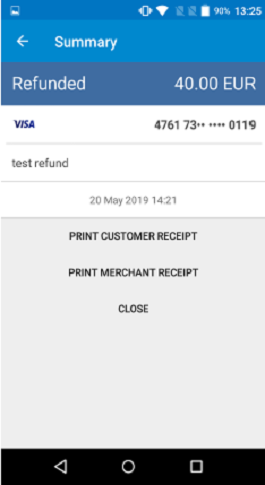
After you tapCheckout, the Cybersource app prompts the customer to present the card. Insert, swipe, or tap the card as appropriate. If the card requires it, an Enter PIN screen appears so that the customer can enter a PIN.After the transaction is processed, the terminal notifies you that the refund was approved.A confirmation screen offers the option to print a receipt.