On This Page
Visa Bank Account Validation Merchant Guide
This section describes how to use this guide and where to find further information.
- Audience and Purpose
- This guide is written for merchants who want to implement the Visa Bank Account Validation product with theREST API.
- Prohibited Uses
- Merchants are prohibited from using the Visa Bank Account Validation (1) alone or in connection with other data or information, to determine a consumer's eligibility for products, services, credit, insurance, housing or employment, and/or engage in any other actions that could give rise to adverse action requirements under the US Fair Credit Reporting Act, the Equal Credit Opportunity Act, and/or other similar federal, state, or local regulations; (2) alone or in connection with other data or information, in any way that would cause Visa or Cybersource to be a “consumer reporting agency”; or (3) alone or in connection with other data or information, to discriminate based on race, gender, or other protected characteristics.
- Conventions
- These statements appear in this document:IMPORTANTAnImportantstatement contains information essential to successfully completing a task or learning a concept.WARNINGAWarningcontains information or instructions, which, if not heeded, can result in a security risk, irreversible loss of data, or significant cost in time or revenue or both.
- Related Documentation
- Visit theCybersourcedocumentation hub to find additional technical documentation.
- Customer Support
- For support information about any service, visit the Support Center:
Recent Revisions to This Document
26.05.01
- Validating New Accounts Using Tokens
- Added information on how to validate accounts using transient tokens and TMS tokens. For more information, see Validating an Account Using Transient Tokens and Validating an Account Using TMS Tokens.
25.11.01
- Enhanced Search Information
- Added information on how to search for account validation transactions. For more information, see Transaction Search and Transaction Details.
- Enhanced Reporting
- Added information on how to include account validation transactions in the Transaction Request Report. For more information, see Reporting.
- Editorial updates were made throughout the guide.
25.06.01
- This revision contains only editorial changes and no technical updates.
25.05.01
- This revision contains only editorial changes and no technical updates.
25.04.01
- Initial release.
Introduction to Visa Bank Account Validation
Cybersource
offers the Visa Bank Account Validation product, which helps
validate your customer's routing and bank account information as a standalone service
through secure REST-based API prior to generating an ACH transaction with your existing
processor. This product also helps you comply with the National Automated Clearing House
Association (Nacha) Web Debit Account Validation Rule for ACH web transactions. This product helps reduce the number of administrative returns, enhances the security and
reliability of ACH transactions, and protects your business from the costly
repercussions of invalid ACH transactions.
The Visa Bank Account Validation product validates both the routing and bank account
number based on the ACH history of the account. The responses on this validation will
let you know whether the customer's account is validated, not validated, low risk,
medium risk, or high risk for processing ACH transactions. The product validates a
routing and bank account number combination using format checks and historical
information based on more than 100 million accounts.
Requirements for Visa Bank Account Validation
In the US, Visa Bank Account Validation enables you to validate your customer's routing
and bank account information based on their ACH history. Before you can start using it,
you must meet these requirements:
- Verify that you have the capability to use the REST API.
- Contact theCybersourcesales team or your contracting partner to request onboarding for the Visa Bank Account Validation product.
- Generate aRESTkey P12 certificate for your merchant ID (MID) so that you can send requests. For more information, see Generating a P12 Certificate.
- Enable Message-Level Encryption (MLE) so that you can send all Visa Bank Account Validation API requests, including requests submitted using tokenized data toCybersource. For more information, see Enabling Message-Level Encryption.
Generating a P12 Certificate
You can use this validation product only through a REST API integration.
You must create a
REST
key for your merchant ID. If you already have
a REST
key for other Cybersource
REST
services with the same merchant ID, you can use that key to
access the Visa Bank Account Validation Service. Ensure that the key is a P12
certificate. For more details, see Create a P12 Certificate.Enabling Message-Level Encryption
You must enable Message-Level Encryption (MLE) to send Visa Bank Account Validation API
requests to
Cybersource
. For more information, see Enable Message-Level Encryption.Validating a Bank Account
Visa Bank Account Validation supports multiple invocation methods as explained in the
following sub-sections.
IMPORTANT
Each request can validate either the routing and bank account number combination or
one of the types of token can be validated. You cannot combine multiple tokens or
routing/bank account information in a single request.
Validate an Account Using Routing and Account Number
This section describes how to validate using direct routing and bank account details
submitted through the REST API. Follow these steps to request a bank account
validation:
- Create a request with the required and any optional REST API fields. Refer to the request and response examples, if needed.
- Send the completed request to one of these endpoints:
- Verify the response messages to make sure that the request succeeded. For more information, see the Transaction response codes.
Required Fields for Validating an Account
- processingInformation.validationLevel
- Set the value to1.
- paymentInformation.bank.routingNumber
- Set the value to the routing number for your customer’s bank. This field accepts a non‑negative string containing only digits.
- Set the value to the bank account number for your customer's bank account. This field accepts a non‑negative string containing only digits and must be exactly nine-digits long.
Optional Fields for Validating an Account
- clientReferenceInformation.code
- Set the value to any reference code that you choose to associate with the validation request. This code is returned in the response exactly as provided.
REST API Example: Validating an Account Using Routing and
Account Number
Request
{
    "clientReferenceInformation": {
        "code": "TC50171_3"
    },
    "processingInformation": {
        "validationLevel": 1
            },
    "paymentInformation": {
        "bank": {
            "routingNumber": "041210163",
            "account": {
                "number": "1234567"
            }
        }
    }
}
Response to a Successful Request
{
    "clientReferenceInformation": {
       "code": "TC50171_3"
    },
    "requestId": "string",
    "submitTimeUtc": "string",
    "bankAccountValidation": {
        "rawValidationCode": 0,
        "resultCode": 0,
        "resultMessage": "string"
    }
}
Response to an Unsuccessful Request
{
    "submitTimeUtc": "string",
    "status": "string",
    "message": "string",
    "reason": "string",
    "details": [
        {
            "field": "string",
            "reason": "string"
        }
    ]
}
Validating an Account Using Transient Tokens
Transient tokens are one-time, short-lived tokens, Merchants can use them for validations
without having to transmit raw routing and account number data in the API request call.
This option is intended for session-based validations, such as initial account
verification or checkout flows. There are several types of transient tokens that can be
used when validating routing and bank account information.
All transient token-based account validation requests must be submitted using REST APIs
secured with mandatory Message‑Level Encryption (MLE).
The validation response returned for transient token requests is the same as for other
Visa Bank Account Validation request types.
Validating an Account Using a Transient Token: JSON Web TOKEN(JWT)
This section describes how to validate using a JWT type of transient token submitted
through the REST API. Follow these steps to request a bank account validation:
- Create a request with the required and any optional REST API fields. Refer to the request and response examples, if needed.
- Send the completed request to one of these endpoints:
- Verify the response messages to make sure that the request succeeded. For more information, see the Transaction response codes.
Required Fields for Validating an Account
- processingInformation.validationLevel
- Set the value to1.
- tokenInformation.transientTokenJWT
- The transient token encoded as JWT.
REST API Example: Validating an Account with Transient
Token (JWT)
Request
{
    "clientReferenceInformation": {
        "code": "TC50171_3"
    },
     "processingInformation": {
        "validationLevel": 1
        },
    "tokenInformation": {
        "transientTokenJwt": "eyJ0eXAiOiJKV1QiLCJhbGciOiJIUzI1NiJ9.eyJpc3MiOiJPbmxpbmUgSldUIEJ1aWxkZXIiLCJpYXQiOjE3NzA2NTY5OTYsImV4cCI6MTgwMjE5Mjk5NiwiYXVkIjoid3d3LmV4YW1wbGUuY29tIiwic3ViIjoianJvY2tldEBleGFtcGxlLmNvbSIsIkdpdmVuTmFtZSI6IkpvaG5ueSIsIlN1cm5hbWUiOiJSb2NrZXQiLCJFbWFpbCI6Impyb2NrZXRAZXhhbXBsZS5jb20iLCJSb2xlIjpbIk1hbmFnZXIiLCJQcm9qZWN0IEFkbWluaXN0cmF0b3IiXSwianRpIjoiMUQ0TENTOE5SME5LVUJLMzFZRzNBN1oyQjFZQ0ZVM0tDSjgxSlRRTThXVFNBSDI1SkdBRDY5OEEyRkQ2MzcyRCJ9.0cWjVLp1yacVm8ozW4yn2-LQklnQU7Ws44lvr16mpdI"
    }
}
Response to a Successful Request
{
    "clientReferenceInformation": {
        "code": "TC50171_3"
    },
    "requestId": "string",
    "submitTimeUtc": "string",
    "bankAccountValidation": {
        "rawValidationCode": integer,
        "resultCode": integer,
        "resultMessage": "string"
    }
}
Validating an Account Using a Transient Token: JSON Token ID
This section describes how to validate using a JSON token ID type of transient token
submitted through the REST API. Follow these steps to request a bank account
validation:
- Create a request with the required and any optional REST API fields. Refer to the request and response examples, if needed.
- Send the completed request to one of these endpoints:
- Verify the response messages to make sure that the request succeeded. For more information, see the Transaction response codes.
Required Fields for Validating an Account
- processingInformation.validationLevel
- Set the value to1.
- tokenInformation.jti
- The value is the TMS transient token ID. A 64-hexadecimal character identifier representing capture payment credentials.
REST API Example: Validating an Account Using a Transient
Token (JSON Token ID)
Request
{
    "clientReferenceInformation": {
        "code": "TC50171_3"
    },
    "processingInformation": {
        "validationLevel": 1
    },
    "tokenInformation": {
        "jti": "1D4LCS8NR0NKUBK31YG3A7Z2B1YCFU3KCJ81JTQM8WTSAH25JGAD698A2FD6372D"
    }
}
Response to a Successful Request
{
    "clientReferenceInformation": {
        "code": "TC50171_3"
    },
    "requestId": "string",
    "submitTimeUtc": "string",
    "bankAccountValidation": {
        "rawValidationCode": integer,
        "resultCode": integer,
        "resultMessage": "string"
    }
}
Validating an Account Using Regular TMS Tokens
Several types of regular Transaction Management Systems (TMS) tokens can be used to
validate routing and bank account information:
- Customer Identifier
- Instrument Identifier
- Payment Instrument Identifier
Validating an Account Using a TMS Token: Customer Identifier
A customer identifier is a type of token created by the Token Management Systems (TMS) to
retrieve customer-associated data. It can be used to validate a customer's routing and
bank account information.
This section describes how to validate using a customer identifier type of TMS token
submitted through the REST API. Follow these steps to request a bank account
validation:
- Create a request with the required and any optional REST API fields. Refer to the request and response examples, if needed.
- Send the completed request to one of these endpoints:
- Verify the response messages to make sure that the request succeeded. For more information, see the Transaction response codes.
Required Fields for Validating an Account
- processingInformation.validationLevel
- Set the value to1.
- paymentInformation.customer.id
- The unique identifier for the Customer token. This value is a non-negative string with 12-32 characters.
REST API Example: Validating an Account Using a Customer
Identifier
Request
{
    "clientReferenceInformation": {
        "code": "TC50171_3"
    },
    "processingInformation": {
        "validationLevel": 1
        },
    "paymentInformation": {
        "customer": {
            "id": "4A1B5976688BAD2EE0633F36CF0A054E"
        }
    }
}
Response to a Successful Request
{
    "clientReferenceInformation": {
        "code": "TC50171_3"
    },
    "requestId": "string",
    "submitTimeUtc": "string",
    "bankAccountValidation": {
        "rawValidationCode": integer,
        "resultCode": integer,
        "resultMessage": "string"
    }
}
Validating an Account Using a TMS Token: Instrument Identifier
An instrument identifier is a type of token created by Token Management Systems (TMS) to
identify the bank or payment account to use for payment. It can be used to validate a
customer's routing and bank account information.
This section describes how to validate using an instrument identifier type of TMS token
submitted through the REST API. Follow these steps to request a bank account
validation:
- Create a request with the required and any optional REST API fields. Refer to the request and response examples, if needed.
- Send the completed request to one of these endpoints:
- Verify the response messages to make sure that the request succeeded. For more information, see the Transaction response codes.
Required Fields for Validating an Account
- processingInformation.validationLevel
- Set the value to1.
- paymentInformation.instrumentIdentifier.id
- The unique identifier for the Instrument Identifier token. This value is a non-negative string with 12-32 characters.
REST API Example: Validating an Account Using an Instrument
Identifier
Request
{
    "clientReferenceInformation": {
        "code": "TC50171_3"
    },
    "processingInformation": {
        "validationLevel": 1
    },
    "paymentInformation": {
        "instrumentIdentifier": {
            "id": "4A1A21D4431F45A4E0633F36CF0A2293"
        }
    }
}
Response to a Successful Request
{
    "clientReferenceInformation": {
        "code": "TC50171_3"
    },
    "requestId": "string",
    "submitTimeUtc": "string",
    "bankAccountValidation": {
        "rawValidationCode": integer,
        "resultCode": integer,
        "resultMessage": "string"
    }
}
Validation Using a TMS Token: Payment Instrument Identifier
A payment instrument identifier is a type of token created by Token Management Systems
that refers to specific payment account information. It can be used to validate a
customer's routing and bank account information.
Required Fields for Validating an Account
- processingInformation.validationLevel
- Set the value to1.
- paymentInformation.paymentInstrument.id
- The unique identifier for the Payment Instrument token. This value is a non-negative string with 12-32 characters.
REST API Example: Validating an Account Using a Payment
Instrument Identifier
Request
{
    "clientReferenceInformation": {
        "code": "TC50171_3"
    },
    "processingInformation": {
        "validationLevel": 1
    },
    "paymentInformation": {
        "paymentInstrument": {
            "id": "4A1A57E9AF81861BE0633F36CF0A5937"
        }
    }
}
Response to a Successful Request
{
    "clientReferenceInformation": {
        "code": "TC50171_3"
    },
    "requestId": "string",
    "submitTimeUtc": "string",
    "bankAccountValidation": {
        "rawValidationCode": integer,
        "resultCode": integer,
        "resultMessage": "string"
    }
}
Response to a Successful Request
These fields appear in a successful response. These fields track and reference your
validation requests:
- clientReferenceInformation.code: This field appears when you include it in the request. It holds any reference code you want to associate with the specific validation request. The code returns in the response exactly as you provide it.
- requestID: This unique ID identifies the validation request and can be used for future reference. You can use this request ID to search for the validation request in the Transaction Search module.
- submitTimeUtc: This field records the timestamp of the validation request.
- bankAccountValidation: This section contains three different fields:rawValidationCode,resultCode, andresultMessage. Refer to the API response codes table to understand the possible codes.
API Response Codes for a Successful Request
You can receive these response code values from
,
, and
:
rawValidationCode
resultCode
resultMessage
Raw Validation Code | Result Code | Result Message |
|---|---|---|
12 | 00 | Validated |
13 | 00 | Low risk |
14 | 00 | Medium risk |
15 | 04 | High risk |
16 | 04 | Not validated |
-1 | 98 | Unable to validate; no information
found. |
-2 | 99 | Service unavailable. |
Result Code | Explanation |
|---|---|
Validated | Account is in good
standing. |
Low risk | Some positive data is
available for the account, and no negative information was
found. |
Medium risk | New account for which there
is no negative information. |
High risk | One or more information
points indicate that there is an extremely low probability of
payment from this account. |
Not validated | Account closing or closed
based on their ACH history. |
Result Code | Explanation |
|---|---|
00 | Validated and can be used for ACH
transactions. |
04 | Should not be used for ACH transaction
as there is a higher probability for return. |
98 | Unable to validate; no information
found. |
99 | Service unavailable. |
Response to an Unsuccessful Request
It is important to understand the fields that are contained in a response to an
unsuccessful request. These fields provide information that identify and resolve
unsuccessful requests.
The response to an unsuccessful request contains these fields:
- v-c-correlationid: The response header includes a unique identifier for this validation request.
- submitTimeUtc: The timestamp of the validation request. The format isYYYY-MM-DDThhmmssZ.
- message: The detailed message related to the status and reason for the response.
For more information about response codes, see Transaction response codes.
HTTP Status Codes for an Unsuccessful Request
These are the possible values you can receive for a status, reason, and details block
depending on the HTTP status code:
HTTP Status Code (part of HTTP header) | Status | Reason | Details (an array with 0 to many
blocks) |
|---|---|---|---|
400 | INVALID_REQUEST | INVALID_REQUEST | Field contains the name of the field that is missing or
incorrect: Reason – MISSING_FIELD, INVALID_DATA |
403 | UNAUTHORIZED | UNAUTHORIZED | — |
404 | NOT_FOUND | NOT_FOUND | — |
422 | VALIDATION_ERROR | PRODUCT_INACTIVE INVALID_MERCHANT_CONFIGURATION PRODUCT_NOT_CONFIGURED | — |
502 | SERVER_ERROR | SYSTEM_ERROR SERVER_TIMEOUT SERVICE_TIMEOUT | — |
Reference Information
You can search for transaction validations in the
Business Center
using the
request ID or by using the REST API. Viewing a Transaction in Business Center
Business Center
The details of a bank account validation transaction are available in the
Business Center
. From the Transaction Management module, you can view and examine in
detail any of the transactions you process. Transaction Search
You can use the Transactions page in the
Business Center
to search for
transactions processed by your account or the account of one or more of your
merchants in your portfolio. The Transactions page displays details for each
transaction matching your search criteria. Use the search toolbar to limit the
results and apply filters to refine which transactions are returned. Your search can
include up to 13 months of transactions.Follow these steps to search your transactions:
- In the left navigation panel, choose theTransaction Management > Transactions.
- In the search toolbar, click theDate Rangefilter and choose an option.
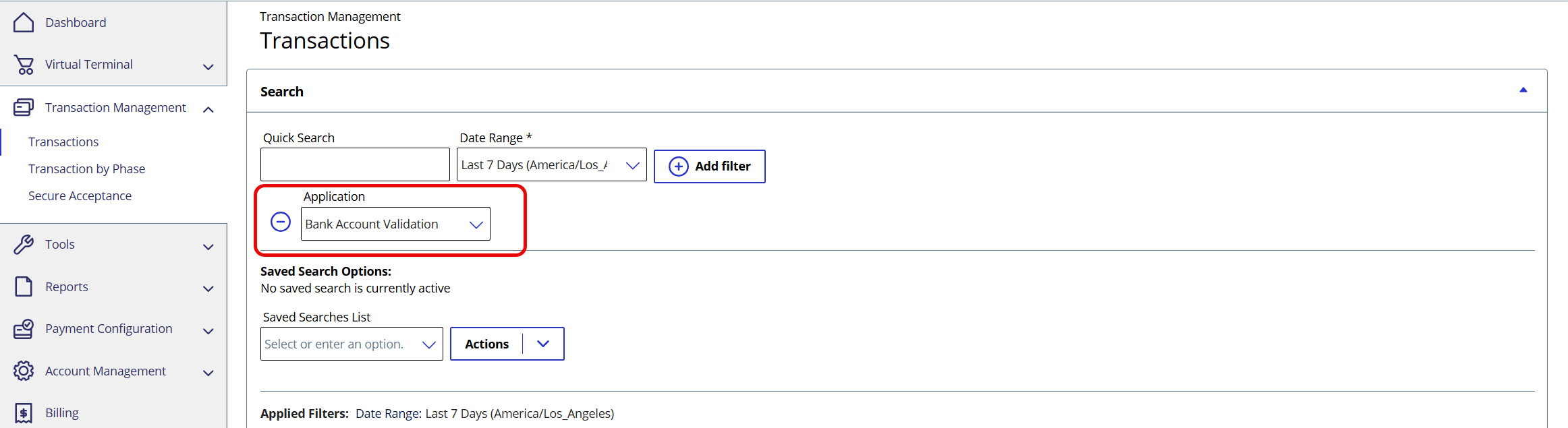
- ClickAdd filter. ANew Filterdrop-down menu appears.
- Click the down arrow to view a list of filter options. Browse the list or start typingapplicationin the filter field.
- ClickApplicationto create an Application filter.
- In theApplicationfilter field, start typingbankand clickBank Account Validationwhen it appears. (You can save this filter for future searches by clicking the arrow in theActionsfield and choosingSave New.)
- ClickSearch. The result of the search appears in the Search Results section.
Figure:
Bank Account Validation filter
Transaction Details
On the Transaction Details page, you can view information about bank account
validation, but the page must be configured to display the details. You must add a
card to the page as a place for the bank account validation details to appear.
- In the left navigation panel, choose theTransaction Management > Transactions.
- In the search toolbar, use the filters to list the bank account validations. For information about creating a bank account validation filter, see Bank Account Validation filter.
- Click the request ID of one of the listed transactions to display the Transaction Details page for that transaction.
- Click theActionsdrop-down menu at the top of the page and chooseEdit Layout > Add Card > Bank Account Validation. A Bank Account Validation Service card appears on the Transaction Details page.
Figure:
Transaction Details Page Showing Bank Account Validation Card

IMPORTANT
For transaction details, the
Bank Account Validation card is created only once. After you create and
save the card, the Transaction Management module saves your preference
and provides it for future transactions.
Reporting
The Account Validation requests are available in the Transaction Request Report (TRR)
standard report. For more information about the TRR, see the
Reporting User Guide
.To help merchants view validation responses for transactions, four new fields are
available in the TRR report:
- RawValidationCode
- ResultCode
- ValidationLevel
- ValidationMessage
Testing Data
You can use the data below to test each validation result in the sandbox environment.
Test endpoint
: Routing Number | Account Number | Raw Validation Code | Result Code |
|---|---|---|---|
111000614 | 99970 | 12 | 00 |
111000614 | 99971 | 13 | 00 |
111000614 | 99973 | 14 | 00 |
111000614 | 99915 | 15 | 04 |
111000614 | 99941 | 16 | 04 |
111000614 | 99950 | -1 | 98 |
111000614 | 99980 | -2 | 99 |
011401533 | 99970 | 12 | 00 |