On This Page
Tap to Add Card
The Tap to Add Card feature provides the cardholder with the ability to save their card
credentials with you by tapping their contactless card to the back of their compatible
device when using your application. You can then send a token provisioning request that
contains EMV chip data to
TMS
. This reduces token provisioning
fraud, proves possession of the card, and reduces room for manual errors.Tap to Add Card is available for Visa card brands.
IMPORTANT
This feature is in pilot phase. You have early access to this feature
even though it might contain bugs or unfinished work. Please consider the risk when
using this feature.
Prerequisites
Before using Tap to Add Card, you must meet these requirements:
- You must be configured forTMS. See Token Management Service Onboarding.
- Network tokens must be enabled. For more information, see Network Token Enablement.
Tap to Add Card Workflow
This workflow illustrates the process of using the Tap to Add Card feature.
Figure:
Tap to Add Card Workflow
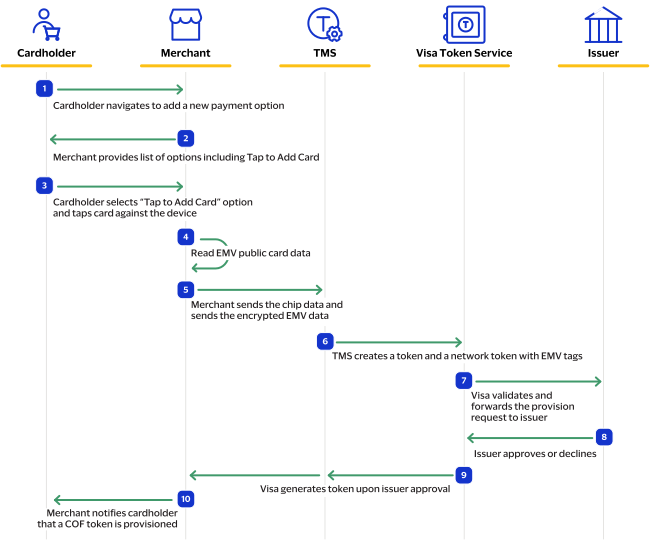
- The cardholder navigates to add a new payment method in your application.
- You provide the cardholder with a list of payment options, including Tap to Add Card.
- The cardholder selectsTap to Add Cardand taps their card against the device.
- You read the PAN and EMV data from your application.
- You send all of the required EMV data toTMS.
- (Optional) Your application prompts the cardholder to enter their card verification value (CVV2) data.
- TMScreates aTMStoken and a network token with EMV tags.
- Visa performs cryptogram validation on your behalf. When the cryptogram validation is successful, Visa forwards the provision request to the card issuer with PAN Source = 6 and the CVV2 (if available).
- The card issuer approves or declines the provision request.
- Visa generates a token upon issuer approval and sends the token toTMS.
- You notify the cardholder that the card-on-file (COF) token was provisioned.