On This Page
Webhooks Implementation Guide
This guide provides information about Webhook features that you can include in your
system:
- Multiple security options. For example, server security policy and digital signature verification.
- Multiple possible workflows based on the security policy you choose.
- The process for setting up and using the feature.
- Convention
- This special statement is used in this document:IMPORTANTAnImportantstatement contains information essential to successfully completing a task or learning a concept.
- Related Documentation
- Visit theCybersourcedocumentation hub to find additional technical documentation.
- Customer Support
- For support information about any service, visit the Support Center:
Recent Revisions to This Document
26.7.01
Add the section URL Review and Approval Process.
26.5.01
Minor edits and clarifications in the section Message-Level Encryption.
26.3.01
Added new section Message-Level Encryption.
Added Payment and Unified Checkout events to Supported Products and Event Types.
Updated section Example: Notification Payload with a new
example that includes headers.
Reorganized sections and added clarifications and corrections throughout the guide.
26.1.01
Created new section Message-Level Encryption. Message-level encryption is
required for payment events.
25.1.01
Added payment and Unified Checkout events to Supported Products and Event Types.
25.10.01
This revision contains only editorial changes and no technical updates.
VISA Platform Connect: Specifications and Conditions for
Resellers/Partners
The following are specifications and conditions that apply to a Reseller/Partner enabling
its merchants through
Cybersource for
. Failure to meet any of the specifications and conditions below is
subject to the liability provisions and indemnification obligations under
Reseller/Partner’s contract with Visa/Cybersource.Visa Platform Connect
(“VPC”)
processing- Before boarding merchants for payment processing on a VPC acquirer’s connection, Reseller/Partner and the VPC acquirer must have a contract or other legal agreement that permits Reseller/Partner to enable its merchants to process payments with the acquirer through the dedicated VPC connection and/or traditional connection with such VPC acquirer.
- Reseller/Partner is responsible for boarding and enabling its merchants in accordance with the terms of the contract or other legal agreement with the relevant VPC acquirer.
- Reseller/Partner acknowledges and agrees that all considerations and fees associated with chargebacks, interchange downgrades, settlement issues, funding delays, and other processing related activities are strictly between Reseller and the relevant VPC acquirer.
- Reseller/Partner acknowledges and agrees that the relevant VPC acquirer is responsible for payment processing issues, including but not limited to, transaction declines by network/issuer, decline rates, and interchange qualification, as may be agreed to or outlined in the contract or other legal agreement between Reseller/Partner and such VPC acquirer.
DISCLAIMER: NEITHER VISA NOR CYBERSOURCE WILL BE RESPONSIBLE OR LIABLE FOR ANY ERRORS OR
OMISSIONS BY THE
Visa Platform Connect
ACQUIRER IN PROCESSING TRANSACTIONS. NEITHER VISA
NOR CYBERSOURCE WILL BE RESPONSIBLE OR LIABLE FOR RESELLER/PARTNER BOARDING MERCHANTS OR
ENABLING MERCHANT PROCESSING IN VIOLATION OF THE TERMS AND CONDITIONS IMPOSED BY THE
RELEVANT Visa Platform Connect
ACQUIRER. Introduction to Webhooks
Webhooks are automated notifications that are generated and sent to you when specific system
events occur. By using the Webhooks REST API, you can subscribe to these notifications for
events of your choice and designate a URL in your system to receive them. This is helpful for
events that are not a part of an API request and response, or that are not available through
the Reporting API. For example, you can receive webhook notifications when these events
occur:
- Fraud alerts
- Invoice status updates
- Network token is provisioning
- Transaction monitoring
- Recurring billing
You can also configure your system to respond to the events in any way you choose.
The Webhooks REST API enables you to:
- Create webhook subscriptions to receive automatic system notifications
- Update and delete existing webhook subscriptions
- Check the status of a webhook notification
- Retrieve webhook notification history and details
For more information about the products and event types for which you can receive notifications
for, see Supported Products and Event Types.
Benefits
The Webhooks API provides these key benefits:
- Visibility into system events that are otherwise not visible.
- Ability to respond to events programmatically and to automate workflows.
Business Center Account
Business Center
AccountYou must have an organization or merchant account (MID)
in the
Business Center
. If you do not have an account, you can sign up for
test
account on the Developer Center: Test Methods for Webhooks
You can test the Webhooks REST API using the Postman application or the
Cybersource
Developer Center's live console.- Postman
- A Postman collection is available for you to test the Webhooks REST API. Contact your account manager to request the collection.
- Developer Center Live Console
- TheCybersourceDeveloper Center offers the live console for you to test complete examples and view the API field descriptions. See the Webhooks section in the REST API Reference.
Webhooks Integration Overview
Follow these steps to set up your system to support the Webhooks REST API. Some of these steps
are dependent on your system's security policy.
Figure:
Set Up Webhook Subscriptions Workflow
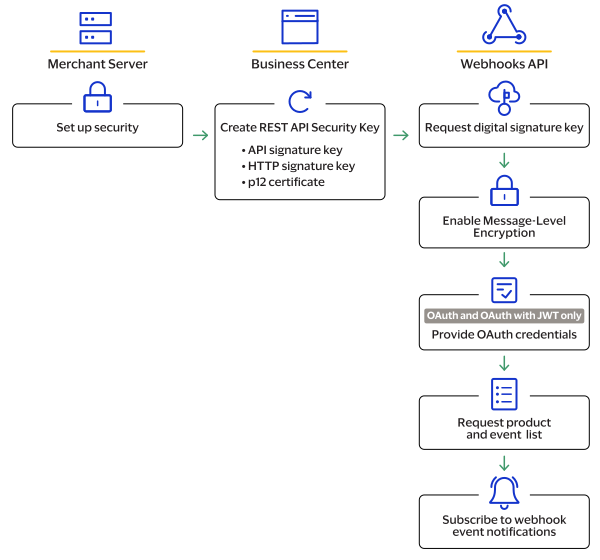
- Set up a server with a URL to receive webhook notifications.
- Configure your server security to receive webhooks notifications. For more information, see Set Up Your Security.
- Create a REST API security key that is compliant with your security policy. Security keys are used to authenticate the requests you send toCybersource. You must create separate keys for the testing and production environments. For more information, see Create REST API Keys.
- Request a digital signature key fromCybersource. For more information, see Create a Digital Signature Key.
- If your webhooks integration will include subscriptions to payment event notifications, implement message-level encryption for those events. See Message-Level Encryption.
- If your system uses theOAuthorOAuth with JWTsecurity policy, you must provide your OAuth credentials toCybersource. OAuth is not required and Mutual Trust is the default. If you are not using OAuth, skip this step. For more information, see (Optional) Provide Your OAuth Credentials.
- Request a list of the products for which your organization is enabled to receive webhook notifications. For more information, see Retrieve a List of Products and Events.IMPORTANTIf your webhooks integration will include subscriptions to payment event notifications, implement message-level encryption for those events. See Message-Level Encryption.
- Create your webhook subscription event notifications. For more information, see Create a Webhook Subscription.
Optional Set Up Tasks
You can complete these optional tasks after creating a webhook subscription.
- Include a health check URL to enableCybersourceto monitor your server's status for reliability. For more information, see Webhook Health Check URL and Automatic Revalidation.
- Customize the retry policy for unresponsive webhook and health check URLs. For more information, see Configure the Retry Policy.
- Validate your digital signature. For more information, see Validating a Notification with the Digital Signature Key.
Supported Products and Event Types
When you create a webhook subscription, you must include a
Cybersource
product
and one of its corresponding event types
in your request. You can
include multiple products and event types in the same request. Every time one of the
events that you subscribe to occurs, you receive a notification. If you subscribe to a
product that is not enabled for your account, you receive a notification when it is
enabled. To retrieve a list of the enabled products that your organization can subscribe
to, see Retrieve a List of Products and Events. When you send a
create a webhook subscription
request, set the
productId
field to a value listed in the Product ID column. Set the
eventTypes
field array to a value listed in the Event Types column. If
you are subscribing to multiple products and event types, separate each value with the comma
character (,
). These tables contain all of the supported products, event types, and their corresponding field
values:
Alternative Payment Methods
Product ID | Event Types | Description |
|---|---|---|
alternativePaymentMethods | payments.payments.updated | Notifies you that an alternative payment transaction's status was been
updated. |
Decision Manager
Product ID | Event Types | Description |
|---|---|---|
decisionManager | risk.casemanagement.decision.accept | Notifies you that a Decision Manager case was accepted. |
decisionManager | risk.casemanagement.decision.reject | Notifies you that a Decision Manager case was rejected. |
decisionManager | risk.profile.decision.reject | Notifies you of a profile decision to reject a transaction. |
eCheck
eCheck
Product ID | Event Types | Description |
|---|---|---|
eCheck | payments.credits.accepted | Notifies you of a successful eCheck credit
transaction. |
payments.credits.failed | Notifies you of an eCheck credit transaction
failure. | |
payments.payments.accepted | Notifies you of a successful eCheck debit
transaction. | |
payments.payments.failed | Notifies you of an eCheck debit transaction
failure. | |
payments.voids.accepted | Notifies you of a successful eCheck void
transaction. | |
payments.voids.failed | Notifies you of an eCheck void transaction
failure. |
Fraud Management Essentials
Fraud Management Essentials
Product ID | Event Types | Description |
|---|---|---|
fraudManagementEssentials | risk.casemanagement.decision.accept | Notifies you that a Fraud Management Essentials case was accepted. |
risk.casemanagement.addnote | Notifies you that a note has been added to a
Fraud Management Essentials case. | |
risk.profile.decision.reject | Notifies you that a transaction was
rejected. | |
risk.casemanagement.decision.reject | Notifies you that a Fraud Management Essentials case was rejected. | |
risk.profile.decision.monitor | Notifies you of a profile decision to monitor a
transaction. | |
risk.profile.decision.review | Notifies you of a profile decision to review a
transaction. |
Invoicing
Product ID | Event Types | Description |
|---|---|---|
customerInvoicing | invoicing.customer.invoice.send | Notifies you that an invoice was sent. |
invoicing.customer.invoice.cancel | Notifies you that an invoice was cancelled. | |
invoicing.customer.invoice.paid | Notifies you that an invoice was paid. | |
invoicing.customer.invoice.partial-payment | Notifies you that an invoice was partially paid. | |
invoicing.customer.invoice.reminder | Notifies you 5 days before the invoice payment is due. This
event is triggered if you have invoice reminders enabled in your
invoice settings. | |
invoicing.customer.invoice.overdue-reminder | Notifies you 1 day after the invoice payment is due. This event
is triggered if you have invoice reminders enabled in your
invoice settings. |
Pay By Link
Product ID | Event Types | Description |
|---|---|---|
payByLink | payByLink.customer.payment | Merchants can subscribe to this event type to automate how their system is informed when a customer completes a payment. |
payByLink.merchant.payment | Partner resellers can subscribe to this event type to control the distribution of the payment confirmation email sent to their merchants' customers. |
Payments
Payment events must be enabled for your account. Contact our support team to enable the
events.
Payment events require message-level encryption. See Message-Level Encryption.
Product ID | Event Types | Description |
|---|---|---|
payments | payments.capture.status.accepted | Notifies you that a payment capture request was accepted. The transaction carries the
status PENDING. |
payments.capture.status.updated | Notifies you that a payment capture was updated and its status changed from PENDING
to BATCHED. | |
payments.refund.status.accepted | Notifies you that a refund request was accepted. The transaction carries the status
PENDING. | |
payments.refund.status.updated | Notifies you that a refund request was batched and its status has changed from
PENDING to BATCHED. | |
payments.credit.status.accepted | Notifies you that a credit request was accepted. The transaction carries the status
PENDING. | |
payments.credit.status.updated | Notifies you that a credit request was accepted. The transaction carries the status
PENDING. | |
payments.void.status.accepted | Notifies you that a void request was accepted. The transaction carries the status
VOIDED. | |
payments.void.status.rejected | Notifies you that a void request was rejected. The transaction carries the status NOT
VOIDABLE. | |
payments.authorization.status.accepted | Notifies you that an authorization request was authorized by the issuer. The
transaction carries the status AUTHORIZED. | |
payments.authorization.status.reviewed | Notifies you that an authorization request was under review by Decision Manager. The
transaction carries the status AUTHORIZED_PENDING_REVIEW. | |
payments.authorization.status.rejected | Notifies you that an authorization request was declined by the issuer or failed due
to server error, timeout, or invalid request. Possible statuses include
INVALID_REQUEST, SERVER_ERROR, DECLINED, SERVER_TIMEOUT, or
SERVICE_TIMEOUT. | |
payments.authorization.status.partiallyApproved | Notifies you that an authorization request was partially approved by the issuer. The
transaction carries the status PARTIAL_AUTHORIZED. | |
payments.reversal.status.accepted | Notifies you that a reversal request was approved successfully. The transaction
carries the status REVERSED. | |
payments.reversal.status.rejected | Notifies you that a reversal request was declined due to issuer rejection, system
error, invalid request, or timeout. Possible statuses include REVERSED,
INVALID_REQUEST, SERVER_ERROR, DECLINED, SERVER_TIMEOUT, or
SERVICE_TIMEOUT. |
Recurring Billing
Product ID | Event Types | Description |
|---|---|---|
recurringBilling | rbs.subscriptions.charge.failed | Notifies you of a recurring payment failure. |
rbs.subscriptions.charge.pre-notified | Notifies you of an upcoming recurring payment. | |
rbs.subscriptions.charge.created | Notifies you of successful recurring payment. |
Token Management Service
Token Management Service
Product ID | Event Types | Description |
|---|---|---|
tokenManagement | tms.networktoken.updated | Notifies you of a network token's change in
expiration date or status (suspend, resume, or
deactivate). |
tms.networktoken.provisioned | Notifies you when a network token provision for
an instrument identifier token has been
successful. | |
tms.networktoken.binding | Notifies you of the binding status of a network token with a
device. |
Unified Checkout
Unified Checkout events require message-level encryption. See Message-Level Encryption.
Product ID | Event Types | Description |
|---|---|---|
unifiedCheckout | uc.orders.transactionresults | Notifies you of the payment outcome, including the full payload response from the
payment service call. |
Set Up Your Security
There are a variety of security options for Webhooks. This section provides an overview of the
security options, with links to the instructions for using them.
Mutual Trust
All Webhooks integrations must use mutual trust by adding
Cybersource
to your allowlist and by trusting the root certificate.Allowlist
Add these IP addresses to your allowlist to permit
Cybersource
to
deliver your webhook
notifications:- 198.241.206.21
- 198.241.207.21
Trusting the Root Certificate
Download the
Visa Corporate Root CA - G2
certificate from the Visa Public Key
Infrastructure webpage, and add it to your Java keystore: https://enroll.visaca.com
.API Keys
REST API requests must use API Keys. All Webhooks requests require a shared secret key pair.
Requests to create a subscription using OAuth with JWT
also
require a P12
Certificate. For instructions, see Create REST APIs.Digital Signature Key
You must create a digital signature key in order for
Cybersource
to send notifications to your
servers. For instructions, see Create a Digital Signature Key. OAuth and OAuth with JWT
In addition to mutual trust, you can also use the OAuth or OAuth with Java Web Token (JWT).
You must provide your OAuth credentials and use the appropriate request fields for your
security policy. See (Optional) Provide Your OAuth Credentials and Create a Webhook Subscription.
Message-Level Encryption
Message-level encryption is required for some products and events. For instructions, see Message-Level Encryption.
Create REST API Keys
The Webhooks REST API requires you to create a
shared secret key pair
. You might
have already completed this requirement if your system is currently REST compliant. If you are
using the OAuth with JWT security policy, you must also create a P12 certificate
. The
shared secret key pair and P12 certificate are also known as REST API keys. REST API keys are
used to enable secure communication between you and Cybersource
when using the
REST API.- Shared secret key pair:A key pair used for HTTP signature authentication. It is consists of a key and a shared secret key. See Create a Shared Secret Key Pair.
- P12 certificate:A key used for JSON Web Token authentication. It consists of.p12file and a password that you must set to use the file. See Create a P12 Certificate.
When using the test and production environments, you must create
separate keys for each environment.
Securely store your created keys in your system. You must be able to access your key
credentials while implementing and managing webhook subscriptions.
REST API keys expire after 3 years.
Create a Shared Secret Key Pair
The Webhook REST API requires you to create a shared secret key pair. You may have
already completed this requirement if your system is currently REST compliant.
Follow these steps to create a shared secret key pair:
- On the left navigation panel, choose
 Payment Configuration > Key Management.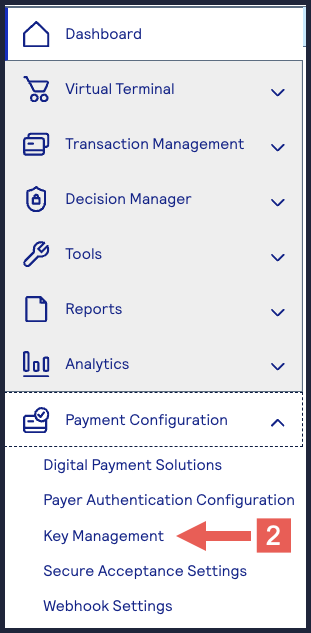
- Click+ Generate keyon the Key Management page.
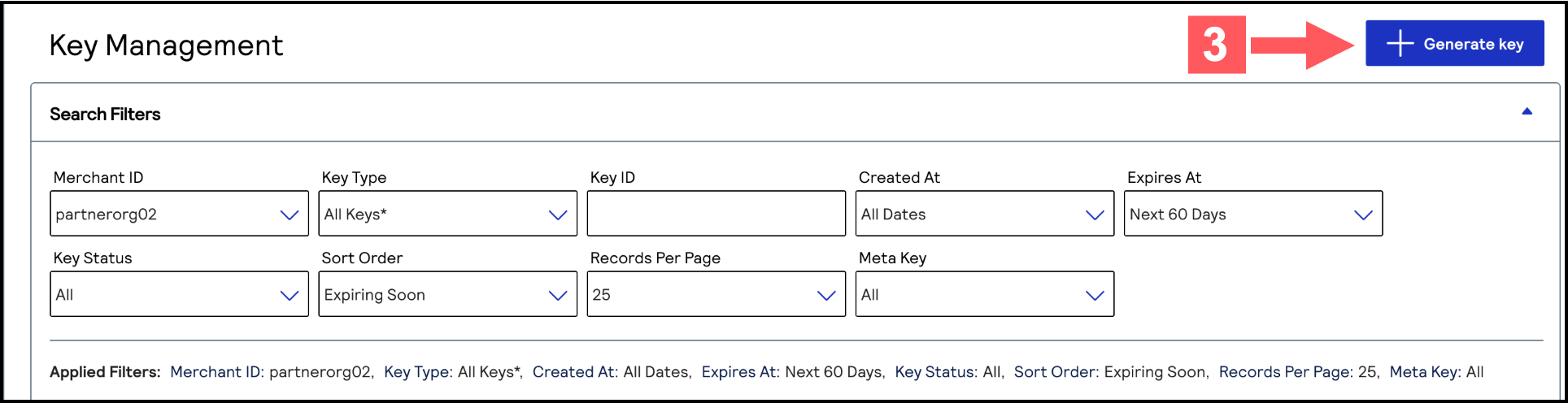
- Under REST APIs, chooseREST – Shared Secretand then clickGenerate key.
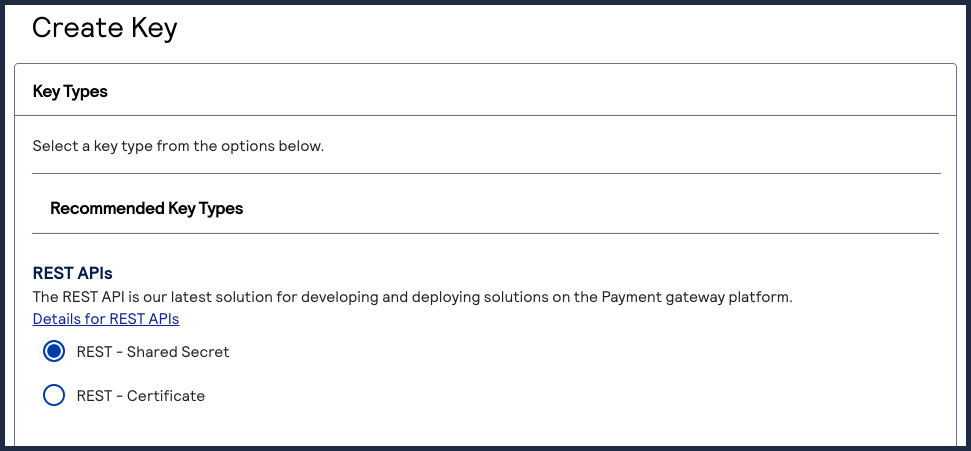
 The REST API Shared Secret Key page appears.
 - ClickDownload key
 .The.pemfile downloads to your desktop.
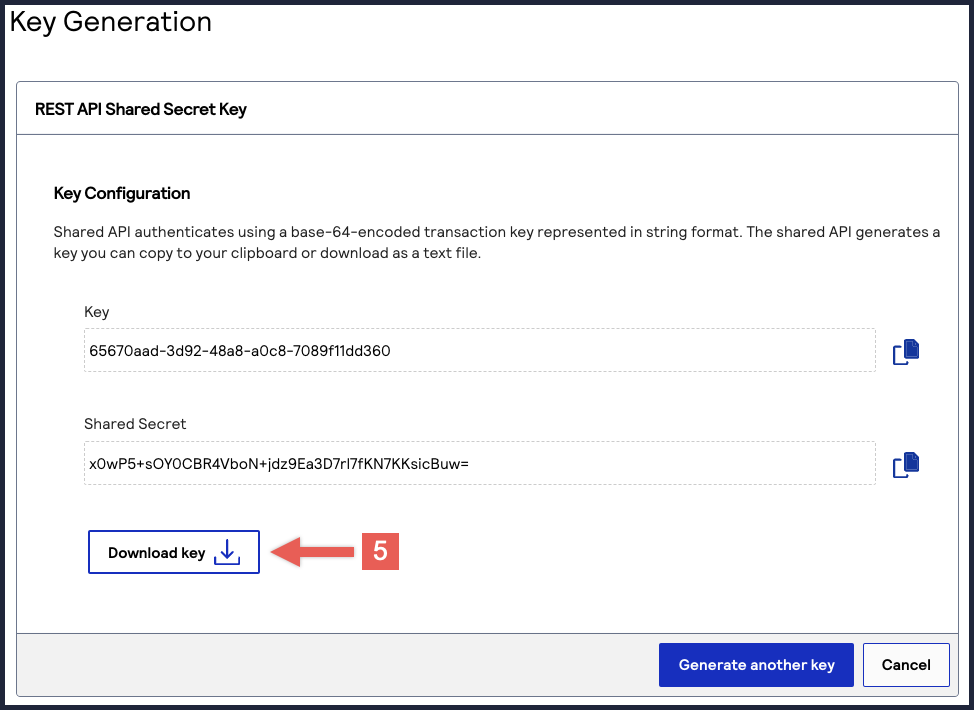 TheKeyvalue is yourkey IDand theShared Secretvalue is yourshared secret key.IMPORTANTSecurely store the key credentials and.pemfile in your system. These credentials are required in order to implement certain products, and you must be able to access them.
To create or submit another key, click
Generate another key
. To view all of
your created keys, go to the Key Management page.IMPORTANT
Securely store the shared secret key pair in your system. You must be
able to retrieve these credentials to implement the Webhooks REST API.
Create a P12 Certificate
If you are using the OAuth with JWT security policy, you must create a P12 certificate in
addition to a shared secret key pair. You might have already completed this requirement if
your system is currently REST compliant.
Follow these steps to create a P12 certificate file or submit your own certificate
signing request (CSR):
- Log in to theBusiness Center:
- On the left navigation panel, choose
Payment Configuration > Key Management.
- Click+ Generate keyon the Key Management page.
- Under REST APIs, chooseREST – Certificate, and then clickGenerate key.The Key Generation page appears.If you are using aportfolioaccount, the Key options window appears, giving you the choice to create a meta key.For more information about how to create a meta key, see .
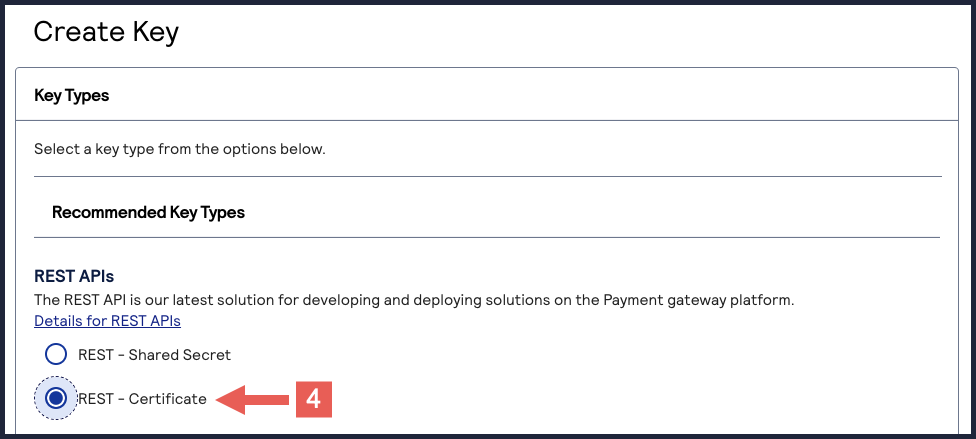
- (Optional) You can set the Certificate Expiry Timeframe field to the number of months you want the key to remain active before it expires. Only whole numbers from 1–36 are accepted. By default, new keys expire after 12 months.
- Choose from these two options:
- If you are a creating a new P12 Certificate, clickDownload key
.
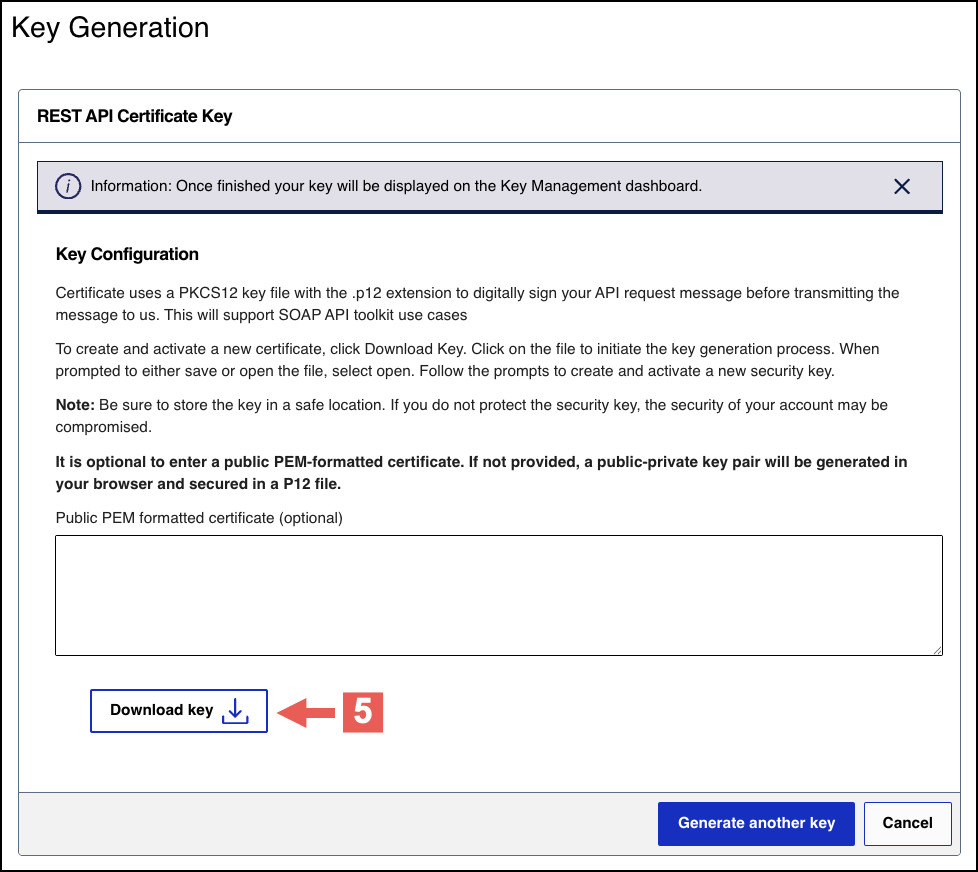
- If you are submitting your own certificate, enter your public PEM-formatted certificate in the text box, then clickDownload key
.
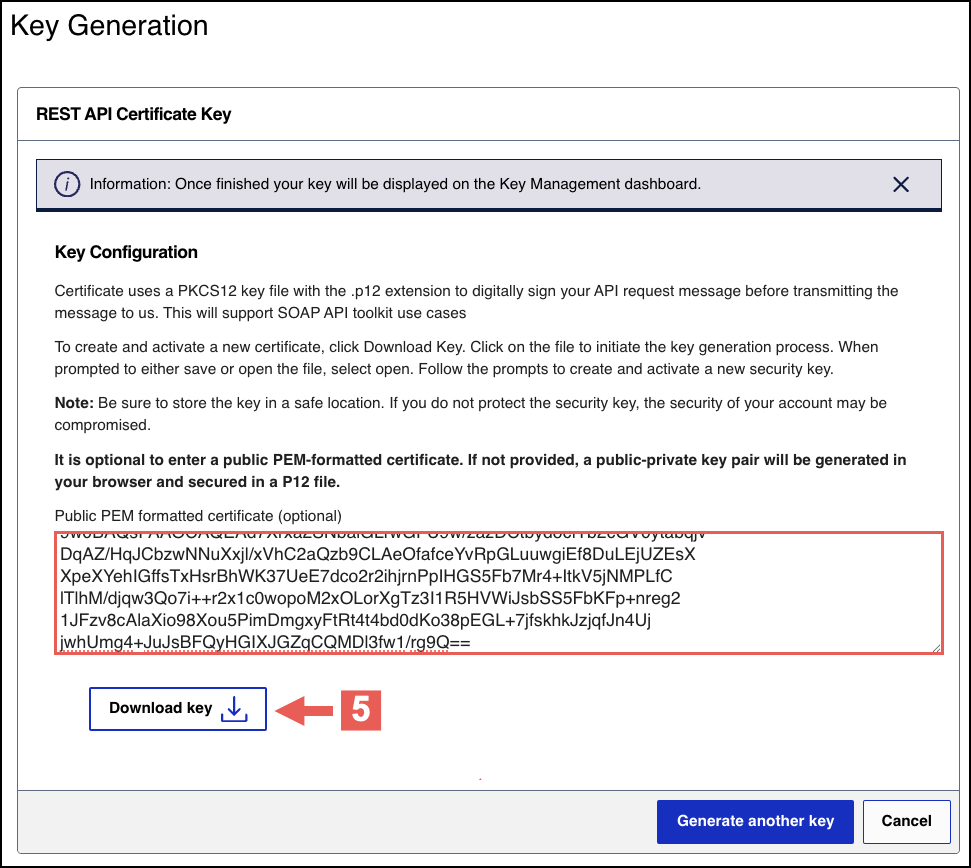
- Create a password for the certificate by entering one into theNew PasswordandConfirm Passwordfields. ClickGenerate key.
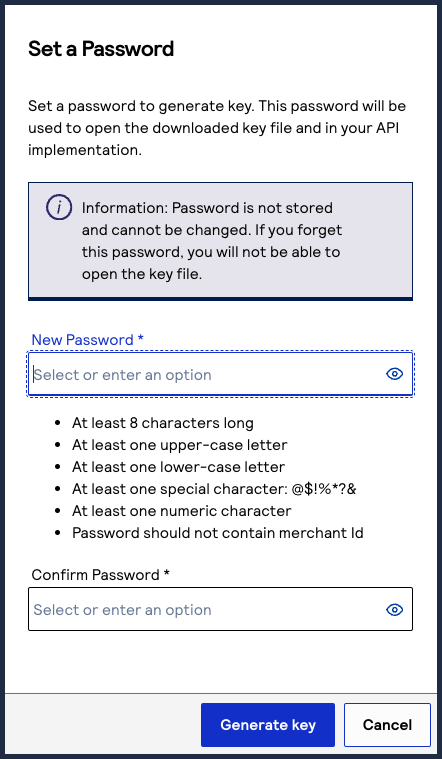 The.p12file downloads to your desktop.If prompted by your system, approve the location to which the key downloads.
To create or submit another key, click
Generate another key
. To view all of
your created keys, go to the Key Management page.IMPORTANT
Securely store the
.p12
file and password in your
system.Create a Digital Signature Key
Use the information in this section to create a
digital signature key
. The Digital
Signature Key request uses Visa's key management service to store your credentials. The
Webhooks platform retrieves your credentials from key management to digitally authenticate
your notifications.You must create a digital signature key to enable
Cybersource
to send
notifications to your servers. Replace the digital signature key every year. When you generate
a new digital signature key, it overrides the old key and new transactions must use the new
key. Notifications that use message-level encryption must also the digital signature key.
IMPORTANT
Store the created digital signature key in a secure location in your
system.
Optional Notification Validation
After you set up a webhook subscription, you can validate each notification you receive using
your digital signature key. For more information, see Validating a Notification with the Digital Signature Key.
Endpoints
Send a POST request to one of these endpoints:
- Test:POSThttps://apitest.cybersource.com/kms/egress/v2/keys-sym
- Production:POSThttps://api.cybersource.com/kms/egress/v2/keys-sym
- India Production:POST https://api.in.cybersource.com/kms/egress/v2/keys-sym
Required Fields for Creating a Digital Signature Key
- clientRequestAction
- Set the value toCREATE.
- keyInformation.expiryDuration
- Set to a number of days. We recommend365.
- keyInformation.keyType
- Set the value tosharedSecret.
- keyInformation.organizationId
- Set the value to the organization ID of the organization requesting the key.
- keyInformation.provider
- Set the value tonrtd.
- keyInformation.tenant
- Set the value to the organization ID of the organization requesting the key.
Example: Creating a Digital Signature Key
Digital Signature Key Request
{
  "clientRequestAction": "CREATE",
  "keyInformation": {
    "provider": "nrtd",
    "tenant": "merchantName",
    "keyType": "sharedSecret",
    "organizationId": "merchantName"
  }
}
Digital Signature Key Response
{
"submitTimeUtc": "2021-03-17T06:53:06+0000",
"status": "SUCCESS",
"keyInformation": {
"provider": "NRTD",
"tenant": "merchantName",
"organizationId": "merchantName",
"keyId": "bdc0fe52-091e-b0d6-e053-34b8d30a0504", //ID associated with the key in the key field
"key": "u3qgvoaJ73rLJdPLTU3moxrXyNZA4eo5dklKtIXhsAE=", //Base64 encoded key
"keyType": "sharedSecret",
"status": "Active",
"expirationDate": "2022-03-17T06:53:06+0000"
}
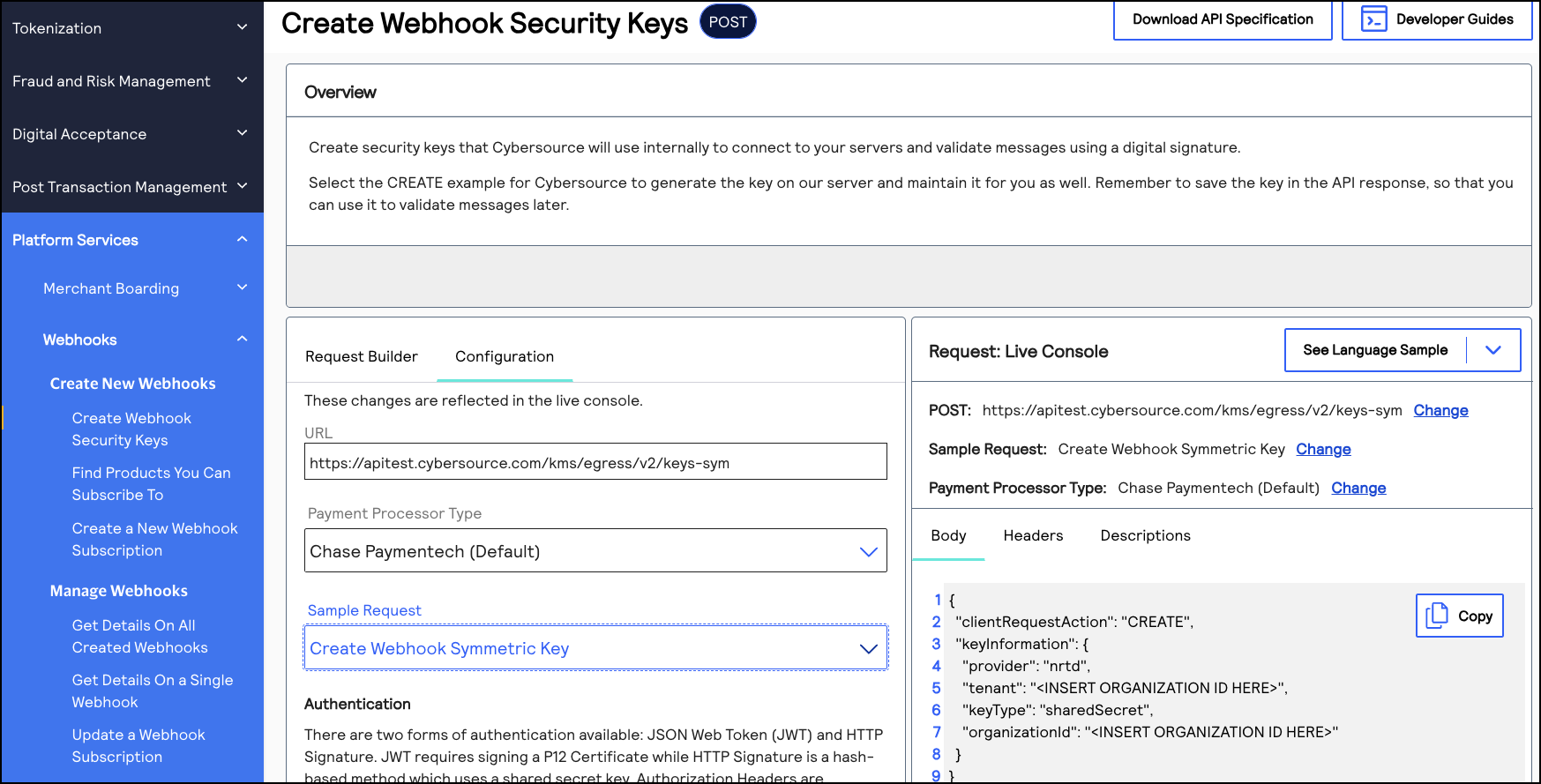
REST Interactive Example: Creating a Digital Signature Key
Click this image to access the interactive code example for creating a digital
signature key. The Live Console refers to this request as
Create Webhook
Symmetric Key
.Figure:
Creating a Digital Signature Key
Validating a Notification with the Digital Signature Key
You can use the digital signature key to verify that the webhook notifications you receive are
from
Cybersource
. Verifying your webhook notifications validates their
integrity and helps prevent replay attacks.When you receive a webhook notification from
Cybersource
, it contains a digital
signature key. You can configure your system to compare the notification's digital signature
to the digital signature you created. If the digital signatures match, the notification is
validated. Complete these tasks to validate the webhook notifications that you receive:
- Create a digital signature key by sending acreate a digital signature keyrequest toCybersource. You may have already completed this requirement while setting up your first webhook subscription. For more information, see Create a Digital Signature Key.
- Extract the digital signature from the digital signature key that you created.
- Configure your system to compare your digital signature to the digital signatures in the notifications that you receive. A webhook notification is valid if the notification's digital signature matches your digital signature.
Digital Signature Format
When you receive a webhook notification from
Cybersource
, it contains a
v-c-signature
header in this format:v-c-signature: t=1617830804768;keyId=bf44c857-b182-bb05-e053-34b8d30a7a72;sig=CzHY47nzJgCSD/BREtSIb+9l/vfkaaL4qf9n8MNJ4CY=";
The header contains these three parameters concatenated with semicolons:
- t: The timestamp at which the digital signature key was created.
- keyId: The digital signature key ID.
- sig: The digital signature. It is encrypted using the HMAC-SHA256 algorithm.
Validating
a Notification
Follow these steps to validate the integrity of your webhook notifications.
- Separate the signature parameters with a semicolon (;) and extract thet,keyId, andsigvalues.
- Use thekeyIdvalue to fetch the digital signature key.
- Generate the payload by concatenating the timestamp and the payload from the body of the notification, using a period (.) to join them.
- Use the SHA-256 algorithm to encrypt the generated payload from Step 3 using the key from Step 2.
- Verify that the encrypted value matches the value insigparameter.
Example: Validating a Notification
This example shows a system script that validates webhook notifications by comparing the
merchant's digital signature with the webhook notification's signature. Use this example as
a reference for how to configure your system.
import javax.crypto.Mac;
import javax.crypto.spec.SecretKeySpec;
import java.nio.charset.StandardCharsets;
import java.util.Arrays;
import java.util.Base64;

public class Validator {
    public static void main(String[] args) {

        // Sample signature header
        String signatureHeader = "v-c-signature: t=1617830804768;keyId=bf44c857-b182-bb05-e053-34b8d30a7a72;sig=CzHY47nzJgCSD/BREtSIb+9l/vfkaaL4qf9n8MNJ4CY=";
        String payload = "this is a decrypted payload";
        // Convert the received signatureHeader into timestamp, keyId, and signature.
        DigitalSignature companySignature = new DigitalSignature(signatureHeader);
        // Check if the timestamp is within tolerance.
        if (companySignature.isValidTimestamp()) {
            // Client regenerates their signature using the timestamp from header and received payload.
            byte[] signature = regenerateSignature(companySignature.getTimestamp(), payload);
            // Check if the generated signature is same as signature received in header.
            if (isValidSignature(signature, companySignature.getSignature())) {
                System.out.println("Success - Signature is valid");
            } else {
                System.out.println("Error - Signatures do not match");
            }
        } else {
            System.out.println("Error - timestamp is outside of tolerance level");
        }
    }
    /**
     * Compute HMAC with the SHA256 hash function.
     * key is your private key.
     * message is timestamp.payload.
     * @return
     */
    public static byte[] regenerateSignature(long timestamp, String message) {
        String timestampedMessage = timestamp + "." + message;
        String key = getSecurityKey();
        // Generate the hash using key and message.
        return calcHmacSHA256(Base64.getDecoder().decode(key), timestampedMessage.getBytes(StandardCharsets.UTF_8));
    }
    /**
    * A mechanism to fetch the security key using keyId from a source. We're using Base64encoded version of
    (test_key).
    * @return
    */
    private static String getSecurityKey() {
        return "dGVzdF9rZXk="; //test_key
    }
    /**
     * Generate SHA256 using secretKey and a message.
     * Sample Hmacgenerator to test: https://8gwifi.org/hmacgen.jsp
     * @param secretKey
     * @param message
     * @return
     */
    private static byte[] calcHmacSHA256(byte[] secretKey, byte[] message) {
        byte[] hmacSha256 = null;
        try {
            Mac mac = Mac.getInstance("HmacSHA256");
            SecretKeySpec secretKeySpec = new SecretKeySpec(secretKey, "HmacSHA256");
            mac.init(secretKeySpec);
            hmacSha256 = mac.doFinal(message);
        } catch (Exception e) {
            throw new RuntimeException("Failed to calculate hmac-sha256", e);
        }
        return hmacSha256;
    }
    /**
     * Compare the Base64 decoding of the signature with the signature received in the header.
     * Sample encoder/decoder to test:
     * https://www.base64encode.org/
     * https://www.base64decode.org/
     * @param bankSignature
     * @param companySignature
     * @return
     */
    private static boolean isValidSignature(byte[] bankSignature, String companySignature) {
        return Arrays.equals(bankSignature, Base64.getDecoder().decode(companySignature));
    }
}

import java.time.Clock;

public class DigitalSignature {
    private long timestamp;
    private String keyId;
    private String signature;

    public DigitalSignature(String digitalSignature) {
        try {
            //split the header by space. first part is the key "v-c-signature" second part is the actual signature
              String signature = digitalSignature.split(" ")[1];

            //separate the actual signature by semicolon. this creates 3 parts (timestamp, keyId, sig)
            String[] signatureParts = signature.split(";");

            //timestamp section is the first block. split timestamp section by = sign and actual timestamp is in the second block
            this.timestamp = Long.parseLong(signatureParts[0].split("=")[1]);

            //keyId section is the second block. split keyId section by = sign and actual keyId is in the second block
            this.keyId = signatureParts[1].split("=")[1];

            //digital signature is the third block. split digital signature by = sign and actual signature is in the second block. This is Base64 encoded
            this.signature = signatureParts[2].split("=")[1];

            if unable to format exactly like the above then would recommend the following edit:
            /* split the header by space. first part is the key "v-c-signature" second part is the actual signature */
              String signature = digitalSignature.split(" ")[1];

            /* separate the actual signature by semicolon. this creates 3 parts (timestamp, keyId, sig) */
            String[] signatureParts = signature.split(";");

            /* timestamp section is the first block. split timestamp section by = sign and actual timestamp is in the second block */
            this.timestamp = Long.parseLong(signatureParts[0].split("=")[1]);

            /* keyId section is the second block. split keyId section by = sign and actual keyId is in the second block */
            this.keyId = signatureParts[1].split("=")[1];

            /* digital signature is the third block. split digital signature by = sign and actual signature is in the second block. This is Base64 encoded */
            this.signature = signatureParts[2].split("=")[1];
        } catch (Exception e) {
            System.out.println("Invalid digital signature format");
        }
    }
    public long getTimestamp() {
        return timestamp;
    }
    public void setTimestamp(long timestamp) {
        this.timestamp = timestamp;
    }
    public String getKeyId() {
        return keyId;
    }
    public void setKeyId(String keyId) {
        this.keyId = keyId;
    }
    public String getSignature() {
        return signature;
    }
    public void setSignature(String signature) {
        this.signature = signature;
    }
    /**
     * Using a tolerance of 60 mins
     * Compute the current time in UTC and make sure the timestamp was generated within the tolerance period.
     * UTC millis generator to test: https://currentmillis.com/
     *
     * @return
     */
    public boolean isValidTimestamp() {
        long tolerance = 60 * 60 * 1000L; //60 mins
        // return Clock.systemUTC().millis() - timestamp  < tolerance; // Enable this if you want timestamp
        validation.
        return true;
    }
}
(Optional) Provide Your OAuth Credentials
If your system uses the
OAuth
or OAuth with JWT
security policy, you must provide
your OAuth credentials to Cybersource
. The OAuth credentials request uses
Visa's key management service to store your credentials. When Cybersource
sends you webhook notifications in the future, Cybersource
will use your OAuth
credentials to access your server and deliver the notification message. For more information about using OAuth, see .
IMPORTANT
If you are using only the default
mutual trust
security policy, you
do not need to provide OAuth credentials to Cybersource
.- OAuth
- The OAuth security policy with client credentials is an authentication method that is designed for applications that communicate with each other. Basic authentication is the most common mechanism for authenticating a client with the client credentials. This authentication method enablesCybersourceservices to obtain only the relevant user data without exposing the user's credentials.
- OAuth with JWT
- The OAuth with JWT security policy is an authentication method in which your system sends a JSON Web Token. This method bypasses domain headers and minimizes the need for server-side authentication checks.
Endpoints
Send a POST request to one of these endpoints:
- Test:POSThttps://apitest.cybersource.com/kms/egress/v2/keys-sym
- Production:POSThttps://api.cybersource.com/kms/egress/v2/keys-sym
- India Production:POST https://api.in.cybersource.com/kms/egress/v2/keys-sym
Headers
Each API request should use headers that provide your client credentials, which are the
username and password of your webhooks server. Here is an example:
curl --location 'Client's OAauth URL' \
--header 'Content-Type: application/x-www-form-urlencoded' \
--data-urlencode 'grant_type=client_credentials' \
--data-urlencode ‘client_id=webhooks-server-username' \
--data-urlencode ‘client_secret=webhooks-server-password'
Required Fields for Providing Your OAuth Credentials
- clientRequestAction
- Set toSTORE.
- keyInformation.clientKeyId
- Set to the webhook server's username.
- keyInformation.expiryDuration
- Set to365.
- keyInformation.key
- Set to the webhooks server's secret key.
- keyInformation.keyType
- Set tooAuthClientCredentials.
- keyInformation.organizationId
- Set to the organization ID or merchant ID of the organization requesting the key.
- keyInformation.provider
- Set tonrtd.
- keyInformation.tenant
- Set to the organization ID that the requesting organization belongs to.
Example: Providing Your OAuth Credentials
{
  "clientRequestAction": "STORE",
  "keyInformation": {
    "provider": "nrtd",
    "tenant": "merchantName",
    "keyType": "oAuthClientCredentials",
    "organizationId": "merchantName",
    "clientKeyId": "Webhook server's username",
    "key": "Webhook server's secret key",
    "expiryDuration": "365"
  }
}
{
    "submitTimeUtc": "2022-02-18T19:49:52Z",
    "status": "SUCCESS",
    "keyInformation": {
        "provider": "nrtd",
        "tenant": "org1",
        "organizationId": "org1",
        "clientKeyId": "ef400ac1-edfe-406e-94b3-0d73be09a1a0",
        "keyId": "d8512fb5-1d8c-4f2d-e053-3cb8d30a764c",
        "key": "KTTY1LLGYR6A2LL4XZTT9W9RGCVJ5Z4XZAP6AFTRUFWLSXX0NX4N88N9EJED3BMM",
        "keyType": "oAuthClientCredentials",
        "status": "active",
        "expirationDate": "2023-02-18T19:49:52Z"
    }
}
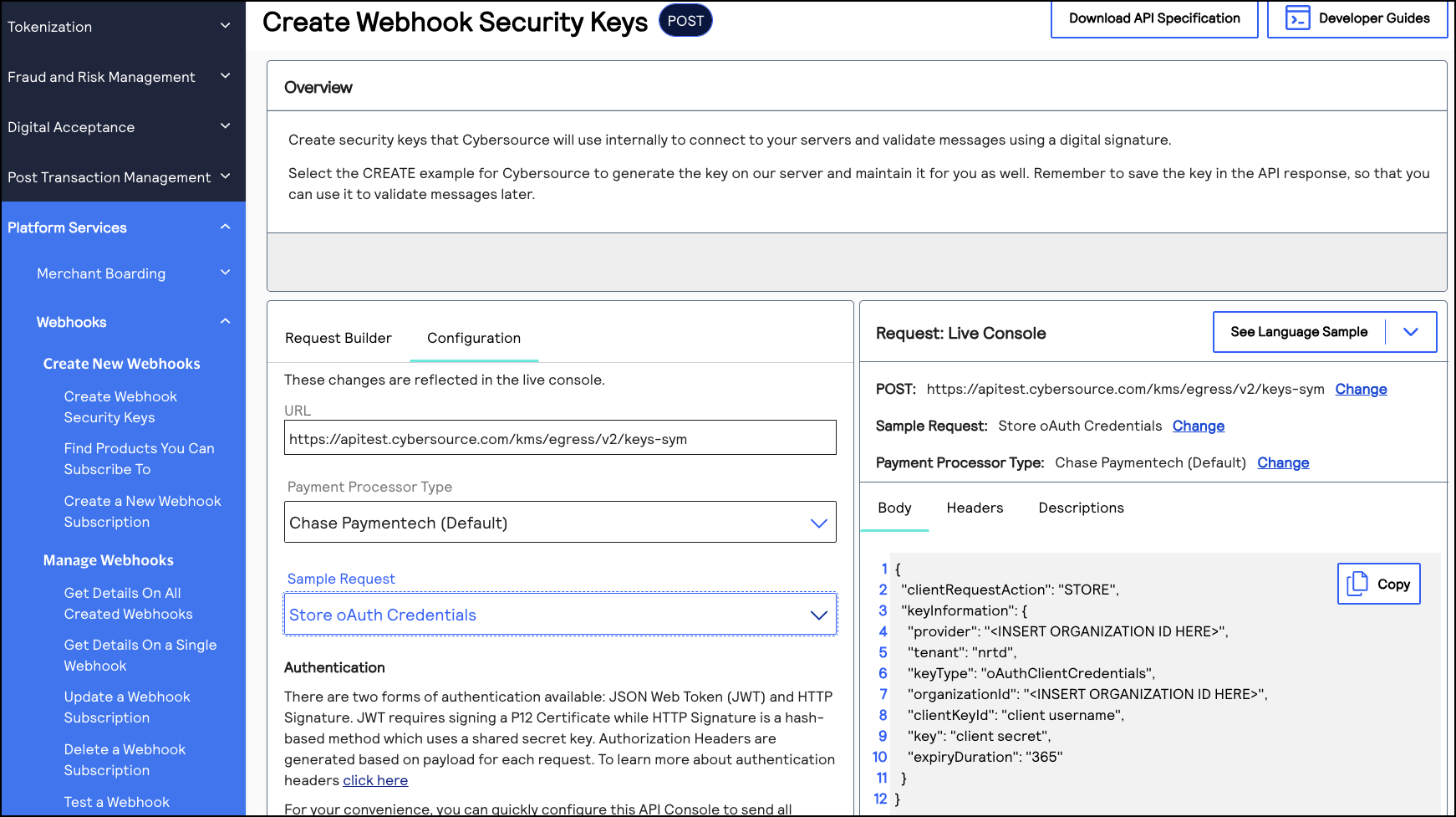
REST Interactive Example: Providing Your OAuth Credentials
Click this image to access the interactive code example for providing your OAuth
credentials to
Cybersource
. The Live Console refers to this request
as Store oAuth Credentials
.Figure:
Providing Your OAuth Credentials
Retrieve a List of Products and Events
This section describes how to retrieve a list of the products and event types that are enabled
for your organization. Use this list to know which products and events that you can subscribe
to. A successful response lists the enabled products and events in the
productId
and eventTypes.eventName
fields. You can use
these same field values when you send a create a webhook subscription
request.If the list you retrieve does not contain an expected product or event type, the product might
not be enabled for your organization. Contact your account manager for more information.
For a list of all the products and event types that are supported by the Webhooks
REST API
, see the Supported Products and Event Types.Endpoints
Send a GET request to one of these endpoints. The is
your organization ID.
{organizationId}
- Test:GEThttps://apitest.cybersource.com/notification-subscriptions/v2/products/{organizationId}
- Production:GEThttps://api.cybersource.com/webhooks/notification-subscriptions/v2/products/{organizationId}
- India Production:GET https://api.in.cybersource.com/notification-subscriptions/v2/products/{organizationId}
Example: Retrieving a List Products and Event
GEThttps://api.cybersource.com/notification-subscriptions/v2/products/{organizationId}
[
  {
    "productId": "terminalManagement",
    "eventTypes": [
      {
        "eventName": "terminalManagement.status.update",
        "payloadEncryption": false
      },
      {
        "eventName": "terminalManagement.assignment.update",
        "payloadEncryption": false
      },
      {
        "eventName": "terminalManagement.reAssignment.update",
        "payloadEncryption": false
      }
    ]
  }
]
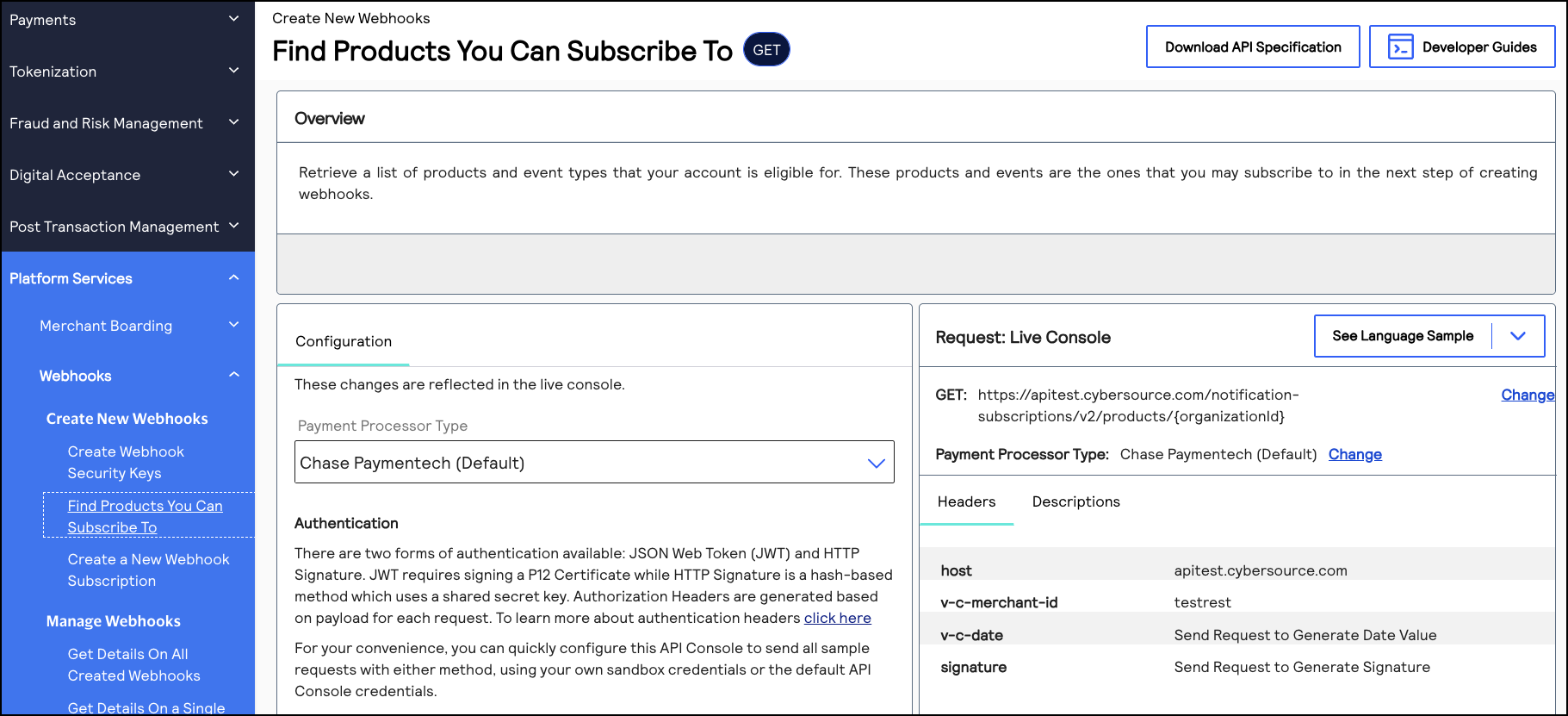
REST Interactive Example: Retrieving Product and Event Types
Click this image to access the interactive code example for retrieving the product
and event types enabled for your organization.
Figure:
Retrieve Product and Event Types
Message-Level Encryption
IMPORTANT
Payment and Unified Checkout events require message-level encryption. To see the event types and product IDs for Payment and Unified Checkout events, see Supported Products and Event Types.
Message-level encryption (MLE) encrypts the payload of a message to prevent tampering. This
section explains how to create the key that is necessary to decrypt encrypted payloads.
The webhook notification service requires X.509 certificates instead of raw public keys for
MLE. The service uses:
- Symmetric Encryption: AES-GCM with 256-bit keys
- Asymmetric Encryption: RSA-OAEP with 2048-bit keys
- Format: JSON Web Encryption
- Separate key pairs for request and response transactions
Prerequisite
- OpenSSL must be installed on your system.
- You must have access to terminal/command line.
- You must have appropriate permissions to create the asymmetric key in theCybersourcesystem.
Preparing Your Workspace
Open a terminal and navigate to a secure location for storing your key pairs:
mkdir -p ~/webhooks-keys
cd ~/webhoooks-keys
Generate Certificate and Key Pair
Generate Certificate and Key Pair
Run the following command with no line breaks, but change these values:
- ReplaceRequestKeywith the API key that you created in Create REST API Keys.
- ReplaceYourOrgwith your account's organization ID.
openssl req -x509 -newkey rsa:2048 -keyout request_private.pem -out request_certificate.pem -days 365 -nodes -subj "/CN=RequestKey/O=YourOrg/C=US" && cat request_certificate.pem | grep -v "BEGIN CERTIFICATE" | grep -v "END CERTIFICATE" | tr -d '\n' && echo
Result
- A 2048-bit RSA key pair is generated.
- A self-signed X.509 certificate valid for 365 days is created. Use the text of the certificate in thekeyInformation.pubfield during registration, in one line, and without the BEGIN and END lines. See Required Fields for Registering Your Message-Level Encryption Keys and Example: Registering Your Certificate.
- The private key inrequest_private.pemis stored.
- The certificate inrequest_certificate.pemis stored.
- Separate keys for each organization ID or account that uses message-level encryption are created.
Register the Certificate
Use the REST API to register and store your certificate. Each webhook subscription requires its
own unique asymmetric certificate.
Endpoints
Send a POST request to one of these endpoints:
- Test:POSThttps://apitest.cybersource.com/kms/egress/v2/keys-asym
- Production:POSThttps://api.cybersource.com/kms/egress/v2/keys-asym
- India Production:POST https://api.in.cybersource.com/kms/egress/v2/keys-asym
Required Fields for Registering Your Message-Level Encryption Keys
- clientRequestAction
- Set the value toSTORE.
- keyInformation.provider
- Set the value tonrtd.
- keyInformation.tenant
- Set the value to the name of the organization ID of the account.
- keyInformation.keyType
- Set the value topublickey.
- keyInformation.organizationId
- Set the value to the name of the organization ID of the account.
- keyInformation.pub
- Set the value to the X.509 certificate that you generated in Generate Certificate and Key Pair.
- IMPORTANT: The certificate is generated with line breaks. You must remove the line breaks before adding it to this field. Do not include the--BEGIN--and--END--lines. See Example: Registering Your Certificate
- keyInformation.expiryDuration
- Set the value to365.
Example: Registering Your Certificate
{
"clientRequestAction": "STORE",
"keyInformation": {
	"provider": "nrtd",
	"tenant": "<set this to your organization ID>",
	"keyType": "publickey",
	"organizationId": "<set this to your organization ID>",
	"pub":  "//this must be one line with no breaks
	MIIDbDCCAlQCCQD4lcSlmasmCTANBgkqhkiG9w0BAQsFADB4MQswCQYDVQQGEwJVUzELMAkGA1UECAwCVFgxDzANBgNVBAcMBkF1c3RpbjENMAsGA1UECgwEVGVzdDEOMAwGA1UECwwFVGVzdDIxDjAMBgNVBAMMBVRlc3QzMRwwGgYJKoZIhvcNAQkBFg10ZXN0QHRlc3QuY29tMB4XDTIxMDgwOTE0MTcxNFoXDTIyMDgwOTE0MTcxNFoweDELMAkGA1UEBhMCVVMxCzAJBgNVBAgMAlRYMQ8wDQYDVQQHDAZBdXN0aW4xDTALBgNVBAoMBFRlc3QxDjAMBgNVBAsMBVRlc3QyMQ4wDAYDVQQDDAVUZXN0MzEcMBoGCSqGSIb3DQEJARYNdGVzdEB0ZXN0LmNvbTCCASIwDQYJKoZIhvcNAQEBBQADggEPADCCAQoCggEBAMcHQWZRETqim3XzUQlAiujFEvsHIi1uJZKj+1lvPH36Ucqo3ORcoh/MM/zxVdahjhSyyp7MHuKBWnzft6bFeDEul6qKWGPAAzaxG/2xZSV3FggA9SyAZEDUpJ6mblwqm/EY4KmZi1FrNBUHfW2wwaqDexHPRDesRG6aI7Wuu4GdQUUqoTa2+Nv7kVgEDmGcfIjoWkGKHe+Yan95EITrq4jEFCE5Tg/vERnMvHfK2SovENZ13/pnwFYbeh1kfJSBzWW7yq8AyQAgAE9iqJXbJ/MAasir2vjUQ2+Hcl7WbkpoVjLqDt3rzV1T0Bsd4T9SC3wij9qjJSxa6vAgV4xn6bECAwEAATANBgkqhkiG9w0BAQsFAAOCAQEADuMrtYW1Sf0IsZ4ZD9ipjUrFuTxqh+0M5Jk8h0QqAXEHA/MawedlU3JmE3NB/UR82/XUwdmtObGnFANuUQQ+8WMFpcNo/Sq2kg7juneHZroRh72o73UUMtHWHzo8s0fXElNal8h3SaAAnjMblCiN+gM1RvWMvhGrMTXp2XAcdIezXf8/FOZLlzOF9QylbSk1U4ayWBag6MydkxgHjkPKdShZROEm0oz/O7J/gNp/r7J8F42Rw9MmJh9qH3SFre13nQa8V7Kg+dJHZ/jpGtSlDHAxO0SSTrPXkwB+iBJ6hSkiL/J2Ep+lYHqVe3p5NXMOlTtJdbU4enHeLkD6PazKTw",
	"expiryDuration": "365"
		}
	}
{
"submitTimeUtc": "2026-01-22T14:36:31Z",
"status": "SUCCESS",
"keyInformation": {
	"provider": "nrtd",
	"tenant": "384259",
	"organizationId": "384259",
	"keyId": "937dfa75-acff-4f5b-9aab-66a49455ae04",
	"pub": "MIIDbDCCAlQCCQD4lcSlmasmCTANBgkqhkiG9w0BAQsFADB4MQswCQYDVQQGEwJVUzELMAkGA1UECAwCVFgxDzANBgNVBAcMBkF1c3RpbjENMAsGA1UECgwEVGVzdDEOMAwGA1UECwwFVGVzdDIxDjAMBgNVBAMMBVRlc3QzMRwwGgYJKoZIhvcNAQkBFg10ZXN0QHRlc3QuY29tMB4XDTIxMDgwOTE0MTcxNFoXDTIyMDgwOTE0MTcxNFoweDELMAkGA1UEBhMCVVMxCzAJBgNVBAgMAlRYMQ8wDQYDVQQHDAZBdXN0aW4xDTALBgNVBAoMBFRlc3QxDjAMBgNVBAsMBVRlc3QyMQ4wDAYDVQQDDAVUZXN0MzEcMBoGCSqGSIb3DQEJARYNdGVzdEB0ZXN0LmNvbTCCASIwDQYJKoZIhvcNAQEBBQADggEPADCCAQoCggEBAMcHQWZRETqim3XzUQlAiujFEvsHIi1uJZKj+1lvPH36Ucqo3ORcoh/MM/zxVdahjhSyyp7MHuKBWnzft6bFeDEul6qKWGPAAzaxG/2xZSV3FggA9SyAZEDUpJ6mblwqm/EY4KmZi1FrNBUHfW2wwaqDexHPRDesRG6aI7Wuu4GdQUUqoTa2+Nv7kVgEDmGcfIjoWkGKHe+Yan95EITrq4jEFCE5Tg/vERnMvHfK2SovENZ13/pnwFYbeh1kfJSBzWW7yq8AyQAgAE9iqJXbJ/MAasir2vjUQ2+Hcl7WbkpoVjLqDt3rzV1T0Bsd4T9SC3wij9qjJSxa6vAgV4xn6bECAwEAATANBgkqhkiG9w0BAQsFAAOCAQEADuMrtYW1Sf0IsZ4ZD9ipjUrFuTxqh+0M5Jk8h0QqAXEHA/MawedlU3JmE3NB/UR82/XUwdmtObGnFANuUQQ+8WMFpcNo/Sq2kg7juneHZroRh72o73UUMtHWHzo8s0fXElNal8h3SaAAnjMblCiN+gM1RvWMvhGrMTXp2XAcdIezXf8/FOZLlzOF9QylbSk1U4ayWBag6MydkxgHjkPKdShZROEm0oz/O7J/gNp/r7J8F42Rw9MmJh9qH3SFre13nQa8V7Kg+dJHZ/jpGtSlDHAxO0SSTrPXkwB+iBJ6hSkiL/J2Ep+lYHqVe3p5NXMOlTtJdbU4enHeLkD6PazKTw",
	"keyType": "publickey",
	"status": "active",
	"expirationDate": "2022-08-09T14:17:14Z"
		}
	}
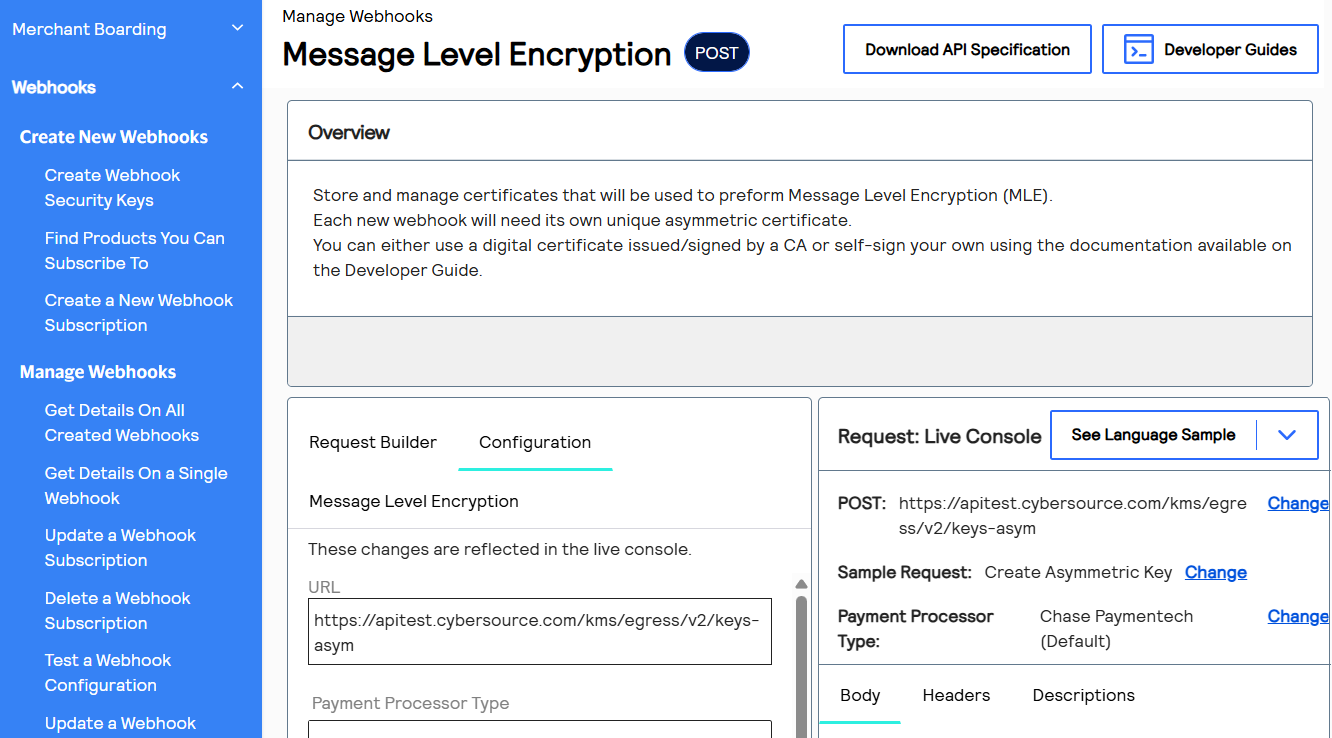
REST Interactive Example: Registering Your Certificate
Click this image to access the interactive code example for registering your certificate. The Live Console refers to this request as
Message-Level Encryption
.Figure:
Registering Your Certificate
Security Best Practices
Here are some tips to ensure that your keys remain secure.
- Store private keys in a secure location with restricted permissions.
- Never commit private keys to version control.
- Rotate certificates before expiration.
- Use environment variables or secure vaults for production deployments.
- Keep back-up copies of your private keys in a secure location.
Securing Your Private Key
Keep your
request_private.pem
file secure. This private key is required to decrypt incoming webhook notifications. To modify the permissions so that only the file owner can read and write to the files, use this command:chmod 600 request_private.pem
Troubleshooting
If you receive the
Key invalid or validity too long
error, try generating a certificate with shorter validity:# 90-day validity openssl req -x509 -newkey rsa:2048 -keyout request_private.pem -out request_certificate.pem -days 90 -nodes -subj "/CN=RequestKey/O=YourOrg/C=US" && cat request_certificate.pem | grep -v "BEGIN CERTIFICATE" | grep -v "END CERTIFICATE" | tr -d '\n' && echo
Viewing Certificate Details
To verify your certificate details, use this command.
openssl x509 -in request_certificate.pem -text -noout
Create a Webhook Subscription
This section describes how to create a webhook subscription using a REST API request. The
request you send is dependent on your system's security policy:
- Mutual trust (default)
- Mutual trust andOAuth(optional)
- Mutual trust andOAuth with JWT(optional)
The Webhooks REST API uses the mutual trust security policy by default. In addition to
mutual trust, you can also use the OAuth or OAuth JWT security policy. If you are not
using OAuth security to authenticate your webhook notifications, use the default mutual
trust request.
Create a Webhook Subscription
This section describes how to create webhook subscription using mutual trust. Mutual trust is
the default security policy. For more information, see Set Up Your Security.
You can subscribe to multiple webhook products and event types in the same request.
Health Check URL
Cybersource
recommends that you include a health check URL in the subscription
request. A health check URL ensures that you do not miss any notifications. For more
information, see Webhook Health Check URL and Automatic Revalidation.URL Validation
When a webhook subscription is created or updated, the URLs associated with that subscription
are evaluated through a validation and approval process that can take 1-2 business days. See
URL Review and Approval Process
Retry Policy
If your webhook URL or health check URL are unresponsive when sent a notification,
Cybersource
resends the notification according to the subscription's retry
policy
. By default, Cybersource
sends you 3 notification attempts,
beginning 1 minute after the initial failed attempt. Retry attempts occur in 1 minute
intervals if your URL remains unresponsive. You can configure the default retry policy when
you create or update a subscription. For more information about how to configure the retry
policy, see Configure the Retry Policy.Subscription ID
IMPORTANT
After sending this request, you receive a response with a subscription ID
in the
webhookId
field. Save this ID in your system to send
follow-on requests that enable you to update and manage the subscription. For
more information about the follow-on requests, see Manage Webhook Subscriptions Requests.Endpoints
Send a POST request to one of these endpoints:
- Test:POSThttps://apitest.cybersource.com/notification-subscriptions/v2/webhooks
- Production:POSThttps://api.cybersource.com/notification-subscriptions/v2/webhooks
- India Production:POST https://api.in.cybersource.com/notification-subscriptions/v2/webhooks
Required Fields for Subscribing to Webhooks
- description
- Description of the webhook subscription.
- name
- Name of the webhook subscription.
- organizationId
- Set to your organization ID or merchant ID.
- products.eventTypes
- For a list of event types, see Supported Products and Event Types.
- products.productId
- For a list of product IDs, see Supported Products and Event Types.
- securityPolicy.securityType
- Set toKEY.
- webhookUrl
- The URL in your system to which webhooks notifications will be sent.
Optional Fields for Subscribing to Webhooks
- deactivateflag
- Required when thehealthCheckUrlfield is present.
- Set totrueto automatically activate the subscription.
- healthCheckUrl
- Set to the health check URL. Required to auto-activate the subscription. If you do not include this field, the created subscription is inactive. An inactive subscription does not send notifications. For more information, see Webhook Health Check URL and Automatic Revalidation.
- notificationScope.scopeData
- Set to the organization IDs that you want to have receive notifications when events occur in those organizations. Concatenate each organization ID with the comma character (,).
- retryPolicy.deactivateFlag
- For more information, see Configure the Retry Policy.
- retryPolicy.firstRetry
- For more information, see Configure the Retry Policy.
- retryPolicy.interval
- For more information, see Configure the Retry Policy.
- retryPolicy.numberOfRetries
- For more information, see Configure the Retry Policy.
- retryPolicy.repeatSequenceCount
- For more information, see Configure the Retry Policy.
- retryPolicy.repeatSequenceWaitTime
- For more information, see Configure the Retry Policy.
Example: Creating a Webhook Subscription
{
  "name": "My Custom Webhook",
  "description": "Sample Webhook from Developer Center",
  "organizationId": "<SET TO YOUR ORGANIZATION ID OR MERCHANT ID>",
  "products": [
    {
      "productId": "product1.name",
      "eventTypes": [
        "product.name.event.type"
        "product.name.event.type"
        "product.name.event.type"
      ]
    }
    {
      "productId": "product2.name",
      "eventTypes": [
        "product.name.event.type"
        "product.name.event.type"
        "product.name.event.type"
        "product.name.event.type"
        "product.name.event.type"
        "product.name.event.type"
      ]
    }
  ],
  "webhookUrl": "https://MyWebhookServer.com:8443/simulateClient",
  "securityPolicy": {
    "securityType": "KEY"
  }
}
Response to a Successful Request
{
  "organizationId": "organizationId",
  "productId": "terminalManagement",
  "eventTypes": [
    "terminalManagement.assignment.update"
  ],
  "webhookId": "ddb9bced-c3e3-1b1d-e053-9c588e0a3c42",
  "name": "My Custom Webhook",
  "webhookUrl": "https://MyWebhookServer.com:443/simulateClient",
  "healthCheckUrl": "https://MyWebhookServer.com:443/simulateClientHealthCheck",
  "createdOn": "2022-04-28T15:39:56.928Z",
  "status": "ACTIVE",
  "description": "Sample Webhook from Developer Center",
  "retryPolicy": {
    "algorithm": "ARITHMETIC",
    "firstRetry": "1",
    "interval": "1",
    "numberOfRetries": "3",
    "deactivateFlag": "false",
    "repeatSequenceCount": '0",
    "repeatSequenceWaitTime": "0"
  },
  "securityPolicy": {
    "securityType": "KEY",
    "digitalSignatureEnabled": "yes"
  },
  "version": "3",
  "notificationScope": "SELF"
}
Response Codes
Response Codes
A successful request is indicated by the 200-level response code.
For more information about all of the
possible response codes you can receive, see Transaction Response Codes
.Notification Scope Response Indicators
Notification Scope Response Indicators
The
notificationScope
response field indicates which organizations receive
the webhook notification. By default, notifications use the DESCENDANTS
setting. To modify this setting, include the
notificationScope.scopeData
field in your request.These are all possible field values:
- SELF
- Only the organization creating the webhook subscription receives notifications when a subscribed event occurs.
- DESCENDANTS(default)
- The organization creating the webhook subscription receives notifications when a subscribed event occurs in their organization and in any of their children/descendant accounts in their portfolio hierarchy. This is the default notification setting.
- CUSTOM
- The organization creating the webhook subscription receives notifications when a subscribed event occurs in their organization and in any organization listed in thenotificationScope.scopeDatarequest field.
Subscription Statuses
Subscription Statuses
When you create a subscription, its status is indicated in the
status
response field. If you did not include a health check URL in your request, the
subscription is set to INACTIVE
. If you included a health check URL and
Cybersource
receives a response from the health check URL, the
subscription status is set to ACTIVE
. These are the five possible statuses a subscription can be set to:
- PENDING_REVIEW
- One or more submitted URLs are being validated or awaiting required security approval.
- BLOCKED
- One or more URLs were rejected or identified as unsafe or non-compliant. The subscription cannot proceed until the URL(s) are updated.
- ACTIVE
- The subscription is ready to send notifications or is actively sending notifications.
- INACTIVE
- The subscription has not been activated. Add a health check URL to activate it. For more information, see Webhook Health Check URL and Automatic Revalidation.
- SUSPENDED
- The subscription was active, but the webhook URL or the health check URL became unreachable. When the URL becomes reachable, the status changes toACTIVEand notifications resume.
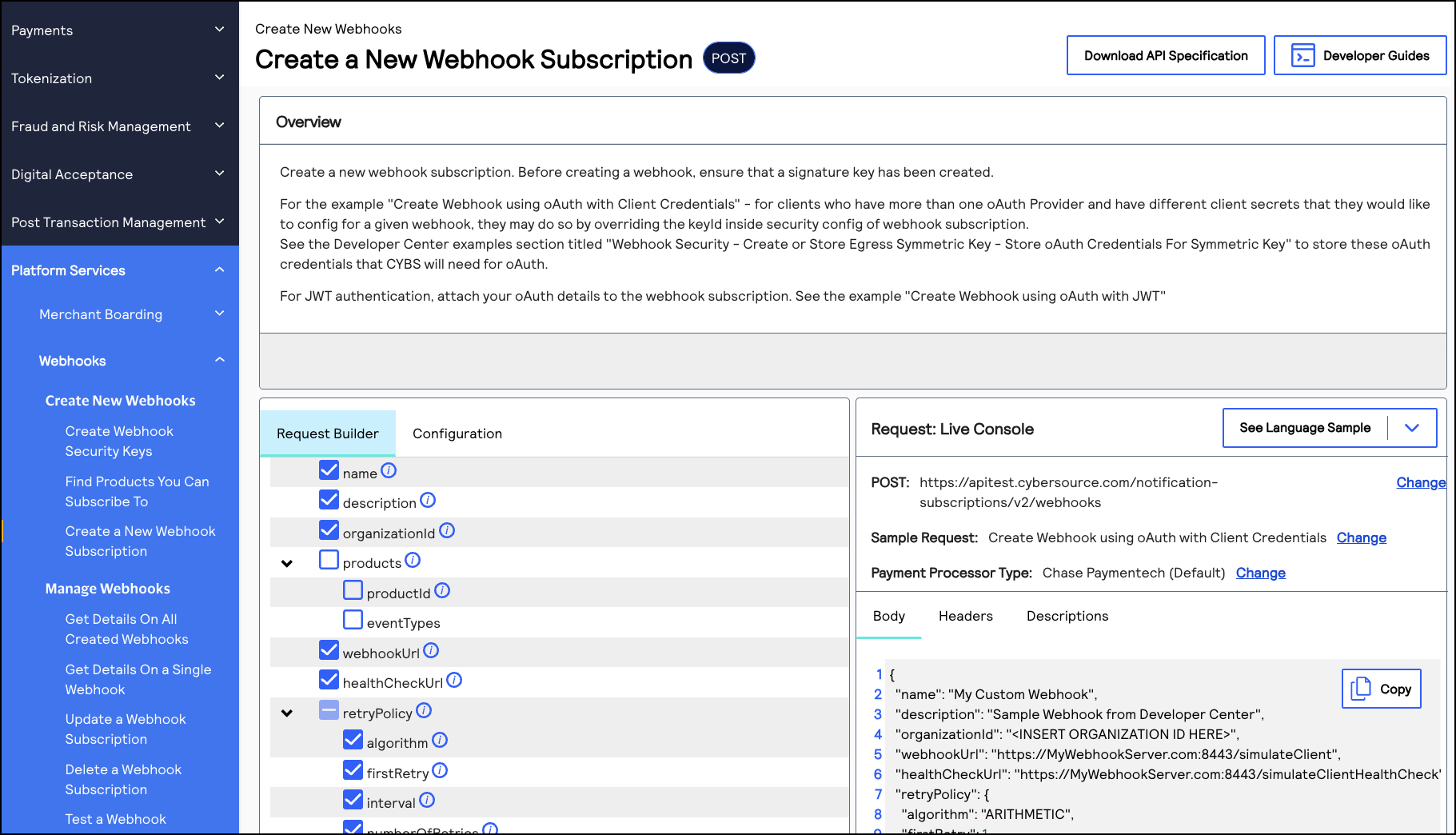
REST Interactive Example: Create a Webhook
Subscription
REST Interactive Example: Create a Webhook
Subscription
Click this image to access the interactive code example for creating a webhook
subscription.
Figure:
Create a Webhook Subscription
Create a Webhook Subscription Using OAuth
This section describes how to create a webhook subscription using the OAuth security policy, in
addition to mutual trust. You can subscribe to multiple webhook products and event types in
the same request. After creating a subscription, you receive a notification every time your
subscribed events occur.
The
OAuth
security policy with client credentials is an authentication method that is
designed for applications to communicate with each other. Basic authentication is the
most common mechanism for authenticating a client with the client credentials. This
authentication method enables Cybersource
services to obtain only the
relevant user data without exposing the user's credentials.Health Check URL
Cybersource
recommends that you include a health check URL in the subscription
request. A health check URL ensures that you do not miss any notifications. For more
information, see Webhook Health Check URL and Automatic Revalidation.URL Validation
When a webhook subscription is created or updated, the URLs associated with that subscription
are evaluated through a validation and approval process that can take 1-2 business days. See
URL Review and Approval Process
Retry Policy
If your webhook URL or health check URL are unresponsive when sent a notification,
Cybersource
resends the notification according to the subscription's retry
policy
. By default, Cybersource
sends you 3 notification attempts,
beginning 1 minute after the initial failed attempt. Retry attempts occur in 1 minute
intervals if your URL remains unresponsive. You can configure the default retry policy when
you create or update a subscription. For more information about how to configure the retry
policy, see Configure the Retry Policy.Subscription ID
IMPORTANT
After sending this request, you receive a response with a subscription ID
in the
webhookId
field. Save this ID in your system to send
follow-on requests that enable you to update and manage the subscription. For
more information about the follow-on requests, see Manage Webhook Subscriptions Requests.Endpoints
Send a POST request to one of these endpoints:
- Test:POSThttps://apitest.cybersource.com/notification-subscriptions/v2/webhooks
- Production:POSThttps://api.cybersource.com/notification-subscriptions/v2/webhooks
- India Production:POST https://api.in.cybersource.com/notification-subscriptions/v2/webhooks
Required Fields for Subscribing to Webhooks Using OAuth
- description
- Description of the webhook subscription.
- name
- Name of the webhook subscription.
- organizationId
- Set to your organization ID or merchant ID.
- products.eventTypes
- For a list of event types, see Supported Products and Event Types.
- products.productId
- For a list of product IDs, see Supported Products and Event Types.
- securityPolicy.config.oAuthTokenExpiry
- securityPolicy.config.oAuthTokenType
- Set toBearer.
- securityPolicy.config.oAuthURL
- This is the URL of your OAuth server.
- securityPolicy.securityType
- Set tooAuth.
- webhookUrl
- The URL in your system to which webhooks notifications will be sent.
Optional Fields for Subscribing to Webhooks Using OAuth
- deactivateflag
- Required ifhealthCheckUrlfield is present.
- Set totrueto automatically activate the subscription.
- healthCheckUrl
- Set to the health check URL. Required to auto-activate the subscription. If you do not include this field, the created subscription is inactive. An inactive subscription does not send notifications. For more information, see Webhook Health Check URL and Automatic Revalidation.
- notificationScope.scopeData
- Set to the organization IDs that you want to receive notifications for when subscribed events occur in those organizations. Concatenate each organization ID with the comma character (,).
- retryPolicy.deactivateFlag
- For more information, see Configure the Retry Policy.
- retryPolicy.firstRetry
- For more information, see Configure the Retry Policy.
- retryPolicy.interval
- For more information, see Configure the Retry Policy.
- retryPolicy.numberOfRetries
- For more information, see Configure the Retry Policy.
- retryPolicy.repeatSequenceCount
- For more information, see Configure the Retry Policy.
- retryPolicy.repeatSequenceWaitTime
- For more information, see Configure the Retry Policy.
Example: Creating a Webhook Subscription Using OAuth
{
  "name": "My Custom Webhook",
  "description": "",
  "organizationId": "<INSERT ORGANIZATION ID HERE>",
  "products": [
    {
      "productId": "product.name",
      "eventTypes": [
        "product.name.event.type"
      ]
    }
  ],
  "webhookUrl": "https://MyWebhookServer.com:8443/simulateClient",
  "securityPolicy": {
    "securityType": "oAuth",
    "config": {
      "oAuthTokenExpiry": 365,
      "oAuthURL": "https://MyWebhookServer.com:8443/oAuthToken",
      "oAuthTokenType": "Bearer"
    }
  }
}
{
  "organizationId" : "org1",
  "productId" : "terminalManagement",
  "eventTypes" : [
	"terminalManagement.assignment.update"
],
  "webhookId" : "d7399cb6-ff9f-72d9-e053-3cb8d30a62ee",
  "webhookUrl" : "https://mywebhookserver.com/simulateclient",
  "healthCheckUrl" : "https://mywebhookserver.com/simulateclient/healthcheck",
  "createdOn" : "2022-02-04T22:17:43.045Z",
  "status" : "INACTIVE",
  "retryPolicy" : {
    "algorithm" : "ARITHMETIC",
    "firstRetry" : "1",
    "interval" : "1",
    "numberOfRetries" : "3",
    "deactivateFlag" : "false",
    "repeatSequenceCount" : "0",
    "repeatSequenceWaitTime" : "0"
  },
  "securityPolicy" : {
    "securityType" : "oAuth",
    "proxyType" : "internal",
    "digitalSignatureEnabled" : "yes",
    "config" : {
      "oAuthTokenExpiry" : "300,
      "oAuthURL" : "https://myoauthserver.com/simulator/v1/token",
      "oAuthTokenType" : "Bearer"
    }
  },
  "version" : "3",
  "notificationScope" : "SELF"
}
Response Codes
Response Codes
A successful request is indicated by the 200-level response code.
For more information about all of the
possible response codes you can receive, see Transaction Response Codes
.Notification Scope Response Indicators
Notification Scope Response Indicators
The
notificationScope
response field indicates which organizations receive
the webhook notification. By default, notifications use the DESCENDANTS
setting. To modify this setting, include the
notificationScope.scopeData
field in your request.These are all possible field values:
- SELF
- Only the organization creating the webhook subscription receives notifications when a subscribed event occurs.
- DESCENDANTS(default)
- The organization creating the webhook subscription receives notifications when a subscribed event occurs in their organization and in any of their children/descendant accounts in their portfolio hierarchy. This is the default notification setting.
- CUSTOM
- The organization creating the webhook subscription receives notifications when a subscribed event occurs in their organization and in any organization listed in thenotificationScope.scopeDatarequest field.
Subscription Statuses
Subscription Statuses
When you create a subscription, its status is indicated in the
status
response field. If you did not include a health check URL in your request, the
subscription is set to INACTIVE
. If you included a health check URL and
Cybersource
receives a response from the health check URL, the
subscription status is set to ACTIVE
. These are the five possible statuses a subscription can be set to:
- PENDING_REVIEW
- One or more submitted URLs are being validated or awaiting required security approval.
- BLOCKED
- One or more URLs were rejected or identified as unsafe or non-compliant. The subscription cannot proceed until the URL(s) are updated.
- ACTIVE
- The subscription is ready to send notifications or is actively sending notifications.
- INACTIVE
- The subscription has not been activated. Add a health check URL to activate it. For more information, see Webhook Health Check URL and Automatic Revalidation.
- SUSPENDED
- The subscription was active, but the webhook URL or the health check URL became unreachable. When the URL becomes reachable, the status changes toACTIVEand notifications resume.
REST Interactive Example: Create a Webhook
Subscription Using OAuth
REST Interactive Example: Create a Webhook
Subscription Using OAuth
Click this image to access the interactive code example for creating a webhook
subscription using OAuth.
Figure:
Create a Webhook Subscription Using OAuth
Create a Webhook Subscription Using OAuth with JWT
This section describes how to create a webhook subscription using OAuth with a JSON Web Token
(JWT), in addition to mutual trust. You can subscribe to multiple webhook products and event
types in the same request. After creating a subscription, you receive a notification every
time your subscribed events occur.
The
OAuth with JWT
security policy is an authentication method in which your system
sends a JSON Web Token. This method bypasses domain headers and minimizes the need for
server-side authentication checks.Health Check URL
Cybersource
recommends that you include a health check URL in the subscription
request. A health check URL ensures that you do not miss any notifications. For more
information, see Webhook Health Check URL and Automatic Revalidation.URL Validation
When a webhook subscription is created or updated, the URLs associated with that subscription
are evaluated through a validation and approval process that can take 1-2 business days. See
URL Review and Approval Process
Retry Policy
If your webhook URL or health check URL are unresponsive when sent a notification,
Cybersource
resends the notification according to the subscription's retry
policy
. By default, Cybersource
sends you 3 notification attempts,
beginning 1 minute after the initial failed attempt. Retry attempts occur in 1 minute
intervals if your URL remains unresponsive. You can configure the default retry policy when
you create or update a subscription. For more information about how to configure the retry
policy, see Configure the Retry Policy.Subscription ID
IMPORTANT
After sending this request, you receive a response with a subscription ID
in the
webhookId
field. Save this ID in your system to send
follow-on requests that enable you to update and manage the subscription. For
more information about the follow-on requests, see Manage Webhook Subscriptions Requests.Endpoints
Send a POST request to one of these endpoints:
- Test:POSThttps://apitest.cybersource.com/notification-subscriptions/v2/webhooks
- Production:POSThttps://api.cybersource.com/notification-subscriptions/v2/webhooks
- India Production:POST https://api.in.cybersource.com/notification-subscriptions/v2/webhooks
Required Fields for Subscribing to Webhooks Using OAuth with JWT
- description
- Description of the webhook subscription.
- name
- Name of the webhook subscription.
- organizationId
- Set to your organization ID or merchant ID.
- products.eventTypes
- For a list of event types, see Supported Products and Event Types.
- products.productId
- For a list of product IDs, see Supported Products and Event Types.
- securityPolicy.config.additionalConfig.aud
- securityPolicy.config.additionalConfig.client_id
- securityPolicy.config.additionalConfig.keyId
- securityPolicy.config.additionalConfig.scope
- securityPolicy.config.oAuthTokenExpiry
- Set to365.
- securityPolicy.config.oAuthTokenType
- Set toBearer.
- securityPolicy.config.oAuthUrl
- This is the URL of your OAuth server.
- securityPolicy.securityType
- Set tooAuth_JWT.
- webhookUrl
- The URL in your system to which webhooks notifications will be sent.
Optional Fields for Subscribing to Webhooks Using OAuth with JWT
- deactivateflag
- Required if thehealthCheckUrlfield is present.
- Set totrueto automatically activate the subscription.
- healthCheckUrl
- Set to the health check URL. Required to auto-activate the subscription. If you do not include this field, the created subscription is inactive. An inactive subscription does not send notifications. For more information, see Webhook Health Check URL and Automatic Revalidation.
- notificationScope.scopeData
- Set to the organization IDs that you want to receive notifications for when events occur in those organizations. Concatenate each organization ID with the comma character (,).
- retryPolicy.deactivateFlag
- For more information, see Configure the Retry Policy.
- retryPolicy.firstRetry
- For more information, see Configure the Retry Policy.
- retryPolicy.interval
- For more information, see Configure the Retry Policy.
- retryPolicy.numberOfRetries
- For more information, see Configure the Retry Policy.
- retryPolicy.repeatSequenceCount
- For more information, see Configure the Retry Policy.
- retryPolicy.repeatSequenceWaitTime
- For more information, see Configure the Retry Policy.
Example: Creating a Webhook Subscription Using OAuth with JWT
{
  "name": "My Custom Webhook",
  "description": "Sample Webhook from Developer Center",
  "organizationId": "<INSERT ORGANIZATION ID HERE>",
  "products": [
    {
      "productId": "product.id",
      "eventTypes": [
        "product.id.event.type"
      ]
    }
  ],
  "webhookUrl": "https://MyWebhookServer.com:8443/simulateClient",
  "securityPolicy": {
    "securityType": "oAuth_JWT",
    "config": {
      "oAuthTokenExpiry": "365",
      "oAuthURL": "https://MyWebhookServer.com:443/oAuthToken",
      "oAuthTokenType": "Bearer",
      "additionalConfig": {
        "aud": "idp.api.myServer.com",
        "client_id": "650538A1-0000-0000-0000-932ABC57AD70",
        "keyId": "y-00000000000000-eAZ34pR9Ts",
        "scope": "merchantacq:rte:write"
      }
    }
  }
}
{
  "organizationId": "organizationId",
  "productId": "product.id",
  "eventTypes": [
    "product.id.event.type"
  ],
  "webhookId": "fe46bf08-3918-21ba-e053-a1588d0aeefa",
  "name": "My Custom Webhook",
  "webhookUrl": "https://MyWebhookServer.com:443/simulateClient",
  "healthCheckUrl": "https://MyWebhookServer.com:443/simulateClientHealthCheck",
  "createdOn": "2023-06-16T21:19:54.667Z",
  "status": "INACTIVE",
  "description": "Sample Webhook from Developer Center",
  "retryPolicy": {
    "algorithm": "ARITHMETIC",
    "firstRetry": 1,
    "interval": 1,
    "numberOfRetries": 3,
    "deactivateFlag": false,
    "repeatSequenceCount": 0,
    "repeatSequenceWaitTime": 0
  },
  "securityPolicy": {
    "securityType": "oAuth_JWT",
    "proxyType": "external",
    "digitalSignatureEnabled": "yes",
    "config": {
      "oAuthTokenExpiry": 365,
      "oAuthURL": "https://MyWebhookServer.com:443/oAuthToken",
      "oAuthTokenType": "Bearer",
      "additionalConfig": {
        "aud": "idp.api.myServer.com",
        "client_id": "650538A1-0000-0000-0000-932ABC57AD70",
        "keyId": "y-00000000000000-eAZ34pR9Ts",
        "scope": "merchantacq:rte:write"
      }
    }
  },
  "version": "3",
  "deliveryType": "nrtdCentral",
  "notificationScope": "SELF"
}
Response Codes
Response Codes
A successful request is indicated by the 200-level response code.
For more information about all of the
possible response codes you can receive, see Transaction Response Codes
.Notification Scope Response Indicators
Notification Scope Response Indicators
The
notificationScope
response field indicates which organizations receive
the webhook notification. By default, notifications use the DESCENDANTS
setting. To modify this setting, include the
notificationScope.scopeData
field in your request.These are all possible field values:
- SELF
- Only the organization creating the webhook subscription receives notifications when a subscribed event occurs.
- DESCENDANTS(default)
- The organization creating the webhook subscription receives notifications when a subscribed event occurs in their organization and in any of their children/descendant accounts in their portfolio hierarchy. This is the default notification setting.
- CUSTOM
- The organization creating the webhook subscription receives notifications when a subscribed event occurs in their organization and in any organization listed in thenotificationScope.scopeDatarequest field.
Subscription Statuses
Subscription Statuses
When you create a subscription, its status is indicated in the
status
response field. If you did not include a health check URL in your request, the
subscription is set to INACTIVE
. If you included a health check URL and
Cybersource
receives a response from the health check URL, the
subscription status is set to ACTIVE
. These are the five possible statuses a subscription can be set to:
- PENDING_REVIEW
- One or more submitted URLs are being validated or awaiting required security approval.
- BLOCKED
- One or more URLs were rejected or identified as unsafe or non-compliant. The subscription cannot proceed until the URL(s) are updated.
- ACTIVE
- The subscription is ready to send notifications or is actively sending notifications.
- INACTIVE
- The subscription has not been activated. Add a health check URL to activate it. For more information, see Webhook Health Check URL and Automatic Revalidation.
- SUSPENDED
- The subscription was active, but the webhook URL or the health check URL became unreachable. When the URL becomes reachable, the status changes toACTIVEand notifications resume.
REST Interactive Example: Create a Webhook
Subscription Using OAuth with JWT
REST Interactive Example: Create a Webhook
Subscription Using OAuth with JWT
Click this image to access the interactive code example for creating a webhook
subscription using OAuth with JWT.
Figure:
Create a Webhook Subscription Using OAuth with JWT
URL Review and Approval Process
When a webhook subscription is created or updated, the URLs associated with that
subscription are evaluated through a validation and approval process.
URL validation is designed to:
- Reduce security riskby preventing outbound calls to unapproved endpoints.
- Improve compliancethrough stronger review and approval controls.
- Increase transparencywith clearer client-visible statuses.
- Support scalethrough a standardized and repeatable validation process.
URL validation applies to:
- Webhook URL(required)
- OAuth URL(if applicable)
- Health Check URL(if applicable)
Overview
Overview
- A webhook subscription is created or updated.
- Submitted URLs are checked against existing approval records.
- New or unknown URLs are evaluated through manual validation.
- If additional review is required, the subscription status changes toPENDING_REVIEW.
- If any URL is rejected or blocked, the subscription status changes toBLOCKED.
- If all required URLs are approved, the subscription status changes toINACTIVE.
Status Descriptions
Status | Description |
|---|---|
PENDING_REVIEW | One or more submitted URLs are being validated or awaiting required security approval.
Review can take 1-2 business days. |
BLOCKED | One or more URLs were rejected or identified as unsafe or non-compliant. The
subscription cannot proceed until the URL(s) are updated. |
INACTIVE | All required approvals are complete, and the subscription is ready under the existing
activation flow. |
If Your Subscription Is Marked BLOCKED
If Your Subscription Is Marked BLOCKED
This means one or more URLs associated with the subscription cannot be used in their
current form. To continue, the client must update the affected URL(s) and resubmit.
Create a Sample Webhook Subscription
Follow these steps to create a sample webhook subscription and then trigger a test
webhook notification. This sample subscription uses the
Token Management Service
(TMS
).IMPORTANT
You must first confirm that your account or
organization ID is enabled for
TMS
and that a TMS
vault is set up. For assistance, contact Cybersource
Customer Support.- Create aTMSwebhook subscription for your organization ID using this endpoint:POSThttps://apitest.cybersource.com/notification-subscriptions/v2/webhooksSet theproductIdfield totokenManagementand theeventTypesfield totms.networktoken.provisioned. The following example creates a webhook subscription using Mutual Trust, which is the default security policy.{ "name": "TMS Webhook", "description": "Sample TMS Webhook from Developer Center", "organizationId": "organizationId", "productId": "tokenManagement", "eventTypes": [ "tms.networktoken.provisioned" ], "webhookUrl": "https://MyWebhookServer.com:8443/simulateClient", "healthCheckUrl": "https://MyWebhookServer.com:8443/simulateClientHealthCheck", "notificationScope": "SELF", "retryPolicy": { "algorithm": "ARITHMETIC", "firstRetry": 1, "interval": 1, "numberOfRetries": 3, "deactivateFlag": "false", "repeatSequenceCount": 0, "repeatSequenceWaitTime": 0 }, "securityPolicy": { "securityType": "KEY", "proxyType": "external" } }
- Go to the Create an Instrument Identifier section in the API Reference.
- Click theConfigurationtab.
- In the Sample Request drop-down menu, chooseCreate Instrument Identifier using a Card and Create Network Token:
- Set thecard.numberfield to a test PAN. (If you need a test PAN, contactCybersourcecustomer support). Send the request to this endpoint:POSThttps://apitest.cybersource.com/tms/v1/instrumentidentifiers{ "type": "enrollable card", "card": { "number": "411111111111XXXX", // Replace the ‘X’s with 1 "expirationMonth": "12", "expirationYear": "2031" } }IMPORTANTA test PAN can have only one associated instrument identifier. If you need to test multiple webhook notifications, delete the instrument identifier created for that PAN before using theDelete an Instrument Identifier API.
- ClickSend. After you receive a successful response, your system should receive a webhook event notification.For an example of a complete webhook notification, including the header and payload information, see Example: Webhook Notification.
Optional Set-Up Tasks
You can complete optional set-up tasks during or after creating a webhook subscription. These
tasks are optional and are not required in order to successfully set-up webhook
subscriptions.
- Include a health check URL to enableCybersourceto monitor your server's status for reliability.
- Validate the integrity of a webhook notification.
- Set up a retry policy for how to receive notifications when your server URL is initially unresponsive.
Webhook Health Check URL and Automatic Revalidation
When you create a webhook subscription,
Cybersource
recommends that you include
a health check URL in the request. Including a health check URL enables Cybersource
to monitor your server's status for reliability. When Cybersource
detects that your health check URL is unresponsive, notification
deliveries are withheld until your health check URL becomes responsive again. A health
check URL ensures that you do not miss any notifications.To add a health check URL to your
create a subscription
request, include the healthCheckurl
field and set it to your health check URL.
You must also include the deactivateflag
field and
set it to true
to enable Cybersource
to withhold
notifications for periods when your server becomes unresponsive.Automatic Activation
After you successfully create or update a subscription,
Cybersource
pings your
health check URL within five to ten minutes. If Cybersource
receives a
response, the subscription status automatically becomes ACTIVE
and
notifications are delivered. When Cybersource
does not receive a response,
your subscription status remains SUSPENDED
until Cybersource
receives a response. If you did not include a health check URL when you created the
subscription, Cybersource
pings your webhook URL for automatic activation
instead. You can also activate a subscription that is not automatically activated by sending
a PUT request. For more information, see Activate a Webhook Subscription.Figure:
Webhook Automatic Activation
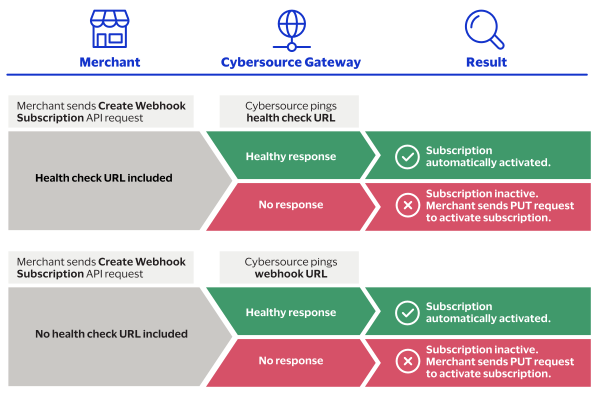
Automatic Revalidation
After the subscription's initial activation,
Cybersource
continues to monitor
your server status. If Cybersource
detects that your server is
unavailable, your subscription status automatically updates to
SUSPENDED
, and notifications are withheld. When Cybersource
detects that your server is available again, your
subscription status automatically updates to ACTIVE
, and all
withheld notifications are delivered.Configure the Retry Policy
If your webhook URL or health check URL are unresponsive,
Cybersource
resends
the webhook notifications according to the subscription's retry policy
. All
subscriptions have a default retry policy (see the default values in the field descriptions
below). You can change the retry policy when you create a subscription or update the webhook
subscription by modifying the retry field values described below.To configure a subscription's retry policy, include these required fields in the
create a
subscription
request or an update a subscription
request: - retryPolicy.deactivateFlag
- Set to one of these values:
- false: Notifications arenotwithheld when your webhook URL or health check URL are unresponsive.This value is the default.
- true: Notifications are withheld when your webhook URL or health check URL are unresponsive, and the subscription status updates toSUSPENDED. When the URLs become responsive again, the withheld notifications are sent and the subscription status updates toACTIVE.
- retryPolicy.firstRetry
- The number of minutes before the notification is resent.The default value is1.
- retryPolicy.interval
- The number of minutes between each retry attempt.The default value is1.
- retryPolicy.numberOfRetries
- The number of retry attempts.The default value is3.
- retryPolicy.repeatSequenceCount
- The number of times to repeat the retry sequence.The default value is0.
- retryPolicy.repeatSequenceWaitTime
- The number of minutes between each repeat sequence.The default value is0.
Example: Retry Policy in a Subscription Request
This example shows how to format a retry policy in a request.
  "retryPolicy": {
    "firstRetry": "1",
    "interval": "1",
    "numberOfRetries": "3",
    "deactivateFlag": "false",
    "repeatSequenceCount": "0",
    "repeatSequenceWaitTime": "0"
  }
Webhook Notification Field Descriptions
Each webhook notification that you receive contains a message body with fields. This section
describes the possible fields and values you can receive in a notification. The default
version of the Webhooks API is version 3, and the information in this section describes
version 3.
Notification Message Body
The message body contains fields associated with the notification and the payload of the event
that generated the notification.
- webhookId
- The identifier of the webhook subscription that generated the notification.
- transactionTraceId
- The identifier of the notification attempt. Every retry attempt has a unique transaction trace ID.
- productId
- The identifier of the product that generated the event.
- organizationId
- The identifier of the organization that is subscribed to the notification.
- eventType
- The type of event that generated the notification.
- eventDate
- The timestamp of when the event occurred.
- payload
- The data generated by the event.
- requestType
- The indicator of whether the notification is new or a retry attempt.
Example: Notification Payload
TMS Webhook Notification
POST /test HTTP/1.1Host: test.test.comContent-Length: 537 Content-Type: application/jsonv-c-event-type: product.event.typev-c-organization-id: orgidv-c-product-name: productv-c-request-type: NEWv-c-retry-count: 0 v-c-signature "t=timestamp;keyId=key-UUID;sig=calculatedDigitalSignature" v-c-transaction-trace-id: "7ac2ad9f-6a89-d3e9-e053-34b8d30aaf40" v-c-webhook-id: "e339e8b1-d540-4efd-e053-8d588e0a2de5"Headers{ "eventType": "tms.networktoken.provisioned", "webhookId": "e339e8b1-d540-4efd-e053-8d588e0a2de5", "productId": "tokenManagement", "organizationId": "sampleSubscriptionHolder", "eventDate": "2022-07-20T11:38:45", "transactionTraceId": "7ac2ad9f-6a89-d3e9-e053-34b8d30aaf40", "retryNumber": 0, "payload": { "data": { "_links": { "paymentInstruments": [ { "href": "/tms/v1/paymentinstruments/...................." } ], "instrumentIdentifiers": [ { "href": "/tms/v1/instrumentidentifiers/...................." } ] }, "id": "...................", "type": "tokenizedCardEnrollments", "version": "1.0" }, "organizationId": "sampleSelfOrChildOrg" }, "requestType": "NEW" }Body Payload
Manage Webhook Subscriptions Requests
This section describes how to manage your webhook subscriptions using the REST API. These
follow-on requests require the webhook subscription ID.
After you set up a webhook subscription, you can manage your subscription using these
requests:
- Retrieve the details of a subscription
- Retrieve a list of subscriptions by product and event
- Update a subscription
- Delete a subscription
- Verify a subscription's configuration
- Activate a subscription
- Deactivate a subscription
Retrieve the Details of a Webhook Subscription
This section describes how to retrieve the details of a webhook subscription, such as the
subscription status, which organizations are receiving the notifications, and other
useful details.
This request requires the webhook subscription ID. The subscription ID is in the
webhookId
response field from the create a webhook
subscription
request.Endpoints
Send a GET request to this endpoint. The is the webhook
subscription ID.
{webhookId}
- Test:GETapitest.cybersource.com/notification-subscriptions/v2/webhooks/{webhookId}
- Production:GETapi.cybersource.com/notification-subscriptions/v2/webhooks/{webhookId}
- India Production:GET https://api.in.cybersource.com/notification-subscriptions/v2/webhooks/{webhookId}
Example: Retrieving the Details of a Webhook Subscription
GEThttps://apitest.cybersource.com/notification-subscriptions/v1/webhooks/ddb9bced-c3e3-1b1d-e053-9c588e0a3c42
{
  "organizationId": "organizationId",
  "productId": "terminalManagement",
  "eventTypes": [
    "terminalManagement.assignment.update"
  ],
  "webhookId": "ddb9bced-c3e3-1b1d-e053-9c588e0a3c42",
  "webhookUrl": "https://MyWebhookServer.com:443/simulateClient",
  "healthCheckUrl": "https://MyWebhookServer.com:443/simulateClientHealthCheck",
  "createdOn": "2022-04-28 15:39:56.931",
  "status": "SUSPENDED",
  "retryPolicy": {
    "algorithm": "ARITHMETIC",
    "firstRetry": 1,
    "interval": 1,
    "numberOfRetries": 3,
    "deactivateFlag": false,
    "repeatSequenceCount": 0,
    "repeatSequenceWaitTime": 0
  },
  "securityPolicy": {
    "securityType": "KEY",
    "digitalSignatureEnabled": "yes"
  },
  "version": "3",
  "deliveryType": "nrtdCentral",
  "notificationScope": "DESCENDANTS"
}
Response Codes
A successful request is indicated by the 200-level response code.
For more information about all of the
possible response codes you can receive, see Transaction Response Codes
.REST Interactive Example: Retrieve the Details of a Webhook Subscription
Click this image to access the interactive code example for retrieving the details of
a webhook subscription.
Figure:
Retrieve the Details of a Webhook Subscription
Retrieve All of an Organization's Subscriptions
This section describes how to retrieve a list of the webhook subscriptions to which an
organization subscribes. This request requires you to include the organization ID in the
endpoint as a query parameter. You have the option to include a product ID and event type as
additional query parameters. If you include any of the optional query parameters, you must
concatenate them by separating each parameter with the ampersand character
(
&
).Endpoints
Send a GET request to one of these endpoints. The is
the organization ID or merchant
ID.
{organization.id}
- Test:GEThttps://apitest.cybersource.com/notification-subscriptions/v2/webhooks?organizationId={organization.id}
- Production:GEThttps://api.cybersource.com/notification-subscriptions/v2/webhooks?organizationId={organization.id}
- India Production:GET https://api.in.cybersource.com/notification-subscriptions/v2/webhooks?organizationId={organization.id}
Required Query Parameters for Retrieving All of an Organization's Subscriptions
- eventType
- Set to an event type. For a list of event types, see Supported Products and Event Types.
- organizationId
- Set to your organization ID or merchant ID.
- productId
- Set to a product ID. For a list of product IDs, see Supported Products and Event Types.
Optional Query Parameters for Retrieving All of an Organization's Subscriptions
- eventType
- Set to an event type that corresponds to the chosen product ID. For a list of event types, see Supported Products and Event Types.
- productId
- Set to a product ID. For a list of product IDs, see Supported Products and Event Types.
Example: Retrieving All of an Organization's
Subscriptions
GEThttps://apitest.cybersource.com/notification-subscriptions/v2/webhooks?organizationId=organization123&productId=tokenManagement&eventType=tms.networktoken.provisioned
Response Codes
A successful request is indicated by the 200-level response code.
For more information about all of the
possible response codes you can receive, see Transaction Response Codes
.REST Interactive Example: Retrieving all of an Organization's
Subscriptions
REST Interactive Example: Retrieving all of an Organization's
Subscriptions
Click this image to access the interactive code example for retrieving an
organization's subscription using the product and event.
Figure:
Retrieve an Organization's Subscriptions Using the Product and
Event
Update a Webhook Subscription
This section describes how to update a webhook subscription, such as updating the notification
scope, health check URL, or retry policy. Include only the fields that you want to
update in your request.
This request requires the webhook subscription ID. The subscription ID is in the
webhookId
response field from the create a webhook
subscription
request.Endpoints
Send a PATCH request to one of these endpoints. The is the
webhook subscription ID.
{webhookId}
- Test:PATCHapitest.cybersource.com/notification-subscriptions/v2/webhooks/{webhookId}
- Production:PATCHapi.cybersource.com/notification-subscriptions/v2/webhooks/{webhookId}
- India Production:PATCH https://api.in.cybersource.com/notification-subscriptions/v2/webhooks/{webhookId}
Optional Fields for Updating a Webhook
Subscription
- deactivateflag
- Required if thehealthCheckUrlfield is present.
- Set totrueto automatically activate the subscription.
- description
- healthCheckUrl
- Set to the health check URL. Required in order to auto-activate the subscription. If you do not include this field, the created subscription is inactive. An inactive subscription does not send notifications. For more information, see Webhook Health Check URL and Automatic Revalidation.
- name
- organizationId
- Set to your organization ID or merchant ID.
- products.eventTypes
- For a list of event types, see Supported Products and Event Types.
- products.productId
- For a list of product IDs, see Supported Products and Event Types.
- retryPolicy.deactivateFlag
- For more information, see Configure the Retry Policy.
- retryPolicy.firstRetry
- For more information, see Configure the Retry Policy.
- retryPolicy.interval
- For more information, see Configure the Retry Policy.
- retryPolicy.numberOfRetries
- For more information, see Configure the Retry Policy.
- retryPolicy.repeatSequenceCount
- For more information, see Configure the Retry Policy.
- retryPolicy.repeatSequenceWaitTime
- For more information, see Configure the Retry Policy.
- securityPolicy.config.additionalConfig.aud
- securityPolicy.config.additionalConfig.client_id
- securityPolicy.config.additionalConfig.keyId
- securityPolicy.config.additionalConfig.scope
- securityPolicy.config.oAuthUrl
- webhookUrl
Example: Updating a Webhook Subscription
{
  "name": "My Sample Webhook",
  "description": "Sample decision manager webhook reject event.",
  "products": [
    {
      "productId": "decisionManager",
      "eventTypes": [
        "risk.profile.decision.reject"
      ]
    }
  ],
  "webhookUrl": "https://MyWebhookServer.com:8443:/simulateClient",
  "healthCheckUrl": "https://MyWebhookServer.com:8443:/simulateClientHealthCheck",
  "notificationScope": {
    "scope": "CUSTOM"
  }
}
Response Codes
A successful request is indicated by the 200-level response code.
For more information about all of the
possible response codes you can receive, see Transaction Response Codes
.REST Interactive Example: Updating a Webhook Subscription
REST Interactive Example: Updating a Webhook Subscription
Click this image to access the interactive code example for updating a webhook
subscription.
Figure:
Updating a Webhook Subscription
Delete a Webhook Subscription
This section describes how to delete a webhook subscription. Deleting a webhook subscription
does not delete the history of webhook notifications.
This request requires the webhook subscription ID. The subscription ID is in the
webhookId
response field from the create a webhook
subscription
request.Endpoints
Send a DELETE request to one of these endpoints. The
is the webhook subscription ID.
{webhookId}
- Test:DELETEapitest.cybersource.com/notification-subscriptions/v2/webhooks/{webhookId}
- Production:DELETEapi.cybersource.com/notification-subscriptions/v2/webhooks/{webhookId}
- India Production:DELETE https://api.in.cybersource.com/notification-subscriptions/v2/webhooks/{webhookId}
Example: Deleting a Webhook Subscription
DELETEhttps://apitest.cybersource.com/notification-subscriptions/v2/webhooks/b555a545-58a9-47c7-aef9-10a8e17f201a
{
    "status": "successfully deleted"
}
Response Codes
A successful request is indicated by the 200-level response code.
For more information about all of the
possible response codes you can receive, see Transaction Response Codes
.REST Interactive Example: Deleting a Webhook Subscription
Click this image to access the interactive code example for deleting a webhook
subscription.
Figure:
Deleting a Webhook Subscription
Verify a Webhook Subscription's Configuration
This section describes how to test if a webhook subscription is configured correctly. Use
this request to verify that the details you are expecting in the webhook notification
are included, such as the notification message and the product and event types.
A successful response includes the expected notification message and the product and
event type. Only the first event type in your subscription is listed in the
eventType
response field.This request requires the webhook subscription ID. The subscription ID is in the
webhookId
response field from the create a webhook
subscription
request.Endpoints
Send a POST request to one of these endpoints. The
is the webhook subscription ID.
{webhookId}
IMPORTANT
This endpoint uses the
/v1/
path segment.- Test:POSTapitest.cybersource.com/notification-subscriptions/v1/webhooks/{webhookId}
- Production:POSTapi.cybersource.com/notification-subscriptions/v1/webhooks/{webhookId}
- India Production:POST https://api.in.cybersource.com/notification-subscriptions/v1/webhooks/{webhookId}
Example: Verifying a Webhook Subscription's
Configuration
Request
POSThttps://apitest.cybersource.com/notification-subscriptions/v1/webhooks/17915c64-73d9-5475-e063-7cb8d30a8089
Response to a Successful Request
{
   "eventDate": "2024-05-08T16:15:23",
    "eventType": "tms.networktoken.updated",
    "organizationId": "npr_gpn",
    "payloads": {
        "testPayload": {
            "message": "Yay! Your webhook integration worked! This is only a test and an example of what a webhook message payload looks like. Thank you for using our test feature."
        }
    },
    "productId": "tokenManagement",
    "requestType": "NEW",
    "retryNumber": "0",
    "transactionTraceId": "ddd8883c-f14d-48af-bd35-ff9b4a51ca35",
    "webhookId": "17915c64-73d9-5475-e063-7cb8d30a8089"
}
Response Codes
A successful request is indicated by the 200-level response code.
For more information about all of the
possible response codes you can receive, see Transaction Response Codes
.REST Interactive Example: Verifying a Webhook Subscription's Configuration
Click this image to access the interactive code example for testing a webhook
subscription configuration.
Figure:
Testing a Webhook Subscription Configuration
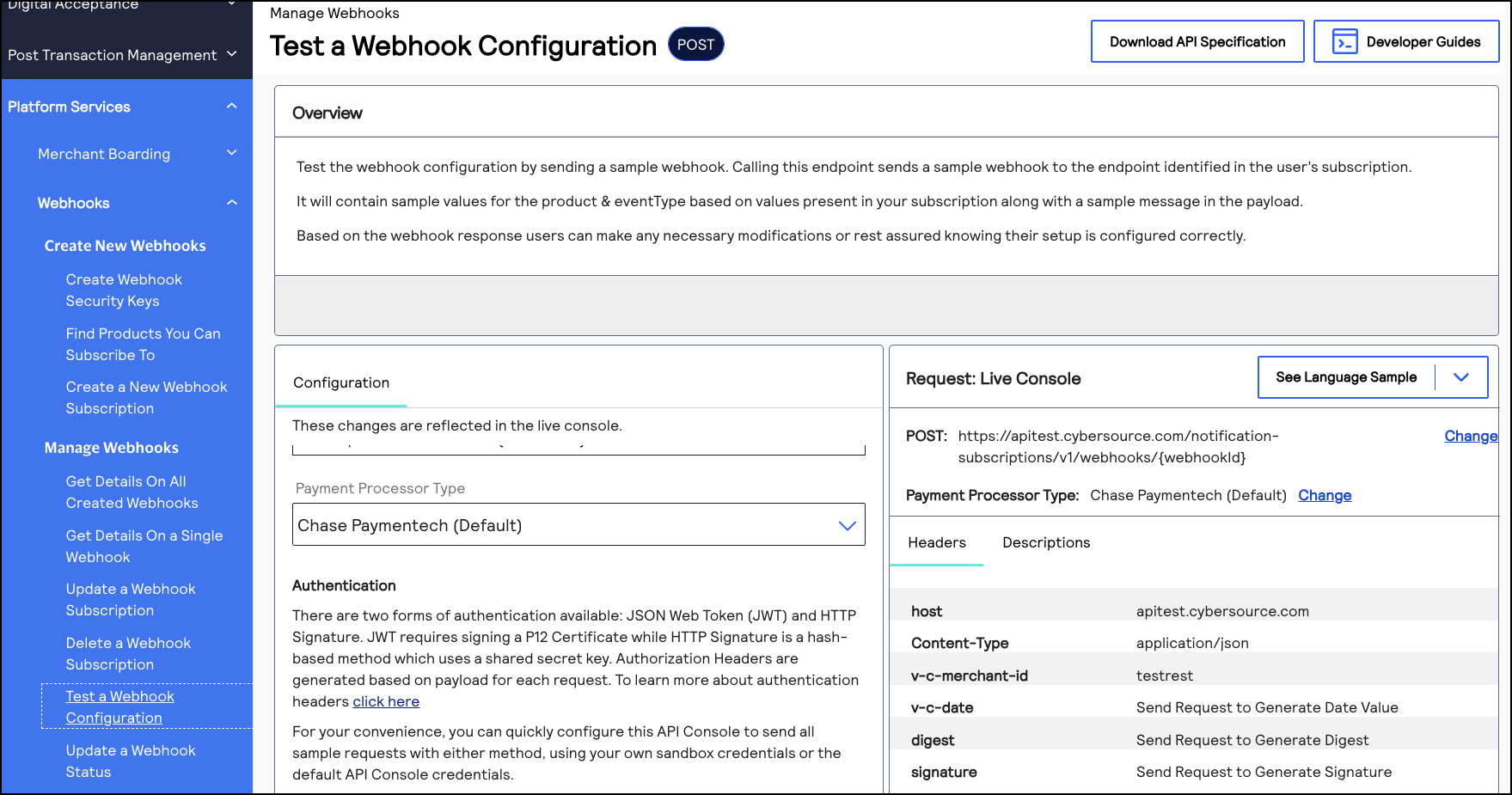
Activate a Webhook Subscription
This section describes how to activate a webhook subscription.
This request requires the webhook subscription ID. The subscription ID is in the
webhookId
response field from the create a webhook
subscription
request.Endpoints
Send a PUT request to one of these endpoints. The
is the webhook subscription ID.
{webhookId}
- Test:PUTapitest.cybersource.com/notification-subscriptions/v2/webhooks/{webhookId}/status
- Production:PUTapi.cybersource.com/notification-subscriptions/v2/webhooks/{webhookId}/status
- India Production:PUT https://api.in.cybersource.com/notification-subscriptions/v2/webhooks/{webhookId}/status
Example: Activate a Webhook Subscription
Request
PUThttps://apitest.cybersource.com/notification-subscriptions/v2/webhooks/ddb9bced-c3e3-1b1d-e053-9c588e0a3c42
Response to a Successful Request
{
  "status": "ACTIVE"
}
Response Codes
A successful request is indicated by the 200-level response code.
For more information about all of the
possible response codes you can receive, see Transaction Response Codes
.REST Interactive Example: Activating a Webhook Subscription
Click this image to access the interactive code example for activating a webhook
subscription.
Figure:
Activating a Webhook Subscription
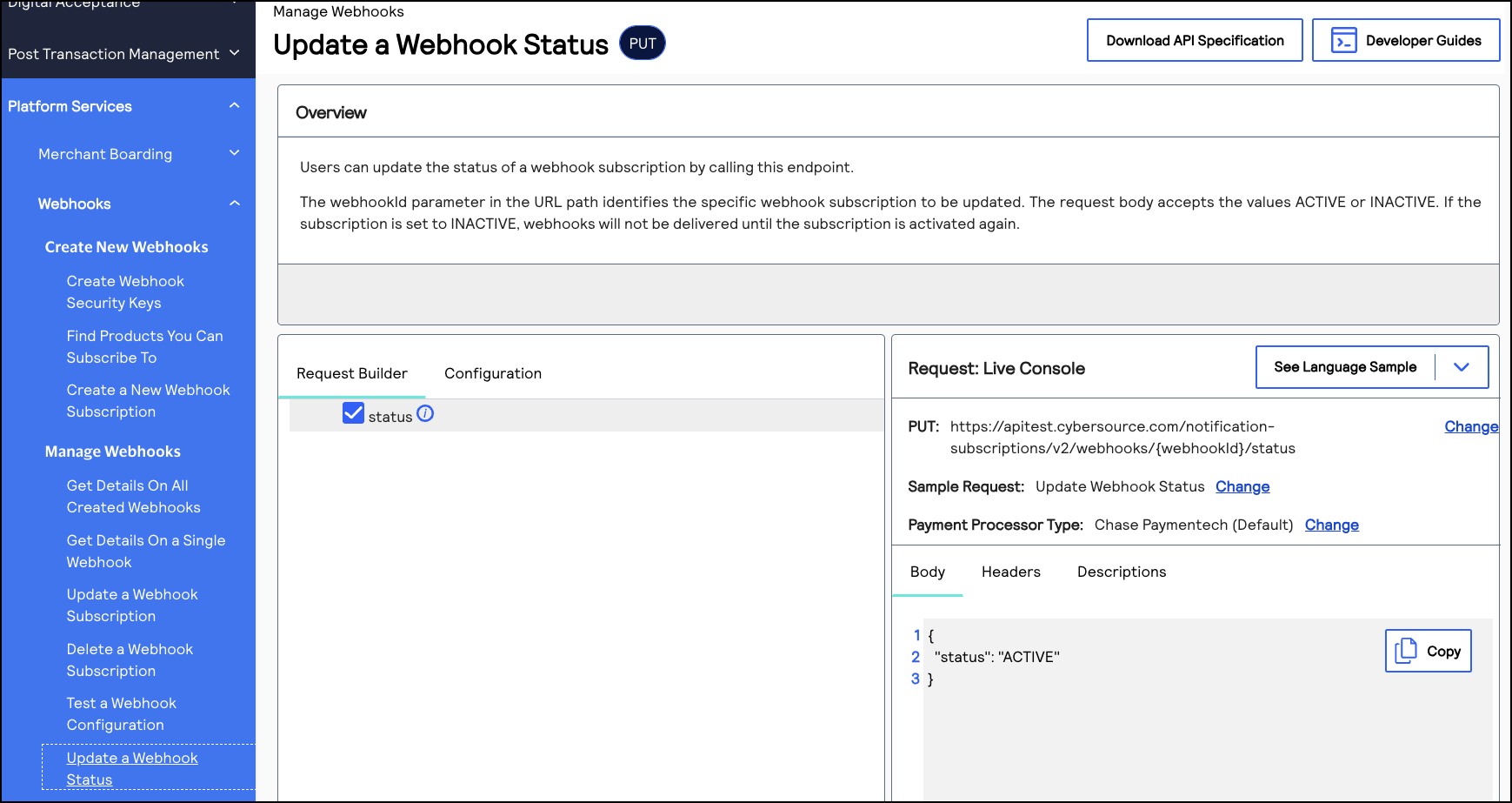
Deactivate a Webhook Subscription
This section describes how to deactivate a webhook subscription.
This request requires the webhook subscription ID. The subscription ID is in the
webhookId
response field from the create a webhook
subscription
request.Endpoints
Send a PUT request to one of these endpoints. The
is the webhook subscription ID.
{webhookId}
- Test:PUTapitest.cybersource.com/notification-subscriptions/v2/webhooks/{webhookId}/status
- Production:PUTapi.cybersource.com/notification-subscriptions/v2/webhooks/{webhookId}/status
- India Production:PUT https://api.in.cybersource.com/notification-subscriptions/v2/webhooks/{webhookId}/status
Example: Deactivate a Webhook Subscription
Request
PUThttps://apitest.cybersource.com/notification-subscriptions/v2/webhooks/ddb9bced-c3e3-1b1d-e053-9c588e0a3c42
Response to a Successful Request
{
  "status": "INACTIVE"
}
Response Codes
A successful request is indicated by the 200-level response code.
For more information about all of the
possible response codes you can receive, see Transaction Response Codes
.REST Interactive Example: Deactivating a Webhook Subscription
Click this image to access the interactive code example for deactivating a webhook
subscription.
Figure:
Deactivating a Webhook Subscription
Troubleshooting Webhook Subscriptions
If you created a webhook subscription but are not receiving notifications, consider the
following:
- Verify that the digital signature key you created includes the correct organization ID. You can verify the organization ID by locating it in the response for creating the digital signature key. If the key is configured with the wrong organization ID, send a request for a new digital signature key using the correct organization ID.
- Verify that your server and the endpoint URL for the webhook are working and are configured correctly.
- Verify that the notification scope of the subscription is configured to send notifications to the correct organization. You can retrieve the webhook details to verify that the organization is listed in theorganizationIdresponse field. For more information, see Retrieve the Details of a Webhook Subscription. If the organization is not in the notification scope, you must update the webhook subscription. For more information, see Update a Webhook Subscription.
- Verify that the subscription status isACTIVE. You can do this by retrieving the webhook details. For more information, see Retrieve the Details of a Webhook Subscription. If the webhook is not set to theACTIVEstatus:
- Verify that your subscription is configured with a health check URL. If it is not, update the subscription with a correct URL. You must also verify that the URL is working and is configured to accept GET and POST requests. For more information, see Webhook Health Check URL and Automatic Revalidation.
- Verify that the webhook URL and health check URL contain hypertext transfer protocol secure (HTTPS). For example:"webhookUrl": "https://MyWebhookServer.com:443/simulateClient" "healthCheckUrl": "https://MyWebhookServer.com:443/simulateClientHealthCheck"
Step 2B: Test Your Shared Secret Key Pair
After creating your key certificate, you must verify that your key can successfully
process API requests. Follow these steps to validate your key certificate in the
Developer Center and the
Business Center
.- Go to the Developer Center's API Reference page:
- On the left navigation panel, click .
- Under Authentication and Sandbox Credentials, go to the Authentication Type drop-down menu and chooseHTTP Signature.
- Enter your organization ID in theOrganization IDfield.
- Enter your key, also known as your private key, in theKeyfield.
- Enter your secret key, also known as your public key, in theShared Secret Keyfield.
- ClickUpdate Credentials.
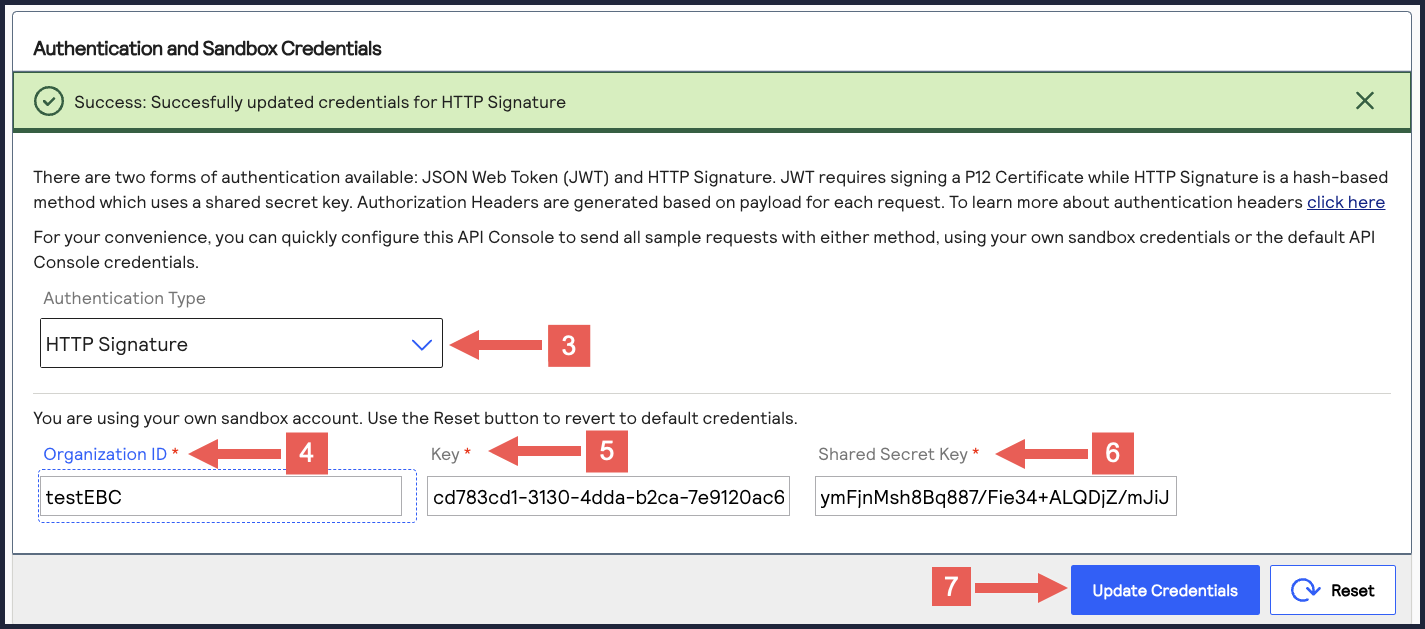
- Go to the Developer Center's API Reference and navigate toPayments >.POSTProcess a Payment
- ClickSend.
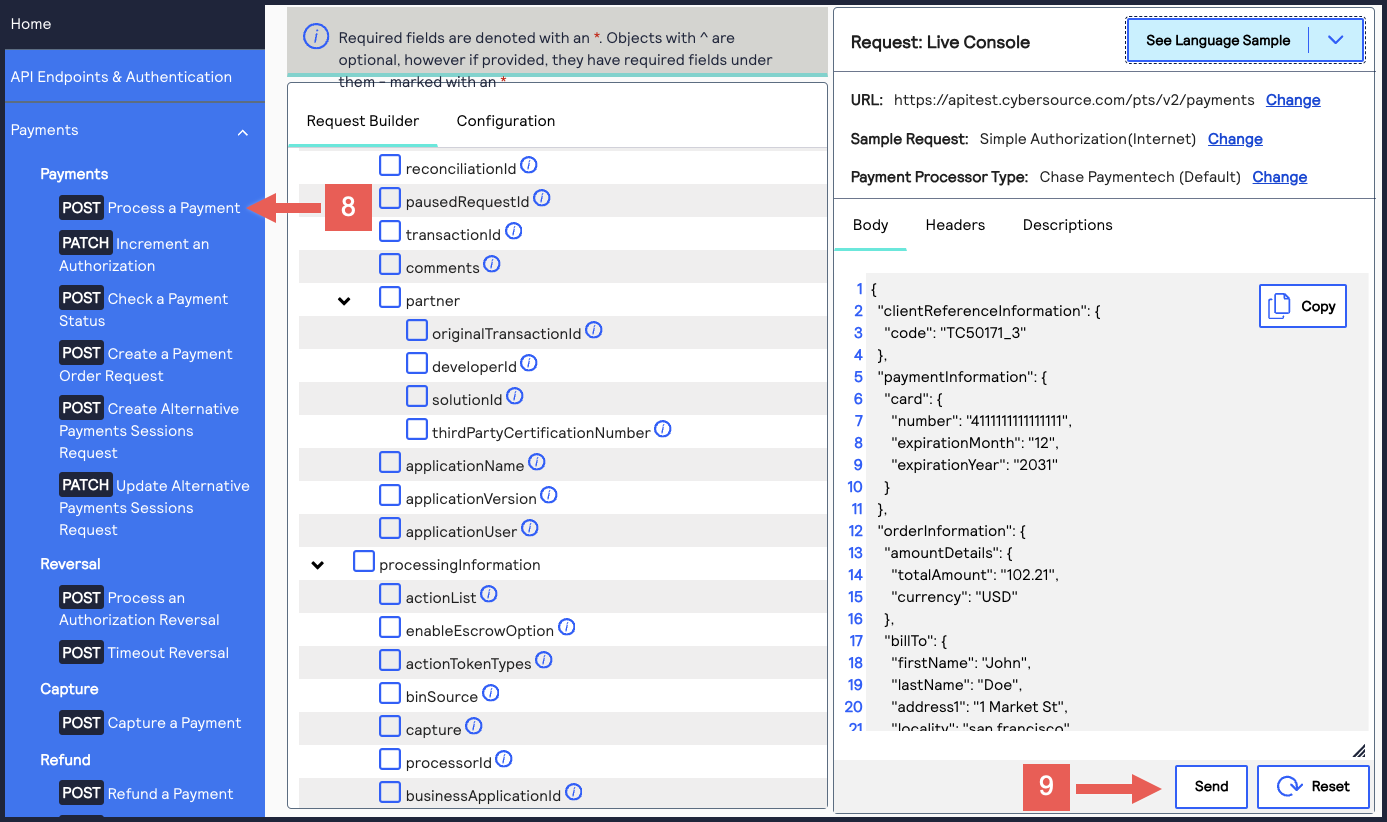 A message confirms that your request was successful with the status code 201.
- Log in to theBusiness Center:
- On the left navigation panel, choose
 Transaction Management > Transactions.
 - Under Search Results, verify that the request ID from the test authorization response is listed in the Request ID column.If the test authorization was successful, a success message is present in the corresponding Applications column.
