On This Page
Getting Started with the Acceptance Devices App
Use this information to get started with using the Acceptance Devices app. After
completing device set up and app configuration, you can process payments in these
modes:
Set Up a PAX Terminal
To set up a PAX terminal, the Acceptance Devices app must be open on the terminal.
This app is automatically and remotely installed the first time the terminal
connects to the internet.
IMPORTANT
Regularly update the Acceptance Devices App to take advantage of
the latest features, performance improvements, and security enhancements. Only the
five most recent versions are supported and made available.
For details about the current version of the Acceptance Devices app, see the Release Notes for PAX Acceptance Devices App.
Follow these steps to set up the PAX terminal in the Acceptance Devices
app.
- Open the Acceptance Devices app on the PAX terminal.
- On the Welcome screen, tapStart Configuration.
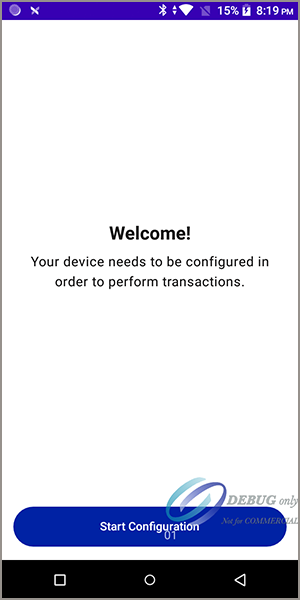
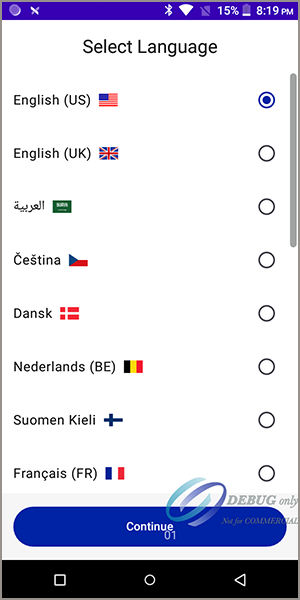
- On the Select Language screen, choose the language you want to use on the terminal. TapContinue.
- On the Create a Passcode screen, enter a unique passcode. The passcode must consist of six digits. Confirm the passcode by entering it a second time. TapSave Passcode.
ADDITIONAL INFORMATION
IMPORTANTYou will use this passcode to access the app, so choose a code that you will remember. The app does not include an option to reset the passcode. If you forget the it, you must reinstall the Acceptance Devices app and complete the set-up process again.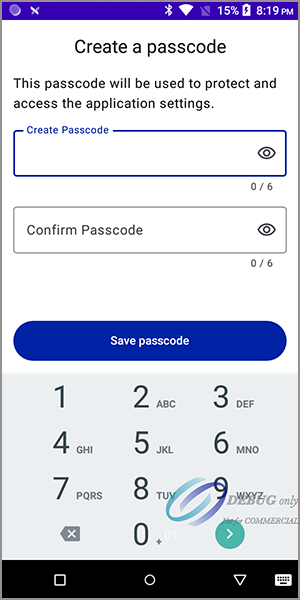
- When your device is not connected to the internet, the Connect to Internet screen appears. TapConnect to Internet, and choose your Wi-Fi network from the list that appears.
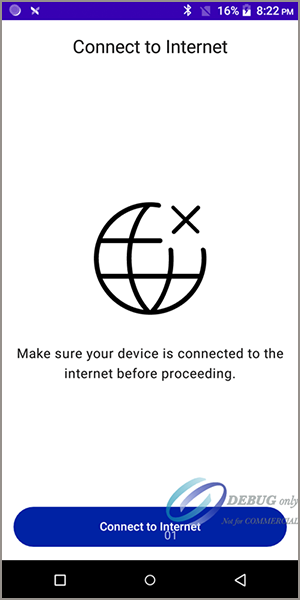
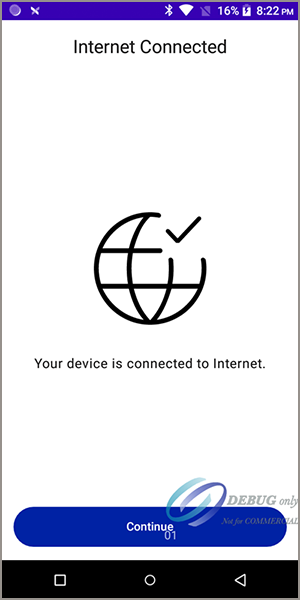
- When your device is connected to the internet, the Internet Connected screen appears. TapContinue.
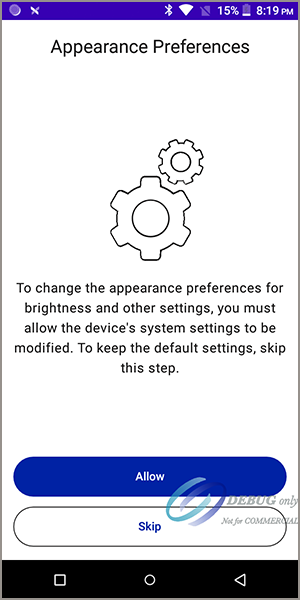
- On the Appearance Preferences screen, you are promoted to allow changes to system settings such as screen brightness. Take one of these actions:
- To change the appearance preferences, tapAllow.
- To keep the default settings, tapSkip. You can make changes later. The next set-up screen appears.
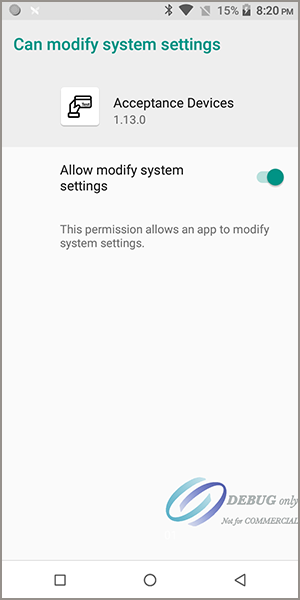
- If you allow changes to the appearance preferences, the Can Modify System Settings screen appears. To enableAllow modify system settings, slide the toggle switch to the right. Tap the back navigation arrow to return to the Adjust Screen Brightness screen.
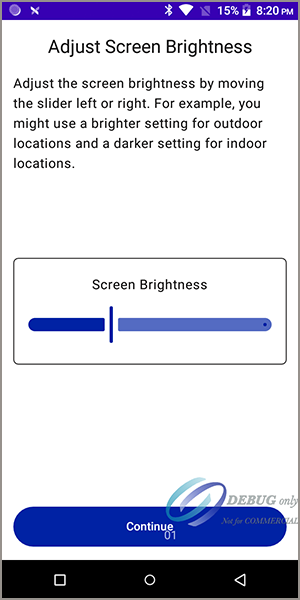
- On the Adjust Screen Brightness screen, move the slider left or right to adjust screen brightness. TapContinue.
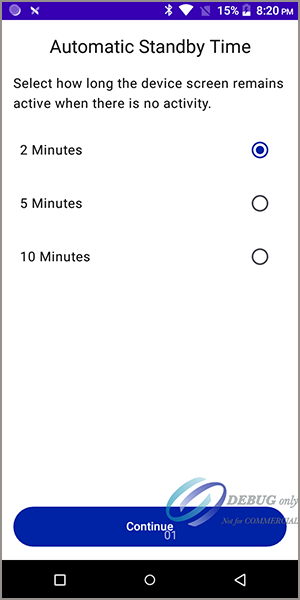
- On the Automatic Standby Time screen, you can choose how long the device screen remains active when there is no activity. Select a standby time, and then tapContinue. If your terminal has an integrated printer, the Load Paper screen appears. See Load Paper in the PAX Terminal with an Integrated Printer. If the terminal does not have a printer, you are prompted to activate your terminal in the Acceptance Devices app. See Activating a Terminal in the Acceptance Devices App.
Load Paper in the PAX Terminal with an Integrated Printer
If your PAX terminal is equipped with an integrated printer, a roll of printer paper
is included with the device when sent to you. Have the paper roll available.
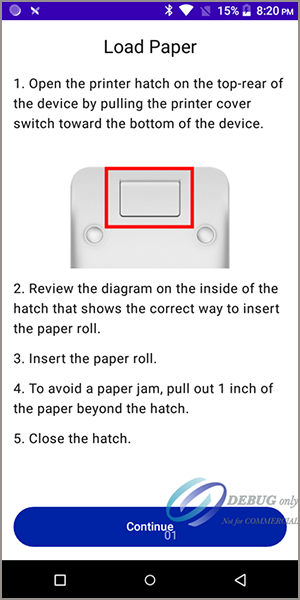
The Load Paper screen appears on the device during terminal set up only when a
terminal has an integrated printer. To print transaction receipts, the paper roll must
be loaded into the terminal.
Follow these steps to load printer paper in the PAX
terminal.
- On back of the terminal, open the printer hatch by moving the printer cover switch toward the bottom of the device.
- Review the diagram on the inside of the hatch, which shows the correct way to insert the paper roll.
- Insert the paper roll.
- Pull out approximately 1 inch of the paper beyond the hatch. This step reduces the possibility of a paper jam occurring when you print the first receipt.
- Close the hatch.
- TapContinue. You are prompted to activate your terminal in the Acceptance Devices app. See Activating a Terminal in the Acceptance Devices App.
Activating a Terminal in the Acceptance Devices App
To process payments on your PAX device using the Acceptance Devices app and your
point-of-sale (POS) system, you must activate a terminal in the Acceptance Devices app
by using an activation code. You can generate the code in the
Business Center
or
by using an API request. After generating the activation code, you must enter it in the
Acceptance Devices app. Generate a Terminal Activation Code in the Business Center
Business Center
The terminal activation code that you generate in the
Business Center
is valid for 24
hours.Follow these steps to generate a terminal activation code.
- In theBusiness Center, go to the left navigation panel and chooseAcceptance Devices > Activation Codes. The Activation Codes page appears.
- Click theSelect Transacting MIDdrop-down menu.
- Choose a transacting MID from the list.
- Click theSelect number of Activation Codesdrop-down menu.
- Choose the number of activation codes that you want to generate. The maximum number of codes is 15.
- ClickGenerate. The activation codes display on the page. To copy the codes to your clipboard, click the icon next to the code.
- To download a text file containing the activation codes, click theDownload codes as a .txt filebutton.
- Navigate to the Download folder on your computer to access the text file.
Generate a Terminal Activation Code Using a REST API Request
Before activating the terminal in the Acceptance Devices app, you must generate a
terminal activation code.
You can use a REST API request to generate a terminal activation code, which is valid for
24 hours.
You must authenticate each request that you send to a
Cybersource
API. In
order to authenticate an API request, you can use a REST shared secret key or a REST
certificate. For more information about authentication requirements, see the .Endpoints
The POST request must include the transacting merchant ID (MID) that is sending the
request and the quantity of activation codes to be generated. You can request up to
15 activation codes in a single request.
Test:
POST
https://apitest.cybersource.com
/dms/v2/merchants/{transacting
mid}/activation-codes?size={number of activation codes}Production:
POST
https://api.cybersource.com
/dms/v2/merchants/{transacting
mid}/activation-codes?size={number of activation codes}Required Fields for Generating a Terminal Activation Code
The body of the API request is empty. The POST request must include the information
required to return the response.
REST Example: Generating a Terminal Activation Code
Request
The body of the request is empty. The POST request includes the information required
to return the response.
{
}
Response to a Successful Request
The response includes the activation code (
token
field) and
the amount of time (ttl
field) that the activation code is
valid. The ttl
field value is shown in milliseconds. The
activation code is valid for 24 hours. { "tokens": [ { "token": "%N5wU2jH", "ttl": 86399805 } ] }
Enter an Activation Code in the Acceptance Devices App
Before activating a terminal, you must generate a terminal activation code for the
device in the
Business Center
or by using a REST API request. The activation
code is valid for 24 hours. Follow these steps to enter a terminal activation code in the Acceptance Devices
app.
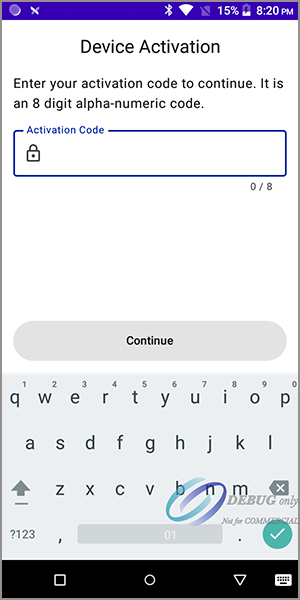
- On the Device Activation screen, enter the activation code that you generated. TapContinue.
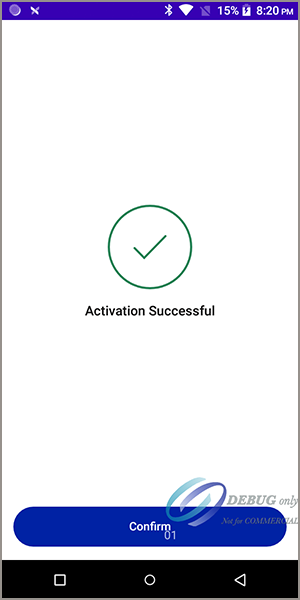
- When the activation code is accepted, the Activation Successful screen appears. TapConfirm.
AFTER COMPLETING THE TASK
If you are using the app in Local mode with Mutual Transport Layer Security (mTLS) enabled, you
must activate a secure mTLS connection between your point-of-sale (POS) system and
the Android device in the Acceptance Devices app. See Activating a Secure mTLS Connection.
If you are using the app in Local mode with Transport Layer Security (TLS) enabled or
in Cloud mode, you must start the Acceptance Devices app server. See Start the Acceptance Devices App Server.
Getting Started with the Acceptance Devices App Server
To process payments on your payment terminal using the Acceptance Devices app and your
point-of-sale (POS) system, you must first start the Acceptance Devices app server on
the terminal.
Start the Acceptance Devices App Server
Before you can start the Acceptance Devices app server, you must activate a terminal
in the Acceptance Devices app. For more information, see Activating a Terminal in the Acceptance Devices App.
Follow these steps to start the Acceptance Devices app server.
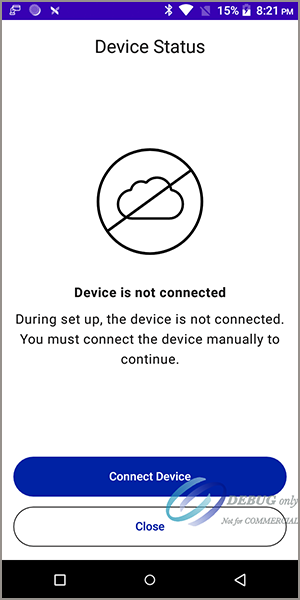
- Before you start the server, the Device Status screen shows theDevice is not connectedmessage. TapConnect Device.
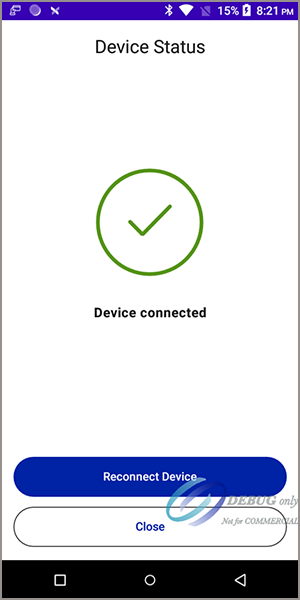
- After you start the server, the Device Status screen shows theDevice connectedmessage. The terminal is activated and ready to accept transactions.
- Tap the back navigation arrow to finish setup.
Customizing the Acceptance Devices App
Use this information to customize the Acceptance Devices app in the
Business Center
or by using a REST API request. The Acceptance Devices Customizations feature in the
Business Center
enables you
to customize these parameters for a portfolio, merchant, or transacting merchant ID
(MID):- User interface
- Common
- Local mode
- Standalone mode
You can use a REST API request to perform these customization tasks:
- Retrieve and review your current parameter customization settings.
- Update customization settings for user interface, common, Local mode, and Standalone mode parameters.
Customizable User Interface Parameters
You can customize these user interface parameters for the Acceptance Devices app when it
is in Local, Standalone, or Cloud mode.
- Home screen logo
- This parameter defines the logo that is shown on the home screen of the app.
- Toolbar logo
- This parameter defines the logo that is shown on the app screen during transaction processing.
- Primary color
- This parameter defines the color of the primary buttons.
- Color on primary
- This parameter defines the color of the text on the primary buttons.
- Background color
- This parameter defines the color of the screen background.
- Color on background
- This parameter defines the color of the text on the screen background.
- Button shape
- This parameter defines the shape of the buttons.
Customizable Common Parameters
You can customize these common parameters in the Acceptance Devices app when it is
operating in Local, Standalone, or Cloud mode.
- Operating mode
- This parameter enables you to choose one of these operating modes:
- Semi-Integrated with Standalone:The Acceptance Devices app operates in Local and Standalone modes. This setting is the default.
- Semi-Integrated:The Acceptance Devices app operates in Local mode only.
- Standalone:The Acceptance Devices app operates in Standalone mode only.
- Cloud with Standalone:The Acceptance Devices app operates in Cloud and Standalone modes.
- Cloud:The Acceptance Devices app operates in Cloud mode only.
- Automatic receipt printing
- This parameter enables the automatic printing of the merchant or customer receipt after each transaction. This feature is available only on terminals with integrated printers. The default setting isDisabled.
- Accessibility options
- This parameter enables accessibility features during transaction processing. For example, voice-over capabilities that provide information to visually impaired customers. The default setting isTrue.
- Enable Offline mode
- This parameter enables Offline mode, which you can use to process transactions when an internet connection is not available. The default setting isFalse.
- MOTO options
- This parameter enables you to activate these MOTO options:
- MOTO address required:This parameter enables the customer's address as a required data input for mail order or telephone order (MOTO) transactions. The default setting isTrue.
- MOTO show confirmation screen:This parameter enables a Confirmation screen to appear during MOTO transactions. The merchant reviews and confirms the MOTO address data shown on the screen before the payment is processed. The default setting isFalse.
- MOTO CVV required:This parameter enables the Card Verification Value (CVV) as a required data input for MOTO transactions. The default setting isTrue.
- Offline transaction maximum amount
- This parameter defines the maximum amount allowed for an offline transaction.
- Offline transaction batch maximum amount
- This parameter defines the maximum amount allowed for an offline transaction batch submitted for authorization.
- Tipping options
- This parameter enables you to choose one of these tipping types:
- Percentage:The customer chooses from three pre-defined tip percentages or enters a custom tip amount. Define the tip values in the Tipping percentage values parameter. This setting is the default tipping type.
- Tip amount:The customer enters a custom tip amount.
- Total amount:The customer enters the total amount to be charged, including the tip amount.
- Tipping percentage values
- This parameter defines the three tipping percentages that appear on the screen. The customer can choose an option. This parameter applies only when the Tipping Type parameter is set toPercentage. The default settings are10, 15, 20.
- Tipping confirmation screen
- This parameter enables the Tipping Confirmation screen to appear on the device during a sale with on-reader tipping. The customer reviews and confirms the tip amount before the payment is processed. The default setting isFalse.
- Transaction history view
- This parameter defines whether the transaction history view is shown at the merchant or device level. The default setting isMerchant.
Customizable Local Mode Parameters
You can customize these local mode parameters for the Acceptance Devices app.
- Port
- This parameter defines the port number used by the server on the terminal. The default setting is8443.
- Security
- This parameter defines whether the server on the terminal uses two-way verification (mTLS) or one-way verification (TLS). The default setting ismTLS.
- Protocol
- This parameter defines the protocol that is used to process transactions. The default setting isADP.
- Signature capture type
- This parameter defines whether the signature is captured on the terminal screen or paper receipt, or is skipped. The default setting isOn screen.
- Skip summary screen
- This parameter keeps the Summary screen from appearing after each transaction. The default setting isTrue.
Customizable Standalone Mode Parameters
You can customize these standalone mode parameters for the Acceptance Devices app.
- Enable LAC installments
- This parameter enables the processing of Latin America and the Caribbean (LAC) installment payments. The default setting isDisabled.
- Enable tax details
- This parameter enables tax details to be shown in the app. The default setting isDisabled.
- Enable payment facilitator details
- This parameter enables the payment facilitator details to be shown in the app. The default setting isDisabled.
- Additional transaction types
- This parameter enables you to choose additional transaction types that the app supports. Sale and refund transactions are supported by default. The default setting for additional transaction types isNone.
Customize Parameters in the Business Center
Business Center
Follow these steps to customize common, Local mode, and Standalone mode parameters
for the Acceptance Devices app.
- In theBusiness Center, go to the left navigation panel and chooseAcceptance Devices>Customizations. The Customizations page appears.
- Click theLoad customization parameter fordrop-down menu.
- Choose a user level from the list. ClickLoad.
- Scroll down to see the various parameter sections and which elements you can customize for the chosen user level.
- Choose parameters to customize. To see a description of a parameter, hover your mouse over the Information icon.
- ClickApply Changes.
Retrieve Parameters Using a REST API Request
You can use a REST API request to retrieve and view customizable parameters and their
current values. Your account settings determine the values you can view for a portfolio,
merchant, or transacting merchant ID (MID).
You must authenticate each request that you send to a
Cybersource
API. In
order to authenticate an API request, you can use a REST shared secret key or a REST
certificate. For more information about authentication requirements, see the .Endpoints
The GET request must include the organization ID for the portfolio, merchant, or
transacting merchant ID that is sending the request.
Test:
GET
https://apitest.cybersource.com
/dms/v2/customization?type=organization&id={{organization
id}}Production:
GET
https://api.cybersource.com
/dms/v2/customization?type=organization&id={{organization
id}}Required Fields to Retrieve Parameters Using a REST API Request
The body of the API request is empty. The GET request must include the information
required to return the response.
REST Example: Retrieve Parameters Using a REST API
Request
Request
The body of the request is empty. The GET request includes the information required
to return the response.
{
}
Response to a Successful Request
{
    "id": "{{organization id}}",
    "customizations": {
        Your configured parameters response data appears here.
    },
    "customizationMetadata": {
        Your possible values for parameters response data appears here.
    }
}
Customize Parameters Using a REST API Request
You can use a REST API request to update customizable parameters for a portfolio,
merchant, or transacting merchant ID (MID).
You must authenticate each request that you send to a
Cybersource
API. In
order to authenticate an API request, you can use a REST shared secret key or a REST
certificate. For more information about authentication requirements, see the .Endpoints
Test:
PUT
https://apitest.cybersource.com
/dms/v2/customizationProduction:
PUT
https://api.cybersource.com
/dms/v2/customizationRequired Fields for Customizing Parameters Using a REST API Request
- type
- Set the value toorganization.
- id
- Set the value toorganization idfor the portfolio, merchant, or transacting MID.
- customizations
- Set the value to the parameters to be updated.
REST Example: Customizing Parameters Using a REST API Request
Request
{
    "type": "organization",
    "id": "{{organization id}}",
    "customizations":
    {
        "OPERATING_MODE": "SEMI_INTEGRATED",
        "TIPPING_TYPE": "TIP_AMOUNT",
        "SIGNATURE_TYPE": "ON_RECEIPT"
    }
}
Response to a Successful Request
The body of the response is empty. A successful response is indicated with a
200 OK
status.{ }
Enable Kiosk Mode
Enable Kiosk Mode to hide the navigation and status bars on a PAX terminal. This mode
locks the Acceptance Devices app to the screen. When enabled, users cannot exit the
app or access other terminal functions, which helps prevent unauthorized use.
Follow these steps to enable Kiosk Mode in the Acceptance Devices app.
- In the Acceptance Devices app, tapSettings.
- Enter your Acceptance Devices app passcode.
- TapKiosk Mode.
- Toggle Enable Kiosk Mode toON.
- If prompted to allow the app to display over other apps, tapAllow.
- Tap the back navigation arrow to return to the home screen.