This section describes how to use this guide and where to find further
information.
Audience and Purpose
This guide is written for merchants who want to activate and use the PAX A77 payment
terminal to process transactions using Acceptance Devices solutions. The guide
describes how to get started with and configure the PAX A77 terminal.
Convention
The following statement is used in this document:
IMPORTANT
An
Important
statement contains information essential to
successfully completing a task or learning a concept.
Support
For support information about any service, visit the Support Center:
This revision contains only editorial changes and no technical updates.
Introduction to the Acceptance Devices | PAX A77 Terminal
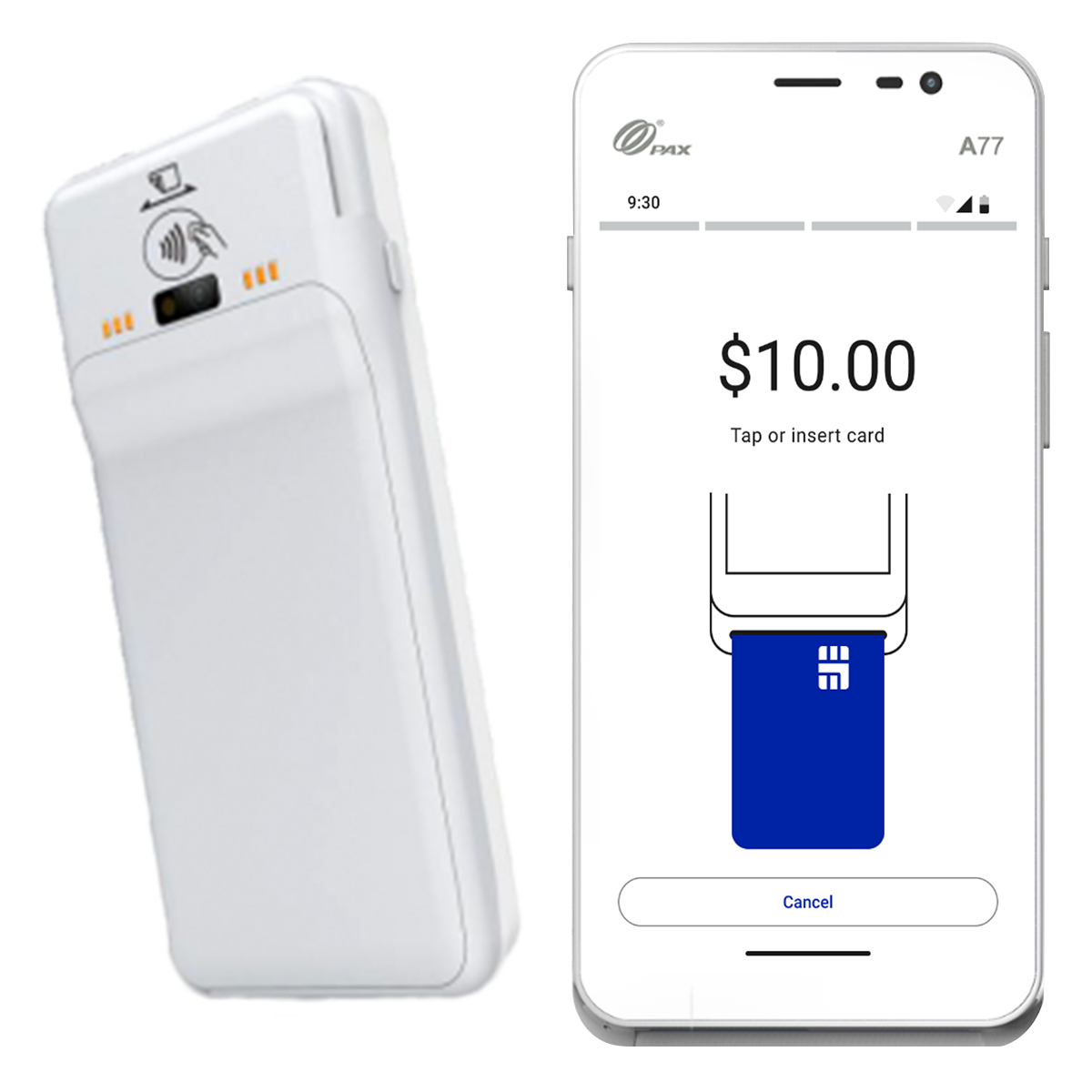
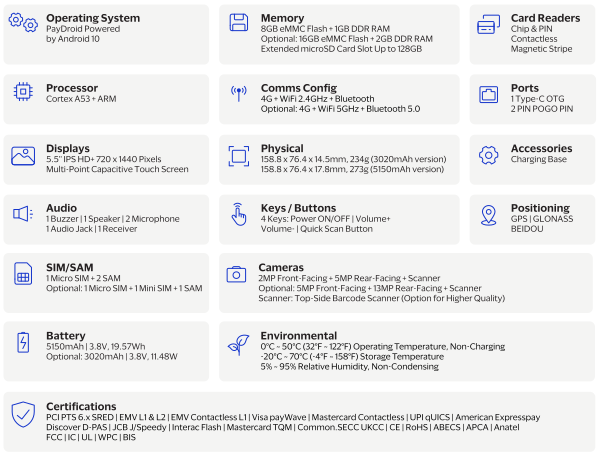
The PAX A77 is a portable Android SmartPOS (point-of-sale) payment terminal that is
suitable for retail and hospitality environments. These are the terminal's features:
Supported Payment Card Types and Entry Modes on the PAX Terminal
The PAX terminal supports these payment card types:
American Express
Diners/Discover
Mastercard
JCB
UPI
Visa
The PAX terminal supports these payment card entry modes:
Chip contact
Holding the card with the EMV chip facing up, the customer inserts, or
dips, the card into the card slot.
Chip contactless
The sensor area is located at the top of the terminal and is indicated by
the Tap, or contactless, icon printed on the device. The customer holds the
card with the EMV chip near the sensor area on the payment terminal.
Magnetic stripe
The device supports bi-directional, left-to-right or right-to-left, swiping
of the magnetic stripe on the back of the card. Holding the card with the
magnetic stripe facing down, the customer inserts the card into the magnetic
card reader slot and swipes the card through the slot at a steady speed.
Getting Started with the PAX A77 Terminal
This section describes how to get started with using the PAX A77 payment terminal.
Ordering PAX Terminal Equipment
Use this information to order PAX terminal test and production equipment in the European
Union (EU), United Kingdom (UK), and United States (US). The ordering procedures
described here vary due to differences in regional regulations and procedures.
Ordering PAX Terminal Test Equipment in the US
If you are located within the US, you can order equipment to test your integration and
various payment workflows with the
Cybersource
Card Present Gateway.
Two types of devices are available to order in this region.
Test device
A test device is intended for development and testing purposes only. It can be
used to download applications that have been published in PAXSTORE. It cannot
process live transactions.
Use case:
Order a test device if you plan to integrate the Acceptance
Devices | PAX Acceptance Devices App and want to run test transactions using the
Acceptance Devices app on the PAX terminal.
Debug device
A debug device is required when you are developing your own application. You can
do these things with a debug device:
Install Android package kits (APKs)
Transfer files using a USB cable
Download published applications from PAXSTORE
Like the test device, the debug device is intended for development purposes
only and cannot be used for live transactions.
Use case:
Order a debug device if you plan to use the Acceptance Devices
| PAX All-in-One Solution and want to integrate your custom application into
this solution.
You can order this test equipment in the US:
Test card reader (payment terminal).
Model does not include an integrated printer.
Debug card reader (payment terminal).
Model does not include an integrated printer.
Test card, which can be used with a test or debug card reader.
The standard testing equipment box contains these items:
Test or debug card reader. Model does
not include an integrated printer.
Power supply
unit.
USB cable.
Order PAX Terminal Test Equipment in the US
Follow these steps to order PAX terminal test equipment in the US.
To order a test device, visit the US Fulfillment page and follow the ordering instructions.
Ordering PAX Terminal Test Equipment in the EU and UK
If you are located within the EU or UK, you can order equipment to test your integration
and various payment workflows with the
Cybersource
Card Present
Gateway.
One type of device is available to order in these regions.
Debug device
A debug device is required when you are developing your own application. You can
do these things with a debug device:
Install Android package kits (APKs)
Transfer files using a USB cable
Download published applications from PAXSTORE
Like the test device, the debug device is intended for development purposes
only and cannot be used for live transactions.
Use case:
Order a debug device if you plan to use the Acceptance Devices
| PAX All-in-One Solution and want to integrate your custom application into
this solution.
You can order this test equipment in the EU and UK:
Debug card reader (payment terminal).
Model does not include an integrated printer.
Test card.
The standard testing equipment box contains these items:
Debug card reader. Model does not
include an integrated printer.
Power supply
unit.
USB
cable.
Order PAX Terminal Test Equipment in the EU and UK
Follow this step to order PAX terminal test equipment in the EU and UK.
Visit the Fulfillment page for your region and follow the ordering
instructions:
EU Fulfillment: When ordering test equipment
from the EU, you must have your company's Value-Added Tax (VAT) ID and
Economic Operators Registration and Identification (EORI) number available
to enter on your order. If this information is not provided, your shipment
might be delayed.
UK Fulfillment: When ordering test equipment
from the UK, you must have your company's Value-Added Tax (VAT) ID available
to enter on your order. If this information is not provided, your shipment
might be delayed.
Ordering PAX Terminal Production Equipment in All Regions
Production PAX terminals are designed to process live payment transactions using the
Cybersource
Card Present Gateway. Production devices are intended
for deployment in live environments and are the only type approved for market use.
IMPORTANT
For security reasons, APKs cannot be installed
directly on live devices. Application updates must be delivered through PAXSTORE to
ensure a secure and controlled distribution.
For small-quantity orders, place your order directly on the Fulfillment page. For help
with bulk orders or questions about complex hardware distribution, contact terminalfulfillment@visa.com.
You can order this production equipment in all regions:
Card reader (payment terminal). Model
does not include an integrated printer.
The standard PAX equipment box contains these items:
Card reader. Model does not
include an integrated printer.
Power supply
unit.
USB
cable.
Order PAX Terminal Production Equipment in All Regions
Follow this step to order PAX terminal production equipment in all
regions.
Visit the Fulfillment page for your region and follow the ordering
instructions:
EU Fulfillment: When ordering test equipment
from the EU, you must have your company's Value-Added Tax (VAT) ID and
Economic Operators Registration and Identification (EORI) number available
to enter on your order. If this information is not provided, your shipment
might be delayed.
UK Fulfillment: When ordering test equipment
from the UK, you must have your company's Value-Added Tax (VAT) ID available
to enter on your order. If this information is not provided, your shipment
might be delayed.
US Fulfillment: You are not required to provide
VAT and EORI information when ordering for US fulfillment.
Signing Up for a Test or Production Account
Use this information to sign up for test (sandbox) and production (live) accounts.
Perform integration and testing in your test account. After receiving a go-live
approval, use your production account to process live transactions on the PAX
terminal.
IMPORTANT
Test credentials do not work in the production
environment, and production credentials should never be used for testing.
Sign Up for a Test or Production Account
Follow these steps to sign up for test (sandbox) and production (live)
accounts.
Sign up for a test account.
ADDITIONAL INFORMATION
Visit the Test Account sign-up page to complete
account registration.
Request a production account.
ADDITIONAL INFORMATION
Contact your Solution Delivery team. They will guide you through the go-live
process and enable production processing on your PAX terminal.
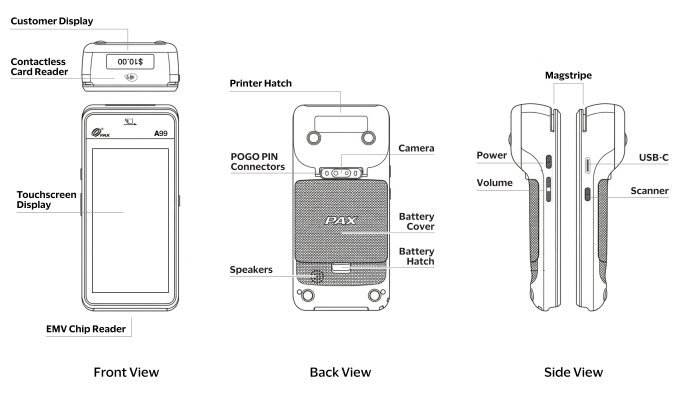
Setting Up the PAX Terminal
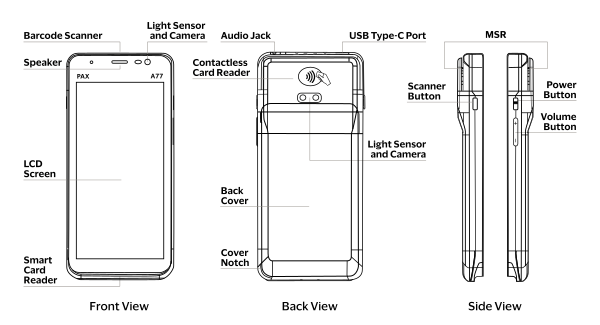
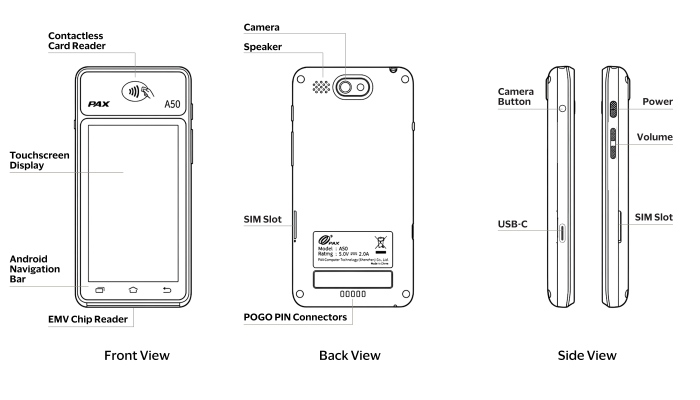
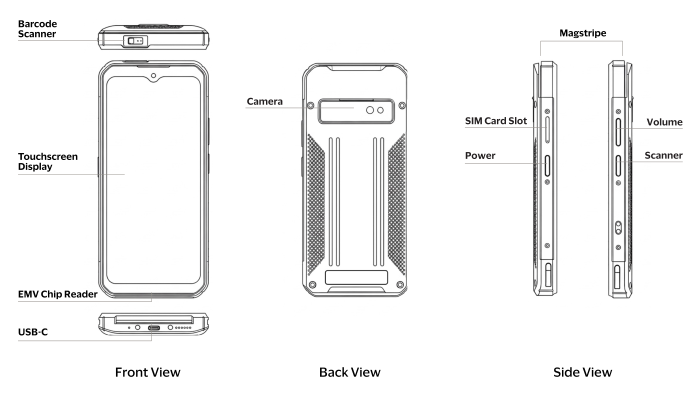
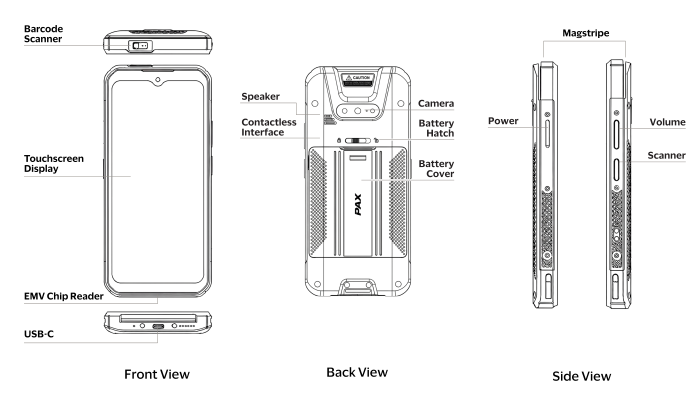
This section describes how to set up the terminal. The product drawings show the PAX
device features.
Figure:
PAX A77 Terminal Drawings with Features Labeled
Figure:
PAX A50 Terminal Drawings with Features Labeled
Figure:
PAX A99 Terminal Drawings with Features Labeled
Figure:
PAX A6630 Terminal Drawings with Features Labeled
Figure:
PAX A6650 Terminal Drawings with Features Labeled
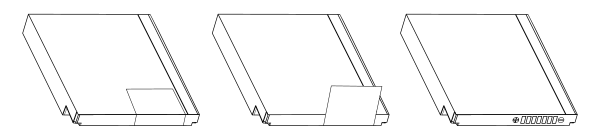
Remove the PAX Terminal Battery Seal
Before charging the battery and using the PAX terminal, you must remove the battery
seal.
Follow these steps to remove the terminal battery seal.
Find the battery cover on the bottom-rear of the terminal.
To open the battery cover, slide the battery cover hatch to the opposite side
of its current position.
Note the orientation of the battery before removing it so that you can
reinstall it correctly.
Remove the battery and pull off the white plastic seal to expose the electrical
contacts.
ADDITIONAL INFORMATION
Figure:
PAX Terminal Battery Seal Location and Removal
Replace the battery in the terminal.
Close the battery cover. Charge the battery before using the terminal. For more
information, see Charge the PAX Terminal Battery.
Charge the PAX Terminal Battery
Before charging the battery
and using the PAX terminal, you must remove the battery seal.
Have the
connector cable and power supply unit provided with the terminal available.
Follow these steps to charge the PAX terminal battery.
Connect the
USB-C
cable
to the USB cable port
on the PAX terminal.
Plug the power supply unit into an electrical outlet. The terminal screen shows
the charging status.
Power the PAX Terminal
Before you can power on the terminal, you must charge the battery.
Follow these steps to power the PAX terminal on and off.
To power on the terminal, press and hold the
Power
button for 3 seconds until the device emits a beeping sound, and the LED next to
the IC card slot lights. This light indicates that the terminal is powering
on.
To power off the terminal, press and hold the
Power
button for 3 seconds until the Shutdown menu appears on the terminal screen.
Tap
Turn Off
. A message appears, confirming that the
terminal is being powered off.
Insert the Paper Roll into the PAX Terminal Integrated Printer
The PAX terminal comes with one thermal paper roll that must be inserted into
the device's integrated printer. The paper is used to print transaction
receipts.
Follow these steps to insert the paper roll into the printer.
Remove the protective seal from the paper roll.
Find the printer hatch on the top-rear of the terminal.
Open the hatch by pulling the printer cover switch toward the bottom of the
device.
Review the diagram on the inside of the hatch, showing the correct way to
insert the paper roll.
Insert the thermal paper roll as shown on the diagram.
Pull out approximately 1 inch of the paper beyond the hatch. This action
reduces the possibility of a paper jam when you print your first receipt.
Close the hatch. When the paper roll is inserted incorrectly, an error message
appears on the terminal screen.
To tear off the printed receipt, pull the paper at a 45-degree angle against
the integrated paper cutter.
Default Passwords for the PAX Terminal
The Settings and Developer Options menus on the PAX terminal are password
protected. Use the default passwords in this section to access these menus.
Before you start configuring the terminal, change the default Settings password to a
unique, secure pawword.
You are prompted for the Developer Options password on test devices only.
Settings password
pax9876@@
Developer option password (for use with test devices only)
Dev9876@@
Configuring an Internet Connection for the PAX Terminal
For the PAX terminal to operate correctly, it must be configured for internet
connectivity. Use this information to configure an internet connection for the PAX
terminal.
Before the terminal can be used to process payments, it must also be associated with a
merchant ID in the
Create a Password for the PAX Terminal Settings Menu
The Settings menu on a PAX terminal is where you configure device features, internet connections,
and other options. Access to the menu is password protected. The PAX device ships
with a default password. Replace the default password with a unique, secure one when
setting up the device.
Follow these steps to create a Settings password on the PAX terminal.
Figure:
Settings Menu on PAX Terminal Home Screen and Password Input Screen in
Settings Menu
On the terminal Home screen, tap the
Settings
icon. You
are prompted to enter the Settings password.
If you are a first-time user, enter the default Settings password:
pax9876@@
. Tap the
Checkmark
. The
Settings screen appears.
Replace the default Settings password with a unique, secure one. In the Device
section, tap
Password
. Follow the prompts to change the
Settings password.
Configuring Wi-Fi Network IP Connections on the PAX Terminal
These are the IP connections that you can use to connect the PAX terminal to your Wi-Fi
network:
Dynamic IP connection
Description:
When using the Dynamic Host Configuration Protocol
(DHCP) IP connection, the payment terminal is randomly assigned IP addresses by
your internet service provider when you access the internet. This type of
connection is also called a
dynamic IP connection
.
Benefits:
Simplifies network management and eliminate the need to
manually configure Wi-Fi settings on each PAX terminal.
Configuring a Dynamic IP Connection for a Wi-Fi Network on the PAX Terminal
Use this information to configure a dynamic IP connection for a Wi-Fi network on the PAX
terminal.
Using a dynamic IP connection is a convenient option for simple device set up, which
eliminates the need to manually manage static IP addresses. The payment terminal
receives a randomly assigned IP address from your internet service provider each time it
connects to the network.
. The device connects to your Wi-Fi network.
A Password screen appears.
Enter the PAX terminal settings password that you entered in step 1. The Wi-Fi
settings menu appears, showing that the terminal is connected to your Wi-Fi
network.
To exit the screen, tap the back arrow until you reach the Home screen.
Configuring a Static IP Connection for a Wi-Fi Network on the PAX Terminal
Use this information to configure a static IP connection for a Wi-Fi network on the PAX
terminal. This configuration uses a single IP address when connecting to the internet,
which you specify in the terminal settings.
IMPORTANT
Before starting this configuration, you might need to consult your IT
department to obtain the information required to configure this type of network
connection.
field, enter the SSID (network name)
of your Wi-Fi network. The field is case sensitive.
Tap the
Advanced options
drop-down arrow. You might need
to scroll down to see this menu option.
Open the IP settings drop-down menu, choose
Static
.
Enter the required information in these Static fields:
ADDITIONAL INFORMATION
IP address
field: Enter the static IP address for
your Wi-Fi network.
Gateway
field: Enter the IP address for your
gateway.
Network prefix length
field: Enter the prefix
length for the subnetwork.
DNS 1
field: Enter the IP address for the first
domain name system server.
DNS 2
field: Enter the IP address for the second
domain name system server.
Tap
Save
. The Wi-Fi screen appears, showing that the
terminal is connected to your Wi-Fi network.
To exit the screen, tap the back arrow until you reach the Home screen.
Configuring a Proxy IP Connection for a Wi-Fi Network on the PAX Terminal
Use this information to configure a proxy IP connection for a Wi-Fi network on the PAX
terminal. Use this configuration when your Wi-Fi network is hidden by a proxy server so
that it cannot be detected as a publicly available network.
IMPORTANT
Before starting this configuration, consult your IT department to
obtain the information required to configure this type of network connection.
Enter the required information in these Manual fields:
ADDITIONAL INFORMATION
Proxy hostname
field: Enter the proxy host
name.
Proxy port
field: Enter the port number for the
proxy server.
Bypass proxy for
field: If your Wi-Fi network
uses a bypass proxy, enter domain names or IP addresses.
Tap
Save
. The Wi-Fi screen appears, showing that the
terminal is connected to your Wi-Fi network.
To exit the screen, tap the back arrow until you reach the Home screen.
Configuring a Cellular Connection with a SIM Card on the PAX Terminal
Use the information is this section to configure a cellular connection with a SIM card on
the PAX terminal. When your Wi-Fi network is unavailable, a cellular internet connection
can serve as a backup method to keep the terminal online and available to process
transactions.
IMPORTANT
A SIM card is not included with the terminal. Your service provider
can recommend which SIM card to purchase for use with your PAX terminal. To set up a
cellular connection, you must use a SIM card that provides access to 4G or 3G networks.
Use a cellular connection as a backup option only because it is typically slower and more
expensive than using a Wi‑Fi connection. To reduce data usage and operating costs,
contact customer support to request that terminal
software updates and app installations occur over Wi‑Fi only.
Insert a SIM Card into the PAX Terminal
To set up a cellular connection, you must use a SIM card that provides access to 4G
or 3G networks.
Follow these steps to insert a SIM card into the PAX terminal.
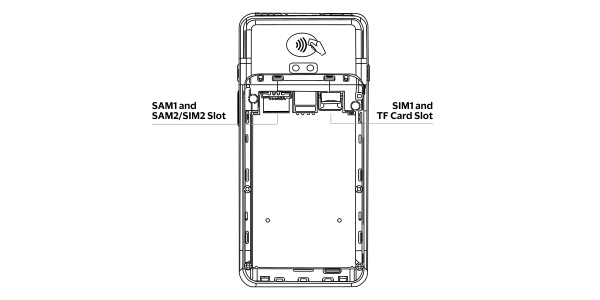
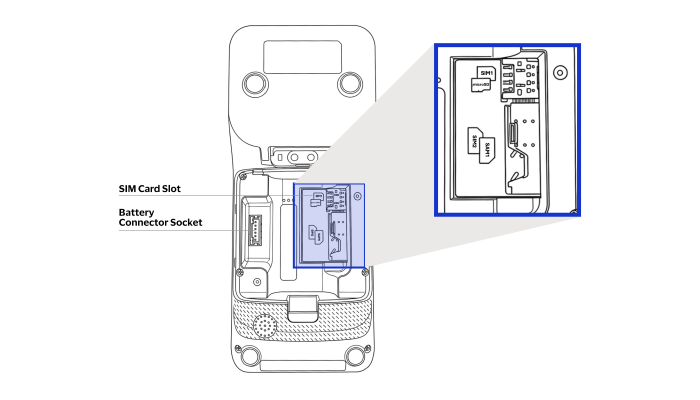
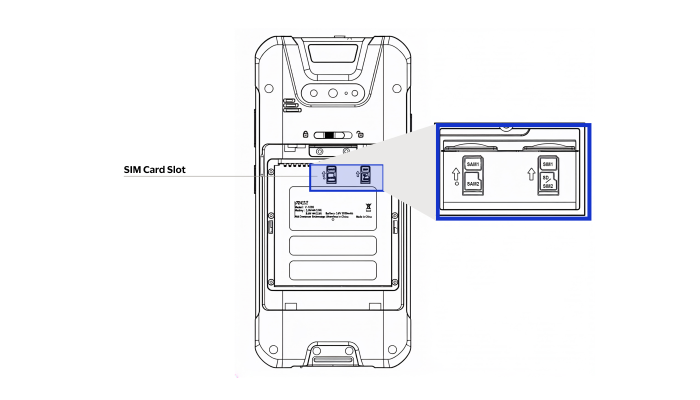
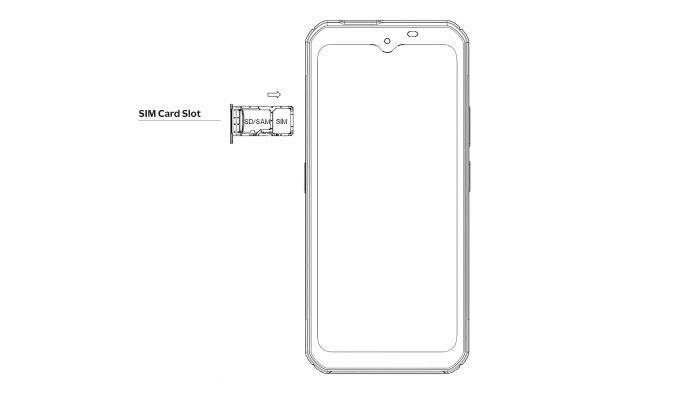
Figure:
PAX A77 Terminal Back View Showing SIM Card Slot Location
Figure:
PAX A99 Back View Showing SIM Card Slot Location
Figure:
PAX A6650 Back View Showing SIM Card Slot Location
Turn off the power to the terminal.
On the back of the terminal,
slide the
battery cover latch to the right
open the battery
cover latch
and remove the compartment cover.
Remove the battery from the compartment.
Insert the SIM card into the
lower-left
top-right
corner of the compartment with
the contacts facing down to match the contacts on the terminal. The diagram on
the inside of the compartment shows where to insert the SIM card.
Replace the battery in the compartment.
Replace the compartment cover
, then slide the cover
to the left to close it
.
Insert a SIM Card into the PAX Terminal
To set up a cellular connection, you must use a SIM card that provides access to 4G
or 3G networks.
Follow these steps to insert a SIM card into the PAX terminal.
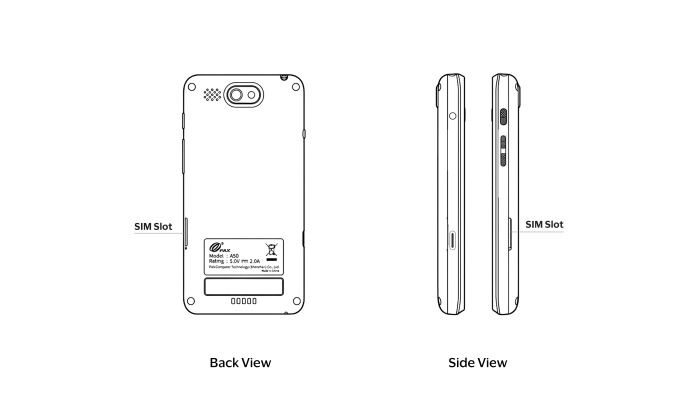
Figure:
PAX A50 Rear and Side Views Showing SIM Card Slot
Figure:
PAX A6630 Front View Showing SIM Card Slot
Turn off the power to the terminal.
On the side of the terminal, open the SIM card compartment.
Insert an eject tool or a straightened paperclip into the small hole, then
press gently until the tray pops out. Do not use excessive force.
Insert the SIM card into the tray, ensuring it is correctly positioned and lies
flat.
Slide the SIM card tray back into the compartment until it is fully closed and
flush with the side of the terminal.
Enter a SIM Card PIN into the PAX Terminal
Before entering the SIM card PIN into the PAX terminal, insert the SIM card into the
terminal.
Follow these steps to enter a SIM card PIN into the PAX terminal.
Power on the PAX terminal. You are prompted to enter the PIN for the SIM card
that you installed.
Enter the PIN carefully. You are allowed three attempts to successfully enter
it. After the third attempt, you must enter a personal unlocking key (PUK)
before your mobile carrier blocks the SIM card.
When you enter the PIN successfully, the payment terminal detects the SIM card.
A notification appears on the screen.
To verify that the SIM card is recognized and enabled on the terminal, on the
terminal Home screen, tap the
Settings
icon.
Enter your device password, if prompted. The Settings screen appears.
In the In the Network & internet section, tap
SIM
cards
. The SIM cards screen appears.
Verify that the
SIM 1
field is enabled and that the
SIM 2
field is disabled.
Tap the back arrow until you reach the Home screen.
Configure a Cellular Network Connection for the PAX Terminal
Before configuring a cellular network connection for the PAX terminal, enter the SIM
card PIN into the terminal.
Follow these steps to configure a cellular network connection for the PAX
terminal.
On the terminal Home screen, tap the
Settings
icon.
Enter your password. The Setting screen appears.
In the Network & internet section, tap
More
. The
More screen appears.
Choose
Cellular networks
. The Cellular networks screen
appears.
Tap the
Data enabled
toggle to turn it on.
To exit the screen, tap the back arrow until you reach the Home screen.
Automatic Installation of Software and Encryption Keys on the PAX Terminal
A PAX terminal must have the required software installed and encryption keys injected to
operate correctly. Terminals are configured to automatically download and install these
components through a secure process known as
remote software and key injection
.
This automated process enables merchants to perform injections securely at the point of
sale, without manual intervention or the need for specialized equipment.
These types of software and encryption keys are automatically downloaded and installed on
the terminal:
Operating system
PAX terminals operate on a preinstalled Android-based operating system
known as
PayDroid
. Developed by PAX Technology, PayDroid is a
customized version of the standard Android OS, specifically designed to
support secure payment applications and services.
Although it shares the core framework of the Android OS, PayDroid
includes modifications that enhance security and reliability for payment
processing. It supports the installation of third-party applications.
However, due to the sensitive nature of payment data, all apps must be
approved by PAX before installation on the device.
Acceptance Devices app
The Acceptance Devices app installs only on terminals running the
Acceptance Devices | PAX Acceptance Devices App in either
Semi-Integrated or Standalone mode.
In Semi-Integrated mode, the
app enables communication between the PAX terminal and the integrated
POS system by using simple API requests over a local Wi-Fi network or
through the cloud. In Standalone mode, the app enables transactions to
be initiated directly from the terminal without requiring integration
with a POS system.
Payment apps
To read payment card data and process payments, every PAX terminal must have
BroadPOS Point-to-Point Encryption (P2PE) installed. BroadPOS P2PE is a
payment app developed by PAX that manages card data encryption. It serves as
the interface that enables a PAX terminal to perform these functions:
Acquire card information
Support inserted, tapped, swiped, and keyed entry modes
Capture PINs
Encrypt the transaction process
All PAX terminals ordered through
Cybersource
and
shipped by its distribution partner automatically include BroadPOS P2PE as
part of the provisioning process.
Third-party POS app
This app installs only on devices running the Acceptance Devices | PAX
All-in-One Solution. When integrating with the SDK or PAX All-in-One, a
third-party POS app that includes the SDK is installed and run directly on
the PAX terminal. On a debug device, you can install (or sideload) the app
for development and testing by using a USB connection to your laptop. Mac
users must use Android File Transfer to sideload applications. For more
information about debug devices, see Ordering PAX Terminal Equipment.
Encryption keys
Every terminal running Acceptance Devices solutions is equipped with a set
of encryption keys through remote key injection, after the terminal connects
to a Wi-Fi network for the first time. The Online PIN key is responsible for
encrypting and verifying PIN data in real time. The Secure Reading and
Exchange of Data (SRED) key is used to encrypt card data captured at the
Point of Interaction (POI). This process ensures P2PE between the terminal
and the payment gateway.
Software Installation and Encryption Keys Injection on the PAX Terminal
Before a payment terminal can automatically perform remote software installation and
encryption key injection, it must first be activated on the
Cybersource
platform. To perform these automated processes, the terminal must be connected to the
internet using a Wi-Fi or Ethernet connection.
The PAX terminal initiates this automated process to install software and inject
encryption keys.
System connection:
The terminal establishes a secure link to the PAX
terminal management system (PAXSTORE) using a Wi-Fi or Ethernet
connection.
Download initiation:
The terminal automatically begins downloading all
required software packages and encryption keys.
Activity notification:
The terminal makes a brief audible signal to
indicate the start of the download process.
Progress display:
The terminal screen displays
real-time status messages about the components being downloaded. If the terminal
does not emit a sound or display download progress messages, open the PAXSTORE
app on the Home screen to verify that the terminal is connected to the PAX
terminal management system. You can also manually trigger downloads in the
PAXSTORE app.
Fix the
Accessory Update Required
Error on the PAX Terminal
The
Accessory Update Required
error appears on the PAX terminal when the
installed version of the Android SDK is incompatible with the BroadPOS P2PE version
installed on the device.
To resolve this issue, update the terminal to the latest SDK version. For assistance with
the update process, contact customer support.
Additional Features Available on the PAX Terminal
Use this information to access additional features on the PAX terminal.
You might be prompted to enter a device password when accessing some features.
Accessing Device Logs on a Test or Debug PAX Terminal
Device logs are useful for troubleshooting terminal-related issues on a test or debug
terminal.
IMPORTANT
You cannot access device logs directly on a live terminal. To get
access to live device logs, contact customer support.
You can access these device logs on a PAX test terminal using a Windows computer:
Access the BroadPOS Log on a Test or Debug PAX Terminal
Access the BroadPOS log on a Windows computer to troubleshoot and debug a test
or debug PAX terminal.
Follow these steps to access the BroadPOS log.
Connect the PAX terminal to a Windows computer using the USB cable provided
with the terminal. The computer detects the terminal.
Open
File Explorer
.
Choose the PAX terminal device folder. The folder name typically includes the
terminal model. For example:
920 PRO
.
In the device folder, click
Internal storage > Android > data
> comp.pax.us.pay.std.broadpos.p2pe
.
Choose a BroadPOS log file. The BroadPOS log file names start with
BroadPOS
.
Add the current date to the chosen file name using this format:
BroadPOS_logYYYYMMDD
.
Save the updated file.
Access the POSLink Log on a Test or Debug PAX Terminal
Access the POSLink log on a Windows computer to troubleshoot and debug a test or
debug PAX terminal.
Follow these steps to access the POSLink log.
Connect the PAX terminal to a Windows computer using the USB cable provided
with the terminal. The computer detects the terminal.
Open
File Explorer
.
Choose the PAX terminal device folder. The folder name typically includes the
terminal model. For example:
920 PRO
.
In the device folder, click
Internal storage
.
Choose a POSLink log file. The POSLink log file names start with
POSLink
and append the date to the file names in this format:
POSLinkYYYYMMDD
.
Performing a Factory Reset on the PAX Terminal
A factory reset restores the terminal to the state that it was in when shipped to you.
This procedure applies to test, debug, and live devices. Performing a factory reset does
not affect the device key that was preloaded on the terminal before it was shipped to
you.
IMPORTANT
If you are considering performing a factory reset to resolve an
issue, it is recommended that you explore other troubleshooting options first. A reset
erases all configurations, installed applications, and locally stored data, which might
not be necessary for resolving common issues.
Use these default passwords to access the menus where you perform a factory reset on a
PAX terminal:
Settings password
pax9876@@
(If you created a custom password, use it
instead.)
Developer option password
Dev9876@@
(Use with test devices only.)
Perform a Factory Reset on the PAX Terminal
Follow these steps to perform a factory reset on a PAX terminal.