On This Page
Payment Synchronization Period
IMPORTANT
During the first two weeks after migrating to the upgraded Recurring Billing
service, it is not possible to use the REST API to communicate with TMS. Instead, you can
use the Payments API to create and manage tokens. Take this limitation into account in your
integrations.
During the first two weeks after you migrate from legacy Recurring Billing service to the
new Recurring Billing service, these Recurring Billing functions are limited:
- Creating a Subscription with a New Customer Flow Using the Business Center
- During the payment synchronization period, you cannot use the new customer flow.
- This image is an example of the Select Customer Type dialog:
Figure:
Select Customer Type Dialog
To create a subscription for a new customer without saved payment information, you can use
the Virtual Terminal to initiate authorization with token creation or use the Token Management
interface in the
Cybersource
Business Center
: - On the left navigation panel, clickToken ManagementandTokens. The Tokens screen appears.

- ClickNew Profile.

- In the Add Profile section, enter the merchant reference number, payment information, and shipping address details.
- If you want the system to perform a zero-amount authorization, you can either leave the Profile Information field empty or enter your own Amount and Set Up Fee.
- ClickSave. A message at the top of the screen confirms that the profile is created and that migration is in progress.

- Wait for the token to be added toTMS. When the token is added, the screen refreshes and shows detailed information about the new token.IMPORTANTDuring the synchronization period, the Tokens screen displays all tokens that are not linked to any subscription, shown in their original states:Active,CompletedorCanceled. Tokens that were associated with subscriptions will appear asCanceledduring this period. To view them, you must apply the appropriate filter. After the two-week synchronization period ends, all tokens, including those linked to subscriptions, will become visible in the new TMS interface in their correct states.

Use the existing customer flow in the upgraded Recurring Billing screen and search for the
token you just created by providing first and last name of customer. For more information, see
the Creating a Subscription with an Existing Customer Token section in the
Recurring Billing User Guide
.To apply the token to an existing customer in the Business Center:
- On the left navigation panel, clickRecurring BillingandCreate Subscription.
- In the Manage Subscriptions screen, clickCreate Subscription.
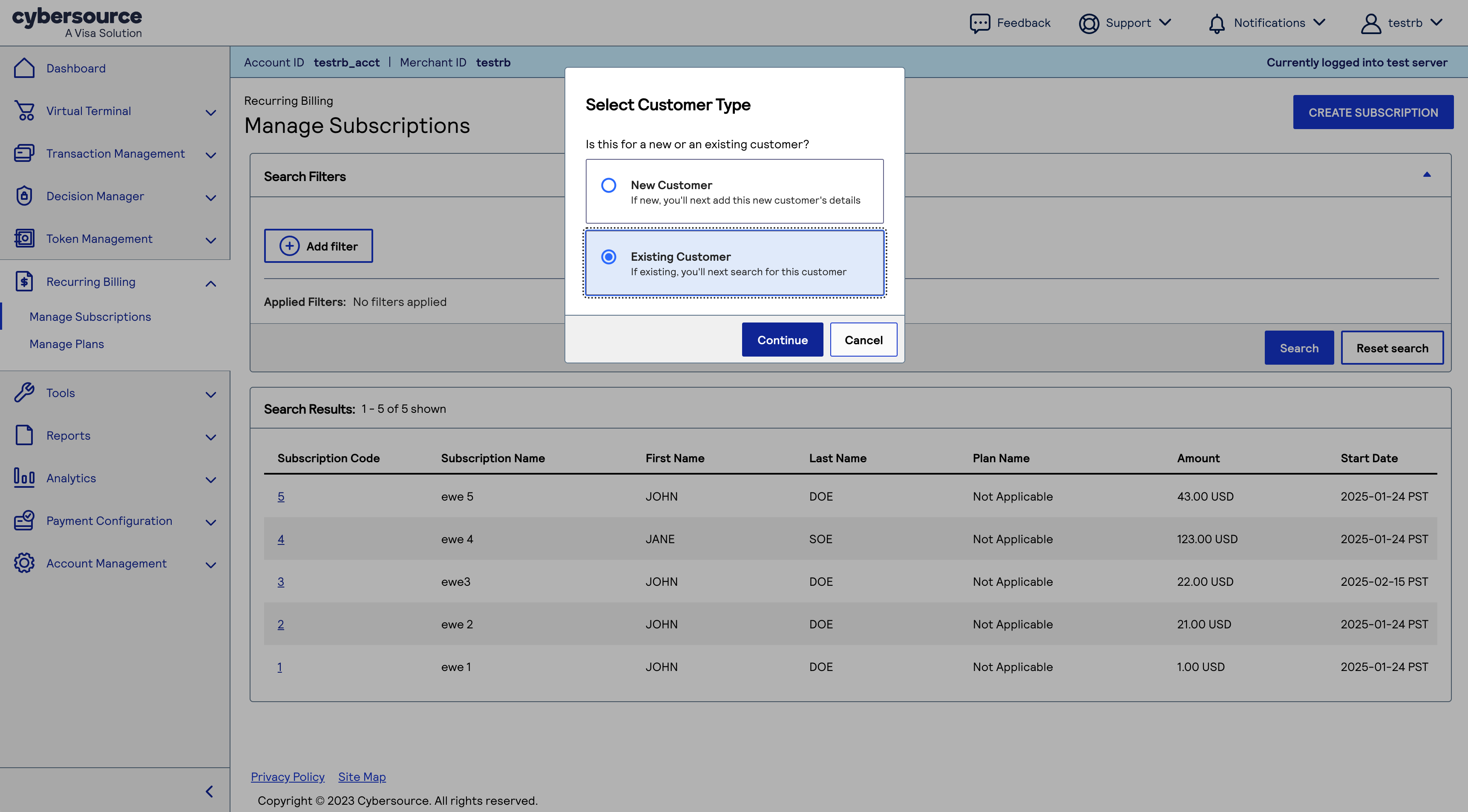
- SelectExisting Customer, and clickContinue.
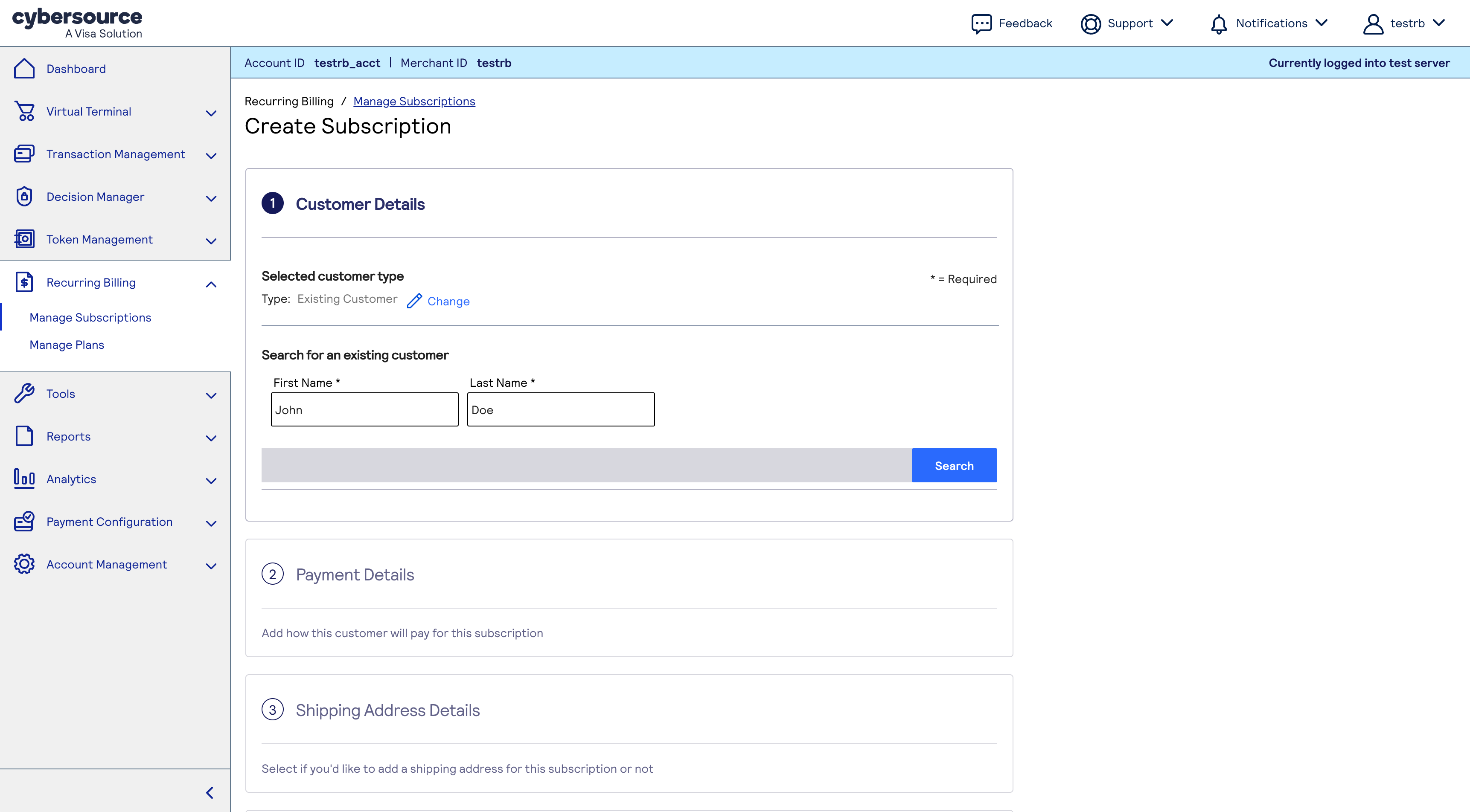
- To find the customer token you just created, enter the customer's first and last name,
Two weeks after your migration is complete, you can use all features in the
Business Center
to create subscriptions. For more information, see the Creating a
Subscription with a New Customer Token section in the Recurring Billing User Guide
.