On This Page
Release Notes
These release notes cover all releases to the production server for the week ending
December 20, 2024
.Announcements
The following are important announcements about Cybersource products.
Important: Update Payment Message Flow to Use HTTPS Communication
We are moving to industry standard HTTPS communications between merchant systems and
. As such, will require all
communications between merchant systems and to use HTTPS by
April 15, 2025. The SO API endpoints will be updated to accept HTTPS (port 443) data
transmissions in January. SCMP API will not be upgraded, and customers will be required
update their systems to use either SO or REST.
To facilitate a smooth transition, will provide sample code that
can be used as a guide to help with the conversion of the request/response messages in
SCMP to the Simple Order scheme. To make this update, customer will need to complete the
following changes:
- Update HTTP communications to HTTPS communications (from port 80 to port 443).
- Enable SO API authentication using P12 certificates.
- Enable the SCMP to SO conversion program to run within your payment system.
Click the link below to see the instructions for your language requirements:
Establish HTTPS Communication with Java
The following instructions will provide you with the information you need to transition
your payment system to send and receive HTTPS SO API transmissions using Java:
Update HTTP Communications to HTTPS Communications
HTTPS is the standard method for establishing communications between a client and a
server.
Updating to HTTPS
To establish HTTPS communication, locate where client/server communication is defined within your system and change it from HTTP to HTTPS. If the port number is set, (for example port 80), change the port to 443.
Before
http://server.com:80
After
https://server.com:443
Enable SO Authentication Using P12 Certificates with Java
As part of ongoing Security Enhancements, we are planning to upgrade SOAP API authentication to P12 authentication. This upgrade is currently available for Java, C#, and PHP.
You can upgrade to P12 Authentication in your SOAP toolkit by doing the following:
- Update the files in your project directory.
- Add your certificate information to a toolkit.properties file in your project directory.
- Update your pom.xml file.
A java tookit is available on GitHub: JavaSoapToolkitCybersource SOAP Toolkit
Prerequisites
You will need an SO P12 Certificate. For Information on creating a P12 certificate, See the .
Your application must meet these requirements:
- Java 9 or higher
- Jakarta XML Web Services API
- JAX-WS Runtime
- Jakarta XML Web Services Distribution
- Bouncy Castle Cryptography APIs for JDK 1.5 to JDK 1.8
- Apache XML Security
- WSDL 1.219 or earlier
Java Migration Steps
Follow these steps to upgrade your Java code:
- Add these dependencies to thepom.xmlfile:<dependencies> <dependency> <groupId>jakarta.xml.ws</groupId> <artifactId>jakarta.xml.ws-api</artifactId> <version>4.0.2</version> </dependency> <dependency> <groupId>com.sun.xml.ws</groupId> <artifactId>jaxws-rt</artifactId> <version>4.0.3</version> <scope>runtime</scope> </dependency> <dependency> <groupId>com.sun.xml.ws</groupId> <artifactId>jaxws-ri</artifactId> <version>4.0.3</version> <type>pom</type> </dependency> <dependency> <groupId>org.bouncycastle</groupId> <artifactId>bcprov-jdk15to18</artifactId> <version>1.78</version> </dependency> <dependency> <groupId>org.apache.santuario</groupId> <artifactId>xmlsec</artifactId> <version>4.0.3</version> </dependency> </dependencies>
- Add this plugin to thepom.xmlfile:<build> <plugins> <plugin> <groupId>com.sun.xml.ws</groupId> <artifactId>jaxws-maven-plugin</artifactId> <version>4.0.3</version> <configuration> <wsdlUrls> <wsdlUrl>https://ics2wstest.ic3.com/commerce/1.x/transactionProcessor/CyberSourceTransaction_1.219.wsdl</wsdlUrl> </wsdlUrls> <keep>true</keep> <packageName>com.cybersource.stub</packageName> <sourceDestDir>src/main/java</sourceDestDir> </configuration> </plugin> </plugins> </build>
- Check the value that is set in thewsdlUrltag, and update the version if necessary. The highest version of the WSDL that can be supported is 1.219.
- Run this command in your terminal:mvn clean jaxws:wsimport
- Find these lines in your existing code:
Replace them with these lines:TransactionProcessorLocator service = new TransactionProcessorLocator(); URL endpoint = new URL(SERVER_URL); ITransactionProcessorStub stub = (ITransactionProcessorStub) service.getportXML (endpoint); stub._setProperty(WSHandlerConstants.USER, request .getMerchantID());TransactionProcessor service = new TransactionProcessor(); service.setHandlerResolver(portInfo - >{ List < Handler > handlerList = new ArrayList < >(); handlerList.add(new BinarySecurityTokenHandler()); return handlerList; }); ITransactionProcessor stub = service.getPortXML(); - Copy these files to your project directory:
- BinarySecurityTokenHandler.java
- PropertiesUtil.java
- SecurityUtil.java
- Add atoolkit.propertiesfile in thesrc/main/resourcesfolder in your project. Thetoolkit.propertiesfile must contain this content:
If you want to use your own properties file, you can make these changes in theMERCHANT_ID = <your_merchant_id> LIB_VERSION = 4.0.3 KEY_ALIAS = <your_certificate_key_alias> KEY_FILE = <your_certificate_file> KEY_PASS = <your_certificate_password> KEY_DIRECTORY = src/main/resourcesPropertiesUtil.javafile. - Add your P12 certificate to your key directory.
- Run these commands in your terminal:mvn clean installjava -jar target\JavaSoapToolkit.jar
You can confirm that your configuration is updated successfully by sending a test
request. A successful configuration is indicated when the request log shows that the
request was authenticated using a Bearer token.
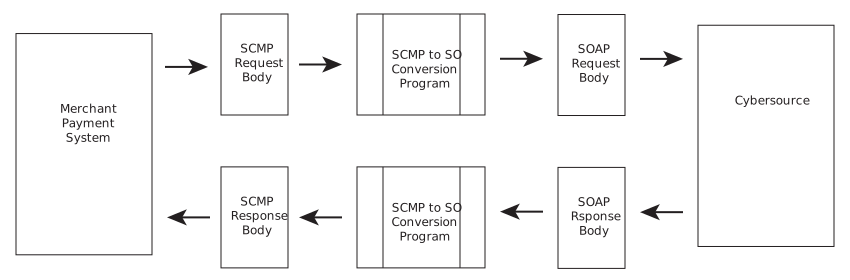
Enable SCMP to SO Conversions Using Java
This method allows users with an SCMP payment system to maintain that system. The SCMP
payloads are converted into an SO payload and sent to the associated SO endpoint. When
the SO payload is returned, the payload is then converted back into SCMP for processing
by the system. The image below outlines the message path:
An example program is available on GitHub: GitHub Sample Code
Prerequisites
There are no prerequisites for this work.
Establish the SO Payload Conversion
Add the SCMP sample client program to your payment system.
These files can be found in the GitHub resource referenced above.
Update the
cybs.properties
file.The following list is of values must be updated.
- merchantID: Set this to your production Merchant ID used for commerce.
- keysDirectory: The file path to the P12 certificate generated previously.
- password: The P12 certificate password.
- keyAlias: The name of your MID.
Other values may be set at your discretion. Use the comments within the file to determine which values you wish to change.
After the SCMP payment software creates a request payload, run the
processRequest
method found in the
Util.java
file against that payload.This method converts the SCMP payload into an SO payload and forwards the SO payload to the correct SO endpoint. When the SO reply payload is received, the method will then convert the payload back into an SCMP payload for normal processing within the system.
Establish HTTPS Communication with .Net
The following instructions will provide you with the information you need to transition your
payment system to send and receive HTTPS SO API transmissions using .Net:
Enable SO Authentication Using P12 Certificates with .Net
As part of ongoing Security Enhancements, we are planning to upgrade SOAP API authentication to P12 authentication. This upgrade is currently available for Java, C#, and PHP.
You can upgrade to P12 Authentication in your SOAP toolkit by doing the following:
- Update the files in your project directory.
- Add your certificate information to a toolkit.properties file in your project directory.
- Update your pom.xml file.
A java tookit is available on GitHub: JavaSoapToolkitCybersource SOAP Toolkit
Prerequisites
You will need an SO P12 Certificate. For Information on creating a P12 certificate, See the .
Your application must meet these requirements:
- .NET Framework 4.7.2 and later Redistributable Package
- Portable.BouncyCastle
C# Migration Steps
Follow these steps to upgrade your C# code:
- Add the following service URL as a service reference to your project:
wherehttps://ics2wstest.ic3.com/commerce/1.x/transactionProcessor/CyberSourceTransaction_N.NNN.wsdlN.NNNis the latest server API version.This will generate a Connected Services section in your project. It will also generate anapp.configfile for your project. - Add the following sections to the top of yourapp.configfile:<configuration> <configSections> <section name="toolkitProperties" type="System.Configuration.NameValueSectionHandler"/> </configSections> <toolkitProperties> <add key="MERCHANT_ID" value="<your_merchant_id>"/> <add key="KEY_ALIAS" value="<your_certificate_key_alias>"/> <add key="KEY_FILE" value="<your_certificate_file>"/> <add key="KEY_PASS" value="<your_certificate_password>"/> <add key="KEY_DIRECTORY" value="<path/to/certificate/file>"/> </toolkitProperties> </configuration>The<configSections>tag must be the first section inside<configurations>.
- In the generatedapp.configfile, leave the<binding>section as it is.The<binding>section must look like this:<bindings> <basicHttpBinding> <binding name="ITransactionProcessor"> <security mode="Transport"/> </binding> </basicHttpBinding> </bindings>
- Add this dependency to thepackages.configfile:<packages> <package id="Portable.BouncyCastle" version="1.9.0" targetFramework="net472" /> </packages>
- Install the dependency:nuget install packages.config -OutputDirectory packages
- Add this package reference to your.csprojfile:
The steps for adding a new dependency can also be done through Visual Studio Package Manager.<Reference Include="BouncyCastle.Crypto, Version=1.9.0.0, Culture=neutral, PublicKeyToken=0e99375e54769942, processorArchitecture=MSIL"> <HintPath>packages\Portable.BouncyCastle.1.9.0\lib\net40\BouncyCastle.Crypto.dll</HintPath> </Reference> - Add your P12 certificate to theKEY_DIRECTORY.ThisKEY_DIRECTORYlocation must be accessible by your code. Ensure that your code has permissions to read this location.
- Copy these files to your project directory and import them to your project:
- Find these lines in your existing code:
and replace them with these lines:TransactionProcessorClient proc = new TransactionProcessorClient(); proc.ChannelFactory.Credentials.UserName.UserName = request.merchantID; proc.ChannelFactory.Credentials.UserName.Password = TRANSACTION_KEY; ReplyMessage reply = proc.runTransaction(request);TransactionProcessorClient proc = new TransactionProcessorClient(); proc.Endpoint.EndpointBehaviors.Add(new InspectorBehavior()); ReplyMessage reply = proc.runTransaction(request); - Find your installation of .NET Framework.This is often located atC:\Windows\Microsoft.NET\Framework\v4.0.30319(32-bit) orC:\Windows\Microsoft.NET\Framework64\v4.0.30319(64-bit).
- UsemsBuild.exeto compile your project.<path_to_framework>\msBuild.exe <name_of_project>.csproj
- Run the project executable:bin\<configuration>\<project_name>.exe
You can confirm that your configuration is updated successfully by sending a test
request. A successful configuration is indicated when the request log shows that the
request was authenticated using a Bearer token.
Enable SCMP to SO Conversions Using .Net
This method allows users with an SCMP payment system to maintain that system. The SCMP
payloads are converted into an SO payload and sent to the associated SO endpoint. When
the SO payload is returned, the payload is then converted back into SCMP for processing
by the system. The image below outlines the message path:
An example program is available on GitHub: GitHub Sample Code
Prerequisites
There are no prerequisites for this work.
Establish the SO Payload Conversion
Add the SCMP sample client program to your payment system.
These files can be found in the GitHub resource referenced above.
Update the
app.config
file.The following list is of values must be updated.
- cybs.merchantID: Set this to your production Merchant ID used for commerce.
- cybs.keysDirectory: The file path to the P12 certificate generated previously.
- cybs.password: The P12 certificate password.
- cybs.keyAlias: The name of your MID.
Other values may be set at your discretion. Use the comments within the file to determine which values you wish to change.
After the SCMP payment software creates a request payload, run the
processRequest
method found in the Util.cs
file against that payload.This method converts the SCMP payload into an SO payload and forwards the SO payload to the correct SO endpoint. When the SO reply payload is received, the method will then convert the payload back into an SCMP payload for normal processing within the system.
Important: SOAP Toolkit Update
As part of ongoing Security Enhancements, we are planning to upgrade SOAP API authentication
to P12 authentication. This upgrade is currently available for Java, C#, and PHP.
You can upgrade to P12 Authentication in your SOAP toolkit by doing the following:
- Create a P12 certificate.
- Update the files in your project directory.
- Add your certificate information to atoolkit.propertiesfile in your project directory.
- Update yourpom.xmlfile.
You must upgrade the SOAP authentication to use P12 by these dates.
Test
: April 14, 2025Production
: May 13, 2025This update is currently available only for the C#, Java, and PHP
SOAP Toolkit. The updated SDK is available here on GitHub: Other toolkits will be available in January 2025.
Java Prerequisites
You must create a P12 certificate. See the .
With this change to use a P12 certificate in your Java SOAP toolkit configuration, your
application must meet these new requirements:
- Java 9 or higher
- Jakarta XML Web Services API
- JAX-WS Runtime
- Jakarta XML Web Services Distribution
- Bouncy Castle Cryptography APIs for JDK 1.5 to JDK 1.8
- Apache XML Security
- WSDL 1.219 or earlier
C# Prerequisites
You must create a P12 certificate. See the .
With this change to use a P12 certificate in your C# SOAP toolkit configuration, your
application must meet these new requirements:
- .NET Framework 4.7.2 and later Redistributable Package
- Portable.BouncyCastle
PHP Prerequisites
You must create a P12 certificate. See the .
With this change to use a P12 certificate in your PHP SOAP toolkit configuration, the new
requirements for your application will be:
- PHP 5.6x and higher
- PHP SOAP extension
- PHP OpenSSL extension
Java Migration Steps
Follow these steps to upgrade your Java code:
- Add these dependencies to thepom.xmlfile:<dependencies> <dependency> <groupId>jakarta.xml.ws</groupId> <artifactId>jakarta.xml.ws-api</artifactId> <version>4.0.2</version> </dependency> <dependency> <groupId>com.sun.xml.ws</groupId> <artifactId>jaxws-rt</artifactId> <version>4.0.3</version> <scope>runtime</scope> </dependency> <dependency> <groupId>com.sun.xml.ws</groupId> <artifactId>jaxws-ri</artifactId> <version>4.0.3</version> <type>pom</type> </dependency> <dependency> <groupId>org.bouncycastle</groupId> <artifactId>bcprov-jdk15to18</artifactId> <version>1.78</version> </dependency> <dependency> <groupId>org.apache.santuario</groupId> <artifactId>xmlsec</artifactId> <version>4.0.3</version> </dependency> </dependencies>
- Add this plugin to thepom.xmlfile:<build> <plugins> <plugin> <groupId>com.sun.xml.ws</groupId> <artifactId>jaxws-maven-plugin</artifactId> <version>4.0.3</version> <configuration> <wsdlUrls> <wsdlUrl>https://ics2wstest.ic3.com/commerce/1.x/transactionProcessor/CyberSourceTransaction_1.219.wsdl</wsdlUrl> </wsdlUrls> <keep>true</keep> <packageName>com.cybersource.stub</packageName> <sourceDestDir>src/main/java</sourceDestDir> </configuration> </plugin> </plugins> </build>
- Check the value that is set in thewsdlUrltag, and update the version if necessary. The highest version of the WSDL that can be supported is 1.219.
- Run this command in your terminal:mvn clean jaxws:wsimport
- Find these lines in your existing code:
Replace them with these lines:TransactionProcessorLocator service = new TransactionProcessorLocator(); URL endpoint = new URL(SERVER_URL); ITransactionProcessorStub stub = (ITransactionProcessorStub) service.getportXML (endpoint); stub._setProperty(WSHandlerConstants.USER, request .getMerchantID());TransactionProcessor service = new TransactionProcessor(); service.setHandlerResolver(portInfo - >{ List < Handler > handlerList = new ArrayList < >(); handlerList.add(new BinarySecurityTokenHandler()); return handlerList; }); ITransactionProcessor stub = service.getPortXML(); - Copy these files to your project directory:
- BinarySecurityTokenHandler.java
- PropertiesUtil.java
- SecurityUtil.java
- Add atoolkit.propertiesfile in thesrc/main/resourcesfolder in your project. Thetoolkit.propertiesfile must contain this content:
If you want to use your own properties file, you can make these changes in theMERCHANT_ID = <your_merchant_id> LIB_VERSION = 4.0.3 KEY_ALIAS = <your_certificate_key_alias> KEY_FILE = <your_certificate_file> KEY_PASS = <your_certificate_password> KEY_DIRECTORY = src/main/resourcesPropertiesUtil.javafile. - Add your P12 certificate to your key directory.
- Run these commands in your terminal:mvn clean installjava -jar target\JavaSoapToolkit.jar
You can confirm that your configuration is updated successfully by sending a test
request. A successful configuration is indicated when the request log shows that the
request was authenticated using a Bearer token.
C# Migration Steps
Follow these steps to upgrade your C# code:
- Add the following service URL as a service reference to your project:
wherehttps://ics2wstest.ic3.com/commerce/1.x/transactionProcessor/CyberSourceTransaction_N.NNN.wsdlN.NNNis the latest server API version.This will generate a Connected Services section in your project. It will also generate anapp.configfile for your project. - Add the following sections to the top of yourapp.configfile:<configuration> <configSections> <section name="toolkitProperties" type="System.Configuration.NameValueSectionHandler"/> </configSections> <toolkitProperties> <add key="MERCHANT_ID" value="<your_merchant_id>"/> <add key="KEY_ALIAS" value="<your_certificate_key_alias>"/> <add key="KEY_FILE" value="<your_certificate_file>"/> <add key="KEY_PASS" value="<your_certificate_password>"/> <add key="KEY_DIRECTORY" value="<path/to/certificate/file>"/> </toolkitProperties> </configuration>The<configSections>tag must be the first section inside<configurations>.
- In the generatedapp.configfile, leave the<binding>section as it is.The<binding>section must look like this:<bindings> <basicHttpBinding> <binding name="ITransactionProcessor"> <security mode="Transport"/> </binding> </basicHttpBinding> </bindings>
- Add this dependency to thepackages.configfile:<packages> <package id="Portable.BouncyCastle" version="1.9.0" targetFramework="net472" /> </packages>
- Install the dependency:nuget install packages.config -OutputDirectory packages
- Add this package reference to your.csprojfile:
The steps for adding a new dependency can also be done through Visual Studio Package Manager.<Reference Include="BouncyCastle.Crypto, Version=1.9.0.0, Culture=neutral, PublicKeyToken=0e99375e54769942, processorArchitecture=MSIL"> <HintPath>packages\Portable.BouncyCastle.1.9.0\lib\net40\BouncyCastle.Crypto.dll</HintPath> </Reference> - Add your P12 certificate to theKEY_DIRECTORY.ThisKEY_DIRECTORYlocation must be accessible by your code. Ensure that your code has permissions to read this location.
- Copy these files to your project directory and import them to your project:
- Find these lines in your existing code:
and replace them with these lines:TransactionProcessorClient proc = new TransactionProcessorClient(); proc.ChannelFactory.Credentials.UserName.UserName = request.merchantID; proc.ChannelFactory.Credentials.UserName.Password = TRANSACTION_KEY; ReplyMessage reply = proc.runTransaction(request);TransactionProcessorClient proc = new TransactionProcessorClient(); proc.Endpoint.EndpointBehaviors.Add(new InspectorBehavior()); ReplyMessage reply = proc.runTransaction(request); - Find your installation of .NET Framework.This is often located atC:\Windows\Microsoft.NET\Framework\v4.0.30319(32-bit) orC:\Windows\Microsoft.NET\Framework64\v4.0.30319(64-bit).
- UsemsBuild.exeto compile your project.<path_to_framework>\msBuild.exe <name_of_project>.csproj
- Run the project executable:bin\<configuration>\<project_name>.exe
You can confirm that your configuration is updated successfully by sending a test request.
A successful configuration is indicated when the request log shows that the request was
authenticated using a Bearer token.
PHP Migration Steps
Follow these steps to upgrade your existing PHP code:
- Update the following service URL (WSDL_URL) in your code:
wherehttps://ics2wstest.ic3.com/commerce/1.x/transactionProcessor/CyberSourceTransaction_N.NNN.wsdlN.NNNis the latest server API version. - Copy these files to your project directory:
- Locate these lines in your existing code:
and replace them with these lines:$soapClient = new ExtendedClient(WSDL_URL, array());$soapClient = new ExtendedClientWithToken( WSDL_URL, array( 'SSL' => array( 'KEY_ALIAS' => 'YOUR KEY ALIAS', 'KEY_FILE' => 'YOUR CERTIFICATE FILE', 'KEY_PASS' => 'YOUR KEY PASS', 'KEY_DIRECTORY' => 'PATH TO CERTIFICATES' ) ) ); - Update the necessary values for the following fields in your code:
- MERCHANT_ID
- KEY_ALIAS
- KEY_FILE
- KEY_PASS
- KEY_DIRECTORY
- Add your P12 certificate to theKEY_DIRECTORY.ThisKEY_DIRECTORYlocation must be accessible by your code. Ensure that your code has permissions to read this location.
- Run the code:php <sample_PHP_file>
You can confirm that your configuration is updated successfully by sending a test request.
A successful configuration is indicated when the request log shows that the request was
authenticated using a Bearer token.
SSL/TLS Certification Migration
To uphold the maximum levels of security and compliance in both your browser-based and
server-to-server interactions with the Visa Acceptance Solutions platform (including
Cybersource), we are transitioning all Cybersource endpoint SSL/TLS certificates from
Entrust to DigiCert. These SSL/TLS certificates, originally issued by Entrust, will now be
issued by DigiCert to fortify these communication channels.
Merchants using Cybersource endpoints should coordinate with their network team or
hosting/solution provider to implement all necessary measures to ensure their connections to
Cybersource properties follow industry standards. This includes updating their systems with
the new Root and Intermediate (CA) SSL/TLS certificates that correspond to the specific
Cybersource endpoint they use.
If your application requires trusting of certificates at the server level, you must install
(trust) the new certificates prior to expiration of existing certificates to avoid any
production impact. The link to the Server-Level (leaf) SSL certificate will be updated when
they become available.
We recommended that merchants trust only the Root and Intermediate CA
SSL/TLS certificates on all secure endpoints. This method avoids the annual necessity to
renew the server-level certificate.
Do not revoke or remove any of your existing Entrust certificates linked with Cybersource
endpoints before the scheduled dates. Until the cut-off dates, the only supported
certificates will be the Entrust SSL certificates. You may add the new certificates to your
system, in addition to the existing certificates, and verify their functionality in the
testing environment.
There will be two phases and each phase will update different endpoints.
First Phase
The first phase is complete and updated the following endpoints:
Test URLs | Production URLs |
|---|---|
apitest.cybersource.com | accountupdater.cybersource.com |
accountupdatertest.cybersource.com | api.cybersource.com |
batchtest.cybersource.com | batch.cybersource.com |
api.accountupdatertest.cybersource.com | api.accountupdater.cybersource.com |
ics2wstest.ic3.com | ics2ws.ic3.com |
ics2wstesta.ic3.com | ics2wsa.ic3.com |
apitest.cybersource.com | ics2ws.in.ic3.com |
api.in.cybersource.com | |
batch.in.cybersource.com |
We strongly urge you to test your implementation as soon as
possible.
Second Phase
The second phase will update the following endpoints:
Test URLs | Production URLs |
|---|---|
testflex.cybersource.com | flex.cybersource.com |
testsecureacceptance.cybersource.com | secureacceptance.cybersource.com |
flex.in.cybersource.com | |
secureacceptance.in.cybersource.com |
The Testing Environment was updated November 5, 2024, 4:00 GMT. The production environment
December 10, 2024, 4:00 GMT. The old certifications will expire on December 31, 2024.
Features Introduced This Week
No customer-facing features were released this week.
Fixed Issues
No customer-facing fixes were released this week.
Known Issues
Decision Manager
Decision Manager
- Description
- Users who do not have administrator permissions in the Business Center may be unable to see some negative list hyperlinks under Decision Manager > Case Management > Model Results, and in Transaction Management > Transaction > Transaction Details.
- Audience
- Merchants using Decision Manager to review orders.
- Technical Details
- None.
- Workaround
- None.
Merchant Boarding | 1614572
Merchant Boarding
| 1614572- Description
- Some users of the VAP Portfolio might be able to set up new gateways for existing merchant accounts, which can cause transaction failure.
- Audience
- Merchants who use the Business Center's Merchant Management feature to configure Merchant accounts using the Card Processing template.
- Technical Details
- If a user who does not have theTemplate Editpermission edits the card processing configuration of an existing Merchant ID by adding a new gateway, our internal gateway selector might not send transactions to the expected gateway.
- Workaround
- Ensure that the Template Edit permission is given to all users who configure merchant accounts in the Business Center.
API Response Codes | 1561217
- Description
- A defect is causing transactions for pre-paid non-reloadable cards that are approved by Worldpay to be declined by our system due to invalid response code mapping.
- Audience
- Merchants who process transactions for pre-paid non-reloadable cards using Worldpay.
- Technical Details
- None.
- Workaround
- None.
Subscription Payments | 1573208
Subscription Payments
| 1573208- Description
- When a zero-amount authorization in included in a subscription creation request, the request results in failure for American Express, Discover, Diners, JCB, and CUP transactions.
- Audience
- Merchants processing on FDC Nashville and performing Token Creation calls without a Full Auth Amount.
- Technical Details
- This defect results in reason code 102:DINVALIDDATAwith description$0 auth not supported for [Card Scheme] on this gateway.
- Workaround
- If you are tokenizing your customers before they place an order, create a token in conjunction with a $1 Authorization then perform a full authorization reversal to remove the temporary funding block on your customer account.
- If you are tokenizing your customers at time of checkout, create a token in conjunction with the full amount of the customer's order.
Virtual Terminal | 1588256
Virtual Terminal
| 1588256- Description
- A defect is preventing Level III transactions in Virtual Terminal when Level II fields are set as required fields, even when all required fields are included.
- Audience
- Users of Virtual Terminal who perform Level III transactions.
- Technical Details
- The user receives the error message:Level2PurchaseOrderNumber is a required field.
- Workaround
- Use the API instead of Virtual Terminal.
Payments | 1560940
Payments
| 1560940- Description
- A defect is causing payment transactions with an incorrect Card Verification Value (CVV) to receive a response code that claims the transaction can still be captured. However, capture fails.
- Audience
- Global.
- Technical Details
- The response code to the authorization says:RC 230: Soft decline. The authorization request was approved by the issuing bank but was flagged because it did not pass the Card Verification Number (CVN) check. You can capture the authorization, but consider reviewing the order for the possibility of fraud.
- The error message during capture failure says:Auth code is missing or invalid.
- Workaround
- None.
Payments | 1576231
Payments
| 1576231- Description
- A defect is allowing authorizations to succeed when the purchase order number is sent in an incorrect format. These transactions fail during settlement.
- Audience
- Merchants in the US.
- Technical Details
- The API field names for the purchase order number field are:
- REST API:orderInformation.invoiceDetails.purchaseOrderNumber
- Simple Order API:invoiceHeader_userPO
- Workaround
- Be sure to send API values using the correct format.
Fraud Management Essentials | 1525926
Fraud Management Essentials
| 1525926- Description
- Due to a defect, when an order that is pending review is viewed in the Transaction Details page in the Business Center, the Marking Tool feature is not available.
- Audience
- Users of Fraud Management Essentials.
- Technical Details
- None.
- Workaround
- Use the Fraud Management Essentials page to review orders until this defect is resolved.
Token Management System (TMS) | 1045848
Token Management System (TMS)
| 1045848- Description
- A defect is affecting TMS in the following scenario:
- An existing customer token contains an existing payment insturment token that useseithercredit card or bank account.
- An additional payment instrument token is created for that customer token. The first payment instrument token was credit card and the new payment instrument token is bank account, or the old payment instrument token was bank account and the new payment instrument token is credit card.
- The orginial payment instrument token is used in an existing autopay.
- The new payment instrument token is set to default.
The result is that the payment request fails. - Audience
- Users of TMS.
- Technical Details
- None.
- Workaround
- None.
Decision Manager | 1589720
Decision Manager
| 1589720- Description
- Merchants that review transactions in Decision Manager are experiencing intermittent timeout failures while searching for customer information in the Negative List.
- Audience
- Decision Manager users that review customer infromation in the Negative List.
- Technical Details
- None.
- Workaround
- Try selecting a date range to limit the number of results until the defect is fixed.
Payment REST API | 1561824
Payment REST API
| 1561824- Description
- The Payment REST API is sending HTTP response code 202 instead of 201 when the error reason iscontact_processor.
- Audience
- Users of the Payment REST API.
- Technical Details
- The affected endpoint ispts/v2/payments.
- Workaround
- None.
Boarding and Virtual Terminal | 001548638
Boarding and Virtual Terminal
| 001548638- Description
- Virtual Terminal is visible in the Business Center to merchant accounts onboarded to the VAP portfolio that are not enabled for Virtual Terminal.
- Audience
- Resellers on the VAP portfolio.
- Technical Details
- None.
- Workaround
- None.
Reporting | 1542583
Reporting
| 1542583- Description
- A defect is affecting the Transaction Request Report. For some requests that resulted in 102 errors, the Rmsg column is not populated.
- Audience
- Users of the Transaction Request Report.
- Technical Details
- None.
- Workaround
- None.