On This Page
Release Notes
These release notes cover all releases to the production server for the week ending
January 17, 2025
.Announcements
Important: SOAP Toolkit Update
As part of ongoing Security Enhancements, we are planning to upgrade SOAP API authentication
to P12 authentication. This upgrade is currently available for Java, C#, C++, and PHP.
You can upgrade to P12 Authentication in your SOAP toolkit by doing the following:
- Create a P12 certificate.
- Update the files in your project directory.
- Add your certificate information to atoolkit.propertiesfile in your project directory.
- Update yourpom.xmlfile.
You must upgrade the SOAP authentication to use P12 by these dates.
Test
: April 14, 2025Production
: May 13, 2025This update is currently available only for the Java, PHP, C++, and C#
SOAP Toolkits. The updated SDK is available here on GitHub: Other toolkits will be available in January 2025.
Available Environments
This update is available in these environments:
- Test: https://apitest.cybersource.com
- Production: https://apitest.cybersource.com
Java Prerequisites
You must create a P12 certificate. See the .
With this change to use a P12 certificate in your Java SOAP toolkit configuration, your
application must meet these new requirements:
- Java 9 or higher
- Jakarta XML Web Services API
- JAX-WS Runtime
- Jakarta XML Web Services Distribution
- Bouncy Castle Cryptography APIs for JDK 1.5 to JDK 1.8
- Apache XML Security
- WSDL 1.219 or earlier
C# Prerequisites
You must create a P12 certificate. See the .
With this change to use a P12 certificate in your C# SOAP toolkit configuration, your
application must meet these new requirements:
- .NET Framework 4.7.2 and later Redistributable Package
- Portable.BouncyCastle
PHP Prerequisites
You must create a P12 certificate. See the .
With this change to use a P12 certificate in your PHP SOAP toolkit configuration, the new
requirements for your application will be:
- PHP 5.6x and higher
- PHP SOAP extension
- PHP OpenSSL extension
C++ Prerequisites
You must create a P12 certificate. See the REST Getting Started Developer Guide.
With this change to use a P12 certificate in your C++ SOAP toolkit configuration, the new
requirements for your application will be:
- GSOAP 2.8.135 or higher (developer version including header files)
- OpenSSL 3.4.0 or higher (developer version including header files)
- G++ compiler
Java Migration Steps
Follow these steps to upgrade your Java code:
- Add these dependencies to thepom.xmlfile:<dependencies> <dependency> <groupId>jakarta.xml.ws</groupId> <artifactId>jakarta.xml.ws-api</artifactId> <version>4.0.2</version> </dependency> <dependency> <groupId>com.sun.xml.ws</groupId> <artifactId>jaxws-rt</artifactId> <version>4.0.3</version> <scope>runtime</scope> </dependency> <dependency> <groupId>com.sun.xml.ws</groupId> <artifactId>jaxws-ri</artifactId> <version>4.0.3</version> <type>pom</type> </dependency> <dependency> <groupId>org.bouncycastle</groupId> <artifactId>bcprov-jdk15to18</artifactId> <version>1.78</version> </dependency> <dependency> <groupId>org.apache.santuario</groupId> <artifactId>xmlsec</artifactId> <version>4.0.3</version> </dependency> </dependencies>
- Add this plugin to thepom.xmlfile:<build> <plugins> <plugin> <groupId>com.sun.xml.ws</groupId> <artifactId>jaxws-maven-plugin</artifactId> <version>4.0.3</version> <configuration> <wsdlUrls> <wsdlUrl>https://ics2wstest.ic3.com/commerce/1.x/transactionProcessor/CyberSourceTransaction_1.219.wsdl</wsdlUrl> </wsdlUrls> <keep>true</keep> <packageName>com.cybersource.stub</packageName> <sourceDestDir>src/main/java</sourceDestDir> </configuration> </plugin> </plugins> </build>
- Check the value that is set in thewsdlUrltag, and update the version if necessary. The latest version of the WSDL that can be supported is 1.219.
- Run this command in your terminal:mvn clean jaxws:wsimport
- Find these lines in your existing code:
Replace them with these lines:TransactionProcessorLocator service = new TransactionProcessorLocator(); URL endpoint = new URL(SERVER_URL); ITransactionProcessorStub stub = (ITransactionProcessorStub) service.getportXML (endpoint); stub._setProperty(WSHandlerConstants.USER, request .getMerchantID());TransactionProcessor service = new TransactionProcessor(); service.setHandlerResolver(portInfo - >{ List < Handler > handlerList = new ArrayList < >(); handlerList.add(new BinarySecurityTokenHandler()); return handlerList; }); ITransactionProcessor stub = service.getPortXML(); - Copy these files to your project directory:
- BinarySecurityTokenHandler.java
- PropertiesUtil.java
- SecurityUtil.java
- Add atoolkit.propertiesfile in thesrc/main/resourcesfolder in your project. Thetoolkit.propertiesfile must contain this content:
If you want to use your own properties file, you can make these changes in theMERCHANT_ID = <your_merchant_id> LIB_VERSION = 4.0.3 KEY_ALIAS = <your_certificate_key_alias> KEY_FILE = <your_certificate_file> KEY_PASS = <your_certificate_password> KEY_DIRECTORY = src/main/resourcesPropertiesUtil.javafile. - Add your P12 certificate to your key directory.
- Run these commands in your terminal:mvn clean installjava -jar target\JavaSoapToolkit.jar
- (Optional) You can confirm that your configuration is updated successfully by checking that your request was authenticated using a Bearer token. To confirm, add this command after line 54 in thesrc\main\java\com\cybersource\BinarySecurityTokenHandler.javafile:System.out.println( soapMessageContext );
C# Migration Steps
Follow these steps to upgrade your C# code:
- Add the following service URL as a service reference to your project:
wherehttps://ics2wstest.ic3.com/commerce/1.x/transactionProcessor/CyberSourceTransaction_N.NNN.wsdlN.NNNis the latest server API version.This will generate a Connected Services section in your project. It will also generate anapp.configfile for your project. - Add the following sections to the top of yourapp.configfile:<configuration> <configSections> <section name="toolkitProperties" type="System.Configuration.NameValueSectionHandler"/> </configSections> <toolkitProperties> <add key="MERCHANT_ID" value="<your_merchant_id>"/> <add key="KEY_ALIAS" value="<your_certificate_key_alias>"/> <add key="KEY_FILE" value="<your_certificate_file>"/> <add key="KEY_PASS" value="<your_certificate_password>"/> <add key="KEY_DIRECTORY" value="<path/to/certificate/file>"/> </toolkitProperties> </configuration>The<configSections>tag must be the first section inside<configurations>.
- In the generatedapp.configfile, leave the<binding>section as it is.The<binding>section must look like this:<bindings> <basicHttpBinding> <binding name="ITransactionProcessor"> <security mode="Transport"/> </binding> </basicHttpBinding> </bindings>
- Add this dependency to thepackages.configfile:<packages> <package id="Portable.BouncyCastle" version="1.9.0" targetFramework="net472" /> </packages>
- Install the dependency:nuget install packages.config -OutputDirectory packages
- Add this package reference to your.csprojfile:
The steps for adding a new dependency can also be done through Visual Studio Package Manager.<Reference Include="BouncyCastle.Crypto, Version=1.9.0.0, Culture=neutral, PublicKeyToken=0e99375e54769942, processorArchitecture=MSIL"> <HintPath>packages\Portable.BouncyCastle.1.9.0\lib\net40\BouncyCastle.Crypto.dll</HintPath> </Reference> - Add your P12 certificate to theKEY_DIRECTORY.ThisKEY_DIRECTORYlocation must be accessible to your code. Ensure that your code has permission to read this location.
- Copy these files to your project directory and import them to your project:
- CertificateCacheUtility.cs
- InspectorBehavior.cs
- PropertiesUtility.cs
- SecurityUtility.cs
- SoapEnvelopeUtility.cs
- Find these lines in your existing code:
Replace them with these lines:TransactionProcessorClient proc = new TransactionProcessorClient(); proc.ChannelFactory.Credentials.UserName.UserName = request.merchantID; proc.ChannelFactory.Credentials.UserName.Password = TRANSACTION_KEY; ReplyMessage reply = proc.runTransaction(request);TransactionProcessorClient proc = new TransactionProcessorClient(); proc.Endpoint.EndpointBehaviors.Add(new InspectorBehavior()); ReplyMessage reply = proc.runTransaction(request); - Find your installation of .NET Framework.This is often located at one of these locations:
- C:\Windows\Microsoft.NET\Framework\v4.0.30319(32-bit)
- C:\Windows\Microsoft.NET\Framework64\v4.0.30319(64-bit)
- UsemsBuild.exeto compile your project.<path_to_framework>\msBuild.exe <name_of_project>.csproj
- Run the project executable:bin\<configuration>\<project_name>.exe
- (Optional) You can confirm that your configuration is updated successfully by checking that your request was authenticated using a Bearer token. To confirm, add this command after line 59 in theCSharpSoapToolkit\InspectorBehavior.csfile:Console.WriteLine(request.ToString());
PHP Migration Steps
Follow these steps to upgrade your existing PHP code:
- Update the following service URL (WSDL_URL) in your code:https://ics2wstest.ic3.com/commerce/1.x/transactionProcessor/CyberSourceTransaction_N.NNN.wsdlN.NNNis the latest server API version.
- Copy these files to your project directory:
- ExtendedClientWithToken.php
- PropertiesUtility.php
- SecurityUtility.php
- Locate these lines in your existing code:
Replace them with these lines:$soapClient = new ExtendedClient(WSDL_URL, array());$soapClient = new ExtendedClientWithToken( WSDL_URL, array( 'SSL' => array( 'KEY_ALIAS' => 'YOUR KEY ALIAS', 'KEY_FILE' => 'YOUR CERTIFICATE FILE', 'KEY_PASS' => 'YOUR KEY PASS', 'KEY_DIRECTORY' => 'PATH TO CERTIFICATES' ) ) ); - Update the necessary values for these fields in your code:
- MERCHANT_ID
- KEY_ALIAS
- KEY_FILE
- KEY_PASS
- KEY_DIRECTORY
- Add your P12 certificate to theKEY_DIRECTORY.ThisKEY_DIRECTORYlocation must be accessible to your code. Ensure that your code has permission to read this location.
- Run the code:php <sample_PHP_file>
- (Optional) You can confirm that your configuration is updated successfully by confirming that your request was authenticated using a Bearer token. To confirm, add this command after line 109 in theExtendedClientWithToken.phpfile:print_r($request);
C++ Migration Steps
Follow these steps to upgrade your existing C++ code:
- Update your existing Makefile.Change thecybsdemotarget from:cybsdemo: sample.cpp $(SOAPH) $(SOAPCPP) ../gsoap/dom.cpp wsseapi.o smdevp.o $(CPP) $(CFLAGS) -o cybsdemo sample.cpp soapC.cpp soapClient.cpp ../gsoap/dom.cpp $(SOAPCPP) wsseapi.o smdevp.o $(LIBS)To:cybsdemo: sample.cpp $(SOAPH) $(SOAPCPP) ../gsoap/dom.cpp wsseapi.o smdevp.o $(CPP) $(CFLAGS) -o cybsdemo sample.cpp soapC.cpp ../gsoap/dom.cpp stdsoap2.cpp ../gsoap/import/custom/struct_timeval.cpp ../gsoap/plugin/threads.c ../gsoap/plugin/mecevp.c ../gsoap/plugin/wsaapi.c wsseapi.o smdevp.o soapITransactionProcessorProxy.cpp ../gsoap/import/gsoapWinInet.cpp PropertiesUtil.cpp BinarySecurityTokenHandler.cpp $(LIBS)If you do not have an existing Makefile, you can use one of the following Makefiles:
- UnixBuildAllCommented.Makefile
- UnixQuickBuild.Makefile
- WindowsBuildAllCommented.Makefile
- WindowsQuickBuild.Makefile
Cybersourcerecommends that you use UnixBuildAllCommented.Makefile or WindowsBuildAllCommented.Makefile. If you need to make changes to individual targets,Cybersourcerecommends that you use UnixQuickBuild.Makefile or WindowsQuickBuild.Makefile, as each target can be built individually. - CyberSourceTransaction WSDL and XSD version 1.224 are available here:
- If you want to use a different version, download your preferred version to the project directory and update the versions in theheadertarget of your makefile. For example, change:header: CyberSourceTransaction_1.224.wsdl $(GWSDL) -t ../gsoap/WS/WS-typemap.dat -s -o cybersource.h CyberSourceTransaction_1.224.wsdlto:header: CyberSourceTransaction_1.219.wsdl $(GWSDL) -t ../gsoap/WS/WS-typemap.dat -s -o cybersource.h CyberSourceTransaction_1.219.wsdl
- Add gsoap to the compile path. You can do this by using one of these methods:
- Copy the gsoap directory, including the header files, to one level above the project directory.
- Update all paths in the Makefile that reference 'gsoap' to point to where gsoap is located.
- Update your sample.cpp file to match your test credentials:
If you do not have an existing sample.cpp file, you can use the version that is provided here: sample.cpp.const char *MERCHANT_ID = "your_merchant_id"; const char *TRANSACTION_KEY = "your_transaction_key";If you are using an existing sample.cpp file from a previous C++ SOAP Toolkit, you must refer to all "upgrading from previous versions" comments throughout sample.cpp to see what has changed. - Include these new source files in your project:
- BinarySecurityTokenHandler.cpp
- BinarySecurityTokenHandler.h
- PropertiesUtil.cpp
- PropertiesUtil.h
- stdsoap2.cpp
- stdsoap2.h
- The toolkit.properties configuration file is read from the same location as the executable at run time.Edit the toolkit.properties configuration file to match your test credentials:MERCHANT_ID= KEY_ALIAS= KEY_FILE= KEY_PASS= KEY_DIRECTORY=You must make sure that there are no spaces at the start and end of the lines, or either side of=.
- Run this command in your terminal:make headerThis generates the cybersource.h file.
- Insert this text in the Import section of cybersource.h:#import "WS-Header.h"
- Run this command in your terminal:make sourceThis generates these files:
- soapITransactionProcessorProxy.cpp
- soapITransactionProcessorProxy.h
- ITransactionProcessor.runTransaction.req.xml
- ITransactionProcessor.runTransaction.res.xml
- ITransactionProcessor.nsmap
- soapStub.h
- soapH.h
- soapC.cpp
- Run these commands in your terminal:make wsseapi.o make smdevp.o make cybsdemoThis generates the cybsdemo.exe executable.
- Add your P12 certificate to theKEY_DIRECTORY.
- Run the cybsdemo.exe executable in your terminal.A successful console output consists of thekeyFilefull path, followed by the response from the web service and no errors. For example:keyFile full path: C:/keys/test_p12_file.p12 decision = APPROVED reasonCode = 0 requestID = 6017349752184504643266 requestToken = Axxd6DCgJoj77wSTjm5pe7DwFPfjpNDMyadDIZ/u1Pfje7D9IGU1ogwAGkmXoDc3JoZmTToZDIAAvxSz ccAuthReply.reasonCode = 0
HTTPS with Java Clients
The following instructions will help you to transition your payment system to send and receive
HTTPS Simple Order API transmissions using Java:
You must use Java 8 or later to implement this change.
Update JDK Properties
Update the following properties within the Java SDK:
- serverURL=https://ics2.ic3.com:443/This tells the SCMP client to use an HTTPS connection.
- useJdkUrlConnection=trueThis tells the SCMP client to use the JDK URL Connection. This is required for HTTPS to run.
HTTPS with Non-Java Clients
The following instructions will help you to transition your payment system to send and receive
HTTPS SO API transmissions.
Enable SCMP to SO Conversions For Non-Java Clients
This method allows users with an SCMP payment system to maintain the SCMP system while using
the SO endpoint. The SCMP payloads are converted into an Simple Order payload and sent
to the associated Simple Order endpoint. When the Simple Order payload is returned, the
payload is then converted back into SCMP for processing by the system. The image below
outlines the message path:
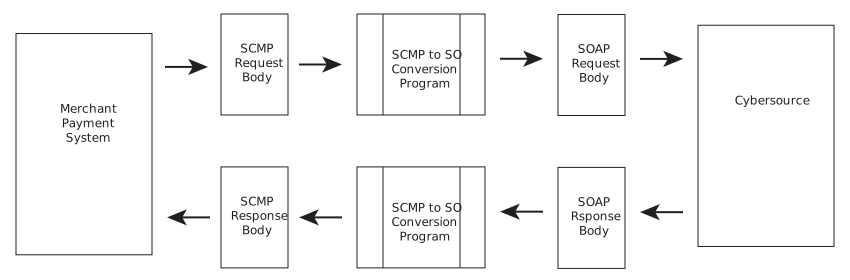
An example program for C++, .NET, and PHP are available on GitHub: GitHub Sample Code
Prerequisites
There are no prerequisites for this work.
Establish the Simple Order Payload Conversion
- Add the SCMP sample client program to your payment system. These files can be found in the GitHub resource referenced above.
- Update theapp.configfile. The following list is of values must be updated:
- merchantID: Set this to your production merchant ID used for commerce.
- keysDirectory: The file path to the P12 certificate generated previously.
- password: The P12 certificate password.
- keyAlias: The name of your MID.
Other values may be set at your discretion. Use the comments within the file to determine which values you wish to change. - After the SCMP payment software creates a request payload, run theprocessRequestmethod found in theUtil.csfile against that payload.This method converts the SCMP payload into an Simple Order payload and forwards the Simple Order payload to the correct Simple Order endpoint. When the Simple Order reply payload is received, the method will then convert the payload back into an SCMP payload for normal processing within the system.
Important: SOAP Toolkit Update for Java Users
As part of ongoing Security Enhancements, we are planning to upgrade SOAP API authentication
to P12 authentication. This upgrade is currently available for Java, C#, C++, and PHP.
You can upgrade to P12 Authentication in your SOAP toolkit by doing the following:
- Create a P12 certificate.
- Update the files in your project directory.
- Add your certificate information to atoolkit.propertiesfile in your project directory.
- Update yourpom.xmlfile.
You must upgrade the SOAP authentication to use P12 by these dates.
Test
: April 14, 2025Production
: May 13, 2025This update is currently available only for the Java, PHP, C++, and C#
SOAP Toolkits. The updated SDK is available here on GitHub: Other toolkits will be available in January 2025.
Available Environments
This update is available in these environments:
- Test: https://apitest.cybersource.com
- Production: https://apitest.cybersource.com
Java
Prerequisites
You must create a P12 certificate. See the .
With this change to use a P12 certificate in your Java SOAP toolkit configuration, your
application must meet these new requirements:
- Java 9 or higher
- Jakarta XML Web Services API
- JAX-WS Runtime
- Jakarta XML Web Services Distribution
- Bouncy Castle Cryptography APIs for JDK 1.5 to JDK 1.8
- Apache XML Security
- WSDL 1.219 or earlier
Java Migration Steps
Follow these steps to upgrade your Java code:
- Add these dependencies to thepom.xmlfile:<dependencies> <dependency> <groupId>jakarta.xml.ws</groupId> <artifactId>jakarta.xml.ws-api</artifactId> <version>4.0.2</version> </dependency> <dependency> <groupId>com.sun.xml.ws</groupId> <artifactId>jaxws-rt</artifactId> <version>4.0.3</version> <scope>runtime</scope> </dependency> <dependency> <groupId>com.sun.xml.ws</groupId> <artifactId>jaxws-ri</artifactId> <version>4.0.3</version> <type>pom</type> </dependency> <dependency> <groupId>org.bouncycastle</groupId> <artifactId>bcprov-jdk15to18</artifactId> <version>1.78</version> </dependency> <dependency> <groupId>org.apache.santuario</groupId> <artifactId>xmlsec</artifactId> <version>4.0.3</version> </dependency> </dependencies>
- Add this plugin to thepom.xmlfile:<build> <plugins> <plugin> <groupId>com.sun.xml.ws</groupId> <artifactId>jaxws-maven-plugin</artifactId> <version>4.0.3</version> <configuration> <wsdlUrls> <wsdlUrl>https://ics2wstest.ic3.com/commerce/1.x/transactionProcessor/CyberSourceTransaction_1.219.wsdl</wsdlUrl> </wsdlUrls> <keep>true</keep> <packageName>com.cybersource.stub</packageName> <sourceDestDir>src/main/java</sourceDestDir> </configuration> </plugin> </plugins> </build>
- Check the value that is set in thewsdlUrltag, and update the version if necessary. The latest version of the WSDL that can be supported is 1.219.
- Run this command in your terminal:mvn clean jaxws:wsimport
- Find these lines in your existing code:
Replace them with these lines:TransactionProcessorLocator service = new TransactionProcessorLocator(); URL endpoint = new URL(SERVER_URL); ITransactionProcessorStub stub = (ITransactionProcessorStub) service.getportXML (endpoint); stub._setProperty(WSHandlerConstants.USER, request .getMerchantID());TransactionProcessor service = new TransactionProcessor(); service.setHandlerResolver(portInfo - >{ List < Handler > handlerList = new ArrayList < >(); handlerList.add(new BinarySecurityTokenHandler()); return handlerList; }); ITransactionProcessor stub = service.getPortXML(); - Copy these files to your project directory:
- BinarySecurityTokenHandler.java
- PropertiesUtil.java
- SecurityUtil.java
- Add atoolkit.propertiesfile in thesrc/main/resourcesfolder in your project. Thetoolkit.propertiesfile must contain this content:
If you want to use your own properties file, you can make these changes in theMERCHANT_ID = <your_merchant_id> LIB_VERSION = 4.0.3 KEY_ALIAS = <your_certificate_key_alias> KEY_FILE = <your_certificate_file> KEY_PASS = <your_certificate_password> KEY_DIRECTORY = src/main/resourcesPropertiesUtil.javafile. - Add your P12 certificate to your key directory.
- Run these commands in your terminal:mvn clean installjava -jar target\JavaSoapToolkit.jar
- (Optional) You can confirm that your configuration is updated successfully by checking that your request was authenticated using a Bearer token. To confirm, add this command after line 54 in thesrc\main\java\com\cybersource\BinarySecurityTokenHandler.javafile:System.out.println( soapMessageContext );
Important: SOAP Toolkit Update for C++ Users
As part of ongoing Security Enhancements, we are planning to upgrade SOAP API authentication
to P12 authentication. This upgrade is currently available for Java, C#, C++, and PHP.
You can upgrade to P12 Authentication in your SOAP toolkit by doing the following:
- Create a P12 certificate.
- Update the files in your project directory.
- Add your certificate information to atoolkit.propertiesfile in your project directory.
- Update yourpom.xmlfile.
You must upgrade the SOAP authentication to use P12 by these dates.
Test
: April 14, 2025Production
: May 13, 2025This update is currently available only for the Java, PHP, C++, and C#
SOAP Toolkits. The updated SDK is available here on GitHub: Other toolkits will be available in January 2025.
Available Environments
This update is available in these environments:
- Test: https://apitest.cybersource.com
- Production: https://apitest.cybersource.com
C++
C++ Prerequisites
You must create a P12 certificate. See the REST Getting Started Developer Guide.
With this change to use a P12 certificate in your C++ SOAP toolkit configuration, the new
requirements for your application will be:
- GSOAP 2.8.135 or higher (developer version including header files)
- OpenSSL 3.4.0 or higher (developer version including header files)
- G++ compiler
Migration Steps
Follow these steps to upgrade your existing C++ code:
- Update your existing Makefile.Change thecybsdemotarget from:cybsdemo: sample.cpp $(SOAPH) $(SOAPCPP) ../gsoap/dom.cpp wsseapi.o smdevp.o $(CPP) $(CFLAGS) -o cybsdemo sample.cpp soapC.cpp soapClient.cpp ../gsoap/dom.cpp $(SOAPCPP) wsseapi.o smdevp.o $(LIBS)To:cybsdemo: sample.cpp $(SOAPH) $(SOAPCPP) ../gsoap/dom.cpp wsseapi.o smdevp.o $(CPP) $(CFLAGS) -o cybsdemo sample.cpp soapC.cpp ../gsoap/dom.cpp stdsoap2.cpp ../gsoap/import/custom/struct_timeval.cpp ../gsoap/plugin/threads.c ../gsoap/plugin/mecevp.c ../gsoap/plugin/wsaapi.c wsseapi.o smdevp.o soapITransactionProcessorProxy.cpp ../gsoap/import/gsoapWinInet.cpp PropertiesUtil.cpp BinarySecurityTokenHandler.cpp $(LIBS)If you do not have an existing Makefile, you can use one of the following Makefiles:
- UnixBuildAllCommented.Makefile
- UnixQuickBuild.Makefile
- WindowsBuildAllCommented.Makefile
- WindowsQuickBuild.Makefile
Cybersourcerecommends that you use UnixBuildAllCommented.Makefile or WindowsBuildAllCommented.Makefile. If you need to make changes to individual targets,Cybersourcerecommends that you use UnixQuickBuild.Makefile or WindowsQuickBuild.Makefile, as each target can be built individually. - CyberSourceTransaction WSDL and XSD version 1.224 are available here:If you want to use a different version, download your preferred version to the project directory and update the versions in theheadertarget of your makefile. For example, change:header: CyberSourceTransaction_1.224.wsdl $(GWSDL) -t ../gsoap/WS/WS-typemap.dat -s -o cybersource.h CyberSourceTransaction_1.224.wsdlto:header: CyberSourceTransaction_1.219.wsdl $(GWSDL) -t ../gsoap/WS/WS-typemap.dat -s -o cybersource.h CyberSourceTransaction_1.219.wsdl
- Add gsoap to the compile path. You can do this by using one of these methods:
- Copy the gsoap directory, including the header files, to one level above the project directory.
- Update all paths in the Makefile that reference 'gsoap' to point to where gsoap is located.
- Update your sample.cpp file to match your test credentials:
If you do not have an existing sample.cpp file, you can use the version that is provided here: sample.cpp.const char *MERCHANT_ID = "your_merchant_id"; const char *TRANSACTION_KEY = "your_transaction_key";If you are using an existing sample.cpp file from a previous C++ SOAP Toolkit, you must refer to all "upgrading from previous versions" comments throughout sample.cpp to see what has changed. - Include these new source files in your project:
- BinarySecurityTokenHandler.cpp
- BinarySecurityTokenHandler.h
- PropertiesUtil.cpp
- PropertiesUtil.h
- stdsoap2.cpp
- stdsoap2.h
- The toolkit.properties configuration file is read from the same location as the executable at run time.Edit the toolkit.properties configuration file to match your test credentials:MERCHANT_ID= KEY_ALIAS= KEY_FILE= KEY_PASS= KEY_DIRECTORY=You must make sure that there are no spaces at the start and end of the lines, or either side of=.
- Run this command in your terminal:make headerThis generates the cybersource.h file.
- Insert this text in the Import section of cybersource.h:#import "WS-Header.h"
- Run this command in your terminal:make sourceThis generates these files:
- soapITransactionProcessorProxy.cpp
- soapITransactionProcessorProxy.h
- ITransactionProcessor.runTransaction.req.xml
- ITransactionProcessor.runTransaction.res.xml
- ITransactionProcessor.nsmap
- soapStub.h
- soapH.h
- soapC.cpp
- Run these commands in your terminal:make wsseapi.o make smdevp.o make cybsdemoThis generates the cybsdemo.exe executable.
- Add your P12 certificate to theKEY_DIRECTORY.
- Run the cybsdemo.exe executable in your terminal.A successful console output consists of thekeyFilefull path, followed by the response from the web service and no errors. For example:keyFile full path: C:/keys/test_p12_file.p12 decision = APPROVED reasonCode = 0 requestID = 6017349752184504643266 requestToken = Axxd6DCgJoj77wSTjm5pe7DwFPfjpNDMyadDIZ/u1Pfje7D9IGU1ogwAGkmXoDc3JoZmTToZDIAAvxSz ccAuthReply.reasonCode = 0
Important: SOAP Toolkit Update for C# Users
As part of ongoing Security Enhancements, we are planning to upgrade SOAP API authentication
to P12 authentication. This upgrade is currently available for Java, C#, C++, and PHP.
You can upgrade to P12 Authentication in your SOAP toolkit by doing the following:
- Create a P12 certificate.
- Update the files in your project directory.
- Add your certificate information to atoolkit.propertiesfile in your project directory.
- Update yourpom.xmlfile.
You must upgrade the SOAP authentication to use P12 by these dates.
Test
: April 14, 2025Production
: May 13, 2025This update is currently available only for the Java, PHP, C++, and C#
SOAP Toolkits. The updated SDK is available here on GitHub: Other toolkits will be available in January 2025.
Available Environments
This update is available in these environments:
- Test: https://apitest.cybersource.com
- Production: https://apitest.cybersource.com
C#
Prerequisites
You must create a P12 certificate. See the .
With this change to use a P12 certificate in your C# SOAP toolkit configuration, your
application must meet these new requirements:
- .NET Framework 4.7.2 and later Redistributable Package
- Portable.BouncyCastle
PHP Prerequisites
You must create a P12 certificate. See the .
With this change to use a P12 certificate in your PHP SOAP toolkit configuration, the new
requirements for your application will be:
- PHP 5.6x and higher
- PHP SOAP extension
- PHP OpenSSL extension
Migration Steps
Follow these steps to upgrade your C# code:
- Add the following service URL as a service reference to your project:
wherehttps://ics2wstest.ic3.com/commerce/1.x/transactionProcessor/CyberSourceTransaction_N.NNN.wsdlN.NNNis the latest server API version.This will generate a Connected Services section in your project. It will also generate anapp.configfile for your project. - Add the following sections to the top of yourapp.configfile:<configuration> <configSections> <section name="toolkitProperties" type="System.Configuration.NameValueSectionHandler"/> </configSections> <toolkitProperties> <add key="MERCHANT_ID" value="<your_merchant_id>"/> <add key="KEY_ALIAS" value="<your_certificate_key_alias>"/> <add key="KEY_FILE" value="<your_certificate_file>"/> <add key="KEY_PASS" value="<your_certificate_password>"/> <add key="KEY_DIRECTORY" value="<path/to/certificate/file>"/> </toolkitProperties> </configuration>The<configSections>tag must be the first section inside<configurations>.
- In the generatedapp.configfile, leave the<binding>section as it is.The<binding>section must look like this:<bindings> <basicHttpBinding> <binding name="ITransactionProcessor"> <security mode="Transport"/> </binding> </basicHttpBinding> </bindings>
- Add this dependency to thepackages.configfile:<packages> <package id="Portable.BouncyCastle" version="1.9.0" targetFramework="net472" /> </packages>
- Install the dependency:nuget install packages.config -OutputDirectory packages
- Add this package reference to your.csprojfile:
The steps for adding a new dependency can also be done through Visual Studio Package Manager.<Reference Include="BouncyCastle.Crypto, Version=1.9.0.0, Culture=neutral, PublicKeyToken=0e99375e54769942, processorArchitecture=MSIL"> <HintPath>packages\Portable.BouncyCastle.1.9.0\lib\net40\BouncyCastle.Crypto.dll</HintPath> </Reference> - Add your P12 certificate to theKEY_DIRECTORY.ThisKEY_DIRECTORYlocation must be accessible to your code. Ensure that your code has permission to read this location.
- Copy these files to your project directory and import them to your project:
- CertificateCacheUtility.cs
- InspectorBehavior.cs
- PropertiesUtility.cs
- SecurityUtility.cs
- SoapEnvelopeUtility.cs
- Find these lines in your existing code:
Replace them with these lines:TransactionProcessorClient proc = new TransactionProcessorClient(); proc.ChannelFactory.Credentials.UserName.UserName = request.merchantID; proc.ChannelFactory.Credentials.UserName.Password = TRANSACTION_KEY; ReplyMessage reply = proc.runTransaction(request);TransactionProcessorClient proc = new TransactionProcessorClient(); proc.Endpoint.EndpointBehaviors.Add(new InspectorBehavior()); ReplyMessage reply = proc.runTransaction(request); - Find your installation of .NET Framework.This is often located at one of these locations:
- C:\Windows\Microsoft.NET\Framework\v4.0.30319(32-bit)
- C:\Windows\Microsoft.NET\Framework64\v4.0.30319(64-bit)
- UsemsBuild.exeto compile your project.<path_to_framework>\msBuild.exe <name_of_project>.csproj
- Run the project executable:bin\<configuration>\<project_name>.exe
- (Optional) You can confirm that your configuration is updated successfully by checking that your request was authenticated using a Bearer token. To confirm, add this command after line 59 in theCSharpSoapToolkit\InspectorBehavior.csfile:Console.WriteLine(request.ToString());
Important: SOAP Toolkit Update for PHP Users
As part of ongoing Security Enhancements, we are planning to upgrade SOAP API authentication
to P12 authentication. This upgrade is currently available for Java, C#, C++, and PHP.
You can upgrade to P12 Authentication in your SOAP toolkit by doing the following:
- Create a P12 certificate.
- Update the files in your project directory.
- Add your certificate information to atoolkit.propertiesfile in your project directory.
- Update yourpom.xmlfile.
You must upgrade the SOAP authentication to use P12 by these dates.
Test
: April 14, 2025Production
: May 13, 2025This update is currently available only for the Java, PHP, C++, and C#
SOAP Toolkits. The updated SDK is available here on GitHub: Other toolkits will be available in January 2025.
Available Environments
This update is available in these environments:
- Test: https://apitest.cybersource.com
- Production: https://apitest.cybersource.com
PHP
PHP Prerequisites
You must create a P12 certificate. See the .
With this change to use a P12 certificate in your PHP SOAP toolkit configuration, the new
requirements for your application will be:
- PHP 5.6x and higher
- PHP SOAP extension
- PHP OpenSSL extension
PHP Migration Steps
Follow these steps to upgrade your existing PHP code:
- Update the following service URL (WSDL_URL) in your code:https://ics2wstest.ic3.com/commerce/1.x/transactionProcessor/CyberSourceTransaction_N.NNN.wsdlN.NNNis the latest server API version.
- Copy these files to your project directory:
- ExtendedClientWithToken.php
- PropertiesUtility.php
- SecurityUtility.php
- FInd these lines in your existing code:
Replace them with these lines:$soapClient = new ExtendedClient(WSDL_URL, array());$soapClient = new ExtendedClientWithToken( WSDL_URL, array( 'SSL' => array( 'KEY_ALIAS' => 'YOUR KEY ALIAS', 'KEY_FILE' => 'YOUR CERTIFICATE FILE', 'KEY_PASS' => 'YOUR KEY PASS', 'KEY_DIRECTORY' => 'PATH TO CERTIFICATES' ) ) ); - Update the necessary values for these fields in your code:
- MERCHANT_ID
- KEY_ALIAS
- KEY_FILE
- KEY_PASS
- KEY_DIRECTORY
- Add your P12 certificate to theKEY_DIRECTORY.ThisKEY_DIRECTORYlocation must be accessible to your code. Ensure that your code has permission to read this location.
- Run the code:php <sample_PHP_file>
- (Optional) You can confirm that your configuration is updated successfully by confirming that your request was authenticated using a Bearer token. To confirm, add this command after line 109 in theExtendedClientWithToken.phpfile:print_r($request);
Features Introduced This Week
No customer-facing features were released this week.
Fixed Issues
No customer-facing fixes were released this week.
Known Issues
Reporting | RITM18309968
- Description
- An intermittent issue can cause the Purchase and Refund report to display duplicate rows.
- Audience
- Merchants who use the Purchase and Refund report.
- Technical Details
- None.
- Workaround
- None.
Payments | 1694196
- Description
- Due to an intermittent issue, credit authorizations (online credit) might be processed as standard credits (offline credit). This issue can affect compliance in some mandated regions.
- Audience
- Merchants who use credit authorizations to refund customers.
- Technical Details
- None.
- Workaround
- None.
Payments | RITM18769444
- Description
- Due to an intermittent issue, when merchants on the GetNet gateway cancel a credit using the Cancel Transaction API, an internal error sometimes occurs.
- Audience
- Users of the Cancel Transaction API on the GetNet gateway.
- Technical Details
- None.
- Workaround
- None.
Fraud Management Essentials | 1672469
- Description
- Search results for Fraud Managerment Essentials in the Business Center are currently prevented from being exported.
- Audience
- Users of Fraud Management Essentials.
- Technical Details
- None.
- Workaround
- Try using the Reporting feature or copy and paste from the user interface.
Custom Roles on VAP | 1641831
- Description
- When a reseller account uses the Visa Analytics Platform (VAP) to create a custom role for a merchant-level user, the role is not applied, and the user does not inherit the permissions for the custom role.
- Audience
- Users of VAP who use custom roles.
- Technical Details
- None.
- Workaround
- To add the custom role:
- Navigate to the newly created account's user profile.
- From the User Role drop-down menu, select CUSTOM.
- Create the custom role.