On This Page
Intelligent Commerce Developer Guide
Intelligent Commerce
Developer GuideThis section describes how to use this guide and where to find further information.
- Audience and Purpose
- This guide is intended for developers who want to add theIntelligent Commerceinto their payment system.
- Conventions
- This statement appears in this document:IMPORTANTAnImportantstatement contains information essential to successfully completing a task or learning a concept.
- Related Documentation
- Visit theCybersourcedocumentation hub to find additional processor-specific versions of this guide and additional technical documentation.
- Customer Support
- For support information about any service, visit the Support Center:
Recent Revisions to This Document
25.12.01
Added section describing how to create an instrument identifier token to enable the Passkey
Service. See Create an Instrument Identifier Token in the Prerequisites
section.
25.11.01
Added instructions about how to set up Passkey Service. See Set Up Passkey Service in the Prerequisites section.
25.09.01
Pilot release.
Introduction to Intelligent Commerce
Intelligent Commerce
Intelligent Commerce
on Cybersource
enables your AI agents to process
purchase intents and complete transactions on behalf of your customers. When integrated
into your agentic workflows, Intelligent Commerce
enables your customers
to submit a purchase intent using your agents. Your agents then display a list of
purchase options that best match your customers' intent. When your customers choose a
purchase option, your agents retrieve your customers' tokenized payment credentials and
complete the transaction using your payment system. To enable fast and secure future
purchases, Intelligent Commerce
uses the Token Management Service
(TMS
) to securely tokenize and retrieve your customers'
payment credentials for a frictionless checkout experience.This guide explains how you can use
Intelligent Commerce
to manage the
entire transaction experience, from initial intent to verifying transaction
completion.Benefits
These are the key benefits of Intelligent Commerce:
- Connecting to multiple card networks with one integration, enabling your customers to use their preferred payment method.
- Expanding your business to more customers by being able to accept a variety of card types.
- Processing agent-driven transactions using Visa's transaction authentication, includingTMSand passkey capabilities.
- Capturing your customer's purchase intent to verify that your agent is acting in accordance with the customer's instruction.
Customer Purchase Intent Examples
When your customers use your agents to begin their purchase intent, they can send
messages like these:
- Here's a list of back-to-school supplies. Find and purchase all of these supplies. Keep the total purchase amount under $100.
- I'm looking for men's black running shoes that are a size 10.5. My purchase limit is $150. Only show me shoes that are rated positively.
- Find me a flight from Austin to Chicago on September 14th in the morning. I have a carry-on and I need to check a bag. My purchase limit is $350.
Prerequisites
These are the requirements you must complete before you can use
Intelligent Commerce
:- Your website must have agentic or AI capabilities on your website that your customers can use to find the most relevant products and services.
- You must create aCybersourcemerchant ID (MID) or organization ID. To sign up for a sandbox account, see the Sandbox Account Sign Up page.
- You must create a REST API shared secret key. To create a key with an existing organization or merchant account, see the . If you need to sign up for a sandbox account, the sign up process creates a test key.
- Your system must be REST compliant. For more information, see theGetting Started with REST Guide. The guide explains how to complete all of the above requirements.
- Obtain atoken requester IDand arelationship ID. To obtain these IDs, contact yourCybersourceaccount manager.
- You must set up theTMSPasskey Service that is used to authenticate your customers. For more information, see Create an Instrument Identifier Token and Set Up Passkey Service.
Create an Instrument Identifier Token
Before you can set up and authenticate a customer using the Passkey Service, you must
create an instrument identifier token to contain the customer's payment credentials.
Instrument identifier tokens represent tokenized payment account numbers. Tokenized
payment account information includes a primary account number (PAN) for card payments, or a US
or Canadian bank account number and routing number for an ACH bank account. An instrument
identifier token can exist independently, or it can be associated with a payment instrument.
Endpoint
Test:
POST
https://apitest.cybersource.com
/tms/v1/instrumentidentifiersProduction:
POST
https://api.cybersource.com
/tms/v1/instrumentidentifiersProduction in India:
POST
https://api.in.cybersource.com
/tms/v1/instrumentidentifiersRequired Fields for Creating an Instrument Identifier
- card.number
Related Information
Optional Fields for Creating an Instrument
Identifier
- bankAccount.number
- bankAccount.routingNumber
- billTo.address1
- billTo.address2
- billTo.administrativeArea
- billTo.country
- billTo.locality
- billTo.postalCode
- card.expirationMonth
- card.expirationYear
- card.securityCode
- processingInformation.authorizationOptions.initiator. merchantInitiatedTransaction.previousTransactionID
Related Information
REST Example: Creating a Card Instrument Identifier
Request
{
  "card": {
    "number": "4111XXXX11111111"
  }
}
Response to a Successful Request
{
  "_links": {
    "self": {
      "href": "https://apitest.cybersource.com/tms/v1/instrumentidentifiers/7010000000016241111"
    },
    "paymentInstruments": {
      "href": "https://apitest.cybersource.com/tms/v1/instrumentidentifiers/7010000000016241111/paymentinstruments"
    }
  },
  "id": "7010000000016241111",
  "object": "instrumentIdentifier",
  "state": "ACTIVE",
  "card": {
    "number": "411111XXXXXX1111"
  },
  "metadata": {
    "creator": "testrest"
  }
}
Set Up Passkey Service
Before your agents can begin sending Intelligent Commerce API requests to
Cybersource
, you
must first set up the TMS
Passkey Service.Passkey Service is an e-commerce authentication solution that is built on Fast Identity
Online (FIDO). Passkey Service uses device-based authentication to provide a consistent
and secure payment experience. Passkey Service provides a streamlined customer
experience and enhances security by standardizing local authentication. Passkey Service
also offers eligibility for liability shift under the digital authentication
framework.
A Passkey Service credential is assigned to a device and card combination after a
successful cardholder authentication. You can use this Passkey Service credential during
cardholder checkout when the same device and payment card are used. This avoids repeated
calls to the issuer and optimizes the cardholder's payment experience.
- Prerequisite
- The Passkey Service requires the customer's payment credentials to be stored in aTMSinstrument identifier token. You must create an instrument identifier token for each of your customer's payment credentials before you can begin using the Passkey Service.
- To create an instrument identifier, see Create an Instrument Identifier.
IMPORTANT
This feature is in the pilot phase. You have early access to this
feature even though it might contain bugs or unfinished work. You should consider the
risk when using this feature.
Passkey Service Workflow
This workflow illustrates the process of integrating to Passkey
Service and binding a network token to a device or browser.
Figure:
Passkey Service Workflow
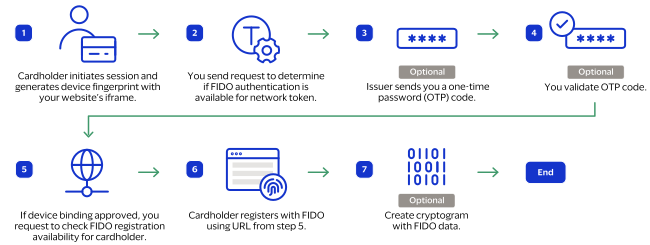
- The cardholder initiates a session and generates a device fingerprint with the iframe on your website. For information about iframes and the Visa Token Service SDK, contact yourCybersourceaccount manager.
- You send a request to determine if FIDO authentication is available for the network token. These are the possible responses that indicate the Passkey Service authentication status:
- AUTHENTICATE: The device and network token combination is registered with Passkey Service. The authentication takes places through the iframe.
- AUTHENTICATION_REGISTRATION: The device and network token combination is not registered with Passkey Service and the issuer has approved the device binding.
- STEP_UP_AUTHENTICATE: The device and network token combination is not registered with Passkey Service and the issuer has challenged the device binding.
For more information see Create Tokenized Card Authentication Options. - (Optional) You inform the issuer to send a one-time password (OTP) code. This step is required if the response to creating authentication options returns a value ofSTEP_UP_AUTHENTICATEin theactionfield, and thestepUpOptions.methodfield is set to one of these values:
- OTP_SMS
- OTP_EMAIL
- OTP_ONLINE_BANKING
- (Optional) You validate the OTP code from the issuer. See Validate a One-Time Password or Issuer Authentication Code.
- If you get a notification that the device binding was approved and authentication step-up method is app-to-app, customer service, or outbound call, or you receive a response ofAUTHENTICATION_REGISTRATIONin step 2 or step 4, then send a request to determine if FIDO registration is available for the cardholder. See Create Tokenized Card Authentication Registration.
- The cardholder registers with FIDO using the iframe with URL from the previous step.
- Create a cryptogram with FIDO data. See Create Tokenized Credentials with Authenticated Passkey Service Credentials. This step is optional if you are sending a payment.
Iframe Requirements
This section describes the required credentials and field mappings for your iframe.
Token Requestor — Token Service Provider Iframe Credentials
You must use Token Requestor — Token Service Provider (TR-TSP) keys to communicate
with the Visa Token Service (VTS) iframe. You can use these keys to create the
session information for VTS and Passkey Service. For information on iframes and the
Visa Token Service SDK, you must contact your account manager.
IMPORTANT
The API key values for the
apikey
credential will expire in September 2027.Credential | Value | Environment |
|---|---|---|
apikey | 7FHE5LL5WUC6Y2B0TXJA21B552D9gwg-qst7xs6t7q93wnpO0 | Test |
apikey | 5FYESOMP3P07E36BKCGM216UNY5DdJido3x8fJ2h43gpXeK4g | Production |
externalAppId | CybsSuperProfileTMS | Test |
externalAppId | CybsSuperProfileTMS | Production |
TMS Iframe Mapping
TMS
Iframe MappingWhen you send tokenized card authentication requests with
TMS
, the fields in your <iframe>
element must be mapped correctly
to the corresponding TMS
and Visa Token Service fields.
This table lists the correct TMS
to Visa Token Service
field mappings.
TMS Field | Visa Token Service Iframe Field |
|---|---|
action | type |
authenticatedIdentities.data | fidoResponse.fidoBlob |
authenticatedIdentities.id | fidoResponse.identifier |
authenticatedIdentities.relyingPartyId | fidoResponse.rpID |
authenticationContext.endpoint | authenticationContext.endpoint |
authenticationContext.id | authenticationContext.identifier |
authenticationContext.payload | authenticationContext.payload |
authenticationContext.platformType | authenticationContext.platformType |
deviceInformation.httpAcceptContent | browserData.browserHeader |
deviceInformation.httpBrowserColorDepth | browserData.browserColorDepth |
deviceInformation.httpBrowserJavaEnabled | browserData.browserJavaEnabled |
deviceInformation.httpBrowserJavaScriptEnabled | browserData.browserJavascriptEnabled |
deviceInformation.httpBrowserLanguage | browserData.browserLanguage |
deviceInformation.httpBrowserScreenHeight | browserData.browserScreenHeight |
deviceInformation.httpBrowserScreenWidth | browserData.browserScreenWidth |
deviceInformation.httpBrowserTimeDifference | browserData.browserTimeZone |
deviceInformation.ipAddress | browserData.ipAddress |
deviceInformation.platformType | platformType |
deviceInformation.userAgentBrowserValue | browserData.userAgent |
sessionInformation.secureToken | sessionContext.secureToken |
Create Tokenized Card Authentication Options
This section describes how to determine what Passkey Service authentication options
are available for a tokenized card.
Passkey Service Authentication Response Indicators
After you send this request, the response includes one of these indicators in the
action
field. These are the possible values that indicate the
Passkey Service authentication status:- AUTHENTICATE: The device and network token combination is registered with Passkey Service.
- STEP_UP_AUTHENTICATE: The device and network token combination is not registered with Passkey Service and the issuer has challenged the device binding.
- AUTHENTICATION_REGISTRATION: The device and network token combination is not registered with Passkey Service and the issuer has approved the device binding.
Endpoint
Test:
POST
https://apitest.cybersource.com
/tms/v2/tokenized-cards/{tokenId}
/authentication-optionsProduction:
POST
https://api.cybersource.com
/tms/v2/tokenized-cards/{tokenId}
/authentication-optionsProduction in India:
POST
https://api.in.cybersource.com
/tms/v2/tokenized-cards/{tokenId}
/authentication-optionsThe is the identifier of the tokenized card.
{tokenId}
Required Fields for Creating Tokenized Card
Authentication Options
- authenticatorRenderMethod
- clientCorrelationId
- deviceInformation.httpAcceptContent
- deviceInformation.httpBrowserColorDepth
- deviceInformation.httpBrowserJavaEnabled
- deviceInformation.httpBrowserJavaScriptEnabled
- deviceInformation.httpBrowserLanguage
- deviceInformation.httpBrowserScreenHeight
- deviceInformation.httpBrowserScreenWidth
- deviceInformation.httpBrowserTimeDifference
- deviceInformation.ipAddress
- deviceInformation.platformType
- deviceInformation.userAgentBrowserValue
- merchantInformation.merchantDescriptor.name
- merchantInformation.merchantDescriptor.url
- orderInformation.amountDetails.currency
- orderInformation.amountDetails.totalAmount
- sessionInformation.secureToken
Related Information
REST Example: Creating Tokenized Card Authentication Options
Request
{
    "clientCorrelationId": "4cba8c5a-5b21-4812-8783-f91be68aa72a",
    "sessionInformation": {
        "secureToken": "ezAwMX06AAM1NUHl3Gq8..."
    },
    "authenticatorRenderMethod": "IFRAME",
    "orderInformation": {
        "amountDetails": {
            "totalAmount": "1765.95",
            "currency": "978"
        }
    },
    "merchantInformation": {
        "merchantDescriptor": {
            "name": "TWVyY2hhbnQgVlphRjVYQmo",
            "url": "aHR0cHM6Ly93d3cuTWVyY2hhbnQtVlphRjVYQmouY29t"
        }
    },
    "deviceInformation": {
        "platformType": "WEB",
        "ipAddress": "104.28.3.217",
        "httpAcceptContent": "text/html,application/xhtml+xml,application/xml;q=0.9,image/avif,image/webp,image/apng,*/*;q=0.8,application/signed-exchange;v=b3;q=0.7",
        "httpBrowserLanguage": "en-US",
        "httpBrowserJavaEnabled": false,
        "httpBrowserJavaScriptEnabled": true,
        "httpBrowserColorDepth": "24",
        "httpBrowserScreenHeight": "1080",
        "httpBrowserScreenWidth": "1920",
        "httpBrowserTimeDifference": "420",
        "userAgentBrowserValue": "Mozilla/5.0(WindowsNT10.0;Win64;x64)AppleWebKit/537.36(KHTML,likeGecko)Chrome/134.0.0.0Safari/537.36Edg/134.0.0.0"
    }
}
Response to a Successful Request
{
  "action": "AUTHENTICATE",
  "authenticationContext": {
    "id": "de5ecf36-2a5c-4f66-b01f-15d6e5b73715",
    "endpoint": "/vts-auth/authenticate",
    "payload": "aGVsbG8",
    "platformType": "WEB"
  }
}
Response to a Successful Request
{
  "action": "STEP_UP_AUTHENTICATE",
  "stepUpOptions": [
    {
      "method": "OTP_SMS",
      "value": "415****000",
      "source": "1-800-847-291",
      "id": "YWEwMjFhZmFkZDU4ZWI0NDJjYTM0MzY4OTY1YjdhMDE="
    },
    {
      "method": "OTP_EMAIL",
      "value": ip****@email.com,
      "source": email@issuer.com,
      "id": "ZTk1OGUyODM4ZjAzN2MzMmQzZGMyMjZjNGQwZTcyMDE="
    },
    {
      "method": "OTP_ONLINE_BANKING",
      "value": "Mobile Banking",
      "source": "br.com.bradesco.next|a2a",
      "id": "NzNkOWI0ZTVjNzA3MzA4OGQ4YmFjYjYwMDg0ZjRjMDE="
    },
    {
      "method": "APP_TO_APP",
      "value": "Verify with Bank",
      "source": https://usa.visa.com/app/af801b935f19ae03a718d40,
      "id": "MGZlY2YwOWQ3MDZmYWZjZGMwN2Y0YjllZWFkODZkMDI=",
      "requestPayload": "cDkwMjFhZmFkZDVmZ2hqMzQyY2EzNTM2ODk2NWI3YTAy"
    },
    {
      "method": "APP_TO_APP",
      "value": "Verify with Bank",
      "source": https://usa.visa.com/app/af801b935f19ae03a718d40,
      "id": "ZWY2NTkyZDFiNjZlZTMwZGQyNjg1ZDY3NDY0YTc1MDE=",
      "requestPayload": "cDkwMjFhZmFkZDVmZ2hqMzQyY2EzNTM2ODk2NWI3YTAy",
      "platformType": "WEB",
      "subMethod": "3DS"
    },
    {
      "method": "CUSTOMER_SERVICE",
      "value": "1-800-847-2911",
      "id": "ODk3Zjk1ODhhMzI1YTllOTY1ZGU0NjhhMDY4OGE3MDE="
    },
    {
      "method": "OUTBOUND_CALL",
      "value": "415****000",
      "id": "YmIwMjFhZmFkZDU5ZWI0NDJjYTM1MzY4OTY1YjdhMDI="
    }
  ]
}
Response to a Successful Request
{
  "action": "AUTHENTICATION_REGISTRATION"
}
Create a One-Time Password for Tokenized Card Authentication
This section describes how to create a one-time password (OTP) for a tokenized card.
Before you send this request, you must receive the
STEP_UP_AUTHENTICATE
value in the action
field from the create tokenized card authentication options
request. For more
information see Create Tokenized Card Authentication Options.The issuer is notified when the
stepUpOptions.method
field is set
to one of these values:- OTP_SMS
- OTP_EMAIL
- OTP_ONLINE_BANKING
Endpoint
Test:
POST
https://apitest.cybersource.com
/tms/v2/tokenized-cards/{tokenId}
/authentication-options/one-time-passwordsProduction:
POST
https://api.cybersource.com
/tms/v2/tokenized-cards/{tokenId}
/authentication-options/one-time-passwordsProduction in India:
POST
https://api.in.cybersource.com
/tms/v2/tokenized-cards/{tokenId}
/authentication-options/one-time-passwordsThe is the identifier of the tokenized card.
{tokenId}
Required Field for Creating an OTP for Tokenized Card
Authentication
- clientCorrelationId
- Set to the client reference ID.
- stepUpOption.id
Related Information
REST Example: Creating an OTP for Tokenized Card
Authentication
Request
{
  "clientCorrelationId": "aB3cD4eF5gH6iJ7kL8mN9oP0qR1sT2uV3wX",
  "stepUpOption": {
    "id": "YWEwMjFhZmFkZDU4ZWI0NDJjYTM0MzY4OTY1YjdhMDE="
  }
}
Response to a Successful Request
{
  "maxRequestsAllowed": 0,
  "maxVerificationAllowed": 0,
  "codeExpiration": 0
}
Validate a One-Time Password or Issuer Authentication Code
This section describes how to validate one-time passwords (OTPs) and issuer
authentication codes. When the cardholder receives their OTP by means of their
selected method (SMS, email, or online banking) or an issuer authentication code
from their banking application, you can verify the OTP or issuer authentication code
by including it in the endpoint here.
Endpoint
Test:
POST
https://apitest.cybersource.com
/tms/v2/tokenized-cards/{tokenId}
/authentication-options/validateProduction:
POST
https://api.cybersource.com
/tms/v2/tokenized-cards/{tokenId}
/authentication-options/validateProduction in India:
POST
https://api.in.cybersource.com
/tms/v2/tokenized-cards/{tokenId}
/authentication-options/validateThe is the identifier of the tokenized card.
{tokenId}
Required Field for Validating an OTP or Issuer
Authentication Code
- clientCorrelationId
- Set to the client reference ID.
- issuerAuthCode
- Required whenotpis not included in the request.
- otp
- Required whenissuerAuthCodeis not included in the request.
- stepUpOption.id
Related Information
REST Example: Validating an OTP or Issuer Authentication
Code
Request
{
  "clientCorrelationId": "aB3cD4eF5gH6iJ7kL8mN9oP0qR1sT2uV3wX",
  "stepUpOption": {
    "id": "YWEwMjFhZmFkZDU4ZWI0NDJjYTM0MzY4OTY1YjdhMDE="
  },
  "otp": "456789",
  "issuerAuthCode": "HTZlY2YwOWQ3MDZmYWZj4GMww2Y0YjllZWFkODZkHJI="
}
Response to a Successful Request
{
  "action": "AUTHENTICATION_REGISTRATION"
}
Create Tokenized Card Authentication Registration
This section describes how to create a Passkey Service registration for a device and
network token combination. You can use the information from the
authenticatedIdentities
field object to send an optional request to the
payment-credentials
API.Before you send this request, you must receive the
AUTHENTICATION_REGISTRATION
value in the
action
field from the create tokenized card authentication
options
or validate a one-time password or issuer authentication code
request. For more information see Create Tokenized Card Authentication Options and Validate a One-Time Password or Issuer Authentication Code. Endpoint
Test:
POST
https://apitest.cybersource.com
/tms/v2/tokenized-cards/{tokenId}
/authentication-registrationsProduction:
POST
https://api.cybersource.com
/tms/v2/tokenized-cards/{tokenId}
/authentication-registrationsProduction in India:
POST
https://api.in.cybersource.com
/tms/v2/tokenized-cards/{tokenId}
authentication-registrationsThe is the identifier of the tokenized card.
{tokenId}
Required Fields for Creating Tokenized Card
Authentication Registration
- authenticatorRenderMethod
- buyerInformation.language
- clientCorrelationId
- deviceInformation.httpAcceptContent
- deviceInformation.httpBrowserColorDepth
- deviceInformation.httpBrowserJavaEnabled
- deviceInformation.httpBrowserJavaScriptEnabled
- deviceInformation.httpBrowserLanguage
- deviceInformation.httpBrowserScreenHeight
- deviceInformation.httpBrowserScreenWidth
- deviceInformation.httpBrowserTimeDifference
- deviceInformation.ipAddress
- deviceInformation.platformType
- deviceInformation.userAgentBrowserValue
- merchantInformation.merchantDescriptor.name
- merchantInformation.merchantDescriptor.url
- orderInformation.amountDetails.currency
- orderInformation.amountDetails.totalAmount
- orderInformation.billTo.email
- sessionInformation.secureToken
Related Information
Optional Fields for Creating Tokenized Card
Authentication Registration
- orderInformation.billTo.phoneNumber
Related Information
REST Example: Creating Tokenized Card Authentication
Registration
Request
{
  "clientCorrelationId": "4cba8c5a-5b21-4812-8783-f91be68aa72a",
  "sessionInformation": {
    "secureToken": "ezAwMX06AAM1NUHl3Gq8..."
  },
  "authenticatorRenderMethod": "IFRAME",
  "orderInformation": {
    "amountDetails": {
      "totalAmount": "1765.95",
      "currency": "978"
    },
    "billTo": {
      "email": "test@cybs.com",
      "phoneNumber": "4158880000"
    }
  },
  "merchantInformation": {
    "merchantDescriptor": {
      "name": "TWVyY2hhbnQgVlphRjVYQmo",
      "url": "aHR0cHM6Ly93d3cuTWVyY2hhbnQtVlphRjVYQmouY29t"
    }
  },
  "deviceInformation": {
    "platformType": "WEB",
    "ipAddress": "104.28.3.217",
    "httpAcceptContent": "text/html,application/xhtml+xml,application/xml;q=0.9,image/avif,image/webp,image/apng,*/*;q=0.8,application/signed-exchange;v=b3;q=0.7",
    "httpBrowserLanguage": "en-US",
    "httpBrowserJavaEnabled": false,
    "httpBrowserJavaScriptEnabled": true,
    "httpBrowserColorDepth": "24",
    "httpBrowserScreenHeight": "1080",
    "httpBrowserScreenWidth": "1920",
    "httpBrowserTimeDifference": "420",
    "userAgentBrowserValue": "Mozilla/5.0(WindowsNT10.0;Win64;x64)AppleWebKit/537.36(KHTML,likeGecko)Chrome/134.0.0.0Safari/537.36Edg/134.0.0.0"
  },
  "buyerInformation": {
    "language": "en_US"
  }
}
Response to a Successful Request
{
  "authenticationContext": {
    "id": "de5ecf36-2a5c-4f66-b01f-15d6e5b73715",
    "endpoint": "/vts-auth/authenticate",
    "payload": "aGVsbG8",
    "platformType": "WEB"
  }
}
Create Tokenized Credentials with Authenticated Passkey Service Credentials
This section describes how create a cryptogram that supplies authenticated Passkey
Service credentials.
Endpoint
Test:
POST
https://apitest.cybersource.com
/tms/v2/tokens/{tokenId}/
payment-credentialsProduction:
POST
https://api.cybersource.com
/tms/v2/tokens/{tokenId}/
payment-credentialsProduction in India:
POST
https://api.in.cybersource.com
/tms/v2/tokens/{tokenId}/
payment-credentialsThe is the identifier of the tokenized card.
{tokenId}
Required Fields for Creating Tokenized Credentials with
Authenticated Passkey Service Credentials
- clientCorrelationId
- transactionType
- orderInformation.amountDetails.totalAmount
- orderInformation.amountDetails.currency
- merchantInformation.merchantDescriptor.name
- merchantInformation.merchantDescriptor.url
- deviceInformation.platformType
- deviceInformation.httpAcceptContent
- deviceInformation.ipAddress
- deviceInformation.httpBrowserLanguage
- deviceInformation.httpBrowserJavaEnabled
- deviceInformation.httpBrowserJavaScriptEnabled
- deviceInformation.httpBrowserColorDepth
- deviceInformation.httpBrowserScreenHeight
- deviceInformation.httpBrowserScreenWidth
- authenticatedIdentities.data
- authenticatedIdentities.id
- authenticatedIdentities.provider
- authenticatedIdentities.relyingPartyId
- deviceInformation.httpBrowserTimeDifference
- deviceInformation.userAgentBrowserValue
- orderInformation.billTo.address1
- orderInformation.billTo.administrativeArea
- orderInformation.billTo.country
- orderInformation.billTo.email
- orderInformation.billTo.firstName
- orderInformation.billTo.lastName
- orderInformation.billTo.locality
- Required for countries where billing address information is available.
- orderInformation.billTo.postalCode
Related Information
REST Example: Creating Tokenized Credentials with
Authenticated Passkey Service Credentials
Request
{
  "clientCorrelationId": "aB3cD4eF5gH6iJ7kL8mN9oP0qR1sT2uV3wX",
  "transactionType": "ECOM",
  "orderInformation": {
    "amountDetails": {
      "totalAmount": "102.21",
      "currency": "USD"
    },
    "billTo": {
      "firstName": "John",
      "lastName": "Smith",
      "email": "user@example.com",
      "address1": "123 Fake Street",
      "locality": "Austin",
      "administrativeArea": "TX",
      "postalCode": "78751",
      "country": "US"
    }
  },
  "merchantInformation": {
    "merchantDescriptor": {
      "name": "Merchants Name",
      "url": "http://www.example.com"
    }
  },
  "authenticatedIdentities": [
    {
      "id": "HmP8qo_aBOGemJEV_VoC@KaolERq_rL>95dfJV[vtYvDkwf]MchKrItaM2^sGI0",
      "provider": "string",
      "data": "@=TFf@Xhj[Vl\\tpf3zJ=bl@E0HCqVcPlxFz]3yRLbG3bTpBzDJtHNMlnP6pL",
      "relyingPartyId": "<Base64URL encoded string>"
    }
  ],
  "deviceInformation": {
    "ipAddress": "127.0.0.1",
    "httpAcceptContent": "Mozilla/5.0 (Windows NT 6.1; WOW64) AppleWebKit/537.36 (KHTML, like Gecko) Chrome/41.0.2228.0 Safari/537.36",
    "httpBrowserLanguage": "en-US",
    "httpBrowserJavaEnabled": true,
    "httpBrowserJavaScriptEnabled": true,
    "httpBrowserColorDepth": "24",
    "httpBrowserScreenHeight": "1080",
    "httpBrowserScreenWidth": "1920",
    "httpBrowserTimeDifference": "-480",
    "userAgentBrowserValue": "Mozilla/5.0 (Windows NT 6.1; WOW64) AppleWebKit/537.36 (KHTML, like Gecko) Chrome/41.0.2228.0 Safari/537.36"
  }
}
Response to a Successful Request
{
  "_links": {
    "self": {
      "href": "/tms/v2/tokens/7010000000016241111/payment-credentials"
    }
  },
  "tokenizedCard": {
    "state": "ACTIVE",
    "enrollmentId": "c2d1b36fad46aed1ca8318dca5ed1e02",
    "tokenReferenceId": "168661ada5115ca3589b1ba3dabdb102",
    "number": "4895370016750801",
    "expirationMonth": "12",
    "expirationYear": "2023",
    "type": "visa",
    "cryptogram": "AwAAAADggP/Ce5+ZciCXQUUAAAA=",
    "eci": "05",
    "requestorId": "40010052236",
    "card": {
      "suffix": "0394",
      "expirationMonth": "12",
      "expirationYear": "2023"
    }
  },
  "card": {
    "number": "411111XXXXXX1111"
  },
  "issuer": {
    "paymentAccountReference": "V0010013022298169667504231315"
  },
  "processingInformation": {
    "authorizationOptions": {
      "initiator": {
        "merchantInitiatedTransaction": {
          "previousTransactionId": "123456789619999"
        }
      }
    },
    "commerceIndicator": "vbv"
  }
}
Response to a Successful Request
{
  "_links": {
    "self": {
      "href": "/tms/v2/tokens/7010000000016241111/payment-credentials"
    }
  },
  "tokenizedCard": {
    "state": "ACTIVE",
    "enrollmentId": "c2d1b36fad46aed1ca8318dca5ed1e02",
    "tokenReferenceId": "168661ada5115ca3589b1ba3dabdb102",
    "number": "4895370016750801",
    "expirationMonth": "12",
    "expirationYear": "2023",
    "type": "visa",
    "cryptogram": "AwAAAADggP/Ce5+ZciCXQUUAAAA=",
    "eci": "07",
    "requestorId": "40010052236",
    "card": {
      "suffix": "0394",
      "expirationMonth": "12",
      "expirationYear": "2023"
    }
  },
  "card": {
    "number": "411111XXXXXX1111"
  },
  "issuer": {
    "paymentAccountReference": "V0010013022298169667504231315"
  },
  "processingInformation": {
    "authorizationOptions": {
      "initiator": {
        "merchantInitiatedTransaction": {
          "previousTransactionId": "123456789619999"
        }
      }
    },
    "commerceIndicator": "internet"
  }
}
Order of API Requests
This diagram illustrates the order in which your AI agent can send API requests.
Figure:
Order of API Requests
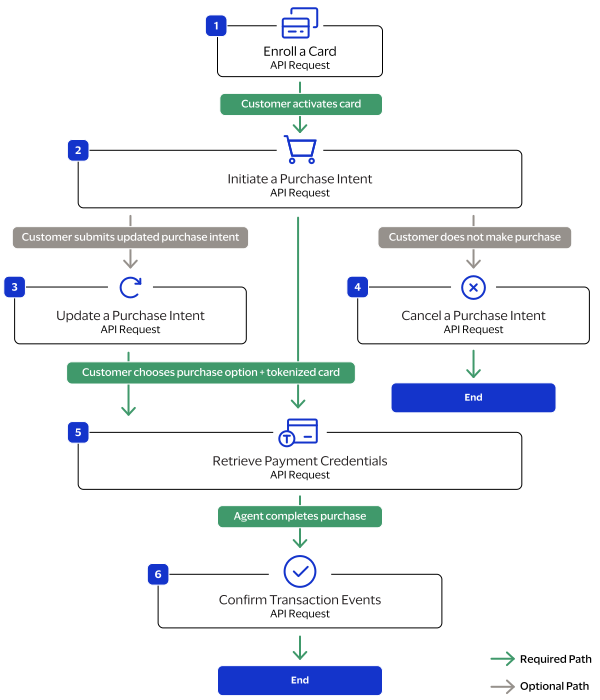
- Your AI agent sends anenroll a cardrequest when a new customer creates an account on your website and enrolls a payment card to tokenize. After the request is sent, the customer must verify their identity to activate a tokenized card. For more information, see Enroll a Card.
- Your AI agent sends aninitiate a purchase intentrequest when the customer submits a purchase intent using your website's AI capabilities. For more information, see Initiate a Purchase Intent.
- (Optional) If the customer updates their purchase intent, your AI agent sends anupdate a purchase intentrequest. For more information, see Update a Purchase Intent.
- (Optional) If the customer chooses tonotmake a purchase after submitting a purchase intent, your AI agent sends acancel purchase intentrequest. For more information, see Cancel a Purchase Intent.
- Your AI agent sends aretrieve payment credentialsrequest when the customer chooses a purchase intent option and chooses the tokenized card they want to use. For more information, see Retrieve Payment Credentials.
- After your AI agent uses your payment system to process the transaction, your AI agent sends aconfirm transaction eventsrequest to verify that the purchase is complete. For more information, see Confirm Transaction Events.
Complete a Purchase Workflow
This diagram illustrates the required steps to complete a purchase using
Intelligent Commerce
.Figure:
Complete a Purchase Workflow
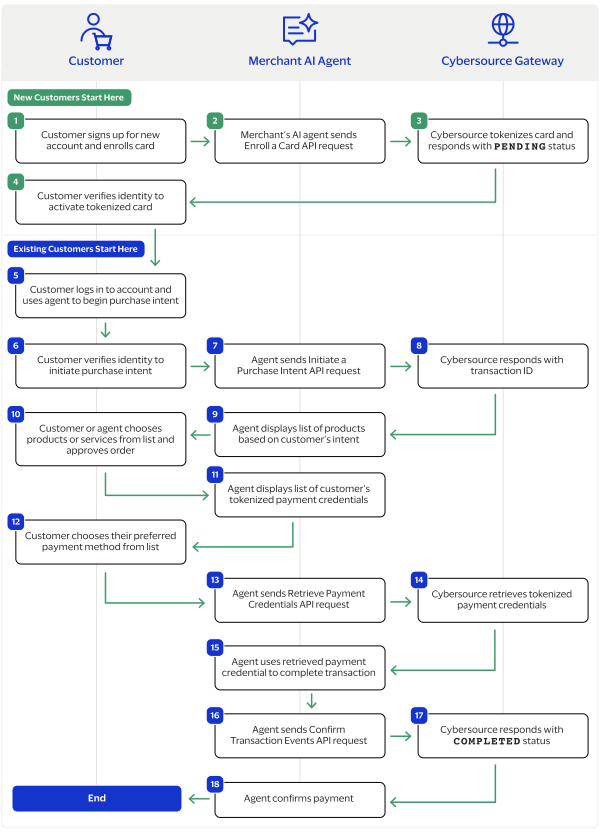
- The new customer signs up for an account on your website and enrolls their card credentials.
- Your AI agent sends an enroll a card API request toCybersource.
- Cybersourcetokenizes the customer's card and responds with aPENDINGstatus. For more information, see Enroll a Card.
- The customer verifies their identity to activate their tokenized card.
- The customer logs in to their account and uses the agent to submit a purchase inquiry.
- The customer verifies their identity to authenticate the purchase intent.
- Your agent sends an initiate a purchase intent request toCybersource.
- Cybersourceresponds with an instruction ID. For more information, see Initiate a Purchase Intent.
- Your agent displays list of best products or services based on the customer's purchase intent.
- The customer chooses a product or service.
- Your agent displays the customer's tokenized cards.
- The customer chooses their preferred card.
- Your agent sends a retrieve payment credentials toCybersourceand includes the instruction ID. For more information, see Retrieve Payment Credentials.
- Cybersourceretrieves the customer's tokenized card.
- Your agent uses the customer's tokenized card and your payment system to complete the transaction.
- Your agent sends a confirm transaction events request toCybersource. For more information, see Confirm Transaction Events.
- Cybersourceresponds with aCOMPLETEDstatus.
- Your agent confirms payment and checkout completion to customer.
Endpoints
Intelligent Commerce
uses these endpoints to complete purchases:- Enroll a Card
- Production:POSThttps://api.cybersource.com/acp/v1/tokens
- Test:POSThttps://apitest.cybersource.com/acp/v1/tokens
- Initiate a Purchase Intent
- Production:POSThttps://api.cybersource.com/acp/v1/instructions
- Test:POSThttps://apitest.cybersource.com/acp/v1/instructions
- Update a Purchase Intent
- Production:PUThttps://api.cybersource.com/acp/v1/instructions/{instructionID}
- Test:PUThttps://apitest.cybersource.com/acp/v1/instructions/{instructionID}
- Cancel a Purchase Intent
- Production:PUThttps://api.cybersource.com/acp/v1/instructions/{instructionID}/cancel
- Test:PUThttps://apitest.cybersource.com/acp/v1/instructions/{instructionID}/cancel
- Retrieve Payment Credentials
- Production:POSThttps://api.cybersource.com/acp/v1/instructions/{instructionID}/credentials
- Test:POSThttps://apitest.cybersource.com/acp/v1/instructions/{instructionID}/credentials
- Confirm Transaction Events
- Production:POSThttps://api.cybersource.com/acp/v1/instructions/{instructionID}/confirmations
- Test:POSThttps://apitest.cybersource.com/acp/v1/instructions/{instructionID}/confirmations
Enroll a Card
Your agents can enroll a customer's card for tokenization during the customer's account
registration or when the customer begins a new purchase intent. Each customer must have
at least one card enrolled in
Intelligent Commerce
to complete a
purchase. Enrolling a card tokenizes the customer's billing information, such as their
name and address. Intelligent Commerce
uses the Token Management Service
(TMS
) to tokenize the customer's payment credentials.A successful response includes the
PENDING
status in the
status
field. After your agents send the request, the customer is
immediately prompted to verify their identity in order to activate the enrolled
card.Endpoints
Send a POST request to one of these endpoints.
Production:
POST
https://api.cybersource.com
/acp/v1/tokensTest:
POST
https://apitest.cybersource.com
/acp/v1/tokensRequired Fields for Enrolling a Card
- billTo.country
- billTo.countryCallingCode
- billTo.phoneNumber
- clientCorrelationId
- consumerIdentity.identityType
- consumerIdentity.identityValue
- deviceInformation.applicationName
- deviceInformation.deviceData.brand
- deviceInformation.deviceData.type
- deviceInformation.fingerprintSessionId
- deviceInformation.ipAddress
- paymentInformation.customer.id
- paymentInformation.instrumentIdentifier.id
- paymentInformation.paymentInstrument.id
Additional Information
For complete descriptions of the request fields, see the Enroll a card section in the
Intelligent Commerce
API Hub.Optional Fields for Enrolling a Card
- assuranceData[].additionalData
- assuranceData[].authenticatedIdentities.data
- assuranceData[].authenticatedIdentities.id
- assuranceData[].authenticatedIdentities.provider
- assuranceData[].authenticationContext.action
- assuranceData[].verificationEntity
- assuranceData[].verificationEvents
- assuranceData[].verificationMethod
- assuranceData[].verificationResults
- assuranceData[].verificationTimestamp
- assuranceData[].verificationType
- billTo.email
- billTo.firstName
- billTo.fullName
- billTo.lastName
- billTo.numberIsVoiceOnly
- buyerInformation.language
- buyerInformation.merchantCustomerId
- buyerInformation.personalIdentification[].id
- buyerInformation.personalIdentification[].issuedBy
- buyerInformation.personalIdentification[].type
- consentData[].acceptedTime
- consentData[].effectiveUntil
- consentData[].id
- consentData[].source
- consentData[].type
- consumerIdentity.identityProvider
- consumerIdentity.identityProviderUrl
- deviceInformation.clientDeviceId
- deviceInformation.country
- deviceInformation.deviceData.manufacturer
- deviceInformation.deviceData.model
- deviceInformation.userAgent
- enrollmentReferenceData.enrollmentReferenceProvider
- enrollmentReferenceData.enrollmentReferenceType
- tokenizedCard.tokenReferenceId
Example: Enrolling a Card
Request
{
  "clientCorrelationId": "3e1b7943-6567-4965-a32b-5aa93d057d35",
  "deviceInformation": {
    "userAgent": "SampleUserAgent",
    "applicationName": "My Magic App",
    "fingerprintSessionId": "finSessionId",
    "country": "US",
    "deviceData": {
      "type": "Mobile",
      "manufacturer": "Apple",
      "brand": "Apple",
      "model": "iPhone 16 Pro Max"
    },
    "ipAddress": "192.168.0.100",
    "clientDeviceId": "000b2767814e4416999f4ee2b099491d2087"
  },
  "buyerInformation": {
    "merchantCustomerId": "3e1b7943-6567-4965-a32b-5aa93d057d35",
    "personalIdentification": [
      {
        "type": "The identification type",
        "id": "1",
        "issuedBy": "The government agency that issued the driver's license or passport"
      }
    ],
    "language": "en"
  },
  "billTo": {
    "firstName": "John",
    "lastName": "Doe",
    "fullName": "John Michael Doe",
    "email": "john.doe@example.com",
    "countryCallingCode": "1",
    "phoneNumber": "5551234567",
    "numberIsVoiceOnly": false,
    "country": "US"
  },
  "consumerIdentity": {
    "identityType": "EMAIL_ADDRESS",
    "identityValue": "john.doe@example.com",
    "identityProvider": "PARTNER",
    "identityProviderUrl": "https://identity.partner.com"
  },
  "paymentInformation": {
    "customer": {
      "id": ""
    },
    "paymentInstrument": {
      "id": ""
    },
    "instrumentIdentifier": {
      "id": "3C189A435506B99AE0634136CF0AEB92"
    }
  },
  "tokenizedCard": {
    "tokenReferenceId": "15602cf86c70b8b63297134292ec5801"
  },
  "enrollmentReferenceData": {
    "enrollmentReferenceType": "TOKEN_REFERENCE_ID",
    "enrollmentReferenceProvider": "VTS"
  },
  "assuranceData": [
    {
      "verificationType": "DEVICE",
      "verificationEntity": "10",
      "verificationEvents": [
        "01"
      ],
      "verificationMethod": "02",
      "verificationResults": "01",
      "verificationTimestamp": "1735690745",
      "authenticationContext": {
        "action": "AUTHENTICATE"
      },
      "authenticatedIdentities": {
        "data": "authenticatedIdentities.data",
        "provider": "VISA_PAYMENT_PASSKEY",
        "id": "authenticatedIdentities.id"
      },
      "additionalData": "assuranceData.additionalData"
    }
  ],
  "consentData": [
    {
      "id": "550e8400-e29b-41d4-a716-446655440000",
      "type": "PERSONALIZATION",
      "source": "CLIENT",
      "acceptedTime": "1719169800",
      "effectiveUntil": "1750705800"
    }
  ]
}
Response to a Successful Request: Pending
{
  "clientCorrelationId": "3e1b7943-6567-4965-a32b-5aa93d057d35",
  "status": "PENDING",
  "pendingEvents": [
    "PENDING_CARDHOLDER_AUTHENTICATION"
  ]
}
Response to an Successful Request: Active
{
"clientCorrelationId": "3e1b7943-6567-4965-a32b-5aa93d057d35",
"status": "ACTIVE"
}
Initiate a Purchase Intent
When the customer uses your agents to submit a purchase intent, your agents send an
initiate a purchase intent
request. This request enables Cybersource
to
verify that your agent is acting in accordance with the customer's intent.After your agents initiate a purchase intent, you must save the instruction ID in the
instructionId
response field in your system. The instruction ID
is needed to complete follow-on API requests, such as updating and cancelling the
purchase intent.Endpoints
Send a POST request to one of these
endpoints:
Production:
POST
https://api.cybersource.com
/acp/v1/instructionsTest:
POST
https://apitest.cybersource.com
/acp/v1/instructionsRequired Fields for Initiating a Purchase Intent
- assuranceData[].verificationMethod
- assuranceData[].verificationResults
- assuranceData[].verificationTimestamp
- clientCorrelationId
- deviceInformation.applicationName
- deviceInformation.deviceData.brand
- deviceInformation.deviceData.type
- deviceInformation.fingerprintSessionId
- deviceInformation.ipAddress
- mandates[].declineThreshold.amount
- mandates[].declineThreshold.currencyCode
- mandates[].description
- mandates[].effectiveUntilTime
- mandates[].mandateId
- paymentInformation.customer.id
- paymentInformation.instrumentIdentifier.id
- paymentInformation.paymentInstrument.id
- tokenizedCard.number
Additional Information
For complete descriptions of the request fields, see the Initiate a purchase intent section in the
Intelligent Commerce
API Hub.Optional Fields for Initiating a Purchase Intent
- assuranceData[].additionalData
- assuranceData[].authenticatedIdentities.data
- assuranceData[].authenticatedIdentities.id
- assuranceData[].authenticatedIdentities.provider
- assuranceData[].authenticationContext.action
- assuranceData[].verificationEntity
- assuranceData[].verificationEvents
- assuranceData[].verificationType
- buyerInformation.merchantCustomerId
- consumerPrompt
- deviceInformation.clientDeviceId
- deviceInformation.deviceData.manufacturer
- deviceInformation.deviceData.model
- mandates[].preferredMerchantName
- mandates[].quantity
- recurringPaymentInformation.occurrence
Example: Initiating a Purchase Intent
Request
{
  "clientCorrelationId": "3e1b7943-6567-4965-a32b-5aa93d057d35",
  "paymentInformation": {
    "customer": {
      "id": ""
    },
    "paymentInstrument": {
      "id": ""
    },
    "instrumentIdentifier": {
      "id": "7019989999909760770"
    }
  },
  "deviceInformation": {
    "applicationName": "My Magic App ",
    "fingerprintSessionId": "e48ac10b-58cc-4372-a567-0e02b2c3d489",
    "deviceData": {
      "type": "Mobile",
      "manufacturer": "Apple",
      "brand": "Apple",
      "model": "iPhone 16 Pro Max"
    },
    "ipAddress": "192.168.0.100",
    "clientDeviceId": "c48ac10b-58cc-4372-a567-0e02b2c3d489"
  },
  "tokenizedCard": {
    "number": "15602cf86c70b8b63297134292ec5801"
  },
  "assuranceData": [
    {
      "verificationType": "DEVICE",
      "verificationEntity": "10",
      "verificationEvents": [],
      "verificationMethod": "02",
      "verificationResults": "01",
      "verificationTimestamp": "1735690745",
      "authenticationContext": {
        "action": "AUTHENTICATE"
      },
      "authenticatedIdentities": {
        "data": "authenticatedData",
        "provider": "provider",
        "id": "f48ac10b-58cc-4372-a567-0e02b2c3d489"
      },
      "additionalData": ""
    }
  ],
  "mandates": [
    {
      "mandateId": "d48ac10b-58cc-4372-a567-0e02b2c3d489",
      "preferredMerchantName": "",
      "declineThreshold": {
        "amount": "10000.00",
        "currencyCode": "USD"
      },
      "effectiveUntilTime": "1784841600",
      "quantity": null,
      "description": "description"
    }
  ],
  "recurringPaymentInformation": {
    "occurrence": "WEEKLY"
  },
  "buyerInformation": {
    "merchantCustomerId": "example-customer-id"
  },
  "consumerPrompt": "Authorize payment to Best Buy"
}
Response to a Successful Request
{
  "clientCorrelationId": "3e1b7943-6567-4965-a32b-5aa93d057d35",
  "instructionId": "1-5C8B7367EC00c229ec8a-c96c-a932-a1f3-1faa8f138b01"
}
Follow-On Requests
Follow-On Requests
After the purchase intent is initiated, your agents can send these follow-on requests
using the instruction ID from the response message.
- Update a Purchase
- Your agent can update the initial purchase intent when the customer changes their purchase inquiry. For more information, see Update a Purchase Intent.
- Cancel a Purchase
- Your agent can cancel a purchase intent when the customer chooses to not make the purchase. For more information, see Cancel a Purchase Intent.
- Retrieve Payment Credentials
- Your agent can retrieve a customer's payment credentials for a fast checkout experience. For more information, see Retrieve Payment Credentials.
- A customer's credentials are retrievable only when the customer has enrolled their payment information and chosen a purchase intent option.
- Confirm Transaction Events
- Your agent can verify when a purchase is complete and display a payment confirmation to the customer. For more information, see Confirm Transaction Events.
Update a Purchase Intent
Use the information in this section to enable your agents to update a purchase intent.
This can occur when a customer wants to modify their initial purchase intent, such as
changing the spending limit or retrieving new purchase options.
Endpoints
Send a PUT request to one of these endpoints. The
is the instruction ID from the initial
create a purchase response.
{instructionID}
Production:
PUT
https://api.cybersource.com
/acp/v1/instructions/{instructionID}
Test:
PUT
https://apitest.cybersource.com
/acp/v1/instructions/{instructionID}
Required Fields for Updating a Purchase Intent
- assuranceData[].verificationMethod
- assuranceData[].verificationResults
- assuranceData[].verificationTimestamp
- clientCorrelationId
- deviceInformation.applicationName
- deviceInformation.deviceData.brand
- deviceInformation.deviceData.type
- deviceInformation.fingerprintSessionId
- deviceInformation.ipAddress
- mandates[].declineThreshold.amount
- mandates[].declineThreshold.currencyCode
- mandates[].description
- mandates[].effectiveUntilTime
- mandates[].mandateId
- paymentInformation.instrumentIdentifier.id
- tokenizedCard.number
Additional Information
For complete descriptions of the request fields, see the Update a purchase intent section in the
Intelligent Commerce
API Hub.Optional Fields for Updating a Purchase Intent
- assuranceData[].additionalData
- assuranceData[].authenticatedIdentities.data
- assuranceData[].authenticatedIdentities.id
- assuranceData[].authenticatedIdentities.provider
- assuranceData[].authenticationContext.action
- assuranceData[].verificationEntity
- assuranceData[].verificationEvents
- assuranceData[].verificationType
- mandates[].quantity
Example: Updating a Purchase Intent
Request
{
  "clientCorrelationId": "3e1b7943-6567-4965-a32b-5aa93d057d35",
  "paymentInformation": {
    "instrumentIdentifier": {
      "id": "7019989999909760770"
    }
  },
  "deviceInformation": {
    "applicationName": "My Magic App ",
    "fingerprintSessionId": "e48ac10b-58cc-4372-a567-0e02b2c3d489",
    "deviceData": {
      "type": "Mobile",
      "brand": "appInstance.brand"
    },
    "ipAddress": "192.168.1.1"
  },
  "tokenizedCard": {
    "number": "15602cf86c70b8b63297134292ec5801"
  },
  "assuranceData": [
    {
      "verificationType": "DEVICE",
      "verificationEntity": "10",
      "verificationEvents": [],
      "verificationMethod": "02",
      "verificationResults": "01",
      "verificationTimestamp": "1745690745",
      "authenticationContext": {
        "action": "AUTHENTICATE, REGISTER"
      },
      "authenticatedIdentities": {
        "data": "authenticatedData",
        "provider": "provider",
        "id": "f48ac10b-58cc-4372-a567-0e02b2c3d489"
      },
      "additionalData": ""
    }
  ],
  "mandates": [
    {
      "mandateId": "d48ac10b-58cc-4372-a567-0e02b2c3d489",
      "declineThreshold": {
        "amount": "100.00",
        "currencyCode": "USD"
      },
      "effectiveUntilTime": "1795690745",
      "quantity": "10",
      "description": "Description of the product"
    }
  ],
  "recurringPaymentInformation": {},
  "buyerInformation": {}
}
Response to a Successful Request
{
  "clientCorrelationId": "3e1b7943-6567-4965-a32b-5aa93d057d35",
  "instructionId": "1-5C8B7367EC00c229ec8a-c96c-a932-a1f3-1faa8f138b01"
}
Cancel a Purchase Intent
Use the information in this section to cancel a purchase intent when a customer does not
want to make a purchase.
Endpoints
Send a PUT request to one of these endpoints. The
is the instruction ID from the create a
purchase response.
{instructionID}
Production:
PUT
https://api.cybersource.com
/acp/v1/instructions/{instructionID}
/cancelTest:
PUT
https://apitest.cybersource.com
/acp/v1/instructions/{instructionID}
/cancelRequired Fields for Cancelling a Purchase Intent
- assuranceData[].authenticatedIdentities.id
- assuranceData[].verificationMethod
- assuranceData[].verificationResults
- assuranceData[].verificationTimestamp
- clientCorrelationId
- deviceInformation.applicationName
- deviceInformation.deviceData.brand
- deviceInformation.deviceData.type
- deviceInformation.fingerprintSessionId
- deviceInformation.ipAddress
Additional Information
For complete descriptions of the request fields, see the Cancel a purchase intent section in the
Intelligent Commerce
API Hub.Optional Fields for Cancelling a Purchase Intent
- assuranceData[].AuthenticationContext.action
- assuranceData[].additionalData
- assuranceData[].authenticatedIdentities.data
- assuranceData[].authenticatedIdentities.provider
- assuranceData[].verificationEntity
- assuranceData[].verificationEvents
- assuranceData[].verificationType
- deviceInformation.clientDeviceId
- deviceInformation.country
- deviceInformation.deviceData.manufacturer
- deviceInformation.deviceData.model
- deviceInformation.userAgent
Example: Cancelling a Purchase Intent
Request
{
  "clientCorrelationId": "cancelIntentRequest",
  "deviceInformation": {
    "userAgent": "appInstance.userAgent",
    "applicationName": "appInstance.applicationName",
    "fingerprintSessionId": "assuranceData.methodResults.dfpSessionId",
    "country": "US",
    "deviceData": {
      "type": "appInstance.type",
      "manufacturer": "appInstance.manufacturer",
      "brand": "appInstance.brand",
      "model": "appInstance.model"
    },
    "ipAddress": "192.168.1.1",
    "clientDeviceId": "appInstance.clientDeviceId"
  },
  "assuranceData": [
    {
      "verificationType": "CARDHOLDER",
      "verificationEntity": "10",
      "verificationEvents": [
        "01"
      ],
      "verificationMethod": "02",
      "verificationResults": "02",
      "verificationTimestamp": "1753165632",
      "AuthenticationContext": {
        "action": "AUTHENTICATE, REGISTER"
      },
      "authenticatedIdentities": {
        "data": "fidoResponse.fidoBlob",
        "provider": "VISA_PAYMENT_PASSKEY",
        "id": "fidoResponse.identifier"
      },
      "additionalData": ""
    }
  ]
}
Response to a Successful Request
{
  "clientCorrelationId": "3e1b7943-6567-4965-a32b-5aa93d057d35",
  "instructionId": "1-5C8B7367EC00c229ec8a-c96c-a932-a1f3-1faa8f138b01"
}
Retrieve Payment Credentials
Use the information in this section to retrieve a customer's tokenized payment
credentials. During checkout, your agents display a list of the customer's tokenized
cards. When the customer chooses the card they want to pay with, your agents send a
retrieve payment credentials
request. After retrieving the customer's
tokenized card, your agents can use your payment system to complete the transaction.Endpoints
Send a POST request to one of these endpoints. The
is the instruction ID from the create a
purchase request.
{instructionID}
Production:
POST
https://api.cybersource.com
/acp/v1/instructions/{instructionID}
/credentialsTest:
POST
https://apitest.cybersource.com
/acp/v1/instructions/{instructionID}
/credentialsRequired Fields for Retrieving Payment
Credentials
- clientCorrelationId
- paymentInformation.instrumentIdentifier.id
- tokenizedCard.number
- transactionData[].clientReferenceInformation.code
- transactionData[].merchantInformation.merchantDescriptor. country
- transactionData[].merchantInformation.merchantDescriptor.url
- transactionData[].merchantInformation.merchantName
- transactionData[].orderInformation.amountDetail.currency
- transactionData[].orderInformation.amountDetail.totalAmount
Additional Information
For complete descriptions of the request fields, see the Retrieve payment credentials section in
the
Intelligent Commerce
API Hub.Optional Fields for Retrieving Payment
Credentials
- transactionData[].acquirerInformation.merchantId
- transactionData[].agreementInformation[].id
- transactionData[].deliveryMethod
- transactionData[].merchantInformation.domainName
- transactionData[].merchantInformation.language
- transactionData[].merchantLocale
- transactionData[].merchantOrderId
- transactionData[].orderInformation.amountDetail. discountAmount
- transactionData[].orderInformation.amountDetail.order. handlingAmount
- transactionData[].orderInformation.amountDetail.order. shippingAmount
- transactionData[].orderInformation.amountDetail. settlementAmount
- transactionData[].orderInformation.amountDetail. settlementcurrency
- transactionData[].orderInformation.amountDetail. subTotalAmount
- transactionData[].orderInformation.amountDetail. taxAmount
- transactionData[].paymentOptions.dpaDynamicDataTtlMinutes
- transactionData[].paymentOptions.dynamicDataType
- transactionData[].paymentServiceproviderName
- transactionData[].products[].additionalInfo[].key
- transactionData[].products[].additionalInfo[].value
- transactionData[].products[].policies.cancellationPolicy
- transactionData[].products[].policies.discountAndPromotions
- transactionData[].products[].policies.disputePolicy
- transactionData[].products[].policies.propertyName
- transactionData[].products[].policies.refundPolicy
- transactionData[].products[].policies.shippingPolicy
- transactionData[].products[].policies.termsAndConditions
- transactionData[].products[].productId
- transactionData[].products[].productName
- transactionData[].products[].productUrl
- transactionData[].products[].quantity
- transactionData[].products[].transactionAmount.discount
- transactionData[].products[].transactionAmount.shippingAndHandling
- transactionData[].products[].transactionAmount.subTotal
- transactionData[].products[].transactionAmount.tax
- transactionData[].products[].transactionAmount.transactionAmount
- transactionData[].products[].transactionAmount.transactionCurrencyCode
- transactionData[].products[].unitPrice.amount
- transactionData[].products[].unitPrice.currency
- transactionData[].shippingAddress.addressId
- transactionData[].shippingAddress.city
- transactionData[].shippingAddress.countryCode
- transactionData[].shippingAddress.createTime
- transactionData[].shippingAddress. deliveryContactDetails. contactEmailAddress
- transactionData[].shippingAddress. deliveryContactDetails. contactFullName
- transactionData[].shippingAddress.deliveryContactDetails.contactPhoneNumber.countryCode
- transactionData[].shippingAddress. deliveryContactDetails. contactPhoneNumber. numberIsVoiceOnly
- transactionData[].shippingAddress. deliveryContactDetails. contactPhoneNumber. phoneNumber
- transactionData[].shippingAddress. deliveryContactDetails. instructions
- transactionData[].shippingAddress.lastUsedTime
- transactionData[].shippingAddress.line1
- transactionData[].shippingAddress.line2
- transactionData[].shippingAddress.line3
- transactionData[].shippingAddress.name
- transactionData[].shippingAddress.state
- transactionData[].shippingAddress.zip
- transactionData[].transactionType
Example: Retrieving Payment Credentials
Request
{
  "clientCorrelationId": "retrievePaymentCredentialsRequest",
  "paymentInformation": {
    "instrumentIdentifier": {
      "id": "7019989999909760770"
    }
  },
  "tokenizedCard": {
    "number": "15602cf86c70b8b63297134292ec5801"
  },
  "transactionData": [
    {
      "clientReferenceInformation": {
        "code": "transactionDatatransactionReferenceId"
      },
      "agreementInformation": [
        {
          "id": "d48ac10b-58cc-4372-a567-0e02b2c3d489"
        }
      ],
      "acquirerInformation": {
        "merchantId¹": "transactionDatamerchantId"
      },
      "transactionType": "PURCHASE",
      "orderInformation": {
        "amountDetail": {
          "totalAmount": "100",
          "currency": "USD",
          "settlementAmount": "transactionDatatransactionAmounttransactionAmount",
          "settlementcurrency": "USD",
          "subTotalAmount": "100",
          "taxAmount": "100",
          "discountAmount": "100",
          "order": {
            "shippingAmount": "13",
            "handlingAmount": "transactionDatatransactionAmountshippingAndHandling"
          }
        }
      },
      "paymentServiceproviderName": "",
      "merchantOrderId": "d48ac10b-58cc-4372-a567-0e02b2c3d489",
      "shippingAddress": {
        "addressId¹": "",
        "name": "",
        "line1¹": "123 Main St",
        "line2": "Apt 1",
        "line3": "",
        "city¹": "San Francisco",
        "state¹": "CA",
        "countryCode": "US",
        "zip¹": "94105",
        "createTime": "1735690745",
        "lastUsedTime": "1735690745",
        "deliveryContactDetails": {
          "contactFullName": "",
          "contactEmailAddress": "",
          "contactPhoneNumber": {
            "countryCode": "",
            "phoneNumber": "",
            "numberIsVoiceOnly": "true"
          },
          "instructions": ""
        }
      },
      "merchantInformation": {
        "merchantName": "John Doe",
        "merchantDescriptor": {
          "country": "US",
          "url": "transactionDatashippingAddressmerchantUrl"
        },
        "domainName": "transactionDatamerchantDomain",
        "language": "en_US"
      },
      "deliveryMethod": "ADDRESS_ON_FILE",
      "paymentOptions": {
        "dpaDynamicDataTtlMinutes": "10080",
        "dynamicDataType": "TAVV"
      },
      "merchantLocale": "en_US",
      "products": [
        {
          "productId": "1234",
          "productName": "Balloons",
          "quantity": "10",
          "unitPrice": {
            "currency": "USD",
            "amount": "100.00"
          },
          "transactionAmount": {
            "transactionAmount": "100.00",
            "transactionCurrencyCode": "USD",
            "subTotal": "10.00",
            "tax": "1.10",
            "shippingAndHandling": "6.00",
            "discount": "6.00"
          },
          "productUrl": "",
          "policies": {
            "termsAndConditions": "",
            "cancellationPolicy": "",
            "refundPolicy": "",
            "disputePolicy": "",
            "shippingPolicy": "",
            "discountAndPromotions": "",
            "propertyName": ""
          },
          "additionalInfo": [
            {
              "key": "color",
              "value": "red"
            }
          ]
        }
      ]
    }
  ]
}
Response to a Successful Request
{
  "clientCorrelationId": "3e1b7943-6567-4965-a32b-5aa93d057d35",
  "transactionId": "1-5C8B7367EC00114ddb4b-f06a-0bff-7430-18d285223901",
  "status": "COMPLETED"
}
Confirm Transaction Events
Use the information in this section to verify when a transaction is complete. After your
agents use your customer's tokenized card and your payment system to process a
transaction, your agents can send the
confirm transaction events
request to let
you know that the payment is done processing.A successful payment is indicated by the
COMPLETED
status in the
status
response field. After your agents verify that the
transaction is complete, you can confirm the purchase with the customer.Endpoints
Send a POST request to one of these endpoints. The
is the instruction ID from the create a
purchase request.
{instructionID}
Production:
POST
https://api.cybersource.com
/acp/v1/instructions/{instructionID}
/confirmationsTest:
POST
https://apitest.cybersource.com
/acp/v1/instructions/{instructionID}
/confirmationsRequired Fields for Confirming Transaction Events
- clientCorrelationId
- transactionData[].clientReferenceInformation.code
- transactionData[].merchantInformation.merchantDescriptor. country
- transactionData[].merchantInformation.merchantDescriptor.url
- transactionData[].merchantInformation.merchantName
- transactionData[].orderInformation.amountDetail.currency
- transactionData[].orderInformation.amountDetail.totalAmount
Additional Information
For complete descriptions of the request fields, see the Confirm transaction events section in the
Intelligent Commerce
API Hub.Optional Field for Confirming Transaction Events
- transactionData[].type
Example: Confirming Transaction Events
Request
{
  "clientCorrelationId": "3e1b7943-6567-4965-a32b-5aa93d057d35",
  "transactionData": [
    {
      "clientReferenceInformation": {
        "code": "transactionDatatransactionReferenceId"
      },
      "acquirerInformation": {},
      "type": "PURCHASE",
      "orderInformation": {
        "amountDetail": {
          "totalAmount": "100.00",
          "currency": "USD"
        }
      },
      "merchantInformation": {
        "merchantName": "Test Merchant",
        "merchantDescriptor": {
          "country": "US",
          "url": "https://example.com"
        }
      }
    }
  ]
}
Response to a Successful Request
{
  "clientCorrelationId": "3e1b7943-6567-4965-a32b-5aa93d057d35",
  "transactionId": " ",
  "status": "COMPLETED",
  "signedPayload": "jws-signed-payload"
}
Create a Customer
This section describes how to create a customer token with no payment details.
Endpoint
Test:
POST
https://apitest.cybersource.com
/tms/v2/customersProduction:
POST
https://api.cybersource.com
/tms/v2/customersProduction in India:
POST
https://api.in.cybersource.com
/tms/v2/customersCreate an Instrument Identifier Token with Validated
Payment Details
This section describes how to create a instrument identifier token with validated payment
details.
Endpoint
Test:
POST
https://apitest.cybersource.com
/pts/v2/payments Production:
POST
https://api.cybersource.com
/pts/v2/payments Production in India:
POST
https://api.in.cybersource.com
/pts/v2/paymentscustomerTokenId
is the customer tokenID returned in the
id
field when you created the customer token. For more information, see Create a Customer.Push Provisioning for Network Tokens
IMPORTANT
This feature is in pilot phase. You have early access to this feature
even though it might contain bugs or unfinished work. Please consider the risk when
using this feature.
Push provisioning connects you with participating banks to enable the secure transfer of
customer and payment information that is stored by banks. Using push provisioning, the
issuer can provide credentials straight to your customer in seconds.
Prerequisites
Before using the push provisioning service, you must meet these requirements:
- You must be configured forTMS. See Token Management Service Onboarding.
- Network tokens must be enabled. For more information, see Network Token Enablement.
- Push provisioning must be enabled with the card brand.
- The issuer must be integrated with the card brand.
Token Management Service Onboarding
Token Management Service
OnboardingThis section contains information necessary to onboard merchants and
TMS
vault
management:Message-Level Encryption Keys
You must use message-level encryption (MLE) in order for personally identifiable
information, such as payment information, to be returned unmasked by
TMS
. You must create an MLE security key for your Cybersource
merchant account in the Business Center
before a TMS
response can return unmasked payment information using MLE.MLE keys can be created at the portfolio and transacting levels of an organization. You
must create an MLE key at the portfolio level of an organization if you want to use a
single MLE key for the encryption and decryption of payment information for multiple
merchants. To do so, you must log in to the
Business Center
using your portfolio
credentials and ensure that the MLE key is generated for your organization.MLE keys expire after 3 years.
Security keys can be used to make any request, including payments. Treat your security
keys as you would any secure password.
You must use separate keys for the test and production environments.
Prerequisite
You must have a tool such as OpenSSL installed on your system.
To create an MLE key, you must first extract a public key. You can use a tool such as
OpenSSL to extract the key:
openssl genrsa -out private.pem 2048 && openssl rsa -in private.pem -outform PEM -pubout -out public.pem
For information creating an MLE key, see Creating a Token Management Message-Level Encryption Key.
Instrument Identifier Tokens
Instrument identifier tokens represent tokenized payment account numbers. Tokenized
payment account information includes a primary account number (PAN) for card payments, or a US
or Canadian bank account number and routing number for an ACH bank account. An instrument
identifier token can exist independently, or it can be associated with a payment instrument.
An instrument identifier token can also contain an associated network token.
Instrument identifier tokens are associated with these features:
- Card Art
- TMScard art helps your customers select a card. See Card Art.
- Enrollable Network Tokens
- TMScan enroll certainnetwork tokensin an instrument identifier token to be used for future payments. Future payments require only the instrument identifier token for the payment information. The types of network tokens you can enroll into an instrument identifier are tokens used for in-app payment methods such as:
- Android Pay
- Apple Pay
- Chase Pay
- Google Pay
- Samsung Pay
- Visa Click to Pay
- Push Provisioning
- Push provisioning connects you with participating issuers to quickly provide credentials to your customers. See Push Provisioning for Network Tokens.
Portfolio MIDs for Partners
Partners will need to onboard merchants using a portfolio MID. To create
a portfolio MID, contact
Cybersource
support. For information about
creating a portfolio MID, visit the Support Center:Customer support will respond with a questionnaire. The below information will need to be
completed:
- Organization ID: Portfolio MID name
- Environment: Test and Production
- Business information: The business name and address
- Business contact: The contact that receives an email registration link to gain access toBusiness Centerthrough the portfolio MID.
- Technical contact: The contact that receives automatically generated notifications, such as product updates, as well as non-urgent notifications.
- Emergency contact: The contact that receives urgent messages such as service outage notifications
- Merchant notifications: This will send a welcome email to the business contact associated with the end merchant.
- Processing information: Not applicable.
- Product information:TMSonly
- Customer Support: Not applicable.
- Branding: Not applicable.
Payments with Instrument Identifier Tokens
This section contains information on making payments using instrument identifier
tokens.
An instrument identifier token represents either a payment card number or, in the case of
an ACH bank account, the routing and account numbers. The expiration date and billing
address fields are pass through fields. The pass-through fields are used for payment
network token enrollment with card associations.
You can make a payment using an existing instrument identifier token or create one. To
make a payment using a new instrument identifier token, you must include token creation
in the authorization request. For example:
To process a payment using an existing instrument identifier token, you must include the
instrument identifier token ID as the value in the
paymentInformation.instrumentIdentifier.id
field. For example: For more information on instrument identifier tokens, see Instrument Identifier Tokens.
Merchant ID Hierarchy
The
Business Center
is an online portal provisioned to partners and end
merchants. This portal can be used to onboard merchants, view transactional activity and
generate and download reports among other things. There are two environments associated with the
Business Center
. Each has its own
corresponding URL in order to gain access to the Business Center
for the
relevant environment:Test
: https://businesscentertest.cybersource.com
Production
: https://businesscenter.cybersource.com
In order to gain access to
Business Center
partners/merchants must be provisioned
with an Organization ID, otherwise known as a merchant ID (MID). There are multiple
types of MIDs:- Portfolio: This is typically a MID that is provisioned to partners. Portfolio MIDs enable partners to onboard merchants into either a test or production environment.
- Merchant: This is a parent MID that can house multiple transactional MIDs. This will be directly associated with the end merchant and will be created by the partner under the portfolio MID. This MID will be attached to specific functionality such as the token vault (Token Management Servicevault).
- Transactional: This is a child MID. Each partner’s end merchant may have multiple transactional MIDs. The transactional MID is typically used for processing intoToken Management Service, for example, to provision a network token via theToken Management ServiceAPI. This will be directly associated with the partners end merchant and will be created by the partner under the portfolio MID.
Retrieve an Instrument Identifier
This section describes how to retrieve an instrument identifier.
Endpoint
Test:
GET
https://apitest.cybersource.com
/tms/v1/instrumentidentifiers/{instrumentIdentifierTokenId}Production:
GET
https://api.cybersource.com
/tms/v1/instrumentidentifiers/{instrumentIdentifierTokenId}Production in India:
GET
https://api.in.cybersource.com
/tms/v1/instrumentidentifiers/{instrumentIdentifierTokenId}{instrumentIdentifierTokenId}
id
field when you created the instrument
identifier token. For more information, see Create an Instrument Identifier. Delete an Instrument Identifier
This section describes how to delete an instrument identifier.
Endpoint
Test:
DELETE
https://apitest.cybersource.com
/tms/v1/instrumentidentifiers/{instrumentIdentifierTokenId}Production:
DELETE
https://api.cybersource.com
/tms/v1/instrumentidentifiers/{instrumentIdentifierTokenId}Production in India:
DELETE
https://api.in.cybersource.com
/tms/v1/instrumentidentifiers/{instrumentIdentifierTokenId}{instrumentIdentifierTokenId}
id
field in the id
field when you created the instrument identifier token. For more information, see
Create an Instrument Identifier. Merchant ID Registration
A
Cybersource
MID is a unique value within Cybersource
that you define during account registration. Your MID identifies your merchant account
and payment configuration within Cybersource
systems. You provide this
identifier when you sign in to the Business Center
and submit transactions to
Cybersource
. Multiple MIDs can be configured for various token types. You receive the instrument
identifier token regardless of your account’s token type. Reasons for multiple MIDs
include:
- You have multiple processors.
- Point-of-sale terminals have unique MIDs, which are usually configured for the PAN-only instrument identifier token.
When you have multiple MIDs, you can set up one token vault to which all of your MIDs
have access or set up multiple vaults to limit access to tokens. See Token Vault Management for more information on setting up and managing
your token vault.
Create an Evaluation Account
To create an evaluation account, visit the
Business Center
Evaluation Account Sign-Up
page.To complete the registration process, follow the email instructions that you received
to activate your merchant account, and log in to the
Business Center
. Send your
merchantID
to TMS
representative supporting you with integration to create a vault and enable Token Management Service
with network tokens.Create an Instrument Identifier for Enrollable Network
Tokens
IMPORTANT
To create an instrument identifier for an enrollable network
token using the
Token Management Service
(TMS
), you must send the
request using message-level encryption (MLE). For more information about MLE, see Message-Level Encryption Keys.TMS
can enroll certain network tokens into an instrument
identifier token for future payments. Any future payments will require only the
instrument identifier token for the payment information.Enrollable network tokens can be used for these in-app payment methods:
- Android Pay
- Apple Pay
- Chase Pay
- Google Pay
- Samsung Pay
- Visa Click to Pay
These tokenized payment methods are also referred to as
digital payments
,
digital wallets
, and tokenized cards
.Endpoint
Test:
POST
https://apitest.cybersource.com
/tms/v1/instrumentidentifiersProduction:
POST
https://api.cybersource.com
/tms/v1/instrumentidentifiersProduction in India:
POST
https://api.in.cybersource.com
/tms/v1/instrumentidentifiersHeader
Set the component type in the request header to
application/jose
.Response to a Successful Request
A successful response includes the instrument identifier in the
id
field and the TOKEN
indicator in
the tokenizedCard.source
field. The
TOKEN
indicator denotes that the instrument identifier was
created from a device token. A payment account reference (PAR) number is also
returned in the issuer.paymentAccountReference
field.Cybersource
returns a reason code in the
details.reason
response field to indicate the reason for an
API request's status. For more information about all possible reason codes, see the
Cybersource
Reason Codes with
REST API responseMerchant-Initiated Transactions
You can create an instrument identifier that stores a device token while you are
requesting an authorization. Such requests are typically performed for follow-on
merchant-initiated transactions. For more information about how to create an
instrument identifier within an authorization request, see these sections in the
Payments Developer Guide
:Manage Instrument Identifier Tokens
This section contains information on managing instrument identifier
tokens.
The instrument identifier token type represents the tokenized Primary Account Number
(PAN) for card payments, or US or Canadian bank account number and routing number. An
instrument identifier can contain a credit card, ACH bank account, or tokenized card
such as Apple Pay or Android Pay. You can create, retrieve, update, or delete an
instrument identifier by submitting an HTTP
POST
, GET
,
PATCH
, or DELETE
operation to the
/tms/v1/instrumentidentifiers
endpoint.Use the
TMS
REST API instrument identifier endpoint to:For more information on instrument identifier tokens, see Instrument Identifier Tokens.
Card Art
IMPORTANT
This feature is in pilot phase. You have early access to this feature
even though it might contain bugs or unfinished work. Please consider the risk when
using this feature.
You can choose to display card art provided by
TMS
to help your
customers identify the card that they are selecting. Cybersource
recommends that card art be shown in all cardholder-facing interactions where it
applies.Card art is available for these card types:
- American Express
- Mastercard
- Visa
Authorize a Payment with an Instrument Identifier
This section provides the information you need in order to authorize a payment with an
instrument identifier token.
Endpoint
Production:
POST
https://api.cybersource.com
/pts/v2/payments Test:
POST
https://apitest.cybersource.com
/pts/v2/paymentsProduction in India:
POST
https://api.in.cybersource.com
/pts/v2/paymentsMaking a Credit with an Instrument Identifier
This section describes how to make a credit with an instrument identifier token.
Endpoint
Test:
POST
https://apitest.cybersource.com
/pts/v2/credits
Production:
POST
https://api.cybersource.com
pts/v2/credits Production in India:
POST
https://api.in.cybersource.com
pts/v2/creditsNetwork Token Enablement
Network token enablement is currently a manual process and requires a request to be sent
to
Cybersource
support. For more information about network token
enablement, visit the Support Center:IMPORTANT
Before sending the request, you must ensure that the
merchant/parent MID has been created and the
TMS
product is
enabled.Update an Instrument Identifier
This section describes how to update an instrument identifier.
Endpoint
Test:
PATCH
https://apitest.cybersource.com
/tms/v1/instrumentidentifiers/{instrumentIdentifierTokenId}Production:
PATCH
https://api.cybersource.com
/tms/v1/instrumentidentifiers/{instrumentIdentifierTokenId}Production in India:
PATCH
https://api.in.cybersource.com
/tms/v1/instrumentidentifiers/{instrumentIdentifierTokenId}{instrumentIdentifierTokenId}
id
field when you created the instrument
identifier token. For more information, see Create an Instrument Identifier. Creating a Token Management Message-Level Encryption
Key
Follow these steps to create a token management message-level encryption key:
- Log in to theBusiness Center:
- On the left navigation panel, choose
 Payment Configuration > Key Management.
 - Click+ Generate Key.
 The Create Key page appears.
 - SelectMessage-Level Encryptionand clickGenerate Key.


- Enter the public key value into the text field, and clickCreate Key.

Token Vault Management
Token vaults are where merchants store their customer and payment data. A
Business Center
internal user can enable the TMS
vault. Vaults are assigned to an owner, and all data within the vault belongs to the owner. You
can grant permission to individual MIDs to create, retrieve, update, and delete tokens
within a vault. Created tokens belong to the owner of the vault, not the creator of the
token. If you remove a MID from a vault, it can no longer access any tokens within that
vault, including tokens created under that MID.
IMPORTANT
It is not currently possible to merge vaults, so ensure that
merchants are set up with the correct vault by creating a new vault or granting access
to an existing vault.
Create an Instrument Identifier
This section describes how to create an instrument identifier.
Endpoint
Test:
POST
https://apitest.cybersource.com
/tms/v1/instrumentidentifiersProduction:
POST
https://api.cybersource.com
/tms/v1/instrumentidentifiersProduction in India:
POST
https://api.in.cybersource.com
/tms/v1/instrumentidentifiersRetrieve an Instrument Identifier's Payment Instruments
This section describes how to retrieve the payment instrument tokens associated with an instrument identifier token.
Endpoint
Test:
GET
https://apitest.cybersource.com
/tms/v1/instrumentidentifiers/{instrumentIdentifierTokenId}/paymentinstruments?Production:
GET
https://api.cybersource.com
/tms/v1/instrumentidentifiers/{instrumentIdentifierTokenId}/paymentinstruments?Production in India:
GET
https://api.in.cybersource.com
/tms/v1/instrumentidentifiers/{instrumentIdentifierTokenId}/paymentinstruments?{instrumentIdentifierTokenId}
id
field when you created the instrument
identifier token. For more information, see Create an Instrument Identifier. Use these query string parameters to filter the list of payment instrument tokens:
- offset— Page offset number.
- limit— Maximum number of items you would like returned.