On This Page
Configuring a Cellular Connection with a SIM Card on the PAX Terminal
Use the information is this section to configure a cellular connection with a SIM card on
the PAX terminal. When your Wi-Fi network is unavailable, a cellular internet connection
can serve as a backup method to keep the terminal online and available to process
transactions.
IMPORTANT
A SIM card is not included with the terminal. Your service provider
can recommend which SIM card to purchase for use with your PAX terminal. To set up a
cellular connection, you must use a SIM card that provides access to 4G or 3G networks.
Using a cellular connection method is recommended as a backup option because it is
typically slower and more expensive than using a Wi-Fi connection. To help minimize data
usage and operating costs when using a cellular internet connection, contact customer
support to request that terminal software updates and app installations be
performed using a Wi-Fi connection only.
Insert a SIM Card into the PAX Terminal
To set up a cellular connection, you must use a SIM card that provides access to 4G or 3G
networks.
Follow these steps to insert a SIM card into the PAX terminal.
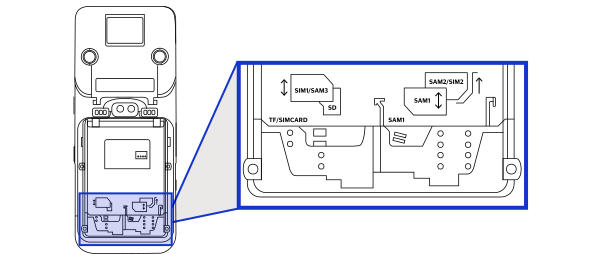
Figure:
PAX A920/A920 PRO Terminal Back View Showing SIM Card Slot Locations
- Turn off the power to the terminal.
- On the back of the terminal, slide the battery cover latch to the right, then remove the compartment cover.
- Remove the battery from the compartment.
- Insert the SIM card into the lower-left corner of the compartment with the contacts facing down to match the contacts on the terminal. The diagram on the inside of the compartment shows where to insert the SIM card.
- Replace the battery in the compartment.
- Replace the compartment cover, then slide the cover to the left to close it.
Enter a SIM Card PIN into the PAX Terminal
Before entering the SIM card PIN into the PAX terminal, insert the SIM card into the
terminal.
Follow these steps to enter a SIM card PIN into the PAX terminal.
- Power on the PAX terminal. You are prompted to enter the PIN for the SIM card that you installed.
- Enter the PIN carefully. You are allowed three attempts to successfully enter it. After the third attempt, you must enter a personal unlocking key (PUK) before your mobile carrier blocks the SIM card.
- When you enter the PIN successfully, the payment terminal detects the SIM card. A notification appears on the screen.
- To verify that the SIM card is recognized and enabled on the terminal, on the terminal Home screen, tap theSettingsicon.
- Enter your device password, if prompted. The Settings screen appears.
- In the In the Network & internet section, tapSIM cards. The SIM cards screen appears.
- Verify that theSIM 1field is enabled and that theSIM 2field is disabled.
- Tap the back arrow until you reach the Home screen.
Configure a Cellular Network Connection for the PAX Terminal
Before configuring a cellular network connection for the PAX terminal, enter the SIM card
PIN in to the terminal.
Follow these steps to configure a cellular network connection for the PAX
terminal.
- On the terminal Home screen, tap theSettingsicon. Enter your password. The Setting screen appears. If you have not created a custom password, see Create a Password for the PAX Terminal Settings Menu.
- In the Network & internet section, tapMore. The More screen appears.
- ChooseCellular networks. The Cellular networks screen appears.
- Tap theData enabledtoggle to turn it on.
- To exit the screen, tap the back arrow until you reach the Home screen.